Learn how to Create a Custom Layout for your Loops.
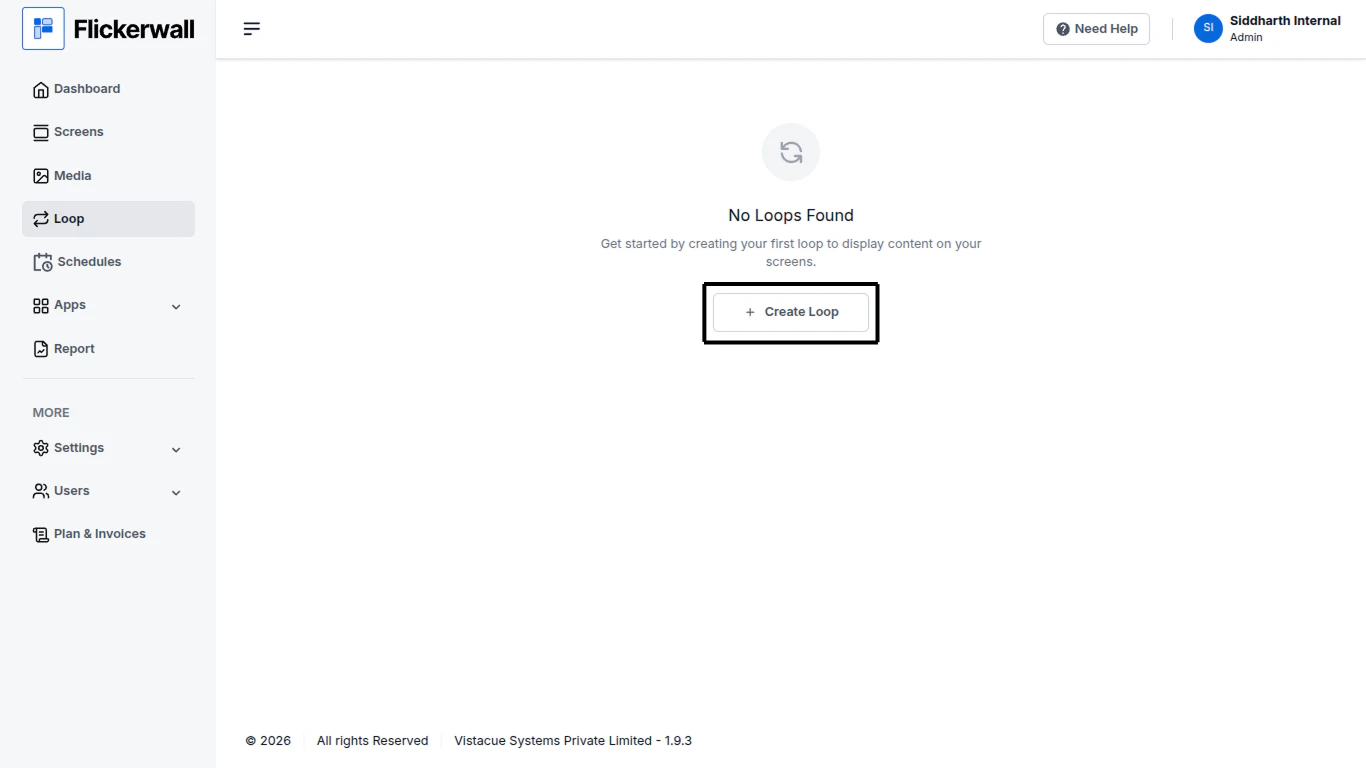
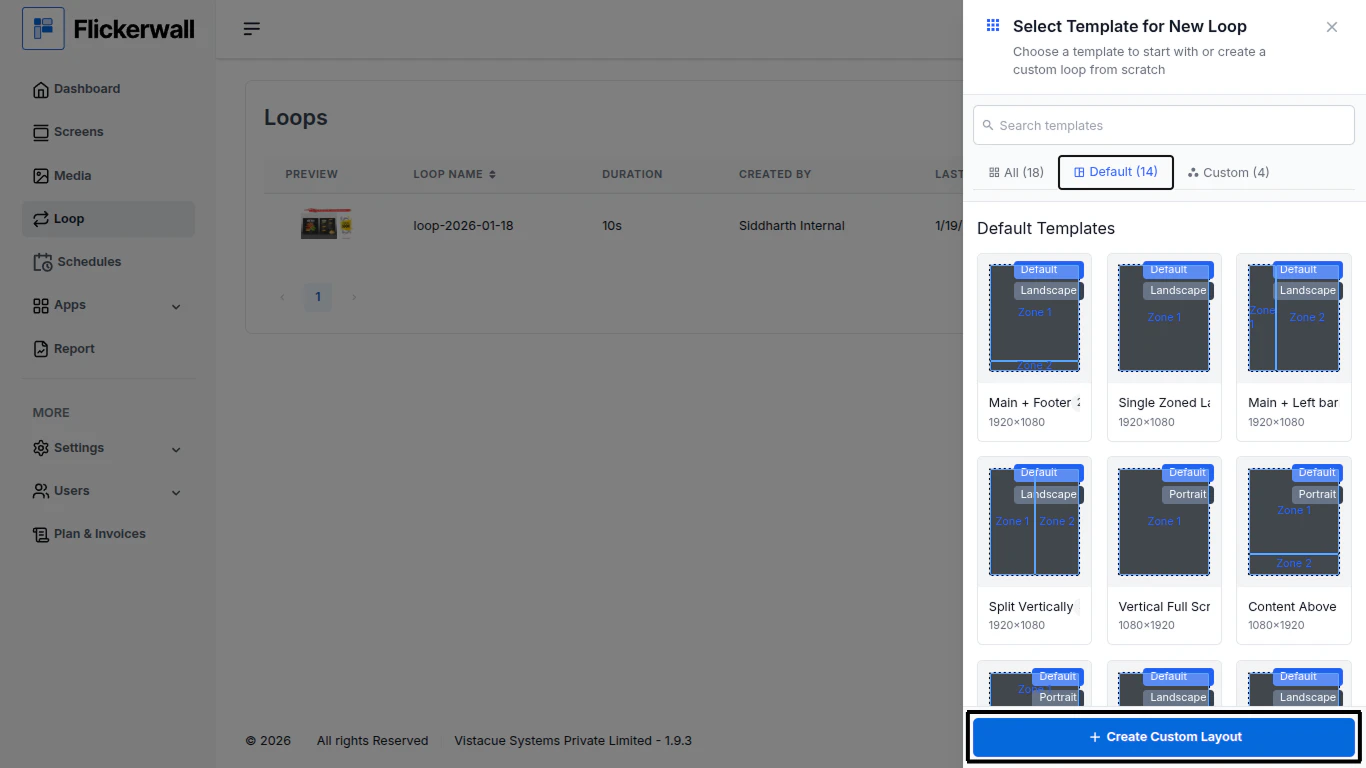
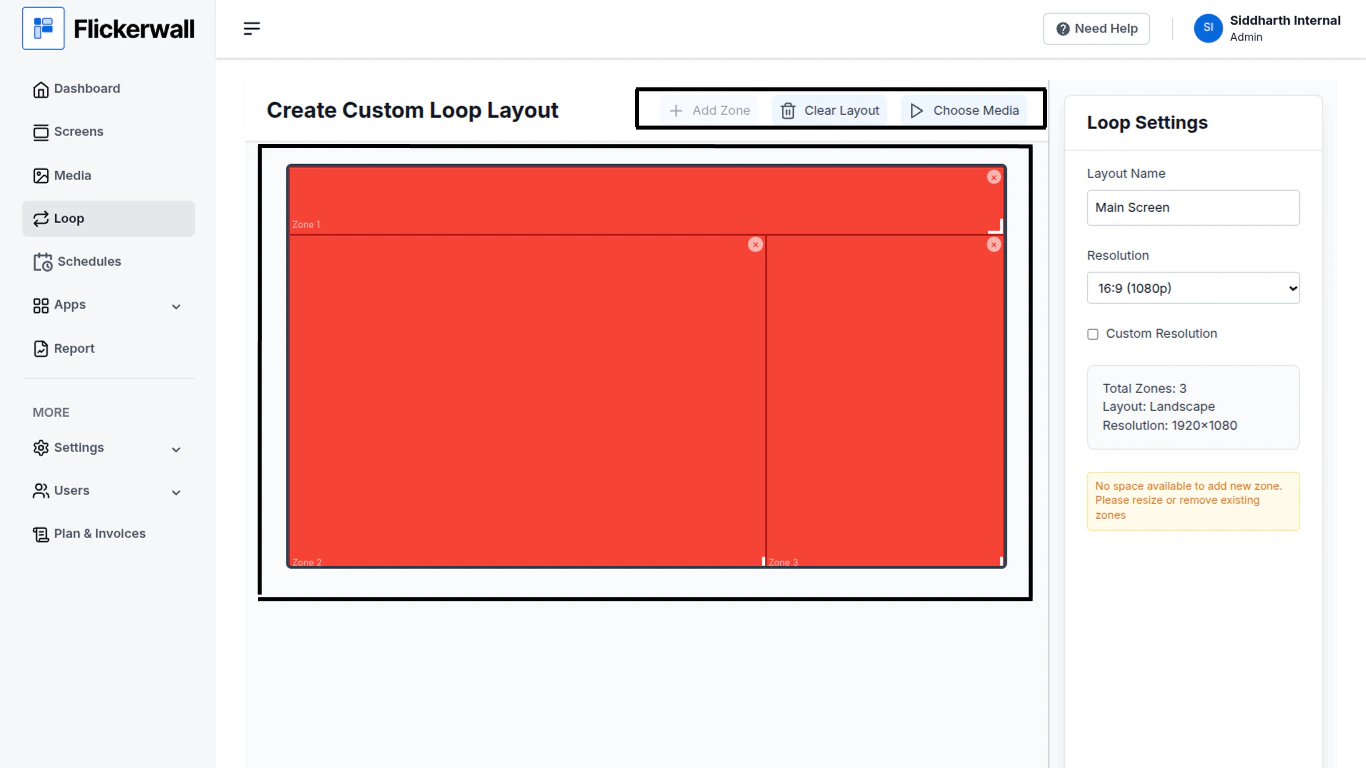
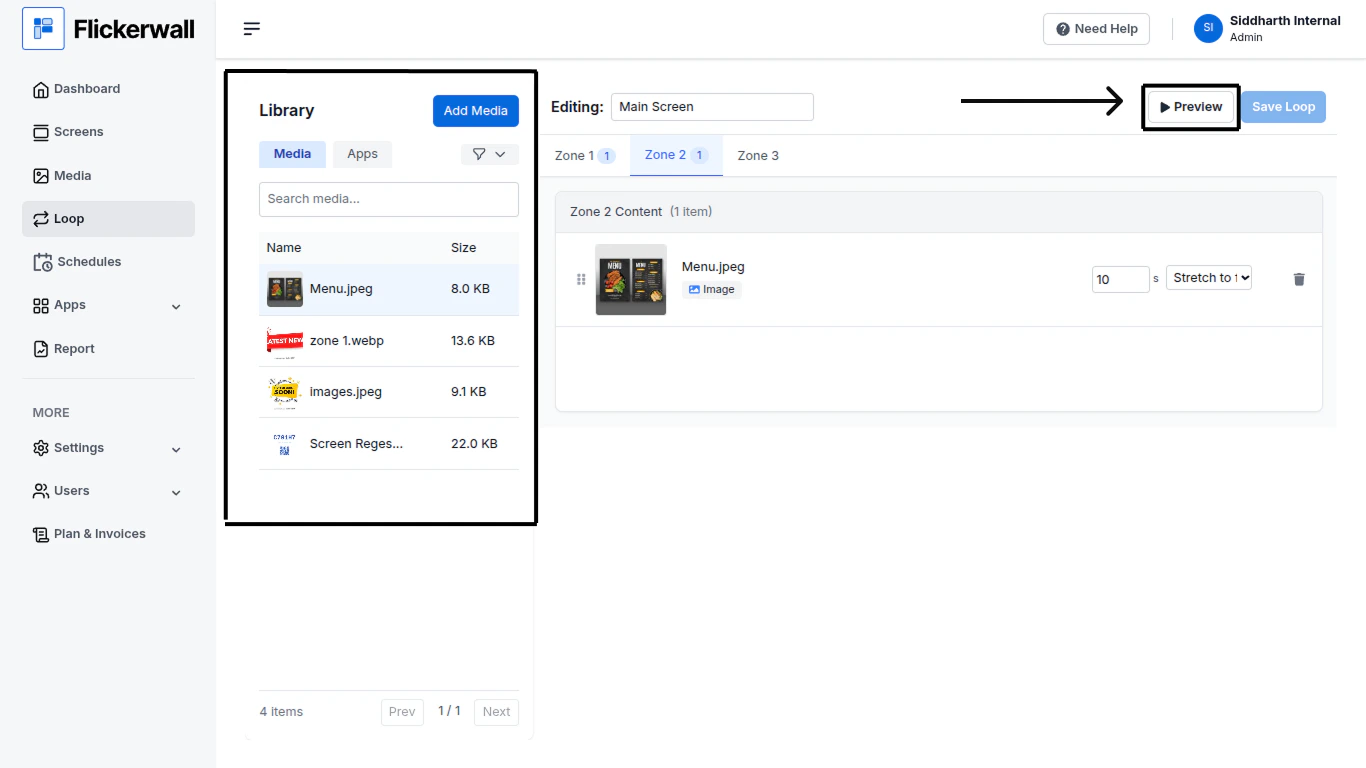
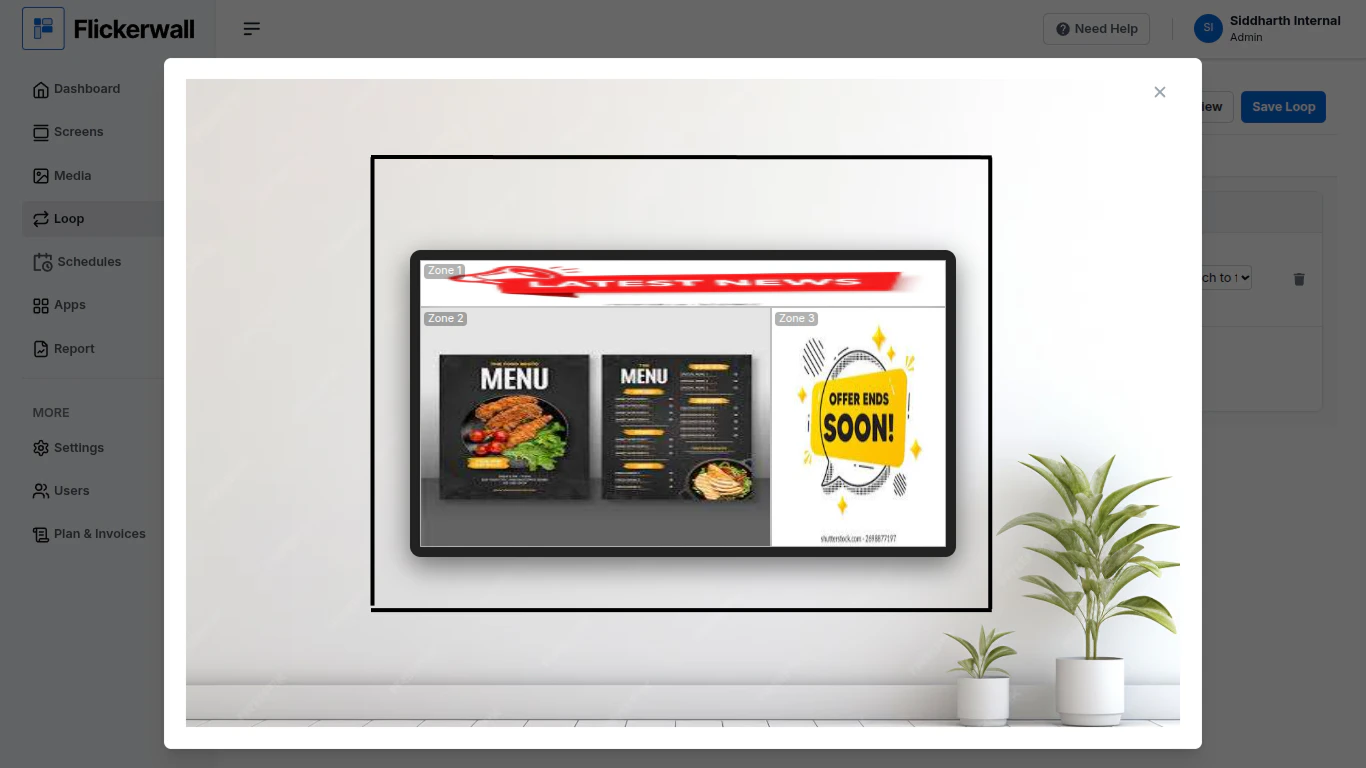
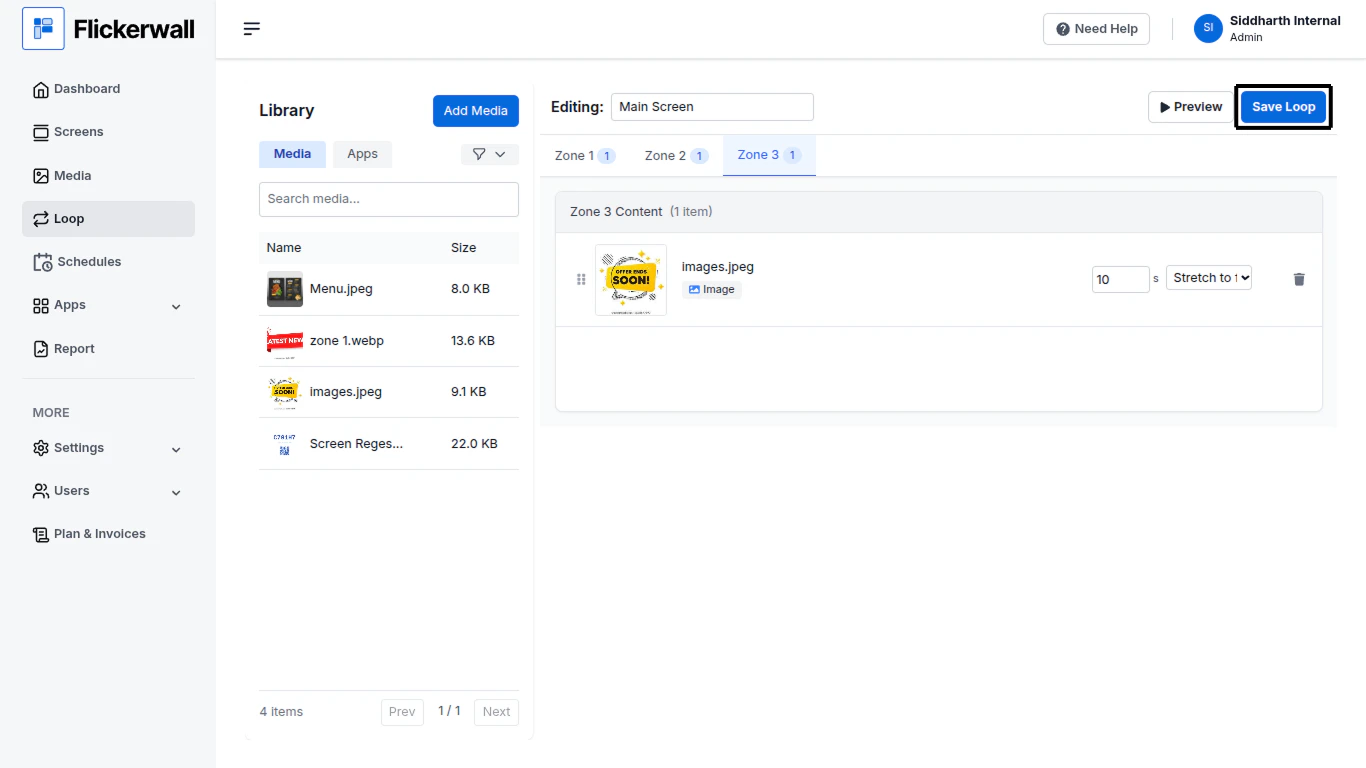
Step 1Click Loop and Create LoopSelect the desired Layout for your Loop or Click on Create Custom Layout if your plan doesn’t go with our default Layout optionsStep 2Click on “Create Custom Layout”Step 3Drag and Resize the zones , add new zones , Create your desired LayoutIf you did’t like the layout you can always fix it , you can remove the unwanted zones by clicking on the X button within the created zone or delete the entire layout to start from start by clicking on ‘“Clear Layout”Step 4Add Media to the Loop we just createdSelect the media you want to add in the respective zones , make sure you are not adding all the media in only one zone click on the zone you intend to add the media to and add the desired mediaStep 5Preview the LayoutSometimes the Images aspect ratio may not support the outcome you intend as per showed belowit’s always better to check if the preview shows the Layout working FineStep 6Save the Looponce you are satisfied with the settings go ahead and save the loop by Clicking the “Save Loop” buttonthe Created Loop will Now appear in you Loop window .(funfact : if you want to use this created Layout again you don’t have to Create it again , when creating a new loop check under “Custom” Layouts all your Created Layouts are Stored there!)
⌘I
{"docsConfig":{"theme":"maple","$schema":"https://mintlify.com/docs.json","name":"Flickerwall Documentation","colors":{"primary":"#0369db","light":"#0369db","dark":"#15803D"},"logo":"https://mintcdn.com/flickerwall-796545b9/QyHLB_DuGuIs1P_v/images/Group2.svg?fit=max\u0026auto=format\u0026n=QyHLB_DuGuIs1P_v\u0026q=85\u0026s=468b8727704eed298bf74ff861c89070","favicon":"https://mintcdn.com/flickerwall-796545b9/WP4l1lhQM-CokS98/images/favicon.png?fit=max\u0026auto=format\u0026n=WP4l1lhQM-CokS98\u0026q=85\u0026s=04e3269553742f38b07278c8d5bc1d9d","appearance":{"default":"system","strict":false},"navbar":{"links":[{"href":"mailto:sales@flickerwall.com","label":"Support"}],"primary":{"type":"button","label":"Dashboard","href":"https://app.flickerwall.com"}},"footer":{"socials":{"x":"https://x.com/flickerwallApp","facebook":"https://facebook.com/flickerwall"}},"seo":{"indexing":"navigable"},"contextual":{"options":["copy","view","chatgpt","claude","perplexity","mcp","cursor","vscode"],"display":"header"},"styling":{"latex":false},"navigation":{"pages":[]}},"deployment":{"deploymentMetadataValue":{"subdomain":"flickerwall-796545b9","hasAudioNarration":false,"actualSubdomain":"flickerwall-796545b9","customDomains":["docs.flickerwall.com"],"gitSource":{"type":"github","owner":"flickerwall","repo":"fw-docs","deployBranch":"main","contentDirectory":"","isPrivate":true,"mountPath":"","label":""},"chroma":{"liveDeploymentHistoryId":"6a21f72c55ebb2c863916865","collectionId":"90765878-ecbb-480b-9c42-bfbb05aa2a30","schemaVersion":"v2"},"entitlements":{},"buildId":"6a21f72c55ebb2c863916865:success","clientVersion":"0.0.3990","searchFilterCounts":[{"language":"default","tag":"Cloud","count":112},{"language":"default","tag":"Apps","count":33},{"language":"default","tag":"News","count":32},{"language":"default","tag":"Settings","count":16},{"language":"default","tag":"Screens","count":10},{"language":"default","tag":"Loops","count":9},{"language":"default","tag":"Media","count":9},{"language":"default","tag":"Add or Manage","count":9},{"language":"default","tag":"User","count":9},{"language":"default","tag":"Create New or Manage","count":8}]},"assistantConfig":{"enableAskAiButton":false,"enableStarterQuestions":false,"enableAskAiSearchBar":true},"basePath":"","hasChatPermissions":false,"hasWebMcpPermissions":false,"toggles":[{"name":"kill-isr","enabled":true,"variant":{"name":"disabled","enabled":false,"feature_enabled":true},"impressionData":false},{"name":"agent-mintlify-slack","enabled":true,"variant":{"name":"disabled","enabled":false,"feature_enabled":true},"impressionData":false},{"name":"editor-v7-file-tree","enabled":true,"variant":{"name":"disabled","enabled":false,"feature_enabled":true},"impressionData":false},{"name":"agent-integrations-settings","enabled":true,"variant":{"name":"disabled","enabled":false,"feature_enabled":true},"impressionData":false},{"name":"automations-pr-grouping","enabled":true,"variant":{"name":"disabled","enabled":false,"feature_enabled":true},"impressionData":false},{"name":"custom-prefix","enabled":true,"variant":{"name":"disabled","enabled":false,"feature_enabled":true},"impressionData":false},{"name":"analytics-v7","enabled":true,"variant":{"name":"disabled","enabled":false,"feature_enabled":true},"impressionData":false},{"name":"user-flows-analytics","enabled":true,"variant":{"name":"disabled","enabled":false,"feature_enabled":true},"impressionData":false},{"name":"no-publish-flow","enabled":true,"variant":{"name":"disabled","enabled":false,"feature_enabled":true},"impressionData":false},{"name":"workos-onboarding","enabled":true,"variant":{"name":"disabled","enabled":false,"feature_enabled":true},"impressionData":false},{"name":"llms-txt-v2","enabled":true,"variant":{"name":"disabled","enabled":false,"feature_enabled":true},"impressionData":false},{"name":"pause-universal-search-reconcile","enabled":true,"variant":{"name":"disabled","enabled":false,"feature_enabled":true},"impressionData":false},{"name":"snapshot-serving-live","enabled":true,"variant":{"name":"disabled","enabled":false,"feature_enabled":true},"impressionData":false},{"name":"stripTemperatureMiddleware","enabled":true,"variant":{"name":"disabled","enabled":false,"feature_enabled":true},"impressionData":false},{"name":"per-site-search-delta","enabled":true,"variant":{"name":"disabled","enabled":false,"feature_enabled":true},"impressionData":false},{"name":"support-platform-pylon-zendesk","enabled":true,"variant":{"name":"disabled","enabled":false,"feature_enabled":true},"impressionData":false},{"name":"snapshot-serving","enabled":true,"variant":{"name":"disabled","enabled":false,"feature_enabled":true},"impressionData":false},{"name":"instant-rollback","enabled":true,"variant":{"name":"disabled","enabled":false,"feature_enabled":true},"impressionData":false},{"name":"granular-notifications-server","enabled":true,"variant":{"name":"disabled","enabled":false,"feature_enabled":true},"impressionData":false},{"name":"granular-notifications","enabled":true,"variant":{"name":"disabled","enabled":false,"feature_enabled":true},"impressionData":false},{"name":"editor-private-page-search","enabled":true,"variant":{"name":"disabled","enabled":false,"feature_enabled":true},"impressionData":false},{"name":"automations-fable","enabled":true,"variant":{"name":"disabled","enabled":false,"feature_enabled":true},"impressionData":false},{"name":"fixed-ai-action-pricing","enabled":true,"variant":{"name":"disabled","enabled":false,"feature_enabled":true},"impressionData":false},{"name":"automation-resolve-merge-conflict","enabled":true,"variant":{"name":"disabled","enabled":false,"feature_enabled":true},"impressionData":false},{"name":"scoped-publishing","enabled":true,"variant":{"name":"disabled","enabled":false,"feature_enabled":true},"impressionData":false},{"name":"mintql","enabled":true,"variant":{"name":"disabled","enabled":false,"feature_enabled":true},"impressionData":false},{"name":"page-level-analytics","enabled":true,"variant":{"name":"disabled","enabled":false,"feature_enabled":true},"impressionData":false},{"name":"editor-version-history-v2","enabled":true,"variant":{"name":"disabled","enabled":false,"feature_enabled":true},"impressionData":false},{"name":"editor-nav-generations","enabled":true,"variant":{"name":"disabled","enabled":false,"feature_enabled":true},"impressionData":false},{"name":"billing-page-v2","enabled":true,"variant":{"name":"disabled","enabled":false,"feature_enabled":true},"impressionData":false},{"name":"workspace-projects","enabled":true,"variant":{"name":"disabled","enabled":false,"feature_enabled":true},"impressionData":false},{"name":"assistant-v5","enabled":true,"variant":{"name":"disabled","enabled":false,"feature_enabled":true},"impressionData":false},{"name":"byok-sep-25","enabled":true,"variant":{"name":"disabled","enabled":false,"feature_enabled":true},"impressionData":false},{"name":"fork-pr-previews","enabled":true,"variant":{"name":"disabled","enabled":false,"feature_enabled":true},"impressionData":false},{"name":"revalidation-jwt","enabled":true,"variant":{"name":"disabled","enabled":false,"feature_enabled":true},"impressionData":false},{"name":"vite-origin","enabled":true,"variant":{"name":"disabled","enabled":false,"feature_enabled":true},"impressionData":false},{"name":"editor-agent-model-picker","enabled":true,"variant":{"name":"disabled","enabled":false,"feature_enabled":true},"impressionData":false},{"name":"billing-updated-9-15","enabled":true,"variant":{"name":"disabled","enabled":false,"feature_enabled":true},"impressionData":false},{"name":"workos-sso-scim","enabled":true,"variant":{"name":"disabled","enabled":false,"feature_enabled":true},"impressionData":false},{"name":"hobby-abuse-scan","enabled":true,"variant":{"name":"disabled","enabled":false,"feature_enabled":true},"impressionData":false},{"name":"dashboard-inbox","enabled":true,"variant":{"name":"disabled","enabled":false,"feature_enabled":true},"impressionData":false},{"name":"workos-signup","enabled":true,"variant":{"name":"disabled","enabled":false,"feature_enabled":true},"impressionData":false},{"name":"workos-enabled","enabled":true,"variant":{"name":"disabled","enabled":false,"feature_enabled":true},"impressionData":false}],"isAtlas":false,"googleFontsInlined":false},"customCss":[],"page":{"pagePath":"cloud/loops/how-to-create-a-custom-layout-for-my-loop","slug":"/cloud/loops/how-to-create-a-custom-layout-for-my-loop","pageMetadata":{"title":"How to create a custom layout for my loop?","description":"Learn how to Create a Custom Layout for your Loops.","href":"/cloud/loops/how-to-create-a-custom-layout-for-my-loop"},"description":{"compiledSource":"\"use strict\";\nconst {jsx: _jsx} = arguments[0];\nconst {useMDXComponents: _provideComponents} = arguments[0];\nfunction _createMdxContent(props) {\n const _components = {\n p: \"p\",\n ..._provideComponents(),\n ...props.components\n };\n return _jsx(_components.p, {\n children: \"Learn how to Create a Custom Layout for your Loops.\"\n });\n}\nfunction MDXContent(props = {}) {\n const {wrapper: MDXLayout} = {\n ..._provideComponents(),\n ...props.components\n };\n return MDXLayout ? _jsx(MDXLayout, {\n ...props,\n children: _jsx(_createMdxContent, {\n ...props\n })\n }) : _createMdxContent(props);\n}\nreturn {\n default: MDXContent\n};\n","frontmatter":{},"scope":{}},"pageType":"default","mdx":{"mdxSource":{"compiledSource":"\"use strict\";const{Fragment:_Fragment,jsx:_jsx,jsxs:_jsxs}=arguments[0];const{useMDXComponents:_provideComponents}=arguments[0];function _createMdxContent(props){const _components={hr:`hr`,p:`p`,strong:`strong`,..._provideComponents(),...props.components},{OptimizedImage}=_components;if(!OptimizedImage)_missingMdxReference(`OptimizedImage`,true);return _jsxs(_Fragment,{children:[_jsx(_components.hr,{}),`\n`,_jsxs(_components.p,{children:[`Step `,_jsx(_components.strong,{children:`1`})]}),`\n`,_jsx(_components.p,{children:_jsx(_components.strong,{children:`Click Loop and Create Loop`})}),`\n`,_jsx(_components.p,{children:`Select the desired Layout for your Loop or Click on Create Custom Layout if your plan doesn’t go with our default Layout options`}),`\n`,_jsx(OptimizedImage,{src:`https://mintcdn.com/flickerwall-796545b9/8we3j2vgq2WdAcCm/images/loops-how-to-create-a-custom-layout-for-my-loop-image-1.png?fit=max\u0026auto=format\u0026n=8we3j2vgq2WdAcCm\u0026q=85\u0026s=ac161f18f41cbcbc0e5fd448b972507d`,alt:``,\"data-og-width\":`1366`,width:`1366`,\"data-og-height\":`768`,height:`768`,\"data-path\":`images/loops-how-to-create-a-custom-layout-for-my-loop-image-1.png`,\"data-optimize\":`true`,\"data-opv\":`3`,srcset:`https://mintcdn.com/flickerwall-796545b9/8we3j2vgq2WdAcCm/images/loops-how-to-create-a-custom-layout-for-my-loop-image-1.png?w=280\u0026fit=max\u0026auto=format\u0026n=8we3j2vgq2WdAcCm\u0026q=85\u0026s=fa2f8fcf97bc90e8db9d05a7724d7f37 280w, https://mintcdn.com/flickerwall-796545b9/8we3j2vgq2WdAcCm/images/loops-how-to-create-a-custom-layout-for-my-loop-image-1.png?w=560\u0026fit=max\u0026auto=format\u0026n=8we3j2vgq2WdAcCm\u0026q=85\u0026s=b6b8465e4d6e7fc235b4306b1114ce51 560w, https://mintcdn.com/flickerwall-796545b9/8we3j2vgq2WdAcCm/images/loops-how-to-create-a-custom-layout-for-my-loop-image-1.png?w=840\u0026fit=max\u0026auto=format\u0026n=8we3j2vgq2WdAcCm\u0026q=85\u0026s=26d2951907c6da3fa30c4df8d6977a6e 840w, https://mintcdn.com/flickerwall-796545b9/8we3j2vgq2WdAcCm/images/loops-how-to-create-a-custom-layout-for-my-loop-image-1.png?w=1100\u0026fit=max\u0026auto=format\u0026n=8we3j2vgq2WdAcCm\u0026q=85\u0026s=4381e9f72320526eef9577b5a06e336f 1100w, https://mintcdn.com/flickerwall-796545b9/8we3j2vgq2WdAcCm/images/loops-how-to-create-a-custom-layout-for-my-loop-image-1.png?w=1650\u0026fit=max\u0026auto=format\u0026n=8we3j2vgq2WdAcCm\u0026q=85\u0026s=c93099123930384108376572d39cb17c 1650w, https://mintcdn.com/flickerwall-796545b9/8we3j2vgq2WdAcCm/images/loops-how-to-create-a-custom-layout-for-my-loop-image-1.png?w=2500\u0026fit=max\u0026auto=format\u0026n=8we3j2vgq2WdAcCm\u0026q=85\u0026s=f84f73e97c1d89abe6b3c404d0875fd0 2500w`}),`\n`,_jsx(_components.p,{children:`Step 2`}),`\n`,_jsx(_components.p,{children:`Click on “Create Custom Layout”`}),`\n`,_jsx(OptimizedImage,{src:`https://mintcdn.com/flickerwall-796545b9/8we3j2vgq2WdAcCm/images/loops-how-to-create-a-custom-layout-for-my-loop-image-2.png?fit=max\u0026auto=format\u0026n=8we3j2vgq2WdAcCm\u0026q=85\u0026s=3bea51c4c9362fb4e32897b4d48cd579`,alt:``,\"data-og-width\":`1366`,width:`1366`,\"data-og-height\":`768`,height:`768`,\"data-path\":`images/loops-how-to-create-a-custom-layout-for-my-loop-image-2.png`,\"data-optimize\":`true`,\"data-opv\":`3`,srcset:`https://mintcdn.com/flickerwall-796545b9/8we3j2vgq2WdAcCm/images/loops-how-to-create-a-custom-layout-for-my-loop-image-2.png?w=280\u0026fit=max\u0026auto=format\u0026n=8we3j2vgq2WdAcCm\u0026q=85\u0026s=56d32273905539a675922f758a2b778e 280w, https://mintcdn.com/flickerwall-796545b9/8we3j2vgq2WdAcCm/images/loops-how-to-create-a-custom-layout-for-my-loop-image-2.png?w=560\u0026fit=max\u0026auto=format\u0026n=8we3j2vgq2WdAcCm\u0026q=85\u0026s=d8b65de72b63a566e37f0a021448f3c7 560w, https://mintcdn.com/flickerwall-796545b9/8we3j2vgq2WdAcCm/images/loops-how-to-create-a-custom-layout-for-my-loop-image-2.png?w=840\u0026fit=max\u0026auto=format\u0026n=8we3j2vgq2WdAcCm\u0026q=85\u0026s=61bfc9db4e1f992e297f16395169fad8 840w, https://mintcdn.com/flickerwall-796545b9/8we3j2vgq2WdAcCm/images/loops-how-to-create-a-custom-layout-for-my-loop-image-2.png?w=1100\u0026fit=max\u0026auto=format\u0026n=8we3j2vgq2WdAcCm\u0026q=85\u0026s=7f34278daab31e11b66391b14c9c0eb0 1100w, https://mintcdn.com/flickerwall-796545b9/8we3j2vgq2WdAcCm/images/loops-how-to-create-a-custom-layout-for-my-loop-image-2.png?w=1650\u0026fit=max\u0026auto=format\u0026n=8we3j2vgq2WdAcCm\u0026q=85\u0026s=2cc89ad6c9ecd5adb2a72a152c5105f0 1650w, https://mintcdn.com/flickerwall-796545b9/8we3j2vgq2WdAcCm/images/loops-how-to-create-a-custom-layout-for-my-loop-image-2.png?w=2500\u0026fit=max\u0026auto=format\u0026n=8we3j2vgq2WdAcCm\u0026q=85\u0026s=74dc8f34dbb436fb64115fb7e0adca68 2500w`}),`\n`,_jsxs(_components.p,{children:[`Step `,_jsx(_components.strong,{children:`3`})]}),`\n`,_jsx(_components.p,{children:_jsx(_components.strong,{children:`Drag and Resize the zones , add new zones , Create your desired Layout`})}),`\n`,_jsx(_components.p,{children:_jsx(_components.strong,{children:`If you did’t like the layout you can always fix it , you can remove the unwanted zones by clicking on the X button within the created zone or delete the entire layout to start from start by clicking on ‘“Clear Layout”`})}),`\n`,_jsx(OptimizedImage,{src:`https://mintcdn.com/flickerwall-796545b9/8we3j2vgq2WdAcCm/images/loops-how-to-create-a-custom-layout-for-my-loop-image-3.png?fit=max\u0026auto=format\u0026n=8we3j2vgq2WdAcCm\u0026q=85\u0026s=7a1a91e4649f12526863f11fe3d9b7b6`,alt:``,\"data-og-width\":`1366`,width:`1366`,\"data-og-height\":`768`,height:`768`,\"data-path\":`images/loops-how-to-create-a-custom-layout-for-my-loop-image-3.png`,\"data-optimize\":`true`,\"data-opv\":`3`,srcset:`https://mintcdn.com/flickerwall-796545b9/8we3j2vgq2WdAcCm/images/loops-how-to-create-a-custom-layout-for-my-loop-image-3.png?w=280\u0026fit=max\u0026auto=format\u0026n=8we3j2vgq2WdAcCm\u0026q=85\u0026s=2e38b30bfdfa905bbd9ad845b3df152e 280w, https://mintcdn.com/flickerwall-796545b9/8we3j2vgq2WdAcCm/images/loops-how-to-create-a-custom-layout-for-my-loop-image-3.png?w=560\u0026fit=max\u0026auto=format\u0026n=8we3j2vgq2WdAcCm\u0026q=85\u0026s=dbc5ec06693d2d760e7ff59d06e19b49 560w, https://mintcdn.com/flickerwall-796545b9/8we3j2vgq2WdAcCm/images/loops-how-to-create-a-custom-layout-for-my-loop-image-3.png?w=840\u0026fit=max\u0026auto=format\u0026n=8we3j2vgq2WdAcCm\u0026q=85\u0026s=61b75498867452ed450ac99220ac1d8f 840w, https://mintcdn.com/flickerwall-796545b9/8we3j2vgq2WdAcCm/images/loops-how-to-create-a-custom-layout-for-my-loop-image-3.png?w=1100\u0026fit=max\u0026auto=format\u0026n=8we3j2vgq2WdAcCm\u0026q=85\u0026s=c0f4176328f12767004b40987bf52150 1100w, https://mintcdn.com/flickerwall-796545b9/8we3j2vgq2WdAcCm/images/loops-how-to-create-a-custom-layout-for-my-loop-image-3.png?w=1650\u0026fit=max\u0026auto=format\u0026n=8we3j2vgq2WdAcCm\u0026q=85\u0026s=76ffc19904e85d49111cb619175502a3 1650w, https://mintcdn.com/flickerwall-796545b9/8we3j2vgq2WdAcCm/images/loops-how-to-create-a-custom-layout-for-my-loop-image-3.png?w=2500\u0026fit=max\u0026auto=format\u0026n=8we3j2vgq2WdAcCm\u0026q=85\u0026s=d16139e1eb7a7615e305d8bf492c9ee6 2500w`}),`\n`,_jsxs(_components.p,{children:[`Step `,_jsx(_components.strong,{children:`4`})]}),`\n`,_jsx(_components.p,{children:_jsx(_components.strong,{children:`Add Media to the Loop we just created`})}),`\n`,_jsx(_components.p,{children:_jsx(_components.strong,{children:`Select the media you want to add in the respective zones , make sure you are not adding all the media in only one zone click on the zone you intend to add the media to and add the desired media`})}),`\n`,_jsx(OptimizedImage,{src:`https://mintcdn.com/flickerwall-796545b9/8we3j2vgq2WdAcCm/images/loops-how-to-create-a-custom-layout-for-my-loop-image-4.png?fit=max\u0026auto=format\u0026n=8we3j2vgq2WdAcCm\u0026q=85\u0026s=ce28ccaa6ae0f5085ef127a402970d13`,alt:``,\"data-og-width\":`1366`,width:`1366`,\"data-og-height\":`768`,height:`768`,\"data-path\":`images/loops-how-to-create-a-custom-layout-for-my-loop-image-4.png`,\"data-optimize\":`true`,\"data-opv\":`3`,srcset:`https://mintcdn.com/flickerwall-796545b9/8we3j2vgq2WdAcCm/images/loops-how-to-create-a-custom-layout-for-my-loop-image-4.png?w=280\u0026fit=max\u0026auto=format\u0026n=8we3j2vgq2WdAcCm\u0026q=85\u0026s=00a364f92c0c113fb57f61dcb66341de 280w, https://mintcdn.com/flickerwall-796545b9/8we3j2vgq2WdAcCm/images/loops-how-to-create-a-custom-layout-for-my-loop-image-4.png?w=560\u0026fit=max\u0026auto=format\u0026n=8we3j2vgq2WdAcCm\u0026q=85\u0026s=52120da26c68c6900f08e8e7a7b2111d 560w, https://mintcdn.com/flickerwall-796545b9/8we3j2vgq2WdAcCm/images/loops-how-to-create-a-custom-layout-for-my-loop-image-4.png?w=840\u0026fit=max\u0026auto=format\u0026n=8we3j2vgq2WdAcCm\u0026q=85\u0026s=dfc8f1b66577e94fcc6204a7b3854392 840w, https://mintcdn.com/flickerwall-796545b9/8we3j2vgq2WdAcCm/images/loops-how-to-create-a-custom-layout-for-my-loop-image-4.png?w=1100\u0026fit=max\u0026auto=format\u0026n=8we3j2vgq2WdAcCm\u0026q=85\u0026s=c302d0215d2d192ae98587f00910e260 1100w, https://mintcdn.com/flickerwall-796545b9/8we3j2vgq2WdAcCm/images/loops-how-to-create-a-custom-layout-for-my-loop-image-4.png?w=1650\u0026fit=max\u0026auto=format\u0026n=8we3j2vgq2WdAcCm\u0026q=85\u0026s=548bed01696a20317c16229cb7ab13e0 1650w, https://mintcdn.com/flickerwall-796545b9/8we3j2vgq2WdAcCm/images/loops-how-to-create-a-custom-layout-for-my-loop-image-4.png?w=2500\u0026fit=max\u0026auto=format\u0026n=8we3j2vgq2WdAcCm\u0026q=85\u0026s=e383e8378850d3014d36e8e42563d945 2500w`}),`\n`,_jsx(_components.p,{children:`Step 5`}),`\n`,_jsx(_components.p,{children:`Preview the Layout`}),`\n`,_jsx(_components.p,{children:`Sometimes the Images aspect ratio may not support the outcome you intend as per showed below`}),`\n`,_jsx(_components.p,{children:`it’s always better to check if the preview shows the Layout working Fine`}),`\n`,_jsx(OptimizedImage,{src:`https://mintcdn.com/flickerwall-796545b9/8we3j2vgq2WdAcCm/images/loops-how-to-create-a-custom-layout-for-my-loop-image-5.png?fit=max\u0026auto=format\u0026n=8we3j2vgq2WdAcCm\u0026q=85\u0026s=db958cfb99233018080213b32b79967b`,alt:``,\"data-og-width\":`1366`,width:`1366`,\"data-og-height\":`768`,height:`768`,\"data-path\":`images/loops-how-to-create-a-custom-layout-for-my-loop-image-5.png`,\"data-optimize\":`true`,\"data-opv\":`3`,srcset:`https://mintcdn.com/flickerwall-796545b9/8we3j2vgq2WdAcCm/images/loops-how-to-create-a-custom-layout-for-my-loop-image-5.png?w=280\u0026fit=max\u0026auto=format\u0026n=8we3j2vgq2WdAcCm\u0026q=85\u0026s=f7e97ea3542022a45d95b99a3506287e 280w, https://mintcdn.com/flickerwall-796545b9/8we3j2vgq2WdAcCm/images/loops-how-to-create-a-custom-layout-for-my-loop-image-5.png?w=560\u0026fit=max\u0026auto=format\u0026n=8we3j2vgq2WdAcCm\u0026q=85\u0026s=f780bebca87ef7e7fd53b6b53eef7e5c 560w, https://mintcdn.com/flickerwall-796545b9/8we3j2vgq2WdAcCm/images/loops-how-to-create-a-custom-layout-for-my-loop-image-5.png?w=840\u0026fit=max\u0026auto=format\u0026n=8we3j2vgq2WdAcCm\u0026q=85\u0026s=b23340d4fc823acd97ac47cd7f6da763 840w, https://mintcdn.com/flickerwall-796545b9/8we3j2vgq2WdAcCm/images/loops-how-to-create-a-custom-layout-for-my-loop-image-5.png?w=1100\u0026fit=max\u0026auto=format\u0026n=8we3j2vgq2WdAcCm\u0026q=85\u0026s=d3fe0ca2a7395fe6e983d7b989b669bb 1100w, https://mintcdn.com/flickerwall-796545b9/8we3j2vgq2WdAcCm/images/loops-how-to-create-a-custom-layout-for-my-loop-image-5.png?w=1650\u0026fit=max\u0026auto=format\u0026n=8we3j2vgq2WdAcCm\u0026q=85\u0026s=8038b099fa6c12b6f8cac792da140bc5 1650w, https://mintcdn.com/flickerwall-796545b9/8we3j2vgq2WdAcCm/images/loops-how-to-create-a-custom-layout-for-my-loop-image-5.png?w=2500\u0026fit=max\u0026auto=format\u0026n=8we3j2vgq2WdAcCm\u0026q=85\u0026s=b61fc4c7f68c7376430d4e4559457bdb 2500w`}),`\n`,_jsx(_components.p,{children:`Step 6`}),`\n`,_jsx(_components.p,{children:`Save the Loop`}),`\n`,_jsx(_components.p,{children:`once you are satisfied with the settings go ahead and save the loop by Clicking the “Save Loop” button`}),`\n`,_jsx(_components.p,{children:`the Created Loop will Now appear in you Loop window .`}),`\n`,_jsx(OptimizedImage,{src:`https://mintcdn.com/flickerwall-796545b9/8we3j2vgq2WdAcCm/images/loops-how-to-create-a-custom-layout-for-my-loop-image-6.png?fit=max\u0026auto=format\u0026n=8we3j2vgq2WdAcCm\u0026q=85\u0026s=b5baa45bfba2d72c3e55bd78a91336b8`,alt:``,\"data-og-width\":`1366`,width:`1366`,\"data-og-height\":`768`,height:`768`,\"data-path\":`images/loops-how-to-create-a-custom-layout-for-my-loop-image-6.png`,\"data-optimize\":`true`,\"data-opv\":`3`,srcset:`https://mintcdn.com/flickerwall-796545b9/8we3j2vgq2WdAcCm/images/loops-how-to-create-a-custom-layout-for-my-loop-image-6.png?w=280\u0026fit=max\u0026auto=format\u0026n=8we3j2vgq2WdAcCm\u0026q=85\u0026s=c94c6868f0498387c6f5982dde59602e 280w, https://mintcdn.com/flickerwall-796545b9/8we3j2vgq2WdAcCm/images/loops-how-to-create-a-custom-layout-for-my-loop-image-6.png?w=560\u0026fit=max\u0026auto=format\u0026n=8we3j2vgq2WdAcCm\u0026q=85\u0026s=1763dfa57d4a48d3a4957c25738bf6c3 560w, https://mintcdn.com/flickerwall-796545b9/8we3j2vgq2WdAcCm/images/loops-how-to-create-a-custom-layout-for-my-loop-image-6.png?w=840\u0026fit=max\u0026auto=format\u0026n=8we3j2vgq2WdAcCm\u0026q=85\u0026s=8d2bc541c66a88d68276234c0e9a9a22 840w, https://mintcdn.com/flickerwall-796545b9/8we3j2vgq2WdAcCm/images/loops-how-to-create-a-custom-layout-for-my-loop-image-6.png?w=1100\u0026fit=max\u0026auto=format\u0026n=8we3j2vgq2WdAcCm\u0026q=85\u0026s=d1076bf1a08ccd7fac10b38f58f4e24b 1100w, https://mintcdn.com/flickerwall-796545b9/8we3j2vgq2WdAcCm/images/loops-how-to-create-a-custom-layout-for-my-loop-image-6.png?w=1650\u0026fit=max\u0026auto=format\u0026n=8we3j2vgq2WdAcCm\u0026q=85\u0026s=563839e61c7ef75646c97fd947d32818 1650w, https://mintcdn.com/flickerwall-796545b9/8we3j2vgq2WdAcCm/images/loops-how-to-create-a-custom-layout-for-my-loop-image-6.png?w=2500\u0026fit=max\u0026auto=format\u0026n=8we3j2vgq2WdAcCm\u0026q=85\u0026s=cd723463758ada259efe8971b305d938 2500w`}),`\n`,_jsx(_components.p,{children:`(funfact : if you want to use this created Layout again you don’t have to Create it again , when creating a new loop check under “Custom” Layouts all your Created Layouts are Stored there!)`})]})}function MDXContent(props={}){const{wrapper:MDXLayout}={..._provideComponents(),...props.components};return MDXLayout?_jsx(MDXLayout,{...props,children:_jsx(_createMdxContent,{...props})}):_createMdxContent(props)}return{default:MDXContent};function _missingMdxReference(id,component){throw new Error(`Expected `+(component?`component`:`object`)+\" `\"+id+\"` to be defined: you likely forgot to import, pass, or provide it.\")}","frontmatter":{},"scope":{"config":{},"pageMetadata":{"title":"How to create a custom layout for my loop?","description":"Learn how to Create a Custom Layout for your Loops.","href":"/cloud/loops/how-to-create-a-custom-layout-for-my-loop"}}},"mdxSourceWithNoJs":null},"mdxExtracts":{"tableOfContents":[],"codeExamples":{}},"jsLinks":[],"subdomain":"flickerwall-796545b9","siteName":"Flickerwall Documentation","title":"How to create a custom layout for my loop? - Flickerwall Documentation","navMaps":{"firstHrefInVersion":{},"firstHrefInLanguage":{}},"lastModified":"2026-02-04T17:33:06.643Z","originalFileLocation":"cloud/loops/how-to-create-a-custom-layout-for-my-loop.md"},"headHtml":"\u003cscript data-mint-head>(function(){var d=document.documentElement,p=null;if(!p){try{p=localStorage.getItem(\"isDarkMode\")}catch(e){}if(p==='true')p='dark';else if(p==='false')p='light';if(p!=='light'\u0026\u0026p!=='dark'\u0026\u0026p!=='system')p=\"system\"}var r=p==='system'?(matchMedia(\"(prefers-color-scheme: dark)\").matches?'dark':'light'):p;d.classList.remove(r==='dark'?'light':'dark');d.classList.add(r);d.setAttribute(\"data-theme-preference\",p)})();\u003c/script>\u003cmeta data-mint-head name=\"description\" content=\"Learn how to Create a Custom Layout for your Loops.\">\u003cmeta data-mint-head name=\"application-name\" content=\"Flickerwall Documentation\">\u003cmeta data-mint-head name=\"generator\" content=\"Mintlify\">\u003clink data-mint-head rel=\"icon\" type=\"image/png\" sizes=\"192x192\" href=\"/mintlify-assets/_mintlify/favicons/flickerwall-796545b9/IcI644e4EXkckkSh/_generated/favicon/android-chrome-192x192.png\" media=\"(prefers-color-scheme: light)\">\u003clink data-mint-head rel=\"apple-touch-icon\" type=\"image/png\" sizes=\"180x180\" href=\"/mintlify-assets/_mintlify/favicons/flickerwall-796545b9/IcI644e4EXkckkSh/_generated/favicon/apple-touch-icon.png\">\u003clink data-mint-head rel=\"icon\" type=\"image/png\" sizes=\"16x16\" href=\"/mintlify-assets/_mintlify/favicons/flickerwall-796545b9/IcI644e4EXkckkSh/_generated/favicon/favicon-16x16.png\" media=\"(prefers-color-scheme: light)\">\u003clink data-mint-head rel=\"icon\" type=\"image/png\" sizes=\"32x32\" href=\"/mintlify-assets/_mintlify/favicons/flickerwall-796545b9/IcI644e4EXkckkSh/_generated/favicon/favicon-32x32.png\" media=\"(prefers-color-scheme: light)\">\u003clink data-mint-head rel=\"shortcut icon\" type=\"image/x-icon\" href=\"/mintlify-assets/_mintlify/favicons/flickerwall-796545b9/IcI644e4EXkckkSh/_generated/favicon/favicon.ico\" media=\"(prefers-color-scheme: light)\">\u003clink data-mint-head rel=\"icon\" type=\"image/png\" sizes=\"192x192\" href=\"/mintlify-assets/_mintlify/favicons/flickerwall-796545b9/IcI644e4EXkckkSh/_generated/favicon-dark/android-chrome-192x192.png\" media=\"(prefers-color-scheme: dark)\">\u003clink data-mint-head rel=\"icon\" type=\"image/png\" sizes=\"16x16\" href=\"/mintlify-assets/_mintlify/favicons/flickerwall-796545b9/IcI644e4EXkckkSh/_generated/favicon-dark/favicon-16x16.png\" media=\"(prefers-color-scheme: dark)\">\u003clink data-mint-head rel=\"icon\" type=\"image/png\" sizes=\"32x32\" href=\"/mintlify-assets/_mintlify/favicons/flickerwall-796545b9/IcI644e4EXkckkSh/_generated/favicon-dark/favicon-32x32.png\" media=\"(prefers-color-scheme: dark)\">\u003clink data-mint-head rel=\"shortcut icon\" type=\"image/x-icon\" href=\"/mintlify-assets/_mintlify/favicons/flickerwall-796545b9/IcI644e4EXkckkSh/_generated/favicon-dark/favicon.ico\" media=\"(prefers-color-scheme: dark)\">\u003cmeta data-mint-head property=\"og:title\" content=\"How to create a custom layout for my loop? - Flickerwall Documentation\">\u003cmeta data-mint-head property=\"og:description\" content=\"Learn how to Create a Custom Layout for your Loops.\">\u003cmeta data-mint-head property=\"og:site_name\" content=\"Flickerwall Documentation\">\u003cmeta data-mint-head property=\"og:url\" content=\"https://docs.flickerwall.com/cloud/loops/how-to-create-a-custom-layout-for-my-loop\">\u003cmeta data-mint-head property=\"og:type\" content=\"website\">\u003cmeta data-mint-head property=\"og:image\" content=\"https://flickerwall-796545b9.mintlify.app/_mintlify/api/og/v2?division=Create+New+or+Manage\u0026amp;title=How+to+create+a+custom+layout+for+my+loop%3F\u0026amp;description=Learn+how+to+Create+a+Custom+Layout+for+your+Loops.\u0026amp;theme=20058d3373c6eb2b6ef729ff\u0026amp;signature=c286c733c519a5c940187bdc3487c21472ddfb8cd22410897674f10013e12410\">\u003cmeta data-mint-head property=\"og:image:width\" content=\"1200\">\u003cmeta data-mint-head property=\"og:image:height\" content=\"630\">\u003cmeta data-mint-head name=\"twitter:card\" content=\"summary_large_image\">\u003cmeta data-mint-head name=\"twitter:title\" content=\"How to create a custom layout for my loop? - Flickerwall Documentation\">\u003cmeta data-mint-head name=\"twitter:description\" content=\"Learn how to Create a Custom Layout for your Loops.\">\u003cmeta data-mint-head name=\"twitter:image\" content=\"https://flickerwall-796545b9.mintlify.app/_mintlify/api/og/v2?division=Create+New+or+Manage\u0026amp;title=How+to+create+a+custom+layout+for+my+loop%3F\u0026amp;description=Learn+how+to+Create+a+Custom+Layout+for+your+Loops.\u0026amp;theme=20058d3373c6eb2b6ef729ff\u0026amp;signature=c286c733c519a5c940187bdc3487c21472ddfb8cd22410897674f10013e12410\">\u003cmeta data-mint-head name=\"twitter:image:width\" content=\"1200\">\u003cmeta data-mint-head name=\"twitter:image:height\" content=\"630\">\u003cmeta data-mint-head name=\"msapplication-config\" content=\"/mintlify-assets/_mintlify/favicons/flickerwall-796545b9/IcI644e4EXkckkSh/_generated/favicon/browserconfig.xml\">\u003cmeta data-mint-head name=\"apple-mobile-web-app-title\" content=\"Flickerwall Documentation\">\u003cmeta data-mint-head name=\"msapplication-TileColor\" content=\"#0369db\">\u003clink data-mint-head rel=\"canonical\" href=\"https://docs.flickerwall.com/cloud/loops/how-to-create-a-custom-layout-for-my-loop\">\u003clink data-mint-head rel=\"alternate\" type=\"application/xml\" href=\"/sitemap.xml\">\u003clink data-mint-head rel=\"alternate\" type=\"text/markdown\" href=\"/cloud/loops/how-to-create-a-custom-layout-for-my-loop.md\">\u003cscript data-mint-head type=\"application/ld+json\">{\"@context\":\"https://schema.org\",\"@graph\":[{\"@type\":\"Organization\",\"@id\":\"https://docs.flickerwall.com/#organization\",\"name\":\"Flickerwall Documentation\",\"url\":\"https://docs.flickerwall.com\",\"logo\":{\"@type\":\"ImageObject\",\"url\":\"https://mintcdn.com/flickerwall-796545b9/QyHLB_DuGuIs1P_v/images/Group2.svg?fit=max\u0026auto=format\u0026n=QyHLB_DuGuIs1P_v\u0026q=85\u0026s=468b8727704eed298bf74ff861c89070\"}},{\"@type\":\"WebSite\",\"@id\":\"https://docs.flickerwall.com#website\",\"name\":\"Flickerwall Documentation\",\"url\":\"https://docs.flickerwall.com\",\"publisher\":{\"@id\":\"https://docs.flickerwall.com/#organization\"}},{\"@type\":\"WebPage\",\"@id\":\"https://docs.flickerwall.com/cloud/loops/how-to-create-a-custom-layout-for-my-loop#webpage\",\"url\":\"https://docs.flickerwall.com/cloud/loops/how-to-create-a-custom-layout-for-my-loop\",\"name\":\"How to create a custom layout for my loop?\",\"description\":\"Learn how to Create a Custom Layout for your Loops.\",\"dateModified\":\"2026-02-04T17:33:06.643Z\",\"isPartOf\":{\"@id\":\"https://docs.flickerwall.com#website\"},\"breadcrumb\":{\"@id\":\"https://docs.flickerwall.com/cloud/loops/how-to-create-a-custom-layout-for-my-loop#breadcrumb\"}},{\"@type\":\"BreadcrumbList\",\"@id\":\"https://docs.flickerwall.com/cloud/loops/how-to-create-a-custom-layout-for-my-loop#breadcrumb\",\"itemListElement\":[{\"@type\":\"ListItem\",\"position\":1,\"name\":\"Flickerwall Documentation\",\"item\":\"https://docs.flickerwall.com\"},{\"@type\":\"ListItem\",\"position\":2,\"name\":\"How to create a custom layout for my loop?\",\"item\":\"https://docs.flickerwall.com/cloud/loops/how-to-create-a-custom-layout-for-my-loop\"}]},{\"@type\":[\"Article\",\"TechArticle\"],\"@id\":\"https://docs.flickerwall.com/cloud/loops/how-to-create-a-custom-layout-for-my-loop#article\",\"headline\":\"How to create a custom layout for my loop?\",\"name\":\"How to create a custom layout for my loop?\",\"description\":\"Learn how to Create a Custom Layout for your Loops.\",\"url\":\"https://docs.flickerwall.com/cloud/loops/how-to-create-a-custom-layout-for-my-loop\",\"mainEntityOfPage\":{\"@id\":\"https://docs.flickerwall.com/cloud/loops/how-to-create-a-custom-layout-for-my-loop#webpage\"},\"dateModified\":\"2026-02-04T17:33:06.643Z\",\"publisher\":{\"@id\":\"https://docs.flickerwall.com/#organization\"},\"isPartOf\":{\"@id\":\"https://docs.flickerwall.com#website\"}}]}\u003c/script>\u003cscript data-mint-head type=\"application/ld+json\">{\"@context\":\"https://schema.org\",\"@type\":\"WebSite\",\"name\":\"Flickerwall Documentation\",\"creator\":{\"@type\":\"Organization\",\"name\":\"Mintlify\",\"url\":\"https://mintlify.com\"}}\u003c/script>","siteName":"Flickerwall Documentation","nav":{"global":null,"tabs":[{"tab":"Cloud","pages":[{"title":"How to get started With Flickerwall","href":"/getting-started"},{"group":"Installation Guide","pages":[{"group":"Select Model","pages":[{"group":"Windows","pages":[{"title":"How to install the Flickerwall digital signage software on a Windows player?","href":"/cloud/installation-guide/how-to-install-the-flickerwall-digital-signage-software-on-a-windows-player"}]},{"group":"Andriod","pages":[{"title":"How to install the Flickerwall Digital Signage Player app on Android from Play Store?","href":"/cloud/installation-guide/how-to-install-the-flickerwall-digital-signage-player-app-on-android-from-play-store"}]},{"group":"Amazon Fire TV Stick","pages":[{"title":"Installation Guide for Amazon Fire TV Stick Devices","href":"/cloud/installation-guide/flickerwall-installation-guide-for-amazon-fire-tv-stick-devices"}]},{"group":"LG webOS ","pages":[{"title":null,"href":"/cloud/installation-guide/flickerwall-player-installation-lg-webos-via-usb-flash-drive"},{"title":"Installing Flickerwall on LG webOS via the SI Server URL Method","href":"/cloud/installation-guide/installing-flickerwall-on-lg-webos-via-the-si-server-url-method"}]}]}]},{"group":"Screens","pages":[{"title":"Screen Module Overview","href":"/cloud/screens/screen-module-overview"},{"group":"Add or Manage","pages":[{"title":"How to change /Add the Tag on your Screens?","href":"/cloud/screens/how-to-add-the-tag-on-your-screens"},{"title":"How to change the Screen Name?","href":"/cloud/screens/how-to-change-the-screen-name"},{"title":"How to check if your screen is Scheduled for any content?","href":"/cloud/screens/how-to-check-if-your-screen-is-scheduled-for-any-content"},{"title":"How to change the Screen Name , Region ,Tag and Orientation?","href":"/cloud/screens/how-to-change-the-screen-name-region-tag-and-orientation"},{"title":"How to change /Add the Regions on your Screens?","href":"/cloud/screens/how-to-add-the-regions-on-your-screens"},{"title":"How to use the Quick Play Feature?","href":"/cloud/screens/how-to-use-the-quick-play-feature"},{"title":"How to Add / Change your default Loops for your Screens?","href":"/cloud/screens/how-to-change-your-default-loops-for-your-screens"},{"title":"How to take ScreenShot of the Current Screen?","href":"/cloud/screens/how-to-take-screenshot-of-the-current-screen"},{"title":"How to Add Screens?","href":"/cloud/screens/how-to-add-screens"}]}]},{"group":"Media","pages":[{"title":"Overview of Media Module","href":"/cloud/media/overview-of-media-module"},{"group":"Upload or Manage","pages":[{"title":"How to add Media to the module?","href":"/cloud/media/how-to-add-media-to-the-module"},{"title":"How to keep a track of your Cloud Storage?","href":"/cloud/media/how-to-keep-a-track-of-your-cloud-storage"},{"title":"How to move Uploaded Media to any Folder?","href":"/cloud/media/how-to-move-uploaded-media-to-any-folder"},{"title":"How to add your Canva Design using the Upload from Canva Method?","href":"/cloud/media/how-to-add-your-canva-design-using-the-upload-from-canva-method"},{"title":"How to make a Folder to Organize the Media to use it more Optimally?","href":"/cloud/media/how-to-make-a-folder-to-organize-the-media-to-use-it-more-optimally"},{"title":"How to add Media through URL method?","href":"/cloud/media/how-to-add-media-through-url-method"},{"title":"How to Change from List view Media to Grid view Media or vice versa?","href":"/cloud/media/how-to-change-from-list-view-media-to-grid-view-media-or-vice-versa"},{"title":"How to add Media directly or within the Folder?","href":"/cloud/media/how-to-add-media-directly-or-within-the-folder"}]}]},{"group":"Apps","pages":[{"group":"RSS Feed and Live Streaming","pages":[{"title":"How to add the Live Streaming app from Flickerwall store?","href":"/cloud/apps/how-to-add-the-live-streaming-app-from-flickerwall-store"},{"title":"How to add the RSS Feed app from the Flickerwall store?","href":"/cloud/apps/how-to-add-the-rss-feed-app-from-the-flickerwall-store"}]},{"group":"Kiosk","pages":[{"title":"How to add the Content Kiosk App from Flickerwall store?","href":"/cloud/apps/how-to-add-the-content-kiosk-app-from-flickerwall-store"}]},{"group":"Canva","pages":[{"title":"How to add the Canva Embed App from Flickerwall store?","href":"/cloud/apps/how-to-add-the-canva-embed-app-from-flickerwall-store"}]},{"group":"Weather","pages":[{"title":"How to add the Weather app from the Flickerwall store?","href":"/cloud/apps/how-to-add-the-weather-app-from-the-flickerwall-store"},{"title":"How to add the Weather Radar App from Flickerwall store?","href":"/cloud/apps/how-to-add-the-weather-radar-app-from-flickerwall-store"}]},{"group":"Google","pages":[{"title":"How to add the Google Map Traffic app from the Flickerwall store?","href":"/cloud/apps/how-to-add-the-google-map-traffic-app-from-the-flickerwall-store"},{"title":"How to add the Google Slide app from Flickerwall store?","href":"/cloud/apps/how-to-add-the-google-slide-app-from-flickerwall-store"}]},{"group":"QR and URL App","pages":[{"title":"How to add and use the URL App from Flickerwall store?","href":"/cloud/apps/how-to-add-and-use-the-url-app-from-flickerwall-store"},{"title":"How to add the QR Code app from the Flickerwall Store?","href":"/cloud/apps/how-to-add-the-qr-code-app-from-the-flickerwall-store"}]},{"group":"Clock , Date and Scroller","pages":[{"title":"How to add the Scroller App from the Flickerwall store?","href":"/cloud/apps/how-to-add-the-scroller-app-from-the-flickerwall-store"},{"title":"How to add the Clock and Date Widget from Flickerwall store?","href":"/cloud/apps/how-to-add-the-clock-and-date-widget-from-flickerwall-store"},{"title":"How to add the Count down App from Flickerwall store?","href":"/cloud/apps/how-to-add-the-count-down-app-from-flickerwall-store"}]},{"group":"FaceBook","pages":[{"title":"How to add the Facebook Post app from Flickerwall store?","href":"/cloud/apps/how-to-add-the-facebook-post-app-from-flickerwall-store"},{"title":"How to add the Facebook Albums Appfrom Flickerwall store?","href":"/cloud/apps/how-to-add-the-facebook-albums-appfrom-flickerwall-store"}]},{"group":"News","pages":[{"group":"Finance News","pages":[{"title":"How to add and use the Business Standard app from Flickerwall store?","href":"/cloud/apps/how-to-add-and-use-the-business-standard-app-from-flickerwall-store"},{"title":"How to add and use the Bloomberg from Flickerwall store?","href":"/cloud/apps/how-to-add-and-use-the-bloomberg-from-flickerwall-store"}]},{"group":"News","pages":[{"title":"How to add and use the Independent News app from Flickerwall store?","href":"/cloud/apps/how-to-add-and-use-the-independent-news-app-from-flickerwall-store"},{"title":"How to add and use the NDTV News app from Flickerwall store?","href":"/cloud/apps/how-to-add-and-use-the-ndtv-news-app-from-flickerwall-store"},{"title":"How to add and use the Guardian News from Flickerwall store?","href":"/cloud/apps/how-to-add-and-use-the-guardian-news-from-flickerwall-store"},{"title":"How to add and use The Indian Express app from Flickerwall store?","href":"/cloud/apps/how-to-add-and-use-the-indian-express-app-from-flickerwall-store"},{"title":null,"href":"/cloud/apps/how-to-add-and-use-the-al-jazeera-news-app-from-flickerwall-store"},{"title":"How to add and use the Sky News app from Flickerwall store?","href":"/cloud/apps/how-to-add-and-use-the-sky-news-app-from-flickerwall-store"},{"title":"How to add and use the New York Times News from Flickerwall store?","href":"/cloud/apps/how-to-add-and-use-the-new-york-times-news-from-flickerwall-store"},{"title":"How to add and use the The Hindu app from Flickerwall store?","href":"/cloud/apps/how-to-add-and-use-the-the-hindu-app-from-flickerwall-store"},{"title":"How to add and use Hindustan Times app from Flickerwall store?","href":"/cloud/apps/how-to-add-and-use-hindustan-times-app-from-flickerwall-store"},{"title":"How to add the BBC News app from the Flickerwall app store?","href":"/cloud/apps/how-to-add-the-bbc-news-app-from-the-flickerwall-app-store"},{"title":"How to add Times of India app from Flickerwall store?","href":"/cloud/apps/how-to-add-times-of-india-app-from-flickerwall-store"},{"title":"How to add and use the Yahoo News app from Flickerwall store?","href":"/cloud/apps/how-to-add-and-use-the-yahoo-news-app-from-flickerwall-store"},{"title":"How to add the Zee News app from flickerwall store?","href":"/cloud/apps/how-to-add-the-zee-news-app-from-flickerwall-store"},{"title":"How to add the FOX News app from Flickerwall store?","href":"/cloud/apps/how-to-add-the-fox-news-app-from-flickerwall-store"},{"title":"How to add and use the Google News app from Flickerwall store?","href":"/cloud/apps/how-to-add-and-use-the-google-news-app-from-flickerwall-store"}]}]},{"group":"YouTube","pages":[{"title":"How to add the Youtube app from Flickerwall store?","description":"Step by step guide to learn how to add the Youtube app from Flickerwall store","href":"/cloud/apps/how-to-add-the-youtube-app-from-flickerwall-store"}]}]},{"group":"Loops","pages":[{"group":"Create New or Manage","pages":[{"title":"How to create a custom layout for my loop?","href":"/cloud/loops/how-to-create-a-custom-layout-for-my-loop"},{"title":"How to Delete a Created Loop?","description":"Learn how to Delete your Loops.","href":"/cloud/loops/how-to-delete-a-created-loop"},{"title":"How to edit a Loop?","href":"/cloud/loops/how-to-edit-a-loop"},{"title":"How to Publish loops to your Screens?","href":"/cloud/loops/how-to-publish-loops-to-your-screens"},{"title":"How to Search for a loop?","href":"/cloud/loops/how-to-search-for-a-loop"},{"title":"How to Schedule your existing Loops?","href":"/cloud/loops/how-to-schedule-your-existing-loops"},{"title":"What is a Layout \u0026 How to Create a Layout?","href":"/cloud/loops/what-is-a-layout-how-to-create-a-layout"},{"title":"What is Zone in Flickerwall?","href":"/cloud/loops/what-is-zone-in-flickerwall"}]},{"title":"What is Loop? How to Create a Loop?","href":"/cloud/loops/what-is-loop-how-to-create-a-loop"}]},{"group":"Schedules","pages":[{"group":"Create New Schedule or Manage ","pages":[{"title":"How to Schedule your content?","href":"/cloud/schedules/how-to-schedule-your-content"},{"title":"How to Delete a Schedule","href":"/cloud/schedules/how-to-delete-a-schedule"}]}]},{"group":"Reports","pages":[{"group":"Manage and Download Report","pages":[{"title":"How to Check Audit Report of the Custom/Specific dates?","href":"/cloud/reports/how-to-check-audit-report-of-the-custom-or-specific-dates"},{"title":"How to Check the Audit Report from Flickerwall Dashboard? How to Check Audit Report of the Custom/Specific dates?","href":"/cloud/reports/how-to-check-the-audit-report-from-flickerwall-dashboard-how-to-check-audit-report-of-the-custom-or-specific-dates"},{"title":"How to Download Device Uptime Report from Flickerwall Dashboard? How to Download the Device Uptime Report with Custom/Specific Dates?","href":"/cloud/reports/how-to-download-device-uptime-report-from-flickerwall-dashboard-how-to-download-the-device-uptime-report-with-customor-specific-dates"},{"title":"How to Download the Device Uptime Report with Custom/Specific Dates?","href":"/cloud/reports/how-to-download-the-device-uptime-report-with-custom-or-specific-dates"},{"title":"How to Download the Playback Report with Custom/Specific Dates?","href":"/cloud/reports/how-to-download-the-playback-report-with-custom-or-specific-dates"},{"title":"How to Download your Playback Report? How to Download the Playback Report with Custom/Specific Dates?","href":"/cloud/reports/how-to-download-your-playback-report-how-to-download-the-playback-report-with-customspecific-dates"}]}]},{"group":"Settings","pages":[{"group":"Tags","pages":[{"group":"Create New or Delete ","pages":[{"title":"How to edit Tags?","href":"/cloud/settings/tags/how-to-edit-tags"},{"title":"How to make new Tags?","href":"/cloud/settings/tags/how-to-make-new-tags"},{"title":"How to Search for a Tag?","href":"/cloud/settings/tags/how-to-search-for-a-tag"},{"title":"What is the Tags Feature? How is it Useful?","href":"/cloud/settings/tags/what-is-the-tags-feature-how-is-it-useful"},{"title":"How to Delete a Tag?","href":"/cloud/settings/tags/how-to-delete-a-tag"}]}]},{"group":"Org Profile","pages":[{"title":"How to add a Default look for all newly add Screens?","href":"/cloud/settings/org-profile/how-to-add-a-default-look-for-all-newly-add-screens"},{"title":"How to Add / Change Billing Details?","href":"/cloud/settings/org-profile/how-to-add-or-change-billing-details"},{"title":"How to Add or Change details in the Org Profile?","href":"/cloud/settings/org-profile/how-to-add-or-change-details-in-the-org-profile"},{"title":"How to toggle the Settings of Org Profile?","href":"/cloud/settings/org-profile/how-to-toggle-the-settings-of-org-profile"},{"title":"What is an Org Profile in Flickerwall?","href":"/cloud/settings/org-profile/what-is-an-org-profile-in-flickerwall"},{"title":"What is 'Require Loop Appoval'?","href":"/cloud/settings/org-profile/what-is-require-loop-appoval"}]},{"group":"Regions","pages":[{"title":"How to Add a Region?","href":"/cloud/settings/regions/how-to-add-a-region"},{"title":"How to Edit a Region?","href":"/cloud/settings/regions/how-to-edit-a-region"},{"title":"How to Inspect and Edit Screens Region wise?","href":"/cloud/settings/regions/how-to-inspect-and-edit-screens-region-wise"},{"title":"How to Search a Region?","href":"/cloud/settings/regions/how-to-search-a-region"},{"title":"What are Regions? How are they helpful?","href":"/cloud/settings/regions/what-are-regions-how-are-they-helpful"}]}]},{"group":"User","pages":[{"title":"What is User and their Roles and Permissions?","href":"/cloud/user/what-is-user-and-their-roles-and-permissions"},{"group":"Users","pages":[{"title":"How to Add a User?","href":"/cloud/user/all-users/how-to-add-a-user"},{"title":"How to Delete a User?","href":"/cloud/user/all-users/how-to-delete-a-user"},{"title":"How to Search for a User?","href":"/cloud/user/all-users/how-to-search-for-a-user"}]},{"group":"Roles and Permissions","pages":[{"title":"How to add Roles?","href":"/cloud/user/roles-and-permissions/how-to-add-roles"},{"title":"How to delete a Role?","href":"/cloud/user/roles-and-permissions/how-to-delete-a-role"},{"title":"How to Edit permissions of a Role?","href":"/cloud/user/roles-and-permissions/how-to-edit-permissions-of-a-role"},{"title":"How to edit Role's Name and Description","href":"/cloud/user/roles-and-permissions/how-to-edit-roles-name-and-description"},{"title":"How to Search for a Role?","href":"/cloud/user/roles-and-permissions/how-to-search-for-a-role"}]}]},{"group":"Plan and Invoices","pages":[{"group":"Manage Plan and Invoices","pages":[{"title":"How to Download Invoices?","href":"/cloud/plan-and-invoices/how-to-download-invoices"},{"title":"How to Update any Schedule in Flickerwall?","href":"/cloud/plan-and-invoices/how-to-update-any-schedule-in-flickerwall"},{"title":"What is Plan and Invoices?","href":"/cloud/plan-and-invoices/what-is-plan-and-invoices"},{"title":"How to Upgrade your Plan?","href":"/cloud/plan-and-invoices/how-to-upgrade-your-plan"},{"title":"How to Edit your Billing Information?","href":"/cloud/plan-and-invoices/how-to-edit-your-billing-information"}]}]},{"group":"User Profile","pages":[{"title":"Overview of User Profile","href":"/overview-of-user-profile"},{"group":"User Profile Manual","pages":[{"title":"How to Check my Profile Activity ?","href":"/how-to-check-my-profile-activity"},{"title":"How to Sign-Out a particular device or all devices from Sessions ?","href":"/how-to"},{"title":"How to Update my profile Password ?","href":"/untitled-page"},{"title":"How to Change my Preferred Language ?","href":"/how-to-change-my-preferred-language"},{"title":"How to Update my User Profile ?","href":"/how-to-update-my-user-profile"},{"title":"How to Update my profile Password ?","href":"/untitled-page"},{"title":"How to enable Twi-Factor-Authentication","href":"/how-to-enable-twi-factor-authentication"}]}]}]}]},"title":"How to create a custom layout for my loop? - Flickerwall Documentation","buildId":"dpl_2oYXwqkEXirXBPk8wV1FtM5USFWi","deploymentId":"dpl_2oYXwqkEXirXBPk8wV1FtM5USFWi","dynamics":["a74be98ba7"],"chunks":["zoom-image-lightbox-D7yRe3On.js","lightbox-handle-r17bVUz3.js"]}