Learn how to add a User to your Profile so you can distribute your work and be more efficient
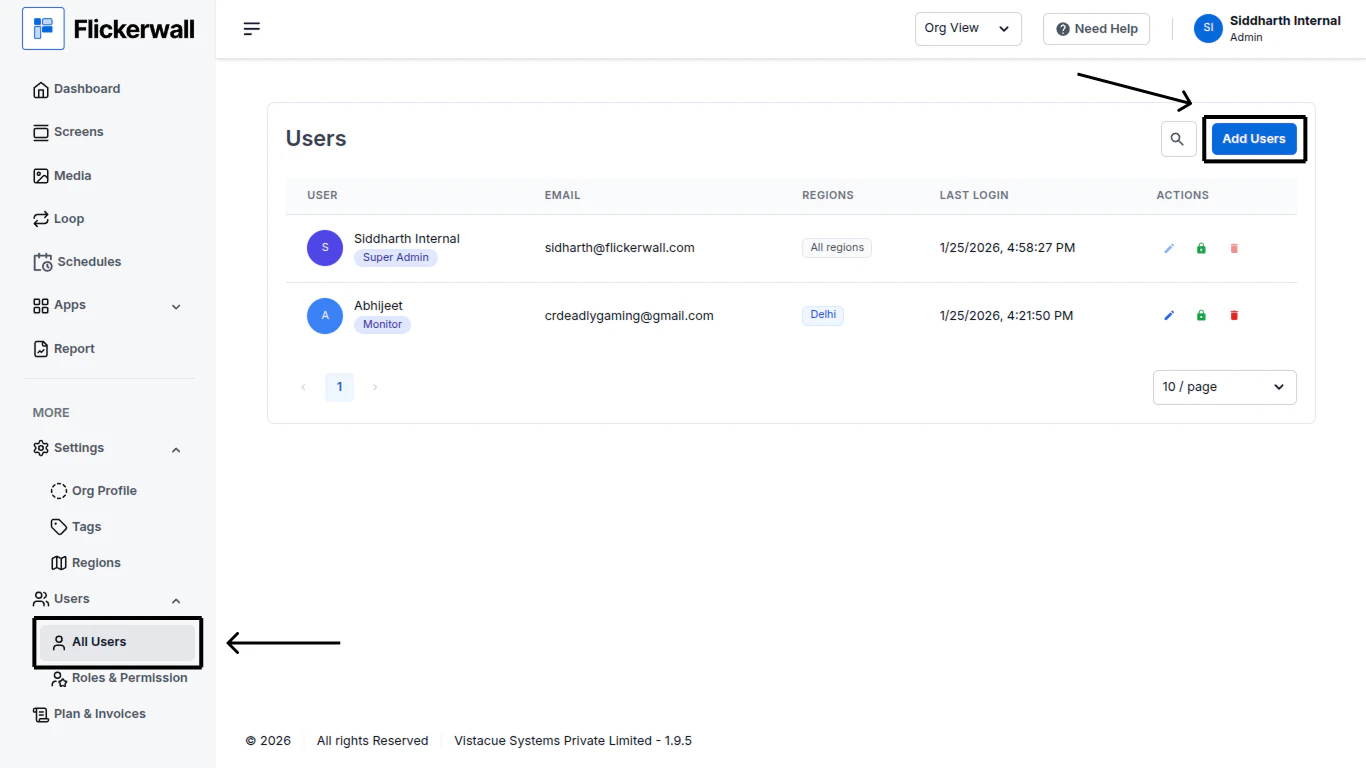
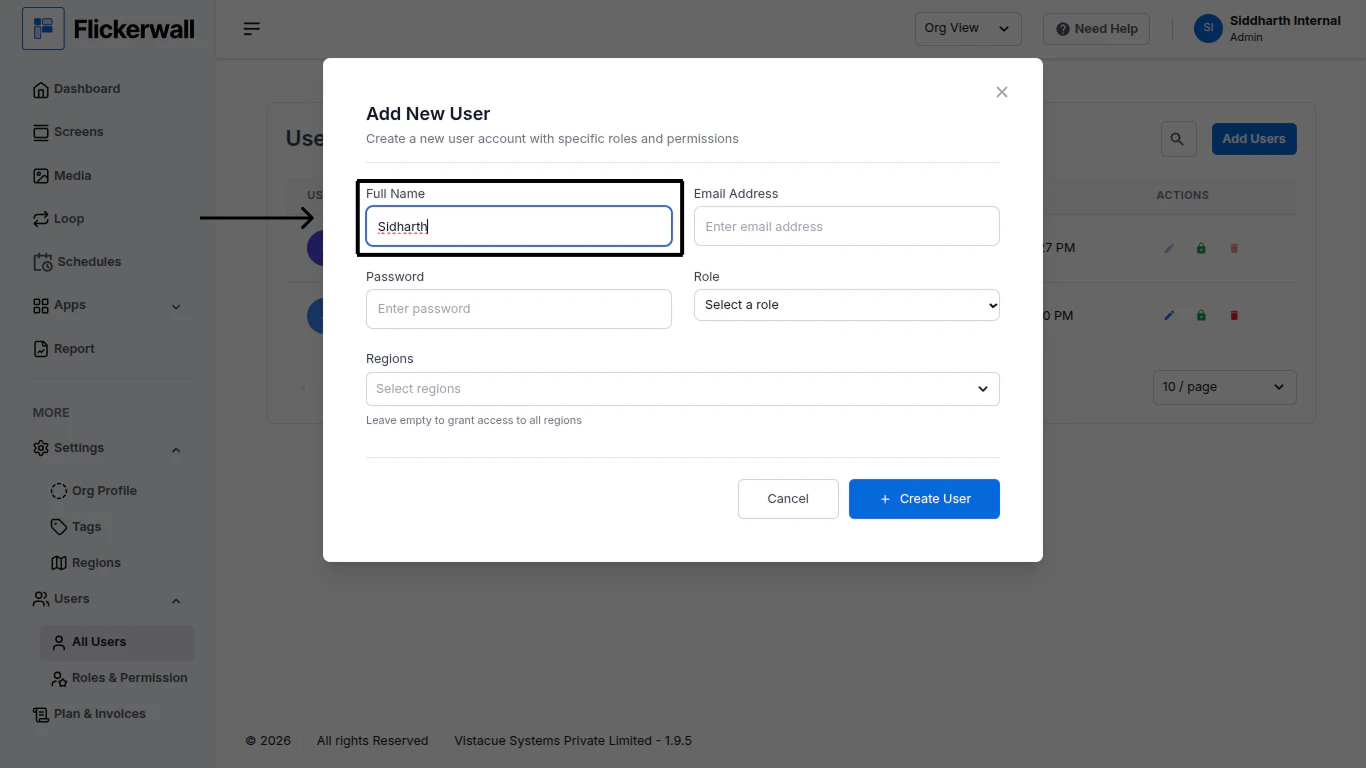
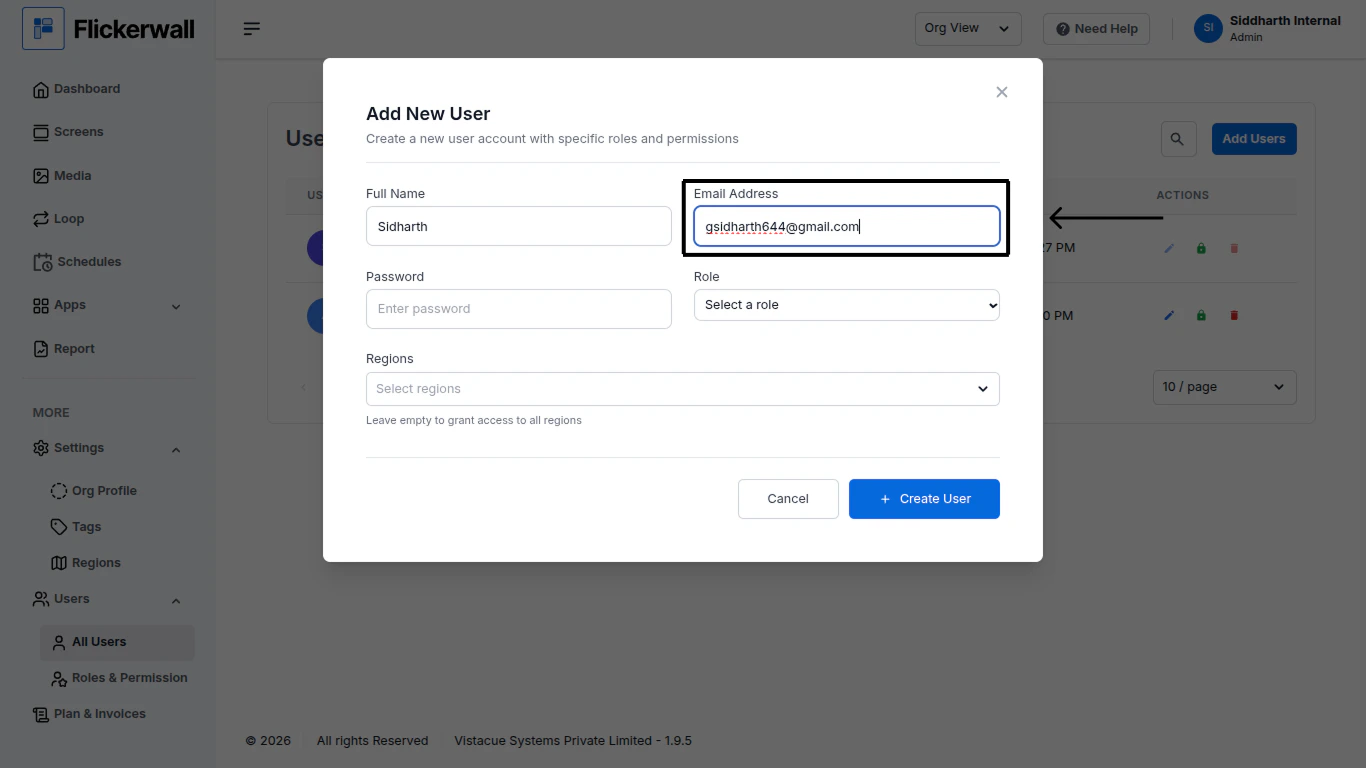
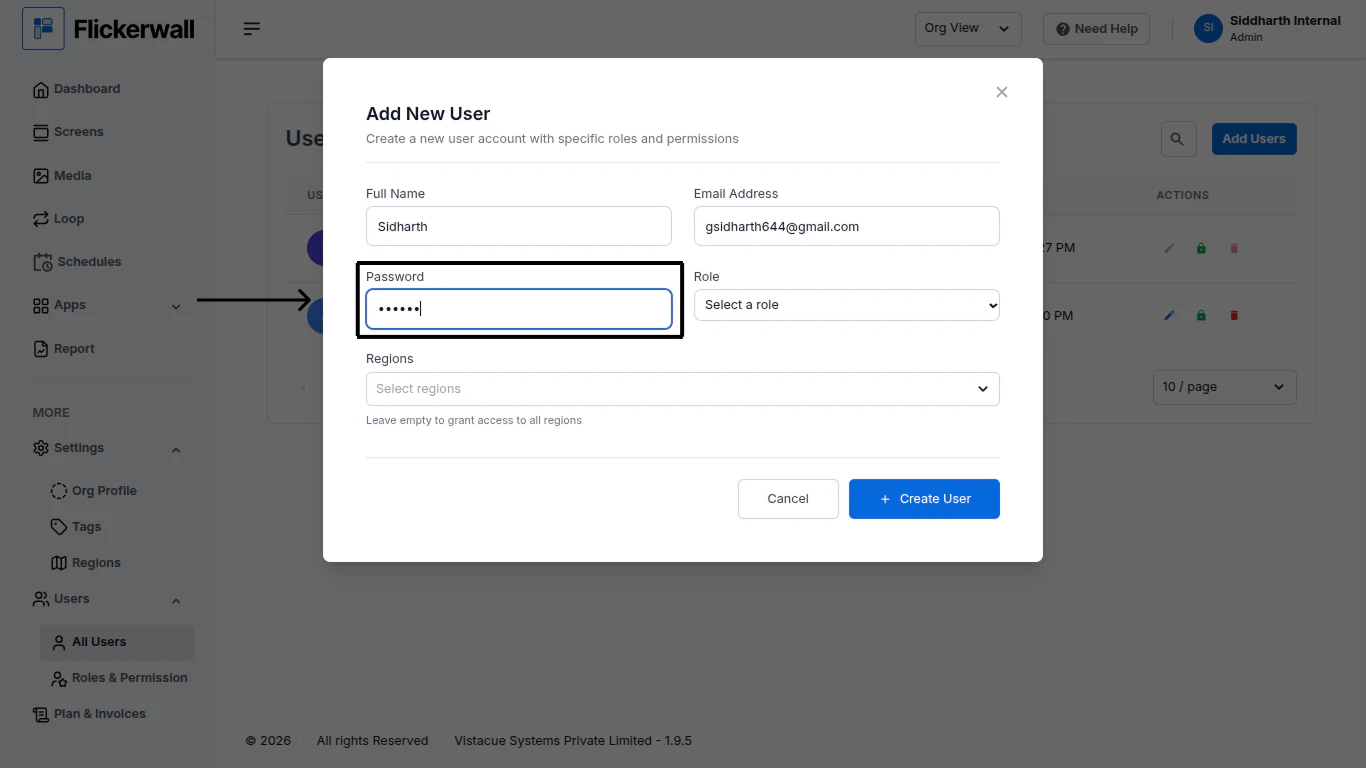
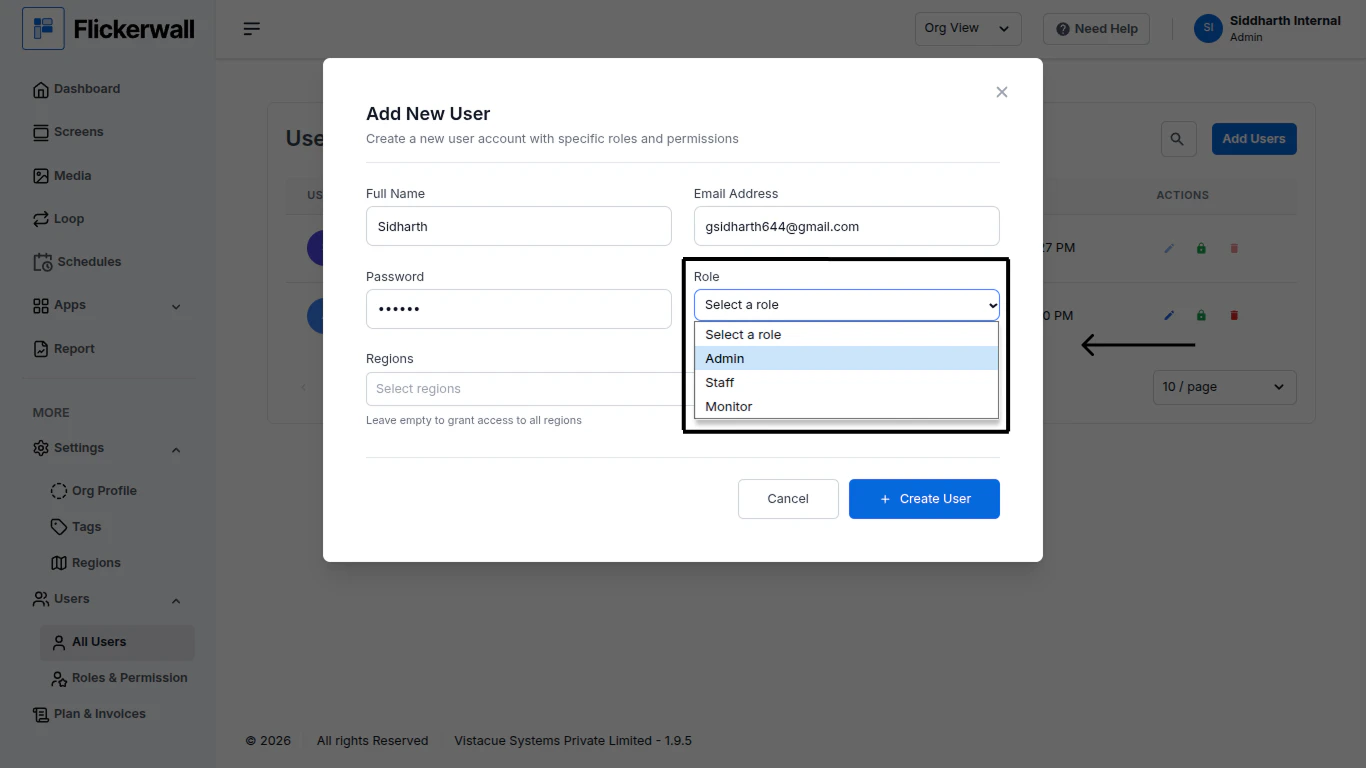
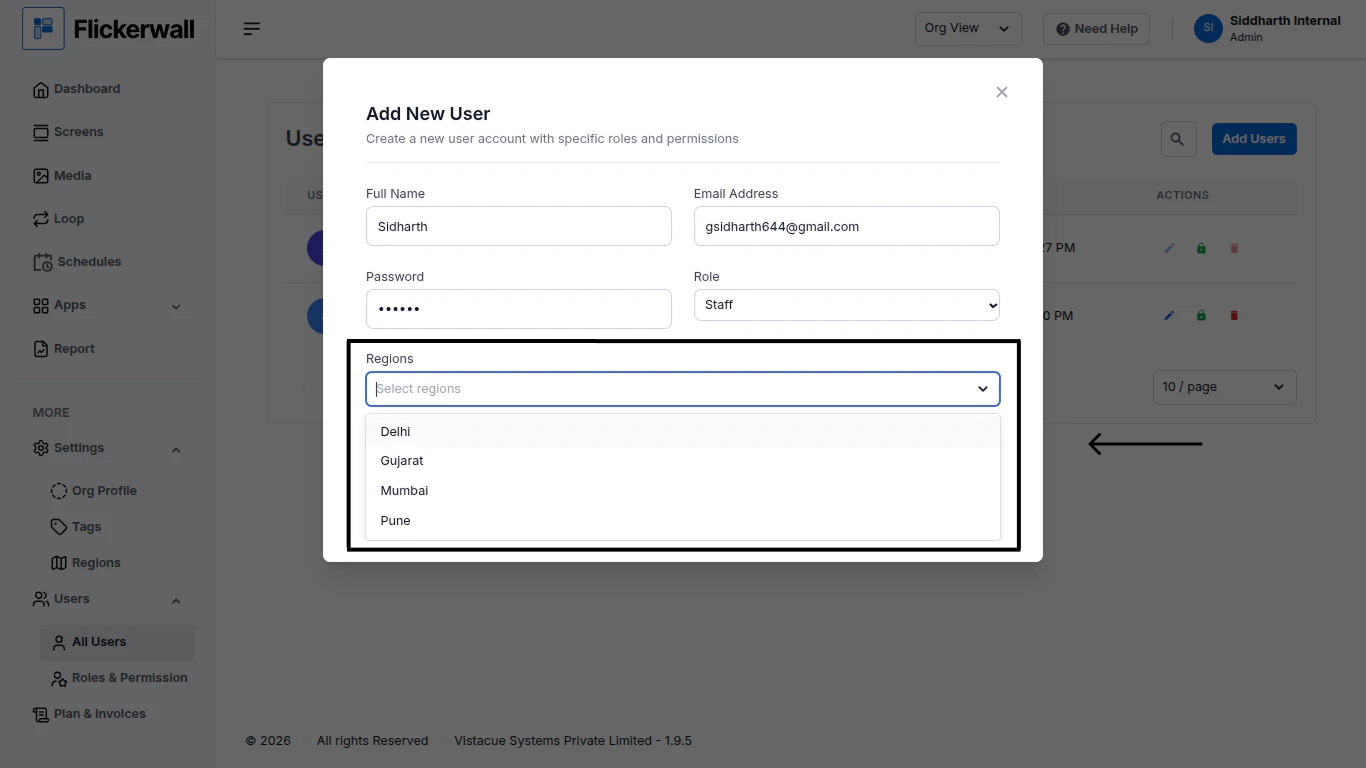
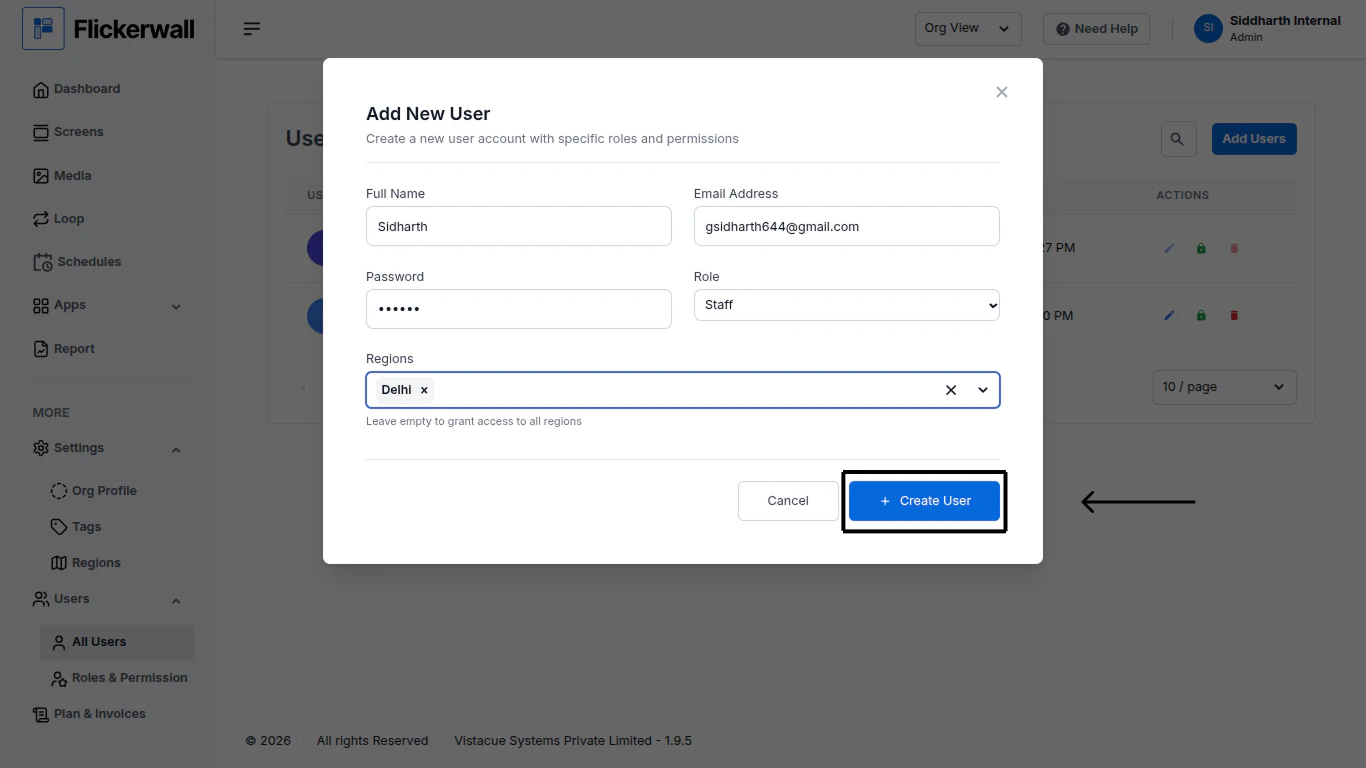
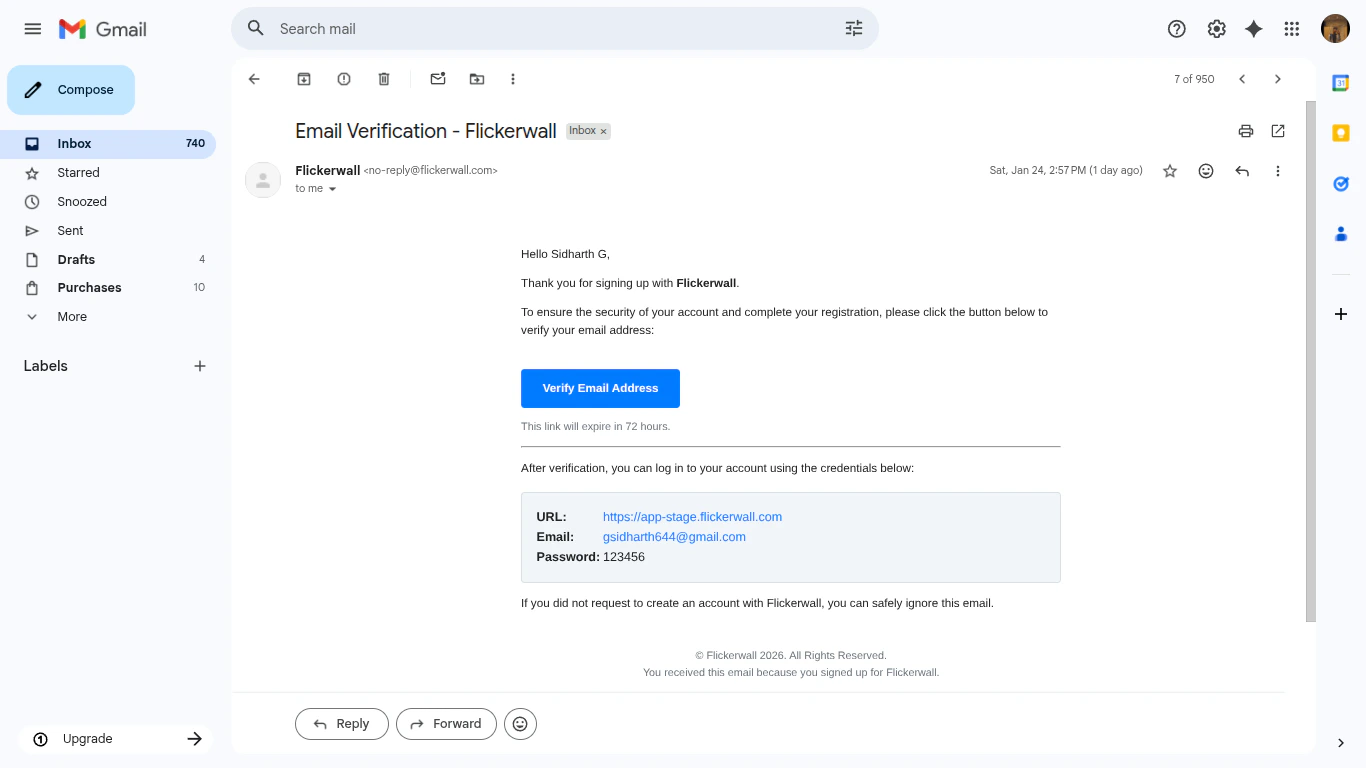
Step 1Go to the “All Use” Module and click on ”Add User”Step 2Enter the User NameYou can write just the name or a full name depending on how you preferStep 3Enter the User’s Email Address(Note: Enter a correct Email Address , they will receive a verification message in their Email Box)Step 4Make a password(Note: Please ensure you make an easy password to remember because this password will be used by the user to login in their workspace)Step 5Select a Role for the UserSelect a Role for a User which will give them access to features you decided for the “Role” to haveStep 6Select a “Region” for the UserSelect a Region if you want to give access to only one region to the UserIf you want the User to have access to all the regions keep this column emptyStep 7Once you are done with filling the informationClick on “Create User”Step 8Email Verification & Login credentialsThe Added User will Receive an Email with their Login Credentials and a Verification CodeAsk the User to click on “Verify Email Address” and the User will be redirected on the WebappEnter the Login Credentials provided in the Verification Email
⌘I
{"docsConfig":{"theme":"maple","$schema":"https://mintlify.com/docs.json","name":"Flickerwall Documentation","colors":{"primary":"#0369db","light":"#0369db","dark":"#15803D"},"logo":"https://mintcdn.com/flickerwall-796545b9/QyHLB_DuGuIs1P_v/images/Group2.svg?fit=max\u0026auto=format\u0026n=QyHLB_DuGuIs1P_v\u0026q=85\u0026s=468b8727704eed298bf74ff861c89070","favicon":"https://mintcdn.com/flickerwall-796545b9/WP4l1lhQM-CokS98/images/favicon.png?fit=max\u0026auto=format\u0026n=WP4l1lhQM-CokS98\u0026q=85\u0026s=04e3269553742f38b07278c8d5bc1d9d","appearance":{"default":"system","strict":false},"navbar":{"links":[{"href":"mailto:sales@flickerwall.com","label":"Support"}],"primary":{"type":"button","label":"Dashboard","href":"https://app.flickerwall.com"}},"footer":{"socials":{"x":"https://x.com/flickerwallApp","facebook":"https://facebook.com/flickerwall"}},"seo":{"indexing":"navigable"},"contextual":{"options":["copy","view","chatgpt","claude","perplexity","mcp","cursor","vscode"],"display":"header"},"styling":{"latex":false},"navigation":{"pages":[]}},"deployment":{"deploymentMetadataValue":{"subdomain":"flickerwall-796545b9","hasAudioNarration":false,"actualSubdomain":"flickerwall-796545b9","customDomains":["docs.flickerwall.com"],"gitSource":{"type":"github","owner":"flickerwall","repo":"fw-docs","deployBranch":"main","contentDirectory":"","isPrivate":true,"mountPath":"","label":""},"chroma":{"liveDeploymentHistoryId":"6a21f72c55ebb2c863916865","collectionId":"90765878-ecbb-480b-9c42-bfbb05aa2a30","schemaVersion":"v2"},"entitlements":{},"buildId":"6a21f72c55ebb2c863916865:success","clientVersion":"0.0.3990","searchFilterCounts":[{"language":"default","tag":"Cloud","count":112},{"language":"default","tag":"Apps","count":33},{"language":"default","tag":"News","count":32},{"language":"default","tag":"Settings","count":16},{"language":"default","tag":"Screens","count":10},{"language":"default","tag":"Loops","count":9},{"language":"default","tag":"Media","count":9},{"language":"default","tag":"Add or Manage","count":9},{"language":"default","tag":"User","count":9},{"language":"default","tag":"Create New or Manage","count":8}]},"assistantConfig":{"enableAskAiButton":false,"enableStarterQuestions":false,"enableAskAiSearchBar":true},"basePath":"","hasChatPermissions":false,"hasWebMcpPermissions":false,"toggles":[{"name":"kill-isr","enabled":true,"variant":{"name":"disabled","enabled":false,"feature_enabled":true},"impressionData":false},{"name":"agent-mintlify-slack","enabled":true,"variant":{"name":"disabled","enabled":false,"feature_enabled":true},"impressionData":false},{"name":"editor-v7-file-tree","enabled":true,"variant":{"name":"disabled","enabled":false,"feature_enabled":true},"impressionData":false},{"name":"agent-integrations-settings","enabled":true,"variant":{"name":"disabled","enabled":false,"feature_enabled":true},"impressionData":false},{"name":"automations-pr-grouping","enabled":true,"variant":{"name":"disabled","enabled":false,"feature_enabled":true},"impressionData":false},{"name":"custom-prefix","enabled":true,"variant":{"name":"disabled","enabled":false,"feature_enabled":true},"impressionData":false},{"name":"analytics-v7","enabled":true,"variant":{"name":"disabled","enabled":false,"feature_enabled":true},"impressionData":false},{"name":"user-flows-analytics","enabled":true,"variant":{"name":"disabled","enabled":false,"feature_enabled":true},"impressionData":false},{"name":"no-publish-flow","enabled":true,"variant":{"name":"disabled","enabled":false,"feature_enabled":true},"impressionData":false},{"name":"workos-onboarding","enabled":true,"variant":{"name":"disabled","enabled":false,"feature_enabled":true},"impressionData":false},{"name":"llms-txt-v2","enabled":true,"variant":{"name":"disabled","enabled":false,"feature_enabled":true},"impressionData":false},{"name":"pause-universal-search-reconcile","enabled":true,"variant":{"name":"disabled","enabled":false,"feature_enabled":true},"impressionData":false},{"name":"snapshot-serving-live","enabled":true,"variant":{"name":"disabled","enabled":false,"feature_enabled":true},"impressionData":false},{"name":"stripTemperatureMiddleware","enabled":true,"variant":{"name":"disabled","enabled":false,"feature_enabled":true},"impressionData":false},{"name":"per-site-search-delta","enabled":true,"variant":{"name":"disabled","enabled":false,"feature_enabled":true},"impressionData":false},{"name":"support-platform-pylon-zendesk","enabled":true,"variant":{"name":"disabled","enabled":false,"feature_enabled":true},"impressionData":false},{"name":"snapshot-serving","enabled":true,"variant":{"name":"disabled","enabled":false,"feature_enabled":true},"impressionData":false},{"name":"instant-rollback","enabled":true,"variant":{"name":"disabled","enabled":false,"feature_enabled":true},"impressionData":false},{"name":"granular-notifications-server","enabled":true,"variant":{"name":"disabled","enabled":false,"feature_enabled":true},"impressionData":false},{"name":"granular-notifications","enabled":true,"variant":{"name":"disabled","enabled":false,"feature_enabled":true},"impressionData":false},{"name":"editor-private-page-search","enabled":true,"variant":{"name":"disabled","enabled":false,"feature_enabled":true},"impressionData":false},{"name":"automations-fable","enabled":true,"variant":{"name":"disabled","enabled":false,"feature_enabled":true},"impressionData":false},{"name":"fixed-ai-action-pricing","enabled":true,"variant":{"name":"disabled","enabled":false,"feature_enabled":true},"impressionData":false},{"name":"automation-resolve-merge-conflict","enabled":true,"variant":{"name":"disabled","enabled":false,"feature_enabled":true},"impressionData":false},{"name":"scoped-publishing","enabled":true,"variant":{"name":"disabled","enabled":false,"feature_enabled":true},"impressionData":false},{"name":"mintql","enabled":true,"variant":{"name":"disabled","enabled":false,"feature_enabled":true},"impressionData":false},{"name":"page-level-analytics","enabled":true,"variant":{"name":"disabled","enabled":false,"feature_enabled":true},"impressionData":false},{"name":"editor-version-history-v2","enabled":true,"variant":{"name":"disabled","enabled":false,"feature_enabled":true},"impressionData":false},{"name":"editor-nav-generations","enabled":true,"variant":{"name":"disabled","enabled":false,"feature_enabled":true},"impressionData":false},{"name":"billing-page-v2","enabled":true,"variant":{"name":"disabled","enabled":false,"feature_enabled":true},"impressionData":false},{"name":"workspace-projects","enabled":true,"variant":{"name":"disabled","enabled":false,"feature_enabled":true},"impressionData":false},{"name":"assistant-v5","enabled":true,"variant":{"name":"disabled","enabled":false,"feature_enabled":true},"impressionData":false},{"name":"byok-sep-25","enabled":true,"variant":{"name":"disabled","enabled":false,"feature_enabled":true},"impressionData":false},{"name":"fork-pr-previews","enabled":true,"variant":{"name":"disabled","enabled":false,"feature_enabled":true},"impressionData":false},{"name":"revalidation-jwt","enabled":true,"variant":{"name":"disabled","enabled":false,"feature_enabled":true},"impressionData":false},{"name":"vite-origin","enabled":true,"variant":{"name":"disabled","enabled":false,"feature_enabled":true},"impressionData":false},{"name":"editor-agent-model-picker","enabled":true,"variant":{"name":"disabled","enabled":false,"feature_enabled":true},"impressionData":false},{"name":"billing-updated-9-15","enabled":true,"variant":{"name":"disabled","enabled":false,"feature_enabled":true},"impressionData":false},{"name":"workos-sso-scim","enabled":true,"variant":{"name":"disabled","enabled":false,"feature_enabled":true},"impressionData":false},{"name":"hobby-abuse-scan","enabled":true,"variant":{"name":"disabled","enabled":false,"feature_enabled":true},"impressionData":false},{"name":"dashboard-inbox","enabled":true,"variant":{"name":"disabled","enabled":false,"feature_enabled":true},"impressionData":false},{"name":"workos-signup","enabled":true,"variant":{"name":"disabled","enabled":false,"feature_enabled":true},"impressionData":false},{"name":"workos-enabled","enabled":true,"variant":{"name":"disabled","enabled":false,"feature_enabled":true},"impressionData":false}],"isAtlas":false,"googleFontsInlined":false},"customCss":[],"page":{"pagePath":"cloud/user/all-users/how-to-add-a-user","slug":"/cloud/user/all-users/how-to-add-a-user","pageMetadata":{"title":"How to Add a User?","description":"Learn how to add a User to your Profile so you can distribute your work and be more efficient","href":"/cloud/user/all-users/how-to-add-a-user"},"description":{"compiledSource":"\"use strict\";\nconst {jsx: _jsx} = arguments[0];\nconst {useMDXComponents: _provideComponents} = arguments[0];\nfunction _createMdxContent(props) {\n const _components = {\n p: \"p\",\n ..._provideComponents(),\n ...props.components\n };\n return _jsx(_components.p, {\n children: \"Learn how to add a User to your Profile so you can distribute your work and be more efficient\"\n });\n}\nfunction MDXContent(props = {}) {\n const {wrapper: MDXLayout} = {\n ..._provideComponents(),\n ...props.components\n };\n return MDXLayout ? _jsx(MDXLayout, {\n ...props,\n children: _jsx(_createMdxContent, {\n ...props\n })\n }) : _createMdxContent(props);\n}\nreturn {\n default: MDXContent\n};\n","frontmatter":{},"scope":{}},"pageType":"default","mdx":{"mdxSource":{"compiledSource":"\"use strict\";const{Fragment:_Fragment,jsx:_jsx,jsxs:_jsxs}=arguments[0];const{useMDXComponents:_provideComponents}=arguments[0];function _createMdxContent(props){const _components={hr:`hr`,p:`p`,strong:`strong`,..._provideComponents(),...props.components},{OptimizedImage}=_components;if(!OptimizedImage)_missingMdxReference(`OptimizedImage`,true);return _jsxs(_Fragment,{children:[_jsx(_components.hr,{}),`\n`,_jsx(_components.p,{children:`Step 1`}),`\n`,_jsx(_components.p,{children:`Go to the “All Use” Module and click on ”Add User”`}),`\n`,_jsx(OptimizedImage,{src:`https://mintcdn.com/flickerwall-796545b9/MimF6oumHHS1qwlF/images/user-all-users-how-to-add-a-user-image-1.png?fit=max\u0026auto=format\u0026n=MimF6oumHHS1qwlF\u0026q=85\u0026s=a0f4b7d6fd928714b2f38380f9c185a7`,alt:``,\"data-og-width\":`1366`,width:`1366`,\"data-og-height\":`768`,height:`768`,\"data-path\":`images/user-all-users-how-to-add-a-user-image-1.png`,\"data-optimize\":`true`,\"data-opv\":`3`,srcset:`https://mintcdn.com/flickerwall-796545b9/MimF6oumHHS1qwlF/images/user-all-users-how-to-add-a-user-image-1.png?w=280\u0026fit=max\u0026auto=format\u0026n=MimF6oumHHS1qwlF\u0026q=85\u0026s=29b8a22787044c79dfd57c8478b960ed 280w, https://mintcdn.com/flickerwall-796545b9/MimF6oumHHS1qwlF/images/user-all-users-how-to-add-a-user-image-1.png?w=560\u0026fit=max\u0026auto=format\u0026n=MimF6oumHHS1qwlF\u0026q=85\u0026s=b3f46029f1408402da19b42056befb06 560w, https://mintcdn.com/flickerwall-796545b9/MimF6oumHHS1qwlF/images/user-all-users-how-to-add-a-user-image-1.png?w=840\u0026fit=max\u0026auto=format\u0026n=MimF6oumHHS1qwlF\u0026q=85\u0026s=0d2ba81edd741242f48ab2a750f253c6 840w, https://mintcdn.com/flickerwall-796545b9/MimF6oumHHS1qwlF/images/user-all-users-how-to-add-a-user-image-1.png?w=1100\u0026fit=max\u0026auto=format\u0026n=MimF6oumHHS1qwlF\u0026q=85\u0026s=b122cde0f1c10f84d8abad125c453128 1100w, https://mintcdn.com/flickerwall-796545b9/MimF6oumHHS1qwlF/images/user-all-users-how-to-add-a-user-image-1.png?w=1650\u0026fit=max\u0026auto=format\u0026n=MimF6oumHHS1qwlF\u0026q=85\u0026s=0e950c0565be0eaaea7adb3b1ae33bd9 1650w, https://mintcdn.com/flickerwall-796545b9/MimF6oumHHS1qwlF/images/user-all-users-how-to-add-a-user-image-1.png?w=2500\u0026fit=max\u0026auto=format\u0026n=MimF6oumHHS1qwlF\u0026q=85\u0026s=4df09041db88eb8cbdef36ad09d09017 2500w`}),`\n`,_jsx(_components.p,{children:`Step 2`}),`\n`,_jsx(_components.p,{children:`Enter the User Name`}),`\n`,_jsx(_components.p,{children:`You can write just the name or a full name depending on how you prefer`}),`\n`,_jsx(OptimizedImage,{src:`https://mintcdn.com/flickerwall-796545b9/MimF6oumHHS1qwlF/images/user-all-users-how-to-add-a-user-image-2.png?fit=max\u0026auto=format\u0026n=MimF6oumHHS1qwlF\u0026q=85\u0026s=2adf43fb146a9e271b793671a74402b2`,alt:``,\"data-og-width\":`1366`,width:`1366`,\"data-og-height\":`768`,height:`768`,\"data-path\":`images/user-all-users-how-to-add-a-user-image-2.png`,\"data-optimize\":`true`,\"data-opv\":`3`,srcset:`https://mintcdn.com/flickerwall-796545b9/MimF6oumHHS1qwlF/images/user-all-users-how-to-add-a-user-image-2.png?w=280\u0026fit=max\u0026auto=format\u0026n=MimF6oumHHS1qwlF\u0026q=85\u0026s=e7fc2d1fcd78da9d3fb9be2e7c102ab2 280w, https://mintcdn.com/flickerwall-796545b9/MimF6oumHHS1qwlF/images/user-all-users-how-to-add-a-user-image-2.png?w=560\u0026fit=max\u0026auto=format\u0026n=MimF6oumHHS1qwlF\u0026q=85\u0026s=c1b05e239ca149cf7c19c2d8eb650758 560w, https://mintcdn.com/flickerwall-796545b9/MimF6oumHHS1qwlF/images/user-all-users-how-to-add-a-user-image-2.png?w=840\u0026fit=max\u0026auto=format\u0026n=MimF6oumHHS1qwlF\u0026q=85\u0026s=2324261e2e512777355dc426cb6801c4 840w, https://mintcdn.com/flickerwall-796545b9/MimF6oumHHS1qwlF/images/user-all-users-how-to-add-a-user-image-2.png?w=1100\u0026fit=max\u0026auto=format\u0026n=MimF6oumHHS1qwlF\u0026q=85\u0026s=0aaf91288a7d040e60ea9857ef587b0b 1100w, https://mintcdn.com/flickerwall-796545b9/MimF6oumHHS1qwlF/images/user-all-users-how-to-add-a-user-image-2.png?w=1650\u0026fit=max\u0026auto=format\u0026n=MimF6oumHHS1qwlF\u0026q=85\u0026s=05c9f394fc09aebce185be9047624c93 1650w, https://mintcdn.com/flickerwall-796545b9/MimF6oumHHS1qwlF/images/user-all-users-how-to-add-a-user-image-2.png?w=2500\u0026fit=max\u0026auto=format\u0026n=MimF6oumHHS1qwlF\u0026q=85\u0026s=8f4d4c5059e71e0d1c82bc4770eb339c 2500w`}),`\n`,_jsx(_components.p,{children:`Step 3`}),`\n`,_jsx(_components.p,{children:`Enter the User’s Email Address`}),`\n`,_jsx(_components.p,{children:`(Note: Enter a correct Email Address , they will receive a verification message in their Email Box)`}),`\n`,_jsx(OptimizedImage,{src:`https://mintcdn.com/flickerwall-796545b9/MimF6oumHHS1qwlF/images/user-all-users-how-to-add-a-user-image-3.png?fit=max\u0026auto=format\u0026n=MimF6oumHHS1qwlF\u0026q=85\u0026s=4d855448b375a5444f1628dcf3a392c7`,alt:``,\"data-og-width\":`1366`,width:`1366`,\"data-og-height\":`768`,height:`768`,\"data-path\":`images/user-all-users-how-to-add-a-user-image-3.png`,\"data-optimize\":`true`,\"data-opv\":`3`,srcset:`https://mintcdn.com/flickerwall-796545b9/MimF6oumHHS1qwlF/images/user-all-users-how-to-add-a-user-image-3.png?w=280\u0026fit=max\u0026auto=format\u0026n=MimF6oumHHS1qwlF\u0026q=85\u0026s=7813453778639729b30efd8f80f21039 280w, https://mintcdn.com/flickerwall-796545b9/MimF6oumHHS1qwlF/images/user-all-users-how-to-add-a-user-image-3.png?w=560\u0026fit=max\u0026auto=format\u0026n=MimF6oumHHS1qwlF\u0026q=85\u0026s=28f8dad15e7bdcda9262cb36d82a4fcd 560w, https://mintcdn.com/flickerwall-796545b9/MimF6oumHHS1qwlF/images/user-all-users-how-to-add-a-user-image-3.png?w=840\u0026fit=max\u0026auto=format\u0026n=MimF6oumHHS1qwlF\u0026q=85\u0026s=b8746bc1a629e86e51a937654e68de36 840w, https://mintcdn.com/flickerwall-796545b9/MimF6oumHHS1qwlF/images/user-all-users-how-to-add-a-user-image-3.png?w=1100\u0026fit=max\u0026auto=format\u0026n=MimF6oumHHS1qwlF\u0026q=85\u0026s=a9437018d5a87cbfb696959b0444fa79 1100w, https://mintcdn.com/flickerwall-796545b9/MimF6oumHHS1qwlF/images/user-all-users-how-to-add-a-user-image-3.png?w=1650\u0026fit=max\u0026auto=format\u0026n=MimF6oumHHS1qwlF\u0026q=85\u0026s=33bab421c0ff02435c9e5acc528d0b1d 1650w, https://mintcdn.com/flickerwall-796545b9/MimF6oumHHS1qwlF/images/user-all-users-how-to-add-a-user-image-3.png?w=2500\u0026fit=max\u0026auto=format\u0026n=MimF6oumHHS1qwlF\u0026q=85\u0026s=2a9d878c221ca1fff285d702f1781a33 2500w`}),`\n`,_jsx(_components.p,{children:`Step 4`}),`\n`,_jsx(_components.p,{children:`Make a password`}),`\n`,_jsx(_components.p,{children:`(Note: Please ensure you make an easy password to remember because this password will be used by the user to login in their workspace)`}),`\n`,_jsx(OptimizedImage,{src:`https://mintcdn.com/flickerwall-796545b9/MimF6oumHHS1qwlF/images/user-all-users-how-to-add-a-user-image-4.png?fit=max\u0026auto=format\u0026n=MimF6oumHHS1qwlF\u0026q=85\u0026s=45da000ae523092368ef4a4e71f4e9d4`,alt:``,\"data-og-width\":`1366`,width:`1366`,\"data-og-height\":`768`,height:`768`,\"data-path\":`images/user-all-users-how-to-add-a-user-image-4.png`,\"data-optimize\":`true`,\"data-opv\":`3`,srcset:`https://mintcdn.com/flickerwall-796545b9/MimF6oumHHS1qwlF/images/user-all-users-how-to-add-a-user-image-4.png?w=280\u0026fit=max\u0026auto=format\u0026n=MimF6oumHHS1qwlF\u0026q=85\u0026s=bb767e3a93da40def971442138f273a5 280w, https://mintcdn.com/flickerwall-796545b9/MimF6oumHHS1qwlF/images/user-all-users-how-to-add-a-user-image-4.png?w=560\u0026fit=max\u0026auto=format\u0026n=MimF6oumHHS1qwlF\u0026q=85\u0026s=a0c5af4a2650af908e35283a53aedf20 560w, https://mintcdn.com/flickerwall-796545b9/MimF6oumHHS1qwlF/images/user-all-users-how-to-add-a-user-image-4.png?w=840\u0026fit=max\u0026auto=format\u0026n=MimF6oumHHS1qwlF\u0026q=85\u0026s=a1443b14de9f635a98f8f5b4ce5d3e28 840w, https://mintcdn.com/flickerwall-796545b9/MimF6oumHHS1qwlF/images/user-all-users-how-to-add-a-user-image-4.png?w=1100\u0026fit=max\u0026auto=format\u0026n=MimF6oumHHS1qwlF\u0026q=85\u0026s=75f46e3470aa55e8a9a21754bdf7178a 1100w, https://mintcdn.com/flickerwall-796545b9/MimF6oumHHS1qwlF/images/user-all-users-how-to-add-a-user-image-4.png?w=1650\u0026fit=max\u0026auto=format\u0026n=MimF6oumHHS1qwlF\u0026q=85\u0026s=a3b15162b4d26971960380d3d826374c 1650w, https://mintcdn.com/flickerwall-796545b9/MimF6oumHHS1qwlF/images/user-all-users-how-to-add-a-user-image-4.png?w=2500\u0026fit=max\u0026auto=format\u0026n=MimF6oumHHS1qwlF\u0026q=85\u0026s=a6848d954dbb20073b62bcc220f93fe3 2500w`}),`\n`,_jsx(_components.p,{children:`Step 5`}),`\n`,_jsx(_components.p,{children:`Select a Role for the User`}),`\n`,_jsx(_components.p,{children:`Select a Role for a User which will give them access to features you decided for the “Role” to have`}),`\n`,_jsx(OptimizedImage,{src:`https://mintcdn.com/flickerwall-796545b9/MimF6oumHHS1qwlF/images/user-all-users-how-to-add-a-user-image-5.png?fit=max\u0026auto=format\u0026n=MimF6oumHHS1qwlF\u0026q=85\u0026s=c44fdc25b2ed950c750129481a4b4383`,alt:``,\"data-og-width\":`1366`,width:`1366`,\"data-og-height\":`768`,height:`768`,\"data-path\":`images/user-all-users-how-to-add-a-user-image-5.png`,\"data-optimize\":`true`,\"data-opv\":`3`,srcset:`https://mintcdn.com/flickerwall-796545b9/MimF6oumHHS1qwlF/images/user-all-users-how-to-add-a-user-image-5.png?w=280\u0026fit=max\u0026auto=format\u0026n=MimF6oumHHS1qwlF\u0026q=85\u0026s=1e2014ccd94ed5183943c0472a72a505 280w, https://mintcdn.com/flickerwall-796545b9/MimF6oumHHS1qwlF/images/user-all-users-how-to-add-a-user-image-5.png?w=560\u0026fit=max\u0026auto=format\u0026n=MimF6oumHHS1qwlF\u0026q=85\u0026s=382d557198947bf2e6c39a7701c88e2a 560w, https://mintcdn.com/flickerwall-796545b9/MimF6oumHHS1qwlF/images/user-all-users-how-to-add-a-user-image-5.png?w=840\u0026fit=max\u0026auto=format\u0026n=MimF6oumHHS1qwlF\u0026q=85\u0026s=019d88e599a9e945e46afe8aa50b3d5a 840w, https://mintcdn.com/flickerwall-796545b9/MimF6oumHHS1qwlF/images/user-all-users-how-to-add-a-user-image-5.png?w=1100\u0026fit=max\u0026auto=format\u0026n=MimF6oumHHS1qwlF\u0026q=85\u0026s=f21987a7ec2cf62f2345abd1f11a2be0 1100w, https://mintcdn.com/flickerwall-796545b9/MimF6oumHHS1qwlF/images/user-all-users-how-to-add-a-user-image-5.png?w=1650\u0026fit=max\u0026auto=format\u0026n=MimF6oumHHS1qwlF\u0026q=85\u0026s=64cdd629f05872a9945a016ae44ddb9b 1650w, https://mintcdn.com/flickerwall-796545b9/MimF6oumHHS1qwlF/images/user-all-users-how-to-add-a-user-image-5.png?w=2500\u0026fit=max\u0026auto=format\u0026n=MimF6oumHHS1qwlF\u0026q=85\u0026s=4a2b59aad8f5336cc09c98718edd9580 2500w`}),`\n`,_jsx(_components.p,{children:`Step 6`}),`\n`,_jsx(_components.p,{children:`Select a “Region” for the User`}),`\n`,_jsx(_components.p,{children:`Select a Region if you want to give access to only one region to the User`}),`\n`,_jsx(_components.p,{children:`If you want the User to have access to all the regions keep this column empty`}),`\n`,_jsx(OptimizedImage,{src:`https://mintcdn.com/flickerwall-796545b9/MimF6oumHHS1qwlF/images/user-all-users-how-to-add-a-user-image-6.png?fit=max\u0026auto=format\u0026n=MimF6oumHHS1qwlF\u0026q=85\u0026s=fe8ba77b4a5b4f71d6286adfd5bf241c`,alt:``,\"data-og-width\":`1366`,width:`1366`,\"data-og-height\":`768`,height:`768`,\"data-path\":`images/user-all-users-how-to-add-a-user-image-6.png`,\"data-optimize\":`true`,\"data-opv\":`3`,srcset:`https://mintcdn.com/flickerwall-796545b9/MimF6oumHHS1qwlF/images/user-all-users-how-to-add-a-user-image-6.png?w=280\u0026fit=max\u0026auto=format\u0026n=MimF6oumHHS1qwlF\u0026q=85\u0026s=0d5e86052d4c3e8b600c3b0408728195 280w, https://mintcdn.com/flickerwall-796545b9/MimF6oumHHS1qwlF/images/user-all-users-how-to-add-a-user-image-6.png?w=560\u0026fit=max\u0026auto=format\u0026n=MimF6oumHHS1qwlF\u0026q=85\u0026s=77998976680da16a855f411bfa86745b 560w, https://mintcdn.com/flickerwall-796545b9/MimF6oumHHS1qwlF/images/user-all-users-how-to-add-a-user-image-6.png?w=840\u0026fit=max\u0026auto=format\u0026n=MimF6oumHHS1qwlF\u0026q=85\u0026s=6fe6ffb3ee63eead85df8b54acf9c56e 840w, https://mintcdn.com/flickerwall-796545b9/MimF6oumHHS1qwlF/images/user-all-users-how-to-add-a-user-image-6.png?w=1100\u0026fit=max\u0026auto=format\u0026n=MimF6oumHHS1qwlF\u0026q=85\u0026s=677fe62dee4223f43578683e5bce4d33 1100w, https://mintcdn.com/flickerwall-796545b9/MimF6oumHHS1qwlF/images/user-all-users-how-to-add-a-user-image-6.png?w=1650\u0026fit=max\u0026auto=format\u0026n=MimF6oumHHS1qwlF\u0026q=85\u0026s=3b5d2225a7e3e98db7a0d9206825c58b 1650w, https://mintcdn.com/flickerwall-796545b9/MimF6oumHHS1qwlF/images/user-all-users-how-to-add-a-user-image-6.png?w=2500\u0026fit=max\u0026auto=format\u0026n=MimF6oumHHS1qwlF\u0026q=85\u0026s=4cb6e6d730f5245899e3e24e817a5d0a 2500w`}),`\n`,_jsx(_components.p,{children:`Step 7`}),`\n`,_jsx(_components.p,{children:`Once you are done with filling the information`}),`\n`,_jsx(_components.p,{children:`Click on “Create User”`}),`\n`,_jsx(OptimizedImage,{src:`https://mintcdn.com/flickerwall-796545b9/MimF6oumHHS1qwlF/images/user-all-users-how-to-add-a-user-image-7.png?fit=max\u0026auto=format\u0026n=MimF6oumHHS1qwlF\u0026q=85\u0026s=d90c357d64340d0b665ed63fa2700344`,alt:``,\"data-og-width\":`1366`,width:`1366`,\"data-og-height\":`768`,height:`768`,\"data-path\":`images/user-all-users-how-to-add-a-user-image-7.png`,\"data-optimize\":`true`,\"data-opv\":`3`,srcset:`https://mintcdn.com/flickerwall-796545b9/MimF6oumHHS1qwlF/images/user-all-users-how-to-add-a-user-image-7.png?w=280\u0026fit=max\u0026auto=format\u0026n=MimF6oumHHS1qwlF\u0026q=85\u0026s=275d224c54cba190c6de7b4e061ba20b 280w, https://mintcdn.com/flickerwall-796545b9/MimF6oumHHS1qwlF/images/user-all-users-how-to-add-a-user-image-7.png?w=560\u0026fit=max\u0026auto=format\u0026n=MimF6oumHHS1qwlF\u0026q=85\u0026s=287ec61ea6d7147ca8b6add0d391c534 560w, https://mintcdn.com/flickerwall-796545b9/MimF6oumHHS1qwlF/images/user-all-users-how-to-add-a-user-image-7.png?w=840\u0026fit=max\u0026auto=format\u0026n=MimF6oumHHS1qwlF\u0026q=85\u0026s=194c5c3381e4edcfefb9827f5f269496 840w, https://mintcdn.com/flickerwall-796545b9/MimF6oumHHS1qwlF/images/user-all-users-how-to-add-a-user-image-7.png?w=1100\u0026fit=max\u0026auto=format\u0026n=MimF6oumHHS1qwlF\u0026q=85\u0026s=34767729492ba6f1b1ab22490cfa1794 1100w, https://mintcdn.com/flickerwall-796545b9/MimF6oumHHS1qwlF/images/user-all-users-how-to-add-a-user-image-7.png?w=1650\u0026fit=max\u0026auto=format\u0026n=MimF6oumHHS1qwlF\u0026q=85\u0026s=2e586c05ca5d2c9d48469aa30f7469ce 1650w, https://mintcdn.com/flickerwall-796545b9/MimF6oumHHS1qwlF/images/user-all-users-how-to-add-a-user-image-7.png?w=2500\u0026fit=max\u0026auto=format\u0026n=MimF6oumHHS1qwlF\u0026q=85\u0026s=7f35e3c40e2dee7962742141f975b32f 2500w`}),`\n`,_jsx(_components.p,{children:`Step 8`}),`\n`,_jsx(_components.p,{children:_jsx(_components.strong,{children:`Email Verification \u0026 Login credentials`})}),`\n`,_jsx(_components.p,{children:`The Added User will Receive an Email with their Login Credentials and a Verification Code`}),`\n`,_jsx(_components.p,{children:`Ask the User to click on “Verify Email Address” and the User will be redirected on the Webapp`}),`\n`,_jsx(_components.p,{children:`Enter the Login Credentials provided in the Verification Email`}),`\n`,_jsx(OptimizedImage,{src:`https://mintcdn.com/flickerwall-796545b9/MimF6oumHHS1qwlF/images/user-all-users-how-to-add-a-user-image-8.png?fit=max\u0026auto=format\u0026n=MimF6oumHHS1qwlF\u0026q=85\u0026s=e9a8f6fed6c72fe1329f8d529e925f00`,alt:``,\"data-og-width\":`1366`,width:`1366`,\"data-og-height\":`768`,height:`768`,\"data-path\":`images/user-all-users-how-to-add-a-user-image-8.png`,\"data-optimize\":`true`,\"data-opv\":`3`,srcset:`https://mintcdn.com/flickerwall-796545b9/MimF6oumHHS1qwlF/images/user-all-users-how-to-add-a-user-image-8.png?w=280\u0026fit=max\u0026auto=format\u0026n=MimF6oumHHS1qwlF\u0026q=85\u0026s=9f01b12e6ee4936629457153b0ffe273 280w, https://mintcdn.com/flickerwall-796545b9/MimF6oumHHS1qwlF/images/user-all-users-how-to-add-a-user-image-8.png?w=560\u0026fit=max\u0026auto=format\u0026n=MimF6oumHHS1qwlF\u0026q=85\u0026s=94938272b722c1d1687a7d7ef278d9e8 560w, https://mintcdn.com/flickerwall-796545b9/MimF6oumHHS1qwlF/images/user-all-users-how-to-add-a-user-image-8.png?w=840\u0026fit=max\u0026auto=format\u0026n=MimF6oumHHS1qwlF\u0026q=85\u0026s=db4818ca6c71a8d85222938f2cd746b5 840w, https://mintcdn.com/flickerwall-796545b9/MimF6oumHHS1qwlF/images/user-all-users-how-to-add-a-user-image-8.png?w=1100\u0026fit=max\u0026auto=format\u0026n=MimF6oumHHS1qwlF\u0026q=85\u0026s=f8efa9bf682953a3645f0a32af5176df 1100w, https://mintcdn.com/flickerwall-796545b9/MimF6oumHHS1qwlF/images/user-all-users-how-to-add-a-user-image-8.png?w=1650\u0026fit=max\u0026auto=format\u0026n=MimF6oumHHS1qwlF\u0026q=85\u0026s=cd4ee57befd7d89f9b4ddbf51d420dc9 1650w, https://mintcdn.com/flickerwall-796545b9/MimF6oumHHS1qwlF/images/user-all-users-how-to-add-a-user-image-8.png?w=2500\u0026fit=max\u0026auto=format\u0026n=MimF6oumHHS1qwlF\u0026q=85\u0026s=3567214f53b6b7d78c3c70ae76fa9856 2500w`})]})}function MDXContent(props={}){const{wrapper:MDXLayout}={..._provideComponents(),...props.components};return MDXLayout?_jsx(MDXLayout,{...props,children:_jsx(_createMdxContent,{...props})}):_createMdxContent(props)}return{default:MDXContent};function _missingMdxReference(id,component){throw new Error(`Expected `+(component?`component`:`object`)+\" `\"+id+\"` to be defined: you likely forgot to import, pass, or provide it.\")}","frontmatter":{},"scope":{"config":{},"pageMetadata":{"title":"How to Add a User?","description":"Learn how to add a User to your Profile so you can distribute your work and be more efficient","href":"/cloud/user/all-users/how-to-add-a-user"}}},"mdxSourceWithNoJs":null},"mdxExtracts":{"tableOfContents":[],"codeExamples":{}},"jsLinks":[],"subdomain":"flickerwall-796545b9","siteName":"Flickerwall Documentation","title":"How to Add a User? - Flickerwall Documentation","navMaps":{"firstHrefInVersion":{},"firstHrefInLanguage":{}},"lastModified":"2026-02-04T17:33:09.223Z","originalFileLocation":"cloud/user/all-users/how-to-add-a-user.md"},"headHtml":"\u003cscript data-mint-head>(function(){var d=document.documentElement,p=null;if(!p){try{p=localStorage.getItem(\"isDarkMode\")}catch(e){}if(p==='true')p='dark';else if(p==='false')p='light';if(p!=='light'\u0026\u0026p!=='dark'\u0026\u0026p!=='system')p=\"system\"}var r=p==='system'?(matchMedia(\"(prefers-color-scheme: dark)\").matches?'dark':'light'):p;d.classList.remove(r==='dark'?'light':'dark');d.classList.add(r);d.setAttribute(\"data-theme-preference\",p)})();\u003c/script>\u003cmeta data-mint-head name=\"description\" content=\"Learn how to add a User to your Profile so you can distribute your work and be more efficient\">\u003cmeta data-mint-head name=\"application-name\" content=\"Flickerwall Documentation\">\u003cmeta data-mint-head name=\"generator\" content=\"Mintlify\">\u003clink data-mint-head rel=\"icon\" type=\"image/png\" sizes=\"192x192\" href=\"/mintlify-assets/_mintlify/favicons/flickerwall-796545b9/IcI644e4EXkckkSh/_generated/favicon/android-chrome-192x192.png\" media=\"(prefers-color-scheme: light)\">\u003clink data-mint-head rel=\"apple-touch-icon\" type=\"image/png\" sizes=\"180x180\" href=\"/mintlify-assets/_mintlify/favicons/flickerwall-796545b9/IcI644e4EXkckkSh/_generated/favicon/apple-touch-icon.png\">\u003clink data-mint-head rel=\"icon\" type=\"image/png\" sizes=\"16x16\" href=\"/mintlify-assets/_mintlify/favicons/flickerwall-796545b9/IcI644e4EXkckkSh/_generated/favicon/favicon-16x16.png\" media=\"(prefers-color-scheme: light)\">\u003clink data-mint-head rel=\"icon\" type=\"image/png\" sizes=\"32x32\" href=\"/mintlify-assets/_mintlify/favicons/flickerwall-796545b9/IcI644e4EXkckkSh/_generated/favicon/favicon-32x32.png\" media=\"(prefers-color-scheme: light)\">\u003clink data-mint-head rel=\"shortcut icon\" type=\"image/x-icon\" href=\"/mintlify-assets/_mintlify/favicons/flickerwall-796545b9/IcI644e4EXkckkSh/_generated/favicon/favicon.ico\" media=\"(prefers-color-scheme: light)\">\u003clink data-mint-head rel=\"icon\" type=\"image/png\" sizes=\"192x192\" href=\"/mintlify-assets/_mintlify/favicons/flickerwall-796545b9/IcI644e4EXkckkSh/_generated/favicon-dark/android-chrome-192x192.png\" media=\"(prefers-color-scheme: dark)\">\u003clink data-mint-head rel=\"icon\" type=\"image/png\" sizes=\"16x16\" href=\"/mintlify-assets/_mintlify/favicons/flickerwall-796545b9/IcI644e4EXkckkSh/_generated/favicon-dark/favicon-16x16.png\" media=\"(prefers-color-scheme: dark)\">\u003clink data-mint-head rel=\"icon\" type=\"image/png\" sizes=\"32x32\" href=\"/mintlify-assets/_mintlify/favicons/flickerwall-796545b9/IcI644e4EXkckkSh/_generated/favicon-dark/favicon-32x32.png\" media=\"(prefers-color-scheme: dark)\">\u003clink data-mint-head rel=\"shortcut icon\" type=\"image/x-icon\" href=\"/mintlify-assets/_mintlify/favicons/flickerwall-796545b9/IcI644e4EXkckkSh/_generated/favicon-dark/favicon.ico\" media=\"(prefers-color-scheme: dark)\">\u003cmeta data-mint-head property=\"og:title\" content=\"How to Add a User? - Flickerwall Documentation\">\u003cmeta data-mint-head property=\"og:description\" content=\"Learn how to add a User to your Profile so you can distribute your work and be more efficient\">\u003cmeta data-mint-head property=\"og:site_name\" content=\"Flickerwall Documentation\">\u003cmeta data-mint-head property=\"og:url\" content=\"https://docs.flickerwall.com/cloud/user/all-users/how-to-add-a-user\">\u003cmeta data-mint-head property=\"og:type\" content=\"website\">\u003cmeta data-mint-head property=\"og:image\" content=\"https://flickerwall-796545b9.mintlify.app/_mintlify/api/og/v2?division=Users\u0026amp;title=How+to+Add+a+User%3F\u0026amp;description=Learn+how+to+add+a+User+to+your+Profile+so+you+can+distribute+your+work+and+be+more+efficient\u0026amp;theme=20058d3373c6eb2b6ef729ff\u0026amp;signature=c1ac21978403fcfbd21e140fc031e594b1997b9d3395677f4982ef77c4e75cc4\">\u003cmeta data-mint-head property=\"og:image:width\" content=\"1200\">\u003cmeta data-mint-head property=\"og:image:height\" content=\"630\">\u003cmeta data-mint-head name=\"twitter:card\" content=\"summary_large_image\">\u003cmeta data-mint-head name=\"twitter:title\" content=\"How to Add a User? - Flickerwall Documentation\">\u003cmeta data-mint-head name=\"twitter:description\" content=\"Learn how to add a User to your Profile so you can distribute your work and be more efficient\">\u003cmeta data-mint-head name=\"twitter:image\" content=\"https://flickerwall-796545b9.mintlify.app/_mintlify/api/og/v2?division=Users\u0026amp;title=How+to+Add+a+User%3F\u0026amp;description=Learn+how+to+add+a+User+to+your+Profile+so+you+can+distribute+your+work+and+be+more+efficient\u0026amp;theme=20058d3373c6eb2b6ef729ff\u0026amp;signature=c1ac21978403fcfbd21e140fc031e594b1997b9d3395677f4982ef77c4e75cc4\">\u003cmeta data-mint-head name=\"twitter:image:width\" content=\"1200\">\u003cmeta data-mint-head name=\"twitter:image:height\" content=\"630\">\u003cmeta data-mint-head name=\"msapplication-config\" content=\"/mintlify-assets/_mintlify/favicons/flickerwall-796545b9/IcI644e4EXkckkSh/_generated/favicon/browserconfig.xml\">\u003cmeta data-mint-head name=\"apple-mobile-web-app-title\" content=\"Flickerwall Documentation\">\u003cmeta data-mint-head name=\"msapplication-TileColor\" content=\"#0369db\">\u003clink data-mint-head rel=\"canonical\" href=\"https://docs.flickerwall.com/cloud/user/all-users/how-to-add-a-user\">\u003clink data-mint-head rel=\"alternate\" type=\"application/xml\" href=\"/sitemap.xml\">\u003clink data-mint-head rel=\"alternate\" type=\"text/markdown\" href=\"/cloud/user/all-users/how-to-add-a-user.md\">\u003cscript data-mint-head type=\"application/ld+json\">{\"@context\":\"https://schema.org\",\"@graph\":[{\"@type\":\"Organization\",\"@id\":\"https://docs.flickerwall.com/#organization\",\"name\":\"Flickerwall Documentation\",\"url\":\"https://docs.flickerwall.com\",\"logo\":{\"@type\":\"ImageObject\",\"url\":\"https://mintcdn.com/flickerwall-796545b9/QyHLB_DuGuIs1P_v/images/Group2.svg?fit=max\u0026auto=format\u0026n=QyHLB_DuGuIs1P_v\u0026q=85\u0026s=468b8727704eed298bf74ff861c89070\"}},{\"@type\":\"WebSite\",\"@id\":\"https://docs.flickerwall.com#website\",\"name\":\"Flickerwall Documentation\",\"url\":\"https://docs.flickerwall.com\",\"publisher\":{\"@id\":\"https://docs.flickerwall.com/#organization\"}},{\"@type\":\"WebPage\",\"@id\":\"https://docs.flickerwall.com/cloud/user/all-users/how-to-add-a-user#webpage\",\"url\":\"https://docs.flickerwall.com/cloud/user/all-users/how-to-add-a-user\",\"name\":\"How to Add a User?\",\"description\":\"Learn how to add a User to your Profile so you can distribute your work and be more efficient\",\"dateModified\":\"2026-02-04T17:33:09.223Z\",\"isPartOf\":{\"@id\":\"https://docs.flickerwall.com#website\"},\"breadcrumb\":{\"@id\":\"https://docs.flickerwall.com/cloud/user/all-users/how-to-add-a-user#breadcrumb\"}},{\"@type\":\"BreadcrumbList\",\"@id\":\"https://docs.flickerwall.com/cloud/user/all-users/how-to-add-a-user#breadcrumb\",\"itemListElement\":[{\"@type\":\"ListItem\",\"position\":1,\"name\":\"User\",\"item\":\"https://docs.flickerwall.com/cloud/user/what-is-user-and-their-roles-and-permissions\"},{\"@type\":\"ListItem\",\"position\":2,\"name\":\"How to Add a User?\",\"item\":\"https://docs.flickerwall.com/cloud/user/all-users/how-to-add-a-user\"}]},{\"@type\":[\"Article\",\"TechArticle\"],\"@id\":\"https://docs.flickerwall.com/cloud/user/all-users/how-to-add-a-user#article\",\"headline\":\"How to Add a User?\",\"name\":\"How to Add a User?\",\"description\":\"Learn how to add a User to your Profile so you can distribute your work and be more efficient\",\"url\":\"https://docs.flickerwall.com/cloud/user/all-users/how-to-add-a-user\",\"mainEntityOfPage\":{\"@id\":\"https://docs.flickerwall.com/cloud/user/all-users/how-to-add-a-user#webpage\"},\"dateModified\":\"2026-02-04T17:33:09.223Z\",\"publisher\":{\"@id\":\"https://docs.flickerwall.com/#organization\"},\"isPartOf\":{\"@id\":\"https://docs.flickerwall.com#website\"}}]}\u003c/script>\u003cscript data-mint-head type=\"application/ld+json\">{\"@context\":\"https://schema.org\",\"@type\":\"WebSite\",\"name\":\"Flickerwall Documentation\",\"creator\":{\"@type\":\"Organization\",\"name\":\"Mintlify\",\"url\":\"https://mintlify.com\"}}\u003c/script>","siteName":"Flickerwall Documentation","nav":{"global":null,"tabs":[{"tab":"Cloud","pages":[{"title":"How to get started With Flickerwall","href":"/getting-started"},{"group":"Installation Guide","pages":[{"group":"Select Model","pages":[{"group":"Windows","pages":[{"title":"How to install the Flickerwall digital signage software on a Windows player?","href":"/cloud/installation-guide/how-to-install-the-flickerwall-digital-signage-software-on-a-windows-player"}]},{"group":"Andriod","pages":[{"title":"How to install the Flickerwall Digital Signage Player app on Android from Play Store?","href":"/cloud/installation-guide/how-to-install-the-flickerwall-digital-signage-player-app-on-android-from-play-store"}]},{"group":"Amazon Fire TV Stick","pages":[{"title":"Installation Guide for Amazon Fire TV Stick Devices","href":"/cloud/installation-guide/flickerwall-installation-guide-for-amazon-fire-tv-stick-devices"}]},{"group":"LG webOS ","pages":[{"title":null,"href":"/cloud/installation-guide/flickerwall-player-installation-lg-webos-via-usb-flash-drive"},{"title":"Installing Flickerwall on LG webOS via the SI Server URL Method","href":"/cloud/installation-guide/installing-flickerwall-on-lg-webos-via-the-si-server-url-method"}]}]}]},{"group":"Screens","pages":[{"title":"Screen Module Overview","href":"/cloud/screens/screen-module-overview"},{"group":"Add or Manage","pages":[{"title":"How to change /Add the Tag on your Screens?","href":"/cloud/screens/how-to-add-the-tag-on-your-screens"},{"title":"How to change the Screen Name?","href":"/cloud/screens/how-to-change-the-screen-name"},{"title":"How to check if your screen is Scheduled for any content?","href":"/cloud/screens/how-to-check-if-your-screen-is-scheduled-for-any-content"},{"title":"How to change the Screen Name , Region ,Tag and Orientation?","href":"/cloud/screens/how-to-change-the-screen-name-region-tag-and-orientation"},{"title":"How to change /Add the Regions on your Screens?","href":"/cloud/screens/how-to-add-the-regions-on-your-screens"},{"title":"How to use the Quick Play Feature?","href":"/cloud/screens/how-to-use-the-quick-play-feature"},{"title":"How to Add / Change your default Loops for your Screens?","href":"/cloud/screens/how-to-change-your-default-loops-for-your-screens"},{"title":"How to take ScreenShot of the Current Screen?","href":"/cloud/screens/how-to-take-screenshot-of-the-current-screen"},{"title":"How to Add Screens?","href":"/cloud/screens/how-to-add-screens"}]}]},{"group":"Media","pages":[{"title":"Overview of Media Module","href":"/cloud/media/overview-of-media-module"},{"group":"Upload or Manage","pages":[{"title":"How to add Media to the module?","href":"/cloud/media/how-to-add-media-to-the-module"},{"title":"How to keep a track of your Cloud Storage?","href":"/cloud/media/how-to-keep-a-track-of-your-cloud-storage"},{"title":"How to move Uploaded Media to any Folder?","href":"/cloud/media/how-to-move-uploaded-media-to-any-folder"},{"title":"How to add your Canva Design using the Upload from Canva Method?","href":"/cloud/media/how-to-add-your-canva-design-using-the-upload-from-canva-method"},{"title":"How to make a Folder to Organize the Media to use it more Optimally?","href":"/cloud/media/how-to-make-a-folder-to-organize-the-media-to-use-it-more-optimally"},{"title":"How to add Media through URL method?","href":"/cloud/media/how-to-add-media-through-url-method"},{"title":"How to Change from List view Media to Grid view Media or vice versa?","href":"/cloud/media/how-to-change-from-list-view-media-to-grid-view-media-or-vice-versa"},{"title":"How to add Media directly or within the Folder?","href":"/cloud/media/how-to-add-media-directly-or-within-the-folder"}]}]},{"group":"Apps","pages":[{"group":"RSS Feed and Live Streaming","pages":[{"title":"How to add the Live Streaming app from Flickerwall store?","href":"/cloud/apps/how-to-add-the-live-streaming-app-from-flickerwall-store"},{"title":"How to add the RSS Feed app from the Flickerwall store?","href":"/cloud/apps/how-to-add-the-rss-feed-app-from-the-flickerwall-store"}]},{"group":"Kiosk","pages":[{"title":"How to add the Content Kiosk App from Flickerwall store?","href":"/cloud/apps/how-to-add-the-content-kiosk-app-from-flickerwall-store"}]},{"group":"Canva","pages":[{"title":"How to add the Canva Embed App from Flickerwall store?","href":"/cloud/apps/how-to-add-the-canva-embed-app-from-flickerwall-store"}]},{"group":"Weather","pages":[{"title":"How to add the Weather app from the Flickerwall store?","href":"/cloud/apps/how-to-add-the-weather-app-from-the-flickerwall-store"},{"title":"How to add the Weather Radar App from Flickerwall store?","href":"/cloud/apps/how-to-add-the-weather-radar-app-from-flickerwall-store"}]},{"group":"Google","pages":[{"title":"How to add the Google Map Traffic app from the Flickerwall store?","href":"/cloud/apps/how-to-add-the-google-map-traffic-app-from-the-flickerwall-store"},{"title":"How to add the Google Slide app from Flickerwall store?","href":"/cloud/apps/how-to-add-the-google-slide-app-from-flickerwall-store"}]},{"group":"QR and URL App","pages":[{"title":"How to add and use the URL App from Flickerwall store?","href":"/cloud/apps/how-to-add-and-use-the-url-app-from-flickerwall-store"},{"title":"How to add the QR Code app from the Flickerwall Store?","href":"/cloud/apps/how-to-add-the-qr-code-app-from-the-flickerwall-store"}]},{"group":"Clock , Date and Scroller","pages":[{"title":"How to add the Scroller App from the Flickerwall store?","href":"/cloud/apps/how-to-add-the-scroller-app-from-the-flickerwall-store"},{"title":"How to add the Clock and Date Widget from Flickerwall store?","href":"/cloud/apps/how-to-add-the-clock-and-date-widget-from-flickerwall-store"},{"title":"How to add the Count down App from Flickerwall store?","href":"/cloud/apps/how-to-add-the-count-down-app-from-flickerwall-store"}]},{"group":"FaceBook","pages":[{"title":"How to add the Facebook Post app from Flickerwall store?","href":"/cloud/apps/how-to-add-the-facebook-post-app-from-flickerwall-store"},{"title":"How to add the Facebook Albums Appfrom Flickerwall store?","href":"/cloud/apps/how-to-add-the-facebook-albums-appfrom-flickerwall-store"}]},{"group":"News","pages":[{"group":"Finance News","pages":[{"title":"How to add and use the Business Standard app from Flickerwall store?","href":"/cloud/apps/how-to-add-and-use-the-business-standard-app-from-flickerwall-store"},{"title":"How to add and use the Bloomberg from Flickerwall store?","href":"/cloud/apps/how-to-add-and-use-the-bloomberg-from-flickerwall-store"}]},{"group":"News","pages":[{"title":"How to add and use the Independent News app from Flickerwall store?","href":"/cloud/apps/how-to-add-and-use-the-independent-news-app-from-flickerwall-store"},{"title":"How to add and use the NDTV News app from Flickerwall store?","href":"/cloud/apps/how-to-add-and-use-the-ndtv-news-app-from-flickerwall-store"},{"title":"How to add and use the Guardian News from Flickerwall store?","href":"/cloud/apps/how-to-add-and-use-the-guardian-news-from-flickerwall-store"},{"title":"How to add and use The Indian Express app from Flickerwall store?","href":"/cloud/apps/how-to-add-and-use-the-indian-express-app-from-flickerwall-store"},{"title":null,"href":"/cloud/apps/how-to-add-and-use-the-al-jazeera-news-app-from-flickerwall-store"},{"title":"How to add and use the Sky News app from Flickerwall store?","href":"/cloud/apps/how-to-add-and-use-the-sky-news-app-from-flickerwall-store"},{"title":"How to add and use the New York Times News from Flickerwall store?","href":"/cloud/apps/how-to-add-and-use-the-new-york-times-news-from-flickerwall-store"},{"title":"How to add and use the The Hindu app from Flickerwall store?","href":"/cloud/apps/how-to-add-and-use-the-the-hindu-app-from-flickerwall-store"},{"title":"How to add and use Hindustan Times app from Flickerwall store?","href":"/cloud/apps/how-to-add-and-use-hindustan-times-app-from-flickerwall-store"},{"title":"How to add the BBC News app from the Flickerwall app store?","href":"/cloud/apps/how-to-add-the-bbc-news-app-from-the-flickerwall-app-store"},{"title":"How to add Times of India app from Flickerwall store?","href":"/cloud/apps/how-to-add-times-of-india-app-from-flickerwall-store"},{"title":"How to add and use the Yahoo News app from Flickerwall store?","href":"/cloud/apps/how-to-add-and-use-the-yahoo-news-app-from-flickerwall-store"},{"title":"How to add the Zee News app from flickerwall store?","href":"/cloud/apps/how-to-add-the-zee-news-app-from-flickerwall-store"},{"title":"How to add the FOX News app from Flickerwall store?","href":"/cloud/apps/how-to-add-the-fox-news-app-from-flickerwall-store"},{"title":"How to add and use the Google News app from Flickerwall store?","href":"/cloud/apps/how-to-add-and-use-the-google-news-app-from-flickerwall-store"}]}]},{"group":"YouTube","pages":[{"title":"How to add the Youtube app from Flickerwall store?","href":"/cloud/apps/how-to-add-the-youtube-app-from-flickerwall-store"}]}]},{"group":"Loops","pages":[{"group":"Create New or Manage","pages":[{"title":"How to create a custom layout for my loop?","href":"/cloud/loops/how-to-create-a-custom-layout-for-my-loop"},{"title":"How to Delete a Created Loop?","href":"/cloud/loops/how-to-delete-a-created-loop"},{"title":"How to edit a Loop?","href":"/cloud/loops/how-to-edit-a-loop"},{"title":"How to Publish loops to your Screens?","href":"/cloud/loops/how-to-publish-loops-to-your-screens"},{"title":"How to Search for a loop?","href":"/cloud/loops/how-to-search-for-a-loop"},{"title":"How to Schedule your existing Loops?","href":"/cloud/loops/how-to-schedule-your-existing-loops"},{"title":"What is a Layout \u0026 How to Create a Layout?","href":"/cloud/loops/what-is-a-layout-how-to-create-a-layout"},{"title":"What is Zone in Flickerwall?","href":"/cloud/loops/what-is-zone-in-flickerwall"}]},{"title":"What is Loop? How to Create a Loop?","href":"/cloud/loops/what-is-loop-how-to-create-a-loop"}]},{"group":"Schedules","pages":[{"group":"Create New Schedule or Manage ","pages":[{"title":"How to Schedule your content?","href":"/cloud/schedules/how-to-schedule-your-content"},{"title":"How to Delete a Schedule","href":"/cloud/schedules/how-to-delete-a-schedule"}]}]},{"group":"Reports","pages":[{"group":"Manage and Download Report","pages":[{"title":"How to Check Audit Report of the Custom/Specific dates?","href":"/cloud/reports/how-to-check-audit-report-of-the-custom-or-specific-dates"},{"title":"How to Check the Audit Report from Flickerwall Dashboard? How to Check Audit Report of the Custom/Specific dates?","href":"/cloud/reports/how-to-check-the-audit-report-from-flickerwall-dashboard-how-to-check-audit-report-of-the-custom-or-specific-dates"},{"title":"How to Download Device Uptime Report from Flickerwall Dashboard? How to Download the Device Uptime Report with Custom/Specific Dates?","href":"/cloud/reports/how-to-download-device-uptime-report-from-flickerwall-dashboard-how-to-download-the-device-uptime-report-with-customor-specific-dates"},{"title":"How to Download the Device Uptime Report with Custom/Specific Dates?","href":"/cloud/reports/how-to-download-the-device-uptime-report-with-custom-or-specific-dates"},{"title":"How to Download the Playback Report with Custom/Specific Dates?","href":"/cloud/reports/how-to-download-the-playback-report-with-custom-or-specific-dates"},{"title":"How to Download your Playback Report? How to Download the Playback Report with Custom/Specific Dates?","href":"/cloud/reports/how-to-download-your-playback-report-how-to-download-the-playback-report-with-customspecific-dates"}]}]},{"group":"Settings","pages":[{"group":"Tags","pages":[{"group":"Create New or Delete ","pages":[{"title":"How to edit Tags?","href":"/cloud/settings/tags/how-to-edit-tags"},{"title":"How to make new Tags?","href":"/cloud/settings/tags/how-to-make-new-tags"},{"title":"How to Search for a Tag?","href":"/cloud/settings/tags/how-to-search-for-a-tag"},{"title":"What is the Tags Feature? How is it Useful?","href":"/cloud/settings/tags/what-is-the-tags-feature-how-is-it-useful"},{"title":"How to Delete a Tag?","href":"/cloud/settings/tags/how-to-delete-a-tag"}]}]},{"group":"Org Profile","pages":[{"title":"How to add a Default look for all newly add Screens?","href":"/cloud/settings/org-profile/how-to-add-a-default-look-for-all-newly-add-screens"},{"title":"How to Add / Change Billing Details?","href":"/cloud/settings/org-profile/how-to-add-or-change-billing-details"},{"title":"How to Add or Change details in the Org Profile?","href":"/cloud/settings/org-profile/how-to-add-or-change-details-in-the-org-profile"},{"title":"How to toggle the Settings of Org Profile?","href":"/cloud/settings/org-profile/how-to-toggle-the-settings-of-org-profile"},{"title":"What is an Org Profile in Flickerwall?","href":"/cloud/settings/org-profile/what-is-an-org-profile-in-flickerwall"},{"title":"What is 'Require Loop Appoval'?","href":"/cloud/settings/org-profile/what-is-require-loop-appoval"}]},{"group":"Regions","pages":[{"title":"How to Add a Region?","href":"/cloud/settings/regions/how-to-add-a-region"},{"title":"How to Edit a Region?","href":"/cloud/settings/regions/how-to-edit-a-region"},{"title":"How to Inspect and Edit Screens Region wise?","href":"/cloud/settings/regions/how-to-inspect-and-edit-screens-region-wise"},{"title":"How to Search a Region?","href":"/cloud/settings/regions/how-to-search-a-region"},{"title":"What are Regions? How are they helpful?","href":"/cloud/settings/regions/what-are-regions-how-are-they-helpful"}]}]},{"group":"User","pages":[{"title":"What is User and their Roles and Permissions?","description":"Learn what is an User and what are User’s role and permission about? ---","href":"/cloud/user/what-is-user-and-their-roles-and-permissions"},{"group":"Users","pages":[{"title":"How to Add a User?","href":"/cloud/user/all-users/how-to-add-a-user"},{"title":"How to Delete a User?","description":"Learn how to Delete a User if the profile is no longer needed","href":"/cloud/user/all-users/how-to-delete-a-user"},{"title":"How to Search for a User?","href":"/cloud/user/all-users/how-to-search-for-a-user"}]},{"group":"Roles and Permissions","pages":[{"title":"How to add Roles?","href":"/cloud/user/roles-and-permissions/how-to-add-roles"},{"title":"How to delete a Role?","href":"/cloud/user/roles-and-permissions/how-to-delete-a-role"},{"title":"How to Edit permissions of a Role?","href":"/cloud/user/roles-and-permissions/how-to-edit-permissions-of-a-role"},{"title":"How to edit Role's Name and Description","href":"/cloud/user/roles-and-permissions/how-to-edit-roles-name-and-description"},{"title":"How to Search for a Role?","href":"/cloud/user/roles-and-permissions/how-to-search-for-a-role"}]}]},{"group":"Plan and Invoices","pages":[{"group":"Manage Plan and Invoices","pages":[{"title":"How to Download Invoices?","href":"/cloud/plan-and-invoices/how-to-download-invoices"},{"title":"How to Update any Schedule in Flickerwall?","href":"/cloud/plan-and-invoices/how-to-update-any-schedule-in-flickerwall"},{"title":"What is Plan and Invoices?","href":"/cloud/plan-and-invoices/what-is-plan-and-invoices"},{"title":"How to Upgrade your Plan?","href":"/cloud/plan-and-invoices/how-to-upgrade-your-plan"},{"title":"How to Edit your Billing Information?","href":"/cloud/plan-and-invoices/how-to-edit-your-billing-information"}]}]},{"group":"User Profile","pages":[{"title":"Overview of User Profile","href":"/overview-of-user-profile"},{"group":"User Profile Manual","pages":[{"title":"How to Check my Profile Activity ?","href":"/how-to-check-my-profile-activity"},{"title":"How to Sign-Out a particular device or all devices from Sessions ?","href":"/how-to"},{"title":"How to Update my profile Password ?","href":"/untitled-page"},{"title":"How to Change my Preferred Language ?","href":"/how-to-change-my-preferred-language"},{"title":"How to Update my User Profile ?","href":"/how-to-update-my-user-profile"},{"title":"How to Update my profile Password ?","href":"/untitled-page"},{"title":"How to enable Twi-Factor-Authentication","href":"/how-to-enable-twi-factor-authentication"}]}]}]}]},"title":"How to Add a User? - Flickerwall Documentation","buildId":"dpl_2oYXwqkEXirXBPk8wV1FtM5USFWi","deploymentId":"dpl_2oYXwqkEXirXBPk8wV1FtM5USFWi","dynamics":["a74be98ba7"],"chunks":["zoom-image-lightbox-D7yRe3On.js","lightbox-handle-r17bVUz3.js"]}