Learn how to add a Region for better Screen Optimization
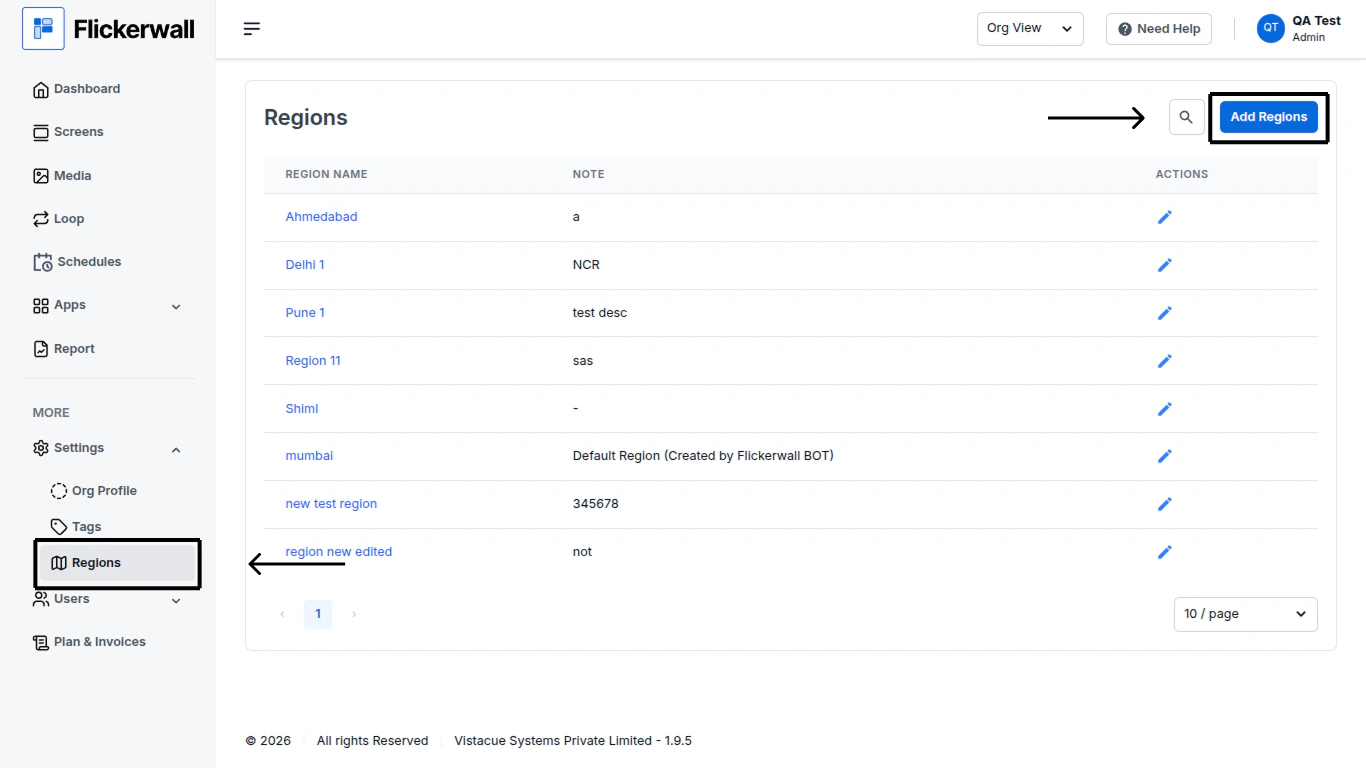
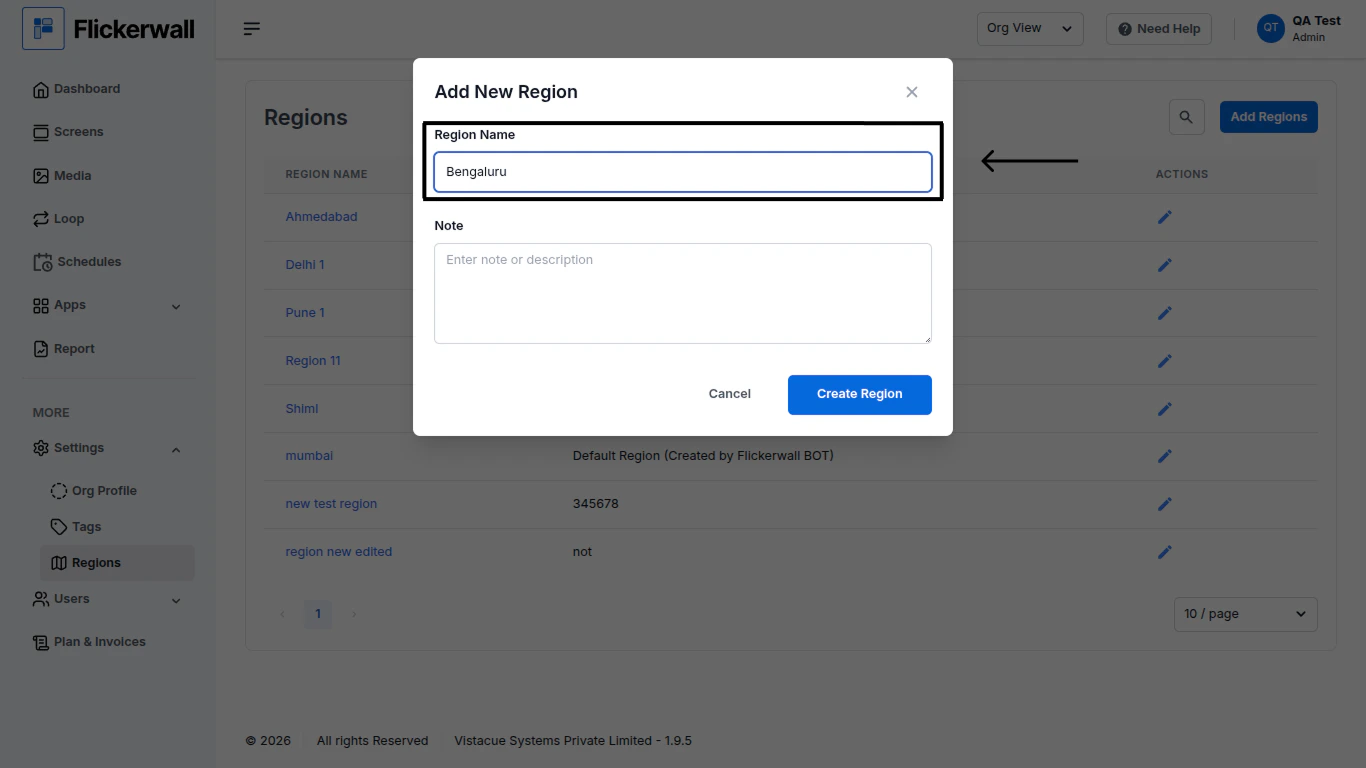
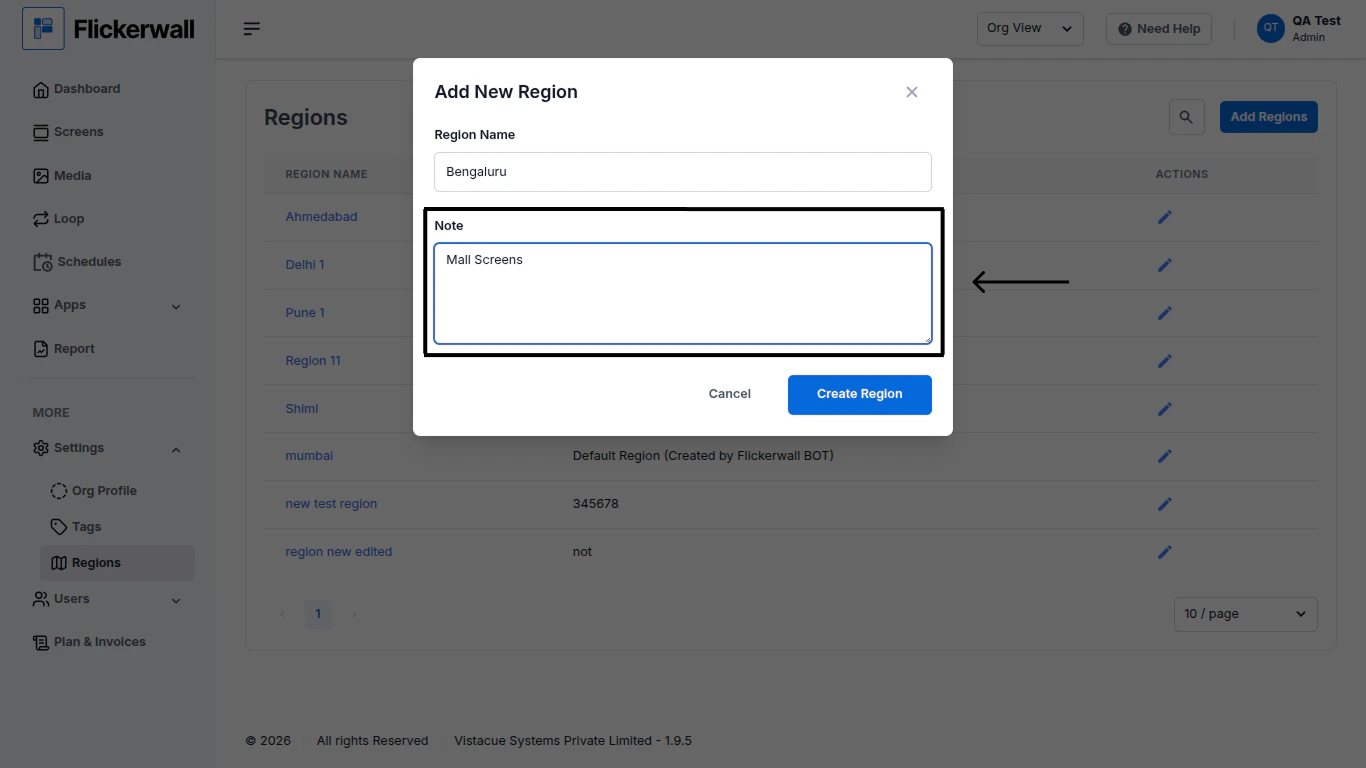
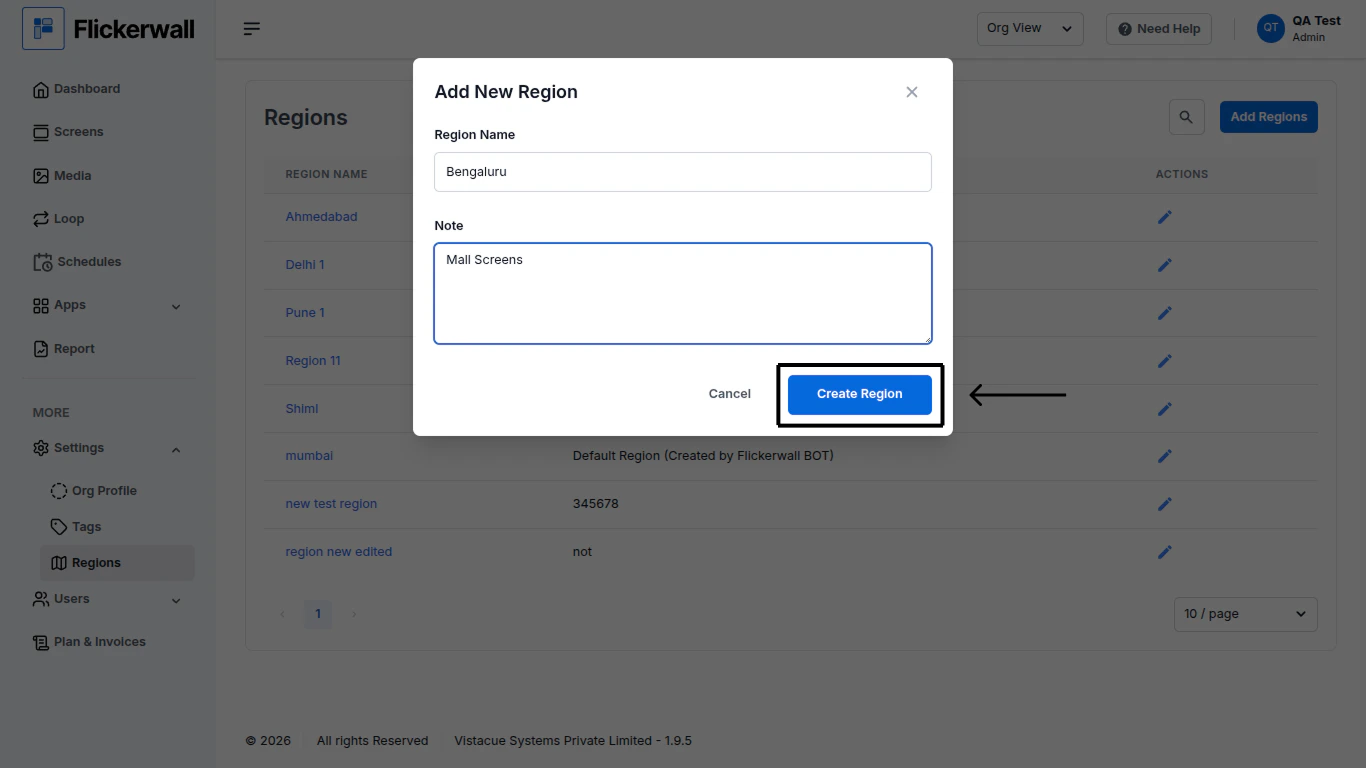
Step 1Go to the Regions Module and click on “Add Regions”Step 2Add a Name for the RegionStep 3Add an Note for the RegionStep 4Lastly, Click on “Create Region” and that’s it
⌘I
{"docsConfig":{"theme":"maple","$schema":"https://mintlify.com/docs.json","name":"Flickerwall Documentation","colors":{"primary":"#0369db","light":"#0369db","dark":"#15803D"},"logo":"https://mintcdn.com/flickerwall-796545b9/QyHLB_DuGuIs1P_v/images/Group2.svg?fit=max\u0026auto=format\u0026n=QyHLB_DuGuIs1P_v\u0026q=85\u0026s=468b8727704eed298bf74ff861c89070","favicon":"https://mintcdn.com/flickerwall-796545b9/WP4l1lhQM-CokS98/images/favicon.png?fit=max\u0026auto=format\u0026n=WP4l1lhQM-CokS98\u0026q=85\u0026s=04e3269553742f38b07278c8d5bc1d9d","appearance":{"default":"system","strict":false},"navbar":{"links":[{"href":"mailto:sales@flickerwall.com","label":"Support"}],"primary":{"type":"button","label":"Dashboard","href":"https://app.flickerwall.com"}},"footer":{"socials":{"x":"https://x.com/flickerwallApp","facebook":"https://facebook.com/flickerwall"}},"seo":{"indexing":"navigable"},"contextual":{"options":["copy","view","chatgpt","claude","perplexity","mcp","cursor","vscode"],"display":"header"},"styling":{"latex":false},"navigation":{"pages":[]}},"deployment":{"deploymentMetadataValue":{"subdomain":"flickerwall-796545b9","hasAudioNarration":false,"actualSubdomain":"flickerwall-796545b9","customDomains":["docs.flickerwall.com"],"gitSource":{"type":"github","owner":"flickerwall","repo":"fw-docs","deployBranch":"main","contentDirectory":"","isPrivate":true,"mountPath":"","label":""},"chroma":{"liveDeploymentHistoryId":"6a21f72c55ebb2c863916865","collectionId":"90765878-ecbb-480b-9c42-bfbb05aa2a30","schemaVersion":"v2"},"entitlements":{},"buildId":"6a21f72c55ebb2c863916865:success","clientVersion":"0.0.3990","searchFilterCounts":[{"language":"default","tag":"Cloud","count":112},{"language":"default","tag":"Apps","count":33},{"language":"default","tag":"News","count":32},{"language":"default","tag":"Settings","count":16},{"language":"default","tag":"Screens","count":10},{"language":"default","tag":"Loops","count":9},{"language":"default","tag":"Media","count":9},{"language":"default","tag":"Add or Manage","count":9},{"language":"default","tag":"User","count":9},{"language":"default","tag":"Create New or Manage","count":8}]},"assistantConfig":{"enableAskAiButton":false,"enableStarterQuestions":false,"enableAskAiSearchBar":true},"basePath":"","hasChatPermissions":false,"hasWebMcpPermissions":false,"toggles":[{"name":"kill-isr","enabled":true,"variant":{"name":"disabled","enabled":false,"feature_enabled":true},"impressionData":false},{"name":"agent-mintlify-slack","enabled":true,"variant":{"name":"disabled","enabled":false,"feature_enabled":true},"impressionData":false},{"name":"editor-v7-file-tree","enabled":true,"variant":{"name":"disabled","enabled":false,"feature_enabled":true},"impressionData":false},{"name":"agent-integrations-settings","enabled":true,"variant":{"name":"disabled","enabled":false,"feature_enabled":true},"impressionData":false},{"name":"automations-pr-grouping","enabled":true,"variant":{"name":"disabled","enabled":false,"feature_enabled":true},"impressionData":false},{"name":"custom-prefix","enabled":true,"variant":{"name":"disabled","enabled":false,"feature_enabled":true},"impressionData":false},{"name":"analytics-v7","enabled":true,"variant":{"name":"disabled","enabled":false,"feature_enabled":true},"impressionData":false},{"name":"user-flows-analytics","enabled":true,"variant":{"name":"disabled","enabled":false,"feature_enabled":true},"impressionData":false},{"name":"no-publish-flow","enabled":true,"variant":{"name":"disabled","enabled":false,"feature_enabled":true},"impressionData":false},{"name":"workos-onboarding","enabled":true,"variant":{"name":"disabled","enabled":false,"feature_enabled":true},"impressionData":false},{"name":"llms-txt-v2","enabled":true,"variant":{"name":"disabled","enabled":false,"feature_enabled":true},"impressionData":false},{"name":"pause-universal-search-reconcile","enabled":true,"variant":{"name":"disabled","enabled":false,"feature_enabled":true},"impressionData":false},{"name":"snapshot-serving-live","enabled":true,"variant":{"name":"disabled","enabled":false,"feature_enabled":true},"impressionData":false},{"name":"stripTemperatureMiddleware","enabled":true,"variant":{"name":"disabled","enabled":false,"feature_enabled":true},"impressionData":false},{"name":"per-site-search-delta","enabled":true,"variant":{"name":"disabled","enabled":false,"feature_enabled":true},"impressionData":false},{"name":"support-platform-pylon-zendesk","enabled":true,"variant":{"name":"disabled","enabled":false,"feature_enabled":true},"impressionData":false},{"name":"snapshot-serving","enabled":true,"variant":{"name":"disabled","enabled":false,"feature_enabled":true},"impressionData":false},{"name":"instant-rollback","enabled":true,"variant":{"name":"disabled","enabled":false,"feature_enabled":true},"impressionData":false},{"name":"granular-notifications-server","enabled":true,"variant":{"name":"disabled","enabled":false,"feature_enabled":true},"impressionData":false},{"name":"granular-notifications","enabled":true,"variant":{"name":"disabled","enabled":false,"feature_enabled":true},"impressionData":false},{"name":"editor-private-page-search","enabled":true,"variant":{"name":"disabled","enabled":false,"feature_enabled":true},"impressionData":false},{"name":"automations-fable","enabled":true,"variant":{"name":"disabled","enabled":false,"feature_enabled":true},"impressionData":false},{"name":"fixed-ai-action-pricing","enabled":true,"variant":{"name":"disabled","enabled":false,"feature_enabled":true},"impressionData":false},{"name":"automation-resolve-merge-conflict","enabled":true,"variant":{"name":"disabled","enabled":false,"feature_enabled":true},"impressionData":false},{"name":"scoped-publishing","enabled":true,"variant":{"name":"disabled","enabled":false,"feature_enabled":true},"impressionData":false},{"name":"mintql","enabled":true,"variant":{"name":"disabled","enabled":false,"feature_enabled":true},"impressionData":false},{"name":"page-level-analytics","enabled":true,"variant":{"name":"disabled","enabled":false,"feature_enabled":true},"impressionData":false},{"name":"editor-version-history-v2","enabled":true,"variant":{"name":"disabled","enabled":false,"feature_enabled":true},"impressionData":false},{"name":"editor-nav-generations","enabled":true,"variant":{"name":"disabled","enabled":false,"feature_enabled":true},"impressionData":false},{"name":"billing-page-v2","enabled":true,"variant":{"name":"disabled","enabled":false,"feature_enabled":true},"impressionData":false},{"name":"workspace-projects","enabled":true,"variant":{"name":"disabled","enabled":false,"feature_enabled":true},"impressionData":false},{"name":"assistant-v5","enabled":true,"variant":{"name":"disabled","enabled":false,"feature_enabled":true},"impressionData":false},{"name":"byok-sep-25","enabled":true,"variant":{"name":"disabled","enabled":false,"feature_enabled":true},"impressionData":false},{"name":"fork-pr-previews","enabled":true,"variant":{"name":"disabled","enabled":false,"feature_enabled":true},"impressionData":false},{"name":"revalidation-jwt","enabled":true,"variant":{"name":"disabled","enabled":false,"feature_enabled":true},"impressionData":false},{"name":"vite-origin","enabled":true,"variant":{"name":"disabled","enabled":false,"feature_enabled":true},"impressionData":false},{"name":"editor-agent-model-picker","enabled":true,"variant":{"name":"disabled","enabled":false,"feature_enabled":true},"impressionData":false},{"name":"billing-updated-9-15","enabled":true,"variant":{"name":"disabled","enabled":false,"feature_enabled":true},"impressionData":false},{"name":"workos-sso-scim","enabled":true,"variant":{"name":"disabled","enabled":false,"feature_enabled":true},"impressionData":false},{"name":"hobby-abuse-scan","enabled":true,"variant":{"name":"disabled","enabled":false,"feature_enabled":true},"impressionData":false},{"name":"dashboard-inbox","enabled":true,"variant":{"name":"disabled","enabled":false,"feature_enabled":true},"impressionData":false},{"name":"workos-signup","enabled":true,"variant":{"name":"disabled","enabled":false,"feature_enabled":true},"impressionData":false},{"name":"workos-enabled","enabled":true,"variant":{"name":"disabled","enabled":false,"feature_enabled":true},"impressionData":false}],"isAtlas":false,"googleFontsInlined":false},"customCss":[],"page":{"pagePath":"cloud/settings/regions/how-to-add-a-region","slug":"/cloud/settings/regions/how-to-add-a-region","pageMetadata":{"title":"How to Add a Region?","description":"Learn how to add a Region for better Screen Optimization","href":"/cloud/settings/regions/how-to-add-a-region"},"description":{"compiledSource":"\"use strict\";\nconst {jsx: _jsx} = arguments[0];\nconst {useMDXComponents: _provideComponents} = arguments[0];\nfunction _createMdxContent(props) {\n const _components = {\n p: \"p\",\n ..._provideComponents(),\n ...props.components\n };\n return _jsx(_components.p, {\n children: \"Learn how to add a Region for better Screen Optimization\"\n });\n}\nfunction MDXContent(props = {}) {\n const {wrapper: MDXLayout} = {\n ..._provideComponents(),\n ...props.components\n };\n return MDXLayout ? _jsx(MDXLayout, {\n ...props,\n children: _jsx(_createMdxContent, {\n ...props\n })\n }) : _createMdxContent(props);\n}\nreturn {\n default: MDXContent\n};\n","frontmatter":{},"scope":{}},"pageType":"default","mdx":{"mdxSource":{"compiledSource":"\"use strict\";const{Fragment:_Fragment,jsx:_jsx,jsxs:_jsxs}=arguments[0];const{useMDXComponents:_provideComponents}=arguments[0];function _createMdxContent(props){const _components={hr:`hr`,p:`p`,..._provideComponents(),...props.components},{OptimizedImage}=_components;if(!OptimizedImage)_missingMdxReference(`OptimizedImage`,true);return _jsxs(_Fragment,{children:[_jsx(_components.hr,{}),`\n`,_jsx(_components.p,{children:`Step 1`}),`\n`,_jsx(_components.p,{children:`Go to the Regions Module and click on “Add Regions”`}),`\n`,_jsx(OptimizedImage,{src:`https://mintcdn.com/flickerwall-796545b9/MimF6oumHHS1qwlF/images/settings-regions-how-to-add-a-region-image-1.png?fit=max\u0026auto=format\u0026n=MimF6oumHHS1qwlF\u0026q=85\u0026s=f117ff59d7301909501337e3b3b35fcd`,alt:``,\"data-og-width\":`1366`,width:`1366`,\"data-og-height\":`768`,height:`768`,\"data-path\":`images/settings-regions-how-to-add-a-region-image-1.png`,\"data-optimize\":`true`,\"data-opv\":`3`,srcset:`https://mintcdn.com/flickerwall-796545b9/MimF6oumHHS1qwlF/images/settings-regions-how-to-add-a-region-image-1.png?w=280\u0026fit=max\u0026auto=format\u0026n=MimF6oumHHS1qwlF\u0026q=85\u0026s=9eec804c36b063964ebd21c4f182f73c 280w, https://mintcdn.com/flickerwall-796545b9/MimF6oumHHS1qwlF/images/settings-regions-how-to-add-a-region-image-1.png?w=560\u0026fit=max\u0026auto=format\u0026n=MimF6oumHHS1qwlF\u0026q=85\u0026s=9a92720cef3c9e8597c74df645bd12f2 560w, https://mintcdn.com/flickerwall-796545b9/MimF6oumHHS1qwlF/images/settings-regions-how-to-add-a-region-image-1.png?w=840\u0026fit=max\u0026auto=format\u0026n=MimF6oumHHS1qwlF\u0026q=85\u0026s=a1406f515292ab46b4ddca1b9bea458a 840w, https://mintcdn.com/flickerwall-796545b9/MimF6oumHHS1qwlF/images/settings-regions-how-to-add-a-region-image-1.png?w=1100\u0026fit=max\u0026auto=format\u0026n=MimF6oumHHS1qwlF\u0026q=85\u0026s=85b9669873835b06f2caf463bf52bb25 1100w, https://mintcdn.com/flickerwall-796545b9/MimF6oumHHS1qwlF/images/settings-regions-how-to-add-a-region-image-1.png?w=1650\u0026fit=max\u0026auto=format\u0026n=MimF6oumHHS1qwlF\u0026q=85\u0026s=03a8ce6d2a4a64f938c5d4be2cd108ef 1650w, https://mintcdn.com/flickerwall-796545b9/MimF6oumHHS1qwlF/images/settings-regions-how-to-add-a-region-image-1.png?w=2500\u0026fit=max\u0026auto=format\u0026n=MimF6oumHHS1qwlF\u0026q=85\u0026s=f6344b99a46e7d3534fbe35aa2ea1573 2500w`}),`\n`,_jsx(_components.p,{children:`Step 2`}),`\n`,_jsx(_components.p,{children:`Add a Name for the Region`}),`\n`,_jsx(OptimizedImage,{src:`https://mintcdn.com/flickerwall-796545b9/MimF6oumHHS1qwlF/images/settings-regions-how-to-add-a-region-image-2.png?fit=max\u0026auto=format\u0026n=MimF6oumHHS1qwlF\u0026q=85\u0026s=4b9d19cfc3860d88977aefeac64983da`,alt:``,\"data-og-width\":`1366`,width:`1366`,\"data-og-height\":`768`,height:`768`,\"data-path\":`images/settings-regions-how-to-add-a-region-image-2.png`,\"data-optimize\":`true`,\"data-opv\":`3`,srcset:`https://mintcdn.com/flickerwall-796545b9/MimF6oumHHS1qwlF/images/settings-regions-how-to-add-a-region-image-2.png?w=280\u0026fit=max\u0026auto=format\u0026n=MimF6oumHHS1qwlF\u0026q=85\u0026s=d4f2fde5967436110da4f13c8340fae9 280w, https://mintcdn.com/flickerwall-796545b9/MimF6oumHHS1qwlF/images/settings-regions-how-to-add-a-region-image-2.png?w=560\u0026fit=max\u0026auto=format\u0026n=MimF6oumHHS1qwlF\u0026q=85\u0026s=1865174db37a062524f6be19b59a36bd 560w, https://mintcdn.com/flickerwall-796545b9/MimF6oumHHS1qwlF/images/settings-regions-how-to-add-a-region-image-2.png?w=840\u0026fit=max\u0026auto=format\u0026n=MimF6oumHHS1qwlF\u0026q=85\u0026s=ccbef18e2b5481120280c6463d690a62 840w, https://mintcdn.com/flickerwall-796545b9/MimF6oumHHS1qwlF/images/settings-regions-how-to-add-a-region-image-2.png?w=1100\u0026fit=max\u0026auto=format\u0026n=MimF6oumHHS1qwlF\u0026q=85\u0026s=563fc00157ec022ca68276652b075145 1100w, https://mintcdn.com/flickerwall-796545b9/MimF6oumHHS1qwlF/images/settings-regions-how-to-add-a-region-image-2.png?w=1650\u0026fit=max\u0026auto=format\u0026n=MimF6oumHHS1qwlF\u0026q=85\u0026s=90e06f3cdd5a9510d04c494d83ce65d0 1650w, https://mintcdn.com/flickerwall-796545b9/MimF6oumHHS1qwlF/images/settings-regions-how-to-add-a-region-image-2.png?w=2500\u0026fit=max\u0026auto=format\u0026n=MimF6oumHHS1qwlF\u0026q=85\u0026s=752f8be54faa028129632928dbea072c 2500w`}),`\n`,_jsx(_components.p,{children:`Step 3`}),`\n`,_jsx(_components.p,{children:`Add an Note for the Region`}),`\n`,_jsx(OptimizedImage,{src:`https://mintcdn.com/flickerwall-796545b9/MimF6oumHHS1qwlF/images/settings-regions-how-to-add-a-region-image-3.png?fit=max\u0026auto=format\u0026n=MimF6oumHHS1qwlF\u0026q=85\u0026s=ebf4bec3212ddb95572c4c56da0b0efb`,alt:``,\"data-og-width\":`1366`,width:`1366`,\"data-og-height\":`768`,height:`768`,\"data-path\":`images/settings-regions-how-to-add-a-region-image-3.png`,\"data-optimize\":`true`,\"data-opv\":`3`,srcset:`https://mintcdn.com/flickerwall-796545b9/MimF6oumHHS1qwlF/images/settings-regions-how-to-add-a-region-image-3.png?w=280\u0026fit=max\u0026auto=format\u0026n=MimF6oumHHS1qwlF\u0026q=85\u0026s=e1994cba7ea58daa139f4b18e762b5e1 280w, https://mintcdn.com/flickerwall-796545b9/MimF6oumHHS1qwlF/images/settings-regions-how-to-add-a-region-image-3.png?w=560\u0026fit=max\u0026auto=format\u0026n=MimF6oumHHS1qwlF\u0026q=85\u0026s=b9cbfd15a1cd44cb2ebbccd664481dd1 560w, https://mintcdn.com/flickerwall-796545b9/MimF6oumHHS1qwlF/images/settings-regions-how-to-add-a-region-image-3.png?w=840\u0026fit=max\u0026auto=format\u0026n=MimF6oumHHS1qwlF\u0026q=85\u0026s=f41cadc10cee9340e622528c65dca7e7 840w, https://mintcdn.com/flickerwall-796545b9/MimF6oumHHS1qwlF/images/settings-regions-how-to-add-a-region-image-3.png?w=1100\u0026fit=max\u0026auto=format\u0026n=MimF6oumHHS1qwlF\u0026q=85\u0026s=6851e9dce5ec394f6543aa53a64ed7e2 1100w, https://mintcdn.com/flickerwall-796545b9/MimF6oumHHS1qwlF/images/settings-regions-how-to-add-a-region-image-3.png?w=1650\u0026fit=max\u0026auto=format\u0026n=MimF6oumHHS1qwlF\u0026q=85\u0026s=407ce86dd062b46d0d39d39213513eca 1650w, https://mintcdn.com/flickerwall-796545b9/MimF6oumHHS1qwlF/images/settings-regions-how-to-add-a-region-image-3.png?w=2500\u0026fit=max\u0026auto=format\u0026n=MimF6oumHHS1qwlF\u0026q=85\u0026s=9a513d1a9f3afaf8fb9580b220b7bf84 2500w`}),`\n`,_jsx(_components.p,{children:`Step 4`}),`\n`,_jsx(_components.p,{children:`Lastly, Click on “Create Region” and that’s it`}),`\n`,_jsx(OptimizedImage,{src:`https://mintcdn.com/flickerwall-796545b9/MimF6oumHHS1qwlF/images/settings-regions-how-to-add-a-region-image-4.png?fit=max\u0026auto=format\u0026n=MimF6oumHHS1qwlF\u0026q=85\u0026s=b9bf241ee33a78ddfe1b25b45d09af17`,alt:``,\"data-og-width\":`1366`,width:`1366`,\"data-og-height\":`768`,height:`768`,\"data-path\":`images/settings-regions-how-to-add-a-region-image-4.png`,\"data-optimize\":`true`,\"data-opv\":`3`,srcset:`https://mintcdn.com/flickerwall-796545b9/MimF6oumHHS1qwlF/images/settings-regions-how-to-add-a-region-image-4.png?w=280\u0026fit=max\u0026auto=format\u0026n=MimF6oumHHS1qwlF\u0026q=85\u0026s=6788eaf5b8b6feb779008a5f17081c12 280w, https://mintcdn.com/flickerwall-796545b9/MimF6oumHHS1qwlF/images/settings-regions-how-to-add-a-region-image-4.png?w=560\u0026fit=max\u0026auto=format\u0026n=MimF6oumHHS1qwlF\u0026q=85\u0026s=fbb48bfbf32359cf42f2fa9282cec611 560w, https://mintcdn.com/flickerwall-796545b9/MimF6oumHHS1qwlF/images/settings-regions-how-to-add-a-region-image-4.png?w=840\u0026fit=max\u0026auto=format\u0026n=MimF6oumHHS1qwlF\u0026q=85\u0026s=dd5c34f0d9dbaf73c1d77dedc83de8ca 840w, https://mintcdn.com/flickerwall-796545b9/MimF6oumHHS1qwlF/images/settings-regions-how-to-add-a-region-image-4.png?w=1100\u0026fit=max\u0026auto=format\u0026n=MimF6oumHHS1qwlF\u0026q=85\u0026s=f42f9d37571bd21a5572913bd8694891 1100w, https://mintcdn.com/flickerwall-796545b9/MimF6oumHHS1qwlF/images/settings-regions-how-to-add-a-region-image-4.png?w=1650\u0026fit=max\u0026auto=format\u0026n=MimF6oumHHS1qwlF\u0026q=85\u0026s=fcbb6a9d1beeb35d36304e49806b433b 1650w, https://mintcdn.com/flickerwall-796545b9/MimF6oumHHS1qwlF/images/settings-regions-how-to-add-a-region-image-4.png?w=2500\u0026fit=max\u0026auto=format\u0026n=MimF6oumHHS1qwlF\u0026q=85\u0026s=54d987207c376d0f257fe4ed14bba4a7 2500w`})]})}function MDXContent(props={}){const{wrapper:MDXLayout}={..._provideComponents(),...props.components};return MDXLayout?_jsx(MDXLayout,{...props,children:_jsx(_createMdxContent,{...props})}):_createMdxContent(props)}return{default:MDXContent};function _missingMdxReference(id,component){throw new Error(`Expected `+(component?`component`:`object`)+\" `\"+id+\"` to be defined: you likely forgot to import, pass, or provide it.\")}","frontmatter":{},"scope":{"config":{},"pageMetadata":{"title":"How to Add a Region?","description":"Learn how to add a Region for better Screen Optimization","href":"/cloud/settings/regions/how-to-add-a-region"}}},"mdxSourceWithNoJs":null},"mdxExtracts":{"tableOfContents":[],"codeExamples":{}},"jsLinks":[],"subdomain":"flickerwall-796545b9","siteName":"Flickerwall Documentation","title":"How to Add a Region? - Flickerwall Documentation","navMaps":{"firstHrefInVersion":{},"firstHrefInLanguage":{}},"lastModified":"2026-02-04T17:33:08.638Z","originalFileLocation":"cloud/settings/regions/how-to-add-a-region.md"},"headHtml":"\u003cscript data-mint-head>(function(){var d=document.documentElement,p=null;if(!p){try{p=localStorage.getItem(\"isDarkMode\")}catch(e){}if(p==='true')p='dark';else if(p==='false')p='light';if(p!=='light'\u0026\u0026p!=='dark'\u0026\u0026p!=='system')p=\"system\"}var r=p==='system'?(matchMedia(\"(prefers-color-scheme: dark)\").matches?'dark':'light'):p;d.classList.remove(r==='dark'?'light':'dark');d.classList.add(r);d.setAttribute(\"data-theme-preference\",p)})();\u003c/script>\u003cmeta data-mint-head name=\"description\" content=\"Learn how to add a Region for better Screen Optimization\">\u003cmeta data-mint-head name=\"application-name\" content=\"Flickerwall Documentation\">\u003cmeta data-mint-head name=\"generator\" content=\"Mintlify\">\u003clink data-mint-head rel=\"icon\" type=\"image/png\" sizes=\"192x192\" href=\"/mintlify-assets/_mintlify/favicons/flickerwall-796545b9/IcI644e4EXkckkSh/_generated/favicon/android-chrome-192x192.png\" media=\"(prefers-color-scheme: light)\">\u003clink data-mint-head rel=\"apple-touch-icon\" type=\"image/png\" sizes=\"180x180\" href=\"/mintlify-assets/_mintlify/favicons/flickerwall-796545b9/IcI644e4EXkckkSh/_generated/favicon/apple-touch-icon.png\">\u003clink data-mint-head rel=\"icon\" type=\"image/png\" sizes=\"16x16\" href=\"/mintlify-assets/_mintlify/favicons/flickerwall-796545b9/IcI644e4EXkckkSh/_generated/favicon/favicon-16x16.png\" media=\"(prefers-color-scheme: light)\">\u003clink data-mint-head rel=\"icon\" type=\"image/png\" sizes=\"32x32\" href=\"/mintlify-assets/_mintlify/favicons/flickerwall-796545b9/IcI644e4EXkckkSh/_generated/favicon/favicon-32x32.png\" media=\"(prefers-color-scheme: light)\">\u003clink data-mint-head rel=\"shortcut icon\" type=\"image/x-icon\" href=\"/mintlify-assets/_mintlify/favicons/flickerwall-796545b9/IcI644e4EXkckkSh/_generated/favicon/favicon.ico\" media=\"(prefers-color-scheme: light)\">\u003clink data-mint-head rel=\"icon\" type=\"image/png\" sizes=\"192x192\" href=\"/mintlify-assets/_mintlify/favicons/flickerwall-796545b9/IcI644e4EXkckkSh/_generated/favicon-dark/android-chrome-192x192.png\" media=\"(prefers-color-scheme: dark)\">\u003clink data-mint-head rel=\"icon\" type=\"image/png\" sizes=\"16x16\" href=\"/mintlify-assets/_mintlify/favicons/flickerwall-796545b9/IcI644e4EXkckkSh/_generated/favicon-dark/favicon-16x16.png\" media=\"(prefers-color-scheme: dark)\">\u003clink data-mint-head rel=\"icon\" type=\"image/png\" sizes=\"32x32\" href=\"/mintlify-assets/_mintlify/favicons/flickerwall-796545b9/IcI644e4EXkckkSh/_generated/favicon-dark/favicon-32x32.png\" media=\"(prefers-color-scheme: dark)\">\u003clink data-mint-head rel=\"shortcut icon\" type=\"image/x-icon\" href=\"/mintlify-assets/_mintlify/favicons/flickerwall-796545b9/IcI644e4EXkckkSh/_generated/favicon-dark/favicon.ico\" media=\"(prefers-color-scheme: dark)\">\u003cmeta data-mint-head property=\"og:title\" content=\"How to Add a Region? - Flickerwall Documentation\">\u003cmeta data-mint-head property=\"og:description\" content=\"Learn how to add a Region for better Screen Optimization\">\u003cmeta data-mint-head property=\"og:site_name\" content=\"Flickerwall Documentation\">\u003cmeta data-mint-head property=\"og:url\" content=\"https://docs.flickerwall.com/cloud/settings/regions/how-to-add-a-region\">\u003cmeta data-mint-head property=\"og:type\" content=\"website\">\u003cmeta data-mint-head property=\"og:image\" content=\"https://flickerwall-796545b9.mintlify.app/_mintlify/api/og/v2?division=Regions\u0026amp;title=How+to+Add+a+Region%3F\u0026amp;description=Learn+how+to+add+a+Region+for+better+Screen+Optimization\u0026amp;theme=20058d3373c6eb2b6ef729ff\u0026amp;signature=1d561f57f0a2742aa8a7e2db0f17c16f1e63520903b95e9b87f97a7b69b159a6\">\u003cmeta data-mint-head property=\"og:image:width\" content=\"1200\">\u003cmeta data-mint-head property=\"og:image:height\" content=\"630\">\u003cmeta data-mint-head name=\"twitter:card\" content=\"summary_large_image\">\u003cmeta data-mint-head name=\"twitter:title\" content=\"How to Add a Region? - Flickerwall Documentation\">\u003cmeta data-mint-head name=\"twitter:description\" content=\"Learn how to add a Region for better Screen Optimization\">\u003cmeta data-mint-head name=\"twitter:image\" content=\"https://flickerwall-796545b9.mintlify.app/_mintlify/api/og/v2?division=Regions\u0026amp;title=How+to+Add+a+Region%3F\u0026amp;description=Learn+how+to+add+a+Region+for+better+Screen+Optimization\u0026amp;theme=20058d3373c6eb2b6ef729ff\u0026amp;signature=1d561f57f0a2742aa8a7e2db0f17c16f1e63520903b95e9b87f97a7b69b159a6\">\u003cmeta data-mint-head name=\"twitter:image:width\" content=\"1200\">\u003cmeta data-mint-head name=\"twitter:image:height\" content=\"630\">\u003cmeta data-mint-head name=\"msapplication-config\" content=\"/mintlify-assets/_mintlify/favicons/flickerwall-796545b9/IcI644e4EXkckkSh/_generated/favicon/browserconfig.xml\">\u003cmeta data-mint-head name=\"apple-mobile-web-app-title\" content=\"Flickerwall Documentation\">\u003cmeta data-mint-head name=\"msapplication-TileColor\" content=\"#0369db\">\u003clink data-mint-head rel=\"canonical\" href=\"https://docs.flickerwall.com/cloud/settings/regions/how-to-add-a-region\">\u003clink data-mint-head rel=\"alternate\" type=\"application/xml\" href=\"/sitemap.xml\">\u003clink data-mint-head rel=\"alternate\" type=\"text/markdown\" href=\"/cloud/settings/regions/how-to-add-a-region.md\">\u003cscript data-mint-head type=\"application/ld+json\">{\"@context\":\"https://schema.org\",\"@graph\":[{\"@type\":\"Organization\",\"@id\":\"https://docs.flickerwall.com/#organization\",\"name\":\"Flickerwall Documentation\",\"url\":\"https://docs.flickerwall.com\",\"logo\":{\"@type\":\"ImageObject\",\"url\":\"https://mintcdn.com/flickerwall-796545b9/QyHLB_DuGuIs1P_v/images/Group2.svg?fit=max\u0026auto=format\u0026n=QyHLB_DuGuIs1P_v\u0026q=85\u0026s=468b8727704eed298bf74ff861c89070\"}},{\"@type\":\"WebSite\",\"@id\":\"https://docs.flickerwall.com#website\",\"name\":\"Flickerwall Documentation\",\"url\":\"https://docs.flickerwall.com\",\"publisher\":{\"@id\":\"https://docs.flickerwall.com/#organization\"}},{\"@type\":\"WebPage\",\"@id\":\"https://docs.flickerwall.com/cloud/settings/regions/how-to-add-a-region#webpage\",\"url\":\"https://docs.flickerwall.com/cloud/settings/regions/how-to-add-a-region\",\"name\":\"How to Add a Region?\",\"description\":\"Learn how to add a Region for better Screen Optimization\",\"dateModified\":\"2026-02-04T17:33:08.638Z\",\"isPartOf\":{\"@id\":\"https://docs.flickerwall.com#website\"},\"breadcrumb\":{\"@id\":\"https://docs.flickerwall.com/cloud/settings/regions/how-to-add-a-region#breadcrumb\"}},{\"@type\":\"BreadcrumbList\",\"@id\":\"https://docs.flickerwall.com/cloud/settings/regions/how-to-add-a-region#breadcrumb\",\"itemListElement\":[{\"@type\":\"ListItem\",\"position\":1,\"name\":\"Settings\",\"item\":\"https://docs.flickerwall.com/cloud/settings/tags/how-to-edit-tags\"},{\"@type\":\"ListItem\",\"position\":2,\"name\":\"How to Add a Region?\",\"item\":\"https://docs.flickerwall.com/cloud/settings/regions/how-to-add-a-region\"}]},{\"@type\":[\"Article\",\"TechArticle\"],\"@id\":\"https://docs.flickerwall.com/cloud/settings/regions/how-to-add-a-region#article\",\"headline\":\"How to Add a Region?\",\"name\":\"How to Add a Region?\",\"description\":\"Learn how to add a Region for better Screen Optimization\",\"url\":\"https://docs.flickerwall.com/cloud/settings/regions/how-to-add-a-region\",\"mainEntityOfPage\":{\"@id\":\"https://docs.flickerwall.com/cloud/settings/regions/how-to-add-a-region#webpage\"},\"dateModified\":\"2026-02-04T17:33:08.638Z\",\"publisher\":{\"@id\":\"https://docs.flickerwall.com/#organization\"},\"isPartOf\":{\"@id\":\"https://docs.flickerwall.com#website\"}}]}\u003c/script>\u003cscript data-mint-head type=\"application/ld+json\">{\"@context\":\"https://schema.org\",\"@type\":\"WebSite\",\"name\":\"Flickerwall Documentation\",\"creator\":{\"@type\":\"Organization\",\"name\":\"Mintlify\",\"url\":\"https://mintlify.com\"}}\u003c/script>","siteName":"Flickerwall Documentation","nav":{"global":null,"tabs":[{"tab":"Cloud","pages":[{"title":"How to get started With Flickerwall","href":"/getting-started"},{"group":"Installation Guide","pages":[{"group":"Select Model","pages":[{"group":"Windows","pages":[{"title":"How to install the Flickerwall digital signage software on a Windows player?","href":"/cloud/installation-guide/how-to-install-the-flickerwall-digital-signage-software-on-a-windows-player"}]},{"group":"Andriod","pages":[{"title":"How to install the Flickerwall Digital Signage Player app on Android from Play Store?","href":"/cloud/installation-guide/how-to-install-the-flickerwall-digital-signage-player-app-on-android-from-play-store"}]},{"group":"Amazon Fire TV Stick","pages":[{"title":"Installation Guide for Amazon Fire TV Stick Devices","href":"/cloud/installation-guide/flickerwall-installation-guide-for-amazon-fire-tv-stick-devices"}]},{"group":"LG webOS ","pages":[{"title":null,"href":"/cloud/installation-guide/flickerwall-player-installation-lg-webos-via-usb-flash-drive"},{"title":"Installing Flickerwall on LG webOS via the SI Server URL Method","href":"/cloud/installation-guide/installing-flickerwall-on-lg-webos-via-the-si-server-url-method"}]}]}]},{"group":"Screens","pages":[{"title":"Screen Module Overview","href":"/cloud/screens/screen-module-overview"},{"group":"Add or Manage","pages":[{"title":"How to change /Add the Tag on your Screens?","href":"/cloud/screens/how-to-add-the-tag-on-your-screens"},{"title":"How to change the Screen Name?","href":"/cloud/screens/how-to-change-the-screen-name"},{"title":"How to check if your screen is Scheduled for any content?","href":"/cloud/screens/how-to-check-if-your-screen-is-scheduled-for-any-content"},{"title":"How to change the Screen Name , Region ,Tag and Orientation?","href":"/cloud/screens/how-to-change-the-screen-name-region-tag-and-orientation"},{"title":"How to change /Add the Regions on your Screens?","href":"/cloud/screens/how-to-add-the-regions-on-your-screens"},{"title":"How to use the Quick Play Feature?","href":"/cloud/screens/how-to-use-the-quick-play-feature"},{"title":"How to Add / Change your default Loops for your Screens?","href":"/cloud/screens/how-to-change-your-default-loops-for-your-screens"},{"title":"How to take ScreenShot of the Current Screen?","href":"/cloud/screens/how-to-take-screenshot-of-the-current-screen"},{"title":"How to Add Screens?","href":"/cloud/screens/how-to-add-screens"}]}]},{"group":"Media","pages":[{"title":"Overview of Media Module","href":"/cloud/media/overview-of-media-module"},{"group":"Upload or Manage","pages":[{"title":"How to add Media to the module?","href":"/cloud/media/how-to-add-media-to-the-module"},{"title":"How to keep a track of your Cloud Storage?","href":"/cloud/media/how-to-keep-a-track-of-your-cloud-storage"},{"title":"How to move Uploaded Media to any Folder?","href":"/cloud/media/how-to-move-uploaded-media-to-any-folder"},{"title":"How to add your Canva Design using the Upload from Canva Method?","href":"/cloud/media/how-to-add-your-canva-design-using-the-upload-from-canva-method"},{"title":"How to make a Folder to Organize the Media to use it more Optimally?","href":"/cloud/media/how-to-make-a-folder-to-organize-the-media-to-use-it-more-optimally"},{"title":"How to add Media through URL method?","href":"/cloud/media/how-to-add-media-through-url-method"},{"title":"How to Change from List view Media to Grid view Media or vice versa?","href":"/cloud/media/how-to-change-from-list-view-media-to-grid-view-media-or-vice-versa"},{"title":"How to add Media directly or within the Folder?","href":"/cloud/media/how-to-add-media-directly-or-within-the-folder"}]}]},{"group":"Apps","pages":[{"group":"RSS Feed and Live Streaming","pages":[{"title":"How to add the Live Streaming app from Flickerwall store?","href":"/cloud/apps/how-to-add-the-live-streaming-app-from-flickerwall-store"},{"title":"How to add the RSS Feed app from the Flickerwall store?","href":"/cloud/apps/how-to-add-the-rss-feed-app-from-the-flickerwall-store"}]},{"group":"Kiosk","pages":[{"title":"How to add the Content Kiosk App from Flickerwall store?","href":"/cloud/apps/how-to-add-the-content-kiosk-app-from-flickerwall-store"}]},{"group":"Canva","pages":[{"title":"How to add the Canva Embed App from Flickerwall store?","href":"/cloud/apps/how-to-add-the-canva-embed-app-from-flickerwall-store"}]},{"group":"Weather","pages":[{"title":"How to add the Weather app from the Flickerwall store?","href":"/cloud/apps/how-to-add-the-weather-app-from-the-flickerwall-store"},{"title":"How to add the Weather Radar App from Flickerwall store?","href":"/cloud/apps/how-to-add-the-weather-radar-app-from-flickerwall-store"}]},{"group":"Google","pages":[{"title":"How to add the Google Map Traffic app from the Flickerwall store?","href":"/cloud/apps/how-to-add-the-google-map-traffic-app-from-the-flickerwall-store"},{"title":"How to add the Google Slide app from Flickerwall store?","href":"/cloud/apps/how-to-add-the-google-slide-app-from-flickerwall-store"}]},{"group":"QR and URL App","pages":[{"title":"How to add and use the URL App from Flickerwall store?","href":"/cloud/apps/how-to-add-and-use-the-url-app-from-flickerwall-store"},{"title":"How to add the QR Code app from the Flickerwall Store?","href":"/cloud/apps/how-to-add-the-qr-code-app-from-the-flickerwall-store"}]},{"group":"Clock , Date and Scroller","pages":[{"title":"How to add the Scroller App from the Flickerwall store?","href":"/cloud/apps/how-to-add-the-scroller-app-from-the-flickerwall-store"},{"title":"How to add the Clock and Date Widget from Flickerwall store?","href":"/cloud/apps/how-to-add-the-clock-and-date-widget-from-flickerwall-store"},{"title":"How to add the Count down App from Flickerwall store?","href":"/cloud/apps/how-to-add-the-count-down-app-from-flickerwall-store"}]},{"group":"FaceBook","pages":[{"title":"How to add the Facebook Post app from Flickerwall store?","href":"/cloud/apps/how-to-add-the-facebook-post-app-from-flickerwall-store"},{"title":"How to add the Facebook Albums Appfrom Flickerwall store?","href":"/cloud/apps/how-to-add-the-facebook-albums-appfrom-flickerwall-store"}]},{"group":"News","pages":[{"group":"Finance News","pages":[{"title":"How to add and use the Business Standard app from Flickerwall store?","href":"/cloud/apps/how-to-add-and-use-the-business-standard-app-from-flickerwall-store"},{"title":"How to add and use the Bloomberg from Flickerwall store?","href":"/cloud/apps/how-to-add-and-use-the-bloomberg-from-flickerwall-store"}]},{"group":"News","pages":[{"title":"How to add and use the Independent News app from Flickerwall store?","href":"/cloud/apps/how-to-add-and-use-the-independent-news-app-from-flickerwall-store"},{"title":"How to add and use the NDTV News app from Flickerwall store?","href":"/cloud/apps/how-to-add-and-use-the-ndtv-news-app-from-flickerwall-store"},{"title":"How to add and use the Guardian News from Flickerwall store?","href":"/cloud/apps/how-to-add-and-use-the-guardian-news-from-flickerwall-store"},{"title":"How to add and use The Indian Express app from Flickerwall store?","href":"/cloud/apps/how-to-add-and-use-the-indian-express-app-from-flickerwall-store"},{"title":null,"href":"/cloud/apps/how-to-add-and-use-the-al-jazeera-news-app-from-flickerwall-store"},{"title":"How to add and use the Sky News app from Flickerwall store?","href":"/cloud/apps/how-to-add-and-use-the-sky-news-app-from-flickerwall-store"},{"title":"How to add and use the New York Times News from Flickerwall store?","href":"/cloud/apps/how-to-add-and-use-the-new-york-times-news-from-flickerwall-store"},{"title":"How to add and use the The Hindu app from Flickerwall store?","href":"/cloud/apps/how-to-add-and-use-the-the-hindu-app-from-flickerwall-store"},{"title":"How to add and use Hindustan Times app from Flickerwall store?","href":"/cloud/apps/how-to-add-and-use-hindustan-times-app-from-flickerwall-store"},{"title":"How to add the BBC News app from the Flickerwall app store?","href":"/cloud/apps/how-to-add-the-bbc-news-app-from-the-flickerwall-app-store"},{"title":"How to add Times of India app from Flickerwall store?","href":"/cloud/apps/how-to-add-times-of-india-app-from-flickerwall-store"},{"title":"How to add and use the Yahoo News app from Flickerwall store?","href":"/cloud/apps/how-to-add-and-use-the-yahoo-news-app-from-flickerwall-store"},{"title":"How to add the Zee News app from flickerwall store?","href":"/cloud/apps/how-to-add-the-zee-news-app-from-flickerwall-store"},{"title":"How to add the FOX News app from Flickerwall store?","href":"/cloud/apps/how-to-add-the-fox-news-app-from-flickerwall-store"},{"title":"How to add and use the Google News app from Flickerwall store?","href":"/cloud/apps/how-to-add-and-use-the-google-news-app-from-flickerwall-store"}]}]},{"group":"YouTube","pages":[{"title":"How to add the Youtube app from Flickerwall store?","href":"/cloud/apps/how-to-add-the-youtube-app-from-flickerwall-store"}]}]},{"group":"Loops","pages":[{"group":"Create New or Manage","pages":[{"title":"How to create a custom layout for my loop?","href":"/cloud/loops/how-to-create-a-custom-layout-for-my-loop"},{"title":"How to Delete a Created Loop?","href":"/cloud/loops/how-to-delete-a-created-loop"},{"title":"How to edit a Loop?","href":"/cloud/loops/how-to-edit-a-loop"},{"title":"How to Publish loops to your Screens?","href":"/cloud/loops/how-to-publish-loops-to-your-screens"},{"title":"How to Search for a loop?","href":"/cloud/loops/how-to-search-for-a-loop"},{"title":"How to Schedule your existing Loops?","href":"/cloud/loops/how-to-schedule-your-existing-loops"},{"title":"What is a Layout \u0026 How to Create a Layout?","href":"/cloud/loops/what-is-a-layout-how-to-create-a-layout"},{"title":"What is Zone in Flickerwall?","href":"/cloud/loops/what-is-zone-in-flickerwall"}]},{"title":"What is Loop? How to Create a Loop?","href":"/cloud/loops/what-is-loop-how-to-create-a-loop"}]},{"group":"Schedules","pages":[{"group":"Create New Schedule or Manage ","pages":[{"title":"How to Schedule your content?","href":"/cloud/schedules/how-to-schedule-your-content"},{"title":"How to Delete a Schedule","href":"/cloud/schedules/how-to-delete-a-schedule"}]}]},{"group":"Reports","pages":[{"group":"Manage and Download Report","pages":[{"title":"How to Check Audit Report of the Custom/Specific dates?","href":"/cloud/reports/how-to-check-audit-report-of-the-custom-or-specific-dates"},{"title":"How to Check the Audit Report from Flickerwall Dashboard? How to Check Audit Report of the Custom/Specific dates?","href":"/cloud/reports/how-to-check-the-audit-report-from-flickerwall-dashboard-how-to-check-audit-report-of-the-custom-or-specific-dates"},{"title":"How to Download Device Uptime Report from Flickerwall Dashboard? How to Download the Device Uptime Report with Custom/Specific Dates?","href":"/cloud/reports/how-to-download-device-uptime-report-from-flickerwall-dashboard-how-to-download-the-device-uptime-report-with-customor-specific-dates"},{"title":"How to Download the Device Uptime Report with Custom/Specific Dates?","href":"/cloud/reports/how-to-download-the-device-uptime-report-with-custom-or-specific-dates"},{"title":"How to Download the Playback Report with Custom/Specific Dates?","href":"/cloud/reports/how-to-download-the-playback-report-with-custom-or-specific-dates"},{"title":"How to Download your Playback Report? How to Download the Playback Report with Custom/Specific Dates?","href":"/cloud/reports/how-to-download-your-playback-report-how-to-download-the-playback-report-with-customspecific-dates"}]}]},{"group":"Settings","pages":[{"group":"Tags","pages":[{"group":"Create New or Delete ","pages":[{"title":"How to edit Tags?","href":"/cloud/settings/tags/how-to-edit-tags"},{"title":"How to make new Tags?","href":"/cloud/settings/tags/how-to-make-new-tags"},{"title":"How to Search for a Tag?","href":"/cloud/settings/tags/how-to-search-for-a-tag"},{"title":"What is the Tags Feature? How is it Useful?","href":"/cloud/settings/tags/what-is-the-tags-feature-how-is-it-useful"},{"title":"How to Delete a Tag?","href":"/cloud/settings/tags/how-to-delete-a-tag"}]}]},{"group":"Org Profile","pages":[{"title":"How to add a Default look for all newly add Screens?","href":"/cloud/settings/org-profile/how-to-add-a-default-look-for-all-newly-add-screens"},{"title":"How to Add / Change Billing Details?","href":"/cloud/settings/org-profile/how-to-add-or-change-billing-details"},{"title":"How to Add or Change details in the Org Profile?","href":"/cloud/settings/org-profile/how-to-add-or-change-details-in-the-org-profile"},{"title":"How to toggle the Settings of Org Profile?","href":"/cloud/settings/org-profile/how-to-toggle-the-settings-of-org-profile"},{"title":"What is an Org Profile in Flickerwall?","href":"/cloud/settings/org-profile/what-is-an-org-profile-in-flickerwall"},{"title":"What is 'Require Loop Appoval'?","description":"Learn what 'Require Loop Approval' is and how it can be useful for an Organization. If you have many users connected, and you don’t want any Screens to Publish any unauthorized loops","href":"/cloud/settings/org-profile/what-is-require-loop-appoval"}]},{"group":"Regions","pages":[{"title":"How to Add a Region?","href":"/cloud/settings/regions/how-to-add-a-region"},{"title":"How to Edit a Region?","description":"Learn how to Edit a Region for Better and Clean Management","href":"/cloud/settings/regions/how-to-edit-a-region"},{"title":"How to Inspect and Edit Screens Region wise?","href":"/cloud/settings/regions/how-to-inspect-and-edit-screens-region-wise"},{"title":"How to Search a Region?","href":"/cloud/settings/regions/how-to-search-a-region"},{"title":"What are Regions? How are they helpful?","href":"/cloud/settings/regions/what-are-regions-how-are-they-helpful"}]}]},{"group":"User","pages":[{"title":"What is User and their Roles and Permissions?","href":"/cloud/user/what-is-user-and-their-roles-and-permissions"},{"group":"Users","pages":[{"title":"How to Add a User?","href":"/cloud/user/all-users/how-to-add-a-user"},{"title":"How to Delete a User?","href":"/cloud/user/all-users/how-to-delete-a-user"},{"title":"How to Search for a User?","href":"/cloud/user/all-users/how-to-search-for-a-user"}]},{"group":"Roles and Permissions","pages":[{"title":"How to add Roles?","href":"/cloud/user/roles-and-permissions/how-to-add-roles"},{"title":"How to delete a Role?","href":"/cloud/user/roles-and-permissions/how-to-delete-a-role"},{"title":"How to Edit permissions of a Role?","href":"/cloud/user/roles-and-permissions/how-to-edit-permissions-of-a-role"},{"title":"How to edit Role's Name and Description","href":"/cloud/user/roles-and-permissions/how-to-edit-roles-name-and-description"},{"title":"How to Search for a Role?","href":"/cloud/user/roles-and-permissions/how-to-search-for-a-role"}]}]},{"group":"Plan and Invoices","pages":[{"group":"Manage Plan and Invoices","pages":[{"title":"How to Download Invoices?","href":"/cloud/plan-and-invoices/how-to-download-invoices"},{"title":"How to Update any Schedule in Flickerwall?","href":"/cloud/plan-and-invoices/how-to-update-any-schedule-in-flickerwall"},{"title":"What is Plan and Invoices?","href":"/cloud/plan-and-invoices/what-is-plan-and-invoices"},{"title":"How to Upgrade your Plan?","href":"/cloud/plan-and-invoices/how-to-upgrade-your-plan"},{"title":"How to Edit your Billing Information?","href":"/cloud/plan-and-invoices/how-to-edit-your-billing-information"}]}]},{"group":"User Profile","pages":[{"title":"Overview of User Profile","href":"/overview-of-user-profile"},{"group":"User Profile Manual","pages":[{"title":"How to Check my Profile Activity ?","href":"/how-to-check-my-profile-activity"},{"title":"How to Sign-Out a particular device or all devices from Sessions ?","href":"/how-to"},{"title":"How to Update my profile Password ?","href":"/untitled-page"},{"title":"How to Change my Preferred Language ?","href":"/how-to-change-my-preferred-language"},{"title":"How to Update my User Profile ?","href":"/how-to-update-my-user-profile"},{"title":"How to Update my profile Password ?","href":"/untitled-page"},{"title":"How to enable Twi-Factor-Authentication","href":"/how-to-enable-twi-factor-authentication"}]}]}]}]},"title":"How to Add a Region? - Flickerwall Documentation","buildId":"dpl_2oYXwqkEXirXBPk8wV1FtM5USFWi","deploymentId":"dpl_2oYXwqkEXirXBPk8wV1FtM5USFWi","dynamics":["a74be98ba7"],"chunks":["zoom-image-lightbox-D7yRe3On.js","lightbox-handle-r17bVUz3.js"]}