How to Add / Change your default Loops for your Screens?
Learn how to Add / Change your default Loops for better utilization
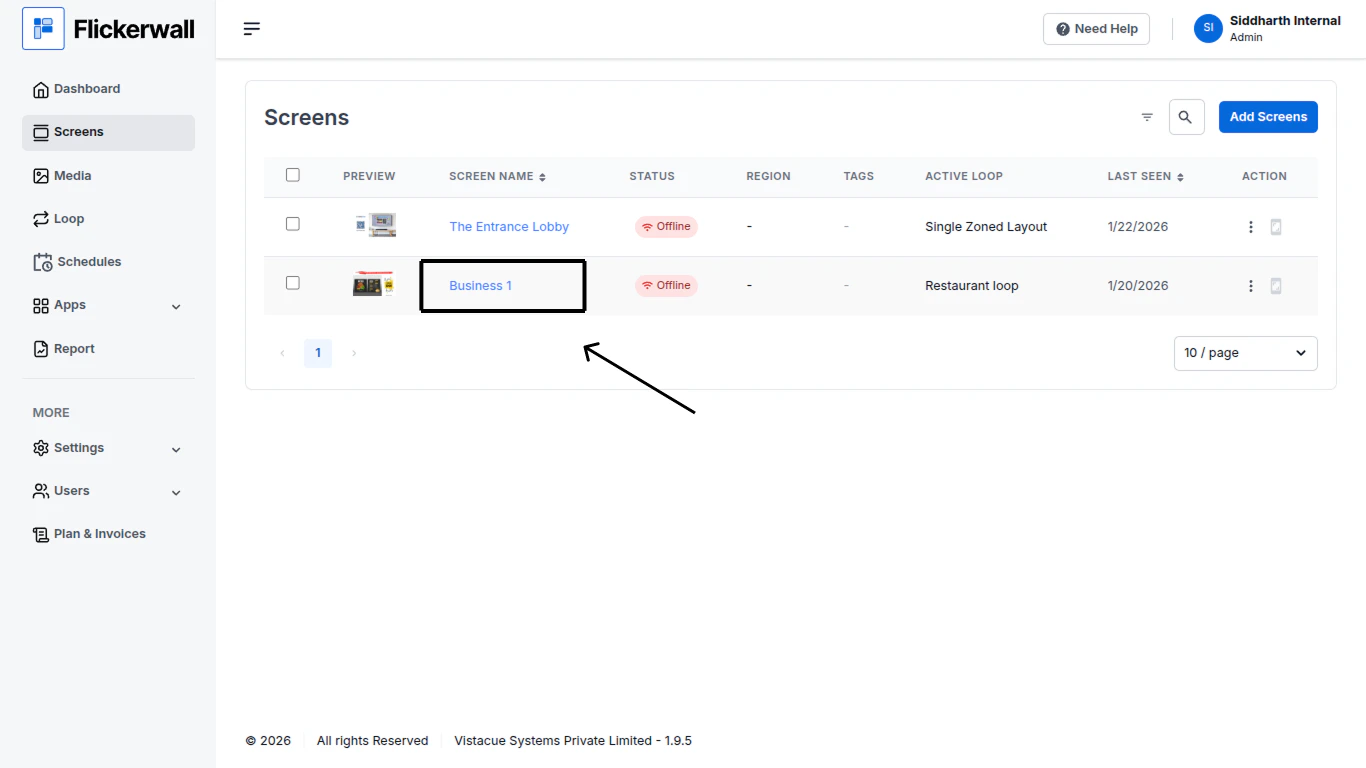
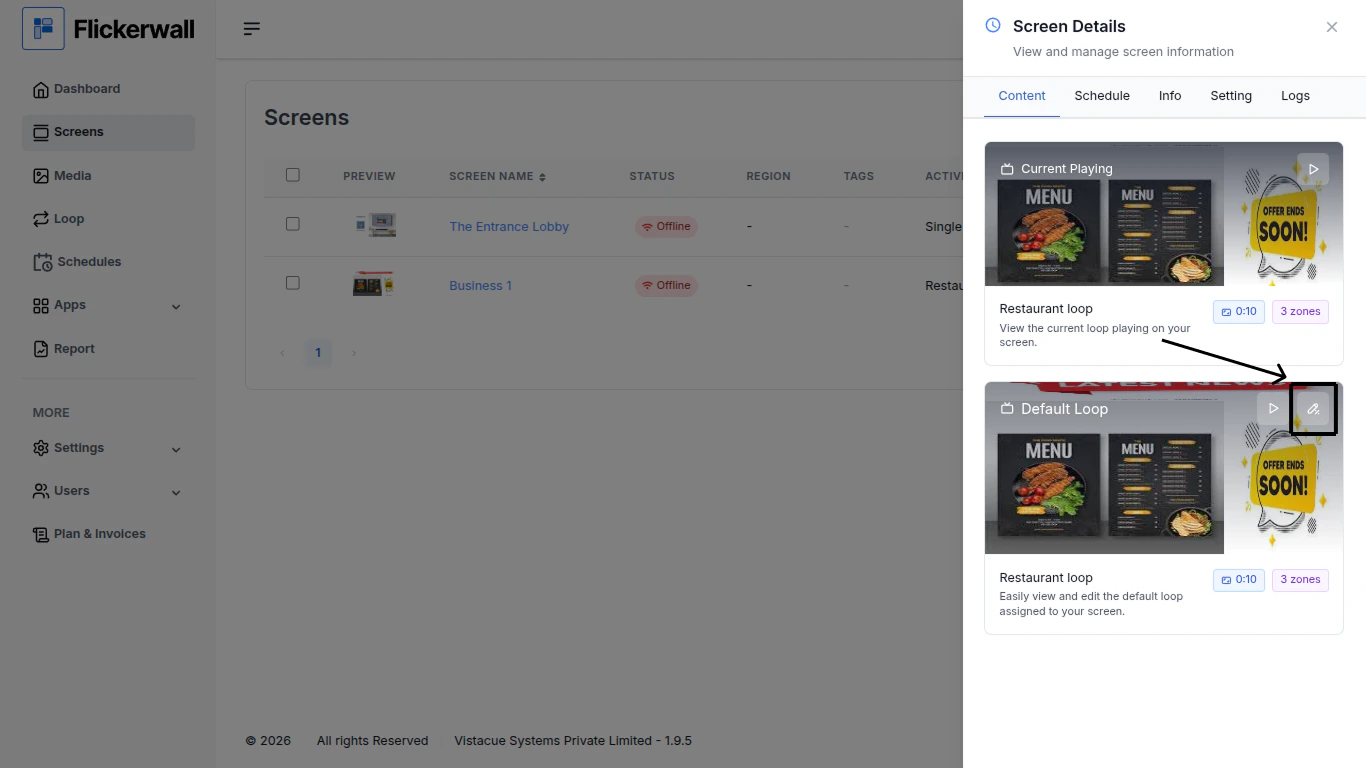
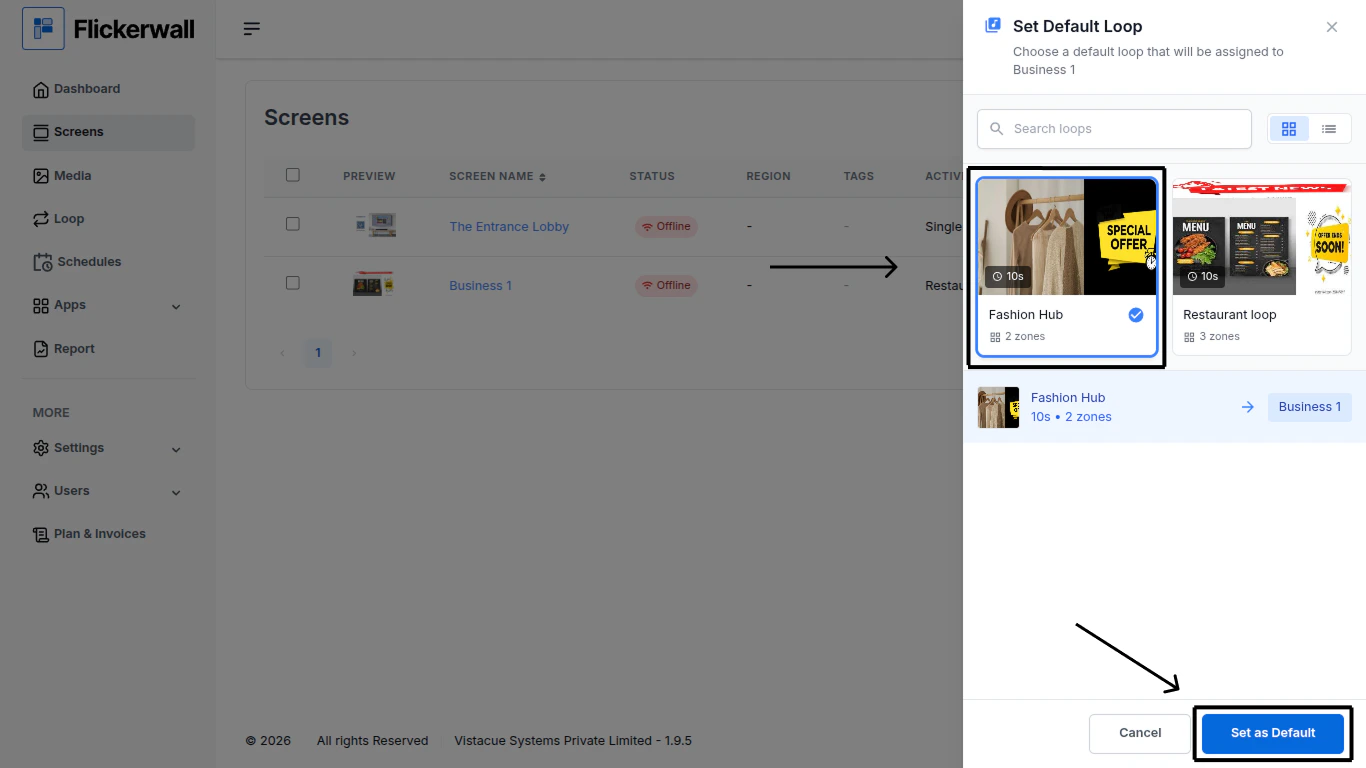
Step 1Go to Screen Module and Click on the Screen name you wish to proceed withStep 2On the
⌘I
{"docsConfig":{"theme":"maple","$schema":"https://mintlify.com/docs.json","name":"Flickerwall Documentation","colors":{"primary":"#0369db","light":"#0369db","dark":"#15803D"},"logo":"https://mintcdn.com/flickerwall-796545b9/QyHLB_DuGuIs1P_v/images/Group2.svg?fit=max\u0026auto=format\u0026n=QyHLB_DuGuIs1P_v\u0026q=85\u0026s=468b8727704eed298bf74ff861c89070","favicon":"https://mintcdn.com/flickerwall-796545b9/WP4l1lhQM-CokS98/images/favicon.png?fit=max\u0026auto=format\u0026n=WP4l1lhQM-CokS98\u0026q=85\u0026s=04e3269553742f38b07278c8d5bc1d9d","appearance":{"default":"system","strict":false},"navbar":{"links":[{"href":"mailto:sales@flickerwall.com","label":"Support"}],"primary":{"type":"button","label":"Dashboard","href":"https://app.flickerwall.com"}},"footer":{"socials":{"x":"https://x.com/flickerwallApp","facebook":"https://facebook.com/flickerwall"}},"seo":{"indexing":"navigable"},"contextual":{"options":["copy","view","chatgpt","claude","perplexity","mcp","cursor","vscode"],"display":"header"},"styling":{"latex":false},"navigation":{"pages":[]}},"deployment":{"deploymentMetadataValue":{"subdomain":"flickerwall-796545b9","hasAudioNarration":false,"actualSubdomain":"flickerwall-796545b9","customDomains":["docs.flickerwall.com"],"gitSource":{"type":"github","owner":"flickerwall","repo":"fw-docs","deployBranch":"main","contentDirectory":"","isPrivate":true,"mountPath":"","label":""},"chroma":{"liveDeploymentHistoryId":"6a21f72c55ebb2c863916865","collectionId":"90765878-ecbb-480b-9c42-bfbb05aa2a30","schemaVersion":"v2"},"entitlements":{},"buildId":"6a21f72c55ebb2c863916865:success","clientVersion":"0.0.3990","searchFilterCounts":[{"language":"default","tag":"Cloud","count":112},{"language":"default","tag":"Apps","count":33},{"language":"default","tag":"News","count":32},{"language":"default","tag":"Settings","count":16},{"language":"default","tag":"Screens","count":10},{"language":"default","tag":"Loops","count":9},{"language":"default","tag":"Media","count":9},{"language":"default","tag":"Add or Manage","count":9},{"language":"default","tag":"User","count":9},{"language":"default","tag":"Create New or Manage","count":8}]},"assistantConfig":{"enableAskAiButton":false,"enableStarterQuestions":false,"enableAskAiSearchBar":true},"basePath":"","hasChatPermissions":false,"hasWebMcpPermissions":false,"toggles":[{"name":"kill-isr","enabled":true,"variant":{"name":"disabled","enabled":false,"feature_enabled":true},"impressionData":false},{"name":"agent-mintlify-slack","enabled":true,"variant":{"name":"disabled","enabled":false,"feature_enabled":true},"impressionData":false},{"name":"editor-v7-file-tree","enabled":true,"variant":{"name":"disabled","enabled":false,"feature_enabled":true},"impressionData":false},{"name":"agent-integrations-settings","enabled":true,"variant":{"name":"disabled","enabled":false,"feature_enabled":true},"impressionData":false},{"name":"automations-pr-grouping","enabled":true,"variant":{"name":"disabled","enabled":false,"feature_enabled":true},"impressionData":false},{"name":"custom-prefix","enabled":true,"variant":{"name":"disabled","enabled":false,"feature_enabled":true},"impressionData":false},{"name":"analytics-v7","enabled":true,"variant":{"name":"disabled","enabled":false,"feature_enabled":true},"impressionData":false},{"name":"user-flows-analytics","enabled":true,"variant":{"name":"disabled","enabled":false,"feature_enabled":true},"impressionData":false},{"name":"no-publish-flow","enabled":true,"variant":{"name":"disabled","enabled":false,"feature_enabled":true},"impressionData":false},{"name":"workos-onboarding","enabled":true,"variant":{"name":"disabled","enabled":false,"feature_enabled":true},"impressionData":false},{"name":"llms-txt-v2","enabled":true,"variant":{"name":"disabled","enabled":false,"feature_enabled":true},"impressionData":false},{"name":"pause-universal-search-reconcile","enabled":true,"variant":{"name":"disabled","enabled":false,"feature_enabled":true},"impressionData":false},{"name":"snapshot-serving-live","enabled":true,"variant":{"name":"disabled","enabled":false,"feature_enabled":true},"impressionData":false},{"name":"stripTemperatureMiddleware","enabled":true,"variant":{"name":"disabled","enabled":false,"feature_enabled":true},"impressionData":false},{"name":"per-site-search-delta","enabled":true,"variant":{"name":"disabled","enabled":false,"feature_enabled":true},"impressionData":false},{"name":"support-platform-pylon-zendesk","enabled":true,"variant":{"name":"disabled","enabled":false,"feature_enabled":true},"impressionData":false},{"name":"snapshot-serving","enabled":true,"variant":{"name":"disabled","enabled":false,"feature_enabled":true},"impressionData":false},{"name":"instant-rollback","enabled":true,"variant":{"name":"disabled","enabled":false,"feature_enabled":true},"impressionData":false},{"name":"granular-notifications-server","enabled":true,"variant":{"name":"disabled","enabled":false,"feature_enabled":true},"impressionData":false},{"name":"granular-notifications","enabled":true,"variant":{"name":"disabled","enabled":false,"feature_enabled":true},"impressionData":false},{"name":"editor-private-page-search","enabled":true,"variant":{"name":"disabled","enabled":false,"feature_enabled":true},"impressionData":false},{"name":"automations-fable","enabled":true,"variant":{"name":"disabled","enabled":false,"feature_enabled":true},"impressionData":false},{"name":"fixed-ai-action-pricing","enabled":true,"variant":{"name":"disabled","enabled":false,"feature_enabled":true},"impressionData":false},{"name":"automation-resolve-merge-conflict","enabled":true,"variant":{"name":"disabled","enabled":false,"feature_enabled":true},"impressionData":false},{"name":"scoped-publishing","enabled":true,"variant":{"name":"disabled","enabled":false,"feature_enabled":true},"impressionData":false},{"name":"mintql","enabled":true,"variant":{"name":"disabled","enabled":false,"feature_enabled":true},"impressionData":false},{"name":"page-level-analytics","enabled":true,"variant":{"name":"disabled","enabled":false,"feature_enabled":true},"impressionData":false},{"name":"editor-version-history-v2","enabled":true,"variant":{"name":"disabled","enabled":false,"feature_enabled":true},"impressionData":false},{"name":"editor-nav-generations","enabled":true,"variant":{"name":"disabled","enabled":false,"feature_enabled":true},"impressionData":false},{"name":"billing-page-v2","enabled":true,"variant":{"name":"disabled","enabled":false,"feature_enabled":true},"impressionData":false},{"name":"workspace-projects","enabled":true,"variant":{"name":"disabled","enabled":false,"feature_enabled":true},"impressionData":false},{"name":"assistant-v5","enabled":true,"variant":{"name":"disabled","enabled":false,"feature_enabled":true},"impressionData":false},{"name":"byok-sep-25","enabled":true,"variant":{"name":"disabled","enabled":false,"feature_enabled":true},"impressionData":false},{"name":"fork-pr-previews","enabled":true,"variant":{"name":"disabled","enabled":false,"feature_enabled":true},"impressionData":false},{"name":"revalidation-jwt","enabled":true,"variant":{"name":"disabled","enabled":false,"feature_enabled":true},"impressionData":false},{"name":"vite-origin","enabled":true,"variant":{"name":"disabled","enabled":false,"feature_enabled":true},"impressionData":false},{"name":"editor-agent-model-picker","enabled":true,"variant":{"name":"disabled","enabled":false,"feature_enabled":true},"impressionData":false},{"name":"billing-updated-9-15","enabled":true,"variant":{"name":"disabled","enabled":false,"feature_enabled":true},"impressionData":false},{"name":"workos-sso-scim","enabled":true,"variant":{"name":"disabled","enabled":false,"feature_enabled":true},"impressionData":false},{"name":"hobby-abuse-scan","enabled":true,"variant":{"name":"disabled","enabled":false,"feature_enabled":true},"impressionData":false},{"name":"dashboard-inbox","enabled":true,"variant":{"name":"disabled","enabled":false,"feature_enabled":true},"impressionData":false},{"name":"workos-signup","enabled":true,"variant":{"name":"disabled","enabled":false,"feature_enabled":true},"impressionData":false},{"name":"workos-enabled","enabled":true,"variant":{"name":"disabled","enabled":false,"feature_enabled":true},"impressionData":false}],"isAtlas":false,"googleFontsInlined":false},"customCss":[],"page":{"pagePath":"cloud/screens/how-to-change-your-default-loops-for-your-screens","slug":"/cloud/screens/how-to-change-your-default-loops-for-your-screens","pageMetadata":{"title":"How to Add / Change your default Loops for your Screens?","description":"Learn how to Add / Change your default Loops for better utilization","href":"/cloud/screens/how-to-change-your-default-loops-for-your-screens"},"description":{"compiledSource":"\"use strict\";\nconst {jsx: _jsx} = arguments[0];\nconst {useMDXComponents: _provideComponents} = arguments[0];\nfunction _createMdxContent(props) {\n const _components = {\n p: \"p\",\n ..._provideComponents(),\n ...props.components\n };\n return _jsx(_components.p, {\n children: \"Learn how to Add / Change your default Loops for better utilization\"\n });\n}\nfunction MDXContent(props = {}) {\n const {wrapper: MDXLayout} = {\n ..._provideComponents(),\n ...props.components\n };\n return MDXLayout ? _jsx(MDXLayout, {\n ...props,\n children: _jsx(_createMdxContent, {\n ...props\n })\n }) : _createMdxContent(props);\n}\nreturn {\n default: MDXContent\n};\n","frontmatter":{},"scope":{}},"pageType":"default","mdx":{"mdxSource":{"compiledSource":"\"use strict\";const{Fragment:_Fragment,jsx:_jsx,jsxs:_jsxs}=arguments[0];const{useMDXComponents:_provideComponents}=arguments[0];function _createMdxContent(props){const _components={hr:`hr`,p:`p`,..._provideComponents(),...props.components},{OptimizedImage}=_components;if(!OptimizedImage)_missingMdxReference(`OptimizedImage`,true);return _jsxs(_Fragment,{children:[_jsx(_components.hr,{}),`\n`,_jsx(_components.p,{children:`Step 1`}),`\n`,_jsx(_components.p,{children:`Go to Screen Module and Click on the Screen name you wish to proceed with`}),`\n`,_jsx(OptimizedImage,{src:`https://mintcdn.com/flickerwall-796545b9/Xj6F_u96gjjZf5cg/images/screens-how-to-change-your-default-loops-for-your-screens-image-1.png?fit=max\u0026auto=format\u0026n=Xj6F_u96gjjZf5cg\u0026q=85\u0026s=fcab41cde89b166d1ccaf2f1096ec033`,alt:``,\"data-og-width\":`1366`,width:`1366`,\"data-og-height\":`768`,height:`768`,\"data-path\":`images/screens-how-to-change-your-default-loops-for-your-screens-image-1.png`,\"data-optimize\":`true`,\"data-opv\":`3`,srcset:`https://mintcdn.com/flickerwall-796545b9/Xj6F_u96gjjZf5cg/images/screens-how-to-change-your-default-loops-for-your-screens-image-1.png?w=280\u0026fit=max\u0026auto=format\u0026n=Xj6F_u96gjjZf5cg\u0026q=85\u0026s=114f42b7904507950896f34e06ccb19b 280w, https://mintcdn.com/flickerwall-796545b9/Xj6F_u96gjjZf5cg/images/screens-how-to-change-your-default-loops-for-your-screens-image-1.png?w=560\u0026fit=max\u0026auto=format\u0026n=Xj6F_u96gjjZf5cg\u0026q=85\u0026s=a6e991edad6ee898c316c8b1832a692d 560w, https://mintcdn.com/flickerwall-796545b9/Xj6F_u96gjjZf5cg/images/screens-how-to-change-your-default-loops-for-your-screens-image-1.png?w=840\u0026fit=max\u0026auto=format\u0026n=Xj6F_u96gjjZf5cg\u0026q=85\u0026s=8ec2bf8f5f2b14bce8d4a63682e085fe 840w, https://mintcdn.com/flickerwall-796545b9/Xj6F_u96gjjZf5cg/images/screens-how-to-change-your-default-loops-for-your-screens-image-1.png?w=1100\u0026fit=max\u0026auto=format\u0026n=Xj6F_u96gjjZf5cg\u0026q=85\u0026s=8f0ca21422c54ff6f77c3e3db47ea025 1100w, https://mintcdn.com/flickerwall-796545b9/Xj6F_u96gjjZf5cg/images/screens-how-to-change-your-default-loops-for-your-screens-image-1.png?w=1650\u0026fit=max\u0026auto=format\u0026n=Xj6F_u96gjjZf5cg\u0026q=85\u0026s=8925b2654928cd364840a6f91b566781 1650w, https://mintcdn.com/flickerwall-796545b9/Xj6F_u96gjjZf5cg/images/screens-how-to-change-your-default-loops-for-your-screens-image-1.png?w=2500\u0026fit=max\u0026auto=format\u0026n=Xj6F_u96gjjZf5cg\u0026q=85\u0026s=bd119c00b331b6530ebb0dd6a3127492 2500w`}),`\n`,_jsx(_components.p,{children:`Step 2`}),`\n`,_jsx(_components.p,{children:`On the`}),`\n`,_jsx(OptimizedImage,{src:`https://mintcdn.com/flickerwall-796545b9/Xj6F_u96gjjZf5cg/images/screens-how-to-change-your-default-loops-for-your-screens-image-2.png?fit=max\u0026auto=format\u0026n=Xj6F_u96gjjZf5cg\u0026q=85\u0026s=83d530d46aad7b5bf1d6d0c41ad2019c`,alt:``,\"data-og-width\":`1366`,width:`1366`,\"data-og-height\":`768`,height:`768`,\"data-path\":`images/screens-how-to-change-your-default-loops-for-your-screens-image-2.png`,\"data-optimize\":`true`,\"data-opv\":`3`,srcset:`https://mintcdn.com/flickerwall-796545b9/Xj6F_u96gjjZf5cg/images/screens-how-to-change-your-default-loops-for-your-screens-image-2.png?w=280\u0026fit=max\u0026auto=format\u0026n=Xj6F_u96gjjZf5cg\u0026q=85\u0026s=7da22b7bad306b5574857c078d28041d 280w, https://mintcdn.com/flickerwall-796545b9/Xj6F_u96gjjZf5cg/images/screens-how-to-change-your-default-loops-for-your-screens-image-2.png?w=560\u0026fit=max\u0026auto=format\u0026n=Xj6F_u96gjjZf5cg\u0026q=85\u0026s=f5840c5bc6ef5abb03d01d8b60268af2 560w, https://mintcdn.com/flickerwall-796545b9/Xj6F_u96gjjZf5cg/images/screens-how-to-change-your-default-loops-for-your-screens-image-2.png?w=840\u0026fit=max\u0026auto=format\u0026n=Xj6F_u96gjjZf5cg\u0026q=85\u0026s=13281945cf47f5d2e2dc3390340f4741 840w, https://mintcdn.com/flickerwall-796545b9/Xj6F_u96gjjZf5cg/images/screens-how-to-change-your-default-loops-for-your-screens-image-2.png?w=1100\u0026fit=max\u0026auto=format\u0026n=Xj6F_u96gjjZf5cg\u0026q=85\u0026s=d482c2053a1aaf24b82ddeb99e12dcc9 1100w, https://mintcdn.com/flickerwall-796545b9/Xj6F_u96gjjZf5cg/images/screens-how-to-change-your-default-loops-for-your-screens-image-2.png?w=1650\u0026fit=max\u0026auto=format\u0026n=Xj6F_u96gjjZf5cg\u0026q=85\u0026s=f19b3f6e73b904ac94637d3c9c608774 1650w, https://mintcdn.com/flickerwall-796545b9/Xj6F_u96gjjZf5cg/images/screens-how-to-change-your-default-loops-for-your-screens-image-2.png?w=2500\u0026fit=max\u0026auto=format\u0026n=Xj6F_u96gjjZf5cg\u0026q=85\u0026s=2f8c2ed5eec0e2ef0a81ed5441ed9b9e 2500w`}),`\n`,_jsx(OptimizedImage,{src:`https://mintcdn.com/flickerwall-796545b9/Xj6F_u96gjjZf5cg/images/screens-how-to-change-your-default-loops-for-your-screens-image-3.png?fit=max\u0026auto=format\u0026n=Xj6F_u96gjjZf5cg\u0026q=85\u0026s=fd7bbb74b5115a92eb7b125515a4ccff`,alt:``,\"data-og-width\":`1366`,width:`1366`,\"data-og-height\":`768`,height:`768`,\"data-path\":`images/screens-how-to-change-your-default-loops-for-your-screens-image-3.png`,\"data-optimize\":`true`,\"data-opv\":`3`,srcset:`https://mintcdn.com/flickerwall-796545b9/Xj6F_u96gjjZf5cg/images/screens-how-to-change-your-default-loops-for-your-screens-image-3.png?w=280\u0026fit=max\u0026auto=format\u0026n=Xj6F_u96gjjZf5cg\u0026q=85\u0026s=ef752ad3c78ebfde74262cde68fe2c1c 280w, https://mintcdn.com/flickerwall-796545b9/Xj6F_u96gjjZf5cg/images/screens-how-to-change-your-default-loops-for-your-screens-image-3.png?w=560\u0026fit=max\u0026auto=format\u0026n=Xj6F_u96gjjZf5cg\u0026q=85\u0026s=3ba47423eab7949bd97fadc515944584 560w, https://mintcdn.com/flickerwall-796545b9/Xj6F_u96gjjZf5cg/images/screens-how-to-change-your-default-loops-for-your-screens-image-3.png?w=840\u0026fit=max\u0026auto=format\u0026n=Xj6F_u96gjjZf5cg\u0026q=85\u0026s=e01a94cd32e31cb297061398243ce248 840w, https://mintcdn.com/flickerwall-796545b9/Xj6F_u96gjjZf5cg/images/screens-how-to-change-your-default-loops-for-your-screens-image-3.png?w=1100\u0026fit=max\u0026auto=format\u0026n=Xj6F_u96gjjZf5cg\u0026q=85\u0026s=3801c5f5668cae0078f41eb0821883bc 1100w, https://mintcdn.com/flickerwall-796545b9/Xj6F_u96gjjZf5cg/images/screens-how-to-change-your-default-loops-for-your-screens-image-3.png?w=1650\u0026fit=max\u0026auto=format\u0026n=Xj6F_u96gjjZf5cg\u0026q=85\u0026s=425c5ec389eacba492c326f95f5df528 1650w, https://mintcdn.com/flickerwall-796545b9/Xj6F_u96gjjZf5cg/images/screens-how-to-change-your-default-loops-for-your-screens-image-3.png?w=2500\u0026fit=max\u0026auto=format\u0026n=Xj6F_u96gjjZf5cg\u0026q=85\u0026s=b6417a7eb9e6aff14d72a0c8f9d2423f 2500w`})]})}function MDXContent(props={}){const{wrapper:MDXLayout}={..._provideComponents(),...props.components};return MDXLayout?_jsx(MDXLayout,{...props,children:_jsx(_createMdxContent,{...props})}):_createMdxContent(props)}return{default:MDXContent};function _missingMdxReference(id,component){throw new Error(`Expected `+(component?`component`:`object`)+\" `\"+id+\"` to be defined: you likely forgot to import, pass, or provide it.\")}","frontmatter":{},"scope":{"config":{},"pageMetadata":{"title":"How to Add / Change your default Loops for your Screens?","description":"Learn how to Add / Change your default Loops for better utilization","href":"/cloud/screens/how-to-change-your-default-loops-for-your-screens"}}},"mdxSourceWithNoJs":null},"mdxExtracts":{"tableOfContents":[],"codeExamples":{}},"jsLinks":[],"subdomain":"flickerwall-796545b9","siteName":"Flickerwall Documentation","title":"How to Add / Change your default Loops for your Screens? - Flickerwall Documentation","navMaps":{"firstHrefInVersion":{},"firstHrefInLanguage":{}},"lastModified":"2026-02-04T17:33:08.076Z","originalFileLocation":"cloud/screens/how-to-change-your-default-loops-for-your-screens.md"},"headHtml":"\u003cscript data-mint-head>(function(){var d=document.documentElement,p=null;if(!p){try{p=localStorage.getItem(\"isDarkMode\")}catch(e){}if(p==='true')p='dark';else if(p==='false')p='light';if(p!=='light'\u0026\u0026p!=='dark'\u0026\u0026p!=='system')p=\"system\"}var r=p==='system'?(matchMedia(\"(prefers-color-scheme: dark)\").matches?'dark':'light'):p;d.classList.remove(r==='dark'?'light':'dark');d.classList.add(r);d.setAttribute(\"data-theme-preference\",p)})();\u003c/script>\u003cmeta data-mint-head name=\"description\" content=\"Learn how to Add / Change your default Loops for better utilization\">\u003cmeta data-mint-head name=\"application-name\" content=\"Flickerwall Documentation\">\u003cmeta data-mint-head name=\"generator\" content=\"Mintlify\">\u003clink data-mint-head rel=\"icon\" type=\"image/png\" sizes=\"192x192\" href=\"/mintlify-assets/_mintlify/favicons/flickerwall-796545b9/IcI644e4EXkckkSh/_generated/favicon/android-chrome-192x192.png\" media=\"(prefers-color-scheme: light)\">\u003clink data-mint-head rel=\"apple-touch-icon\" type=\"image/png\" sizes=\"180x180\" href=\"/mintlify-assets/_mintlify/favicons/flickerwall-796545b9/IcI644e4EXkckkSh/_generated/favicon/apple-touch-icon.png\">\u003clink data-mint-head rel=\"icon\" type=\"image/png\" sizes=\"16x16\" href=\"/mintlify-assets/_mintlify/favicons/flickerwall-796545b9/IcI644e4EXkckkSh/_generated/favicon/favicon-16x16.png\" media=\"(prefers-color-scheme: light)\">\u003clink data-mint-head rel=\"icon\" type=\"image/png\" sizes=\"32x32\" href=\"/mintlify-assets/_mintlify/favicons/flickerwall-796545b9/IcI644e4EXkckkSh/_generated/favicon/favicon-32x32.png\" media=\"(prefers-color-scheme: light)\">\u003clink data-mint-head rel=\"shortcut icon\" type=\"image/x-icon\" href=\"/mintlify-assets/_mintlify/favicons/flickerwall-796545b9/IcI644e4EXkckkSh/_generated/favicon/favicon.ico\" media=\"(prefers-color-scheme: light)\">\u003clink data-mint-head rel=\"icon\" type=\"image/png\" sizes=\"192x192\" href=\"/mintlify-assets/_mintlify/favicons/flickerwall-796545b9/IcI644e4EXkckkSh/_generated/favicon-dark/android-chrome-192x192.png\" media=\"(prefers-color-scheme: dark)\">\u003clink data-mint-head rel=\"icon\" type=\"image/png\" sizes=\"16x16\" href=\"/mintlify-assets/_mintlify/favicons/flickerwall-796545b9/IcI644e4EXkckkSh/_generated/favicon-dark/favicon-16x16.png\" media=\"(prefers-color-scheme: dark)\">\u003clink data-mint-head rel=\"icon\" type=\"image/png\" sizes=\"32x32\" href=\"/mintlify-assets/_mintlify/favicons/flickerwall-796545b9/IcI644e4EXkckkSh/_generated/favicon-dark/favicon-32x32.png\" media=\"(prefers-color-scheme: dark)\">\u003clink data-mint-head rel=\"shortcut icon\" type=\"image/x-icon\" href=\"/mintlify-assets/_mintlify/favicons/flickerwall-796545b9/IcI644e4EXkckkSh/_generated/favicon-dark/favicon.ico\" media=\"(prefers-color-scheme: dark)\">\u003cmeta data-mint-head property=\"og:title\" content=\"How to Add / Change your default Loops for your Screens? - Flickerwall Documentation\">\u003cmeta data-mint-head property=\"og:description\" content=\"Learn how to Add / Change your default Loops for better utilization\">\u003cmeta data-mint-head property=\"og:site_name\" content=\"Flickerwall Documentation\">\u003cmeta data-mint-head property=\"og:url\" content=\"https://docs.flickerwall.com/cloud/screens/how-to-change-your-default-loops-for-your-screens\">\u003cmeta data-mint-head property=\"og:type\" content=\"website\">\u003cmeta data-mint-head property=\"og:image\" content=\"https://flickerwall-796545b9.mintlify.app/_mintlify/api/og/v2?division=Add+or+Manage\u0026amp;title=How+to+Add+%2F+Change+your+default+Loops+for+your+Screens%3F\u0026amp;description=Learn+how+to+Add+%2F+Change+your+default+Loops+for+better+utilization\u0026amp;theme=20058d3373c6eb2b6ef729ff\u0026amp;signature=cdf385053b23a5c6f61206d90194a3c2ed6d4ed7a9609bb39ca6264d543c85b6\">\u003cmeta data-mint-head property=\"og:image:width\" content=\"1200\">\u003cmeta data-mint-head property=\"og:image:height\" content=\"630\">\u003cmeta data-mint-head name=\"twitter:card\" content=\"summary_large_image\">\u003cmeta data-mint-head name=\"twitter:title\" content=\"How to Add / Change your default Loops for your Screens? - Flickerwall Documentation\">\u003cmeta data-mint-head name=\"twitter:description\" content=\"Learn how to Add / Change your default Loops for better utilization\">\u003cmeta data-mint-head name=\"twitter:image\" content=\"https://flickerwall-796545b9.mintlify.app/_mintlify/api/og/v2?division=Add+or+Manage\u0026amp;title=How+to+Add+%2F+Change+your+default+Loops+for+your+Screens%3F\u0026amp;description=Learn+how+to+Add+%2F+Change+your+default+Loops+for+better+utilization\u0026amp;theme=20058d3373c6eb2b6ef729ff\u0026amp;signature=cdf385053b23a5c6f61206d90194a3c2ed6d4ed7a9609bb39ca6264d543c85b6\">\u003cmeta data-mint-head name=\"twitter:image:width\" content=\"1200\">\u003cmeta data-mint-head name=\"twitter:image:height\" content=\"630\">\u003cmeta data-mint-head name=\"msapplication-config\" content=\"/mintlify-assets/_mintlify/favicons/flickerwall-796545b9/IcI644e4EXkckkSh/_generated/favicon/browserconfig.xml\">\u003cmeta data-mint-head name=\"apple-mobile-web-app-title\" content=\"Flickerwall Documentation\">\u003cmeta data-mint-head name=\"msapplication-TileColor\" content=\"#0369db\">\u003clink data-mint-head rel=\"canonical\" href=\"https://docs.flickerwall.com/cloud/screens/how-to-change-your-default-loops-for-your-screens\">\u003clink data-mint-head rel=\"alternate\" type=\"application/xml\" href=\"/sitemap.xml\">\u003clink data-mint-head rel=\"alternate\" type=\"text/markdown\" href=\"/cloud/screens/how-to-change-your-default-loops-for-your-screens.md\">\u003cscript data-mint-head type=\"application/ld+json\">{\"@context\":\"https://schema.org\",\"@graph\":[{\"@type\":\"Organization\",\"@id\":\"https://docs.flickerwall.com/#organization\",\"name\":\"Flickerwall Documentation\",\"url\":\"https://docs.flickerwall.com\",\"logo\":{\"@type\":\"ImageObject\",\"url\":\"https://mintcdn.com/flickerwall-796545b9/QyHLB_DuGuIs1P_v/images/Group2.svg?fit=max\u0026auto=format\u0026n=QyHLB_DuGuIs1P_v\u0026q=85\u0026s=468b8727704eed298bf74ff861c89070\"}},{\"@type\":\"WebSite\",\"@id\":\"https://docs.flickerwall.com#website\",\"name\":\"Flickerwall Documentation\",\"url\":\"https://docs.flickerwall.com\",\"publisher\":{\"@id\":\"https://docs.flickerwall.com/#organization\"}},{\"@type\":\"WebPage\",\"@id\":\"https://docs.flickerwall.com/cloud/screens/how-to-change-your-default-loops-for-your-screens#webpage\",\"url\":\"https://docs.flickerwall.com/cloud/screens/how-to-change-your-default-loops-for-your-screens\",\"name\":\"How to Add / Change your default Loops for your Screens?\",\"description\":\"Learn how to Add / Change your default Loops for better utilization\",\"dateModified\":\"2026-02-04T17:33:08.076Z\",\"isPartOf\":{\"@id\":\"https://docs.flickerwall.com#website\"},\"breadcrumb\":{\"@id\":\"https://docs.flickerwall.com/cloud/screens/how-to-change-your-default-loops-for-your-screens#breadcrumb\"}},{\"@type\":\"BreadcrumbList\",\"@id\":\"https://docs.flickerwall.com/cloud/screens/how-to-change-your-default-loops-for-your-screens#breadcrumb\",\"itemListElement\":[{\"@type\":\"ListItem\",\"position\":1,\"name\":\"Screens\",\"item\":\"https://docs.flickerwall.com/cloud/screens/screen-module-overview\"},{\"@type\":\"ListItem\",\"position\":2,\"name\":\"Add or Manage\",\"item\":\"https://docs.flickerwall.com/cloud/screens/how-to-add-the-tag-on-your-screens\"},{\"@type\":\"ListItem\",\"position\":3,\"name\":\"How to Add / Change your default Loops for your Screens?\",\"item\":\"https://docs.flickerwall.com/cloud/screens/how-to-change-your-default-loops-for-your-screens\"}]},{\"@type\":[\"Article\",\"TechArticle\"],\"@id\":\"https://docs.flickerwall.com/cloud/screens/how-to-change-your-default-loops-for-your-screens#article\",\"headline\":\"How to Add / Change your default Loops for your Screens?\",\"name\":\"How to Add / Change your default Loops for your Screens?\",\"description\":\"Learn how to Add / Change your default Loops for better utilization\",\"url\":\"https://docs.flickerwall.com/cloud/screens/how-to-change-your-default-loops-for-your-screens\",\"mainEntityOfPage\":{\"@id\":\"https://docs.flickerwall.com/cloud/screens/how-to-change-your-default-loops-for-your-screens#webpage\"},\"dateModified\":\"2026-02-04T17:33:08.076Z\",\"publisher\":{\"@id\":\"https://docs.flickerwall.com/#organization\"},\"isPartOf\":{\"@id\":\"https://docs.flickerwall.com#website\"}}]}\u003c/script>\u003cscript data-mint-head type=\"application/ld+json\">{\"@context\":\"https://schema.org\",\"@type\":\"WebSite\",\"name\":\"Flickerwall Documentation\",\"creator\":{\"@type\":\"Organization\",\"name\":\"Mintlify\",\"url\":\"https://mintlify.com\"}}\u003c/script>","siteName":"Flickerwall Documentation","nav":{"global":null,"tabs":[{"tab":"Cloud","pages":[{"title":"How to get started With Flickerwall","href":"/getting-started"},{"group":"Installation Guide","pages":[{"group":"Select Model","pages":[{"group":"Windows","pages":[{"title":"How to install the Flickerwall digital signage software on a Windows player?","href":"/cloud/installation-guide/how-to-install-the-flickerwall-digital-signage-software-on-a-windows-player"}]},{"group":"Andriod","pages":[{"title":"How to install the Flickerwall Digital Signage Player app on Android from Play Store?","href":"/cloud/installation-guide/how-to-install-the-flickerwall-digital-signage-player-app-on-android-from-play-store"}]},{"group":"Amazon Fire TV Stick","pages":[{"title":"Installation Guide for Amazon Fire TV Stick Devices","href":"/cloud/installation-guide/flickerwall-installation-guide-for-amazon-fire-tv-stick-devices"}]},{"group":"LG webOS ","pages":[{"title":null,"href":"/cloud/installation-guide/flickerwall-player-installation-lg-webos-via-usb-flash-drive"},{"title":"Installing Flickerwall on LG webOS via the SI Server URL Method","href":"/cloud/installation-guide/installing-flickerwall-on-lg-webos-via-the-si-server-url-method"}]}]}]},{"group":"Screens","pages":[{"title":"Screen Module Overview","href":"/cloud/screens/screen-module-overview"},{"group":"Add or Manage","pages":[{"title":"How to change /Add the Tag on your Screens?","href":"/cloud/screens/how-to-add-the-tag-on-your-screens"},{"title":"How to change the Screen Name?","href":"/cloud/screens/how-to-change-the-screen-name"},{"title":"How to check if your screen is Scheduled for any content?","href":"/cloud/screens/how-to-check-if-your-screen-is-scheduled-for-any-content"},{"title":"How to change the Screen Name , Region ,Tag and Orientation?","href":"/cloud/screens/how-to-change-the-screen-name-region-tag-and-orientation"},{"title":"How to change /Add the Regions on your Screens?","href":"/cloud/screens/how-to-add-the-regions-on-your-screens"},{"title":"How to use the Quick Play Feature?","description":"Learn how to use the Flickerwall’s Quick Play feature In case of emergencies such as, Pushing real-time offers , Pushing limited offers , Emergency Warnings and many more reasons to go .","href":"/cloud/screens/how-to-use-the-quick-play-feature"},{"title":"How to Add / Change your default Loops for your Screens?","href":"/cloud/screens/how-to-change-your-default-loops-for-your-screens"},{"title":"How to take ScreenShot of the Current Screen?","description":"Learn how to take Screenshots of the Screens for Proof of play , Information Retrieval or to share on Social Media","href":"/cloud/screens/how-to-take-screenshot-of-the-current-screen"},{"title":"How to Add Screens?","href":"/cloud/screens/how-to-add-screens"}]}]},{"group":"Media","pages":[{"title":"Overview of Media Module","href":"/cloud/media/overview-of-media-module"},{"group":"Upload or Manage","pages":[{"title":"How to add Media to the module?","href":"/cloud/media/how-to-add-media-to-the-module"},{"title":"How to keep a track of your Cloud Storage?","href":"/cloud/media/how-to-keep-a-track-of-your-cloud-storage"},{"title":"How to move Uploaded Media to any Folder?","href":"/cloud/media/how-to-move-uploaded-media-to-any-folder"},{"title":"How to add your Canva Design using the Upload from Canva Method?","href":"/cloud/media/how-to-add-your-canva-design-using-the-upload-from-canva-method"},{"title":"How to make a Folder to Organize the Media to use it more Optimally?","href":"/cloud/media/how-to-make-a-folder-to-organize-the-media-to-use-it-more-optimally"},{"title":"How to add Media through URL method?","href":"/cloud/media/how-to-add-media-through-url-method"},{"title":"How to Change from List view Media to Grid view Media or vice versa?","href":"/cloud/media/how-to-change-from-list-view-media-to-grid-view-media-or-vice-versa"},{"title":"How to add Media directly or within the Folder?","href":"/cloud/media/how-to-add-media-directly-or-within-the-folder"}]}]},{"group":"Apps","pages":[{"group":"RSS Feed and Live Streaming","pages":[{"title":"How to add the Live Streaming app from Flickerwall store?","href":"/cloud/apps/how-to-add-the-live-streaming-app-from-flickerwall-store"},{"title":"How to add the RSS Feed app from the Flickerwall store?","href":"/cloud/apps/how-to-add-the-rss-feed-app-from-the-flickerwall-store"}]},{"group":"Kiosk","pages":[{"title":"How to add the Content Kiosk App from Flickerwall store?","href":"/cloud/apps/how-to-add-the-content-kiosk-app-from-flickerwall-store"}]},{"group":"Canva","pages":[{"title":"How to add the Canva Embed App from Flickerwall store?","href":"/cloud/apps/how-to-add-the-canva-embed-app-from-flickerwall-store"}]},{"group":"Weather","pages":[{"title":"How to add the Weather app from the Flickerwall store?","href":"/cloud/apps/how-to-add-the-weather-app-from-the-flickerwall-store"},{"title":"How to add the Weather Radar App from Flickerwall store?","href":"/cloud/apps/how-to-add-the-weather-radar-app-from-flickerwall-store"}]},{"group":"Google","pages":[{"title":"How to add the Google Map Traffic app from the Flickerwall store?","href":"/cloud/apps/how-to-add-the-google-map-traffic-app-from-the-flickerwall-store"},{"title":"How to add the Google Slide app from Flickerwall store?","href":"/cloud/apps/how-to-add-the-google-slide-app-from-flickerwall-store"}]},{"group":"QR and URL App","pages":[{"title":"How to add and use the URL App from Flickerwall store?","href":"/cloud/apps/how-to-add-and-use-the-url-app-from-flickerwall-store"},{"title":"How to add the QR Code app from the Flickerwall Store?","href":"/cloud/apps/how-to-add-the-qr-code-app-from-the-flickerwall-store"}]},{"group":"Clock , Date and Scroller","pages":[{"title":"How to add the Scroller App from the Flickerwall store?","href":"/cloud/apps/how-to-add-the-scroller-app-from-the-flickerwall-store"},{"title":"How to add the Clock and Date Widget from Flickerwall store?","href":"/cloud/apps/how-to-add-the-clock-and-date-widget-from-flickerwall-store"},{"title":"How to add the Count down App from Flickerwall store?","href":"/cloud/apps/how-to-add-the-count-down-app-from-flickerwall-store"}]},{"group":"FaceBook","pages":[{"title":"How to add the Facebook Post app from Flickerwall store?","href":"/cloud/apps/how-to-add-the-facebook-post-app-from-flickerwall-store"},{"title":"How to add the Facebook Albums Appfrom Flickerwall store?","href":"/cloud/apps/how-to-add-the-facebook-albums-appfrom-flickerwall-store"}]},{"group":"News","pages":[{"group":"Finance News","pages":[{"title":"How to add and use the Business Standard app from Flickerwall store?","href":"/cloud/apps/how-to-add-and-use-the-business-standard-app-from-flickerwall-store"},{"title":"How to add and use the Bloomberg from Flickerwall store?","href":"/cloud/apps/how-to-add-and-use-the-bloomberg-from-flickerwall-store"}]},{"group":"News","pages":[{"title":"How to add and use the Independent News app from Flickerwall store?","href":"/cloud/apps/how-to-add-and-use-the-independent-news-app-from-flickerwall-store"},{"title":"How to add and use the NDTV News app from Flickerwall store?","href":"/cloud/apps/how-to-add-and-use-the-ndtv-news-app-from-flickerwall-store"},{"title":"How to add and use the Guardian News from Flickerwall store?","href":"/cloud/apps/how-to-add-and-use-the-guardian-news-from-flickerwall-store"},{"title":"How to add and use The Indian Express app from Flickerwall store?","href":"/cloud/apps/how-to-add-and-use-the-indian-express-app-from-flickerwall-store"},{"title":null,"href":"/cloud/apps/how-to-add-and-use-the-al-jazeera-news-app-from-flickerwall-store"},{"title":"How to add and use the Sky News app from Flickerwall store?","href":"/cloud/apps/how-to-add-and-use-the-sky-news-app-from-flickerwall-store"},{"title":"How to add and use the New York Times News from Flickerwall store?","href":"/cloud/apps/how-to-add-and-use-the-new-york-times-news-from-flickerwall-store"},{"title":"How to add and use the The Hindu app from Flickerwall store?","href":"/cloud/apps/how-to-add-and-use-the-the-hindu-app-from-flickerwall-store"},{"title":"How to add and use Hindustan Times app from Flickerwall store?","href":"/cloud/apps/how-to-add-and-use-hindustan-times-app-from-flickerwall-store"},{"title":"How to add the BBC News app from the Flickerwall app store?","href":"/cloud/apps/how-to-add-the-bbc-news-app-from-the-flickerwall-app-store"},{"title":"How to add Times of India app from Flickerwall store?","href":"/cloud/apps/how-to-add-times-of-india-app-from-flickerwall-store"},{"title":"How to add and use the Yahoo News app from Flickerwall store?","href":"/cloud/apps/how-to-add-and-use-the-yahoo-news-app-from-flickerwall-store"},{"title":"How to add the Zee News app from flickerwall store?","href":"/cloud/apps/how-to-add-the-zee-news-app-from-flickerwall-store"},{"title":"How to add the FOX News app from Flickerwall store?","href":"/cloud/apps/how-to-add-the-fox-news-app-from-flickerwall-store"},{"title":"How to add and use the Google News app from Flickerwall store?","href":"/cloud/apps/how-to-add-and-use-the-google-news-app-from-flickerwall-store"}]}]},{"group":"YouTube","pages":[{"title":"How to add the Youtube app from Flickerwall store?","href":"/cloud/apps/how-to-add-the-youtube-app-from-flickerwall-store"}]}]},{"group":"Loops","pages":[{"group":"Create New or Manage","pages":[{"title":"How to create a custom layout for my loop?","href":"/cloud/loops/how-to-create-a-custom-layout-for-my-loop"},{"title":"How to Delete a Created Loop?","href":"/cloud/loops/how-to-delete-a-created-loop"},{"title":"How to edit a Loop?","href":"/cloud/loops/how-to-edit-a-loop"},{"title":"How to Publish loops to your Screens?","href":"/cloud/loops/how-to-publish-loops-to-your-screens"},{"title":"How to Search for a loop?","href":"/cloud/loops/how-to-search-for-a-loop"},{"title":"How to Schedule your existing Loops?","href":"/cloud/loops/how-to-schedule-your-existing-loops"},{"title":"What is a Layout \u0026 How to Create a Layout?","href":"/cloud/loops/what-is-a-layout-how-to-create-a-layout"},{"title":"What is Zone in Flickerwall?","href":"/cloud/loops/what-is-zone-in-flickerwall"}]},{"title":"What is Loop? How to Create a Loop?","href":"/cloud/loops/what-is-loop-how-to-create-a-loop"}]},{"group":"Schedules","pages":[{"group":"Create New Schedule or Manage ","pages":[{"title":"How to Schedule your content?","href":"/cloud/schedules/how-to-schedule-your-content"},{"title":"How to Delete a Schedule","href":"/cloud/schedules/how-to-delete-a-schedule"}]}]},{"group":"Reports","pages":[{"group":"Manage and Download Report","pages":[{"title":"How to Check Audit Report of the Custom/Specific dates?","href":"/cloud/reports/how-to-check-audit-report-of-the-custom-or-specific-dates"},{"title":"How to Check the Audit Report from Flickerwall Dashboard? How to Check Audit Report of the Custom/Specific dates?","href":"/cloud/reports/how-to-check-the-audit-report-from-flickerwall-dashboard-how-to-check-audit-report-of-the-custom-or-specific-dates"},{"title":"How to Download Device Uptime Report from Flickerwall Dashboard? How to Download the Device Uptime Report with Custom/Specific Dates?","href":"/cloud/reports/how-to-download-device-uptime-report-from-flickerwall-dashboard-how-to-download-the-device-uptime-report-with-customor-specific-dates"},{"title":"How to Download the Device Uptime Report with Custom/Specific Dates?","href":"/cloud/reports/how-to-download-the-device-uptime-report-with-custom-or-specific-dates"},{"title":"How to Download the Playback Report with Custom/Specific Dates?","href":"/cloud/reports/how-to-download-the-playback-report-with-custom-or-specific-dates"},{"title":"How to Download your Playback Report? How to Download the Playback Report with Custom/Specific Dates?","href":"/cloud/reports/how-to-download-your-playback-report-how-to-download-the-playback-report-with-customspecific-dates"}]}]},{"group":"Settings","pages":[{"group":"Tags","pages":[{"group":"Create New or Delete ","pages":[{"title":"How to edit Tags?","href":"/cloud/settings/tags/how-to-edit-tags"},{"title":"How to make new Tags?","href":"/cloud/settings/tags/how-to-make-new-tags"},{"title":"How to Search for a Tag?","href":"/cloud/settings/tags/how-to-search-for-a-tag"},{"title":"What is the Tags Feature? How is it Useful?","href":"/cloud/settings/tags/what-is-the-tags-feature-how-is-it-useful"},{"title":"How to Delete a Tag?","href":"/cloud/settings/tags/how-to-delete-a-tag"}]}]},{"group":"Org Profile","pages":[{"title":"How to add a Default look for all newly add Screens?","href":"/cloud/settings/org-profile/how-to-add-a-default-look-for-all-newly-add-screens"},{"title":"How to Add / Change Billing Details?","href":"/cloud/settings/org-profile/how-to-add-or-change-billing-details"},{"title":"How to Add or Change details in the Org Profile?","href":"/cloud/settings/org-profile/how-to-add-or-change-details-in-the-org-profile"},{"title":"How to toggle the Settings of Org Profile?","href":"/cloud/settings/org-profile/how-to-toggle-the-settings-of-org-profile"},{"title":"What is an Org Profile in Flickerwall?","href":"/cloud/settings/org-profile/what-is-an-org-profile-in-flickerwall"},{"title":"What is 'Require Loop Appoval'?","href":"/cloud/settings/org-profile/what-is-require-loop-appoval"}]},{"group":"Regions","pages":[{"title":"How to Add a Region?","href":"/cloud/settings/regions/how-to-add-a-region"},{"title":"How to Edit a Region?","href":"/cloud/settings/regions/how-to-edit-a-region"},{"title":"How to Inspect and Edit Screens Region wise?","href":"/cloud/settings/regions/how-to-inspect-and-edit-screens-region-wise"},{"title":"How to Search a Region?","href":"/cloud/settings/regions/how-to-search-a-region"},{"title":"What are Regions? How are they helpful?","href":"/cloud/settings/regions/what-are-regions-how-are-they-helpful"}]}]},{"group":"User","pages":[{"title":"What is User and their Roles and Permissions?","href":"/cloud/user/what-is-user-and-their-roles-and-permissions"},{"group":"Users","pages":[{"title":"How to Add a User?","href":"/cloud/user/all-users/how-to-add-a-user"},{"title":"How to Delete a User?","href":"/cloud/user/all-users/how-to-delete-a-user"},{"title":"How to Search for a User?","href":"/cloud/user/all-users/how-to-search-for-a-user"}]},{"group":"Roles and Permissions","pages":[{"title":"How to add Roles?","href":"/cloud/user/roles-and-permissions/how-to-add-roles"},{"title":"How to delete a Role?","href":"/cloud/user/roles-and-permissions/how-to-delete-a-role"},{"title":"How to Edit permissions of a Role?","href":"/cloud/user/roles-and-permissions/how-to-edit-permissions-of-a-role"},{"title":"How to edit Role's Name and Description","href":"/cloud/user/roles-and-permissions/how-to-edit-roles-name-and-description"},{"title":"How to Search for a Role?","href":"/cloud/user/roles-and-permissions/how-to-search-for-a-role"}]}]},{"group":"Plan and Invoices","pages":[{"group":"Manage Plan and Invoices","pages":[{"title":"How to Download Invoices?","href":"/cloud/plan-and-invoices/how-to-download-invoices"},{"title":"How to Update any Schedule in Flickerwall?","href":"/cloud/plan-and-invoices/how-to-update-any-schedule-in-flickerwall"},{"title":"What is Plan and Invoices?","href":"/cloud/plan-and-invoices/what-is-plan-and-invoices"},{"title":"How to Upgrade your Plan?","href":"/cloud/plan-and-invoices/how-to-upgrade-your-plan"},{"title":"How to Edit your Billing Information?","href":"/cloud/plan-and-invoices/how-to-edit-your-billing-information"}]}]},{"group":"User Profile","pages":[{"title":"Overview of User Profile","href":"/overview-of-user-profile"},{"group":"User Profile Manual","pages":[{"title":"How to Check my Profile Activity ?","href":"/how-to-check-my-profile-activity"},{"title":"How to Sign-Out a particular device or all devices from Sessions ?","href":"/how-to"},{"title":"How to Update my profile Password ?","href":"/untitled-page"},{"title":"How to Change my Preferred Language ?","href":"/how-to-change-my-preferred-language"},{"title":"How to Update my User Profile ?","href":"/how-to-update-my-user-profile"},{"title":"How to Update my profile Password ?","href":"/untitled-page"},{"title":"How to enable Twi-Factor-Authentication","href":"/how-to-enable-twi-factor-authentication"}]}]}]}]},"title":"How to Add / Change your default Loops for your Screens? - Flickerwall Documentation","buildId":"dpl_2oYXwqkEXirXBPk8wV1FtM5USFWi","deploymentId":"dpl_2oYXwqkEXirXBPk8wV1FtM5USFWi","dynamics":["a74be98ba7"],"chunks":["zoom-image-lightbox-D7yRe3On.js","lightbox-handle-r17bVUz3.js"]}