
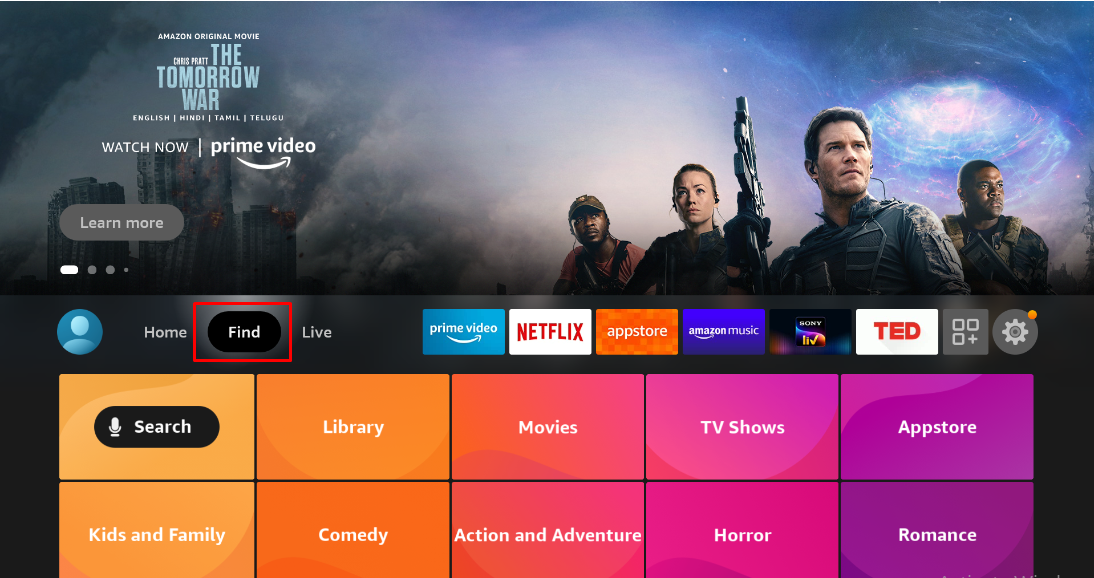
Step 1 Open the Find menu Connect your Fire TV Stick to the display and, from the home screen, select Find.
 Step 2
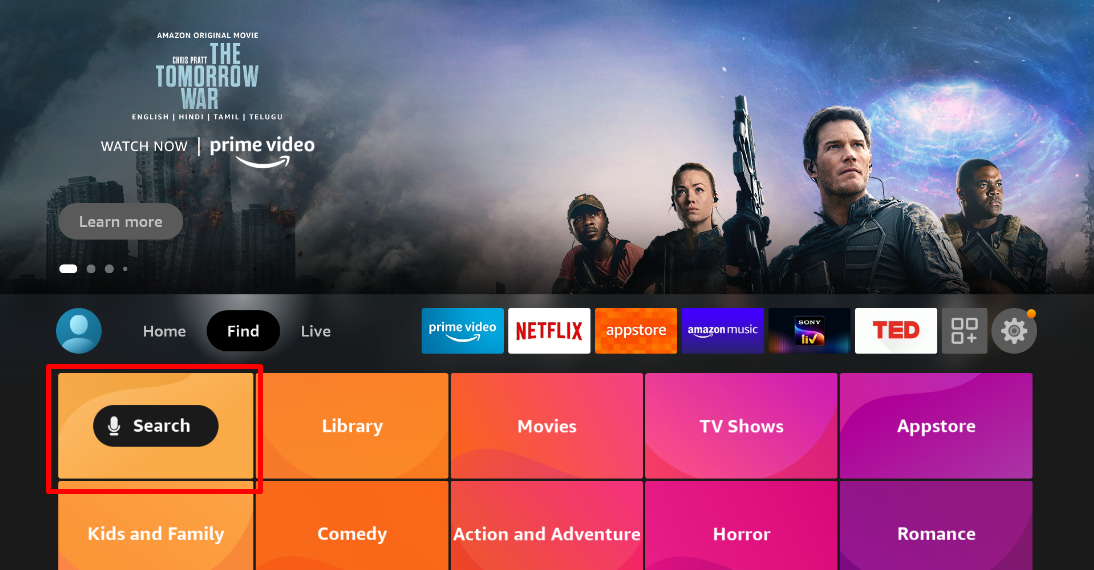
Choose the Search option
Click on Search to look for the Flickerwall app.
Step 2
Choose the Search option
Click on Search to look for the Flickerwall app.
 Step 3
Search for Flickerwall
Use the directional pad to type Flickerwall and press the centre button to select it.
Step 4
Select the Flickerwall app
Highlight the Flickerwall app from the results and press the centre button.
Step 5
Download the Flickerall app
Click Download to begin installing the Flickerwall application.
Step 6
Open the Flickerwall app
After the download finishes, select Open to launch the app.
Step 7
Allow required permissions
Click Allow when prompted so Flickerwall can access photos, media, and files on your device.
Step 8
View the screen registration code
The Flickerwall app displays a unique 6-digit Screen Registration Code once it launches.
Step 9
Pair with the Flickerwall
Visit the Flickerwall and enter the registration code to pair your screen.
Congratulations : You’ve Installed the Flickerwall app on your LG WebOS Amazon Fire TV Stick
Get Flickerwall Today or start a Free Trial Now
Step 3
Search for Flickerwall
Use the directional pad to type Flickerwall and press the centre button to select it.
Step 4
Select the Flickerwall app
Highlight the Flickerwall app from the results and press the centre button.
Step 5
Download the Flickerall app
Click Download to begin installing the Flickerwall application.
Step 6
Open the Flickerwall app
After the download finishes, select Open to launch the app.
Step 7
Allow required permissions
Click Allow when prompted so Flickerwall can access photos, media, and files on your device.
Step 8
View the screen registration code
The Flickerwall app displays a unique 6-digit Screen Registration Code once it launches.
Step 9
Pair with the Flickerwall
Visit the Flickerwall and enter the registration code to pair your screen.
Congratulations : You’ve Installed the Flickerwall app on your LG WebOS Amazon Fire TV Stick
Get Flickerwall Today or start a Free Trial Now