> ## Documentation Index
> Fetch the complete documentation index at: https://docs.flickerwall.com/llms.txt
> Use this file to discover all available pages before exploring further.
# How to Edit permissions of a Role?
> Learn how you can Edit permissions of a Role so when you assign a role to a user he automatically has some features Accessible and not have access to some
# How to Edit permissions of a Role?
Learn how you can Edit permissions of a Role so when you assign a role to a user he automatically has some features Accessible and not have access to some
***
Step 1
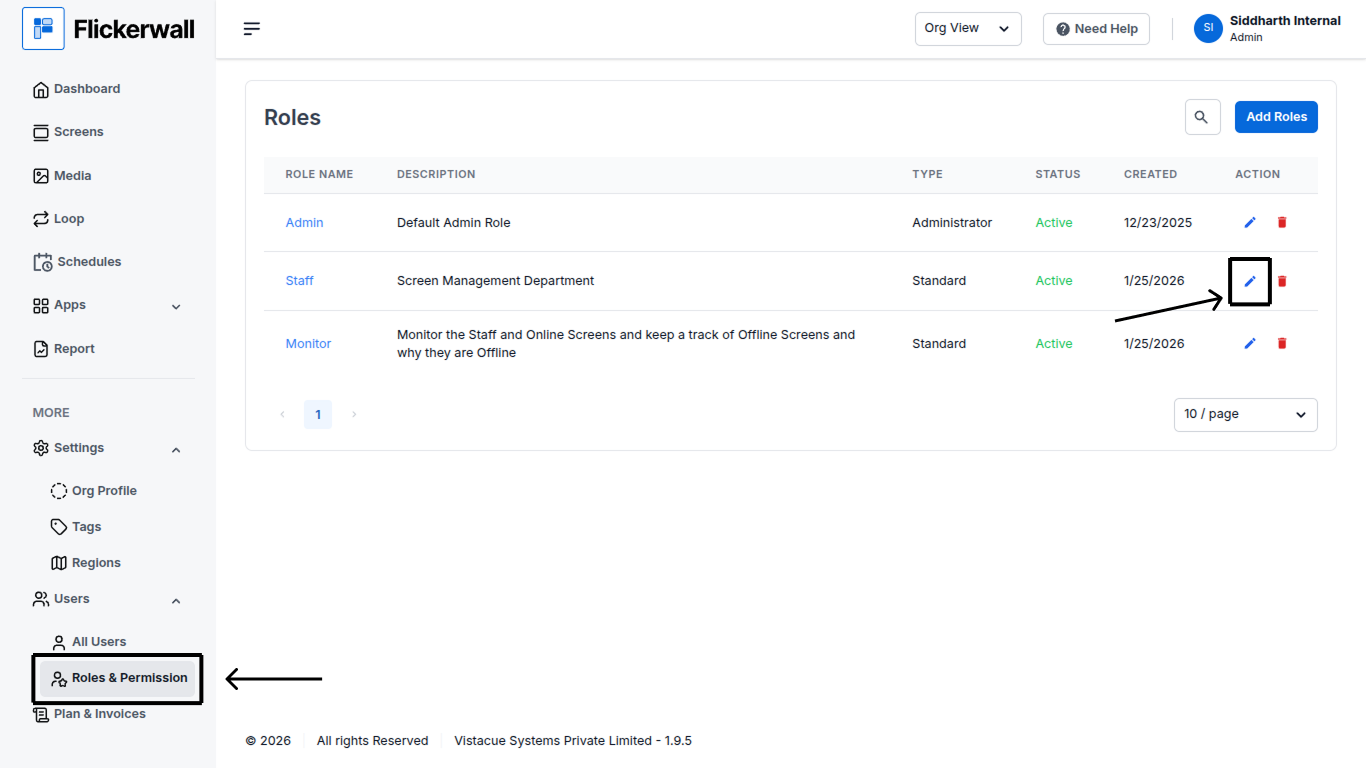
Go to the “Roles and Permission” Module and find the Role you want to Edit
Click on the “Edit” icon on the Role to Edit it
Now you can Decide which of the Following Permissions the “role” has or does not have
**(Note: Following is just an example you can Enable or Disable any Permission of the role as you like)**
 Step 2
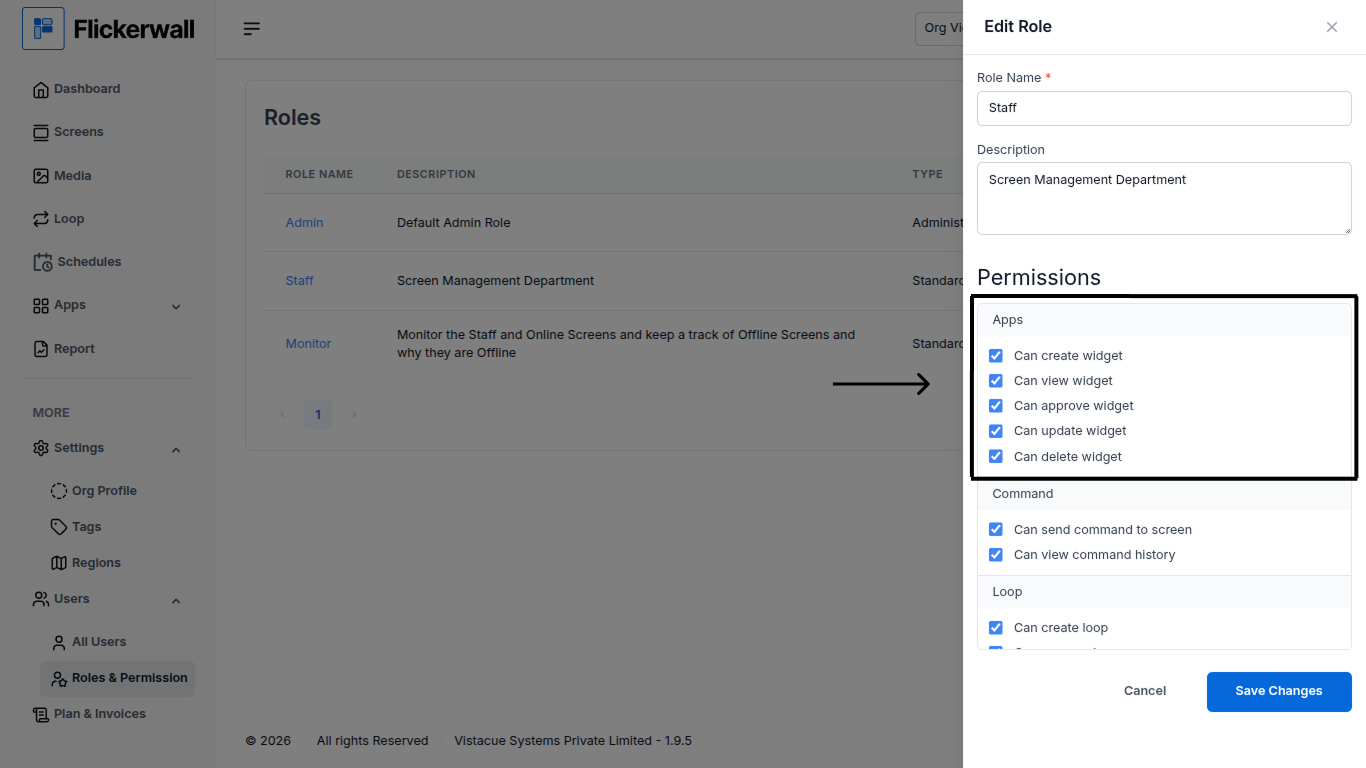
**Enable or Disable the “Apps” permission**
If you Enable all the user with this role can do all the listed
(For Example: If you Disable “Can Create Widget” the user with this role will not be able to Create any widget and same for all)
Step 2
**Enable or Disable the “Apps” permission**
If you Enable all the user with this role can do all the listed
(For Example: If you Disable “Can Create Widget” the user with this role will not be able to Create any widget and same for all)
 Step 3
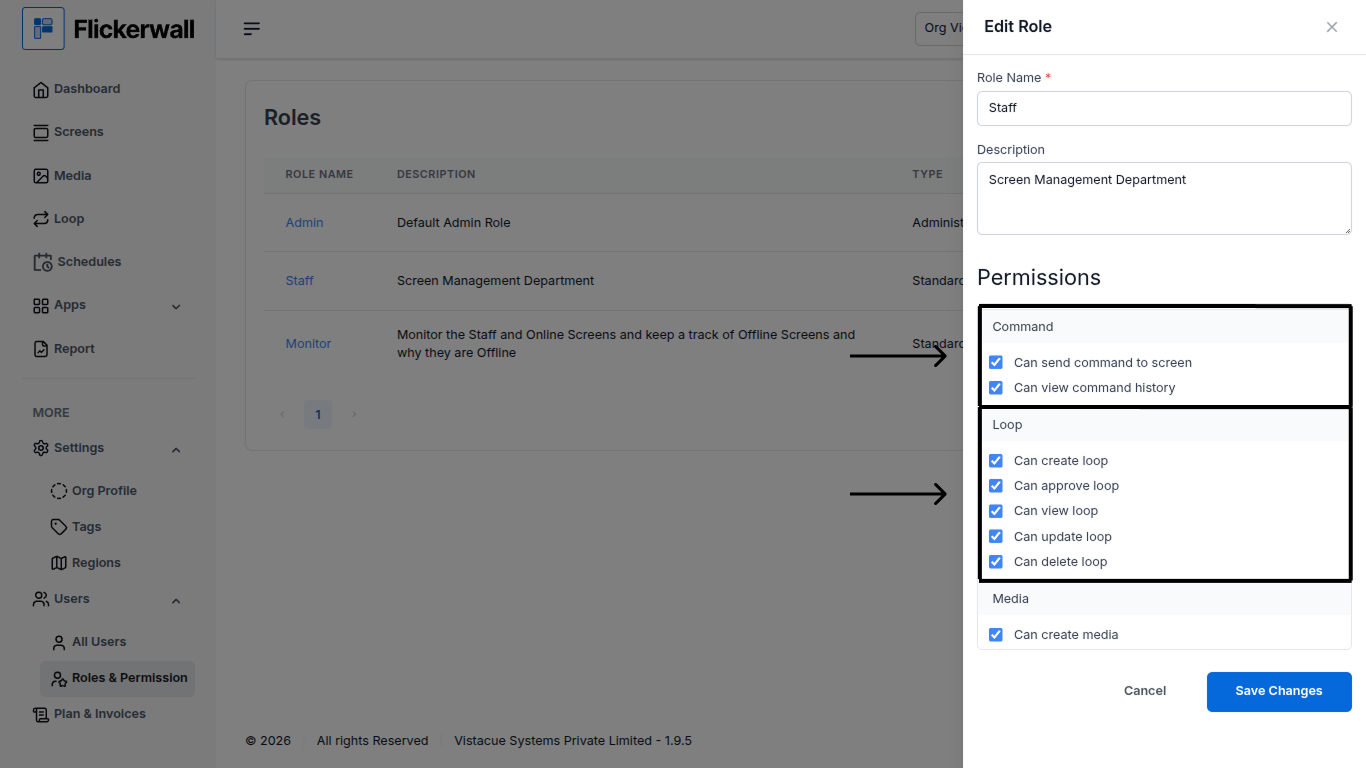
**Enable or Disable the “Command” and “Loop” permission**
If you Enable all the user with this role can do all the listed
* Example for “command” : If you Disable “Can send command to screen” the user with this role will not be able to send any command to the screen.
* Example for “Loop” : If you Disable “Can create Loop” the user with this role will not be able to create any Loop
Step 3
**Enable or Disable the “Command” and “Loop” permission**
If you Enable all the user with this role can do all the listed
* Example for “command” : If you Disable “Can send command to screen” the user with this role will not be able to send any command to the screen.
* Example for “Loop” : If you Disable “Can create Loop” the user with this role will not be able to create any Loop
 Step 4
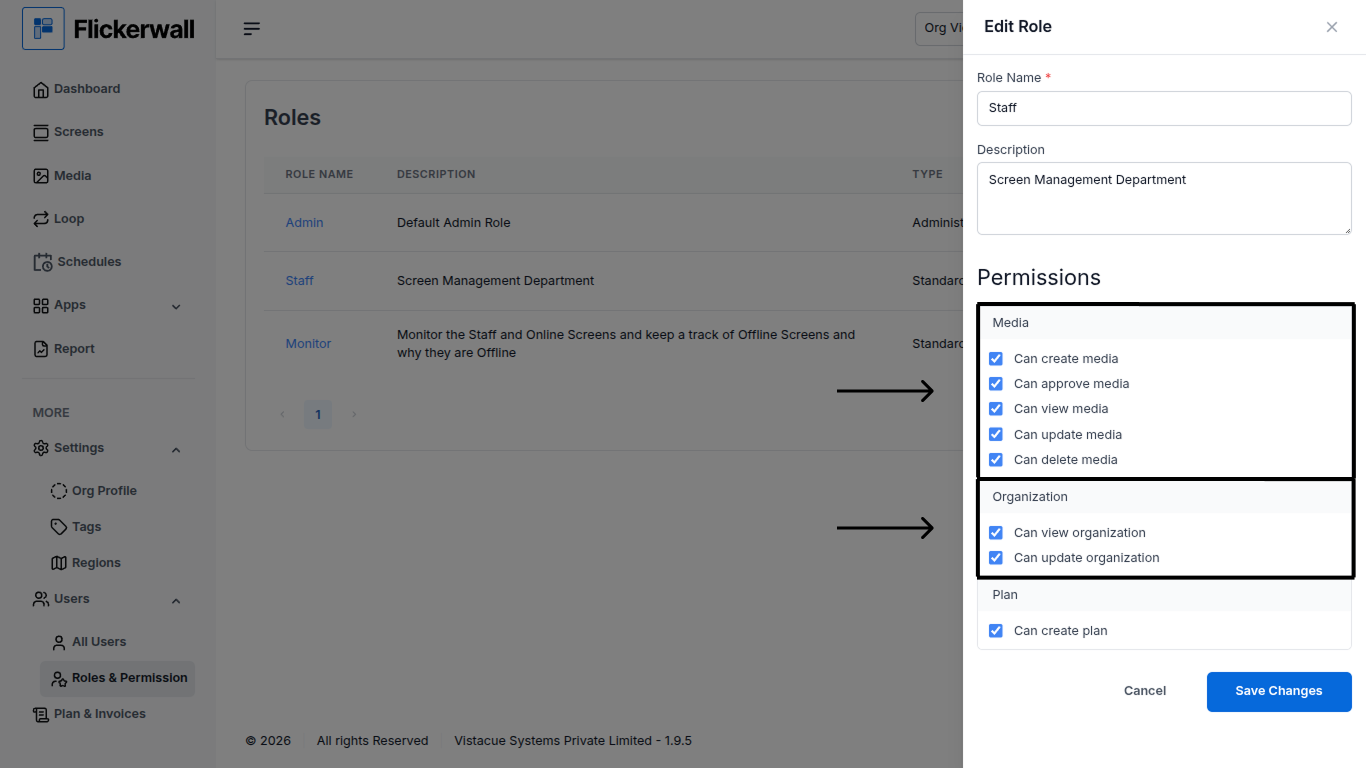
**Enable or Disable the “Media” and “Organization” permission**
If you Enable all the user with this role can do all the listed
* Example for “Media” : If you Disable “Can create media” the user with this role will not be able to create any media.
* Example for “Organization” : If you Disable “Can update organization” the user with this role will not be able to update organization
Step 4
**Enable or Disable the “Media” and “Organization” permission**
If you Enable all the user with this role can do all the listed
* Example for “Media” : If you Disable “Can create media” the user with this role will not be able to create any media.
* Example for “Organization” : If you Disable “Can update organization” the user with this role will not be able to update organization
 Step 5
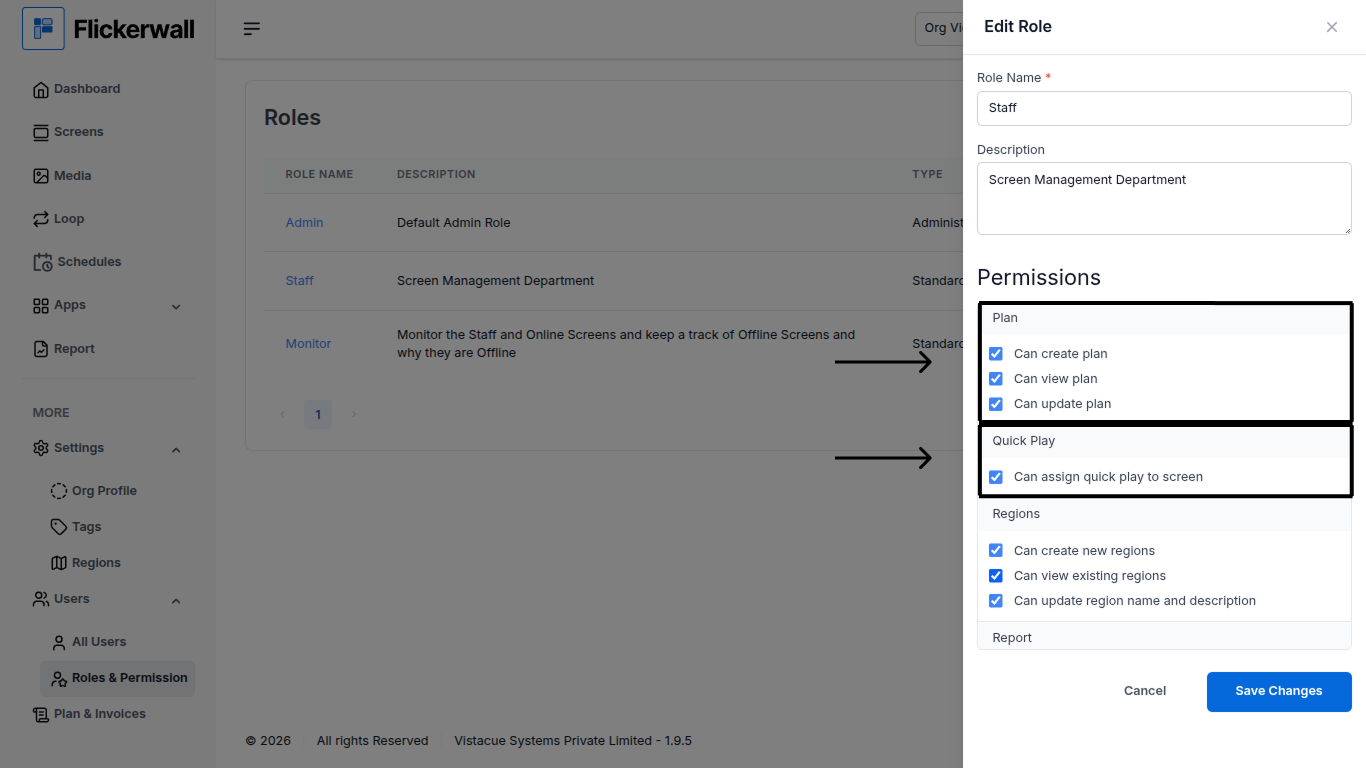
**Enable or Disable the “Plan” and “Quick Play” permission**
If you Enable all the user with this role can do all the listed
* Example for “Plan” : If you Disable “Can view plan” the user with this role will not be able to view any plan.
* Example for “Quick Play” : If you Disable “can assign quick play to screen” the user with this role will not be able to assign any quick play to screen
Step 5
**Enable or Disable the “Plan” and “Quick Play” permission**
If you Enable all the user with this role can do all the listed
* Example for “Plan” : If you Disable “Can view plan” the user with this role will not be able to view any plan.
* Example for “Quick Play” : If you Disable “can assign quick play to screen” the user with this role will not be able to assign any quick play to screen
 Step 6
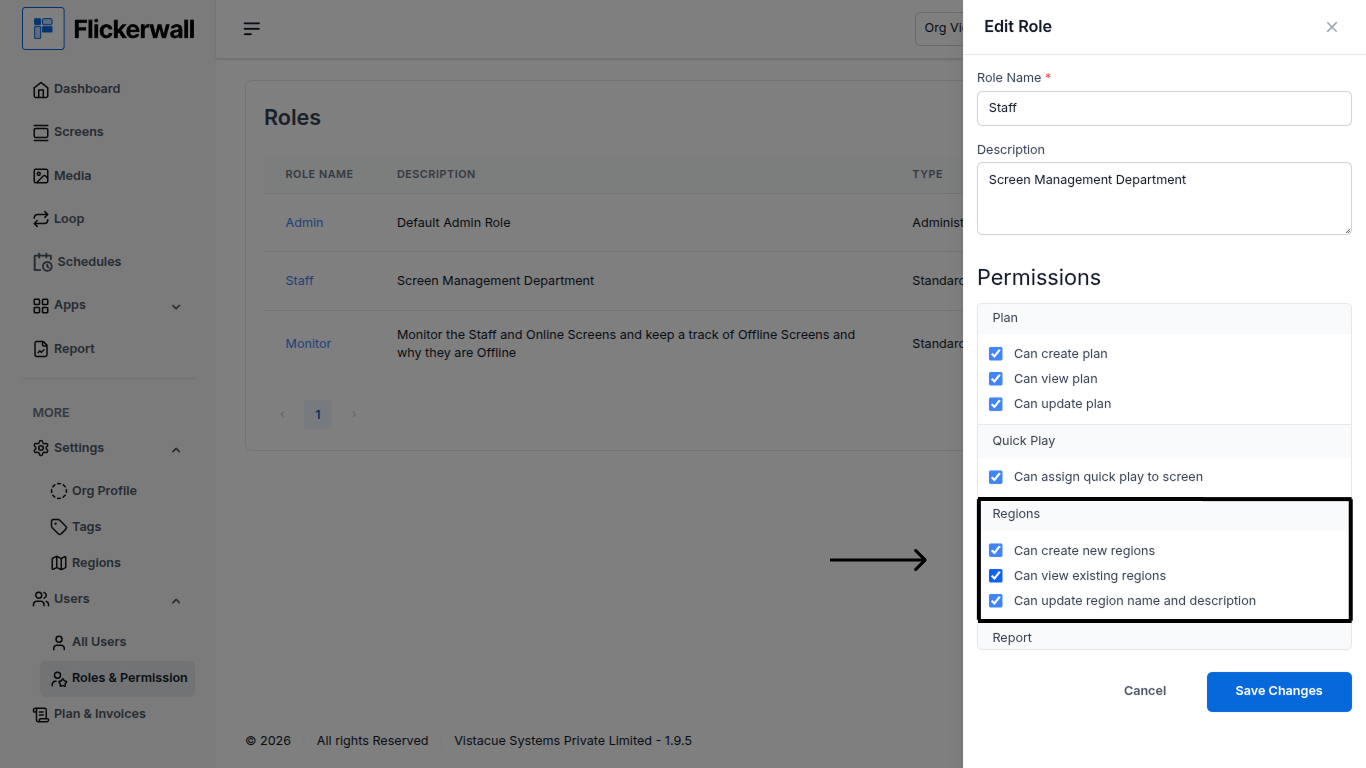
**Enable or Disable the “Regions” permission**
If you Enable all the user with this role can do all the listed
* Example for “Region” : If you Disable “Can create new region” the user with this role will not be able to create any new regions
Step 6
**Enable or Disable the “Regions” permission**
If you Enable all the user with this role can do all the listed
* Example for “Region” : If you Disable “Can create new region” the user with this role will not be able to create any new regions
 Step 7
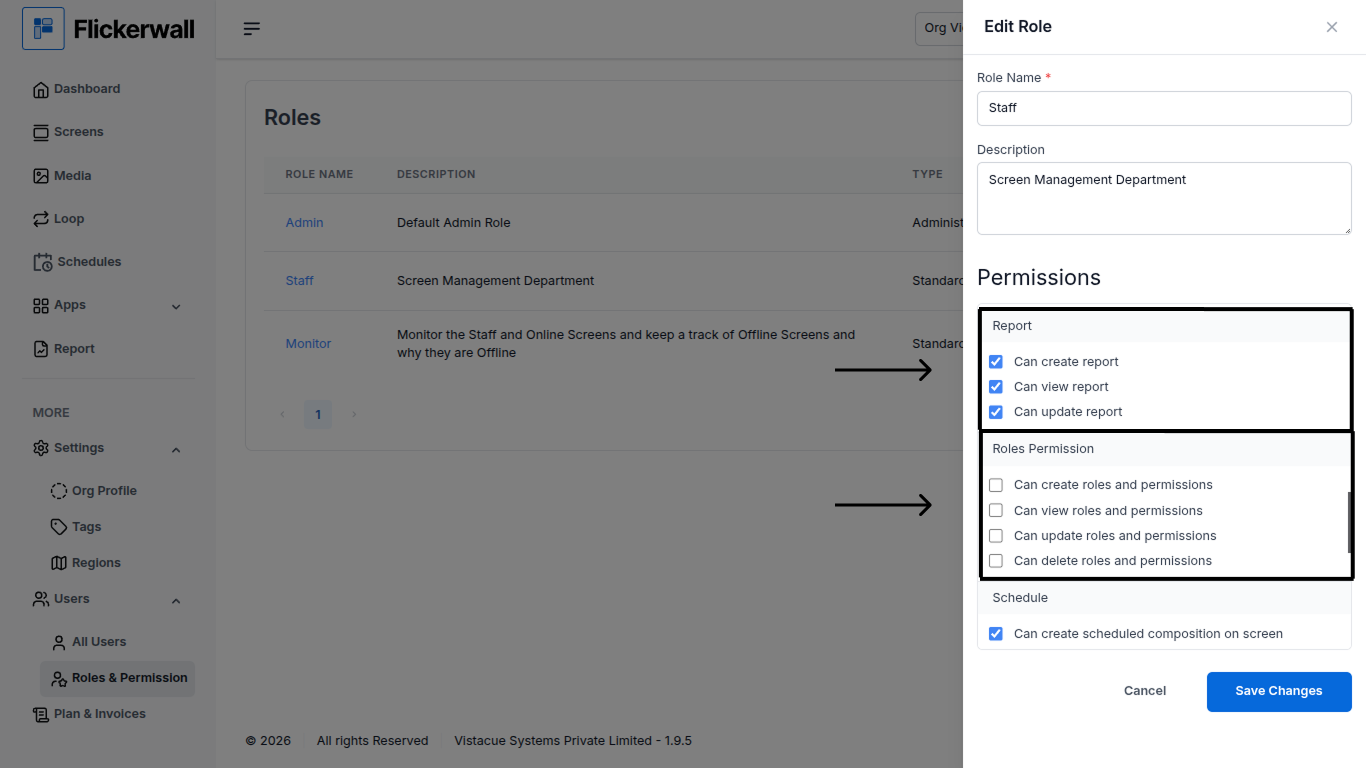
**Enable or Disable the “Report” and “Roles Permission” permission**
If you Enable all the user with this role can do all the listed
* Example for “Report” : If you Disable “Can create Report” the user with this role will not be able to create any reports.
* Example for “Roles Permission” : If you Disable “Can create roles and permission” the user with this role will not be able to any new roles
Step 7
**Enable or Disable the “Report” and “Roles Permission” permission**
If you Enable all the user with this role can do all the listed
* Example for “Report” : If you Disable “Can create Report” the user with this role will not be able to create any reports.
* Example for “Roles Permission” : If you Disable “Can create roles and permission” the user with this role will not be able to any new roles
 Step 8
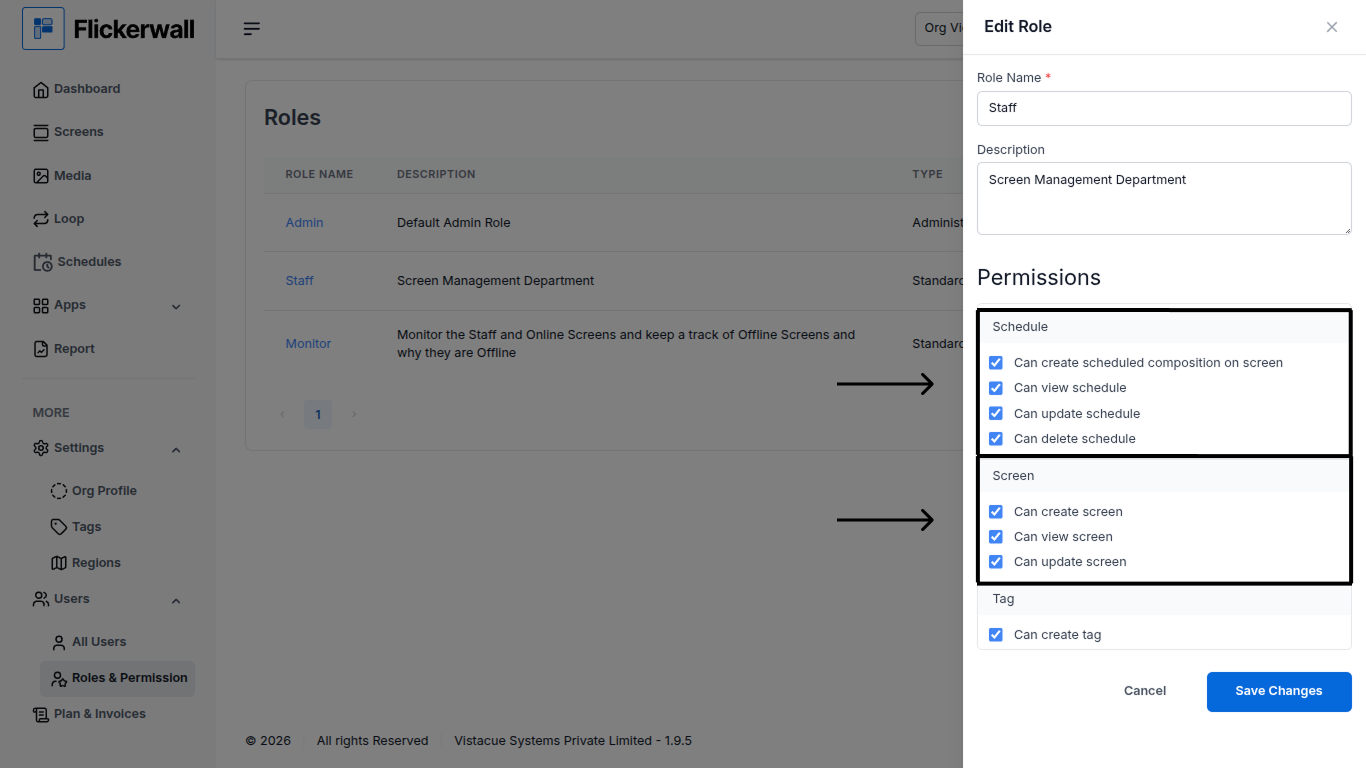
**Enable or Disable the “Schedule” and “Screen” permission**
If you Enable all the user with this role can do all the listed
* Example for “Schedule” : If you Disable “Can delete schedule” the user with this role will not be able to delete any existing Schedule
* Example for “Screen” : If you Disable “Can create screen” the user with this role will not be able to create any new screen
Step 8
**Enable or Disable the “Schedule” and “Screen” permission**
If you Enable all the user with this role can do all the listed
* Example for “Schedule” : If you Disable “Can delete schedule” the user with this role will not be able to delete any existing Schedule
* Example for “Screen” : If you Disable “Can create screen” the user with this role will not be able to create any new screen
 Step 9
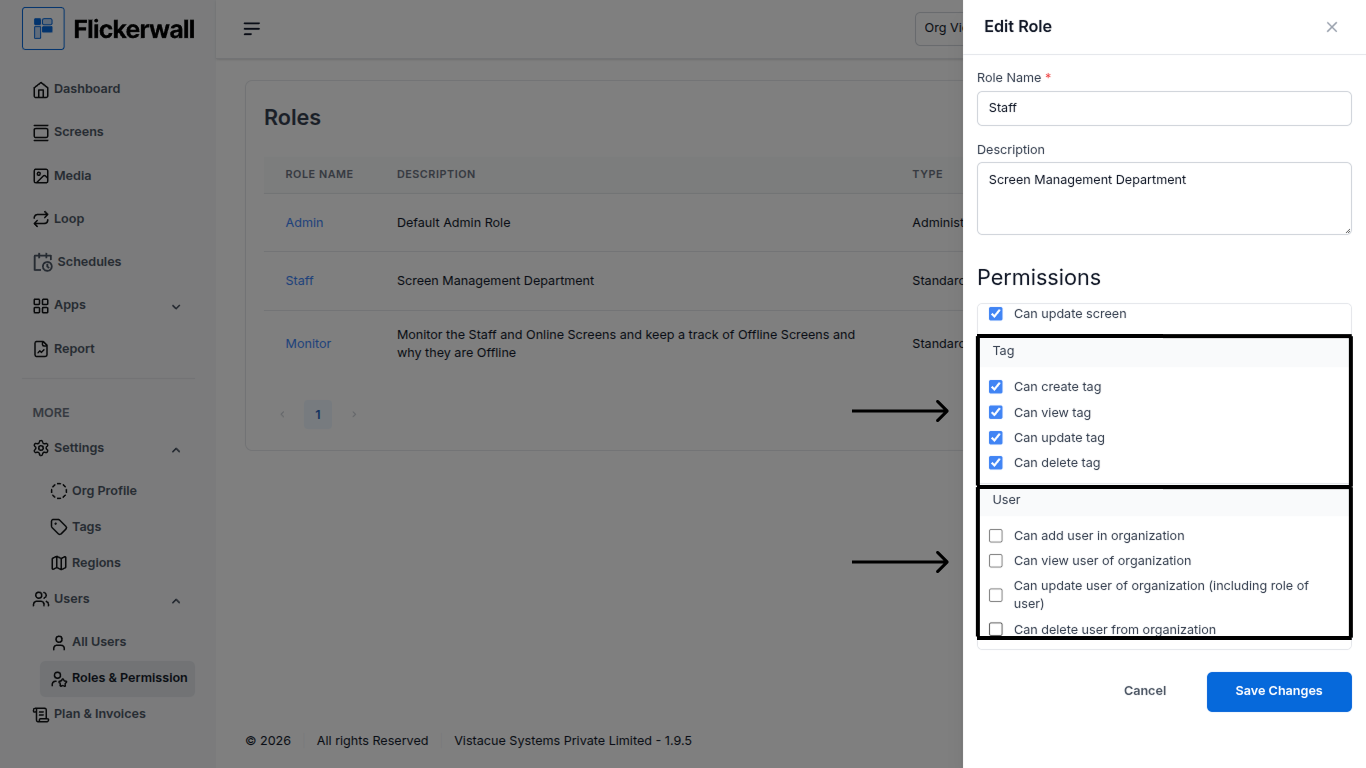
**Enable or Disable the “Tags” and “User” permission**
If you Enable all the user with this role can do all the listed
* Example for “Tag” : If you Disable “Can create tag ” the user with this role will not be able to create any new tags .
* Example for “User” : If you Disable “Can add user in organization” the user with this role will not be able to add any new user in the organization
Step 9
**Enable or Disable the “Tags” and “User” permission**
If you Enable all the user with this role can do all the listed
* Example for “Tag” : If you Disable “Can create tag ” the user with this role will not be able to create any new tags .
* Example for “User” : If you Disable “Can add user in organization” the user with this role will not be able to add any new user in the organization
 Step 10
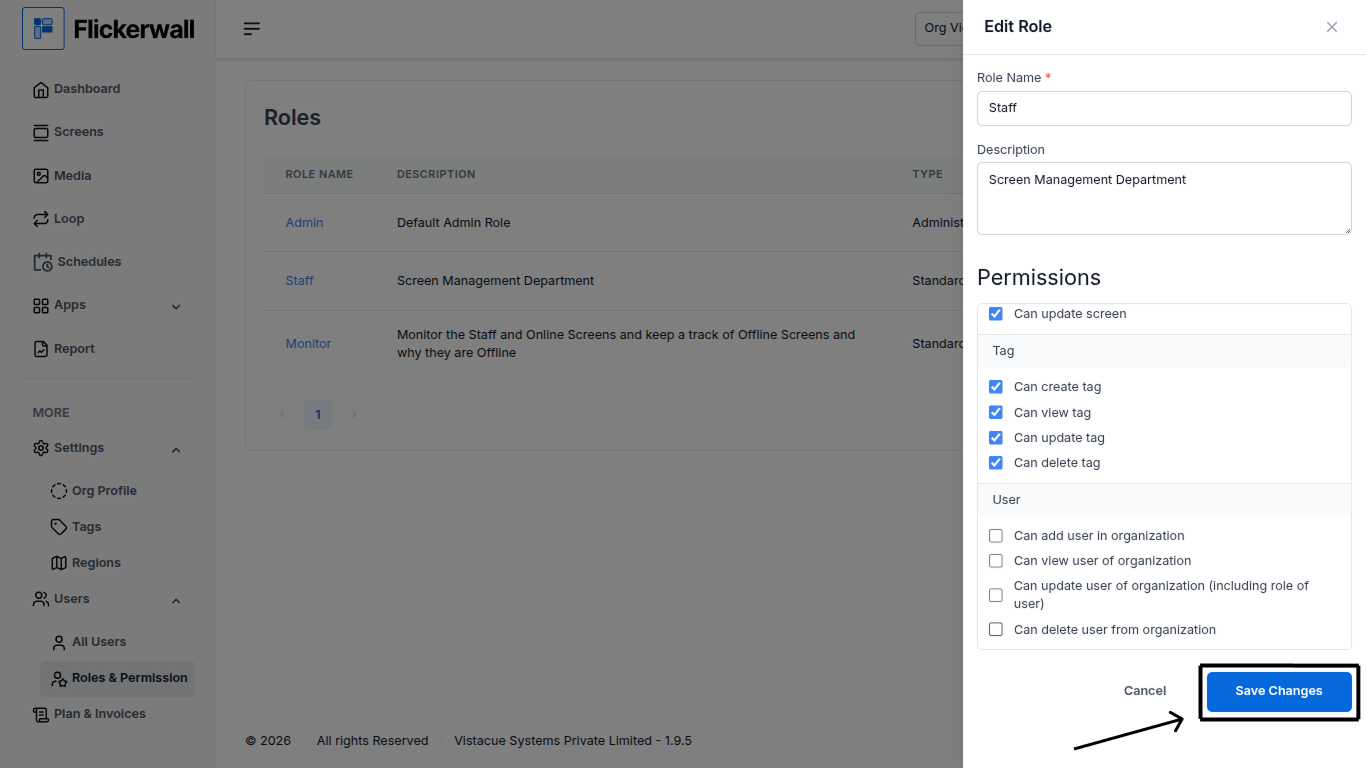
Ones you are done with the arrangement of the role’s permission
Click on “Save changes”
Step 10
Ones you are done with the arrangement of the role’s permission
Click on “Save changes”