> ## Documentation Index
> Fetch the complete documentation index at: https://docs.flickerwall.com/llms.txt
> Use this file to discover all available pages before exploring further.

# How to add Roles?

> Learn how to add Roles for your users so you can give them a Limited and Determined Workspace?

***

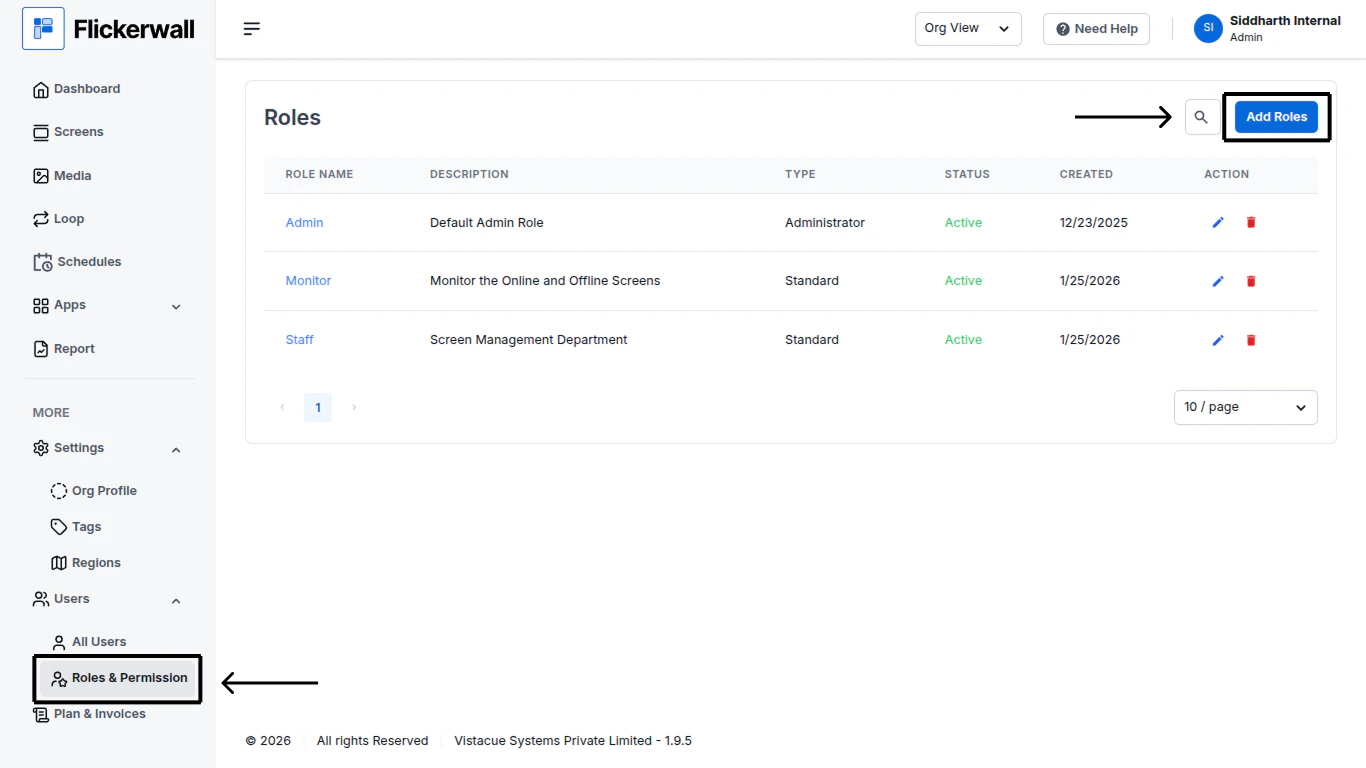
Step 1

Go to the “Roles & Permission” Module and Click on “Add Roles”
<img src="https://mintcdn.com/flickerwall-796545b9/Zri6VmL56QW49yRY/images/user-roles-and-permissions-how-to-add-roles-image-1.png?fit=max&auto=format&n=Zri6VmL56QW49yRY&q=85&s=2868bb36ded23d1d77ef65b003662333" alt="" width="1366" height="768" data-path="images/user-roles-and-permissions-how-to-add-roles-image-1.png" />

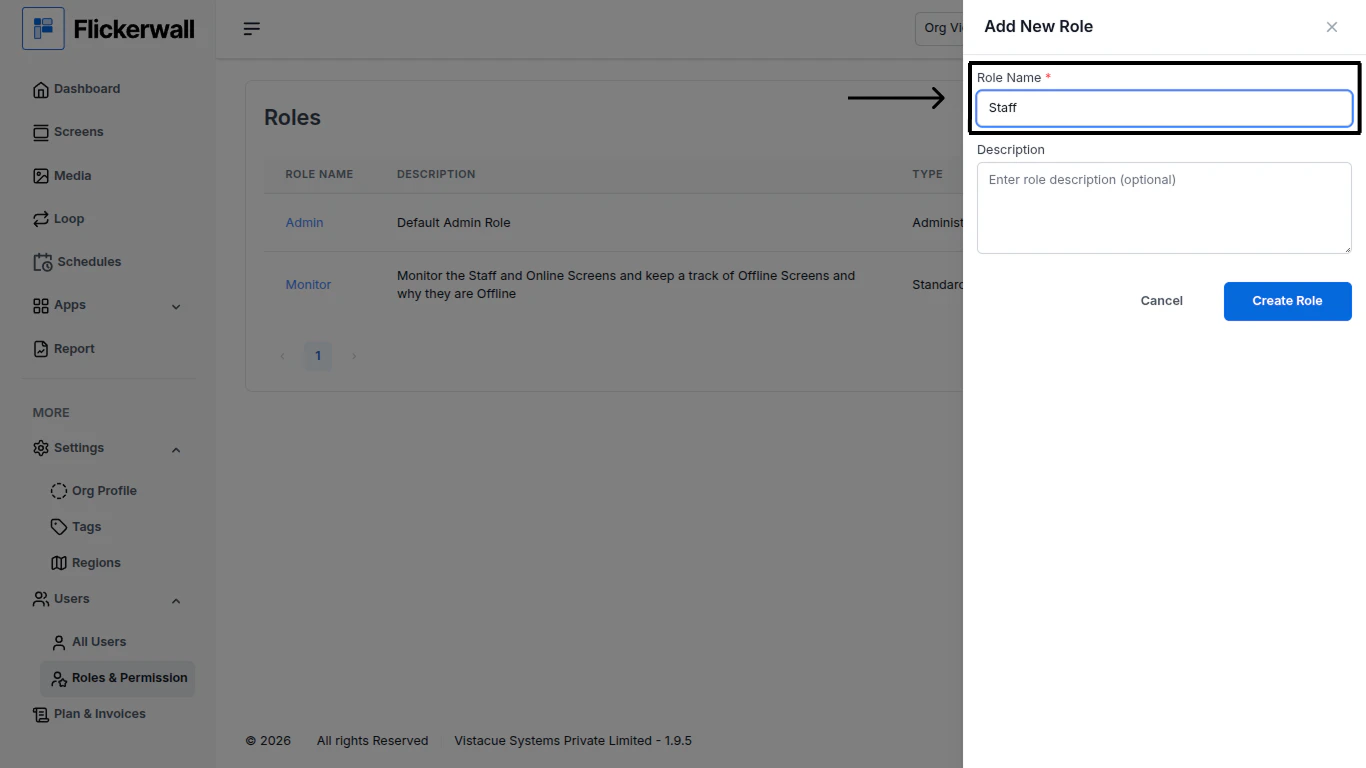
Step 2

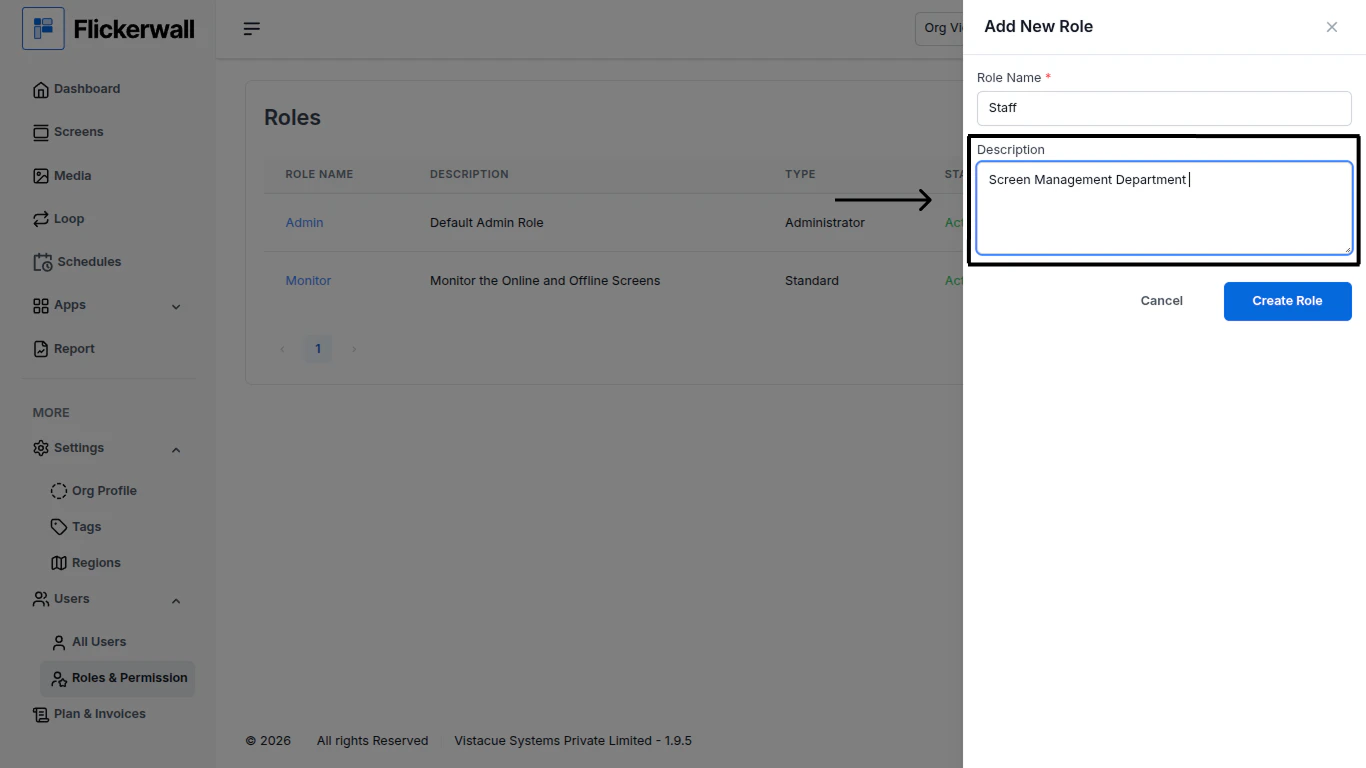
Enter Role Name and Description
<img src="https://mintcdn.com/flickerwall-796545b9/Zri6VmL56QW49yRY/images/user-roles-and-permissions-how-to-add-roles-image-2.png?fit=max&auto=format&n=Zri6VmL56QW49yRY&q=85&s=eb2fefe7336762b234b4a0b501fc7455" alt="" width="1366" height="768" data-path="images/user-roles-and-permissions-how-to-add-roles-image-2.png" />

<img src="https://mintcdn.com/flickerwall-796545b9/Zri6VmL56QW49yRY/images/user-roles-and-permissions-how-to-add-roles-image-3.png?fit=max&auto=format&n=Zri6VmL56QW49yRY&q=85&s=1c8b75383dfd7d5dcb40352fa4baf16a" alt="" width="1366" height="768" data-path="images/user-roles-and-permissions-how-to-add-roles-image-3.png" />

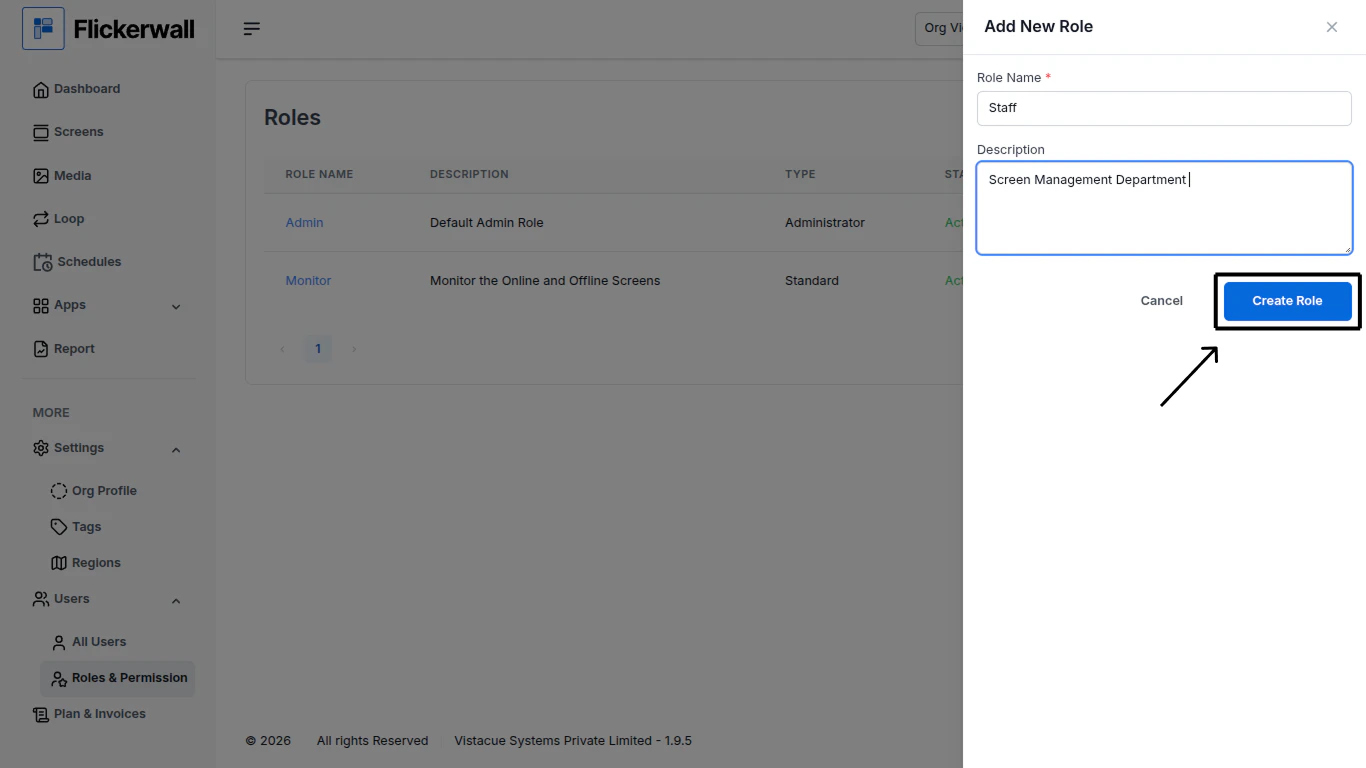
Step 3

Click on “Create Role” to complete the process
<img src="https://mintcdn.com/flickerwall-796545b9/Zri6VmL56QW49yRY/images/user-roles-and-permissions-how-to-add-roles-image-4.png?fit=max&auto=format&n=Zri6VmL56QW49yRY&q=85&s=ecd8dc9dd5b47757860a0df195afe98b" alt="" width="1366" height="768" data-path="images/user-roles-and-permissions-how-to-add-roles-image-4.png" />