> ## Documentation Index
> Fetch the complete documentation index at: https://docs.flickerwall.com/llms.txt
> Use this file to discover all available pages before exploring further.

# How to Edit a Region?

> Learn how to Edit a Region for Better and Clean Management

***

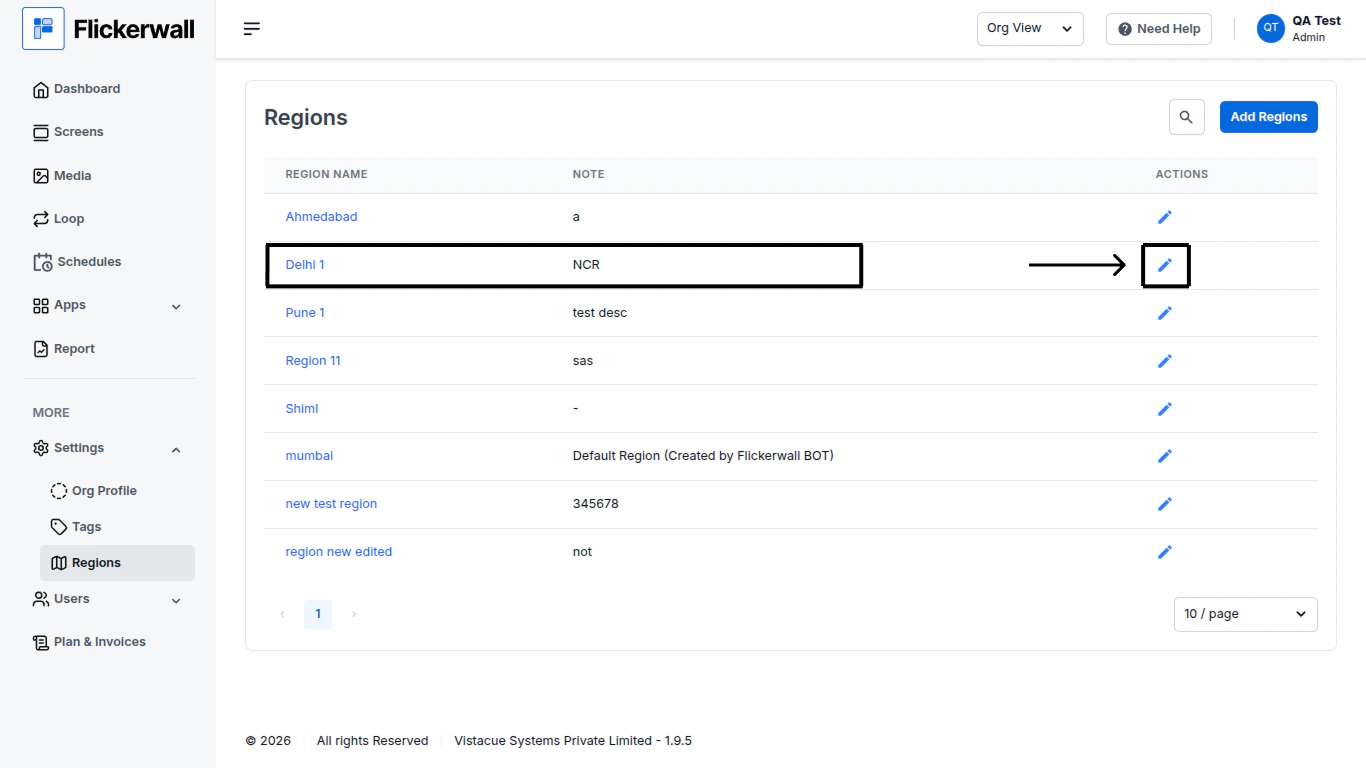
Step 1

Go to the Regions Module and find the Region you want to edit

Click on the “edit” icon in the action tab of the Region you want to edit
<img src="https://mintcdn.com/flickerwall-796545b9/MimF6oumHHS1qwlF/images/settings-regions-how-to-edit-a-region-image-1.png?fit=max&auto=format&n=MimF6oumHHS1qwlF&q=85&s=76b7ffcfae6530aa19e73122da59822a" alt="" width="1366" height="768" data-path="images/settings-regions-how-to-edit-a-region-image-1.png" />

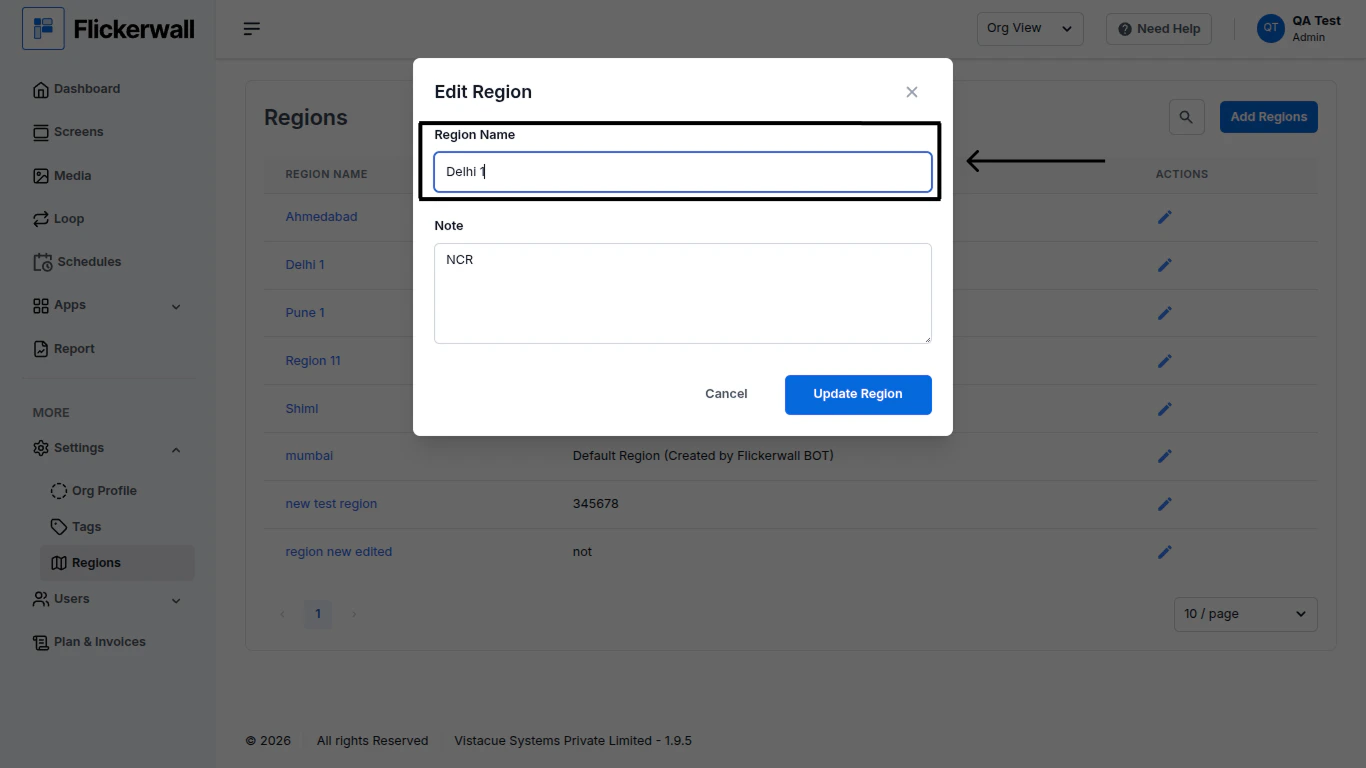
Step 2

Enter a New Name

<img src="https://mintcdn.com/flickerwall-796545b9/MimF6oumHHS1qwlF/images/settings-regions-how-to-edit-a-region-image-2.png?fit=max&auto=format&n=MimF6oumHHS1qwlF&q=85&s=18a861edef33a109e994339043fd15b0" alt="" width="1366" height="768" data-path="images/settings-regions-how-to-edit-a-region-image-2.png" />

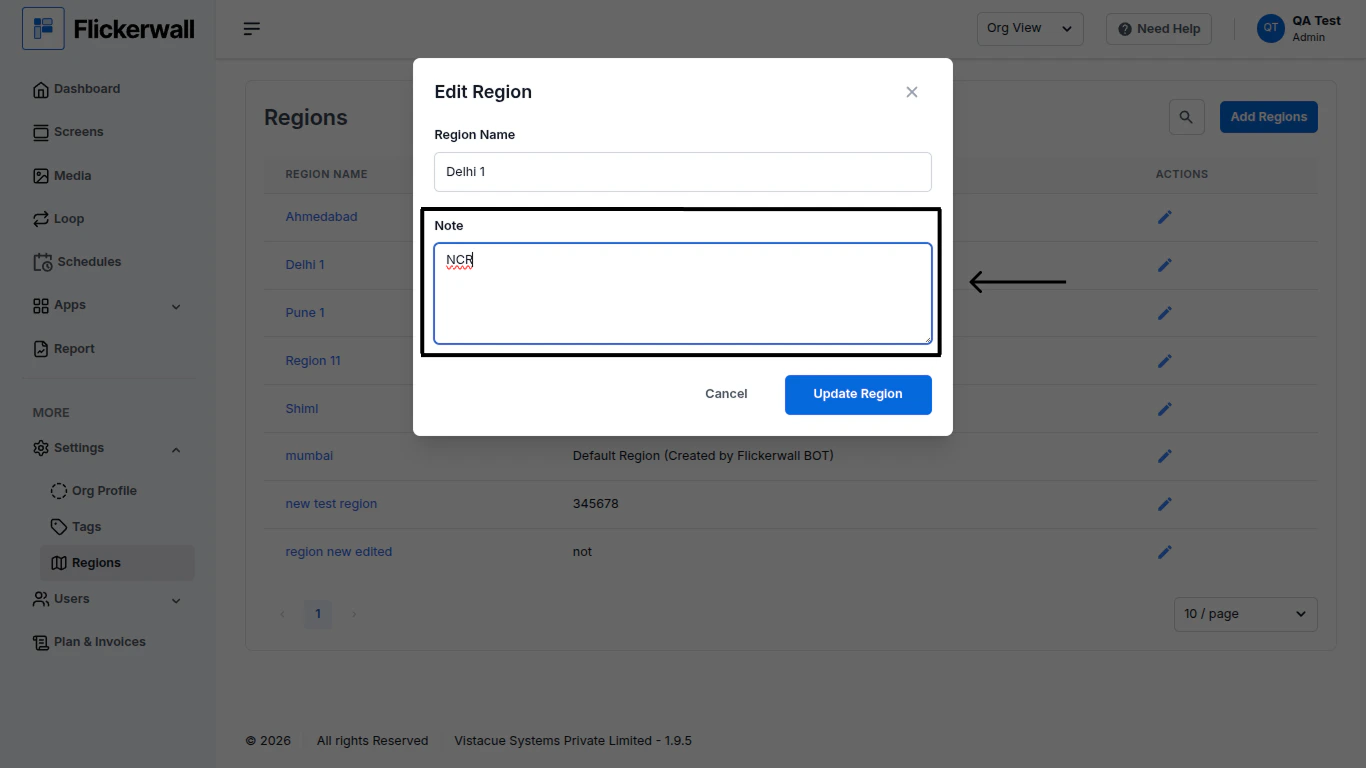
Step 3

Enter a New Note

<img src="https://mintcdn.com/flickerwall-796545b9/MimF6oumHHS1qwlF/images/settings-regions-how-to-edit-a-region-image-3.png?fit=max&auto=format&n=MimF6oumHHS1qwlF&q=85&s=9cef99a31cde4068f4f57e54758b637a" alt="" width="1366" height="768" data-path="images/settings-regions-how-to-edit-a-region-image-3.png" />

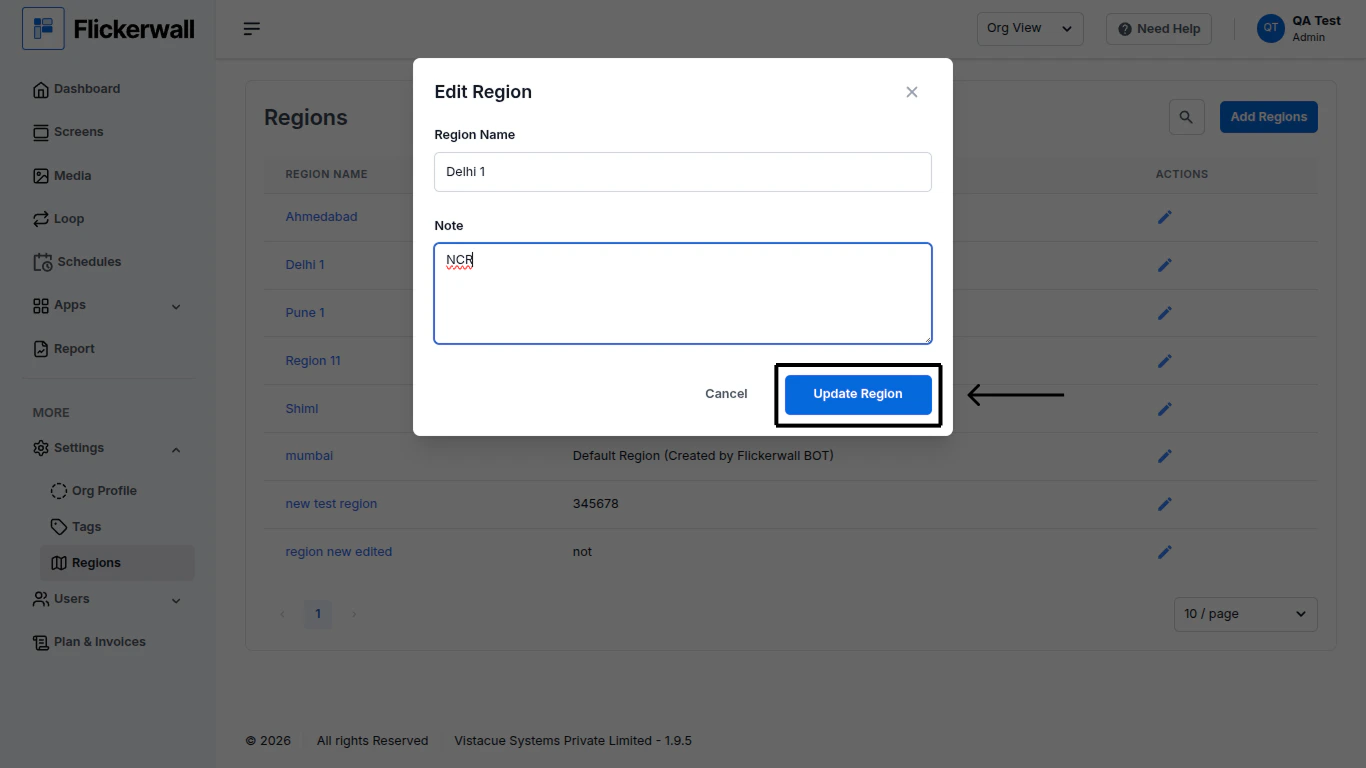
Step 4

Once you are done with the changes Click on “Update Region” and complete the process
<img src="https://mintcdn.com/flickerwall-796545b9/MimF6oumHHS1qwlF/images/settings-regions-how-to-edit-a-region-image-4.png?fit=max&auto=format&n=MimF6oumHHS1qwlF&q=85&s=d4c80d10e8a407cc2946af90d25b8316" alt="" width="1366" height="768" data-path="images/settings-regions-how-to-edit-a-region-image-4.png" />