> ## Documentation Index
> Fetch the complete documentation index at: https://docs.flickerwall.com/llms.txt
> Use this file to discover all available pages before exploring further.

# How to Add a Region?

> Learn how to add a Region for better Screen Optimization

***

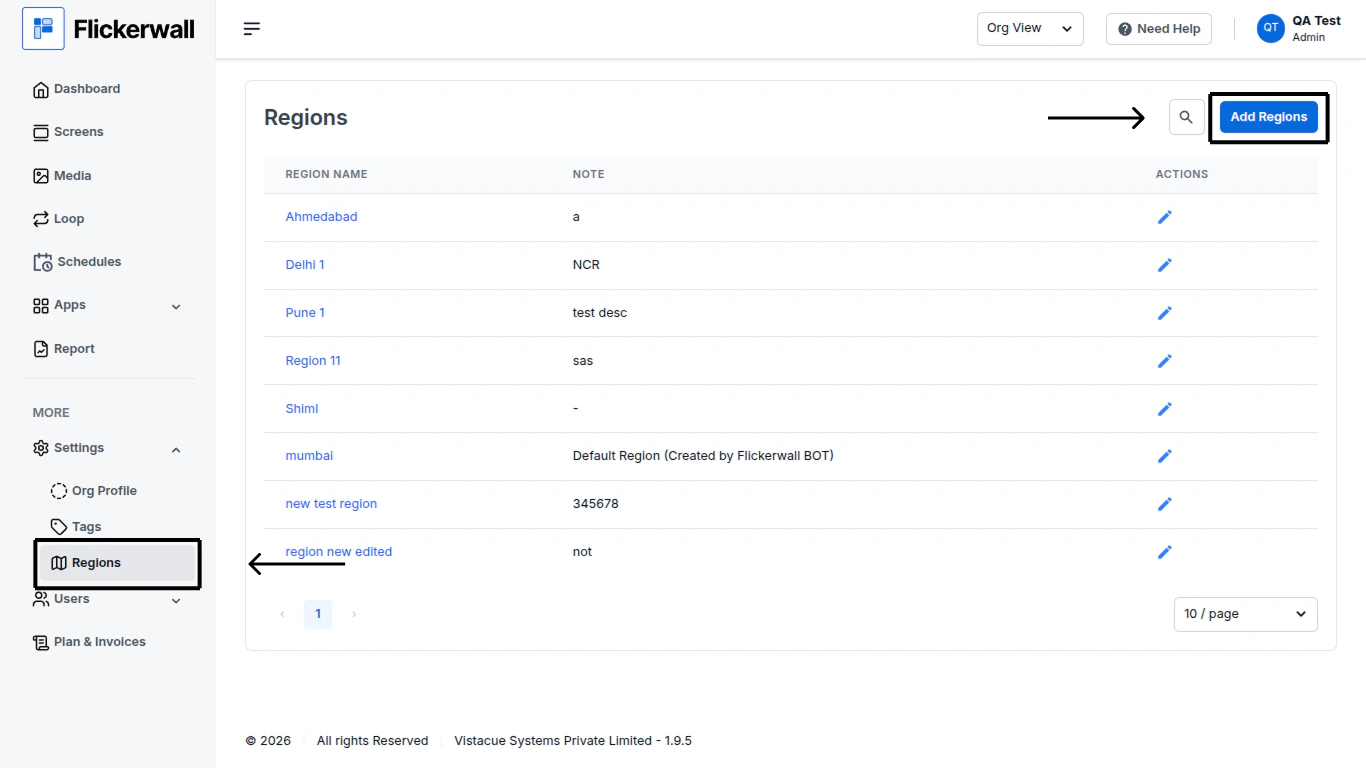
Step 1

Go to the Regions Module and click on “Add Regions”
<img src="https://mintcdn.com/flickerwall-796545b9/MimF6oumHHS1qwlF/images/settings-regions-how-to-add-a-region-image-1.png?fit=max&auto=format&n=MimF6oumHHS1qwlF&q=85&s=f117ff59d7301909501337e3b3b35fcd" alt="" width="1366" height="768" data-path="images/settings-regions-how-to-add-a-region-image-1.png" />

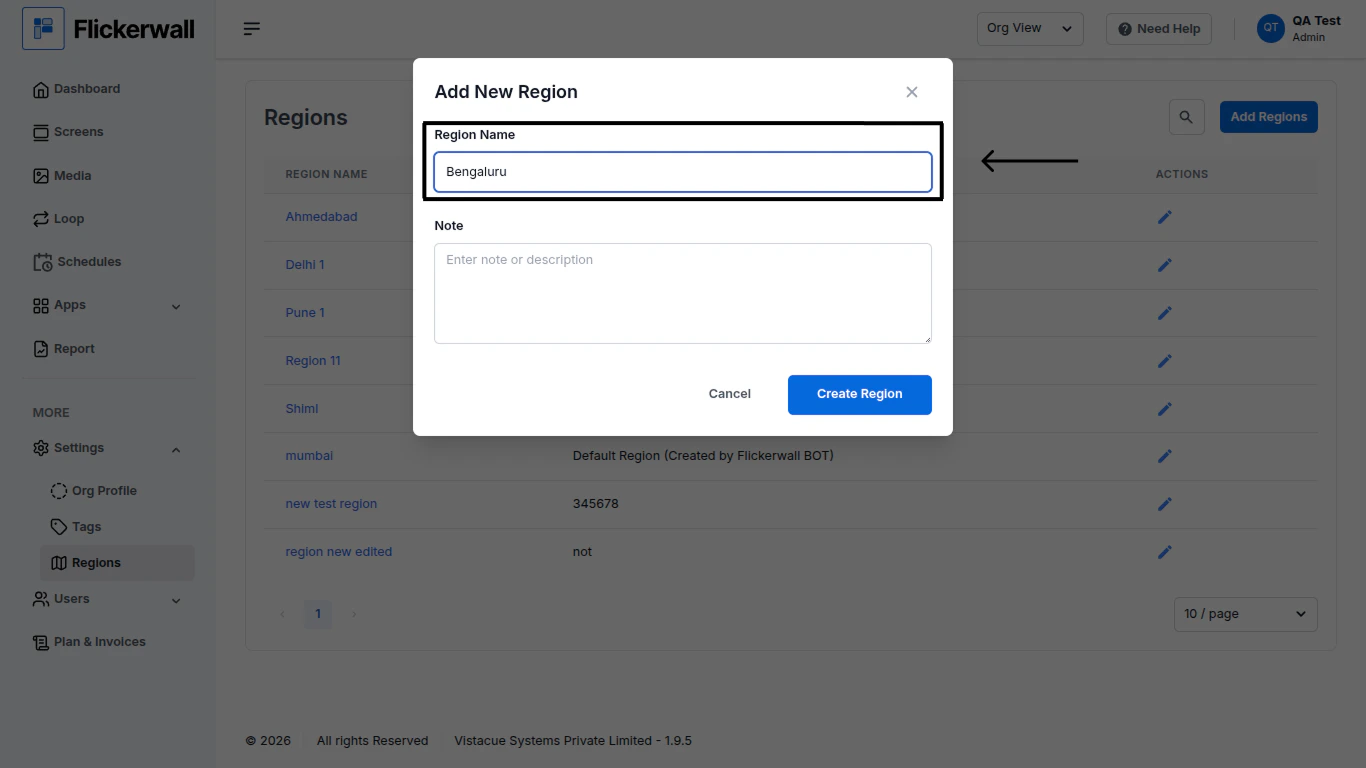
Step 2

Add a Name for the Region

<img src="https://mintcdn.com/flickerwall-796545b9/MimF6oumHHS1qwlF/images/settings-regions-how-to-add-a-region-image-2.png?fit=max&auto=format&n=MimF6oumHHS1qwlF&q=85&s=4b9d19cfc3860d88977aefeac64983da" alt="" width="1366" height="768" data-path="images/settings-regions-how-to-add-a-region-image-2.png" />

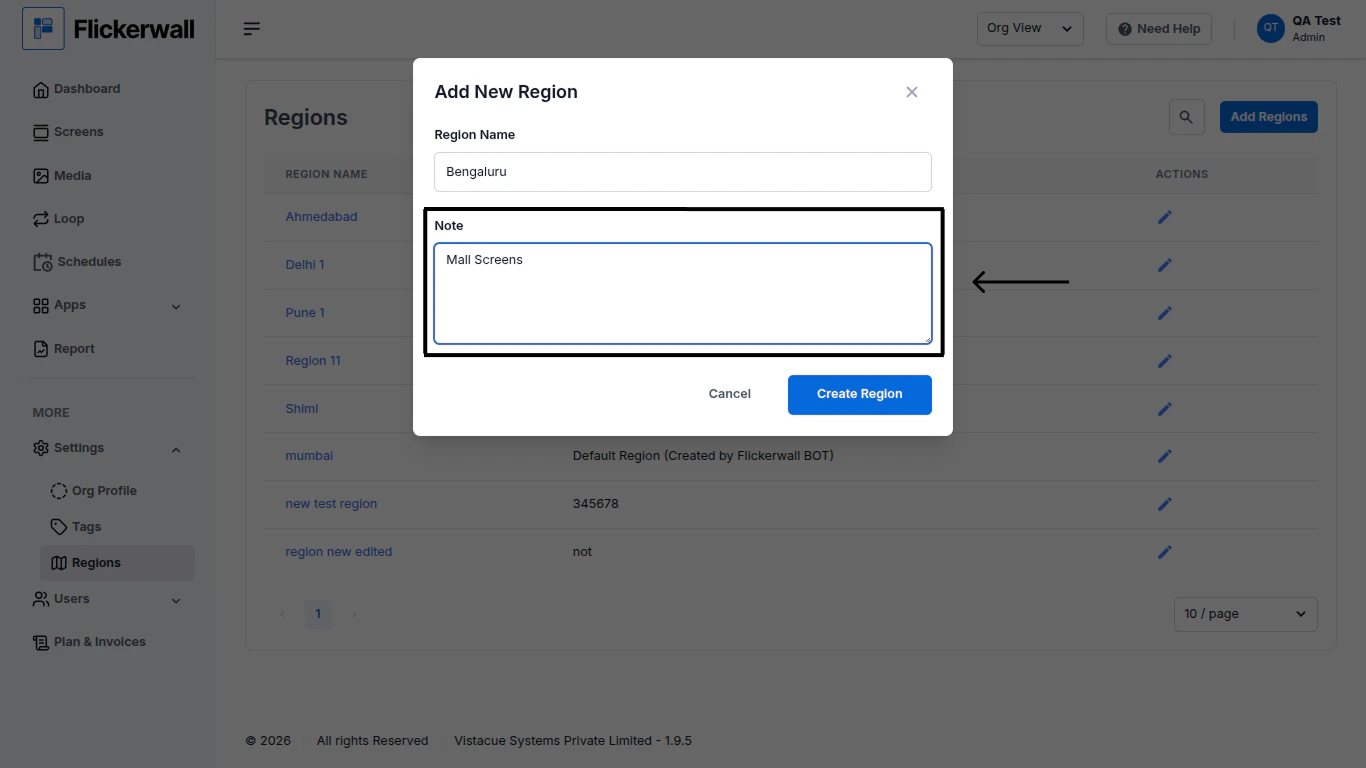
Step 3

Add an Note for the Region

<img src="https://mintcdn.com/flickerwall-796545b9/MimF6oumHHS1qwlF/images/settings-regions-how-to-add-a-region-image-3.png?fit=max&auto=format&n=MimF6oumHHS1qwlF&q=85&s=ebf4bec3212ddb95572c4c56da0b0efb" alt="" width="1366" height="768" data-path="images/settings-regions-how-to-add-a-region-image-3.png" />

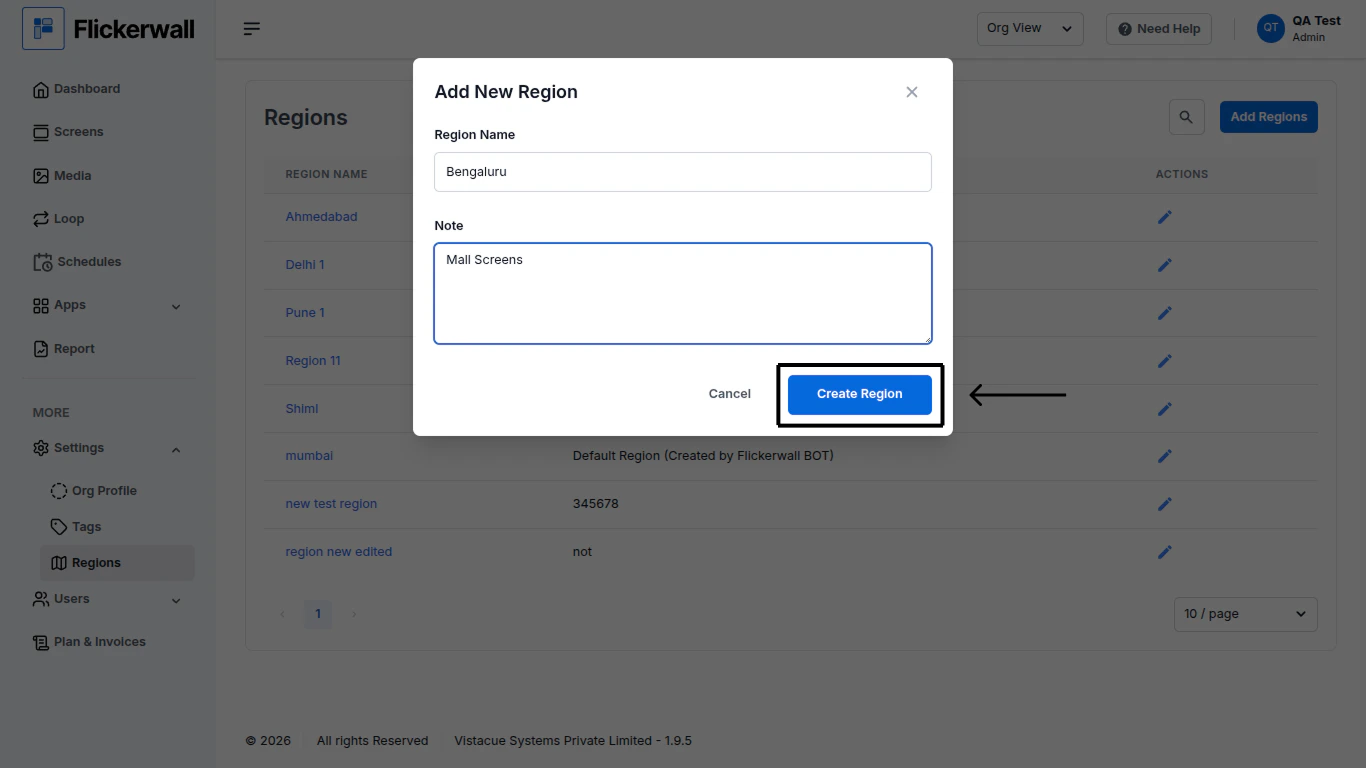
Step 4

Lastly, Click on “Create Region” and that’s it
<img src="https://mintcdn.com/flickerwall-796545b9/MimF6oumHHS1qwlF/images/settings-regions-how-to-add-a-region-image-4.png?fit=max&auto=format&n=MimF6oumHHS1qwlF&q=85&s=b9bf241ee33a78ddfe1b25b45d09af17" alt="" width="1366" height="768" data-path="images/settings-regions-how-to-add-a-region-image-4.png" />