> ## Documentation Index
> Fetch the complete documentation index at: https://docs.flickerwall.com/llms.txt
> Use this file to discover all available pages before exploring further.

# How to add a Default look for all newly add Screens?

> Learn how to set a Default loop for your organization ,so you can have your logo or a certain loop played automatically as soon as a screen is registered .

***

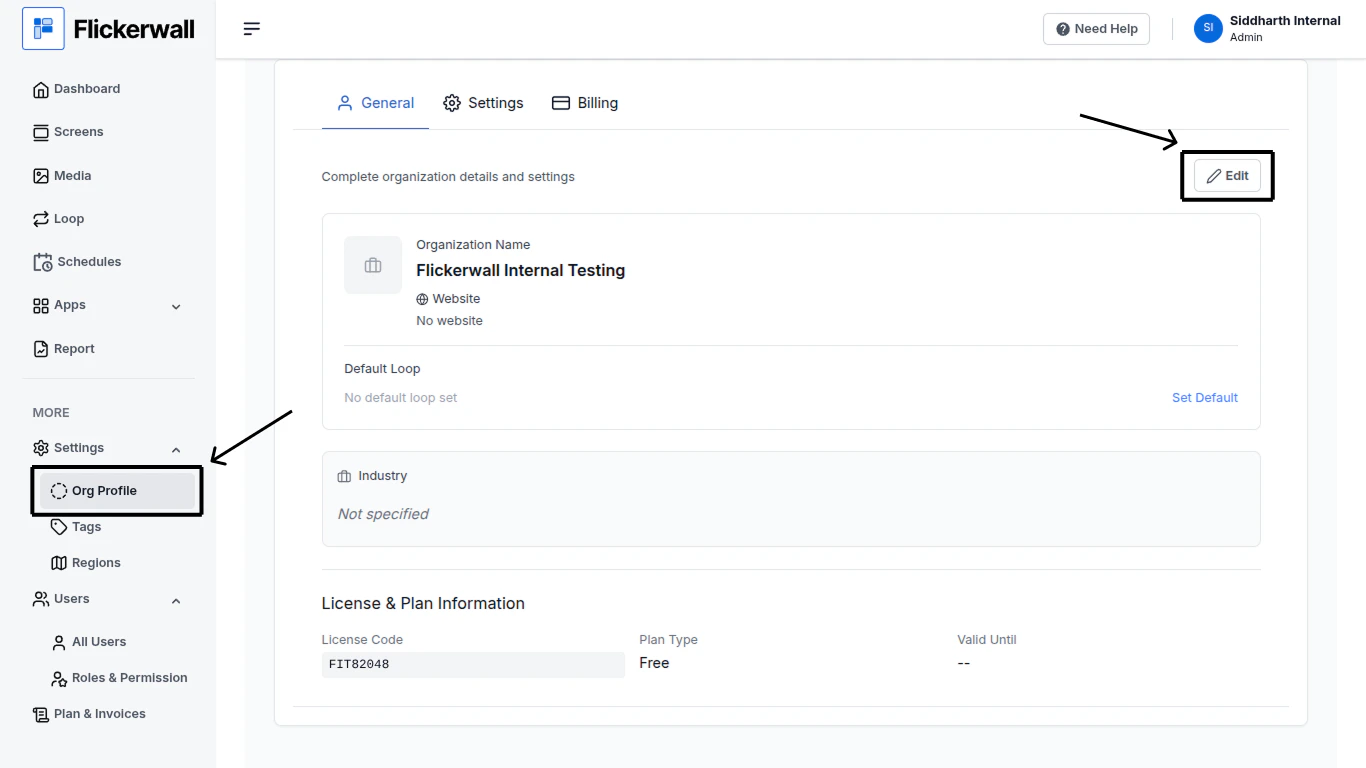
Step 1

Go to “Org Profile” and click on “Edit” icon
<img src="https://mintcdn.com/flickerwall-796545b9/Xj6F_u96gjjZf5cg/images/settings-org-profile-how-to-add-a-default-look-for-all-newly-add-screens-image-1.png?fit=max&auto=format&n=Xj6F_u96gjjZf5cg&q=85&s=502097aaebe720be9ff1f23175086f7a" alt="" width="1366" height="768" data-path="images/settings-org-profile-how-to-add-a-default-look-for-all-newly-add-screens-image-1.png" />

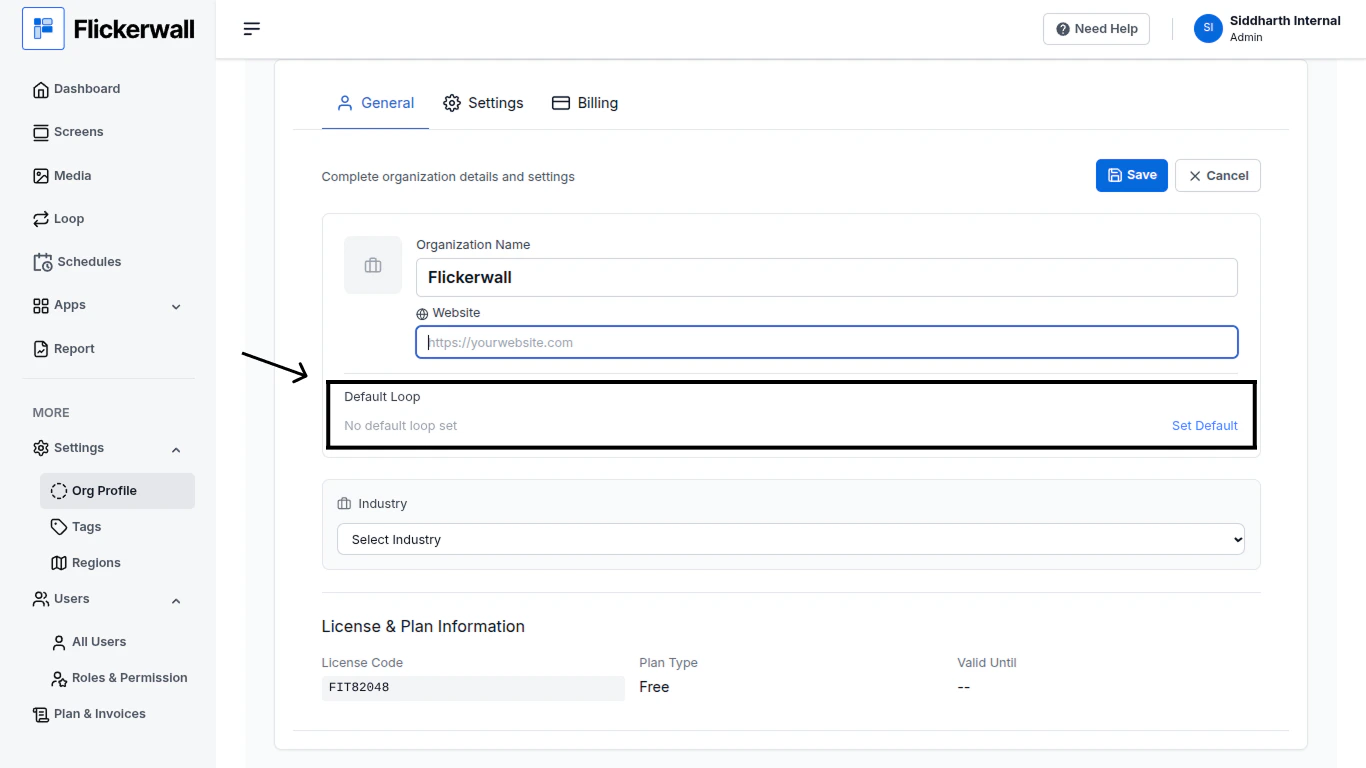
Step 2

Set an Default Loop

(Note: Default Loop setting under the Org Profile Module has a different use than the one in the “Screen Module”)
<img src="https://mintcdn.com/flickerwall-796545b9/Xj6F_u96gjjZf5cg/images/settings-org-profile-how-to-add-a-default-look-for-all-newly-add-screens-image-2.png?fit=max&auto=format&n=Xj6F_u96gjjZf5cg&q=85&s=59ac8080f69a7c9bba513aa574c184bf" alt="" width="1366" height="768" data-path="images/settings-org-profile-how-to-add-a-default-look-for-all-newly-add-screens-image-2.png" />

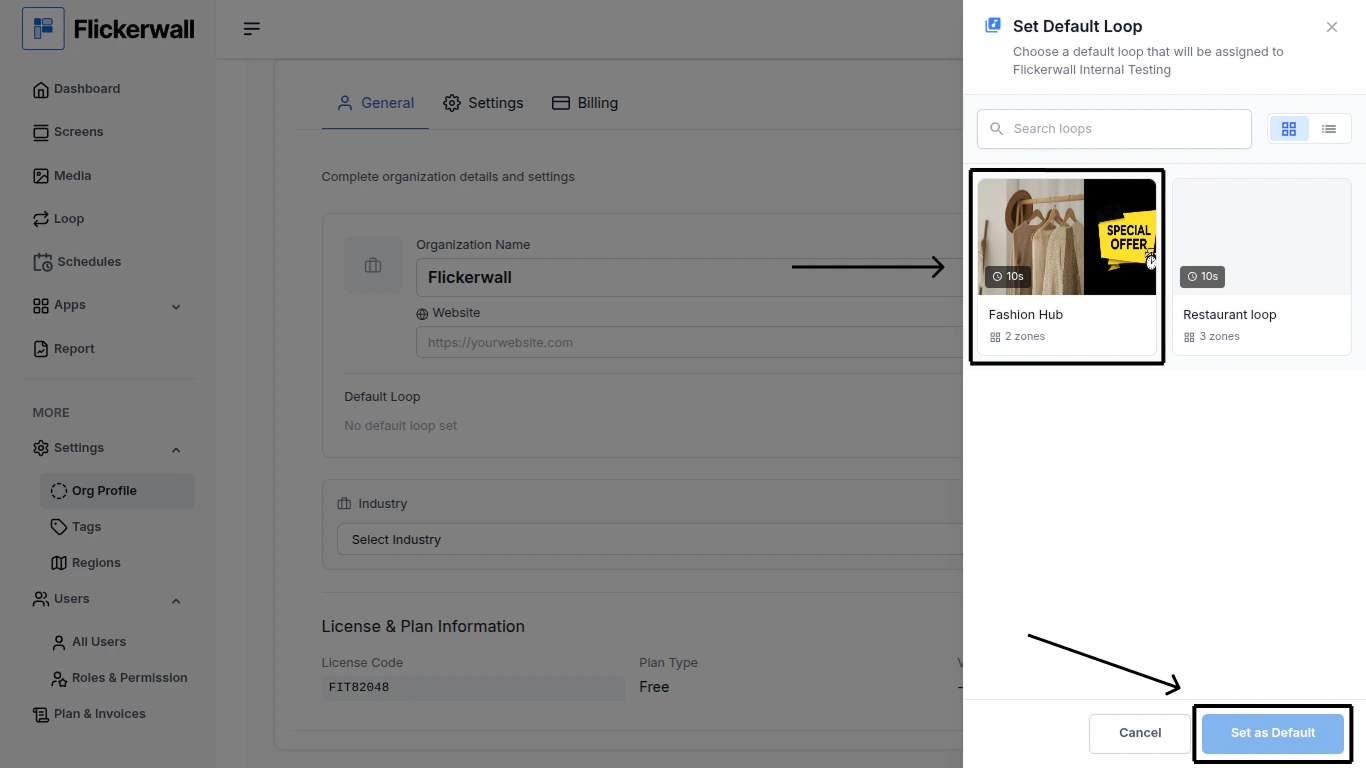
Step

Select a Default Loop and click “Set as Default”
<img src="https://mintcdn.com/flickerwall-796545b9/Xj6F_u96gjjZf5cg/images/settings-org-profile-how-to-add-a-default-look-for-all-newly-add-screens-image-3.png?fit=max&auto=format&n=Xj6F_u96gjjZf5cg&q=85&s=3cc3be3a4cefbb0763303f93477448fa" alt="" width="1366" height="768" data-path="images/settings-org-profile-how-to-add-a-default-look-for-all-newly-add-screens-image-3.png" />
