> ## Documentation Index
> Fetch the complete documentation index at: https://docs.flickerwall.com/llms.txt
> Use this file to discover all available pages before exploring further.

# Screen Module Overview

> Take a quick look at our Screen Module to understand the basics well

***

1.

Screen Module

Miss nothing with our screen module we have every minute detail ready for you !
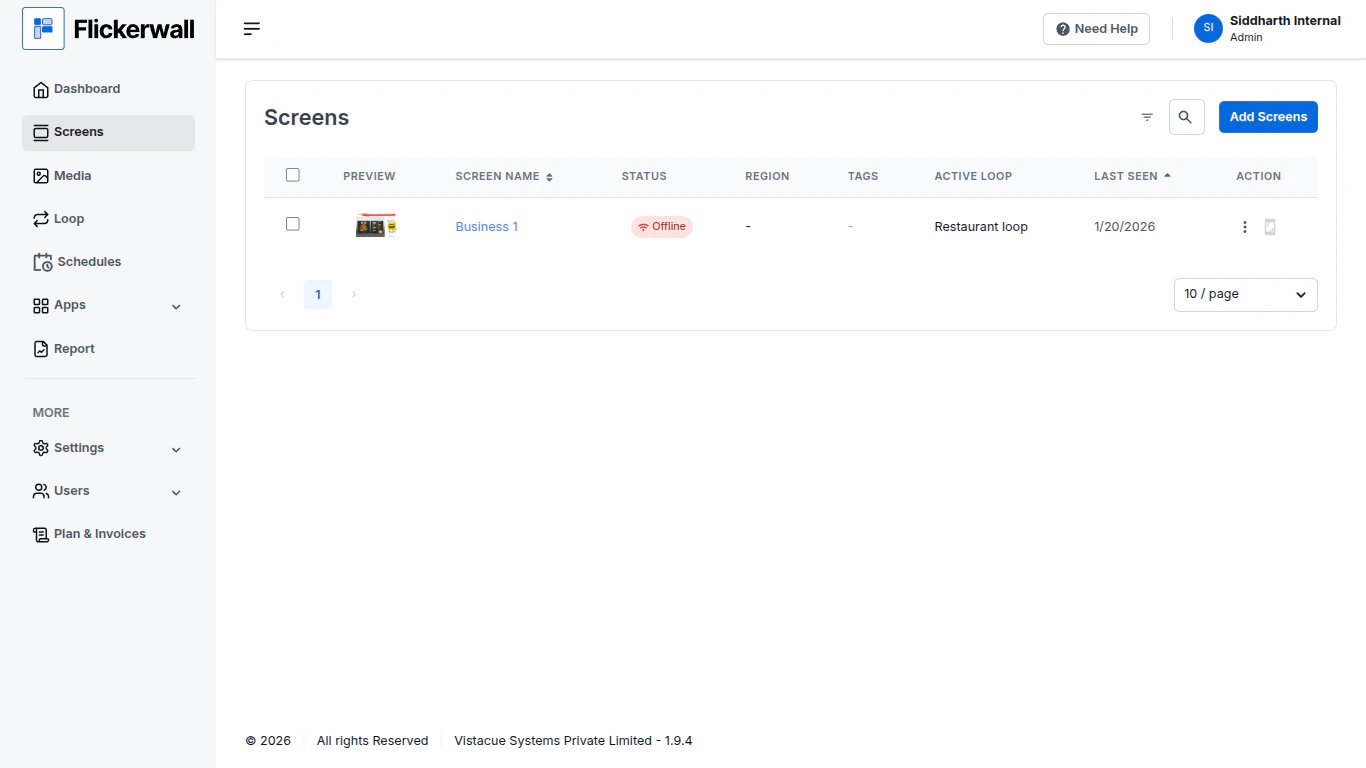
<img src="https://mintcdn.com/flickerwall-796545b9/Xj6F_u96gjjZf5cg/images/screens-screen-module-overview-image-1.png?fit=max&auto=format&n=Xj6F_u96gjjZf5cg&q=85&s=9812d1c8dd170552483959d7eb46af72" alt="" width="1366" height="768" data-path="images/screens-screen-module-overview-image-1.png" />

2.

Add Screens

Add the Screens Get the signage running!
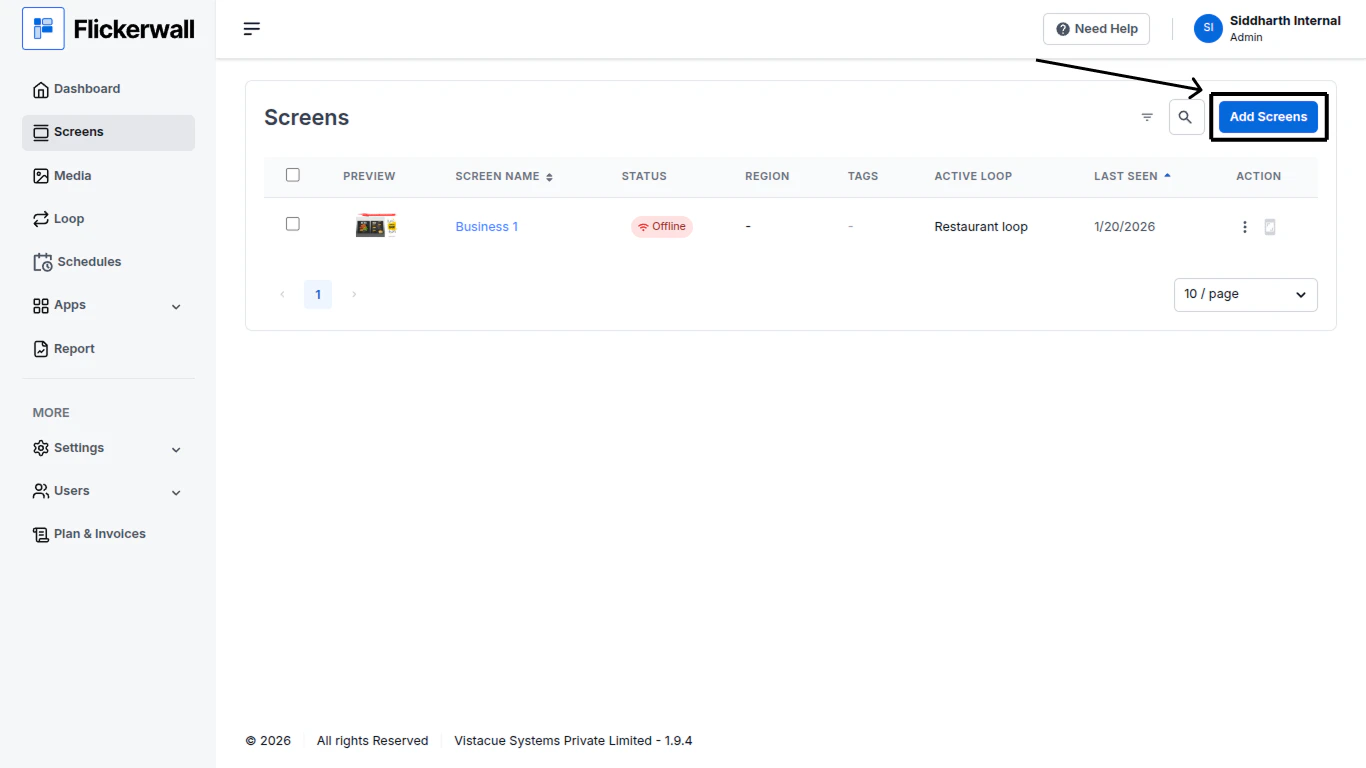
<img src="https://mintcdn.com/flickerwall-796545b9/Xj6F_u96gjjZf5cg/images/screens-screen-module-overview-image-2.png?fit=max&auto=format&n=Xj6F_u96gjjZf5cg&q=85&s=229adbcd159b12594e17689fe2684c52" alt="" width="1366" height="768" data-path="images/screens-screen-module-overview-image-2.png" />

how to add screens? (redirecting text)

3.

Take a quick look at what the screen is playing !
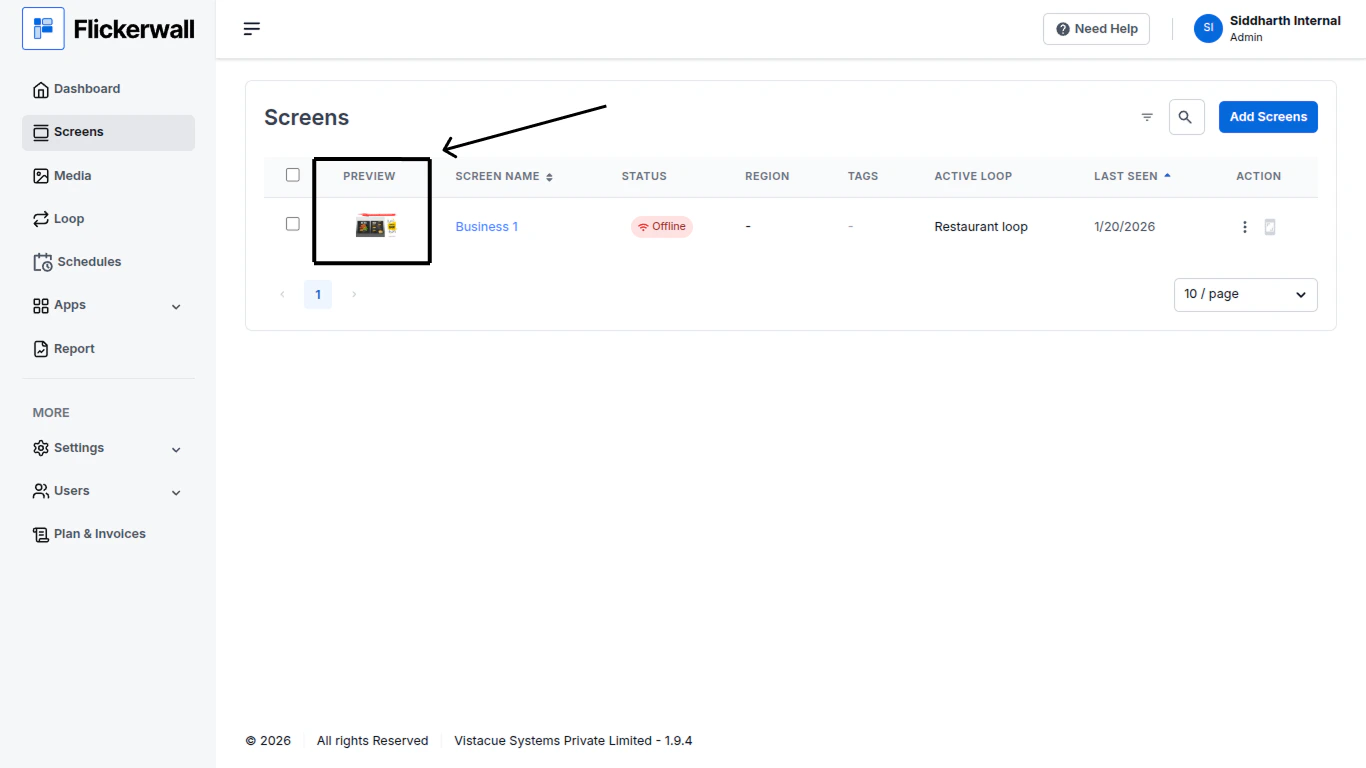
<img src="https://mintcdn.com/flickerwall-796545b9/Xj6F_u96gjjZf5cg/images/screens-screen-module-overview-image-3.png?fit=max&auto=format&n=Xj6F_u96gjjZf5cg&q=85&s=76687e6c057e4c0e9d0439be72182962" alt="" width="1366" height="768" data-path="images/screens-screen-module-overview-image-3.png" />

4.

See the Screen’s Name, Status, Region and tags right beside the preview !
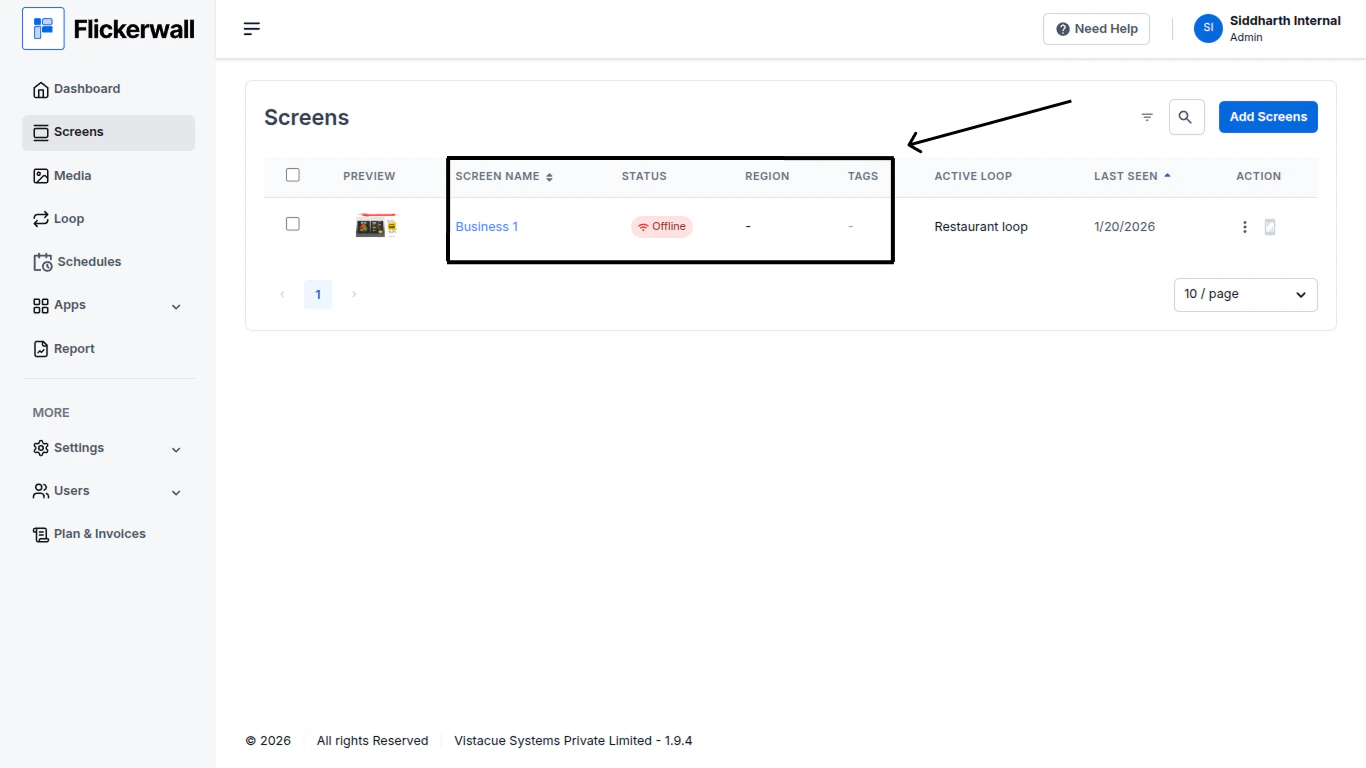
<img src="https://mintcdn.com/flickerwall-796545b9/Xj6F_u96gjjZf5cg/images/screens-screen-module-overview-image-4.png?fit=max&auto=format&n=Xj6F_u96gjjZf5cg&q=85&s=4fcfc4acab78f74e6f91764b31b21e3f" alt="" width="1366" height="768" data-path="images/screens-screen-module-overview-image-4.png" />

how to add/change Name , status and regions of the screen? (redirecting text)

5.

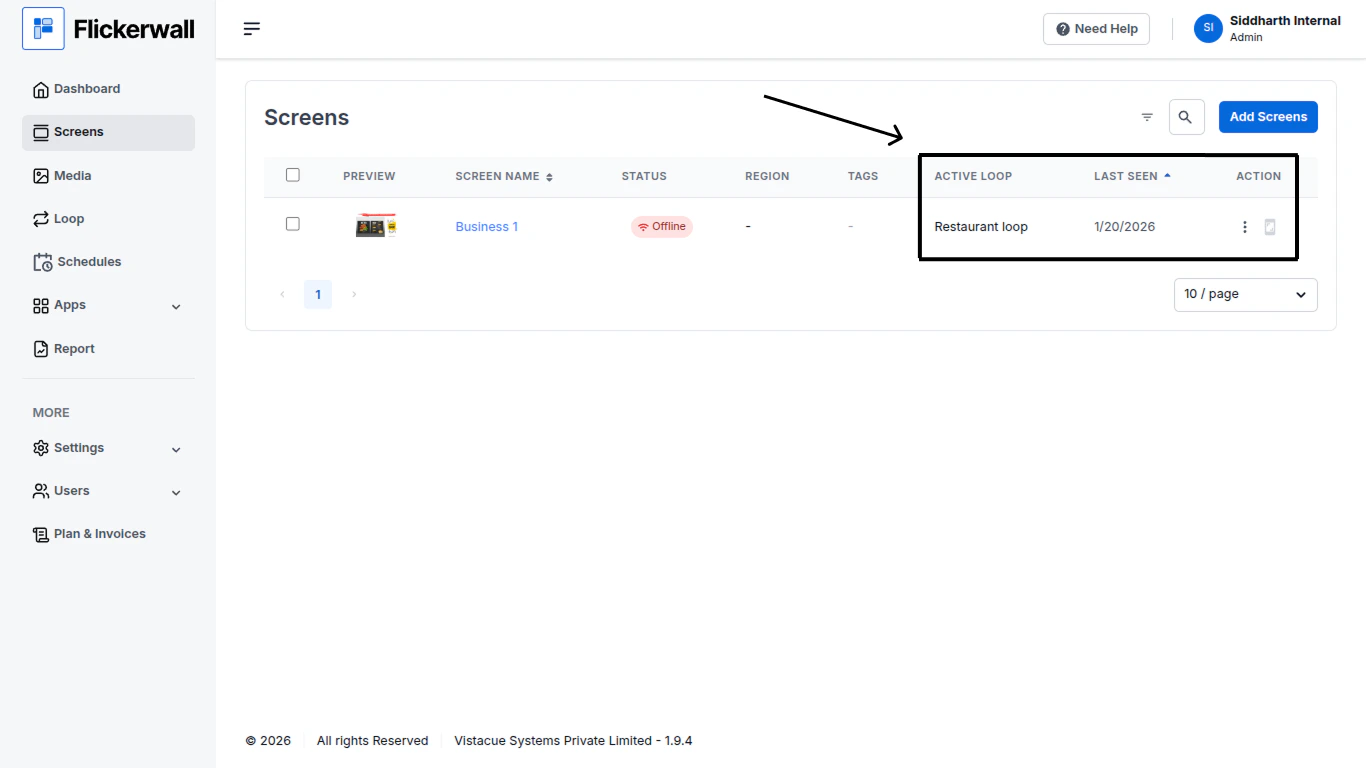
Followed by Active Loop , Last Seen logs and Action
<img src="https://mintcdn.com/flickerwall-796545b9/Xj6F_u96gjjZf5cg/images/screens-screen-module-overview-image-5.png?fit=max&auto=format&n=Xj6F_u96gjjZf5cg&q=85&s=643ac8324b2206c4c5f5b3ccebbf6c42" alt="" width="1366" height="768" data-path="images/screens-screen-module-overview-image-5.png" />

6.

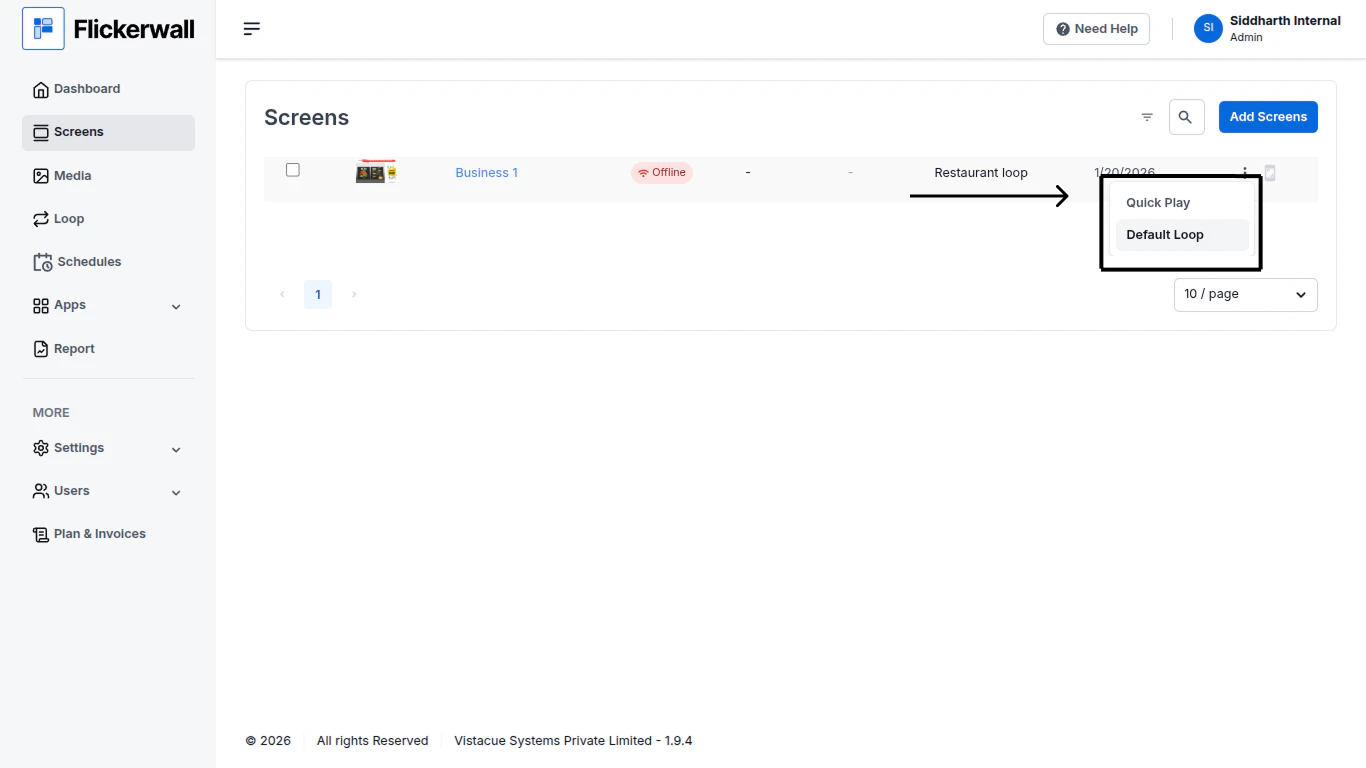
You can also see some options such as Quick play and Default loop in the Action tab
<img src="https://mintcdn.com/flickerwall-796545b9/Xj6F_u96gjjZf5cg/images/screens-screen-module-overview-image-6.png?fit=max&auto=format&n=Xj6F_u96gjjZf5cg&q=85&s=2a25787ca6d0439a0b5bdbd54b3eac40" alt="" width="1366" height="768" data-path="images/screens-screen-module-overview-image-6.png" />

how to use Quick play and Default loop? ( redirecting text)

7.

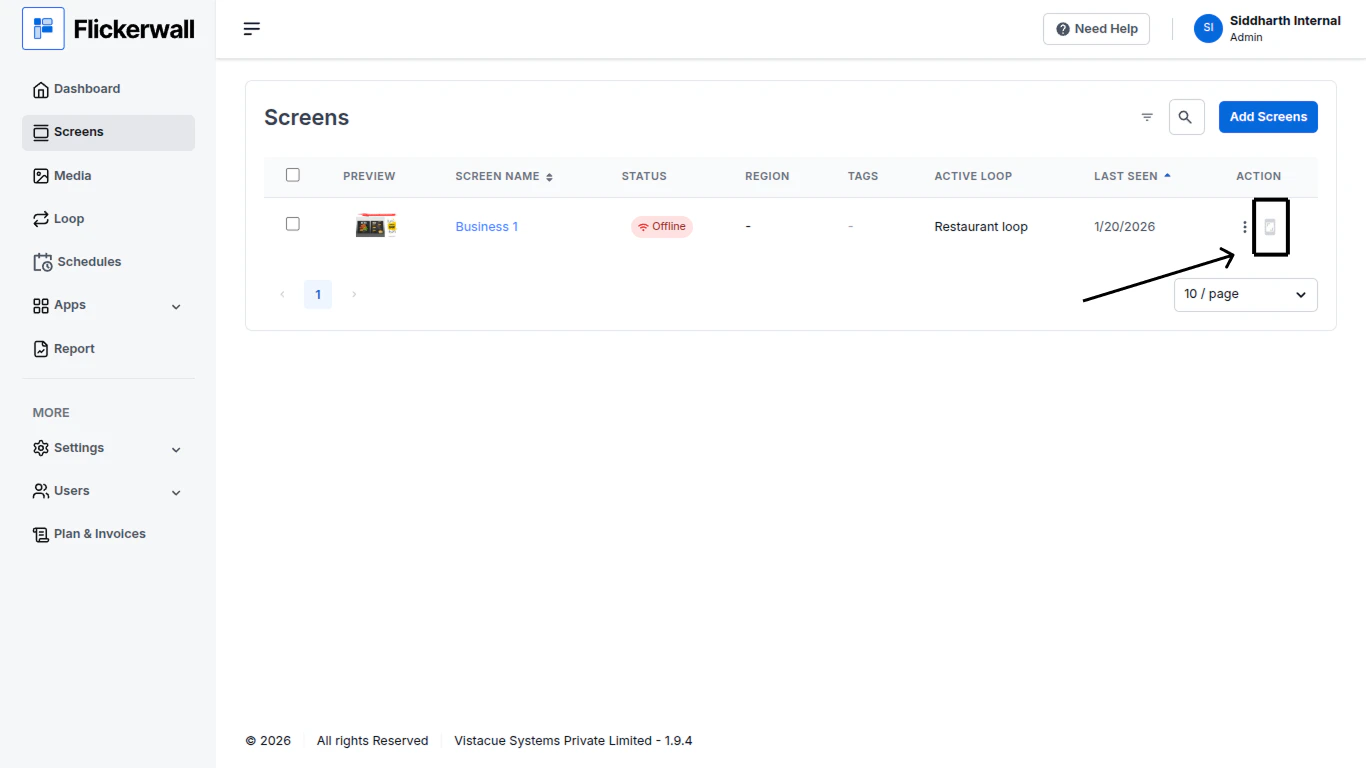
You can also see the Screenshot icon for Screenshots
<img src="https://mintcdn.com/flickerwall-796545b9/Xj6F_u96gjjZf5cg/images/screens-screen-module-overview-image-7.png?fit=max&auto=format&n=Xj6F_u96gjjZf5cg&q=85&s=b9d49ccb124f43134498942d105eef42" alt="" width="1366" height="768" data-path="images/screens-screen-module-overview-image-7.png" />

8.

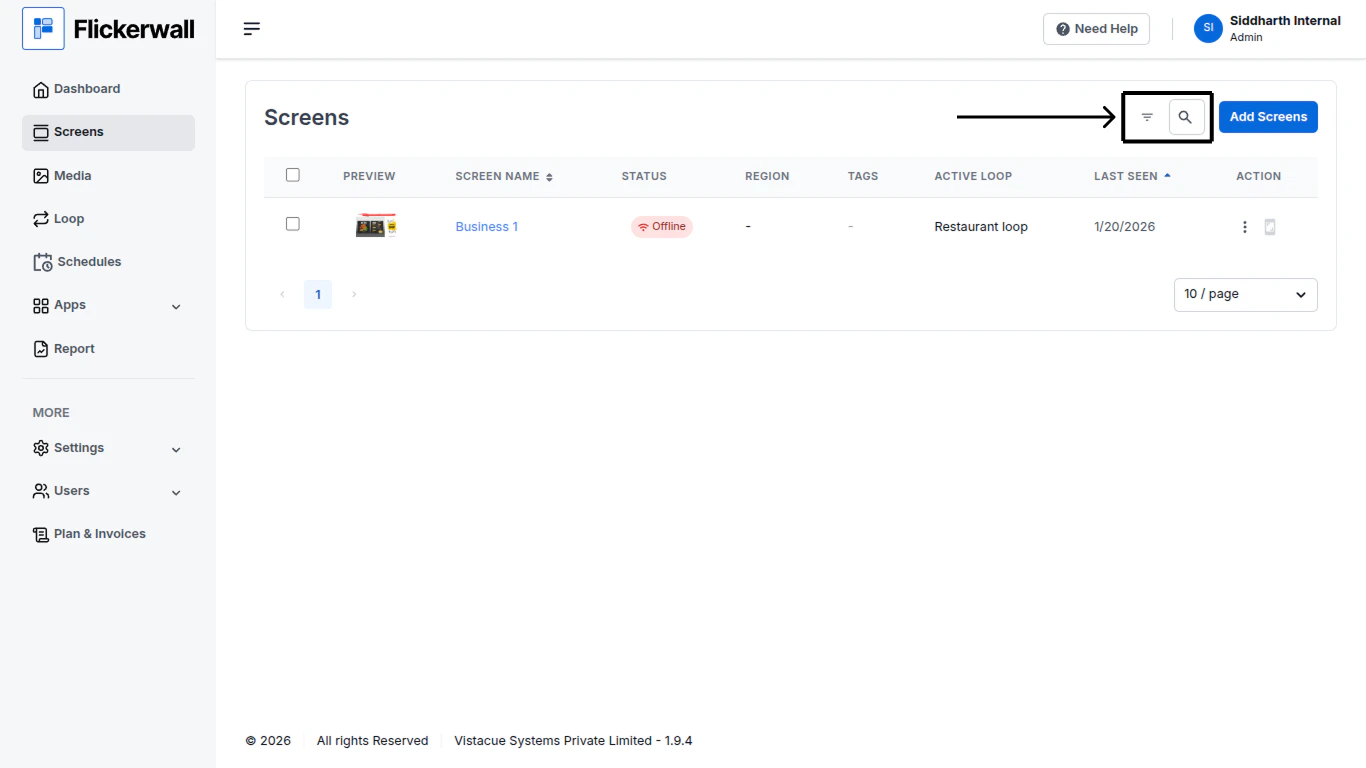
Here you have Filter and Search Bar
<img src="https://mintcdn.com/flickerwall-796545b9/Xj6F_u96gjjZf5cg/images/screens-screen-module-overview-image-8.png?fit=max&auto=format&n=Xj6F_u96gjjZf5cg&q=85&s=999db9d6d31bfabc84ba39087c0b1250" alt="" width="1366" height="768" data-path="images/screens-screen-module-overview-image-8.png" />
