> ## Documentation Index
> Fetch the complete documentation index at: https://docs.flickerwall.com/llms.txt
> Use this file to discover all available pages before exploring further.

# How to use the Quick Play Feature?

> Learn how to use the Flickerwall’s Quick Play feature In case of emergencies such as, Pushing real-time offers , Pushing limited offers , Emergency Warnings and many more reasons to go .

***

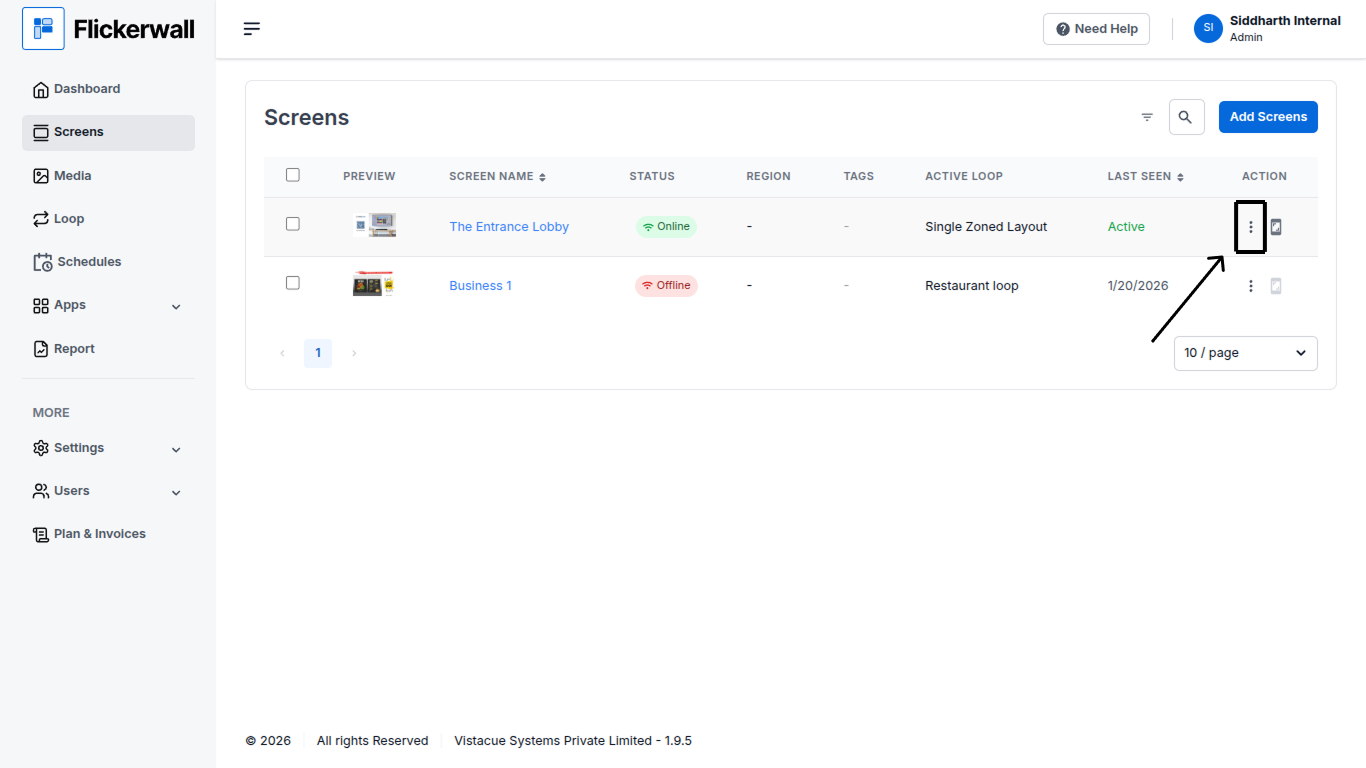
Step 1

Go to Screen Module and Click on the “3 Dots” under the action tab
<img src="https://mintcdn.com/flickerwall-796545b9/Xj6F_u96gjjZf5cg/images/screens-how-to-use-the-quick-play-feature-image-1.png?fit=max&auto=format&n=Xj6F_u96gjjZf5cg&q=85&s=3ec32e3684c3577153028767ffa91f28" alt="" width="1366" height="768" data-path="images/screens-how-to-use-the-quick-play-feature-image-1.png" />

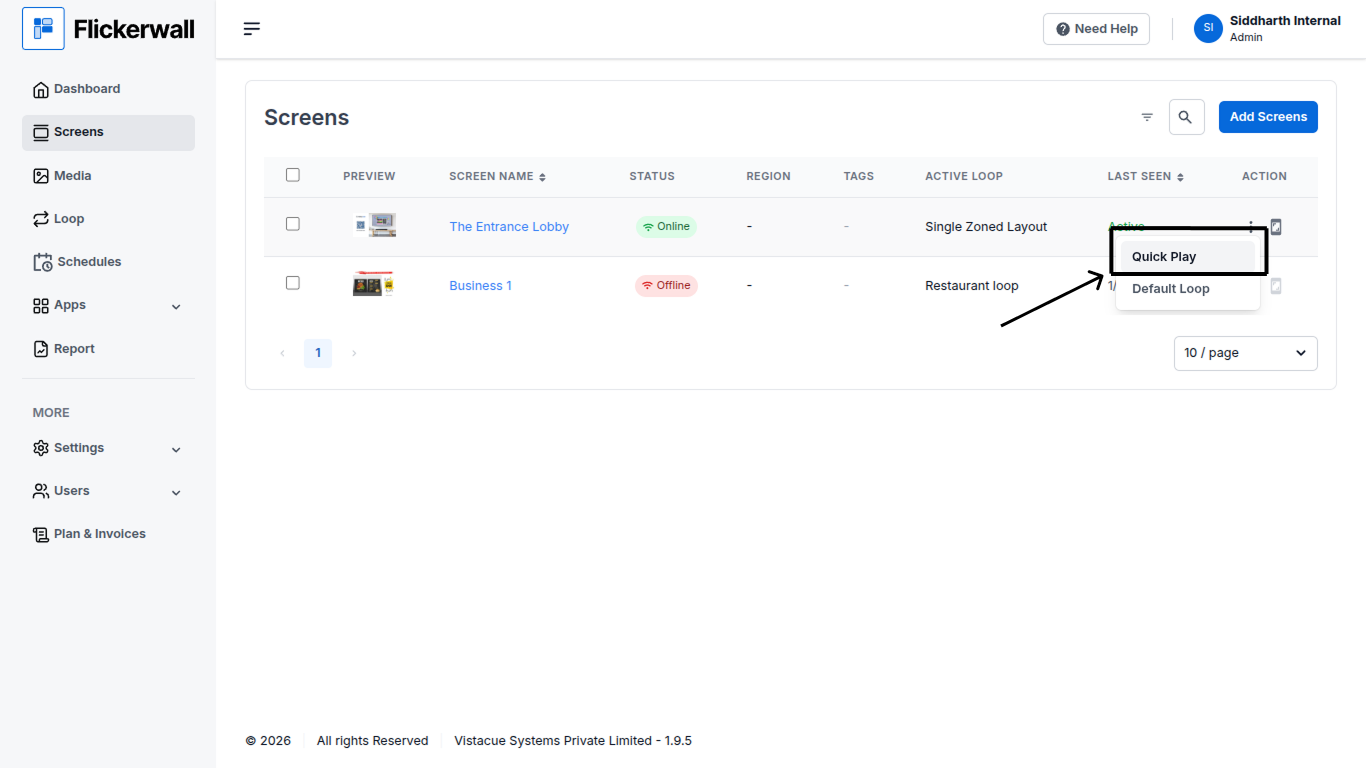
Step 2

Click on Quick Play

<img src="https://mintcdn.com/flickerwall-796545b9/Xj6F_u96gjjZf5cg/images/screens-how-to-use-the-quick-play-feature-image-2.png?fit=max&auto=format&n=Xj6F_u96gjjZf5cg&q=85&s=e9844c8fe047991a20a838466a6c9326" alt="" width="1366" height="768" data-path="images/screens-how-to-use-the-quick-play-feature-image-2.png" />

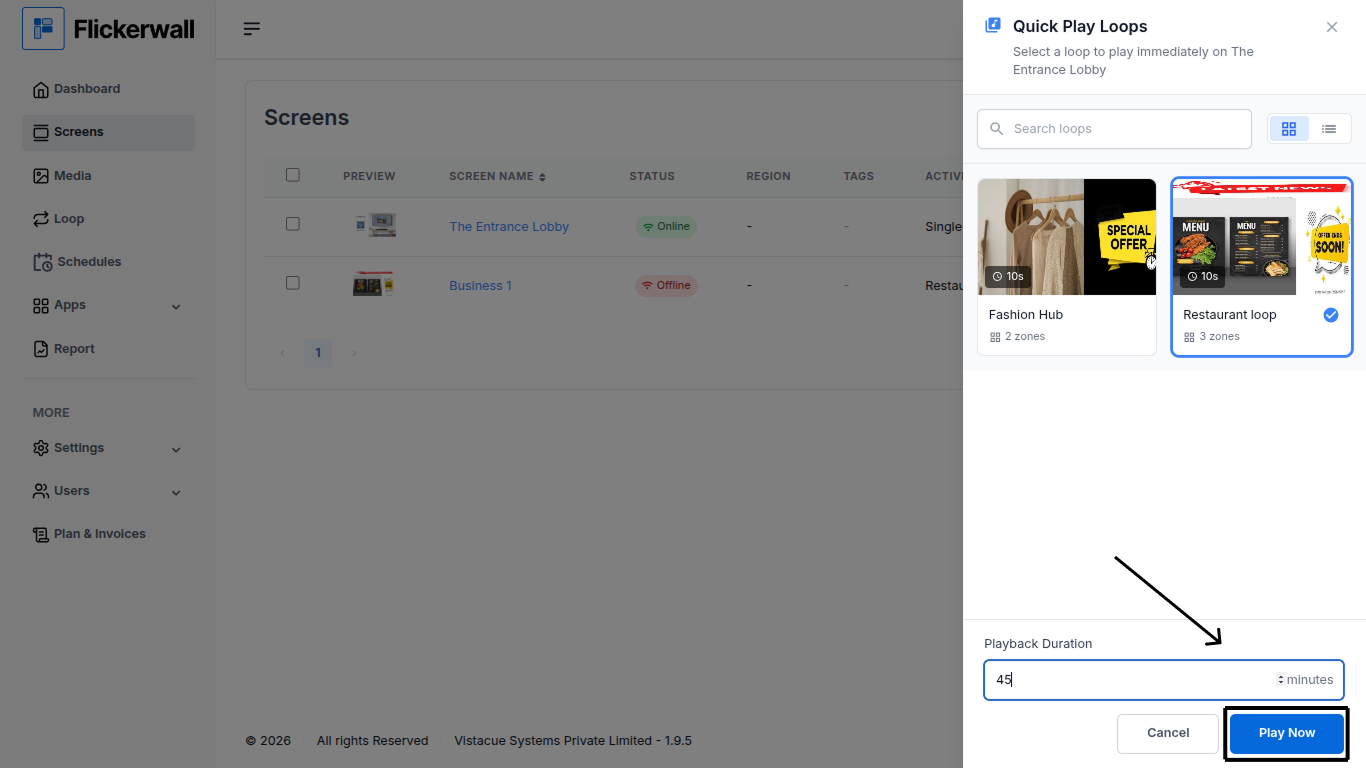
Step 3

Select the loop you want to play and enter the time Duration for the Loop
<img src="https://mintcdn.com/flickerwall-796545b9/Xj6F_u96gjjZf5cg/images/screens-how-to-use-the-quick-play-feature-image-3.png?fit=max&auto=format&n=Xj6F_u96gjjZf5cg&q=85&s=74fb51b40c4f7b2d9d59b39f9dd86664" alt="" width="1366" height="768" data-path="images/screens-how-to-use-the-quick-play-feature-image-3.png" />

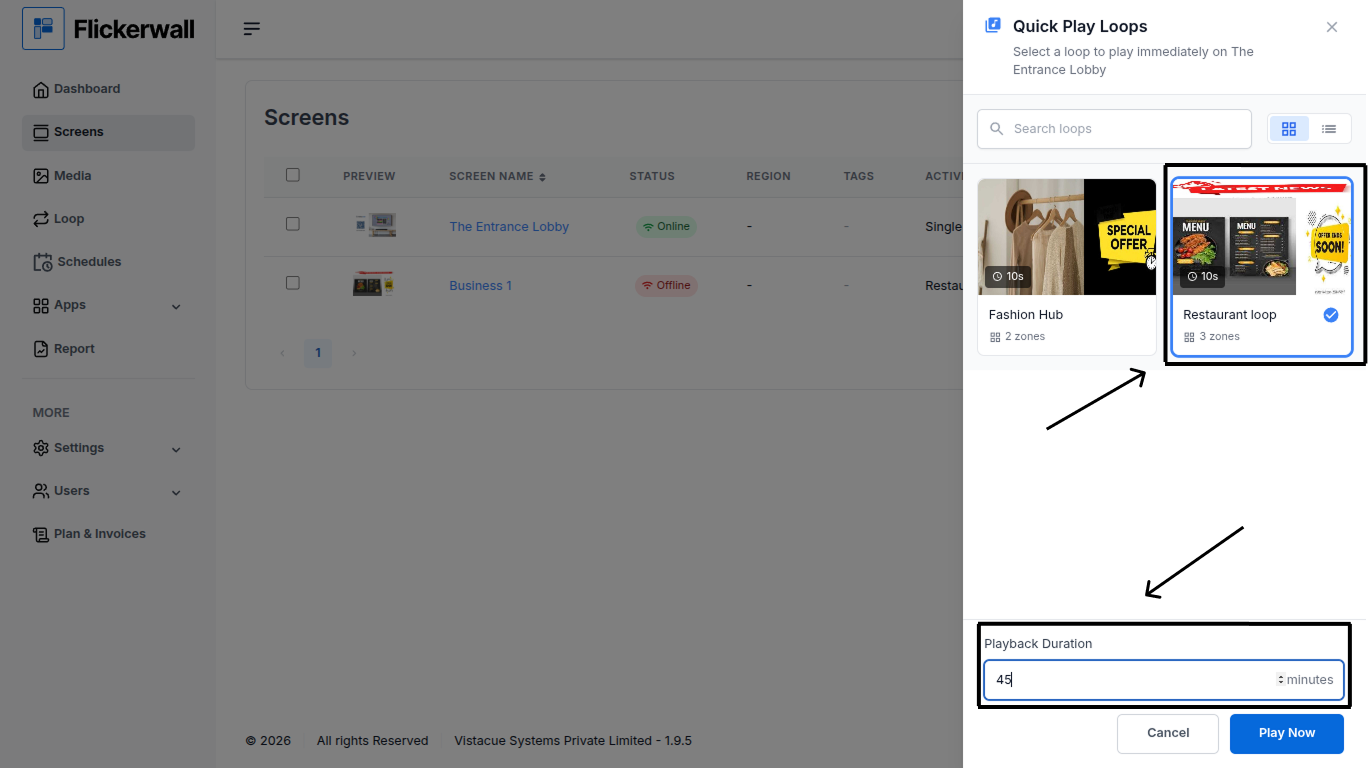
Step 4

Click on “Play Now” to play the loop instantly
<img src="https://mintcdn.com/flickerwall-796545b9/Xj6F_u96gjjZf5cg/images/screens-how-to-use-the-quick-play-feature-image-4.png?fit=max&auto=format&n=Xj6F_u96gjjZf5cg&q=85&s=40a93cfc15b20056900834552a6907c7" alt="" width="1368" height="768" data-path="images/screens-how-to-use-the-quick-play-feature-image-4.png" />