> ## Documentation Index
> Fetch the complete documentation index at: https://docs.flickerwall.com/llms.txt
> Use this file to discover all available pages before exploring further.

# How to check if your screen is Scheduled for any content?

> Learn how to check if your have any Scheduled content on any specific Screens

***

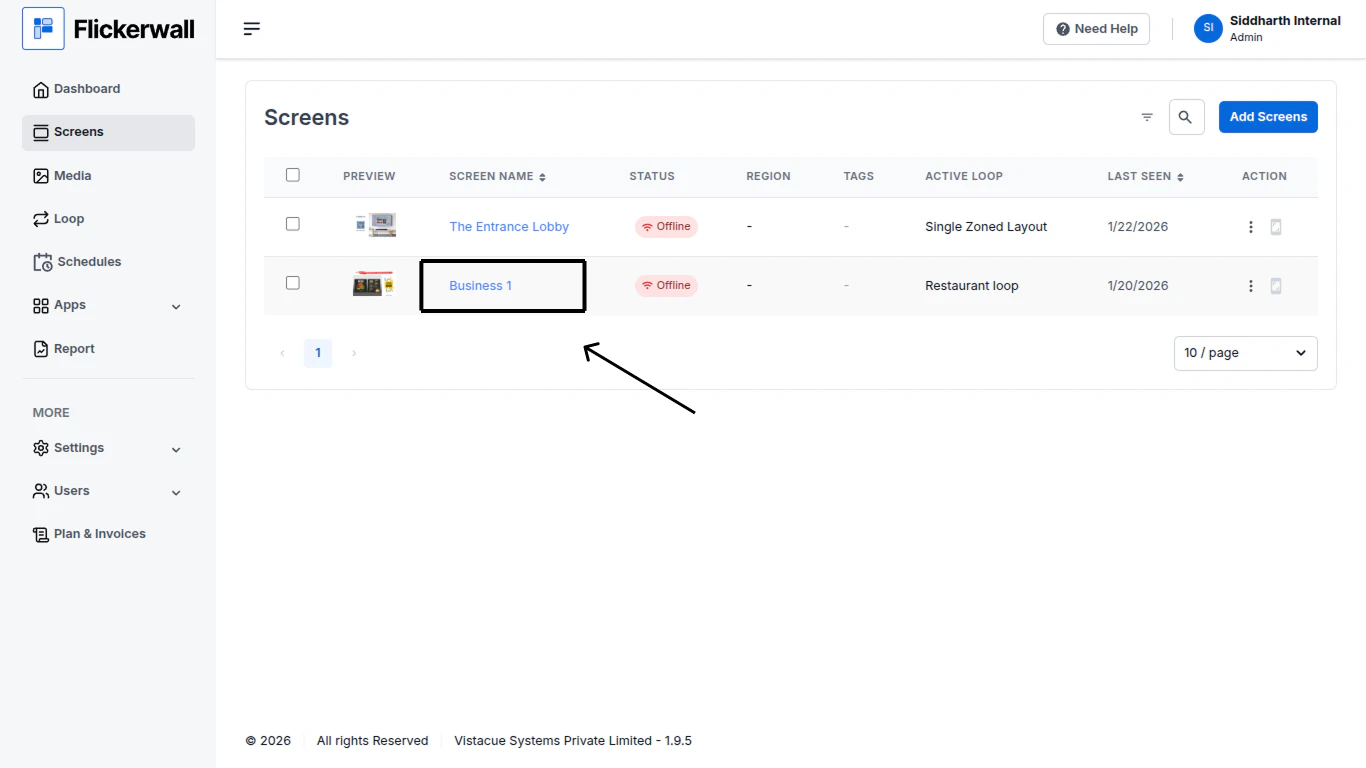
Step 1

Go to Screen Module and find you screen you want to check the info about
<img src="https://mintcdn.com/flickerwall-796545b9/Xj6F_u96gjjZf5cg/images/screens-how-to-check-if-your-screen-is-scheduled-for-any-content-image-1.png?fit=max&auto=format&n=Xj6F_u96gjjZf5cg&q=85&s=c10d701487c0a339554f874cc8e5952c" alt="" width="1366" height="768" data-path="images/screens-how-to-check-if-your-screen-is-scheduled-for-any-content-image-1.png" />

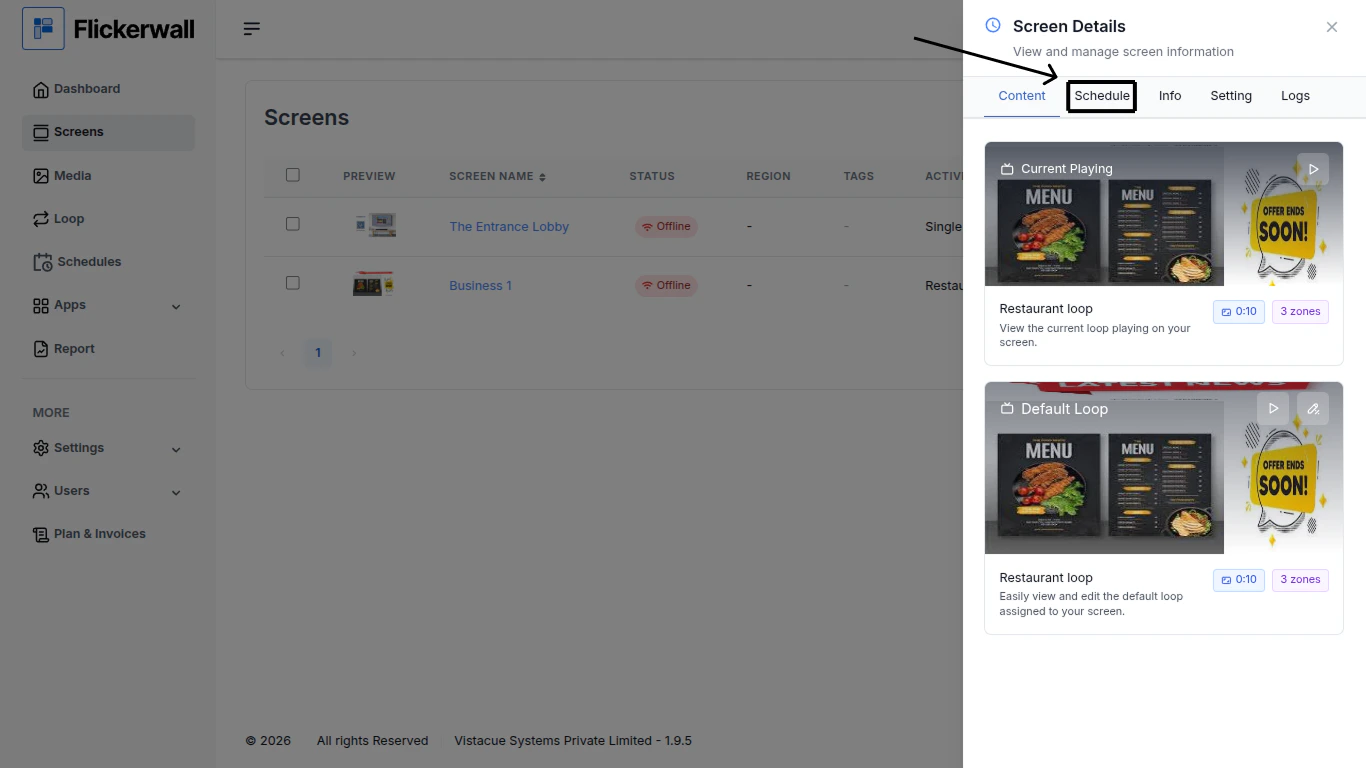
Step 2

Click on the “Schedule” tab

<img src="https://mintcdn.com/flickerwall-796545b9/Xj6F_u96gjjZf5cg/images/screens-how-to-check-if-your-screen-is-scheduled-for-any-content-image-2.png?fit=max&auto=format&n=Xj6F_u96gjjZf5cg&q=85&s=7758ce606615cb0ac275551f695543b3" alt="" width="1366" height="768" data-path="images/screens-how-to-check-if-your-screen-is-scheduled-for-any-content-image-2.png" />

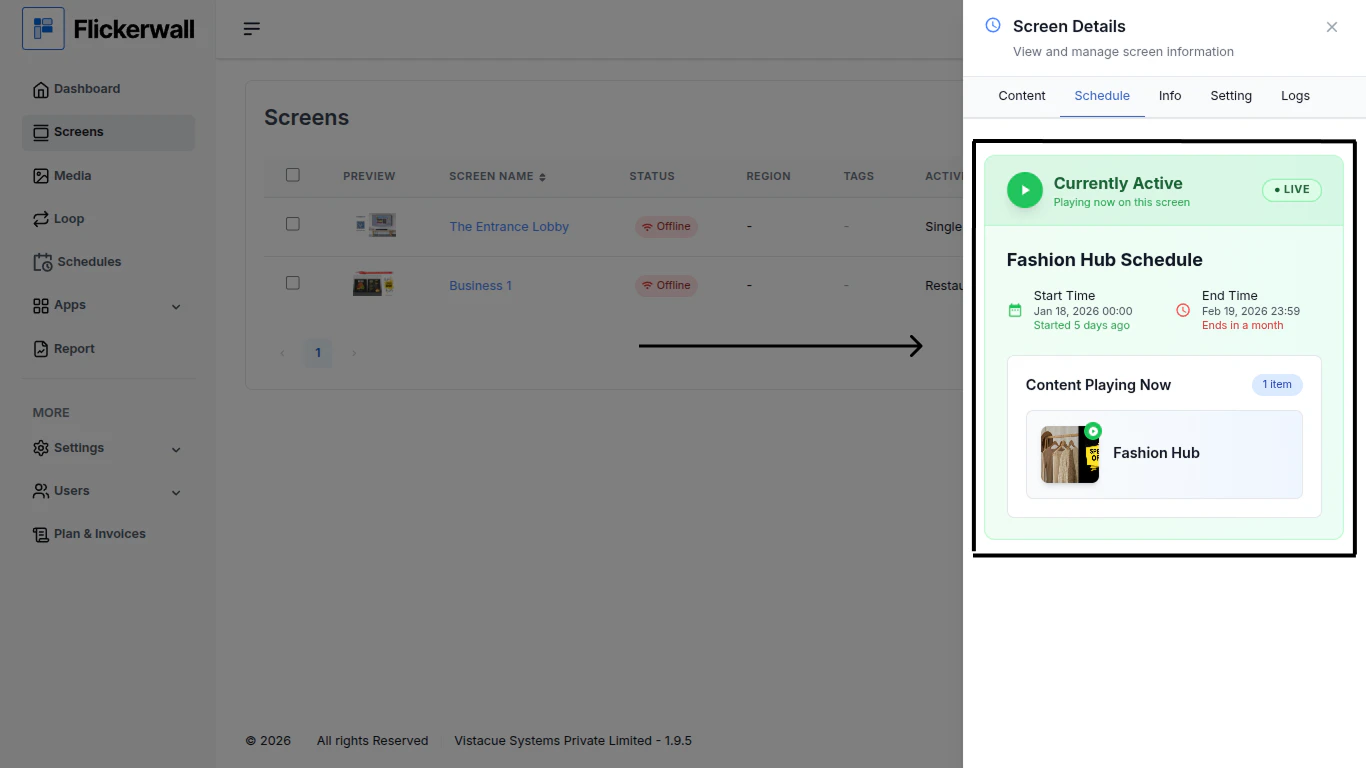
Step 3

Here you can see all the details of your Schedules

Currently Playing Schedules or even if you have more Schedules in cue.
<img src="https://mintcdn.com/flickerwall-796545b9/Xj6F_u96gjjZf5cg/images/screens-how-to-check-if-your-screen-is-scheduled-for-any-content-image-3.png?fit=max&auto=format&n=Xj6F_u96gjjZf5cg&q=85&s=f33c4ff2aaa1a18b4dfb5bcd43ac65de" alt="" width="1366" height="768" data-path="images/screens-how-to-check-if-your-screen-is-scheduled-for-any-content-image-3.png" />