> ## Documentation Index
> Fetch the complete documentation index at: https://docs.flickerwall.com/llms.txt
> Use this file to discover all available pages before exploring further.

# How to change /Add the Regions on your Screens?

> Learn how to Change / Add the Regions on your Screens for better optimization

***

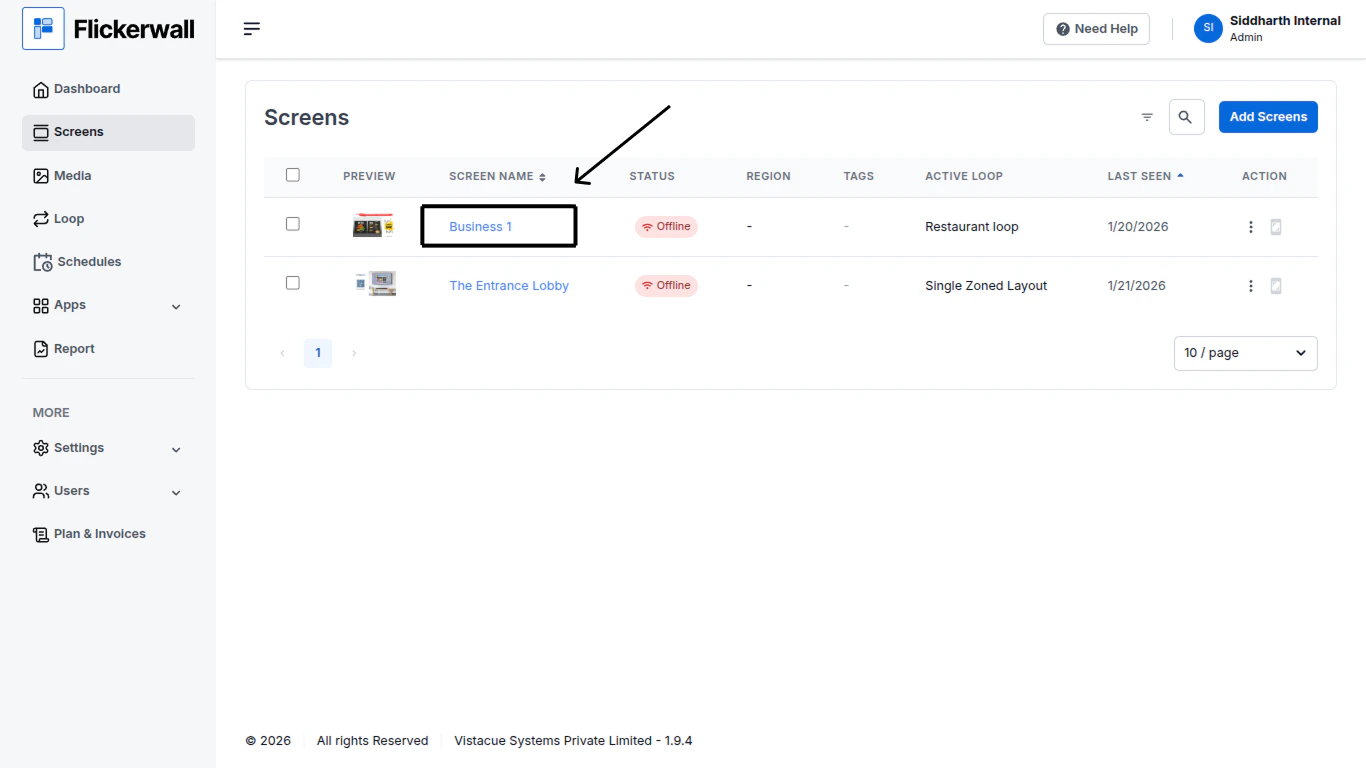
Step 1

Go to Screen module and click on the Screen Name
<img src="https://mintcdn.com/flickerwall-796545b9/Xj6F_u96gjjZf5cg/images/screens-how-to-add-the-regions-on-your-screens-image-1.png?fit=max&auto=format&n=Xj6F_u96gjjZf5cg&q=85&s=ad4c41b0ce5b9af5217e63a2d11ebc41" alt="" width="1366" height="768" data-path="images/screens-how-to-add-the-regions-on-your-screens-image-1.png" />

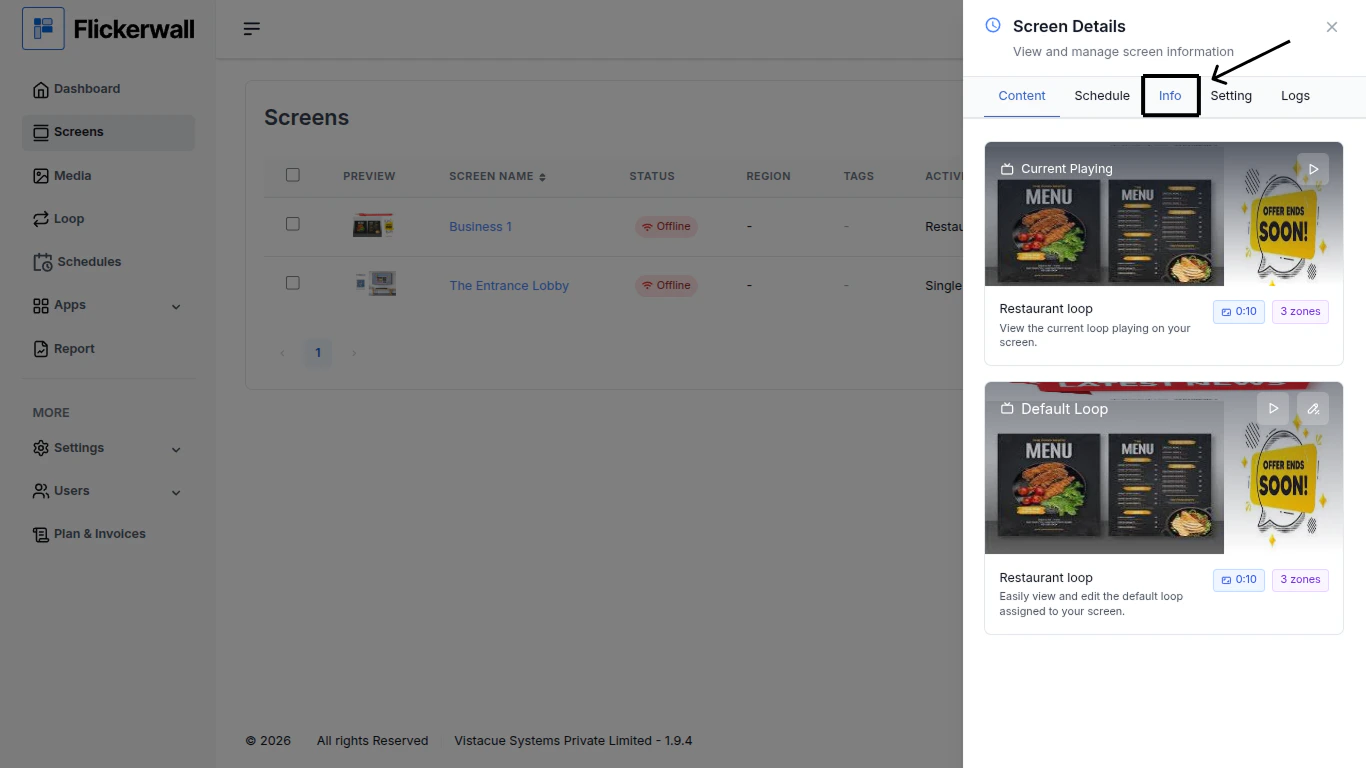
Step 2

Click on the Info tab for Screen Information
<img src="https://mintcdn.com/flickerwall-796545b9/Xj6F_u96gjjZf5cg/images/screens-how-to-add-the-regions-on-your-screens-image-2.png?fit=max&auto=format&n=Xj6F_u96gjjZf5cg&q=85&s=22f2ad7f09583d9496287480fac8f1b1" alt="" width="1366" height="768" data-path="images/screens-how-to-add-the-regions-on-your-screens-image-2.png" />

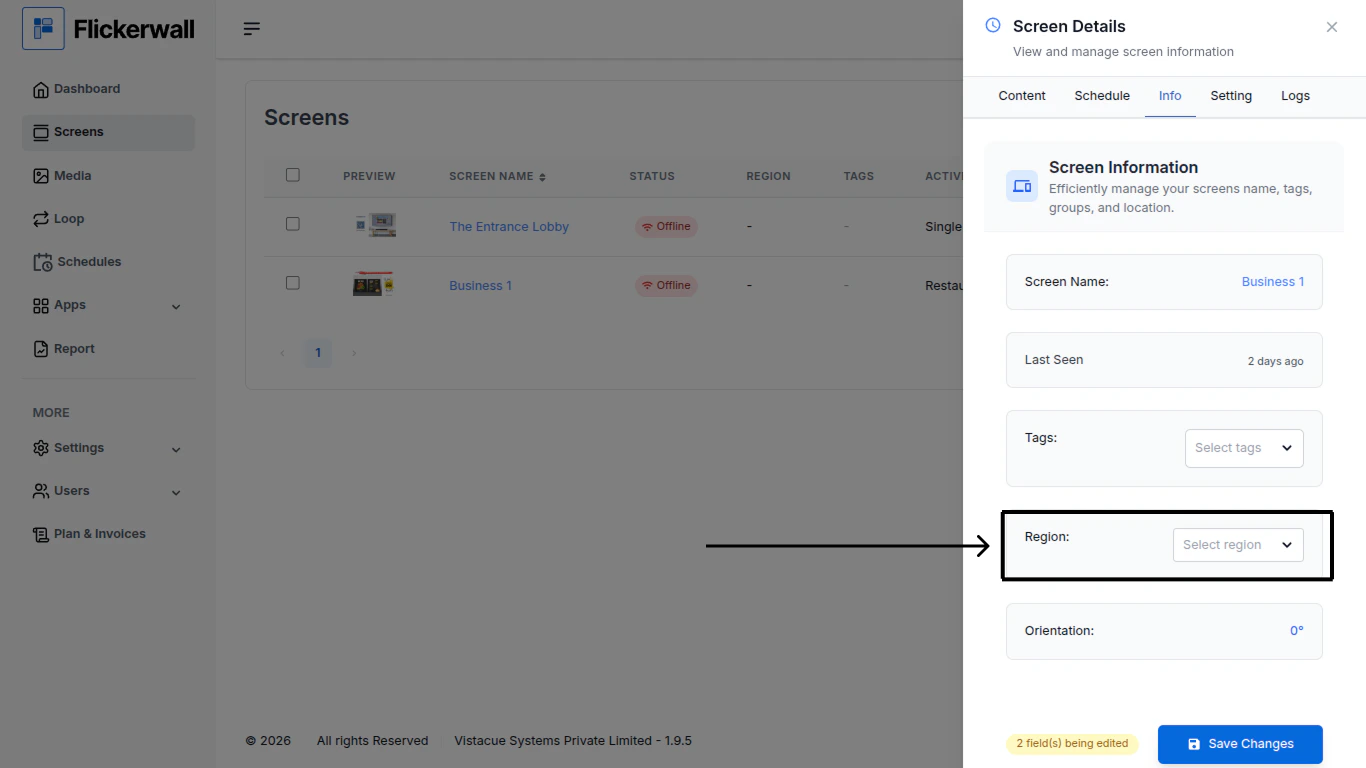
Step 3

Change / Add the desired changes with the followings
<img src="https://mintcdn.com/flickerwall-796545b9/Xj6F_u96gjjZf5cg/images/screens-how-to-add-the-regions-on-your-screens-image-3.png?fit=max&auto=format&n=Xj6F_u96gjjZf5cg&q=85&s=9fff2456f42549bf24700c9b122a356c" alt="" width="1366" height="768" data-path="images/screens-how-to-add-the-regions-on-your-screens-image-3.png" />

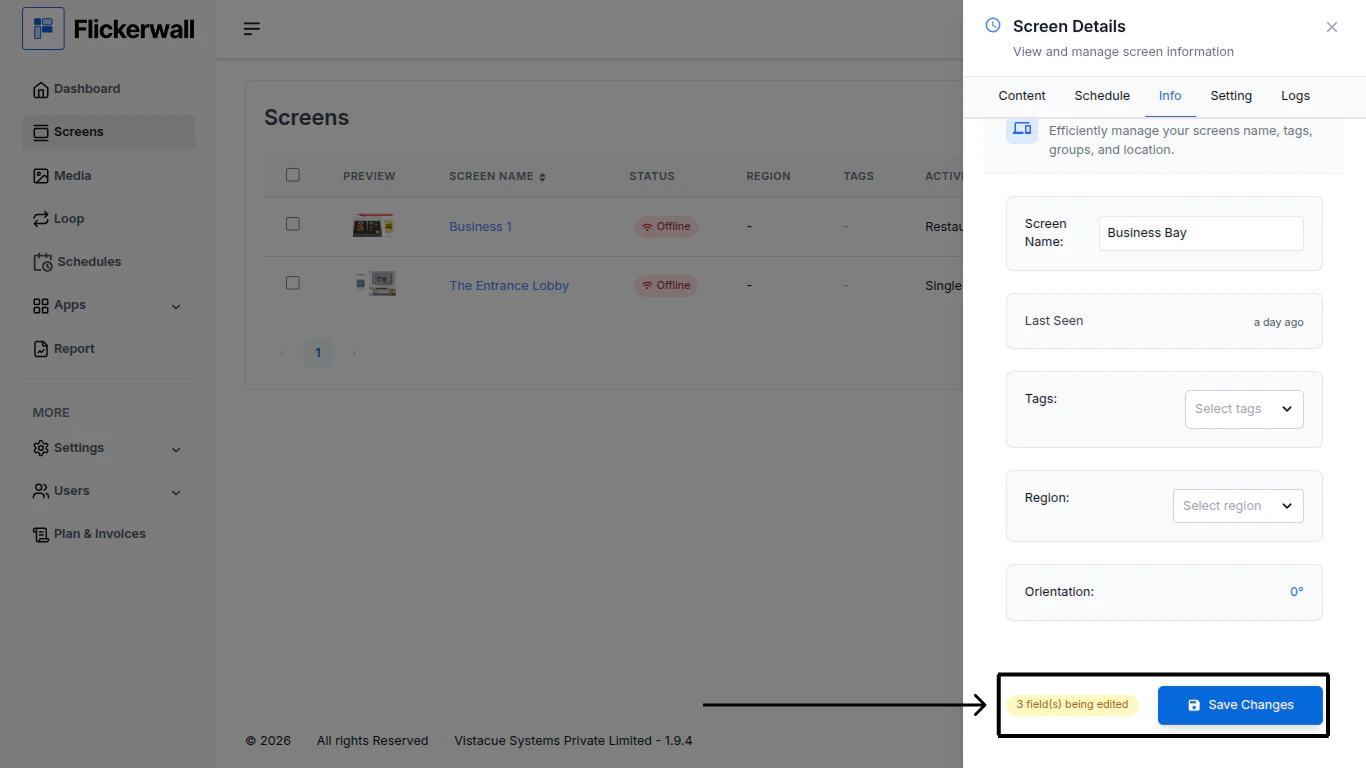
Step 4

Once you are done with the needed changes click on “Save Changes” to End the process
<img src="https://mintcdn.com/flickerwall-796545b9/Xj6F_u96gjjZf5cg/images/screens-how-to-add-the-regions-on-your-screens-image-4.png?fit=max&auto=format&n=Xj6F_u96gjjZf5cg&q=85&s=64a2123b8500ac4080173f4c38a4a3ac" alt="" width="1366" height="768" data-path="images/screens-how-to-add-the-regions-on-your-screens-image-4.png" />
