> ## Documentation Index
> Fetch the complete documentation index at: https://docs.flickerwall.com/llms.txt
> Use this file to discover all available pages before exploring further.

# How to Add Screens?

> Learn how to add screens for your Flickerwall Digital Signage Player

***

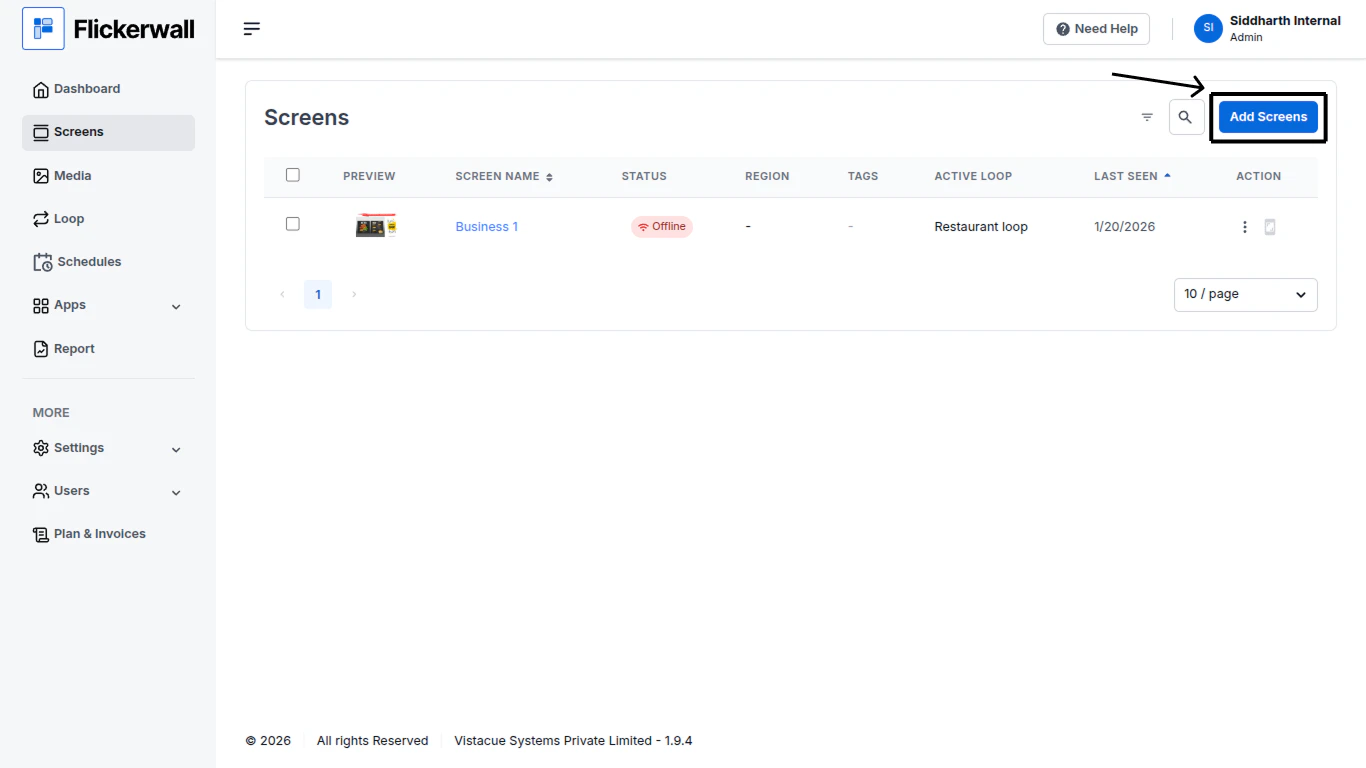
Step 1

Go to Screen module and click on “Add Screen”
<img src="https://mintcdn.com/flickerwall-796545b9/YJVFsp4LEe4i5j5p/images/screens-how-to-add-screens-image-1.png?fit=max&auto=format&n=YJVFsp4LEe4i5j5p&q=85&s=76bbd9b2140170ea8a2557d92f027350" alt="" width="1366" height="768" data-path="images/screens-how-to-add-screens-image-1.png" />

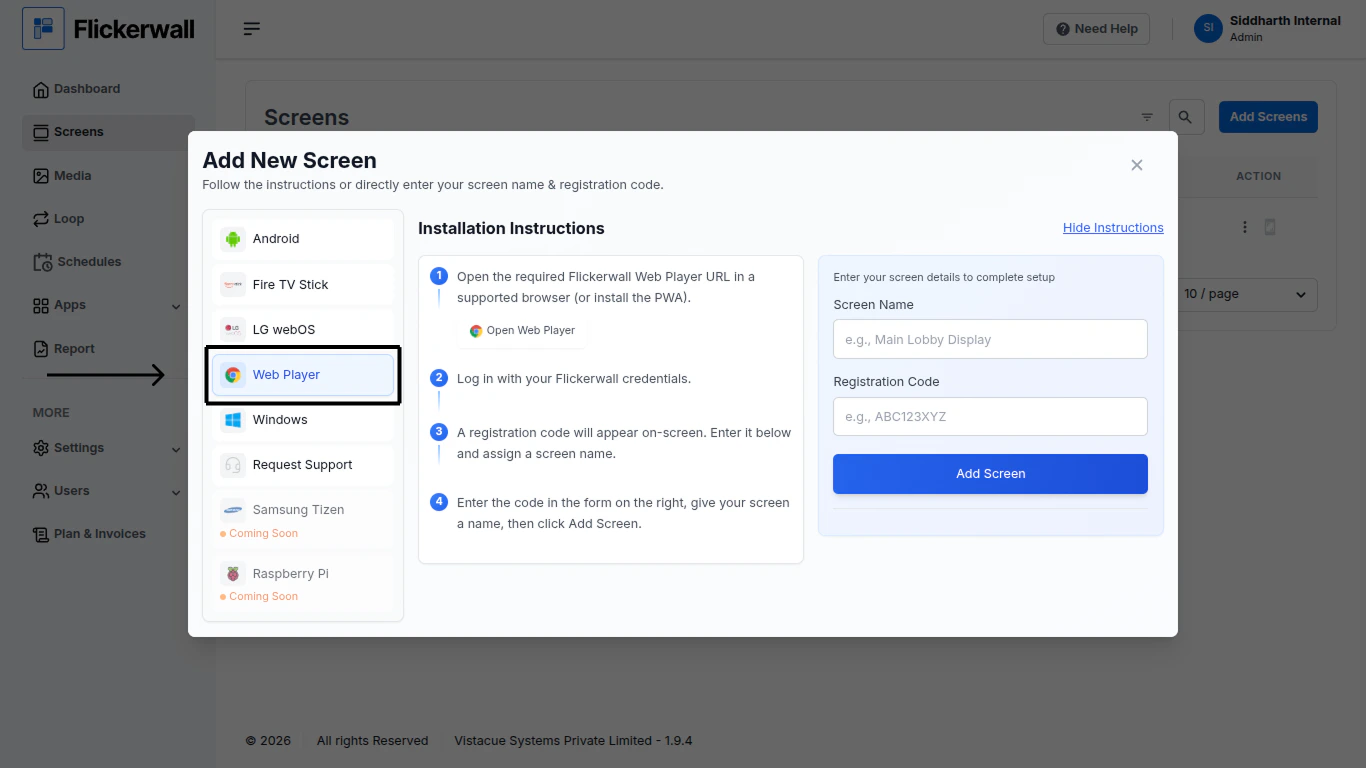
Step 2

Select your OS!

(Note: This is an crucial step , Please select the OS of your own screen and not the same as the follown image)
<img src="https://mintcdn.com/flickerwall-796545b9/YJVFsp4LEe4i5j5p/images/screens-how-to-add-screens-image-2.png?fit=max&auto=format&n=YJVFsp4LEe4i5j5p&q=85&s=27258be03556b80434bb48617f19dd43" alt="" width="1366" height="768" data-path="images/screens-how-to-add-screens-image-2.png" />

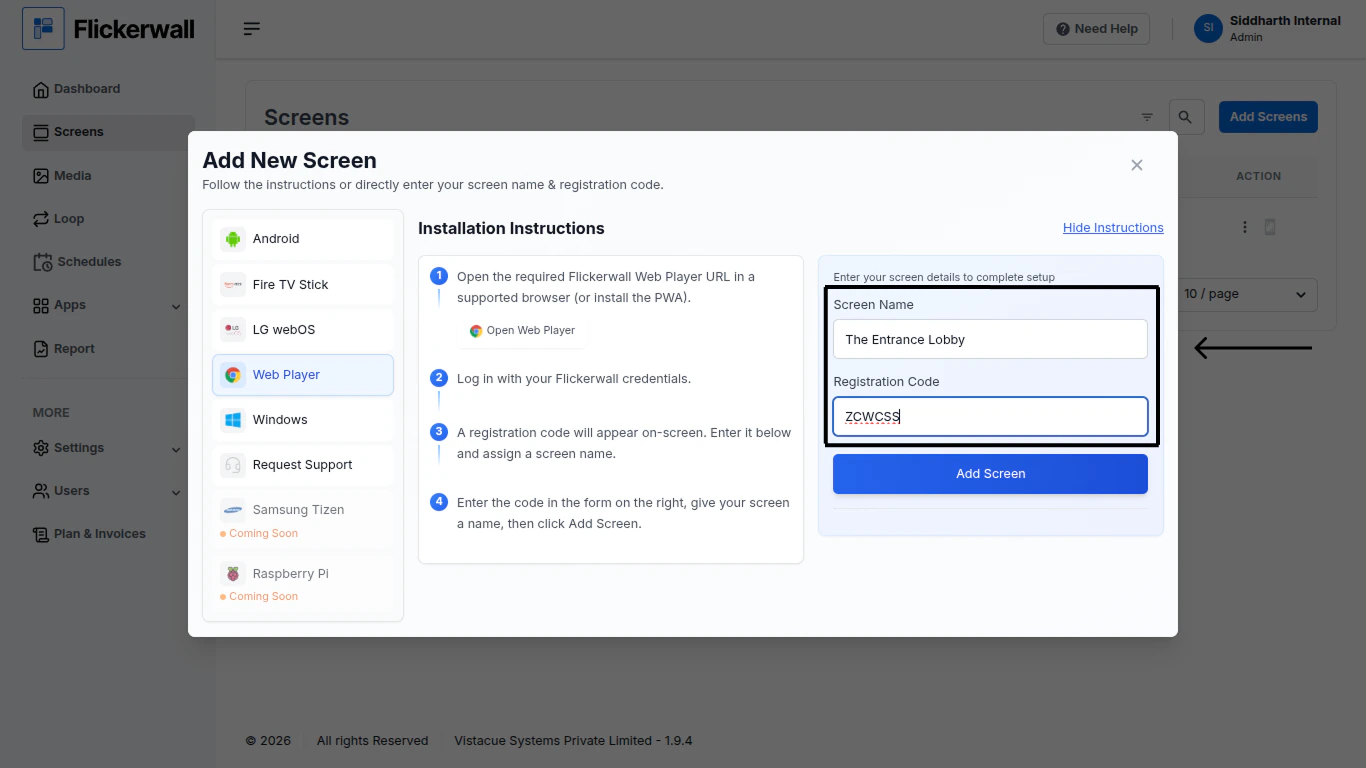
Step 3

Add a name to the Screen and enter the Registration Code that appeared on your Signage Screen
<img src="https://mintcdn.com/flickerwall-796545b9/Xj6F_u96gjjZf5cg/images/screens-how-to-add-screens-image-3.png?fit=max&auto=format&n=Xj6F_u96gjjZf5cg&q=85&s=3985bb0bd6a6fcfb5b2199e839370c9f" alt="" width="1366" height="768" data-path="images/screens-how-to-add-screens-image-3.png" />

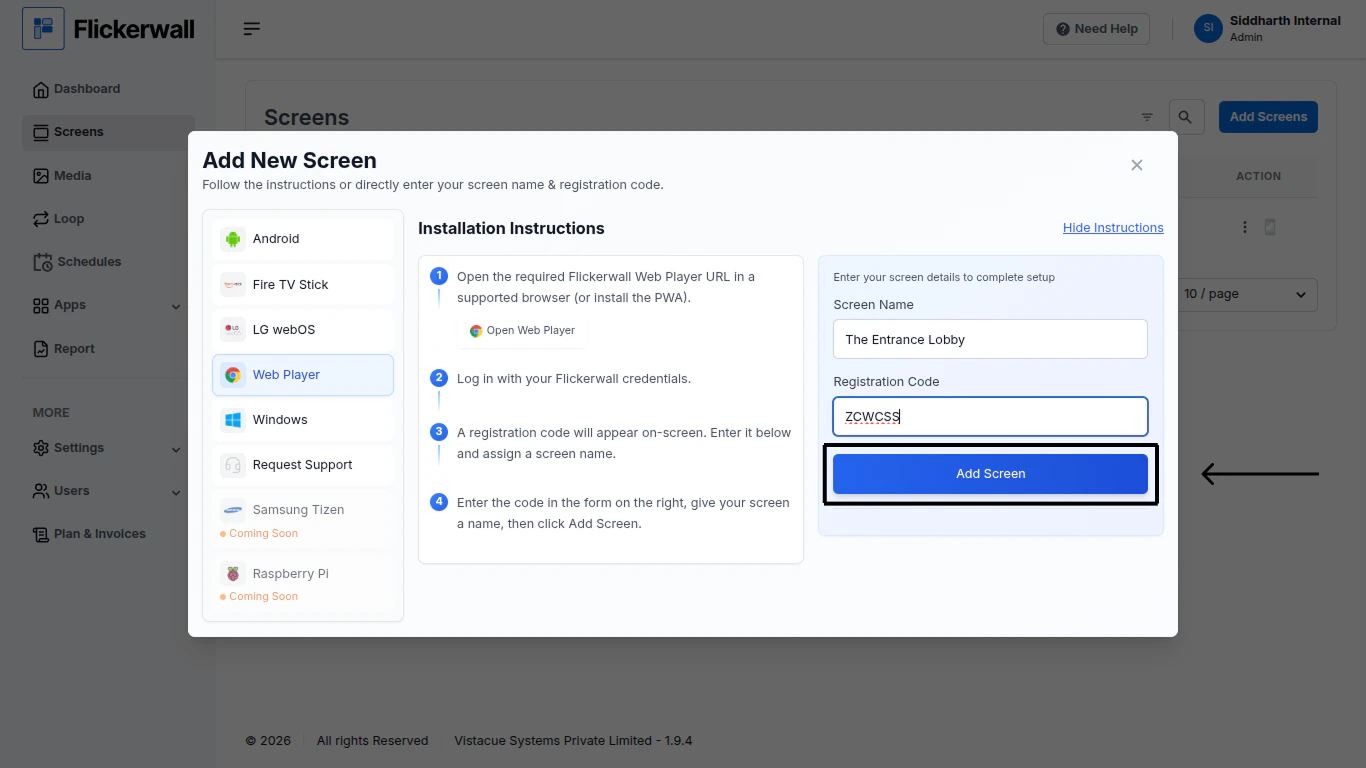
Step 4

Click “Add Screen” to proceed

<img src="https://mintcdn.com/flickerwall-796545b9/Xj6F_u96gjjZf5cg/images/screens-how-to-add-screens-image-4.png?fit=max&auto=format&n=Xj6F_u96gjjZf5cg&q=85&s=cda04f75a8358930d1dee48cbcdf58dc" alt="" width="1366" height="768" data-path="images/screens-how-to-add-screens-image-4.png" />

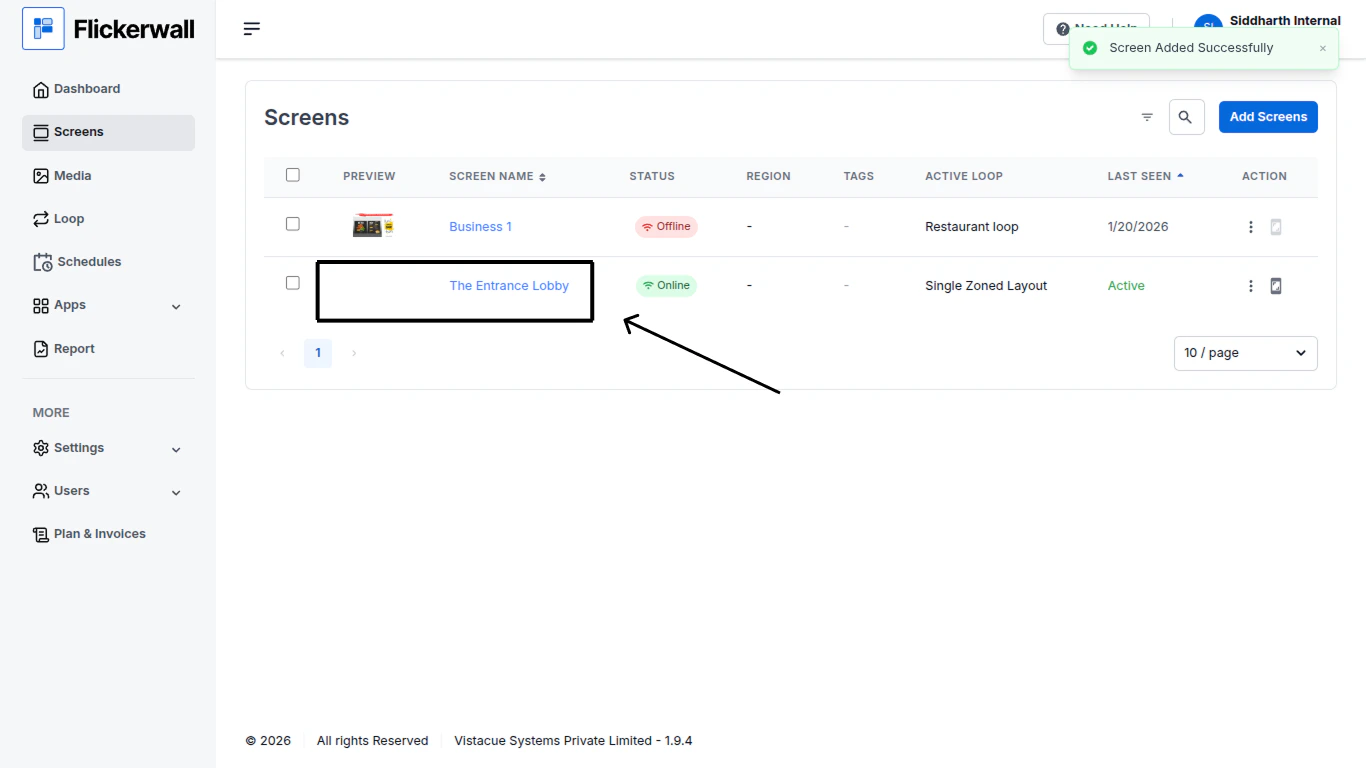
Step 5

Done! you have successfully added a Screen to your Module now you can push content anytime
<img src="https://mintcdn.com/flickerwall-796545b9/Xj6F_u96gjjZf5cg/images/screens-how-to-add-screens-image-5.png?fit=max&auto=format&n=Xj6F_u96gjjZf5cg&q=85&s=f96724ba134e266eee14e6b6c418f7d3" alt="" width="1366" height="768" data-path="images/screens-how-to-add-screens-image-5.png" />