> ## Documentation Index
> Fetch the complete documentation index at: https://docs.flickerwall.com/llms.txt
> Use this file to discover all available pages before exploring further.
# How to Schedule your content?
> Why stress about forgetting to push updates to your screen on time? Schedule your content ahead of time .
***
Step 1
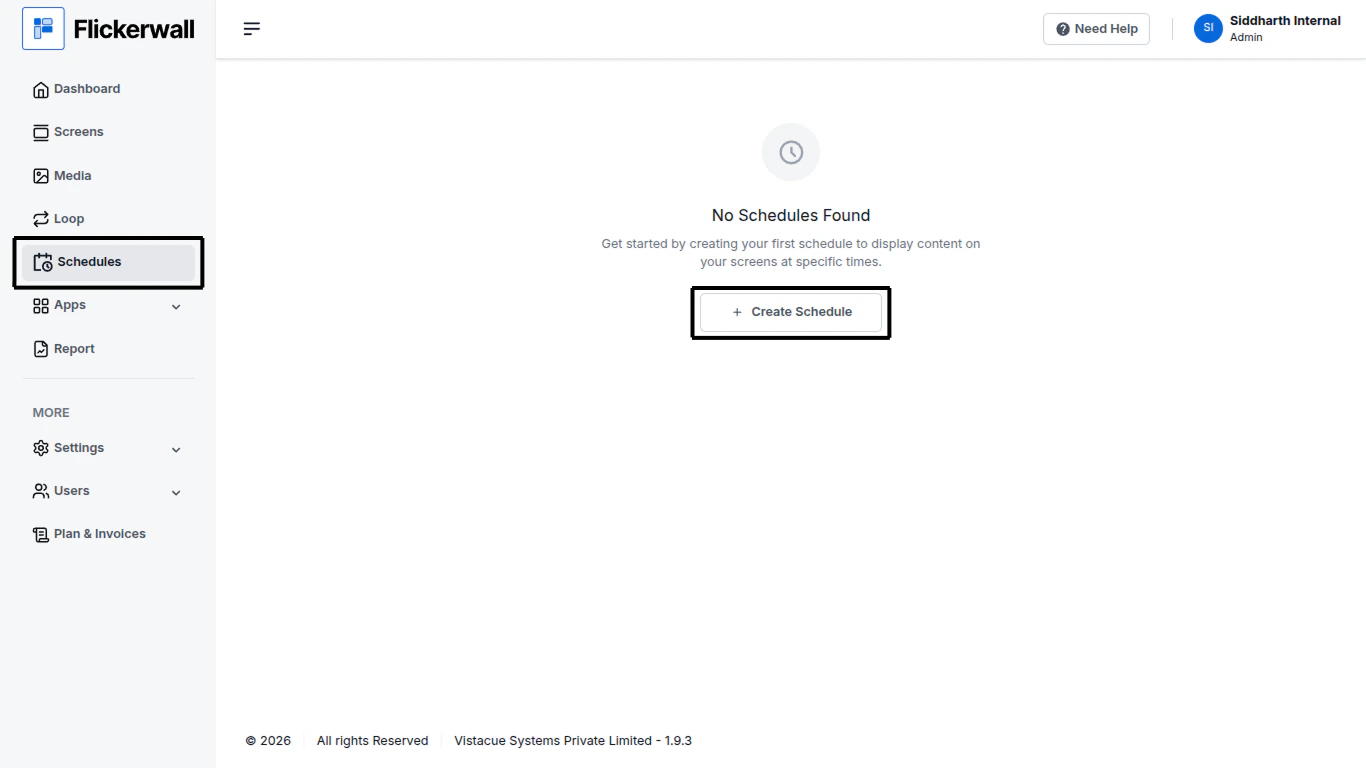
Go to the “Schedule” module and click on Create Schedule
 Step 2
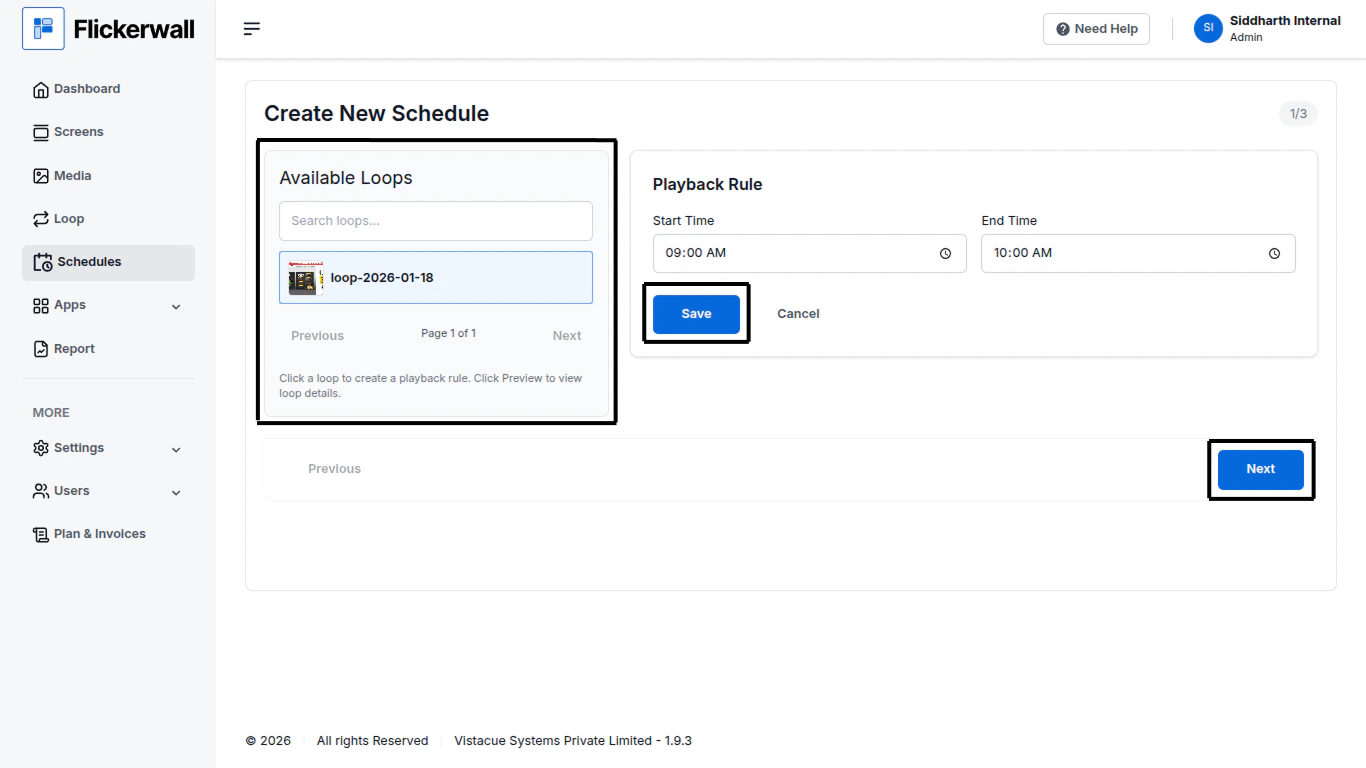
Select the Loop you want to push and enter your **Playback Rule** and save it and click on Next.
Step 2
Select the Loop you want to push and enter your **Playback Rule** and save it and click on Next.
 Step 3
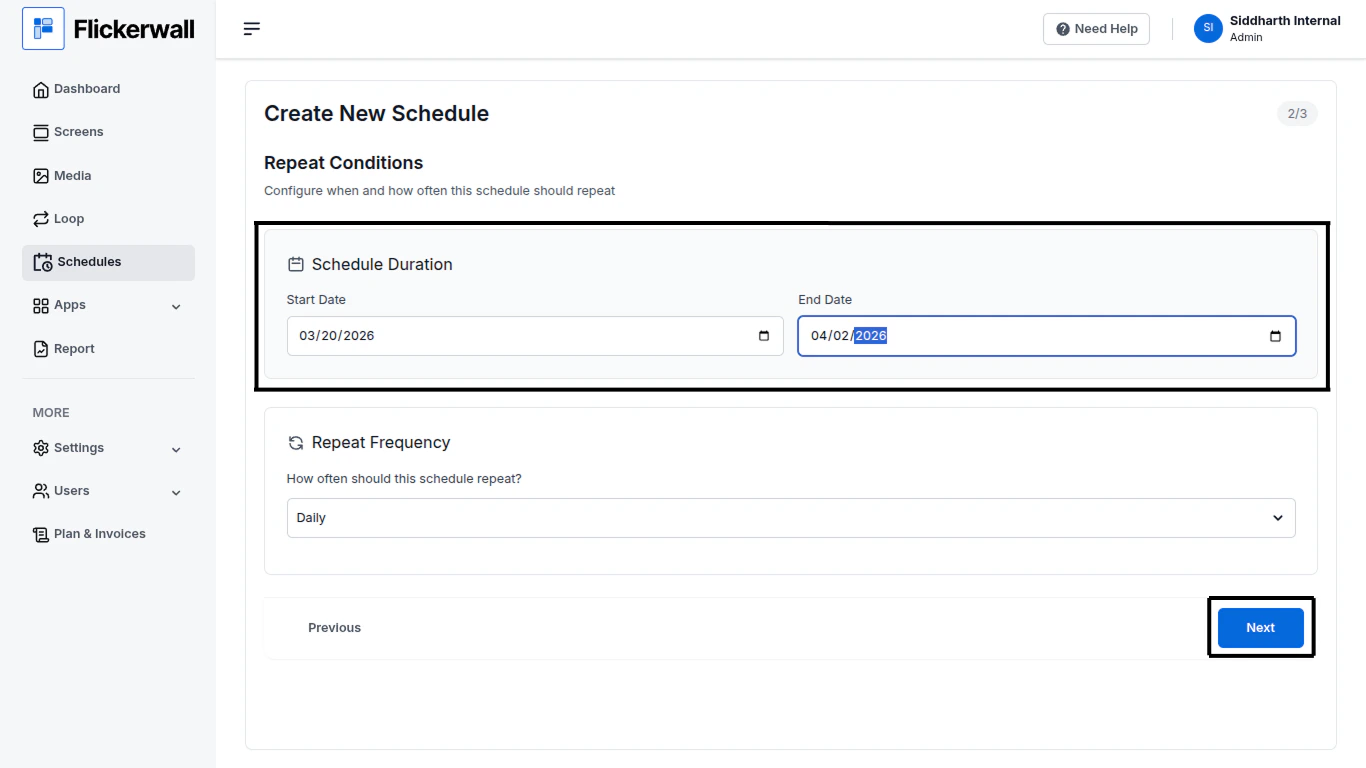
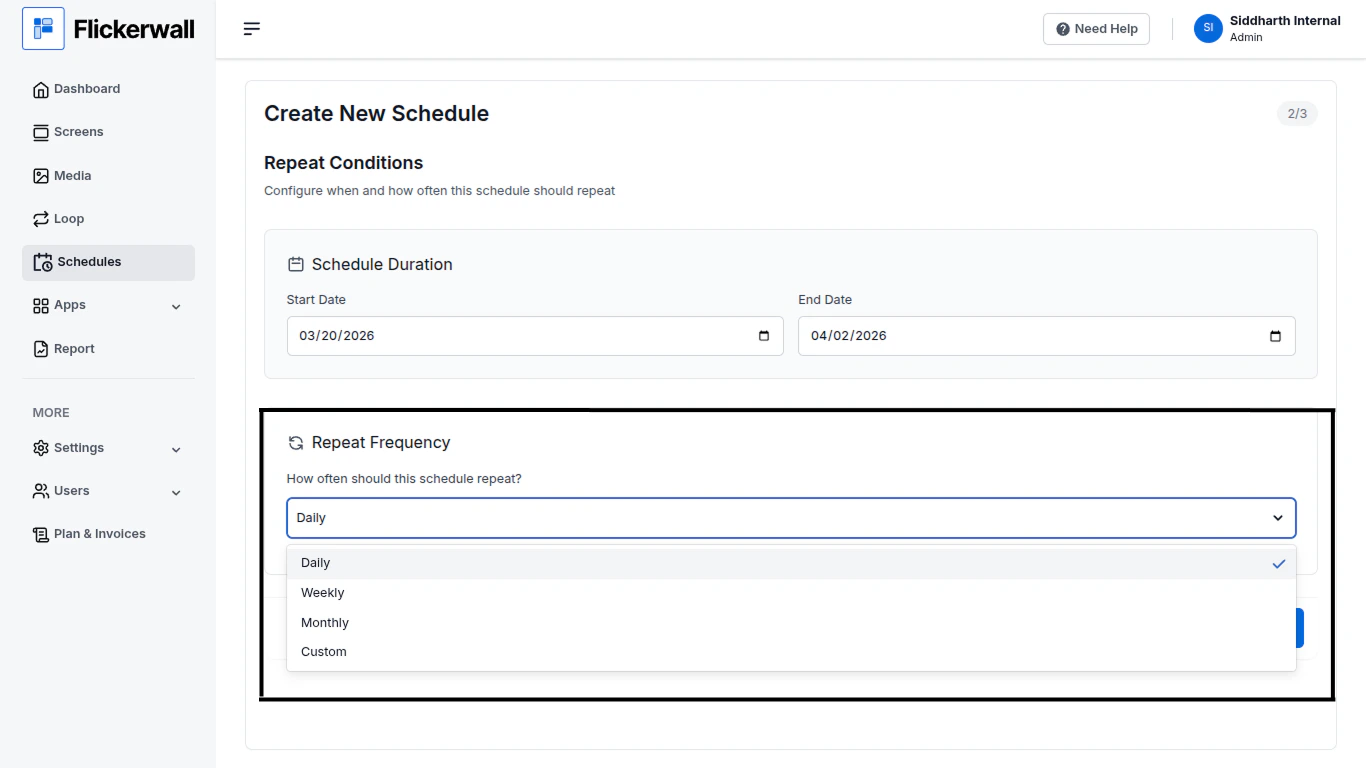
Schedule Duration & Repeat Frequency
Enter how long you want this scheduled content to play on the selected screens
( The content keeps playing till the end day and will automatically stop playing after that date)
Select the Repeat Frequency you want Daily , Weekly , Monthly or Custom
Click on next
Step 3
Schedule Duration & Repeat Frequency
Enter how long you want this scheduled content to play on the selected screens
( The content keeps playing till the end day and will automatically stop playing after that date)
Select the Repeat Frequency you want Daily , Weekly , Monthly or Custom
Click on next
 Step 4
**Select Screen**
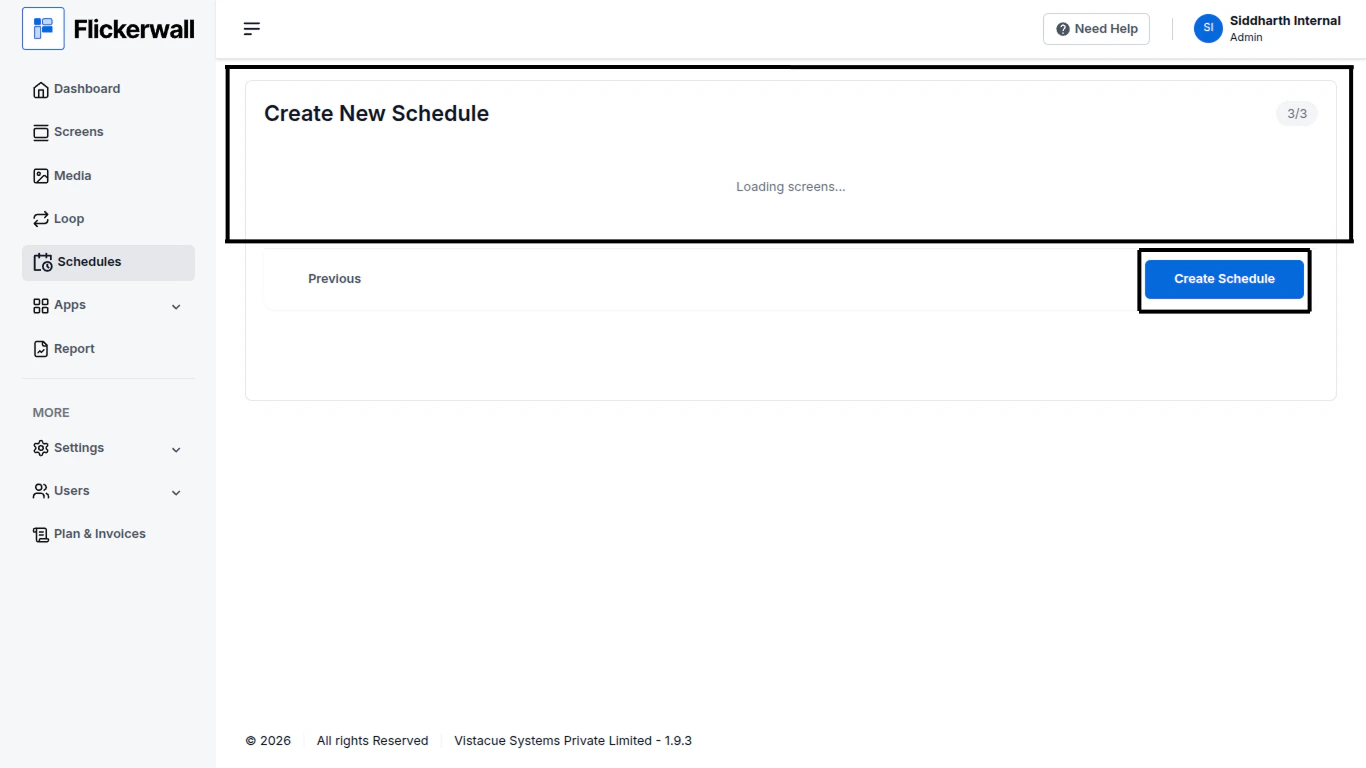
Select the Screens you want this scheduled content to play on and
Step 4
**Select Screen**
Select the Screens you want this scheduled content to play on and
 Step 5
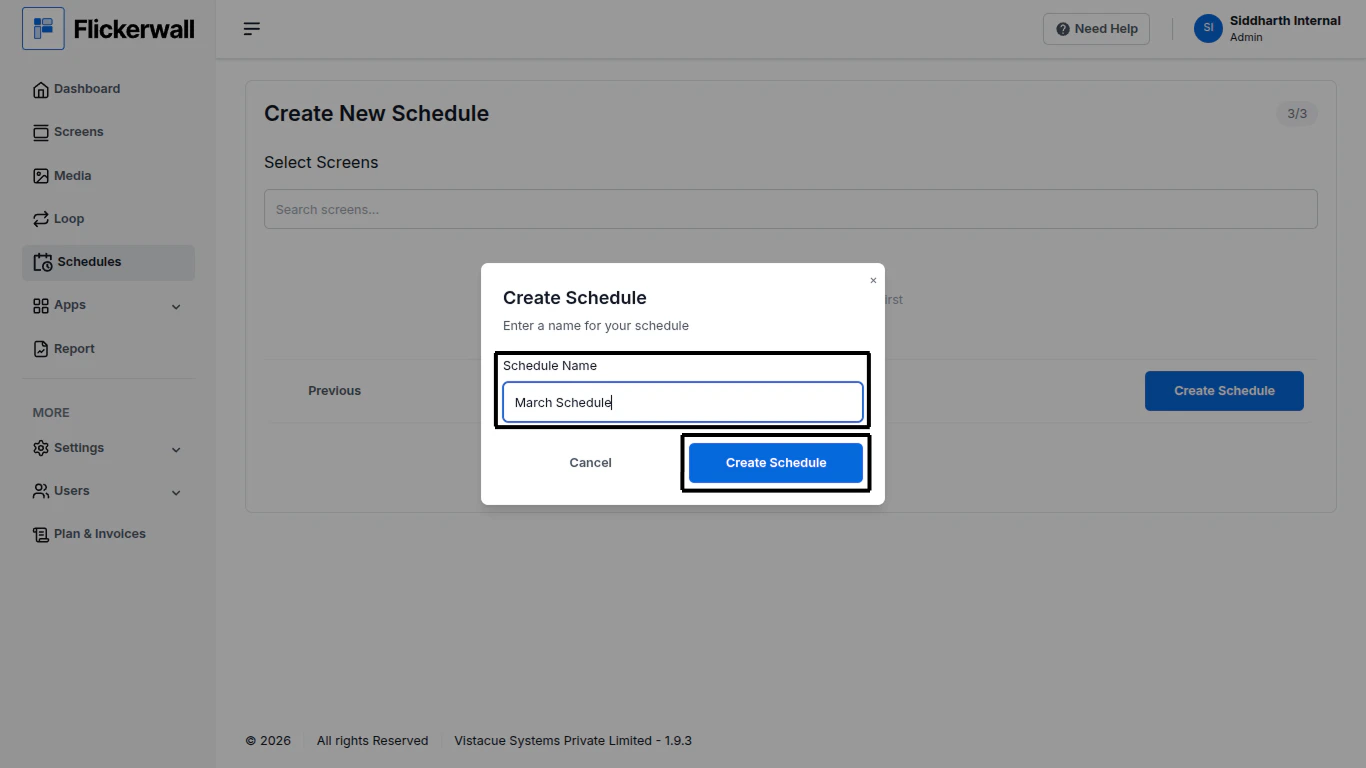
click on “ Create Schedule”
Enter a name for the Schedule and Click “ Create Schedule”
Step 5
click on “ Create Schedule”
Enter a name for the Schedule and Click “ Create Schedule”