> ## Documentation Index
> Fetch the complete documentation index at: https://docs.flickerwall.com/llms.txt
> Use this file to discover all available pages before exploring further.
# How to Download Device Uptime Report from Flickerwall Dashboard? How to Download the Device Uptime Report with Custom/Specific Dates?
> Learn how to download how to download **Device Uptime Report from Flickerwall Dashboard
***
# How to Download Device Uptime Report from Flickerwall Dashboard?
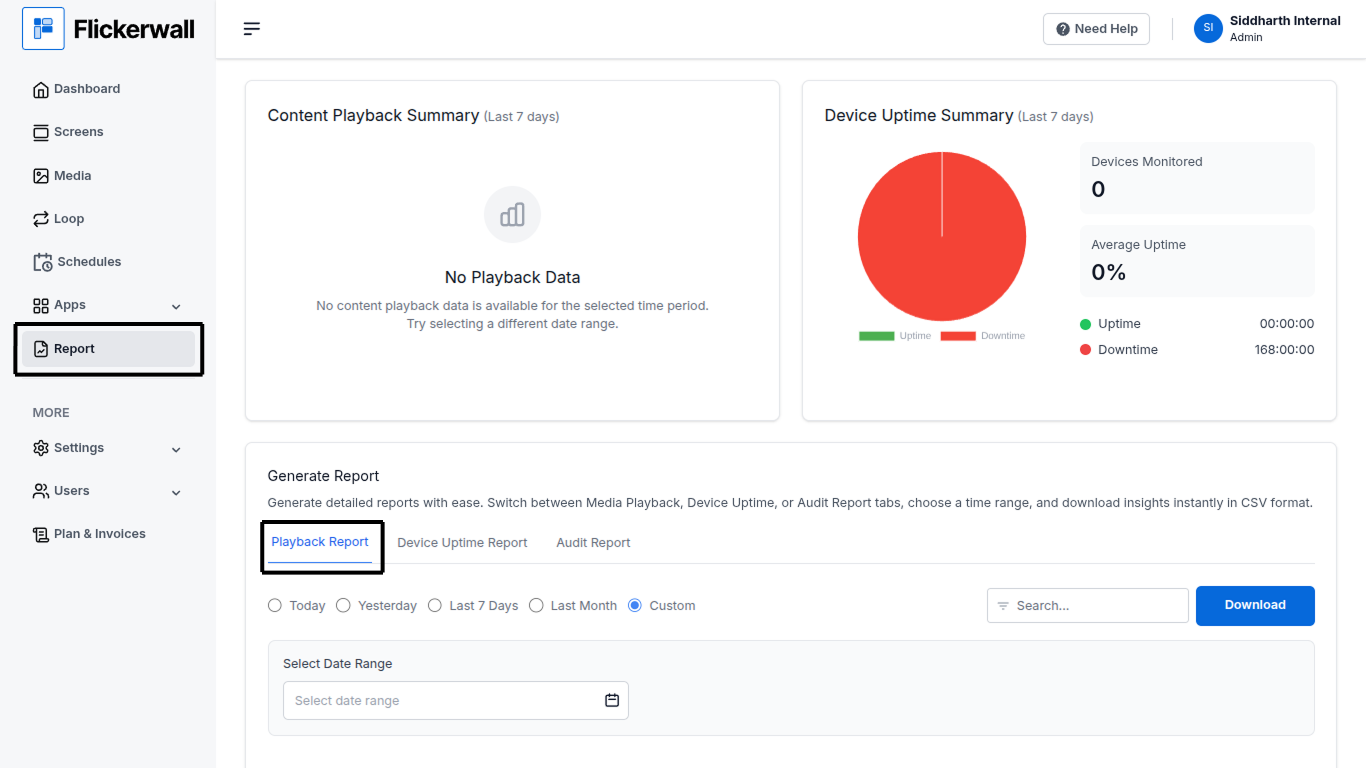
Step 1
Go to Report module
Scroll down and select Uptime Report
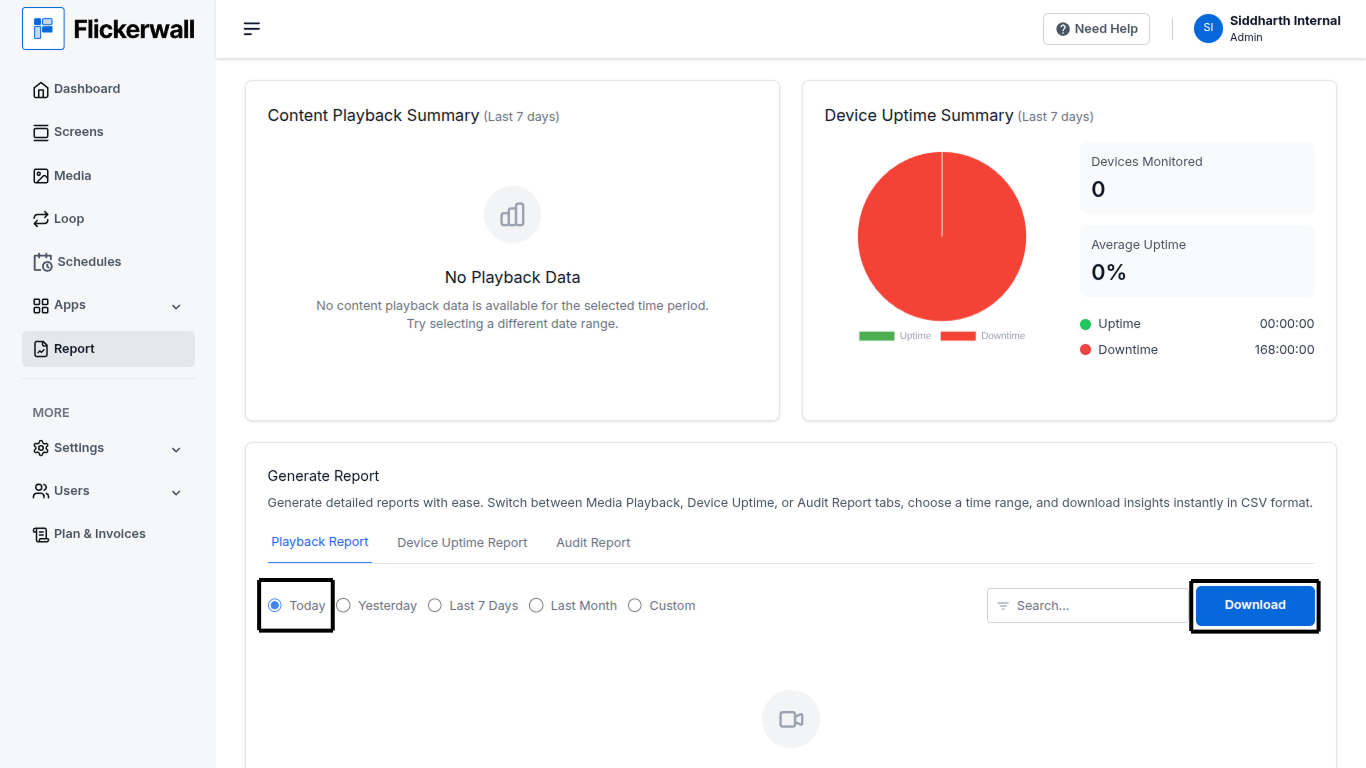
 Step 2
Select Date range and Click on Download the file It will be saved as a CSV file
Step 2
Select Date range and Click on Download the file It will be saved as a CSV file
 ***
# How to Download the Device Uptime Report with Custom/Specific Dates?
Step 1
Select Custom to enter specific Dates and download the data of the selected dates
(Note : Skip this step if you don’t want data with Custom, Specific dates)
***
# How to Download the Device Uptime Report with Custom/Specific Dates?
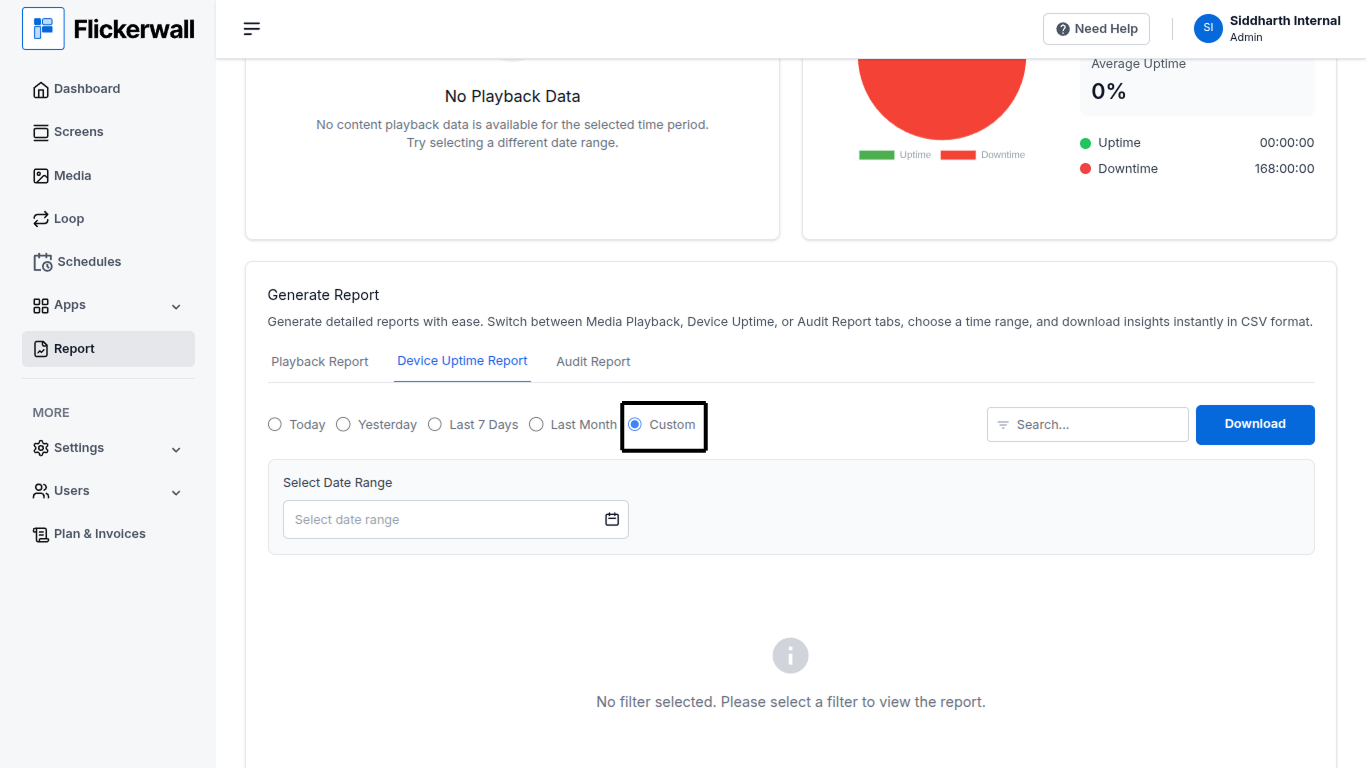
Step 1
Select Custom to enter specific Dates and download the data of the selected dates
(Note : Skip this step if you don’t want data with Custom, Specific dates)
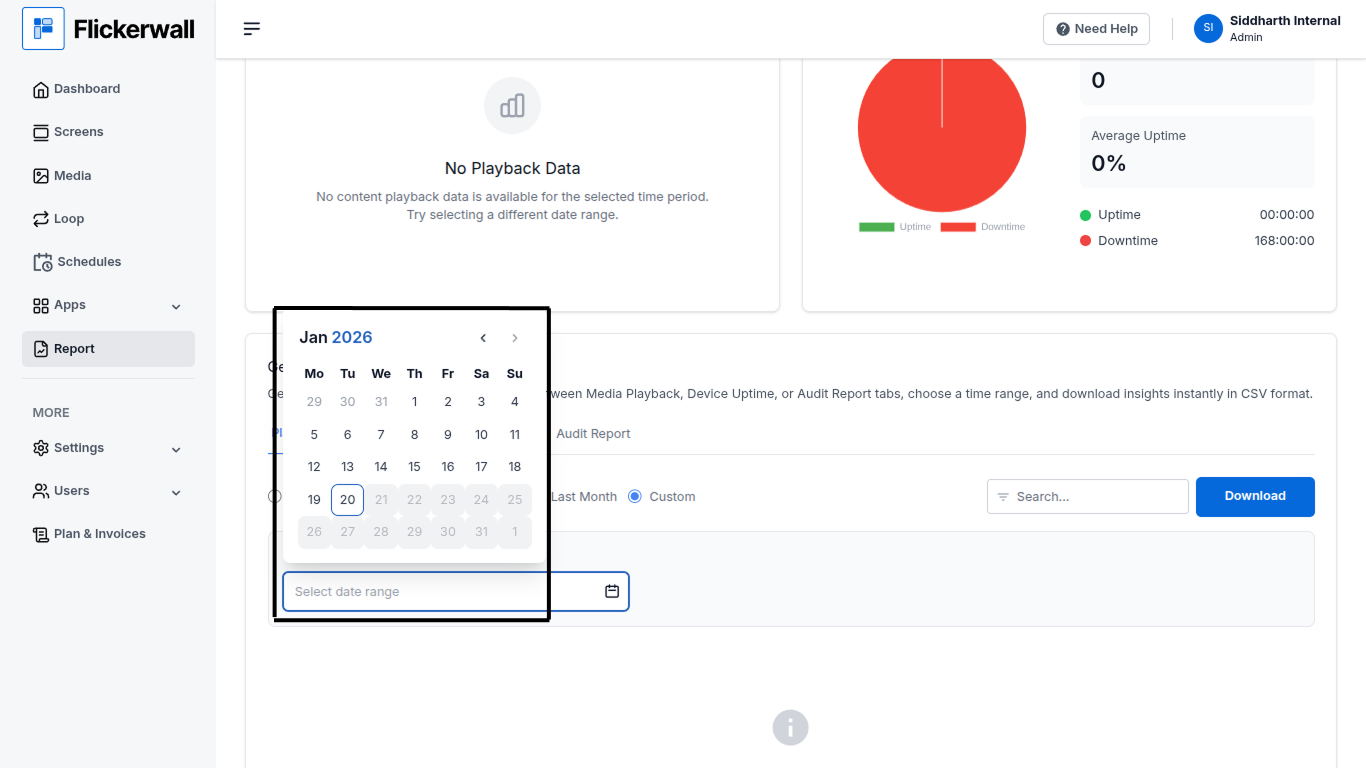
 Step 2
Enter the Start and End Date of your Report
first select the year/month/day for the start date
then select year/month/day for the end date
Step 2
Enter the Start and End Date of your Report
first select the year/month/day for the start date
then select year/month/day for the end date
 Done the File will be saved as a CSV Format.