> ## Documentation Index
> Fetch the complete documentation index at: https://docs.flickerwall.com/llms.txt
> Use this file to discover all available pages before exploring further.

# How to Upgrade your Plan?

> Learn how you can Upgrade your Flickerwall plan

***

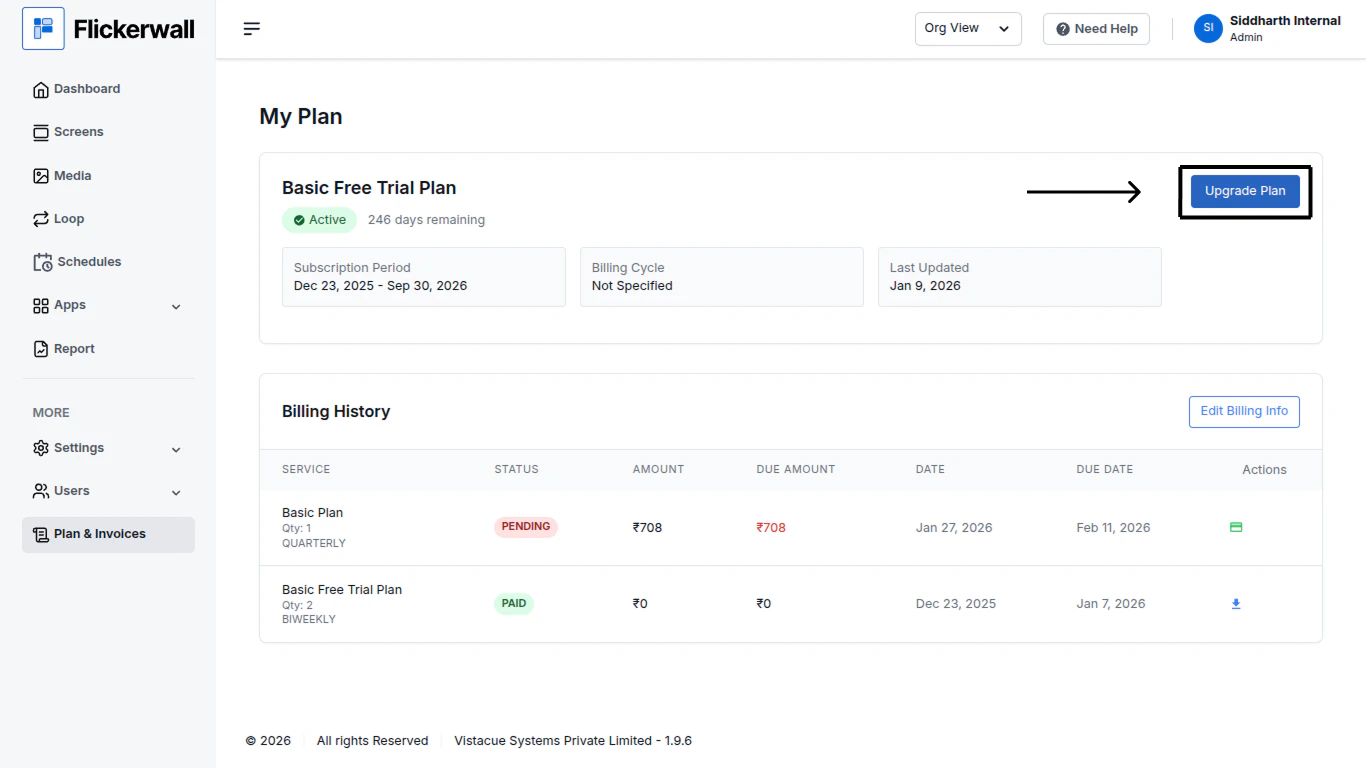
Step 1

Go to “Plan and Invoices” Module

Click on “Upgrade Plan”
<img src="https://mintcdn.com/flickerwall-796545b9/YJVFsp4LEe4i5j5p/images/plan-and-invoices-how-to-upgrade-your-plan-image-1.png?fit=max&auto=format&n=YJVFsp4LEe4i5j5p&q=85&s=4629c2b3793b97e28dddbcc40a09f905" alt="" width="1366" height="768" data-path="images/plan-and-invoices-how-to-upgrade-your-plan-image-1.png" />

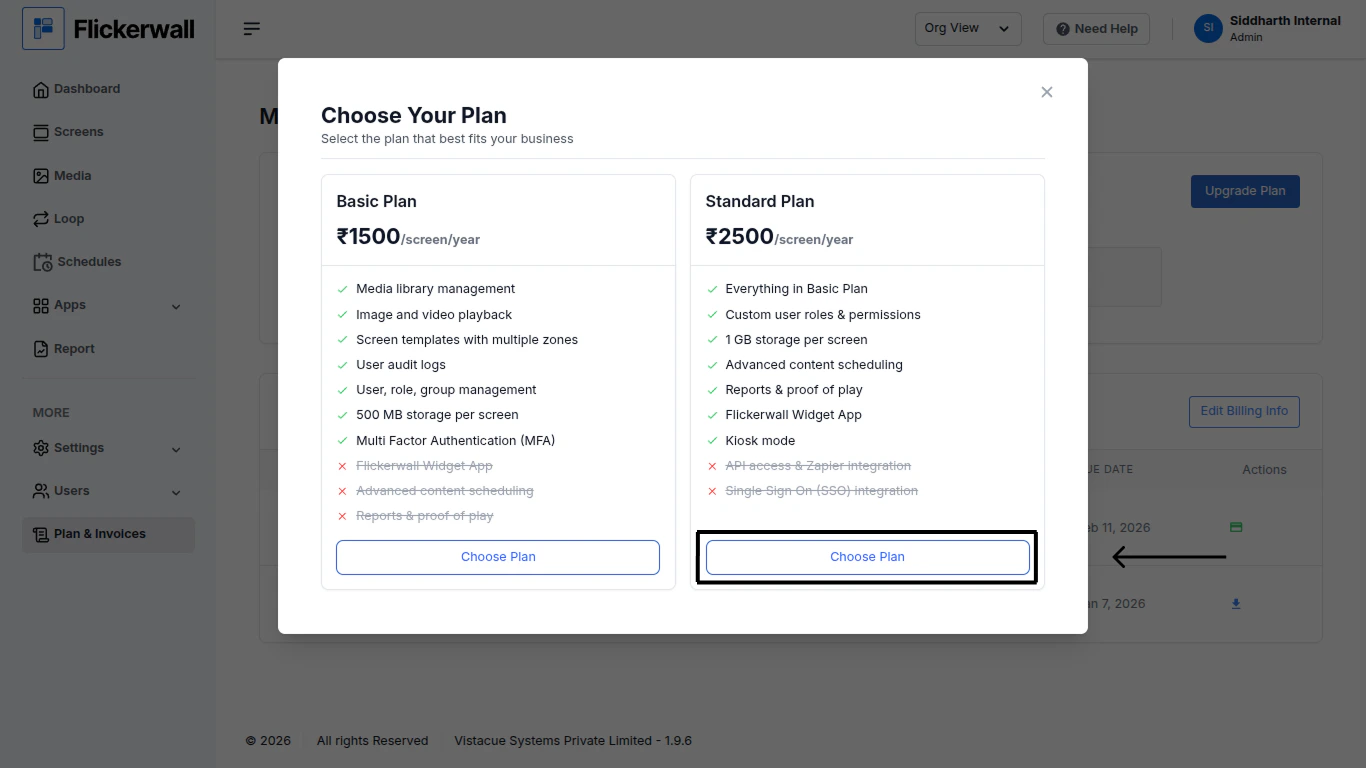
Step 2

Choose the plan you want to Buy
<img src="https://mintcdn.com/flickerwall-796545b9/YJVFsp4LEe4i5j5p/images/plan-and-invoices-how-to-upgrade-your-plan-image-2.png?fit=max&auto=format&n=YJVFsp4LEe4i5j5p&q=85&s=59f48f0ab1295b3403c462a0ac9c07af" alt="" width="1366" height="768" data-path="images/plan-and-invoices-how-to-upgrade-your-plan-image-2.png" />

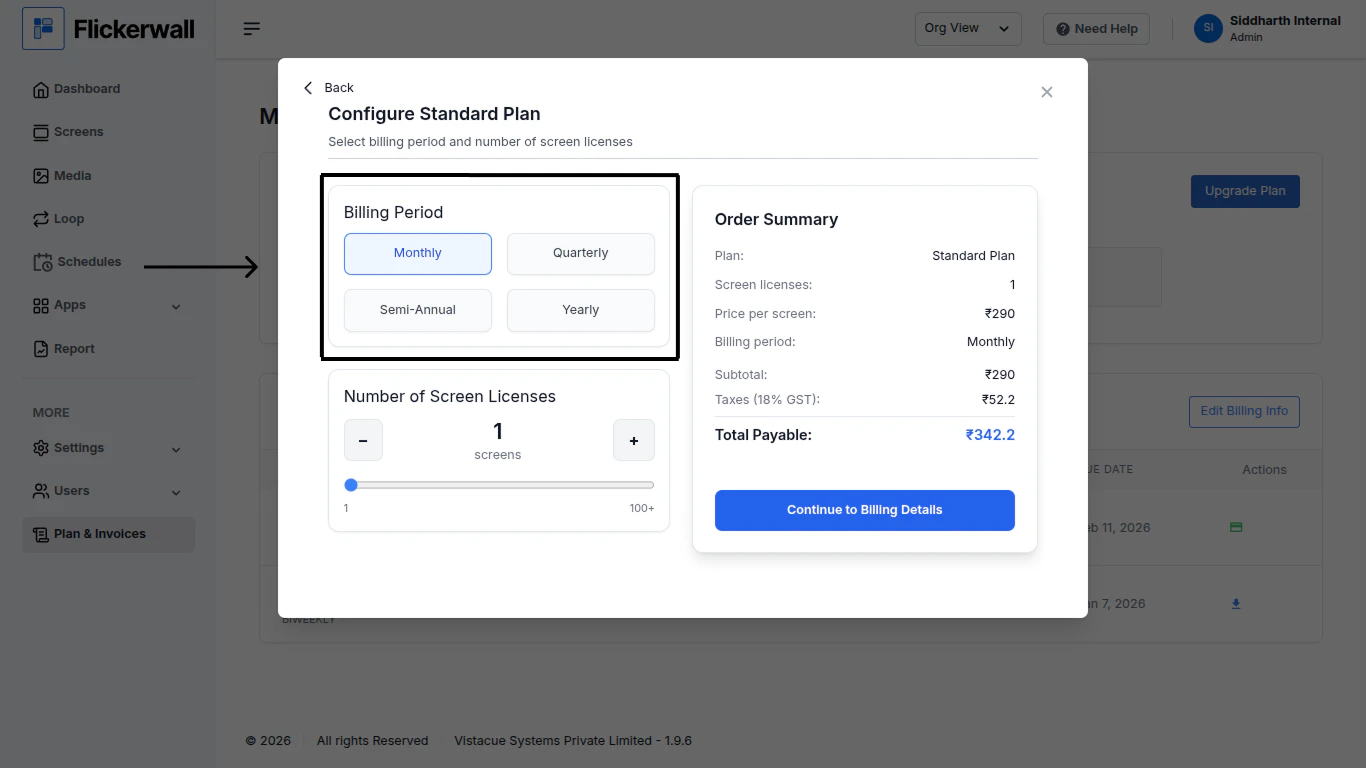
Step 3

Choose your Billing Period

* Monthly
* Quarterly
* Semi - Annual
* Yearly
<img src="https://mintcdn.com/flickerwall-796545b9/YJVFsp4LEe4i5j5p/images/plan-and-invoices-how-to-upgrade-your-plan-image-3.png?fit=max&auto=format&n=YJVFsp4LEe4i5j5p&q=85&s=0e93115edd713cc2892ef4e2987a7905" alt="" width="1366" height="768" data-path="images/plan-and-invoices-how-to-upgrade-your-plan-image-3.png" />

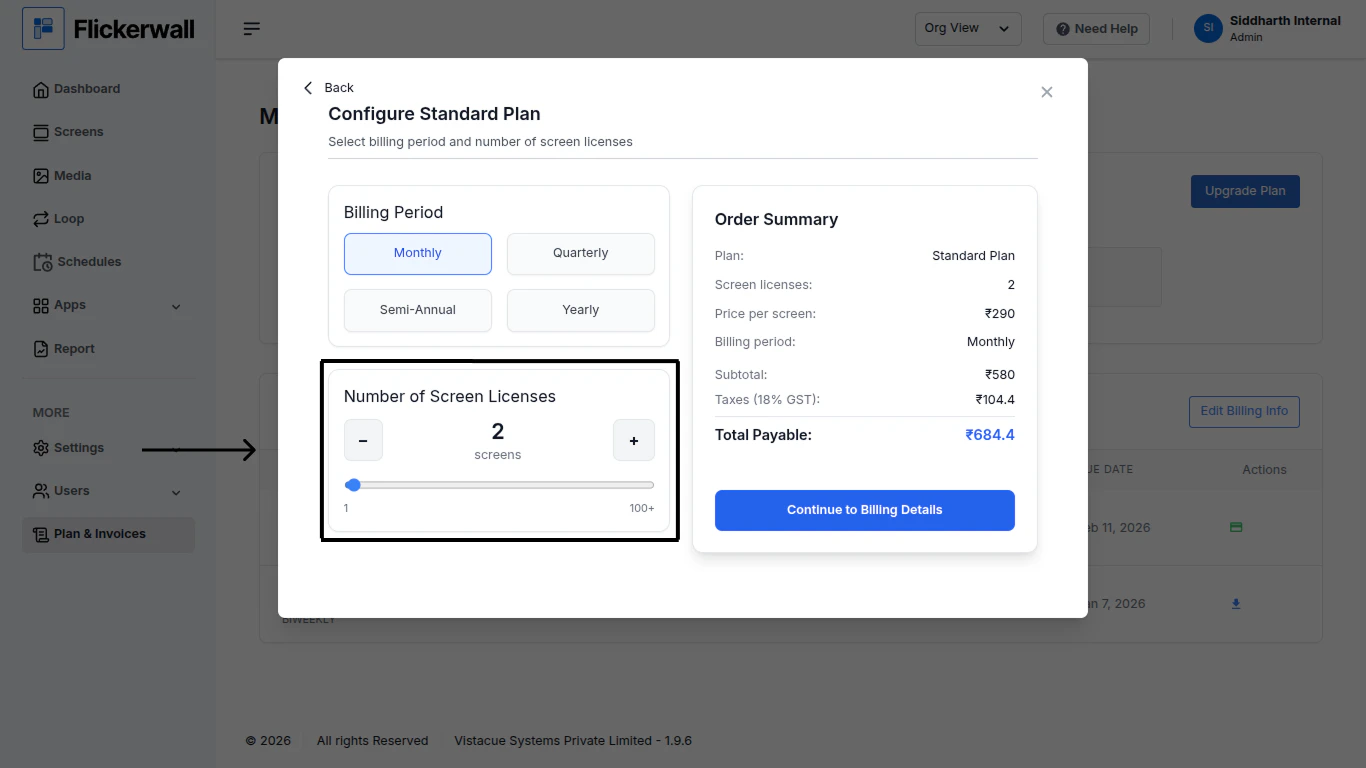
Step 4

Choose the numbers of Screen Licenses you want to purchase
<img src="https://mintcdn.com/flickerwall-796545b9/YJVFsp4LEe4i5j5p/images/plan-and-invoices-how-to-upgrade-your-plan-image-4.png?fit=max&auto=format&n=YJVFsp4LEe4i5j5p&q=85&s=4853b8286dcb7bd2dfdbdb5303ae2ca2" alt="" width="1366" height="768" data-path="images/plan-and-invoices-how-to-upgrade-your-plan-image-4.png" />

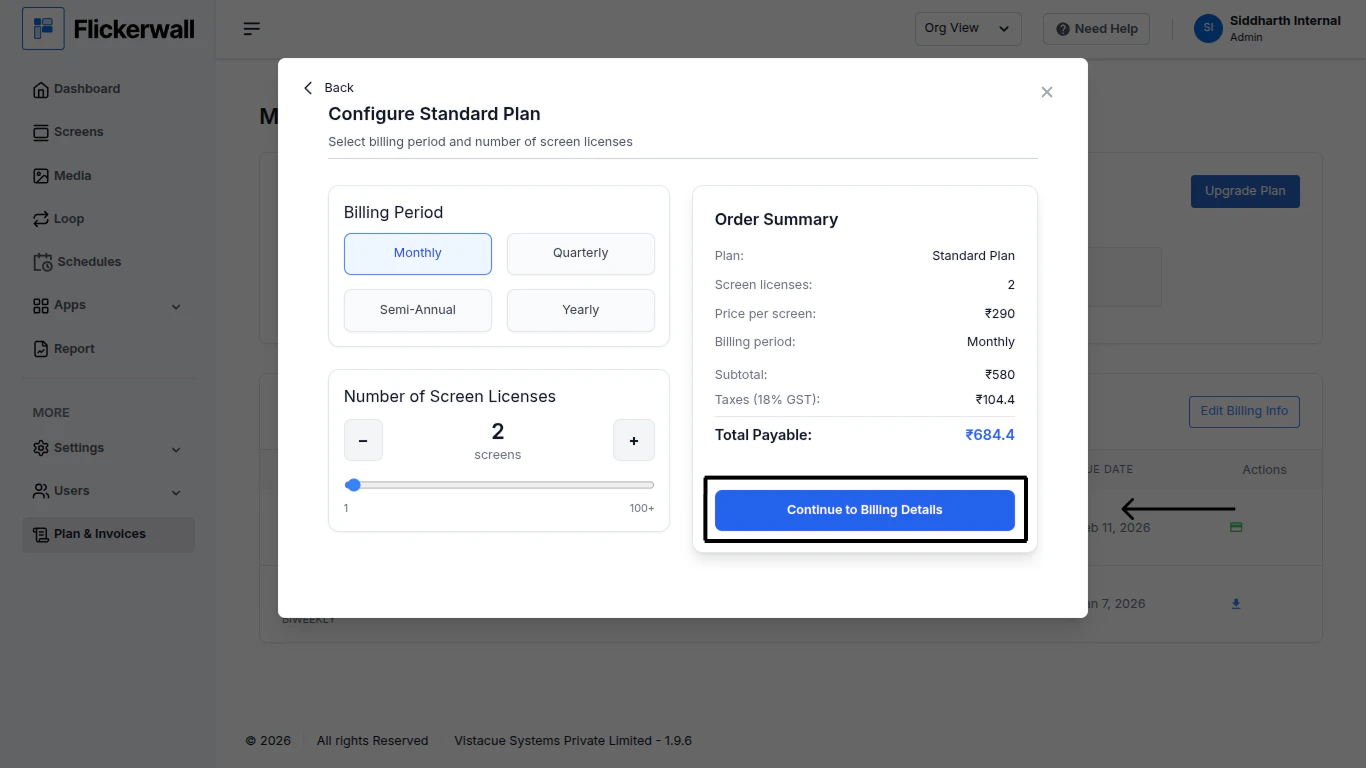
Step 5

Click “Continue to Billing Details” to fill your Billing Details before making the Payment
<img src="https://mintcdn.com/flickerwall-796545b9/YJVFsp4LEe4i5j5p/images/plan-and-invoices-how-to-upgrade-your-plan-image-5.png?fit=max&auto=format&n=YJVFsp4LEe4i5j5p&q=85&s=d14f7d04b2f7f46339f59b2ee35a7656" alt="" width="1366" height="768" data-path="images/plan-and-invoices-how-to-upgrade-your-plan-image-5.png" />

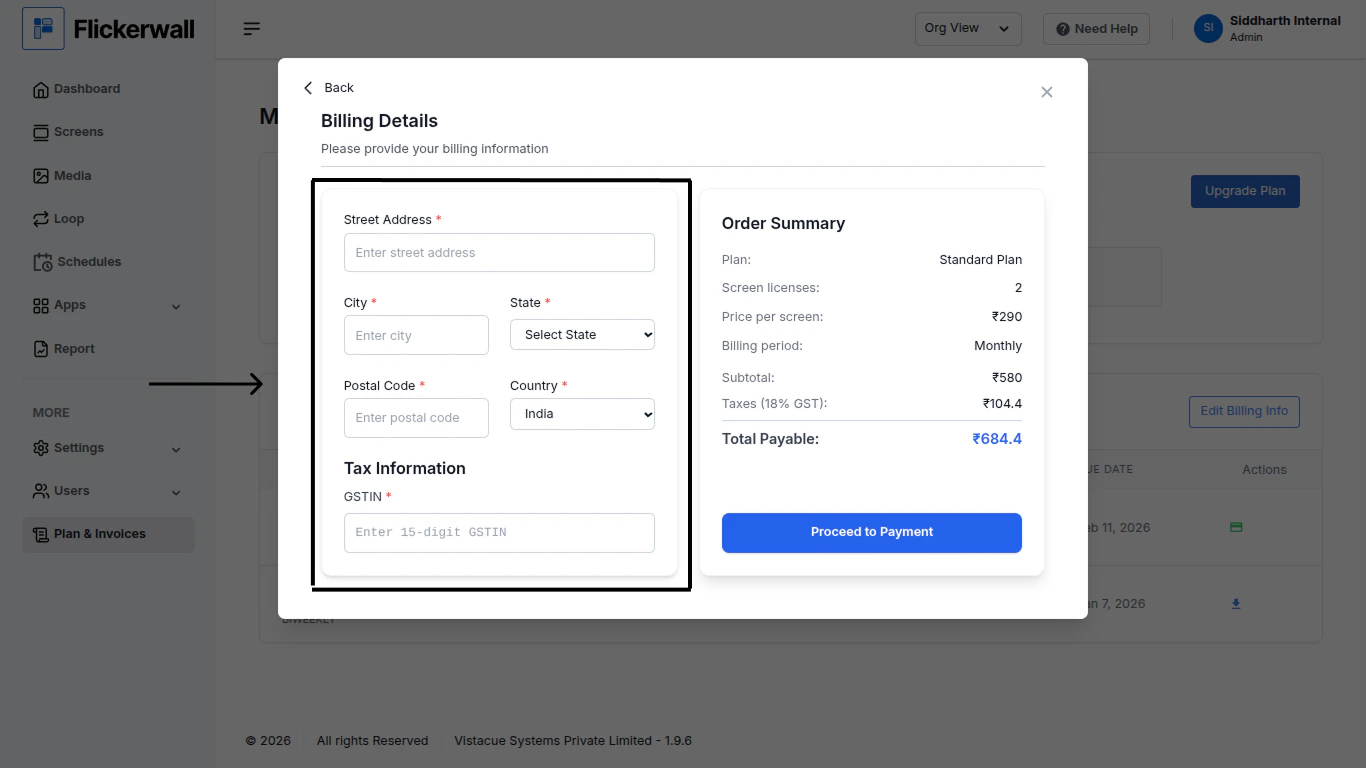
Step 6

Enter your Billing Details to proceed as shown

* Street Address
* City
* State
* Postal Code
* Country
* Tax Information
<img src="https://mintcdn.com/flickerwall-796545b9/YJVFsp4LEe4i5j5p/images/plan-and-invoices-how-to-upgrade-your-plan-image-6.png?fit=max&auto=format&n=YJVFsp4LEe4i5j5p&q=85&s=008a2801144867dba7fc42ca9554195f" alt="" width="1366" height="768" data-path="images/plan-and-invoices-how-to-upgrade-your-plan-image-6.png" />

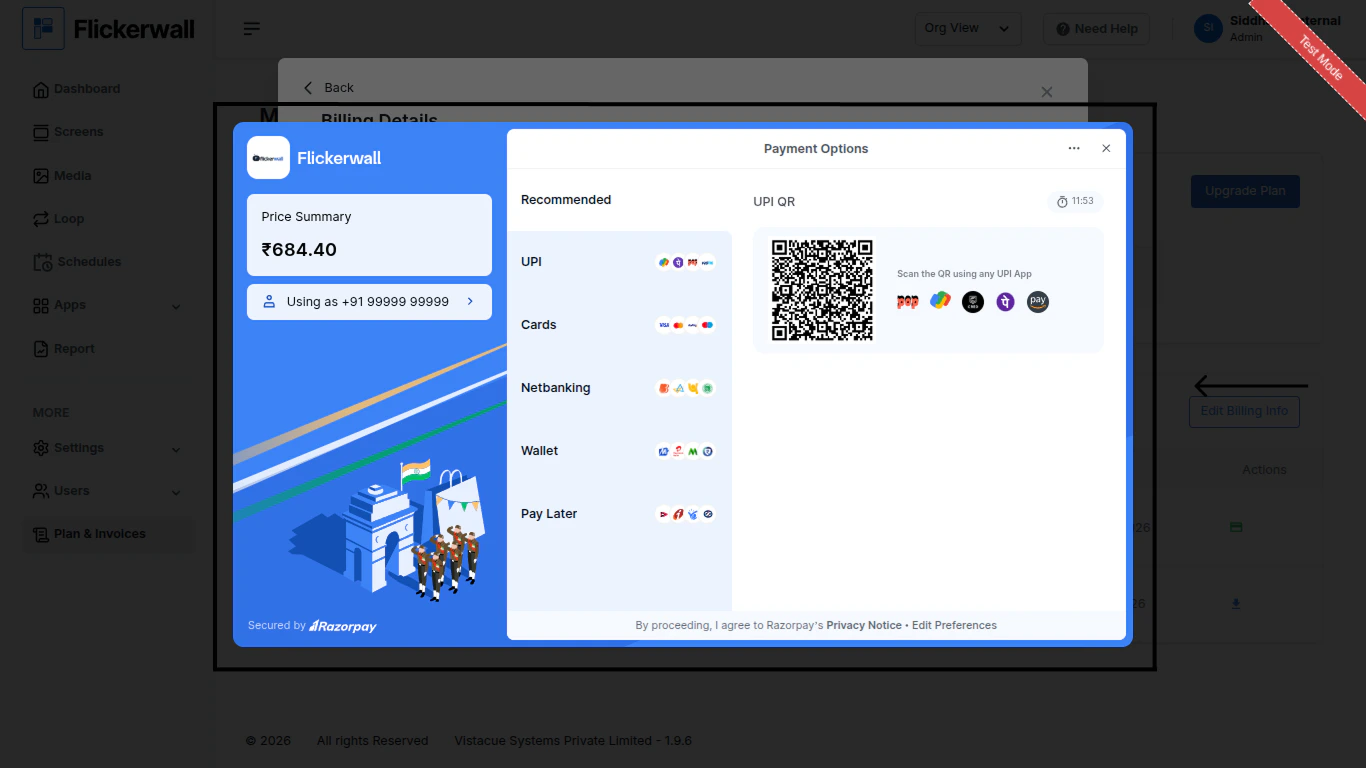
Step 7

Lastly select a Payment mode and Pay the Amount
<img src="https://mintcdn.com/flickerwall-796545b9/YJVFsp4LEe4i5j5p/images/plan-and-invoices-how-to-upgrade-your-plan-image-7.png?fit=max&auto=format&n=YJVFsp4LEe4i5j5p&q=85&s=a17b8304e388a5bc91469be6a4c57b5d" alt="" width="1366" height="768" data-path="images/plan-and-invoices-how-to-upgrade-your-plan-image-7.png" />
