> ## Documentation Index
> Fetch the complete documentation index at: https://docs.flickerwall.com/llms.txt
> Use this file to discover all available pages before exploring further.

# How to add your Canva Design using the Upload from Canva Method?

> Learn how to Connect your Canva account to use your Designs as Media

# How to add your Canva Design using the Upload from Canva Method?

Learn how to Connect your Canva account to use your Designs as Media

***

Step 1

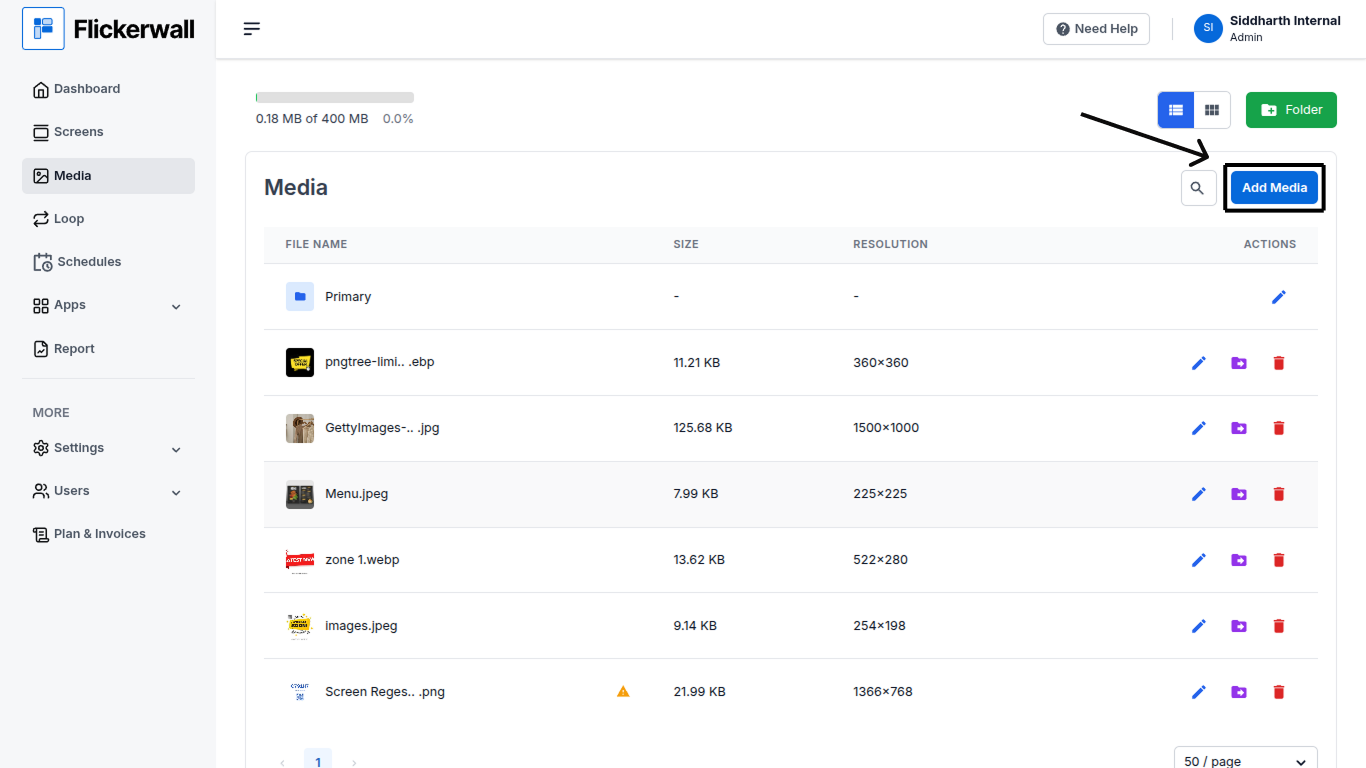
Go to the Media Module and click on “Add Media”
<img src="https://mintcdn.com/flickerwall-796545b9/Hdn4G0VyeEFztsZz/images/media-how-to-add-your-canva-design-using-the-upload-from-canva-method-image-1.png?fit=max&auto=format&n=Hdn4G0VyeEFztsZz&q=85&s=d48e99bcc17aad4d77f47c82c6fd4197" alt="" width="1366" height="768" data-path="images/media-how-to-add-your-canva-design-using-the-upload-from-canva-method-image-1.png" />

Step 2

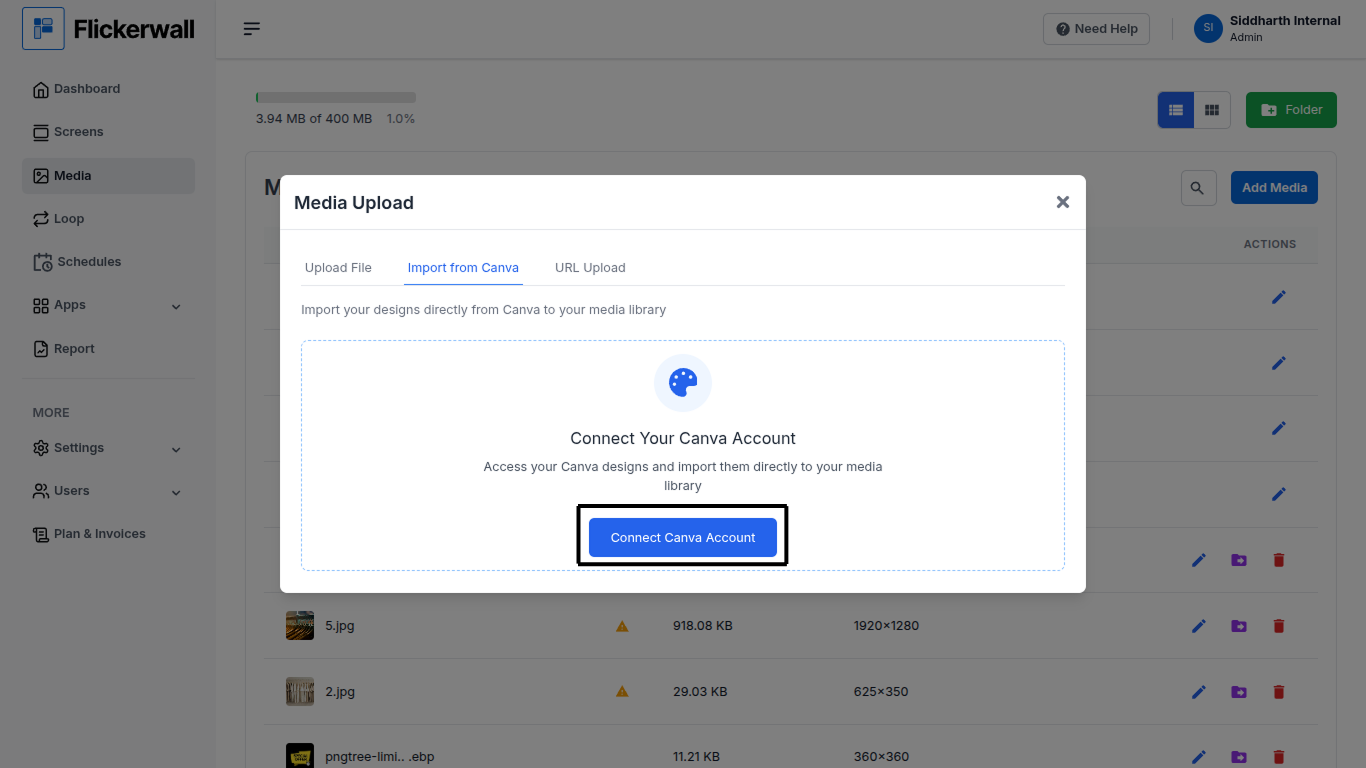
Go to Import from Canva and click on “Connect Canva Account”
<img src="https://mintcdn.com/flickerwall-796545b9/Hdn4G0VyeEFztsZz/images/media-how-to-add-your-canva-design-using-the-upload-from-canva-method-image-2.png?fit=max&auto=format&n=Hdn4G0VyeEFztsZz&q=85&s=24cfed6bfa85046657544a4711b8ca8e" alt="" width="1366" height="768" data-path="images/media-how-to-add-your-canva-design-using-the-upload-from-canva-method-image-2.png" />

Step 3

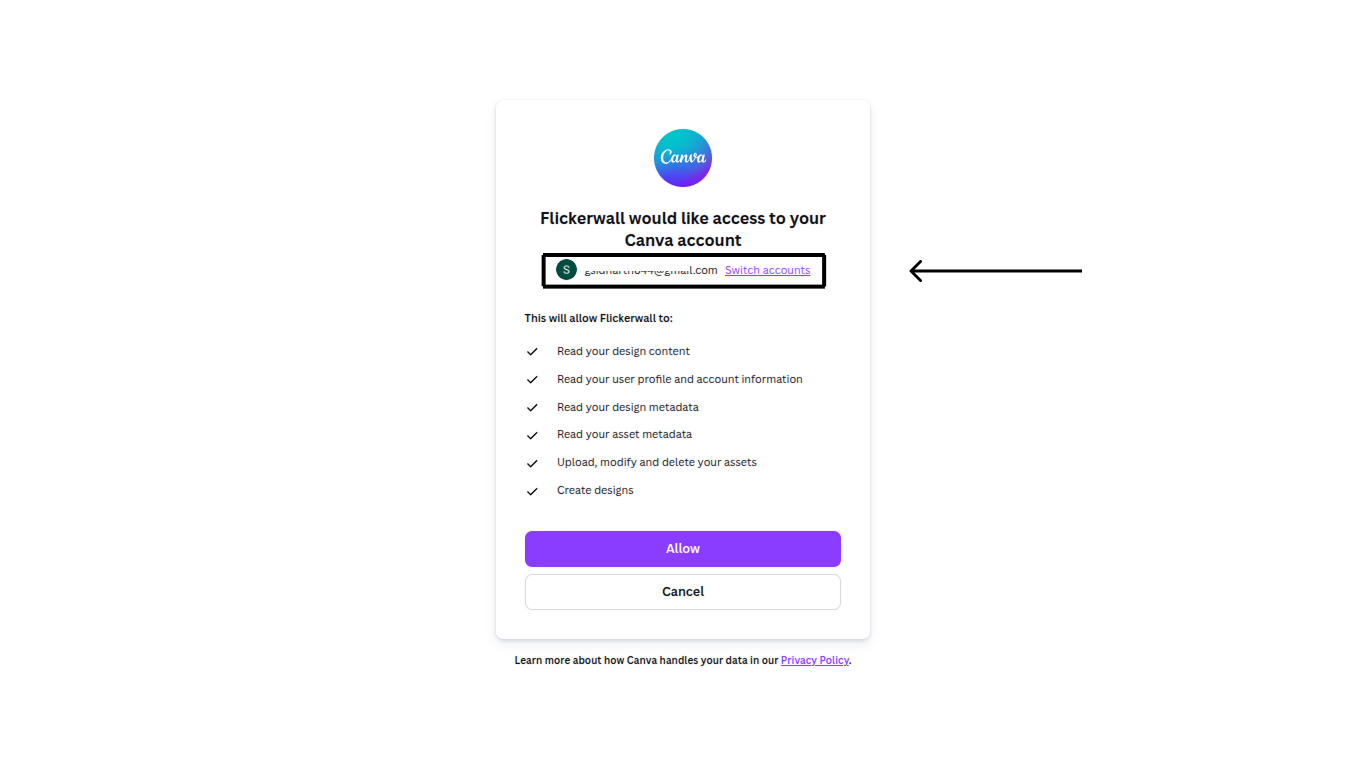
Check if your selected account is the one you have your designs or “Switch Account”
<img src="https://mintcdn.com/flickerwall-796545b9/Hdn4G0VyeEFztsZz/images/media-how-to-add-your-canva-design-using-the-upload-from-canva-method-image-3.png?fit=max&auto=format&n=Hdn4G0VyeEFztsZz&q=85&s=448392050154e48b616ca43d10a3066c" alt="" width="1366" height="768" data-path="images/media-how-to-add-your-canva-design-using-the-upload-from-canva-method-image-3.png" />

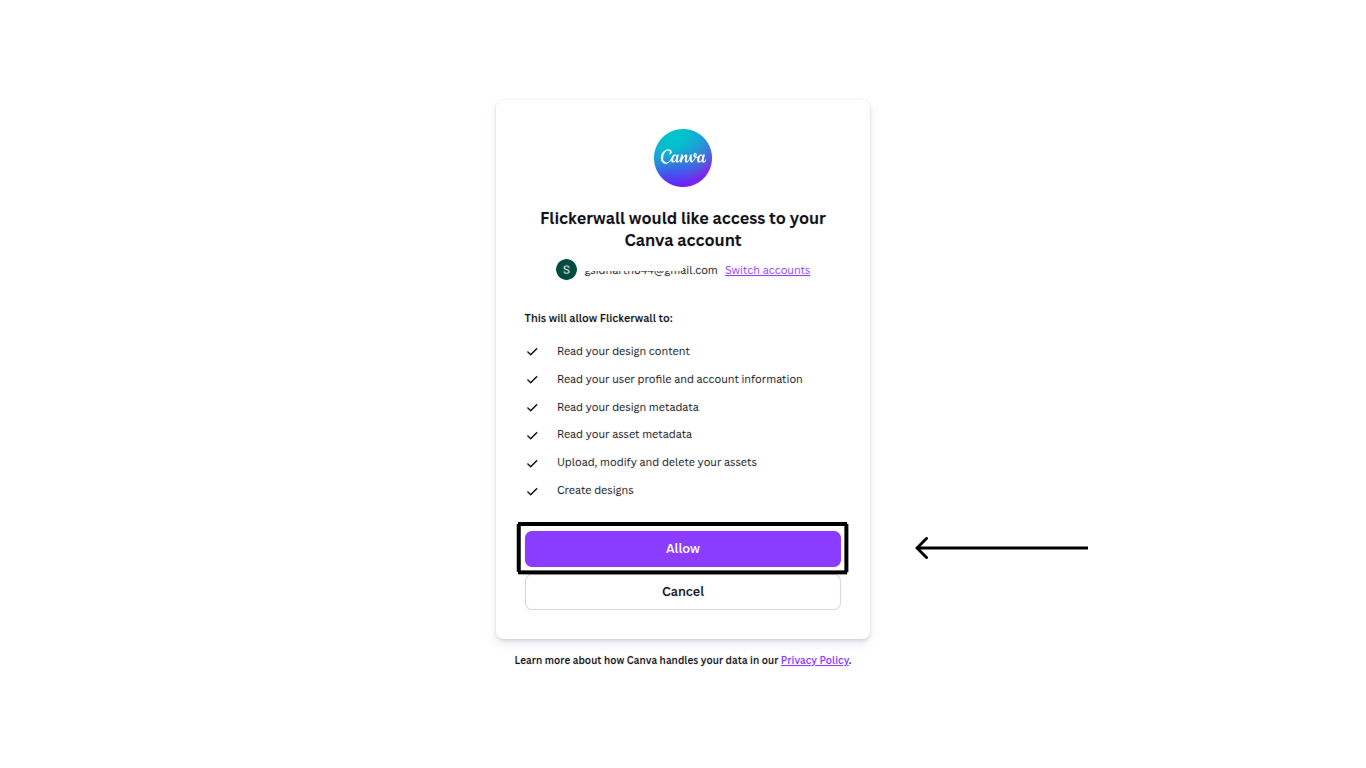
Step 4

Click “Allow” to continue the process
<img src="https://mintcdn.com/flickerwall-796545b9/Hdn4G0VyeEFztsZz/images/media-how-to-add-your-canva-design-using-the-upload-from-canva-method-image-4.png?fit=max&auto=format&n=Hdn4G0VyeEFztsZz&q=85&s=1ecd59517207aefcc21a2ce188238534" alt="" width="1366" height="768" data-path="images/media-how-to-add-your-canva-design-using-the-upload-from-canva-method-image-4.png" />

Step 5

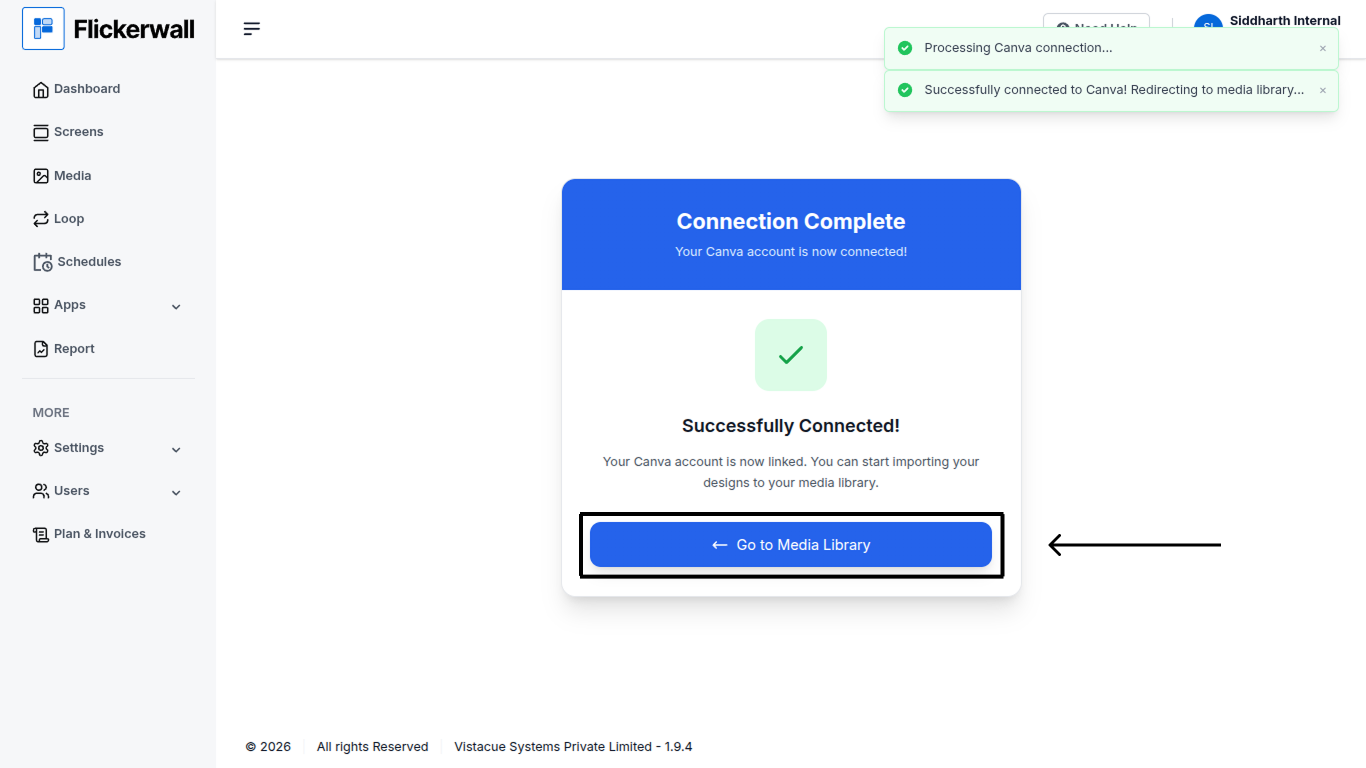
Click on “Go to Media Library”

<img src="https://mintcdn.com/flickerwall-796545b9/Hdn4G0VyeEFztsZz/images/media-how-to-add-your-canva-design-using-the-upload-from-canva-method-image-5.png?fit=max&auto=format&n=Hdn4G0VyeEFztsZz&q=85&s=a22296c25c79822b0c623e66e65c4e4c" alt="" width="1366" height="768" data-path="images/media-how-to-add-your-canva-design-using-the-upload-from-canva-method-image-5.png" />

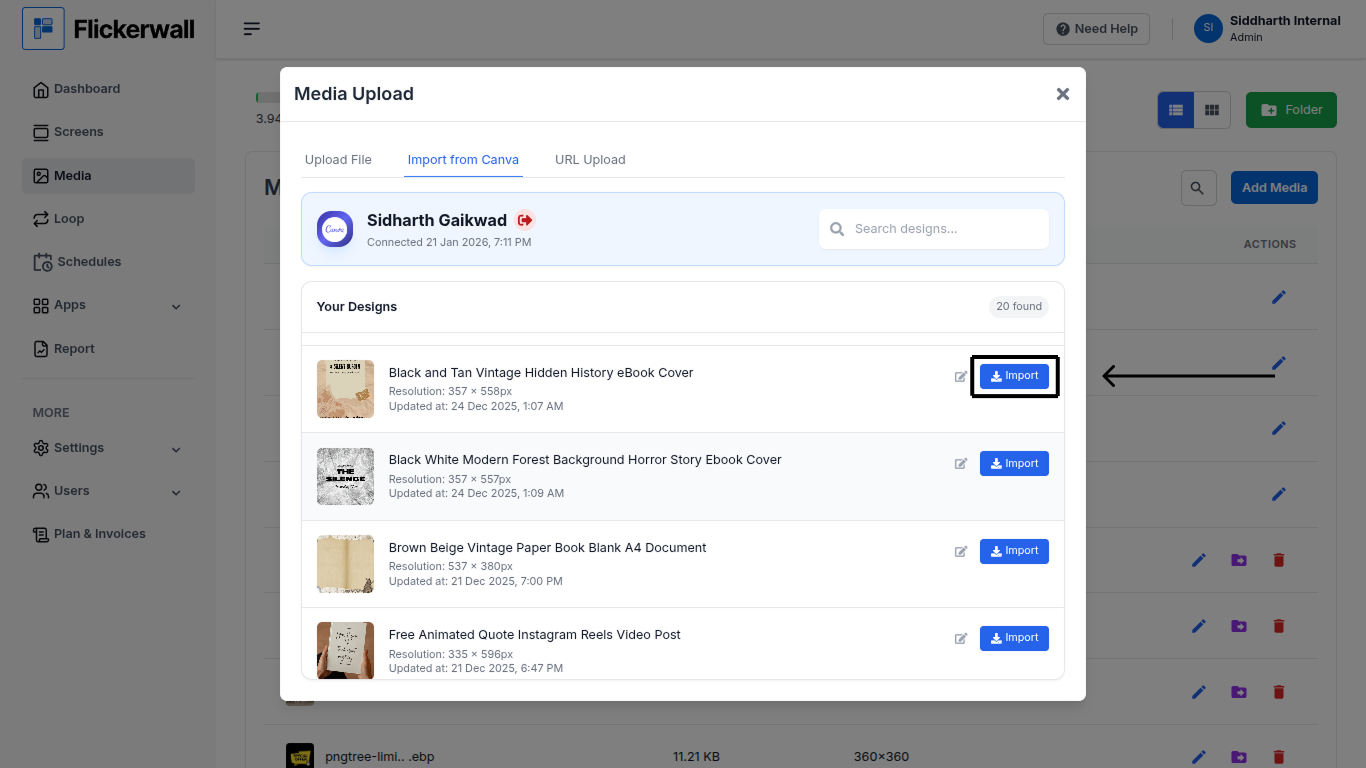
Step 6

Find the desired Design and click “Import”
<img src="https://mintcdn.com/flickerwall-796545b9/Hdn4G0VyeEFztsZz/images/media-how-to-add-your-canva-design-using-the-upload-from-canva-method-image-6.png?fit=max&auto=format&n=Hdn4G0VyeEFztsZz&q=85&s=6eef57d733898ed4be3d1e7205e57d84" alt="" width="1366" height="768" data-path="images/media-how-to-add-your-canva-design-using-the-upload-from-canva-method-image-6.png" />

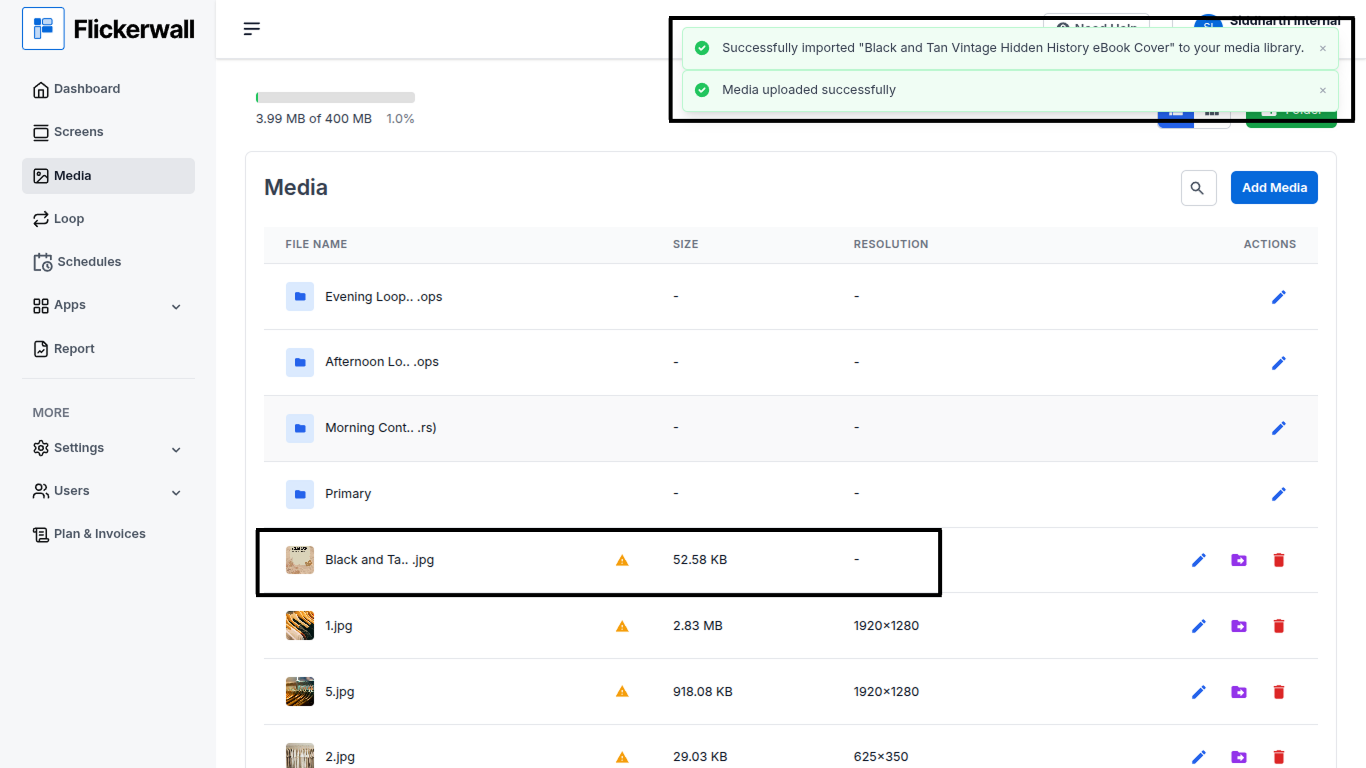
Step 7

Once you have imported the design you’ll get a notification of “Media uploaded successfully”
<img src="https://mintcdn.com/flickerwall-796545b9/Hdn4G0VyeEFztsZz/images/media-how-to-add-your-canva-design-using-the-upload-from-canva-method-image-7.png?fit=max&auto=format&n=Hdn4G0VyeEFztsZz&q=85&s=9ac09f4a77e68dd349dcb6efe39b4bc5" alt="" width="1366" height="768" data-path="images/media-how-to-add-your-canva-design-using-the-upload-from-canva-method-image-7.png" />