> ## Documentation Index
> Fetch the complete documentation index at: https://docs.flickerwall.com/llms.txt
> Use this file to discover all available pages before exploring further.
# How to add Media to the module?
> Learn how to add Media so you can get started
***
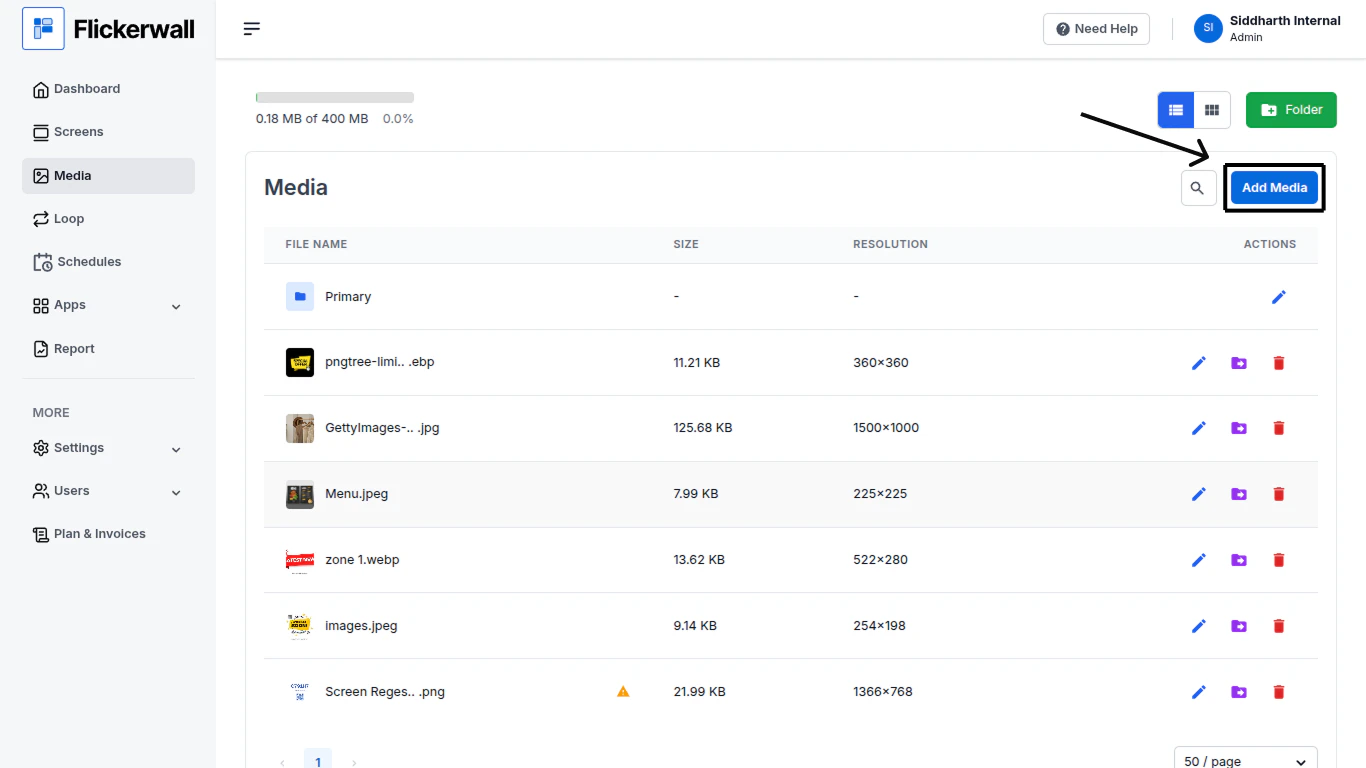
Step 1
Go to the Media Module and click on “Add Media”
 Step 2
Add Media
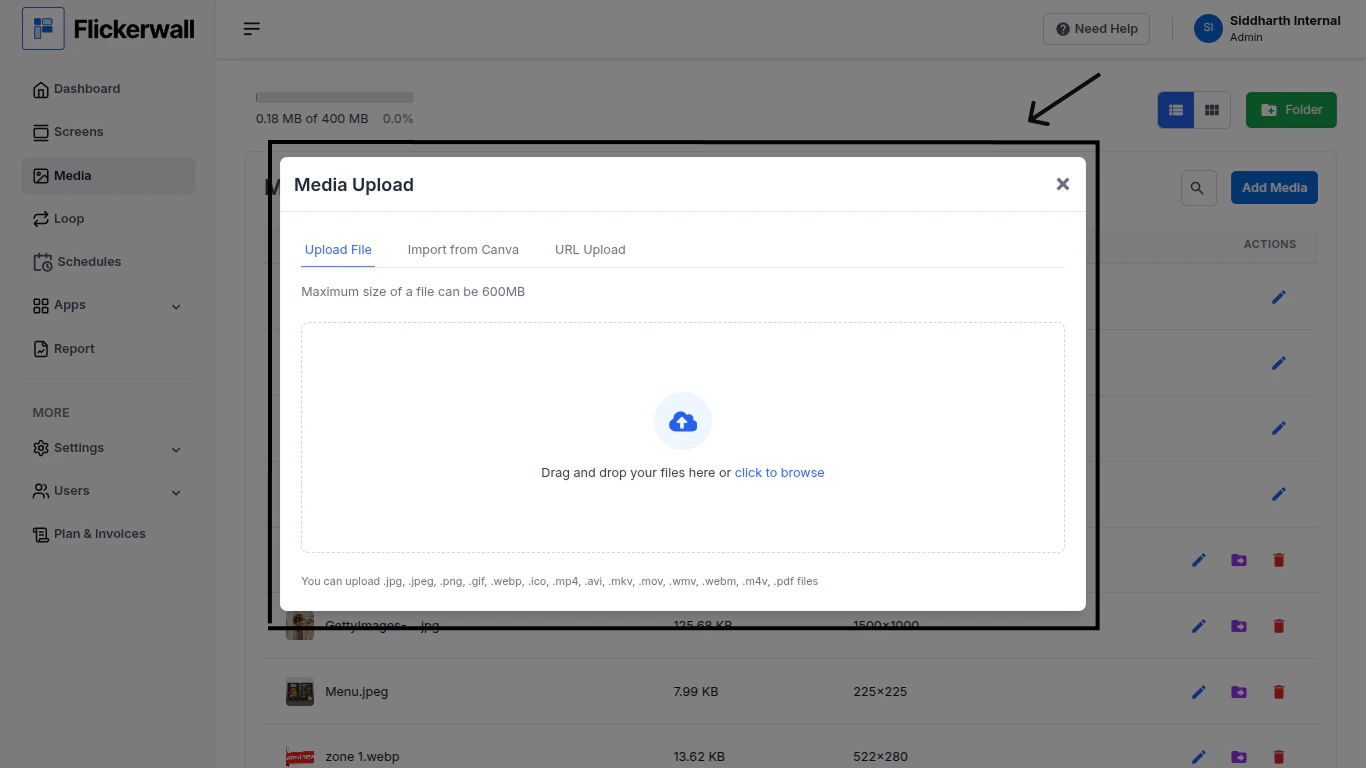
Drag and Drop or click on the upload icon in the center to browse from the device files
Step 2
Add Media
Drag and Drop or click on the upload icon in the center to browse from the device files
 How to Impost from Canva? How to do URL upload? **(Clickable questions)**
Step 3
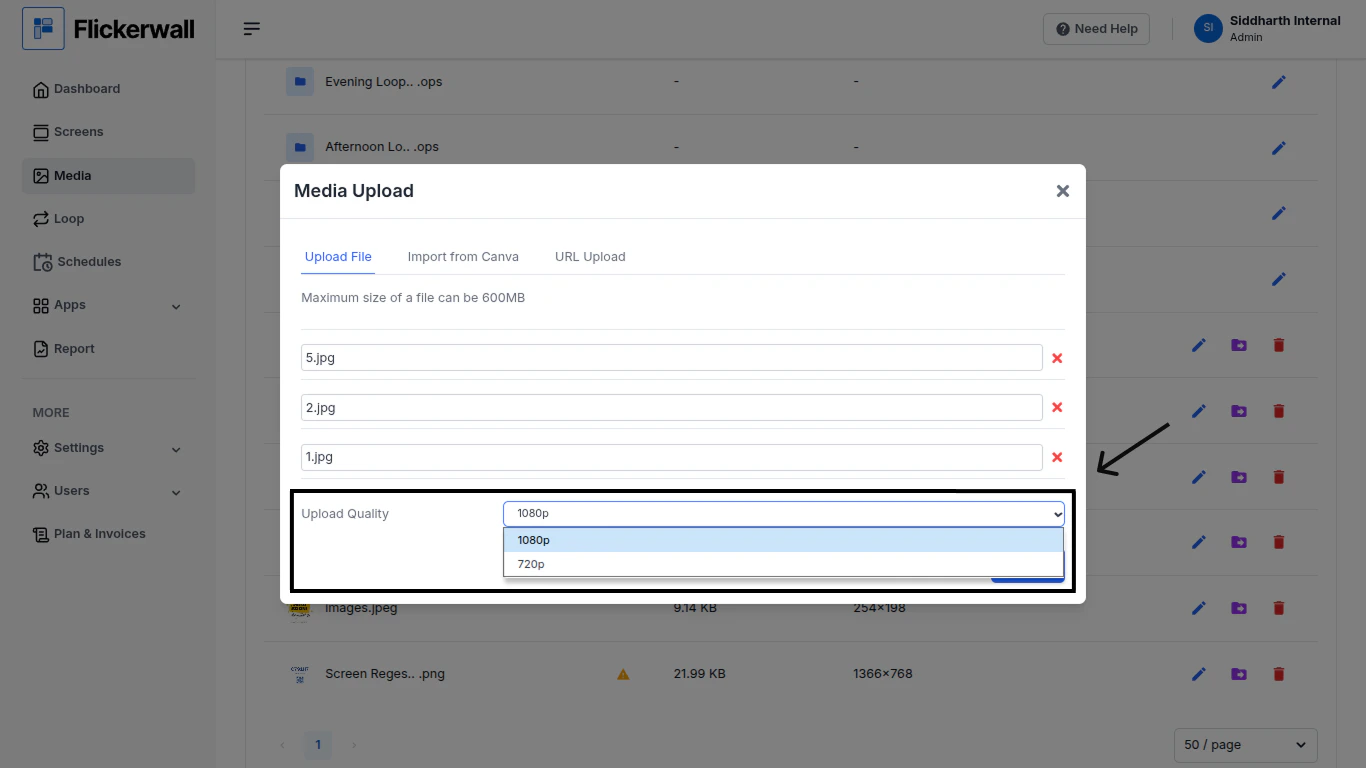
Once you have selected the desired Media , Select a Uploading Quality for better **experience**
How to Impost from Canva? How to do URL upload? **(Clickable questions)**
Step 3
Once you have selected the desired Media , Select a Uploading Quality for better **experience**
 Step 4
Your uploaded Media will be shown in the Media module
Step 4
Your uploaded Media will be shown in the Media module
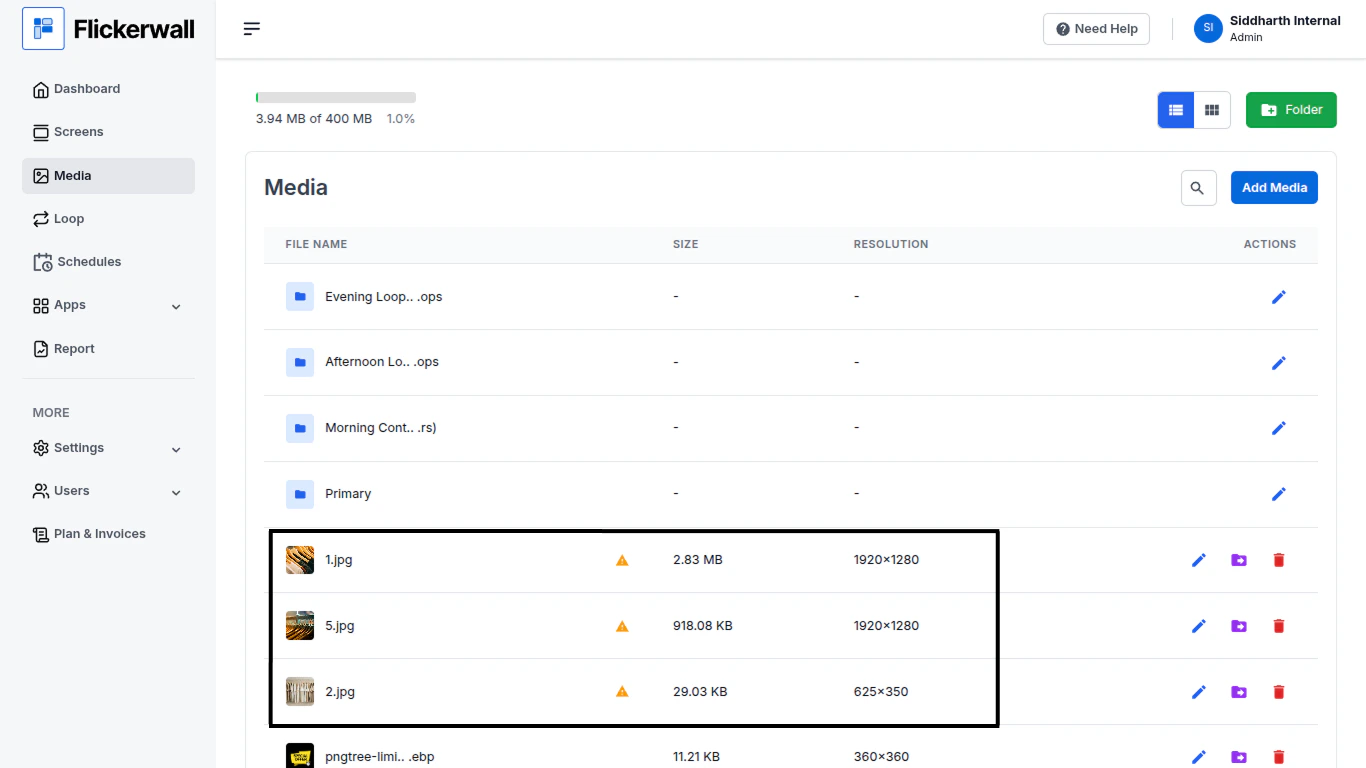 (Fun fact: the alert sign on your Media shows that the media is currently not being used for any purpose)