> ## Documentation Index
> Fetch the complete documentation index at: https://docs.flickerwall.com/llms.txt
> Use this file to discover all available pages before exploring further.
# How to add Media through URL method?
> Learn how to add Media through our URL method for easy usage
***
Step 1
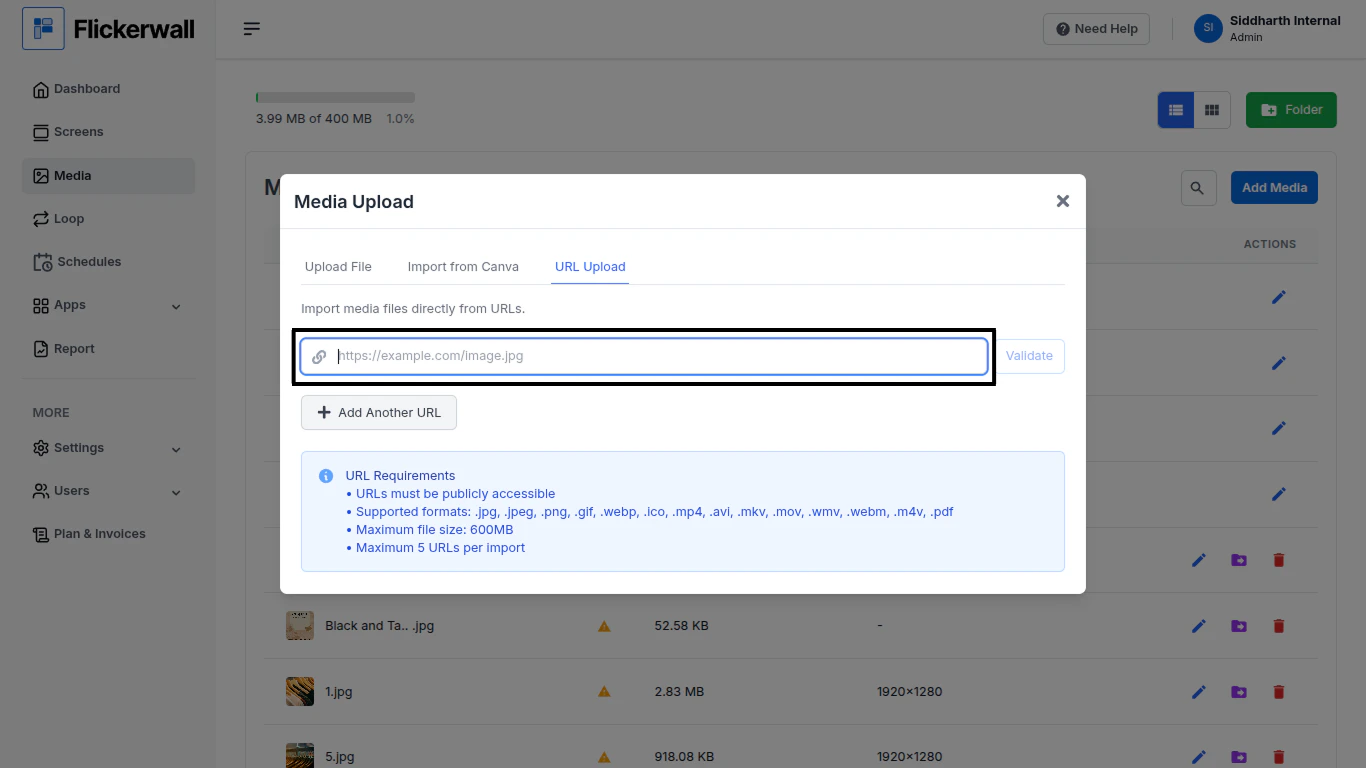
Go to the Media module click “Add Media” then select URL Upload
 Step 2
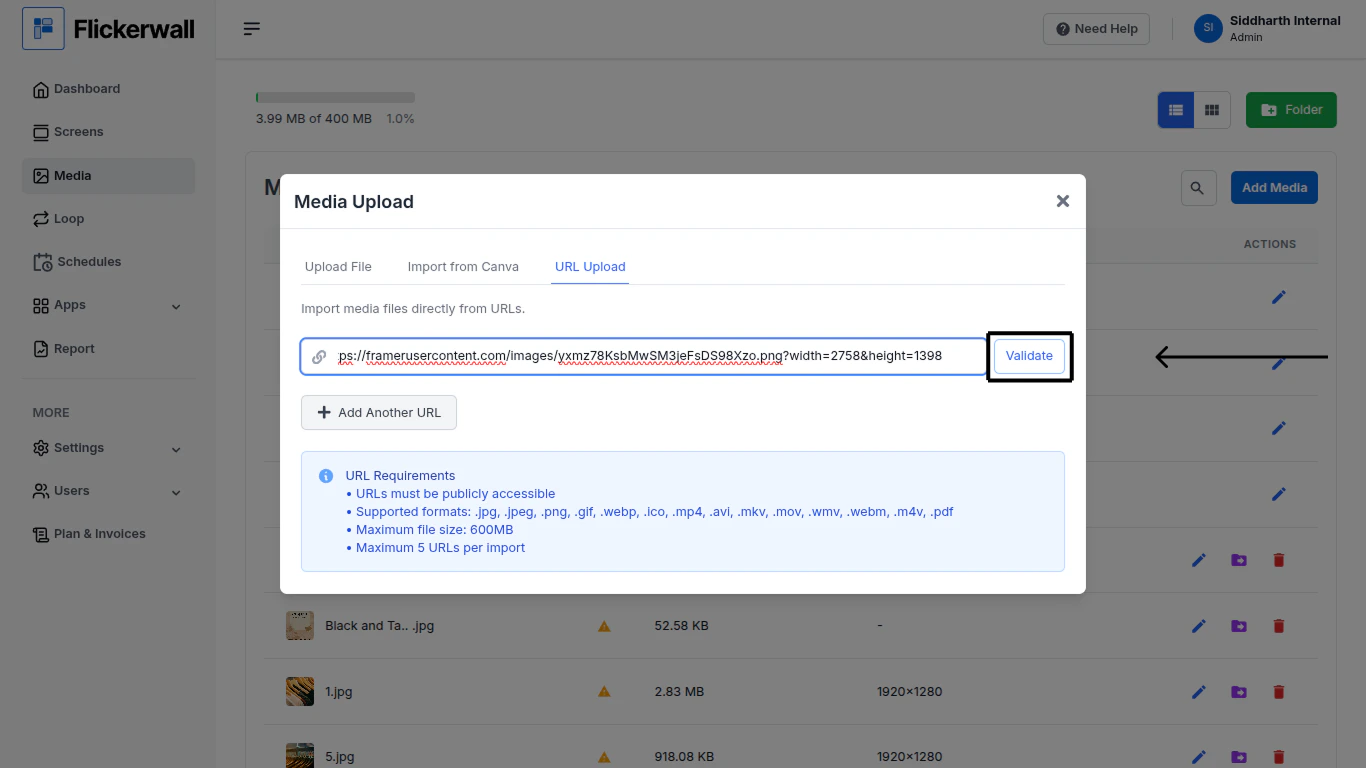
Paste the Copied link and click validate so our system can check if the link is supported by the CMS
(Note: You can add more than one link at a time)
Step 2
Paste the Copied link and click validate so our system can check if the link is supported by the CMS
(Note: You can add more than one link at a time)
 Step 3
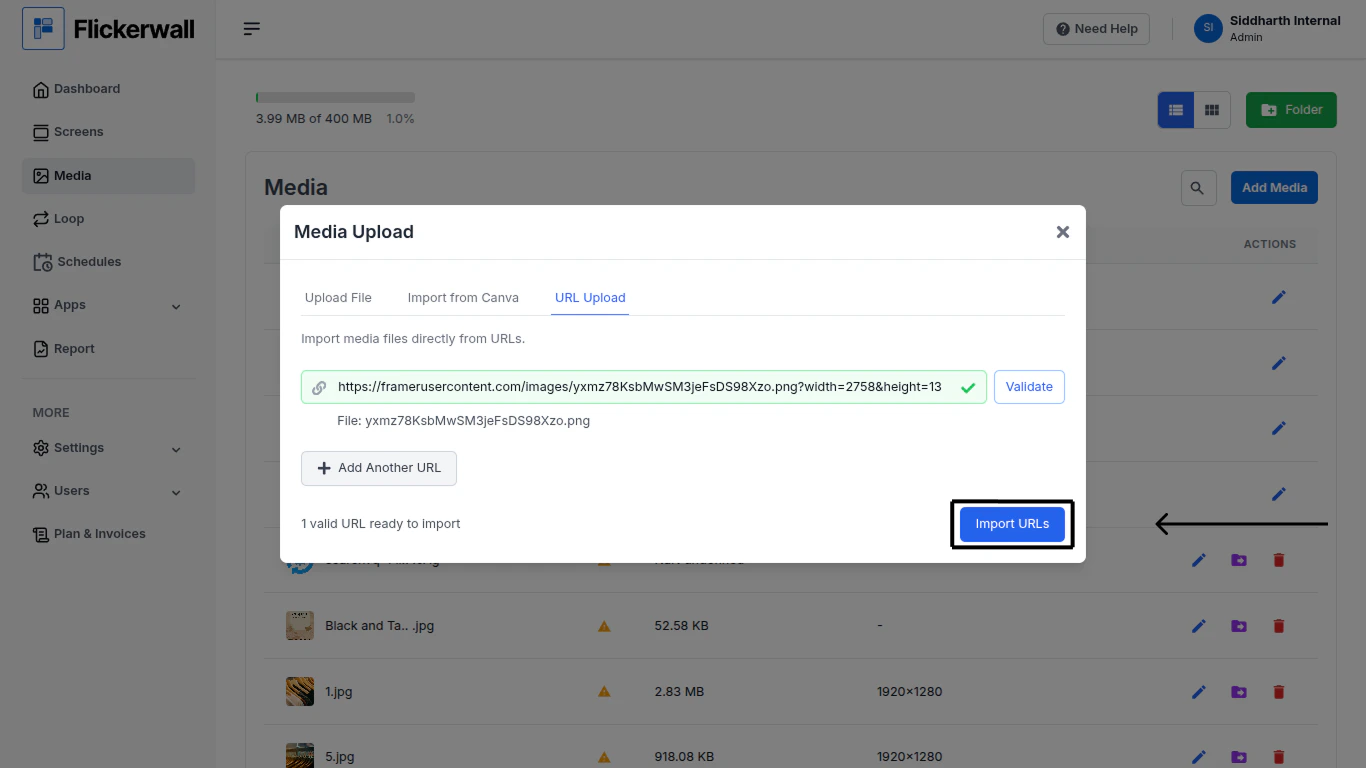
After validation , click on “Import URLs”
Step 3
After validation , click on “Import URLs”
 Step 4
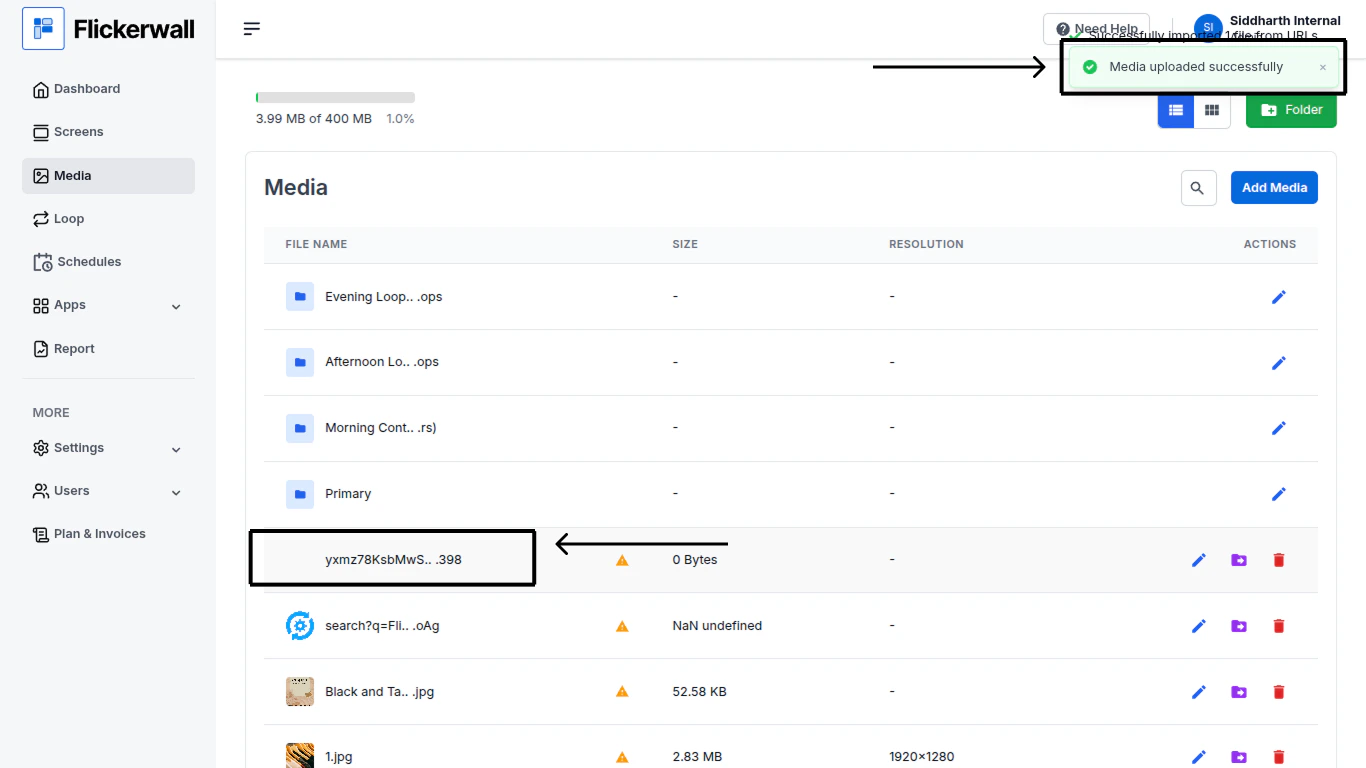
You will get a notification by the system of the successful upload
and the uploaded file will now be available in the Media module
Step 4
You will get a notification by the system of the successful upload
and the uploaded file will now be available in the Media module