> ## Documentation Index
> Fetch the complete documentation index at: https://docs.flickerwall.com/llms.txt
> Use this file to discover all available pages before exploring further.

# How to add Media directly or within the Folder?

> Learn how to add Media directly or within the Folder to save time , optimize for better efficiency.

***

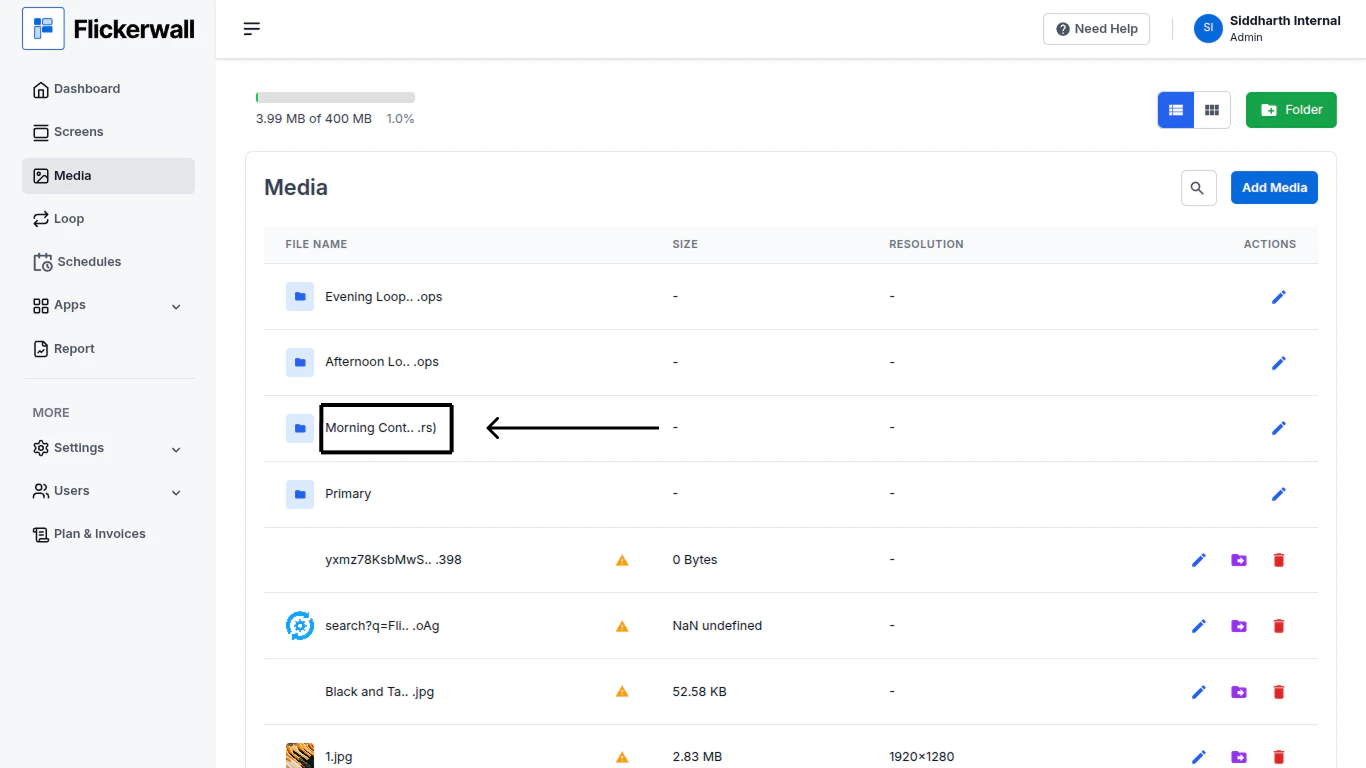
Step 1

Go to Media module and select the desired Folder and open it.
<img src="https://mintcdn.com/flickerwall-796545b9/Hdn4G0VyeEFztsZz/images/media-how-to-add-media-directly-or-within-the-folder-image-1.png?fit=max&auto=format&n=Hdn4G0VyeEFztsZz&q=85&s=6cacda56b7c02298d910c1a9d61c34eb" alt="" width="1366" height="768" data-path="images/media-how-to-add-media-directly-or-within-the-folder-image-1.png" />

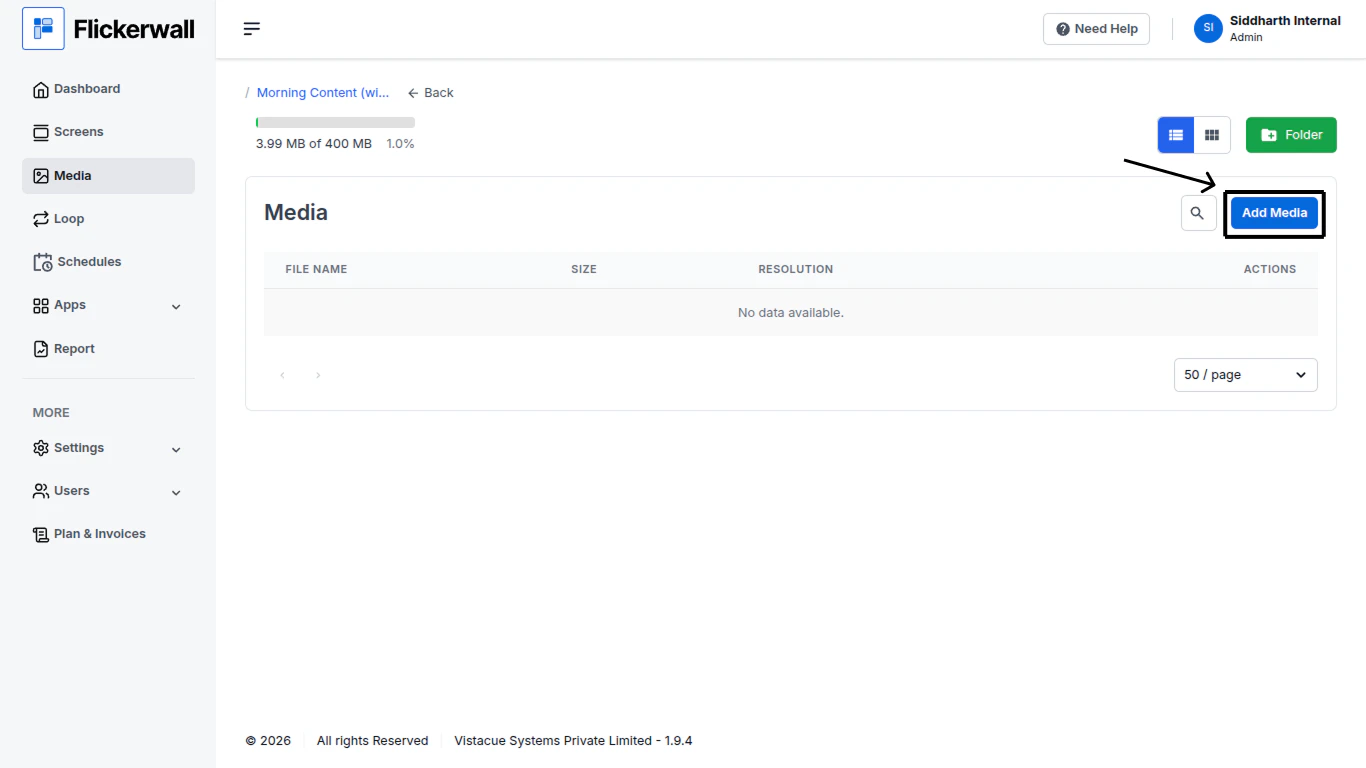
Step 2

Click ‘Add Media” to procced

<img src="https://mintcdn.com/flickerwall-796545b9/Hdn4G0VyeEFztsZz/images/media-how-to-add-media-directly-or-within-the-folder-image-2.png?fit=max&auto=format&n=Hdn4G0VyeEFztsZz&q=85&s=0c4f0f2feea5ee108a2fe67fcf25c54b" alt="" width="1366" height="768" data-path="images/media-how-to-add-media-directly-or-within-the-folder-image-2.png" />

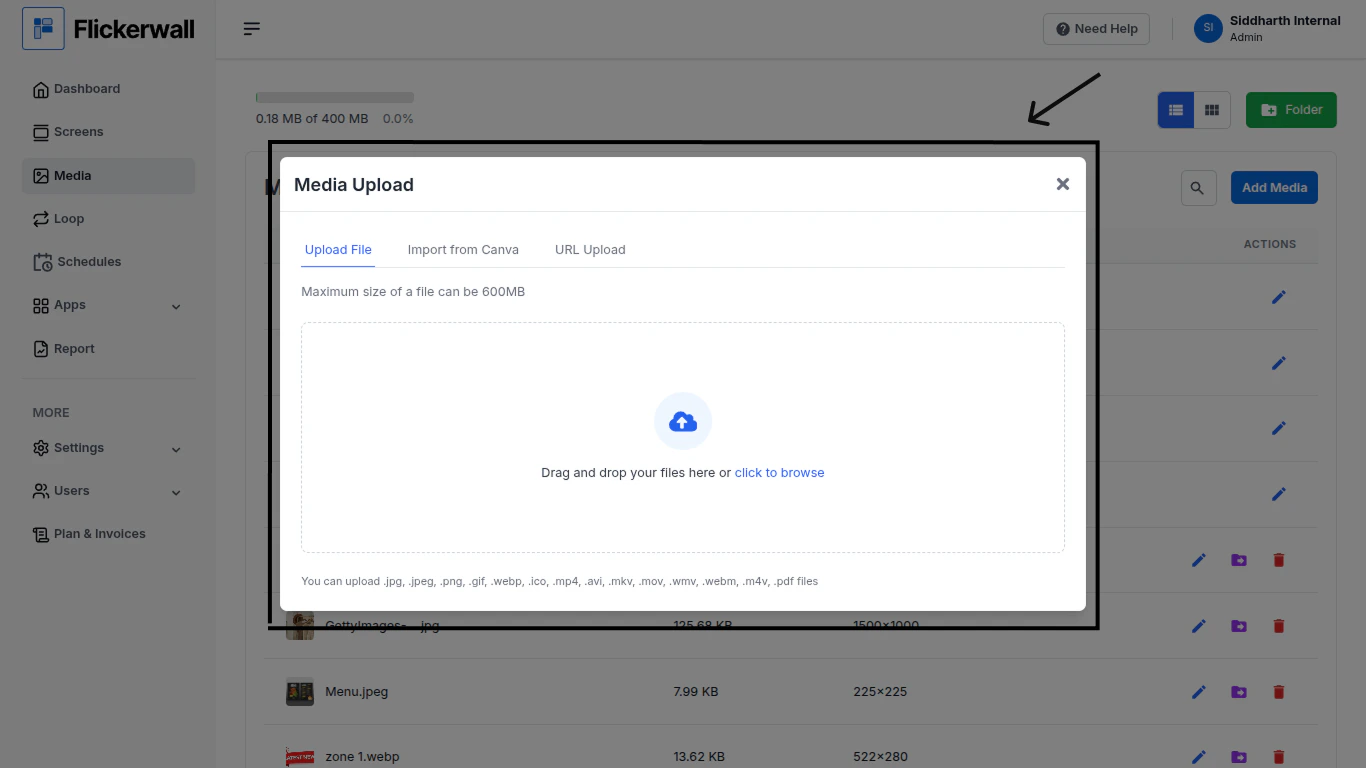
Step 3

Drag and Drop or click on the upload icon in the center to browse from the device files
<img src="https://mintcdn.com/flickerwall-796545b9/Hdn4G0VyeEFztsZz/images/media-how-to-add-media-directly-or-within-the-folder-image-3.png?fit=max&auto=format&n=Hdn4G0VyeEFztsZz&q=85&s=599b8bdc6ff53dfaee30652b43d21e22" alt="" width="1366" height="768" data-path="images/media-how-to-add-media-directly-or-within-the-folder-image-3.png" />

How to Impost from Canva? How to do URL upload? **(Clickable questions)**

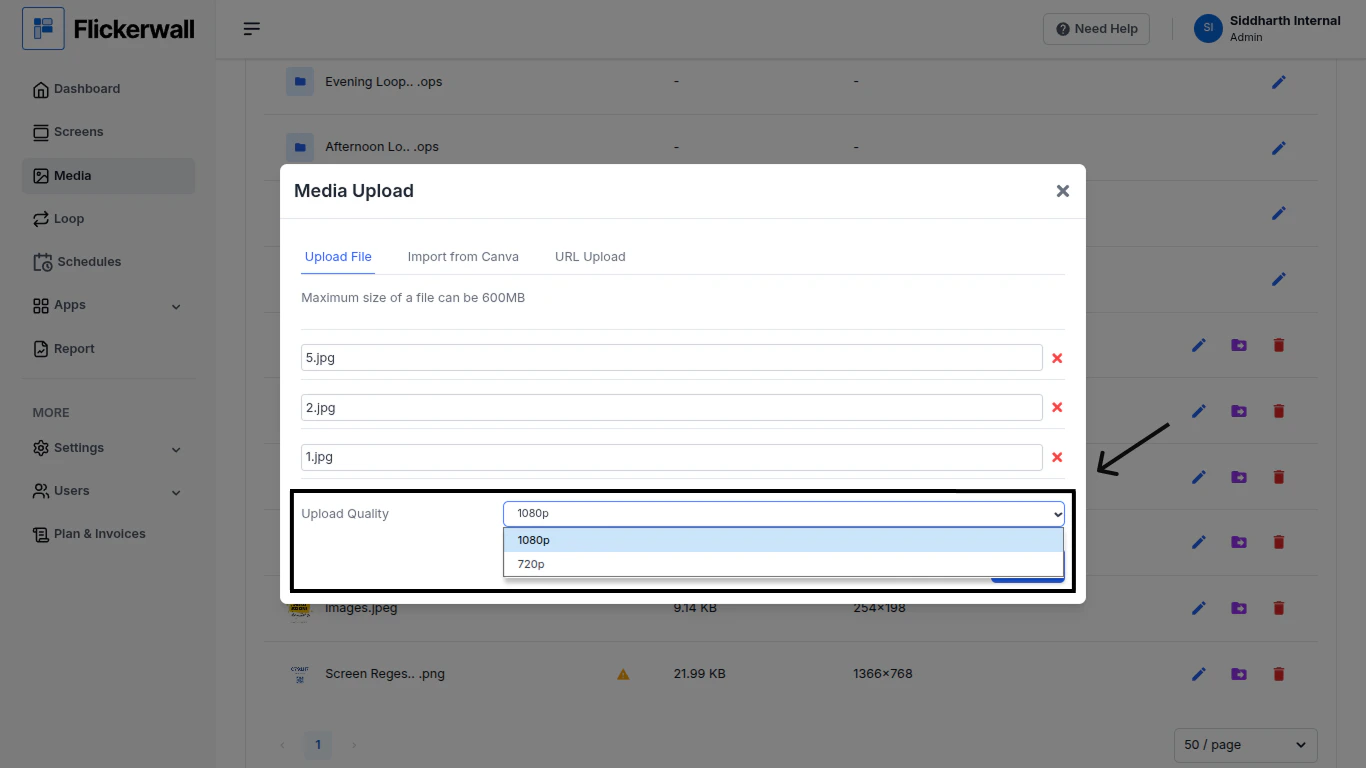
Step 4

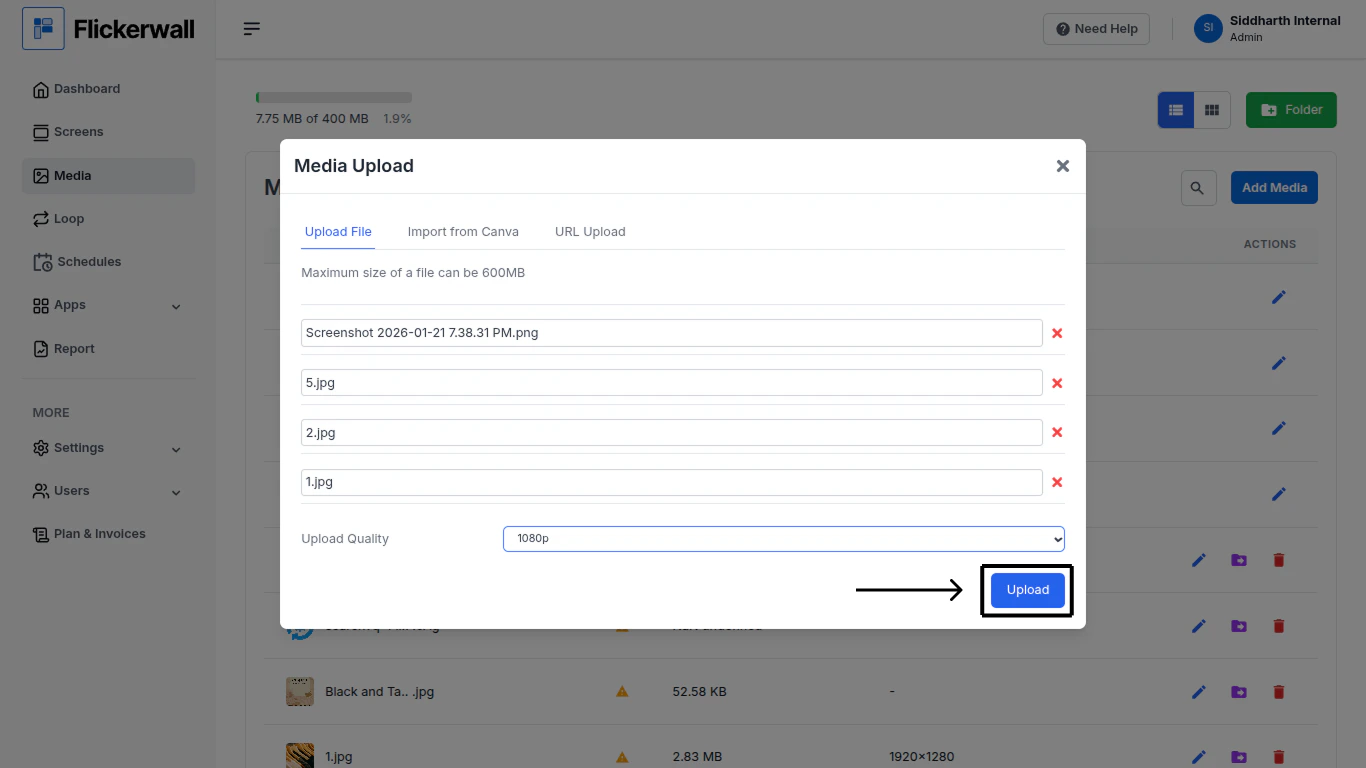
Once you have selected the desired Media , Select a Uploading Quality for better **experience**
<img src="https://mintcdn.com/flickerwall-796545b9/Hdn4G0VyeEFztsZz/images/media-how-to-add-media-directly-or-within-the-folder-image-4.png?fit=max&auto=format&n=Hdn4G0VyeEFztsZz&q=85&s=c39f4714ca8898894112dc4364ede66f" alt="" width="1366" height="768" data-path="images/media-how-to-add-media-directly-or-within-the-folder-image-4.png" />

Step 5

Once you select the Upload Quality click “Upload”
<img src="https://mintcdn.com/flickerwall-796545b9/Hdn4G0VyeEFztsZz/images/media-how-to-add-media-directly-or-within-the-folder-image-5.png?fit=max&auto=format&n=Hdn4G0VyeEFztsZz&q=85&s=a6f76515c41f1654d29ab41f947f3f4c" alt="" width="1366" height="768" data-path="images/media-how-to-add-media-directly-or-within-the-folder-image-5.png" />

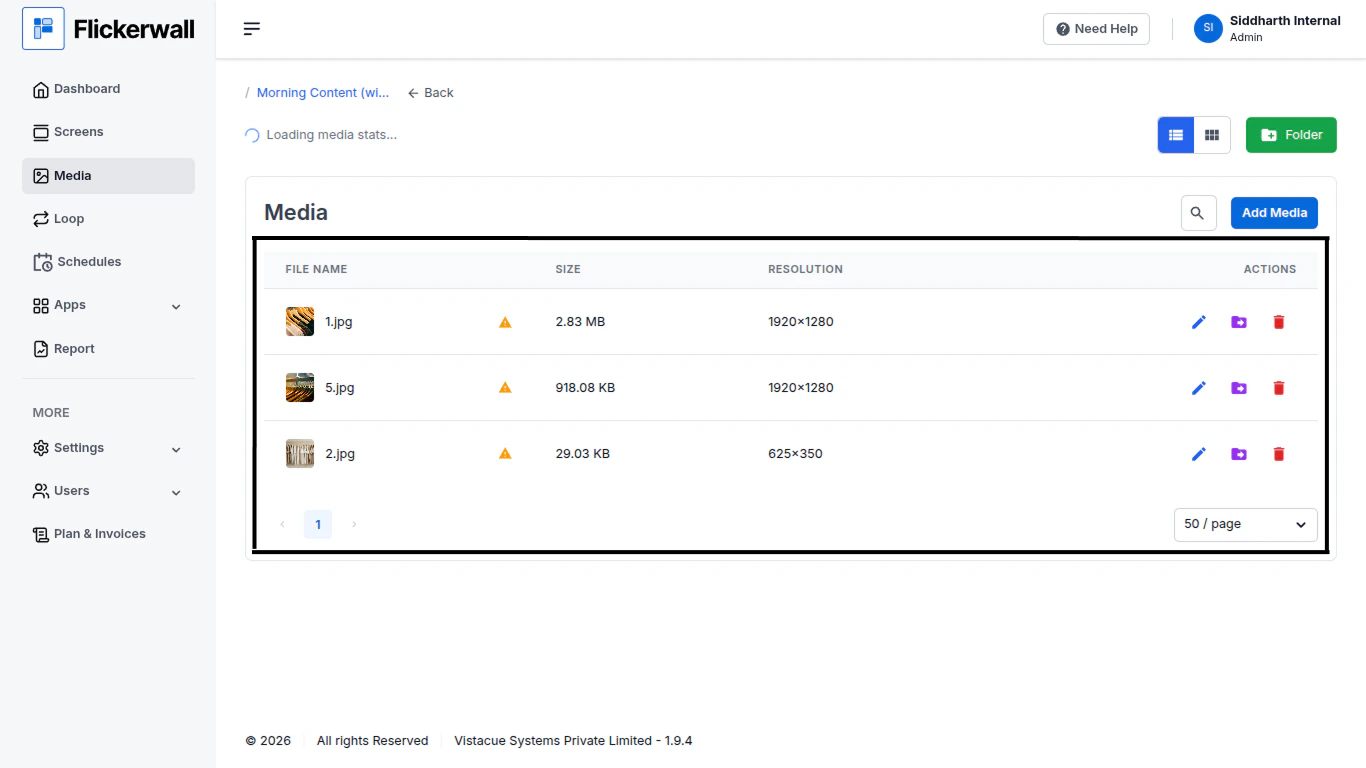
Step 6

Your Uploaded file will now be available in the Folder
<img src="https://mintcdn.com/flickerwall-796545b9/Hdn4G0VyeEFztsZz/images/media-how-to-add-media-directly-or-within-the-folder-image-6.png?fit=max&auto=format&n=Hdn4G0VyeEFztsZz&q=85&s=6c68b9e2723e4674c65588c5a4be56fd" alt="" width="1366" height="768" data-path="images/media-how-to-add-media-directly-or-within-the-folder-image-6.png" />