> ## Documentation Index
> Fetch the complete documentation index at: https://docs.flickerwall.com/llms.txt
> Use this file to discover all available pages before exploring further.
# What is Loop? How to Create a Loop?
> Let’s learn what a loop is and how you can create and use one to present your content the way you intend to on your digital signage
***
What Is a Loop?
“Loop” is a way your desired content is displayed on your digital signage screens , It includes the Layout, Zones and Proportions of your content within the Screen
***
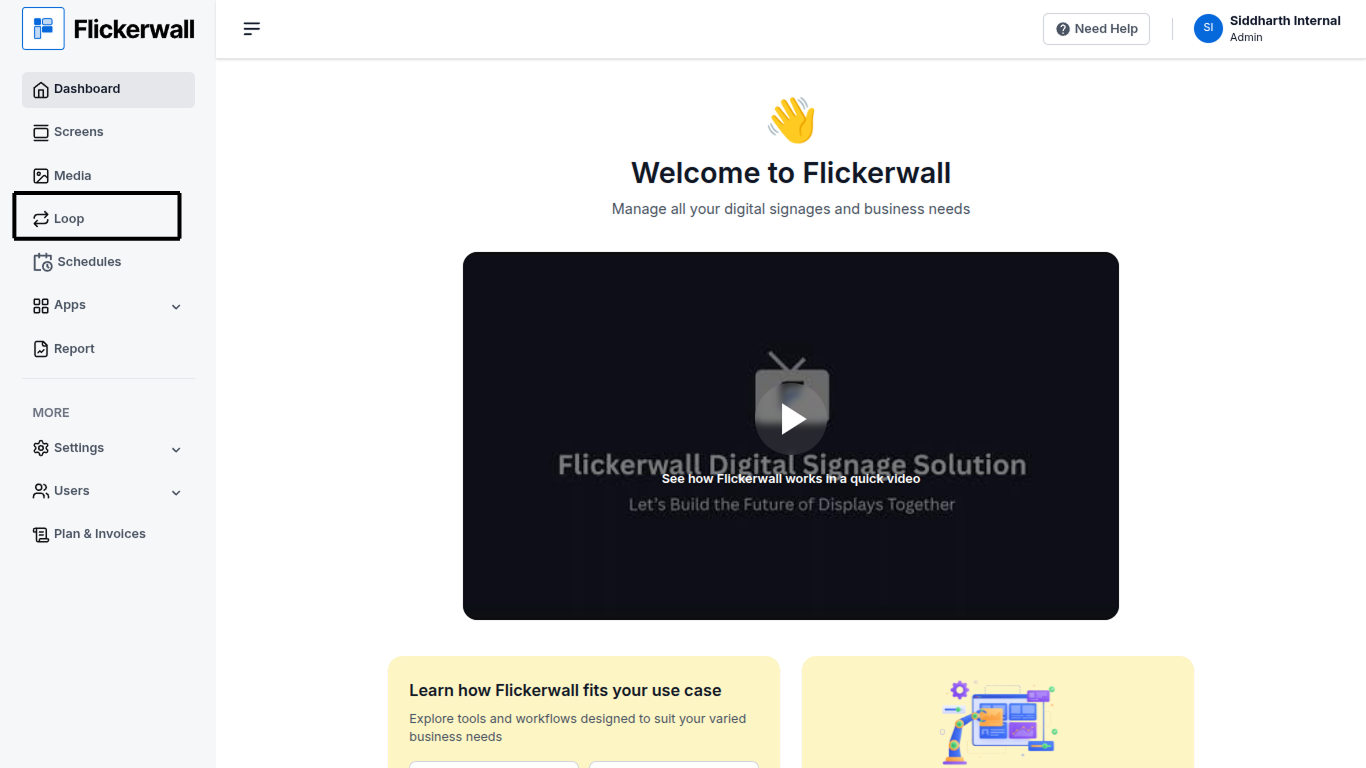
**Step 1**
**Login to Flickerwall dashboard**
Go to ( dashboard URL) and log in to your registered account to access the Flickerwall dashboard
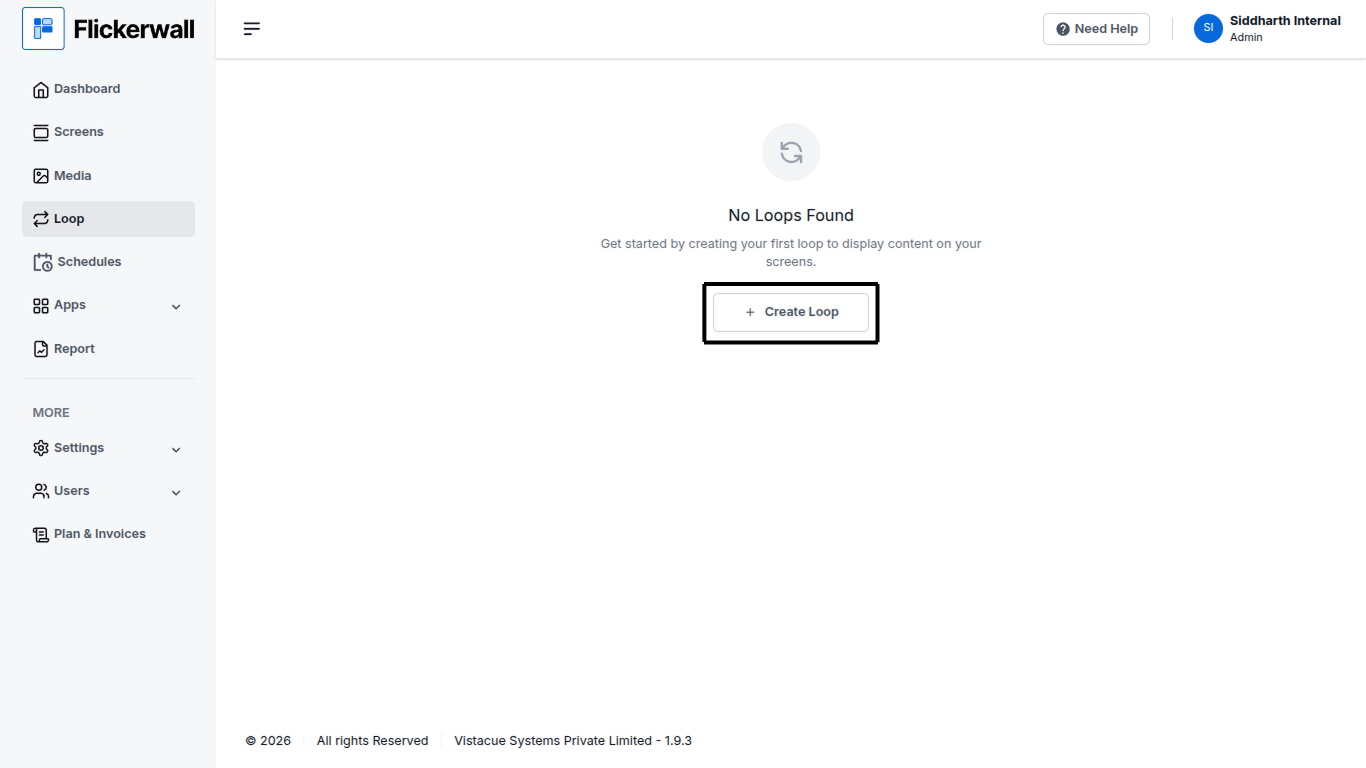
 **Step** **2**
**Click Loop and Create Loop**
Select the desired Layout for your Loop or Click on **Create Custom Layout** if your plan doesn’t go with our default Layout options
**Step** **2**
**Click Loop and Create Loop**
Select the desired Layout for your Loop or Click on **Create Custom Layout** if your plan doesn’t go with our default Layout options
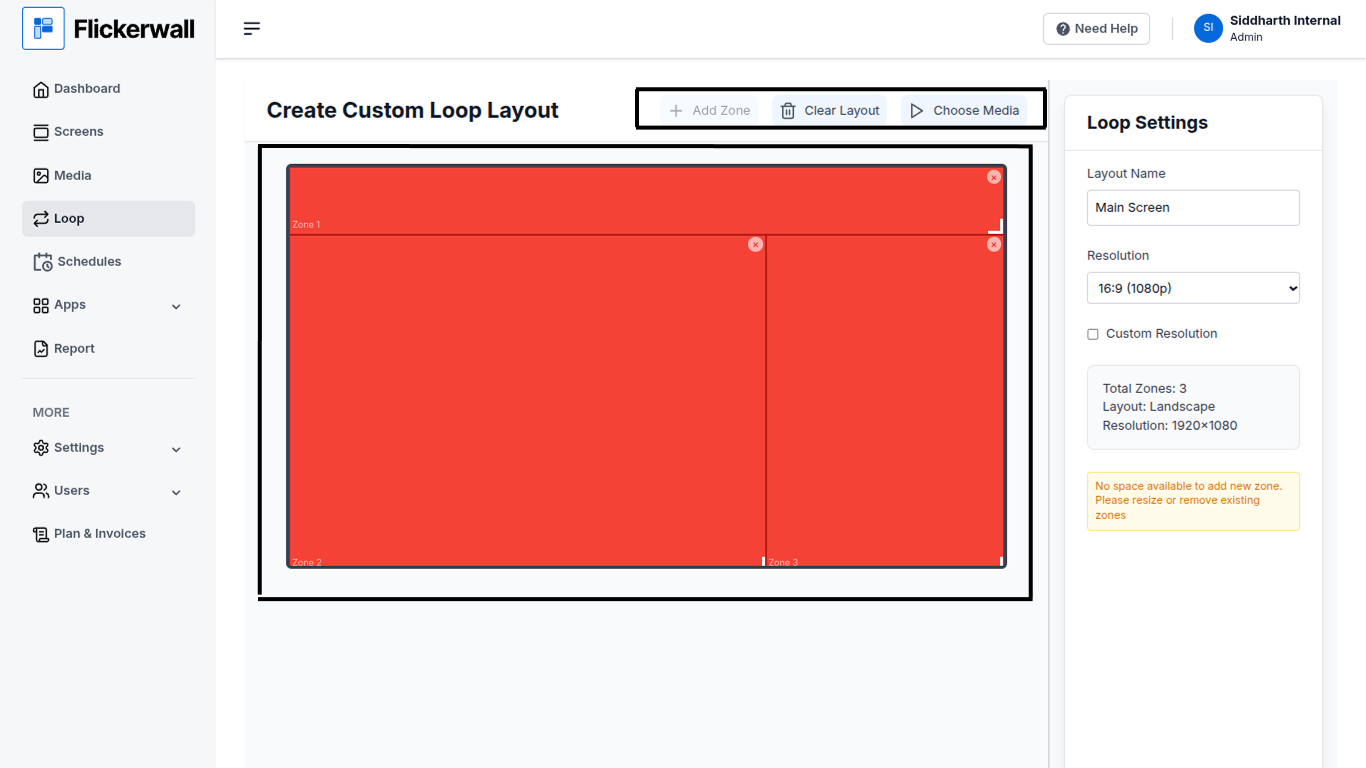
 **Step** **3**
**Drag and Resize the zones , add new zones , Create your desired Layout**
**If you did’t like the layout you can always fix it , you can remove the unwanted zones by clicking on the X button within the created zone or delete the entire layout to start from start by clicking on '“Clear Layout”**
**Step** **3**
**Drag and Resize the zones , add new zones , Create your desired Layout**
**If you did’t like the layout you can always fix it , you can remove the unwanted zones by clicking on the X button within the created zone or delete the entire layout to start from start by clicking on '“Clear Layout”**
 **Step** **4**
**Add Media to the Layout we just created**
**Select the media you want to add in the respective zones , make sure you are not adding all the media in only one zone click on the zone you intend to add the media to and add the desired media**
**Step** **4**
**Add Media to the Layout we just created**
**Select the media you want to add in the respective zones , make sure you are not adding all the media in only one zone click on the zone you intend to add the media to and add the desired media**
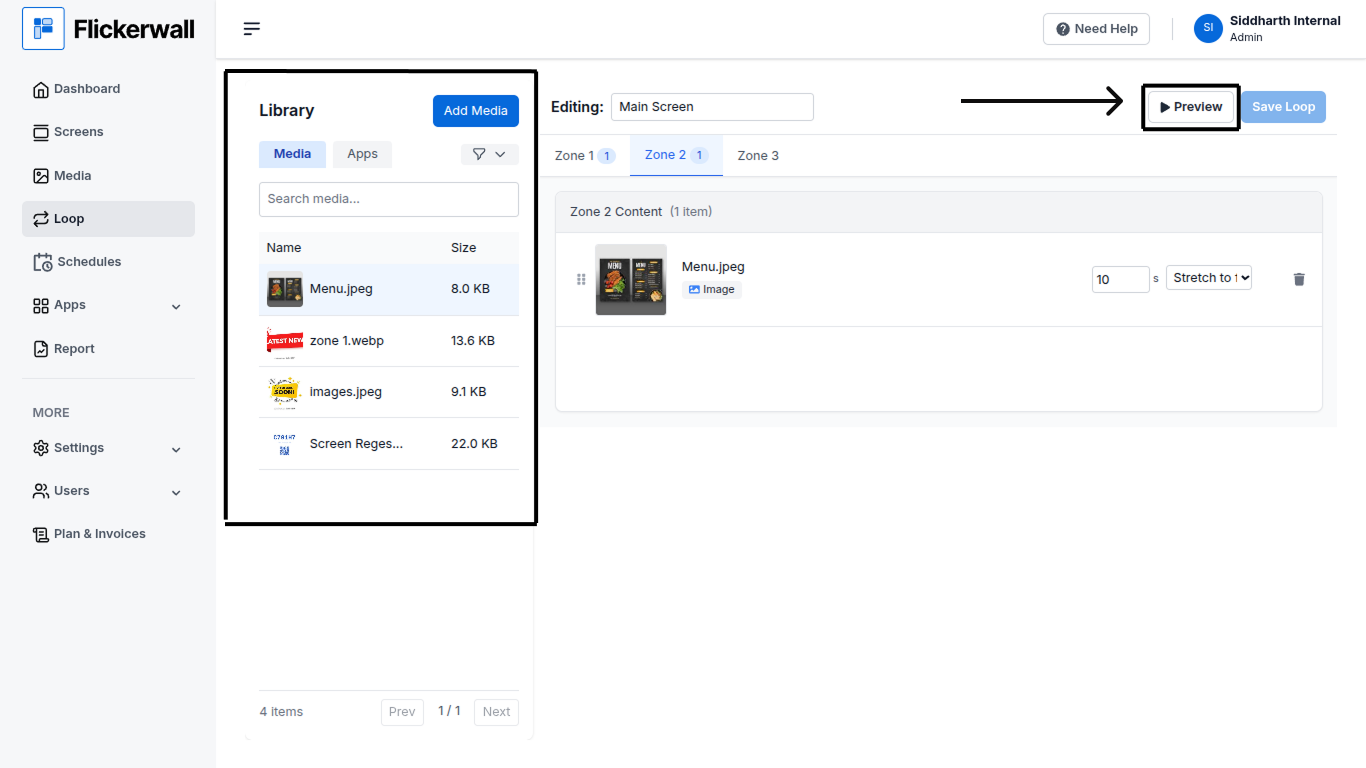 **Step 5**
Preview the Layout
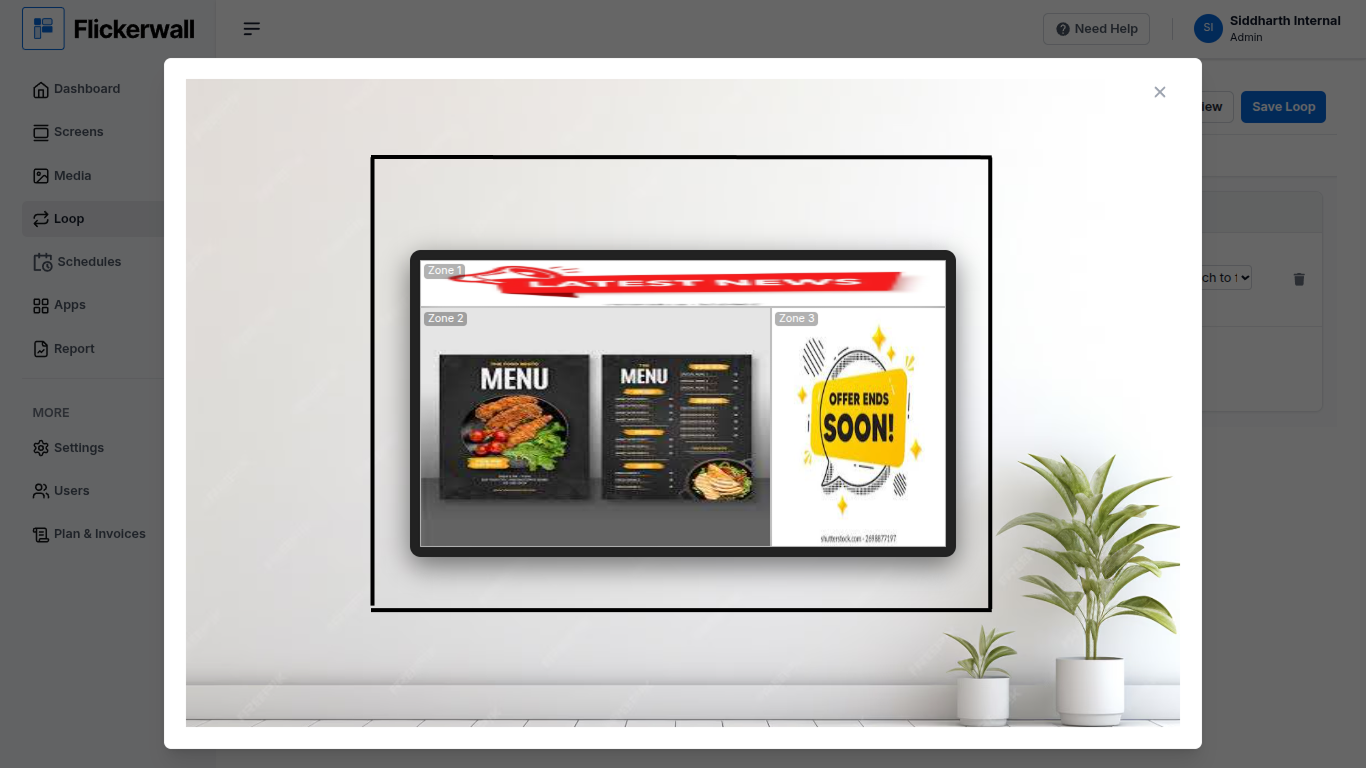
Sometimes the Images aspect ratio may not support the outcome you intend as per showed below
it’s always better to check if the preview shows the Layout working Fine
**Step 5**
Preview the Layout
Sometimes the Images aspect ratio may not support the outcome you intend as per showed below
it’s always better to check if the preview shows the Layout working Fine
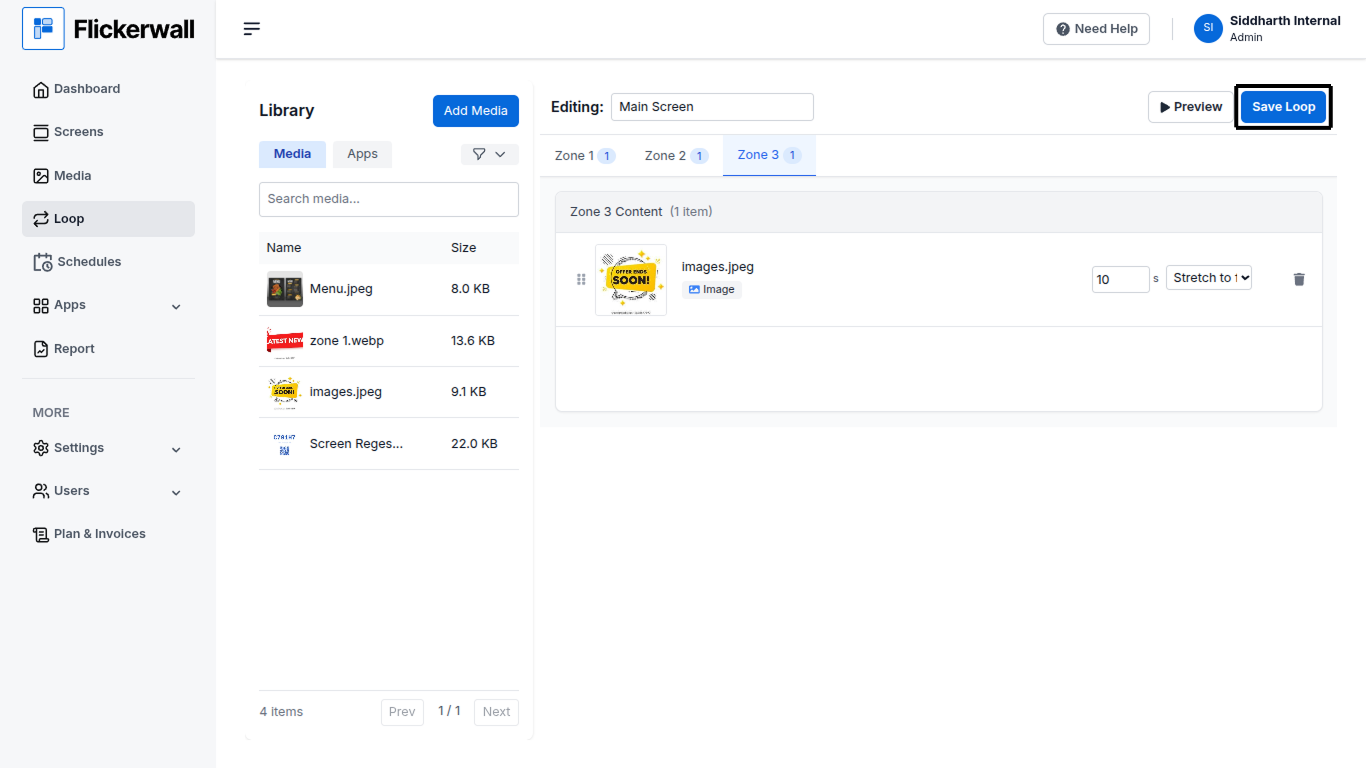
 **Step 6**
Save the Loop
once you are satisfied with the settings go ahead and save the loop by Clicking the “Save Loop” button
the Created Loop will Now appear in you Loop window .
**Step 6**
Save the Loop
once you are satisfied with the settings go ahead and save the loop by Clicking the “Save Loop” button
the Created Loop will Now appear in you Loop window .