> ## Documentation Index
> Fetch the complete documentation index at: https://docs.flickerwall.com/llms.txt
> Use this file to discover all available pages before exploring further.

# How to Schedule your existing Loops?

> Learn how to Schedule your already existing loops to your Digital Signage Screens

***

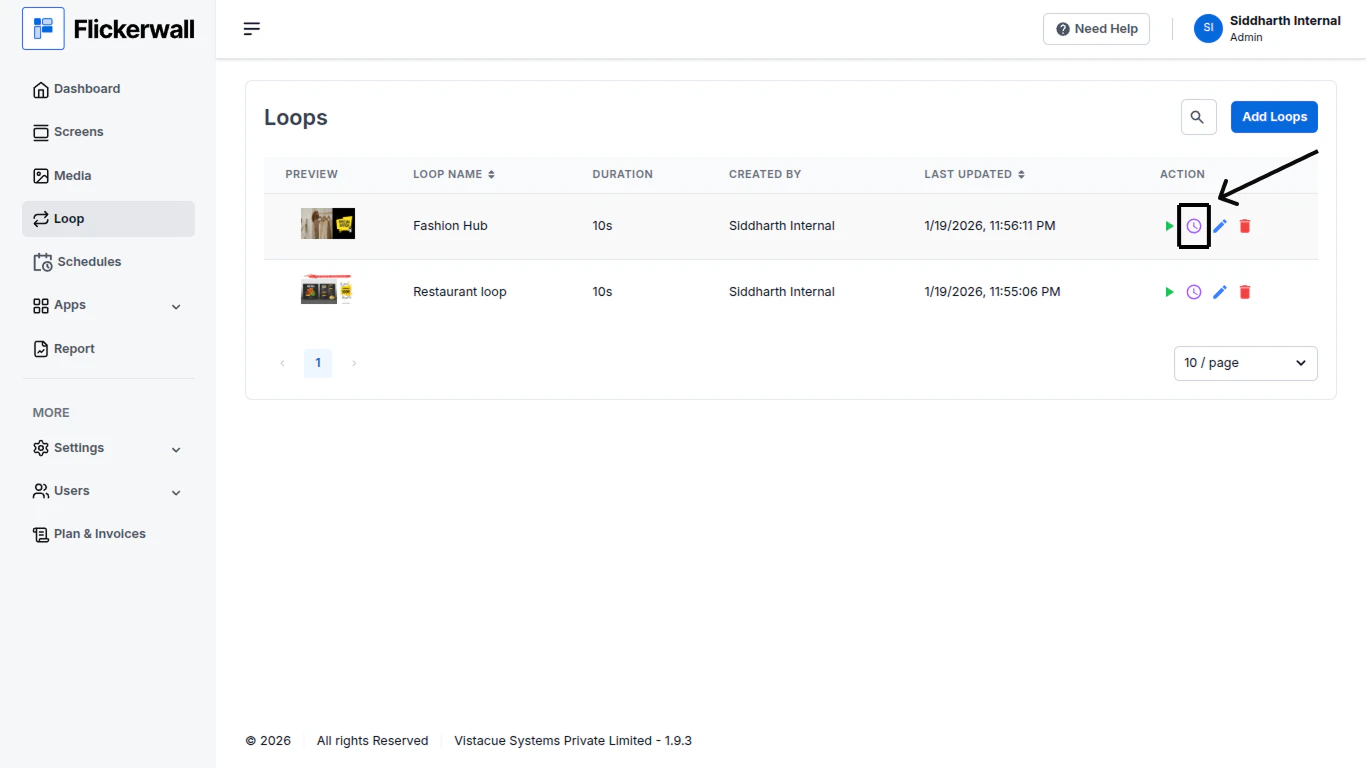
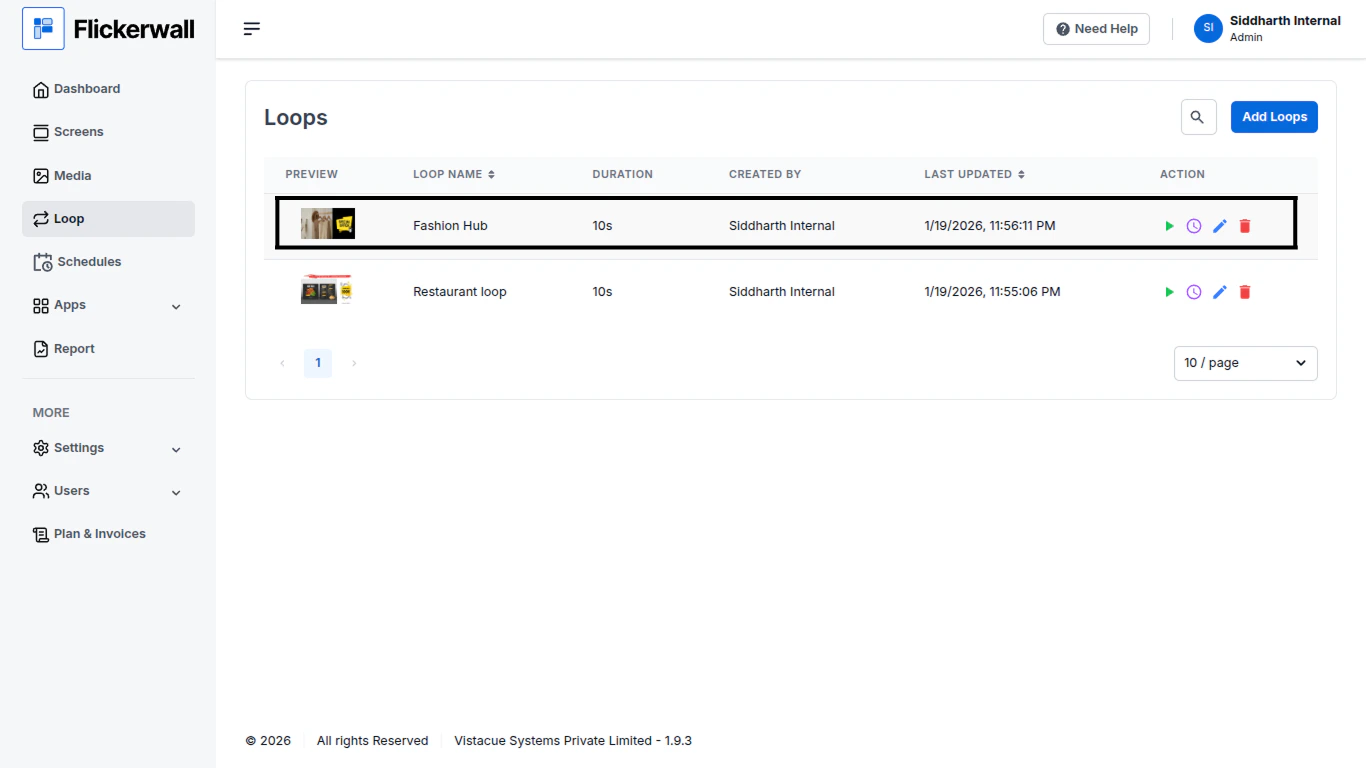
Step 1

Go to Loop module and find the loop you want to Schedule
<img src="https://mintcdn.com/flickerwall-796545b9/8we3j2vgq2WdAcCm/images/loops-how-to-schedule-your-existing-loops-image-1.png?fit=max&auto=format&n=8we3j2vgq2WdAcCm&q=85&s=f7bbaa5f36baa1c529e0c8ab5f1879ed" alt="" width="1366" height="768" data-path="images/loops-how-to-schedule-your-existing-loops-image-1.png" />

Step 2

Click on the “Clock” icon

<img src="https://mintcdn.com/flickerwall-796545b9/8we3j2vgq2WdAcCm/images/loops-how-to-schedule-your-existing-loops-image-2.png?fit=max&auto=format&n=8we3j2vgq2WdAcCm&q=85&s=35259cdc4966b33ffe76c5e709e83901" alt="" width="1366" height="768" data-path="images/loops-how-to-schedule-your-existing-loops-image-2.png" />

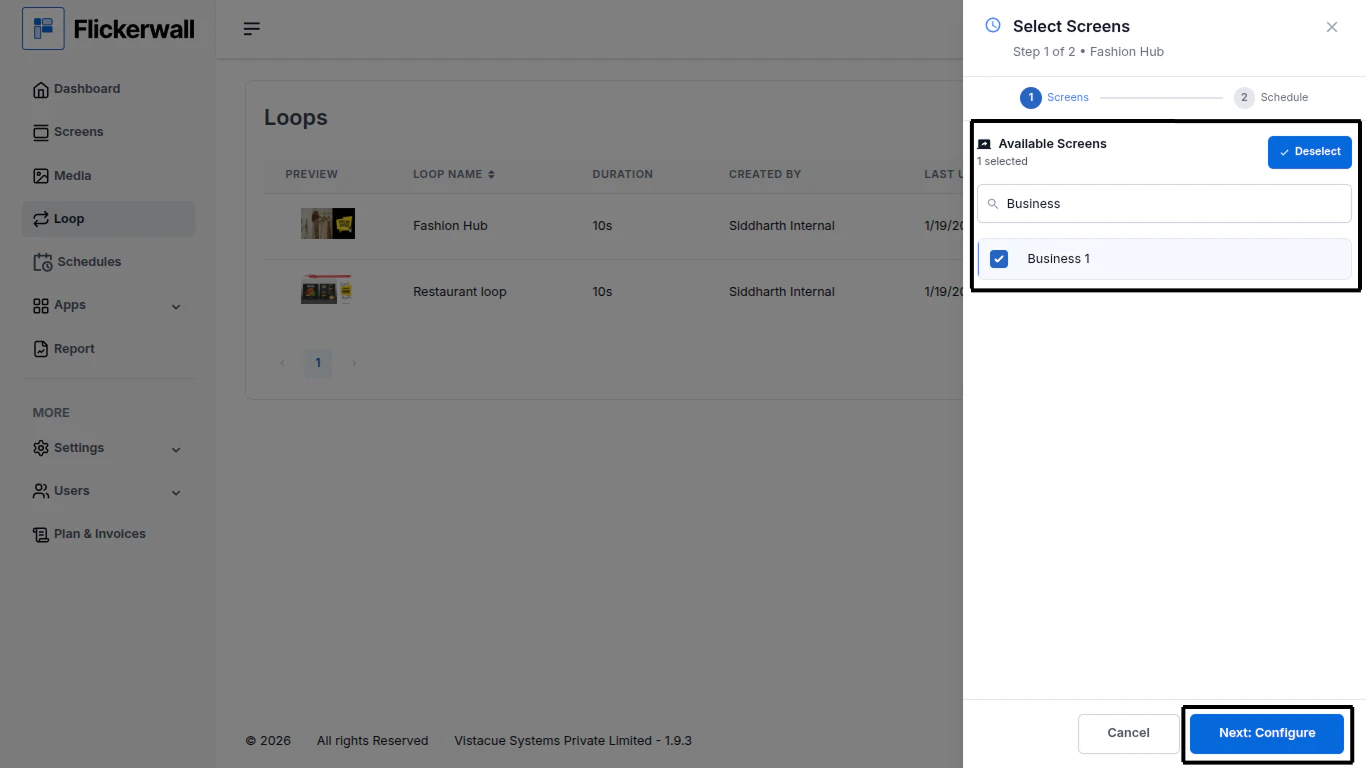
Step 3

Search for the screen you want to push the desired Schedule on to and Click “Next: Configure”
<img src="https://mintcdn.com/flickerwall-796545b9/8we3j2vgq2WdAcCm/images/loops-how-to-schedule-your-existing-loops-image-3.png?fit=max&auto=format&n=8we3j2vgq2WdAcCm&q=85&s=bc6d4ffc2509dc27be26bf3ea29f1eb8" alt="" width="1366" height="768" data-path="images/loops-how-to-schedule-your-existing-loops-image-3.png" />

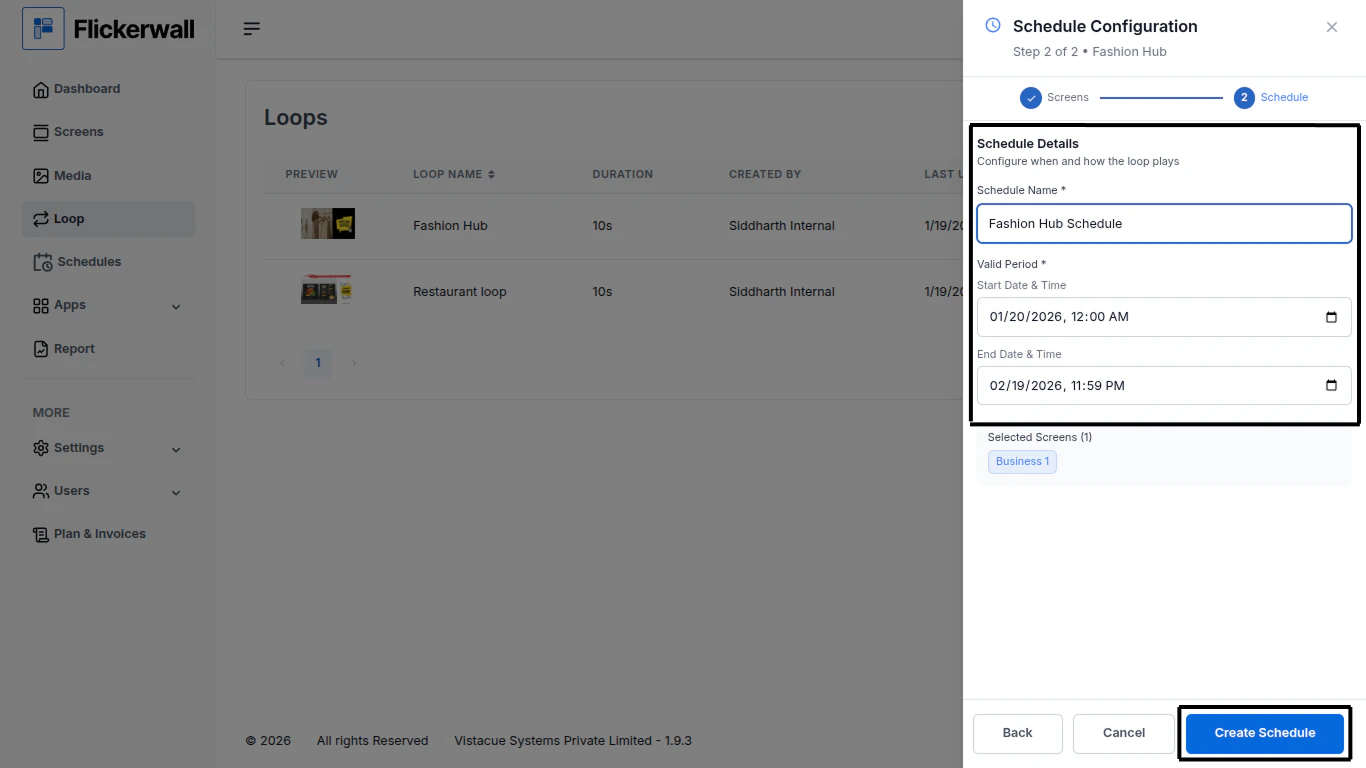
Step 4

Enter a name for the Schedule

Enter your schedule Start and End period and Click “Create Schedule”
<img src="https://mintcdn.com/flickerwall-796545b9/8we3j2vgq2WdAcCm/images/loops-how-to-schedule-your-existing-loops-image-4.png?fit=max&auto=format&n=8we3j2vgq2WdAcCm&q=85&s=af9c8143cb4c2807b1e1af4db905336f" alt="" width="1366" height="768" data-path="images/loops-how-to-schedule-your-existing-loops-image-4.png" />