> ## Documentation Index
> Fetch the complete documentation index at: https://docs.flickerwall.com/llms.txt
> Use this file to discover all available pages before exploring further.

# How to Publish loops to your Screens?

> Learn how to Publish your loops to your Digital Signage Screens.

***

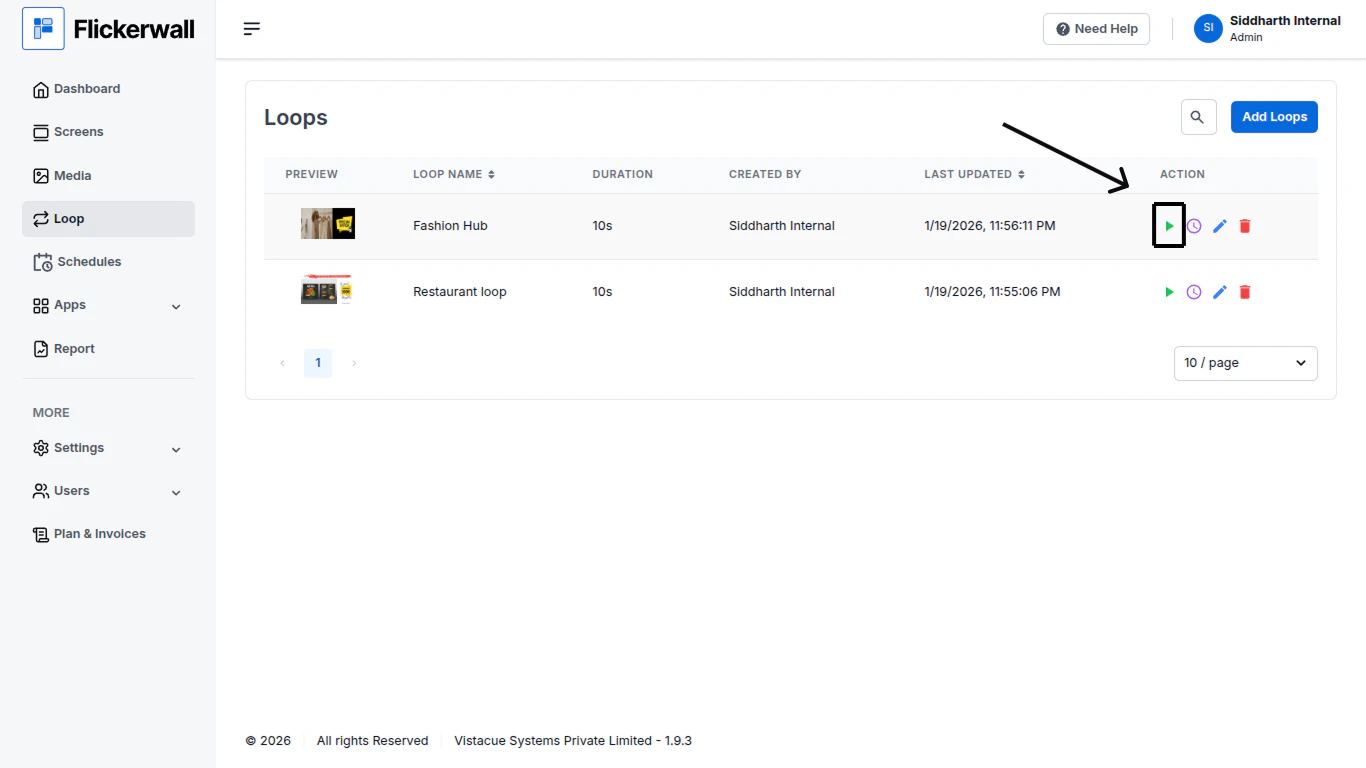
Step 1

Go to Loop module and find the loop you want to Publish
<img src="https://mintcdn.com/flickerwall-796545b9/8we3j2vgq2WdAcCm/images/loops-how-to-publish-loops-to-your-screens-image-1.png?fit=max&auto=format&n=8we3j2vgq2WdAcCm&q=85&s=71e8c955c1190c86278b6436cef2e750" alt="" width="1366" height="768" data-path="images/loops-how-to-publish-loops-to-your-screens-image-1.png" />

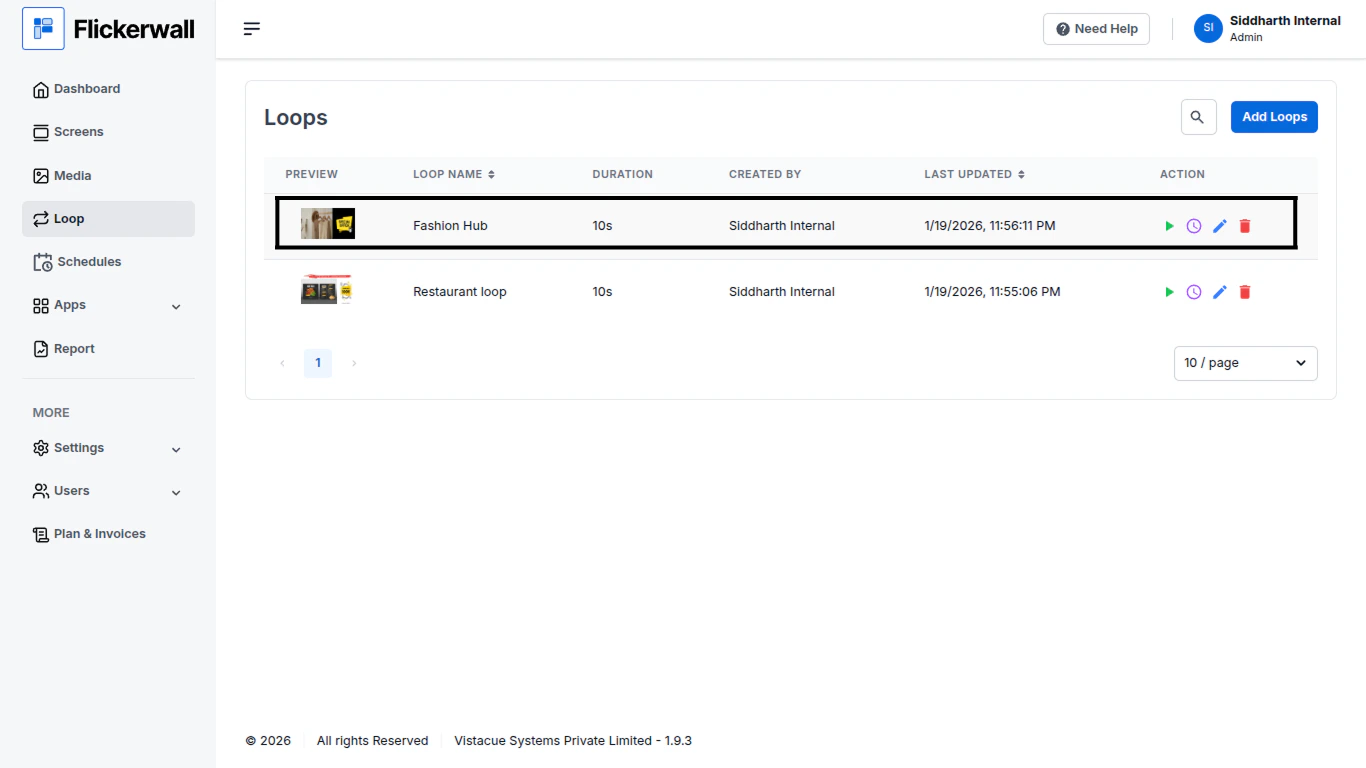
Step 2

Click on the “play” icon

<img src="https://mintcdn.com/flickerwall-796545b9/8we3j2vgq2WdAcCm/images/loops-how-to-publish-loops-to-your-screens-image-2.png?fit=max&auto=format&n=8we3j2vgq2WdAcCm&q=85&s=9c635c59b4116220054ef43e72b88715" alt="" width="1366" height="768" data-path="images/loops-how-to-publish-loops-to-your-screens-image-2.png" />

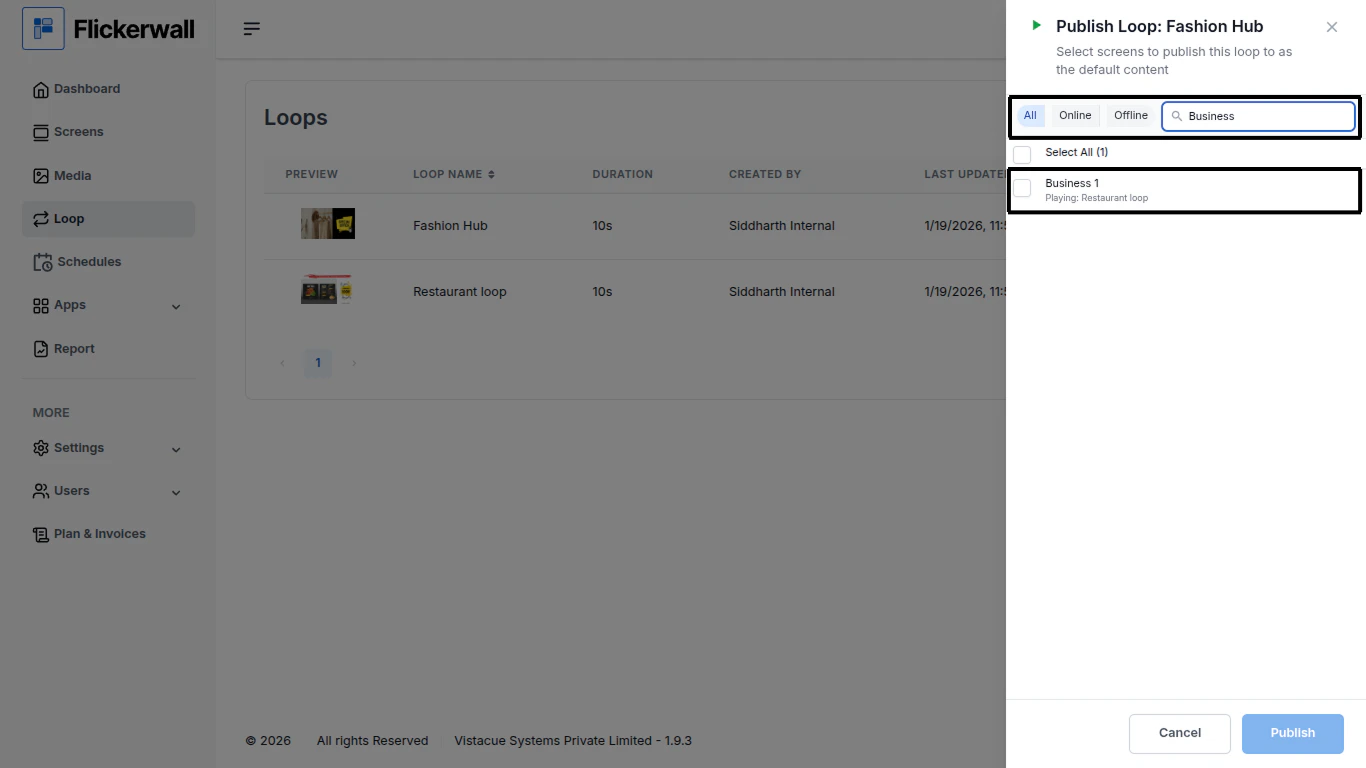
Step 3

Search your desired Screen

Check for screens Online / Offline or Search the Screen name in the Search bar
<img src="https://mintcdn.com/flickerwall-796545b9/8we3j2vgq2WdAcCm/images/loops-how-to-publish-loops-to-your-screens-image-3.png?fit=max&auto=format&n=8we3j2vgq2WdAcCm&q=85&s=3b404a383f4a391ac9d4943cd759375d" alt="" width="1366" height="768" data-path="images/loops-how-to-publish-loops-to-your-screens-image-3.png" />

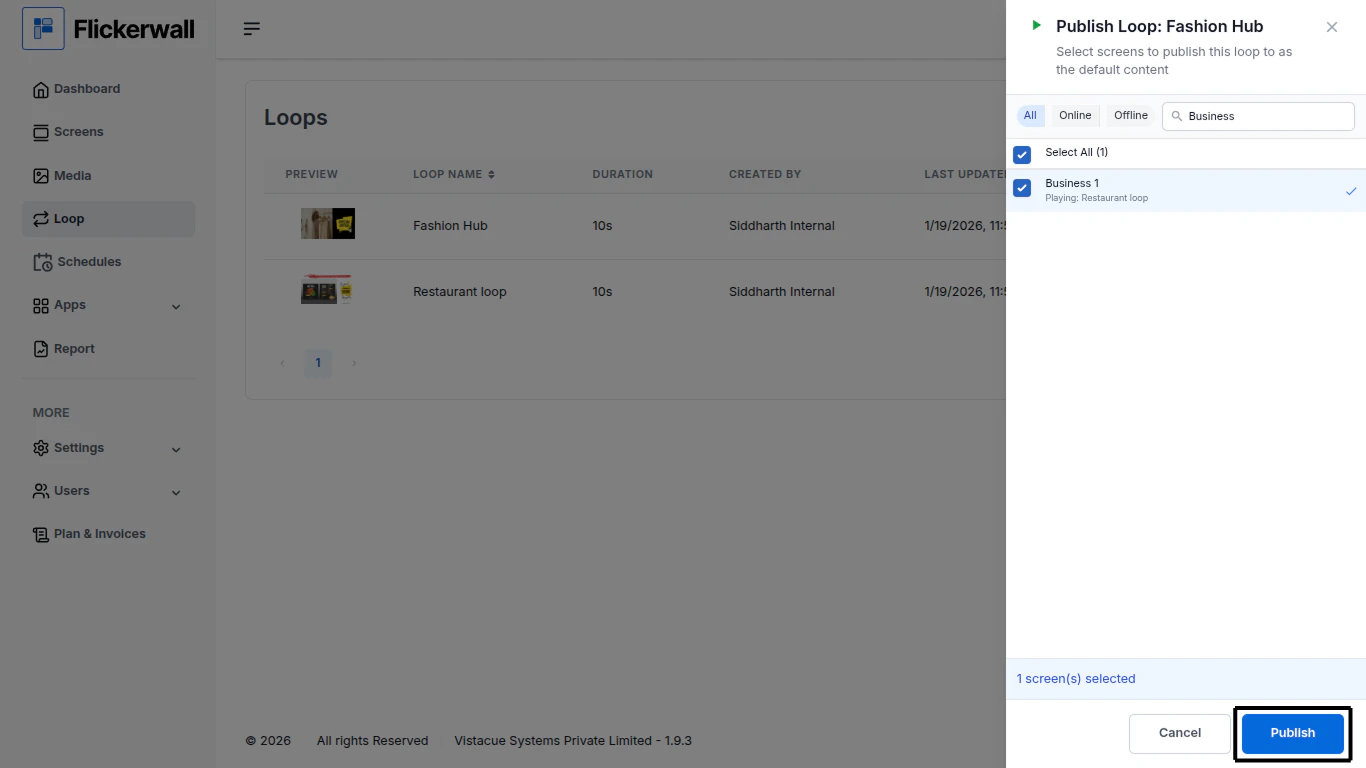
Step 4

Once you have selected the screen you can click the Publish button at the bottom right
<img src="https://mintcdn.com/flickerwall-796545b9/8we3j2vgq2WdAcCm/images/loops-how-to-publish-loops-to-your-screens-image-4.png?fit=max&auto=format&n=8we3j2vgq2WdAcCm&q=85&s=37eada9af838b174176255f668f1c0de" alt="" width="1366" height="768" data-path="images/loops-how-to-publish-loops-to-your-screens-image-4.png" />