> ## Documentation Index
> Fetch the complete documentation index at: https://docs.flickerwall.com/llms.txt
> Use this file to discover all available pages before exploring further.
# How to edit a Loop?
> Let's learn how to Edit a already existing loop in Flickerwall and update the Media , Zones Settings
***
Step 1
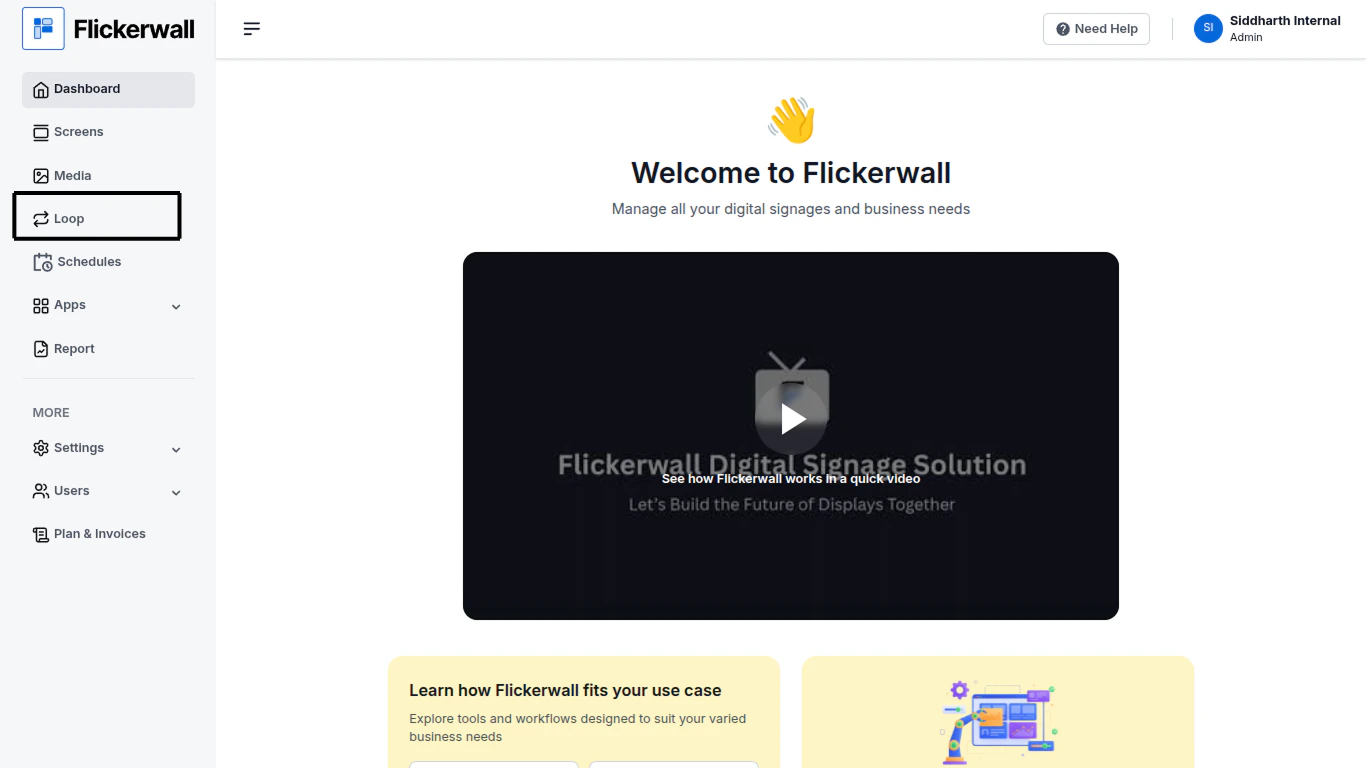
Go the “Loop” section and locate the loop you want to edit
 Step 2
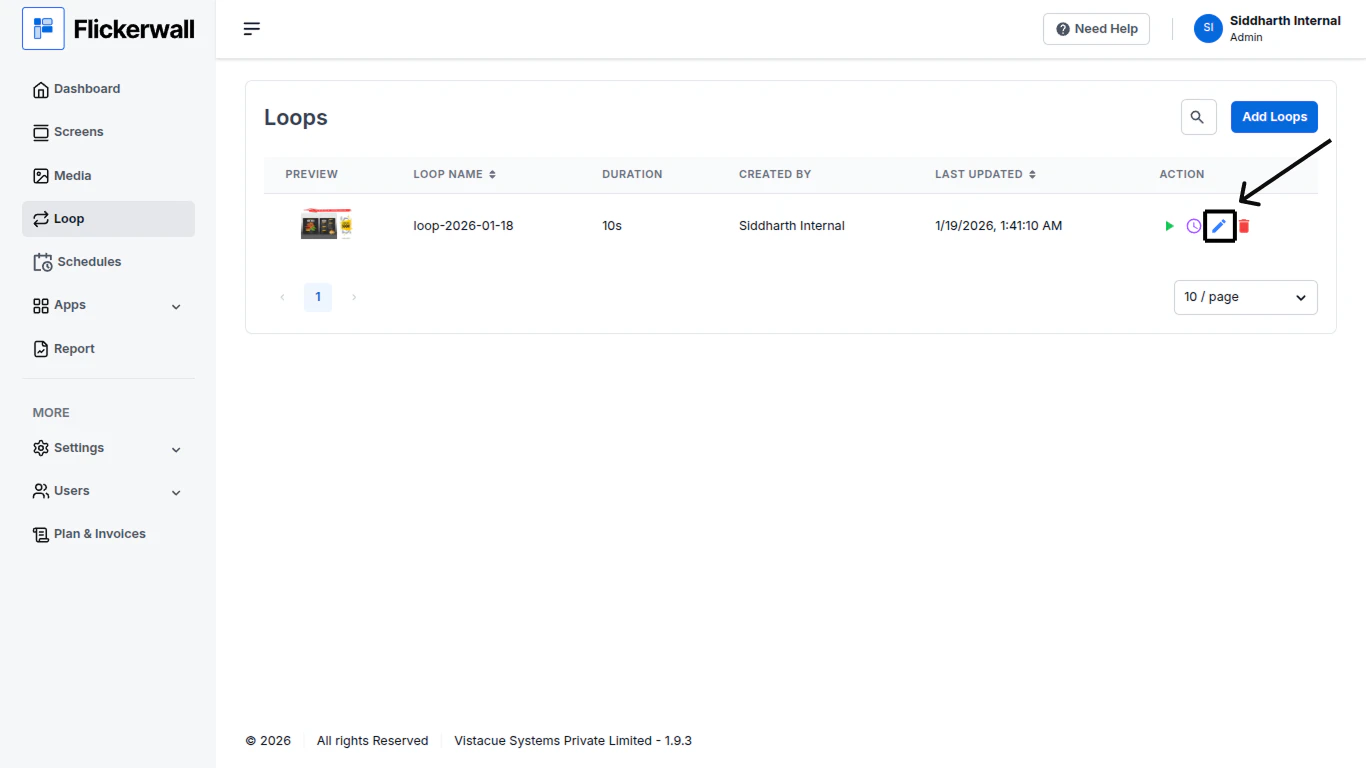
Once you have located the loop at the right end under “Action” you will see the edit button looking like a “pen”
Step 2
Once you have located the loop at the right end under “Action” you will see the edit button looking like a “pen”
 Step 3
Make the Changes
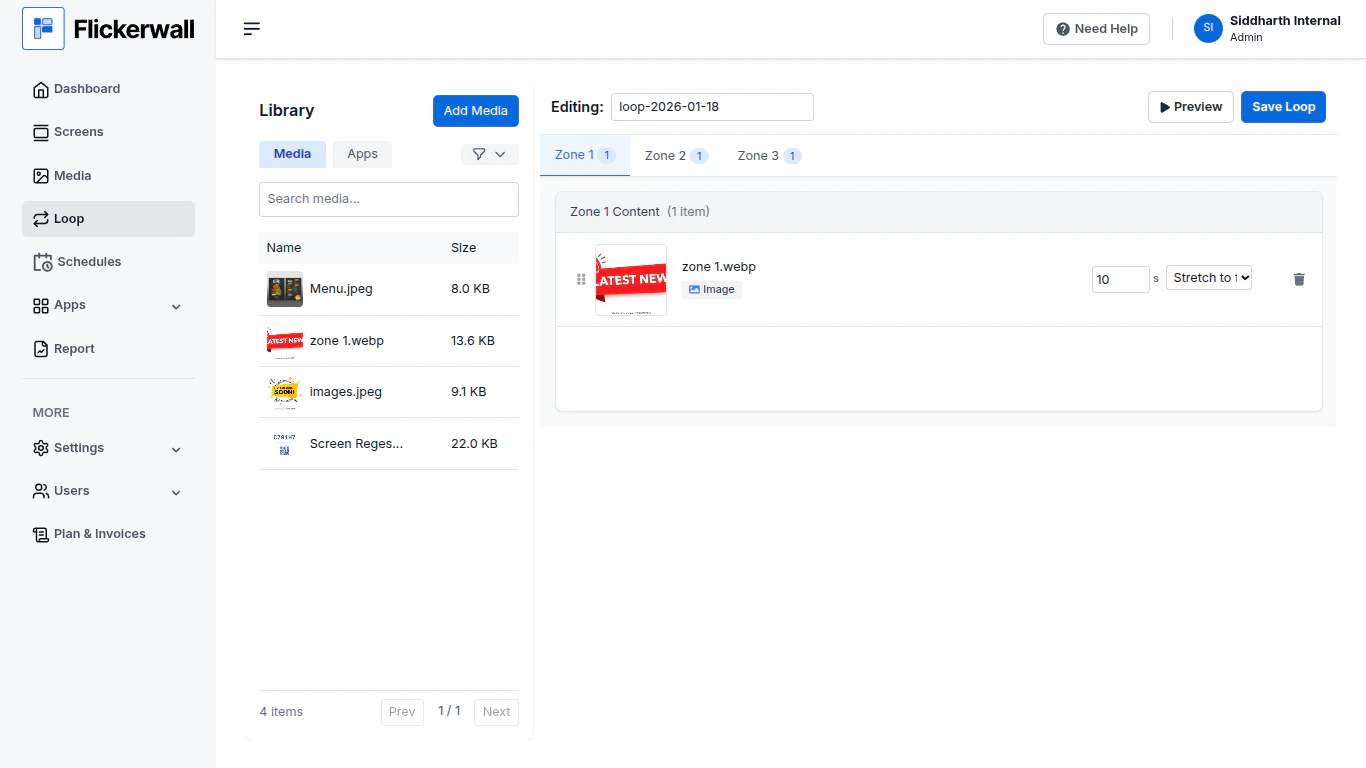
Update the Media , Zones , edit the Name of the Loop or durations of each media as per you desire.
Step 3
Make the Changes
Update the Media , Zones , edit the Name of the Loop or durations of each media as per you desire.
 Step 4
Preview and Update
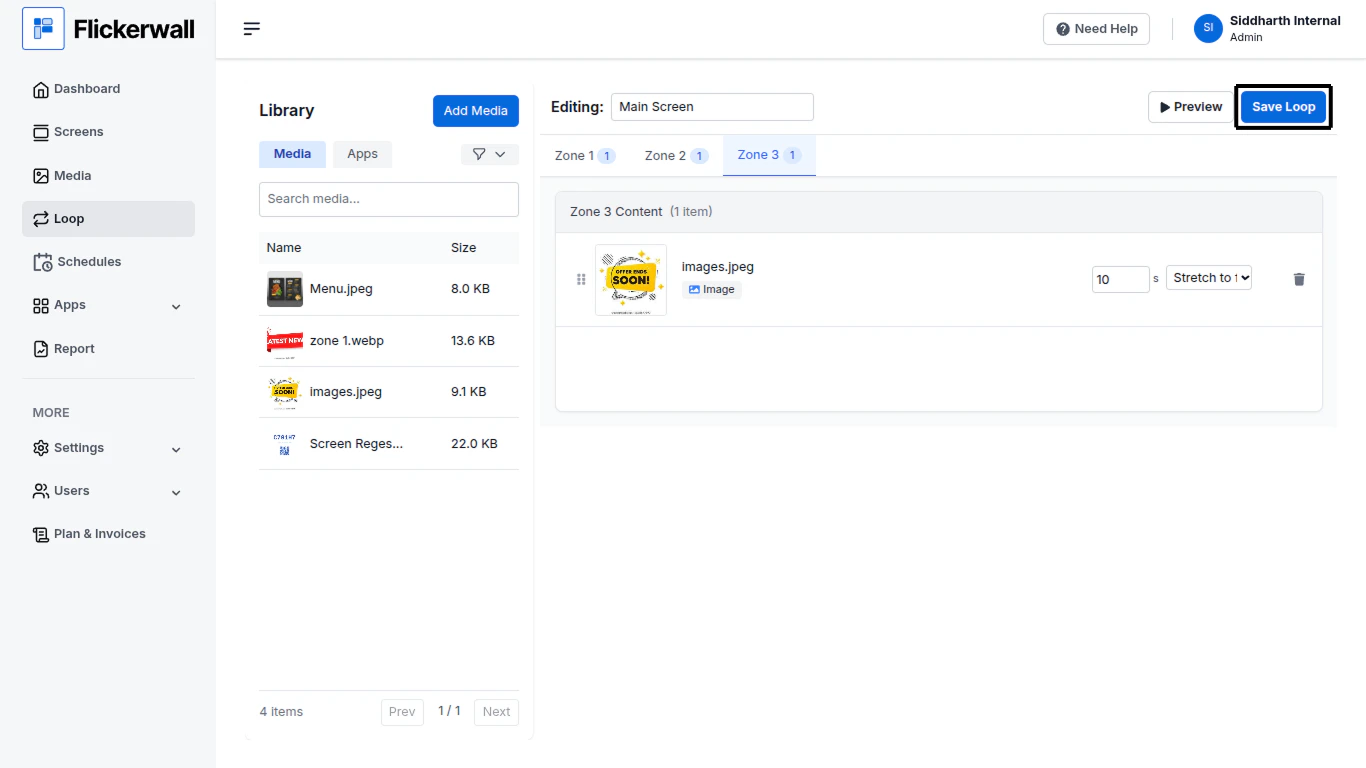
Once you are done with the Changes Preview the Updates by our Preview Feature to check if the changes looks the way you intended them to , If not then tweak the settings
If you are happy with the outcome then go ahead and click on “Save Loop”
Step 4
Preview and Update
Once you are done with the Changes Preview the Updates by our Preview Feature to check if the changes looks the way you intended them to , If not then tweak the settings
If you are happy with the outcome then go ahead and click on “Save Loop”