> ## Documentation Index
> Fetch the complete documentation index at: https://docs.flickerwall.com/llms.txt
> Use this file to discover all available pages before exploring further.
# Installing Flickerwall on LG webOS via the SI Server URL Method
> Step-by-Step Guide: Installing the Flickerwall Player on LG webOS Displays via Remote URL.
***
Step 1
**Access the Setup Menu:** Press the **Settings** or **Setup** button on your remote control and select **OK** to enter the menu.
Step 2
**Open the EZ Settings**
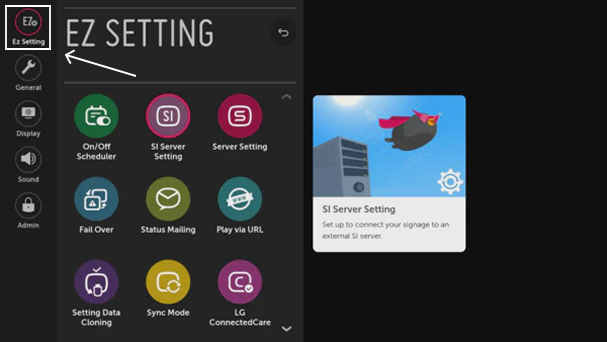 Step 3
**Open SI Server Settings:**
Navigate to and click on **SI Server Setting** to begin the configuration.
Step 3
**Open SI Server Settings:**
Navigate to and click on **SI Server Setting** to begin the configuration.
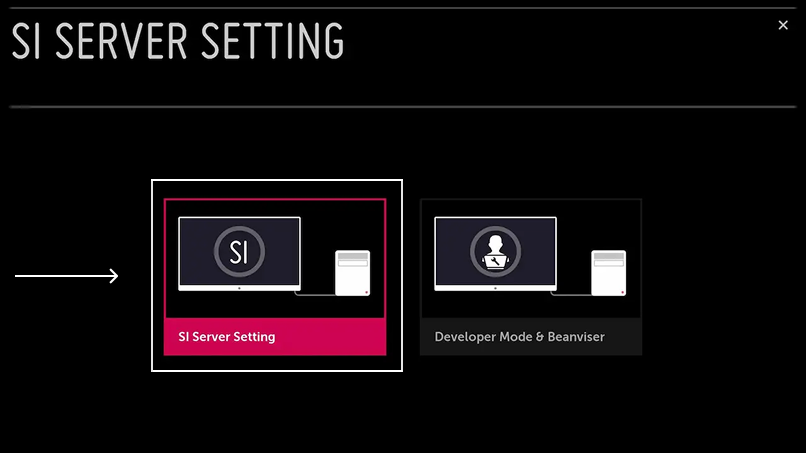 Step 4
**Enable FQDN and Provide the Application URL**
Turn on the fully qualified domain name and type the following URL using the keyboard or remote:
(flickerwall ipk link)
(image)
Step 5
**Configure SI Server**
On the settings menu, set the following fields with the values provided. The following fields are marked in the screenshot below.
1. Application Launch Mode: **Local**
2. Application Type: **IPK**
3. Local Application Upgrade: **Remote**
(image)
Step 6
**Confirm Remote Upgrade**
After clicking on **REMOTE,** you will get an Application Upgrade confirmation pop-up > Click on **CONFIRM.**
**(image)**
Step 7
**Complete Installation**
It will show a success message after the completion of the installation. Click on ‘**OK** ’ and reboot the device.
(image)
Step 8
**Verify the Flickerwall Player**
the Flickerwall WebOS player would now be appearing on your display’s home screen
**(image)**
**Step 9**
**Launch the Flickerwall App**
Press the **Home** button to see the Pickcel app on the home screen and select the flickerwall app. Press the **OK** button on the remote to launch the app.
Step 10
**View the Registration Code**
Once the app is launched, it will take a couple of minutes to connect to the internet. After the internet is connected, it will show a six-digit unique **Screen Registration Code**, which you will use to pair this device Flickerwall
(image)
And with that you’ve Installed the Flickerwall player successfully.
Get Flickerwall Today or start a [**Free Trial Now**](https://app.flickerwall.com/sign-in)
Step 4
**Enable FQDN and Provide the Application URL**
Turn on the fully qualified domain name and type the following URL using the keyboard or remote:
(flickerwall ipk link)
(image)
Step 5
**Configure SI Server**
On the settings menu, set the following fields with the values provided. The following fields are marked in the screenshot below.
1. Application Launch Mode: **Local**
2. Application Type: **IPK**
3. Local Application Upgrade: **Remote**
(image)
Step 6
**Confirm Remote Upgrade**
After clicking on **REMOTE,** you will get an Application Upgrade confirmation pop-up > Click on **CONFIRM.**
**(image)**
Step 7
**Complete Installation**
It will show a success message after the completion of the installation. Click on ‘**OK** ’ and reboot the device.
(image)
Step 8
**Verify the Flickerwall Player**
the Flickerwall WebOS player would now be appearing on your display’s home screen
**(image)**
**Step 9**
**Launch the Flickerwall App**
Press the **Home** button to see the Pickcel app on the home screen and select the flickerwall app. Press the **OK** button on the remote to launch the app.
Step 10
**View the Registration Code**
Once the app is launched, it will take a couple of minutes to connect to the internet. After the internet is connected, it will show a six-digit unique **Screen Registration Code**, which you will use to pair this device Flickerwall
(image)
And with that you’ve Installed the Flickerwall player successfully.
Get Flickerwall Today or start a [**Free Trial Now**](https://app.flickerwall.com/sign-in)