> ## Documentation Index
> Fetch the complete documentation index at: https://docs.flickerwall.com/llms.txt
> Use this file to discover all available pages before exploring further.

# How to add the RSS Feed app from the Flickerwall store?

> Step by step guide to learn how to add the RSS Feed app from the Flickerwall store

# How to add the RSS Feed app from the Flickerwall store?

Step by step guide to learn how to add the RSS Feed app from the Flickerwall store

***

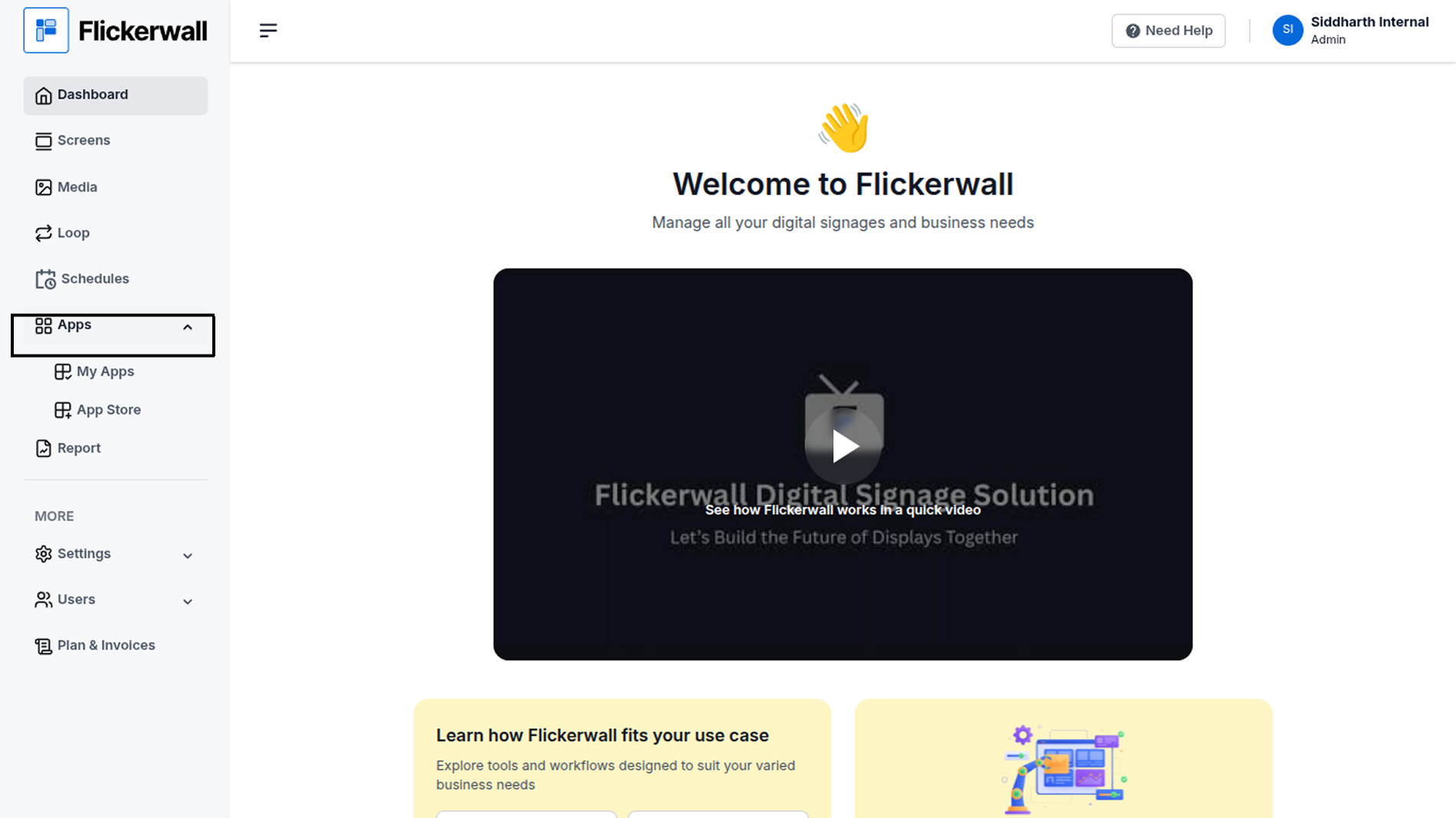
Step 1

**Go to Apps and then App store!**

click on the apps and then Nevigate to App store in the appeared drawer
<img src="https://mintcdn.com/flickerwall-796545b9/vWvJ3l0LLgrVbFxp/images/apps-how-to-add-the-rss-feed-app-from-the-flickerwall-store-image-1.png?fit=max&auto=format&n=vWvJ3l0LLgrVbFxp&q=85&s=c2d33e3931c91f168b7668b88537b941" alt="" width="1900" height="1068" data-path="images/apps-how-to-add-the-rss-feed-app-from-the-flickerwall-store-image-1.png" />

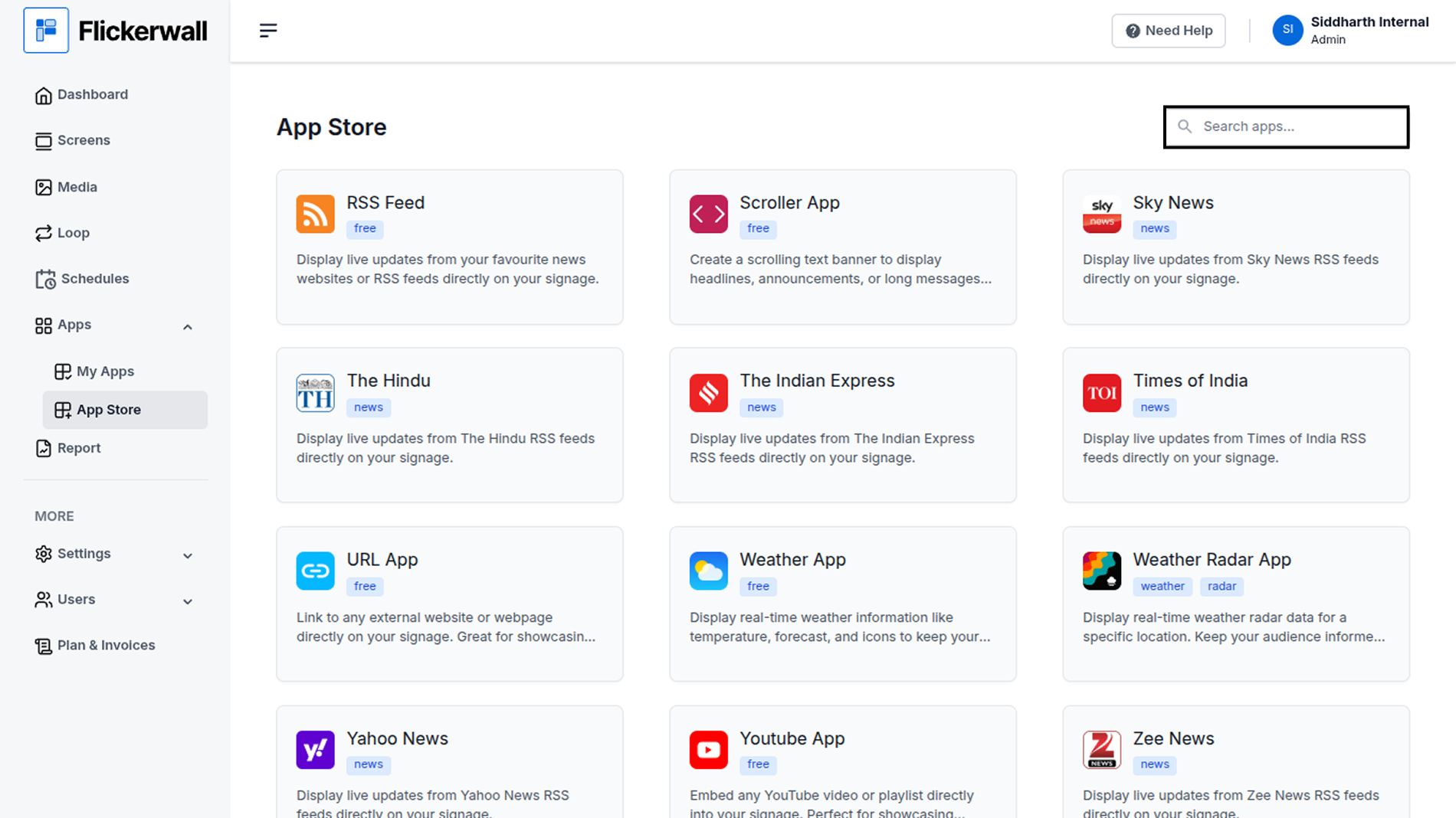
Step 2

**Go to Search Bar.**

If you can’t find the app Search in the Search the app name
<img src="https://mintcdn.com/flickerwall-796545b9/vWvJ3l0LLgrVbFxp/images/apps-how-to-add-the-rss-feed-app-from-the-flickerwall-store-image-2.png?fit=max&auto=format&n=vWvJ3l0LLgrVbFxp&q=85&s=a58d24b90581af54102a9590620386ae" alt="" width="1900" height="1068" data-path="images/apps-how-to-add-the-rss-feed-app-from-the-flickerwall-store-image-2.png" />

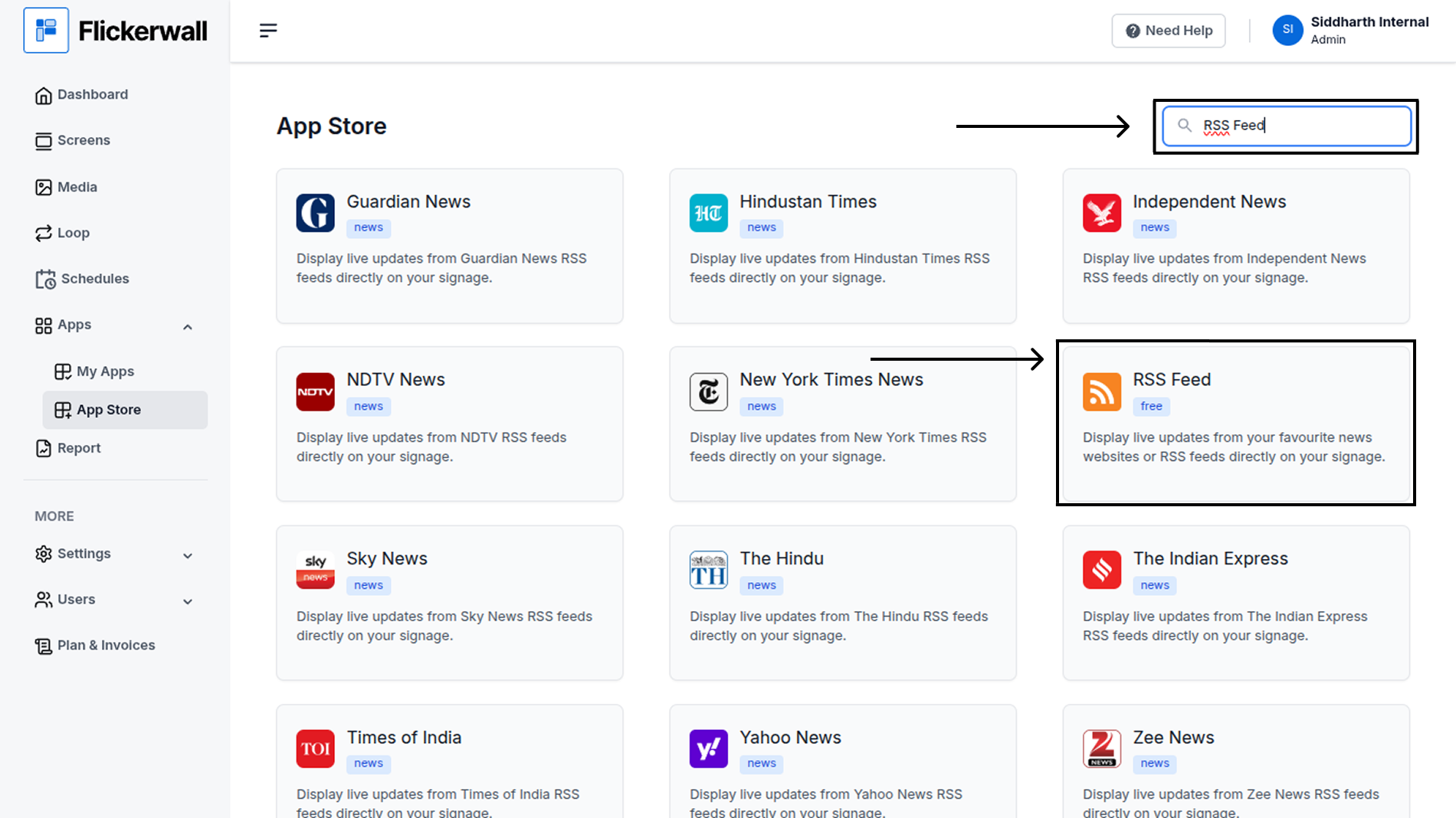
Step 3

**Search for RSS Feed.**

Select and click on the desired app
<img src="https://mintcdn.com/flickerwall-796545b9/vWvJ3l0LLgrVbFxp/images/apps-how-to-add-the-rss-feed-app-from-the-flickerwall-store-image-3.png?fit=max&auto=format&n=vWvJ3l0LLgrVbFxp&q=85&s=af409c683c12b892b98844d0f82656d7" alt="" width="1900" height="1068" data-path="images/apps-how-to-add-the-rss-feed-app-from-the-flickerwall-store-image-3.png" />

Step 4

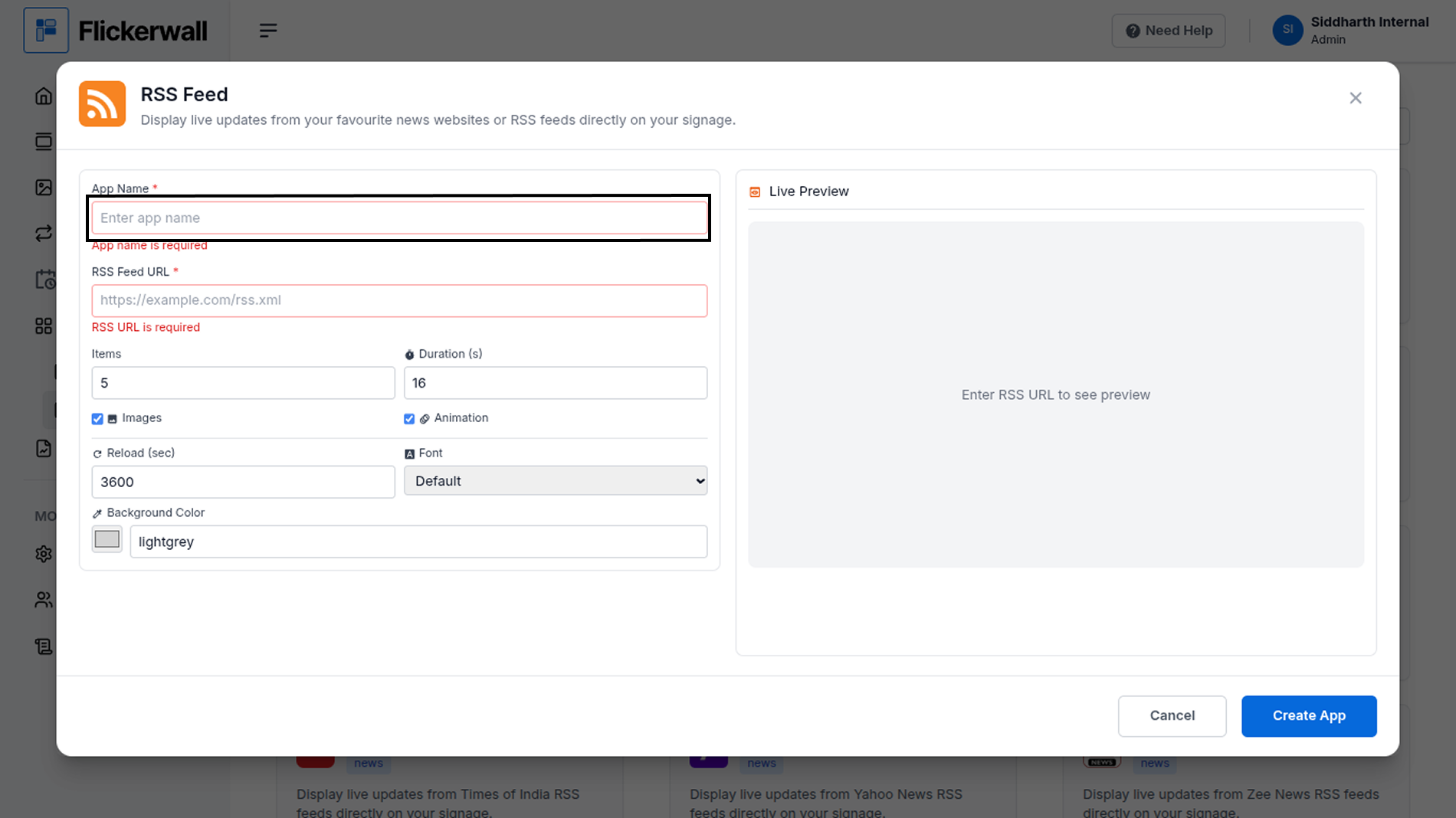
**Enter a Name for the App.**

Enter a name for app so you can find it easy later
<img src="https://mintcdn.com/flickerwall-796545b9/vWvJ3l0LLgrVbFxp/images/apps-how-to-add-the-rss-feed-app-from-the-flickerwall-store-image-4.png?fit=max&auto=format&n=vWvJ3l0LLgrVbFxp&q=85&s=7f43bf8939576838bdf222c0a7f6423b" alt="" width="1900" height="1068" data-path="images/apps-how-to-add-the-rss-feed-app-from-the-flickerwall-store-image-4.png" />

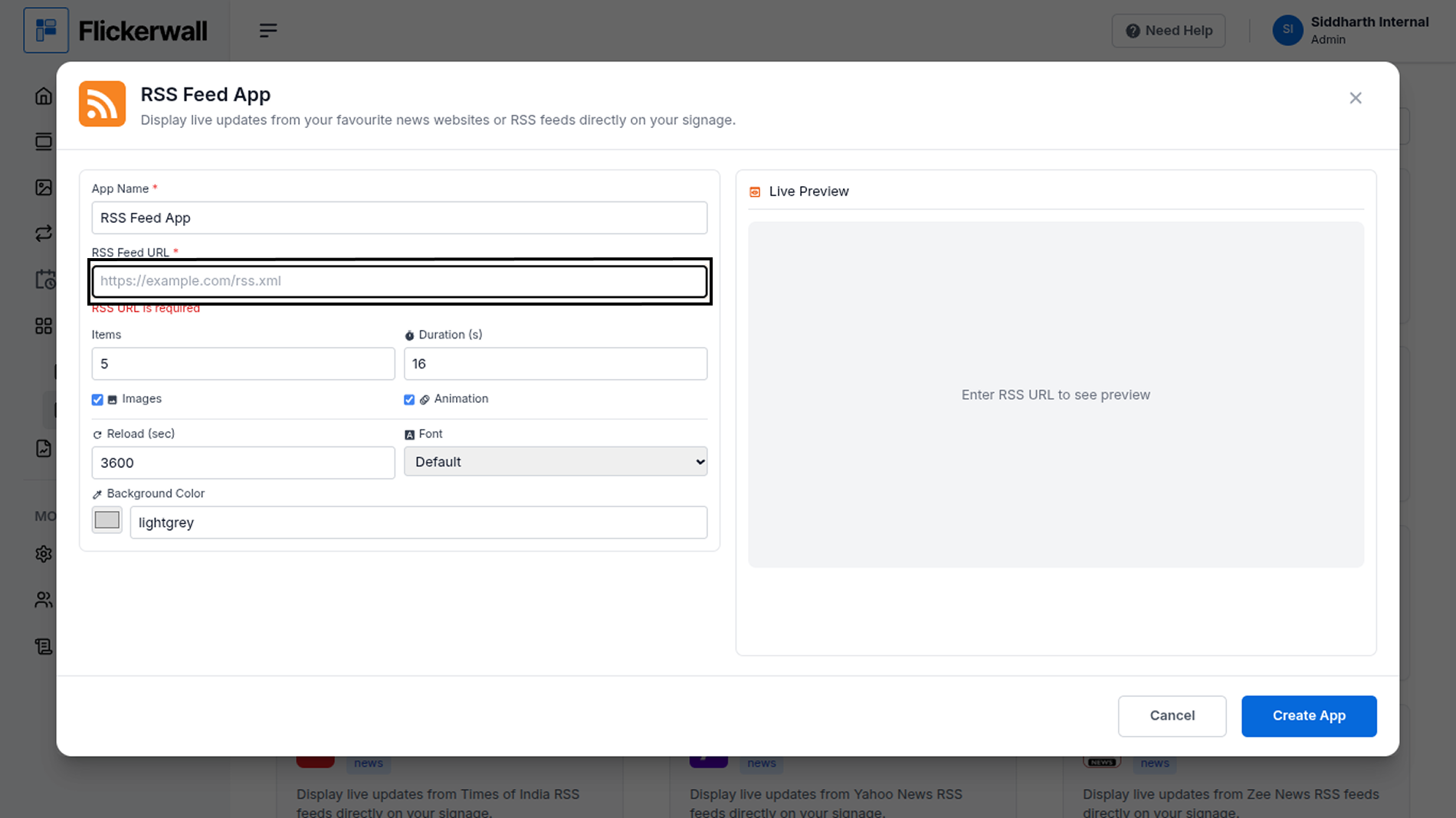
Step 5

**Paste Your RSS Feed UR.**

<img src="https://mintcdn.com/flickerwall-796545b9/vWvJ3l0LLgrVbFxp/images/apps-how-to-add-the-rss-feed-app-from-the-flickerwall-store-image-5.png?fit=max&auto=format&n=vWvJ3l0LLgrVbFxp&q=85&s=651f365148875ba1d244c67bab01d37e" alt="" width="1900" height="1068" data-path="images/apps-how-to-add-the-rss-feed-app-from-the-flickerwall-store-image-5.png" />

Step 6

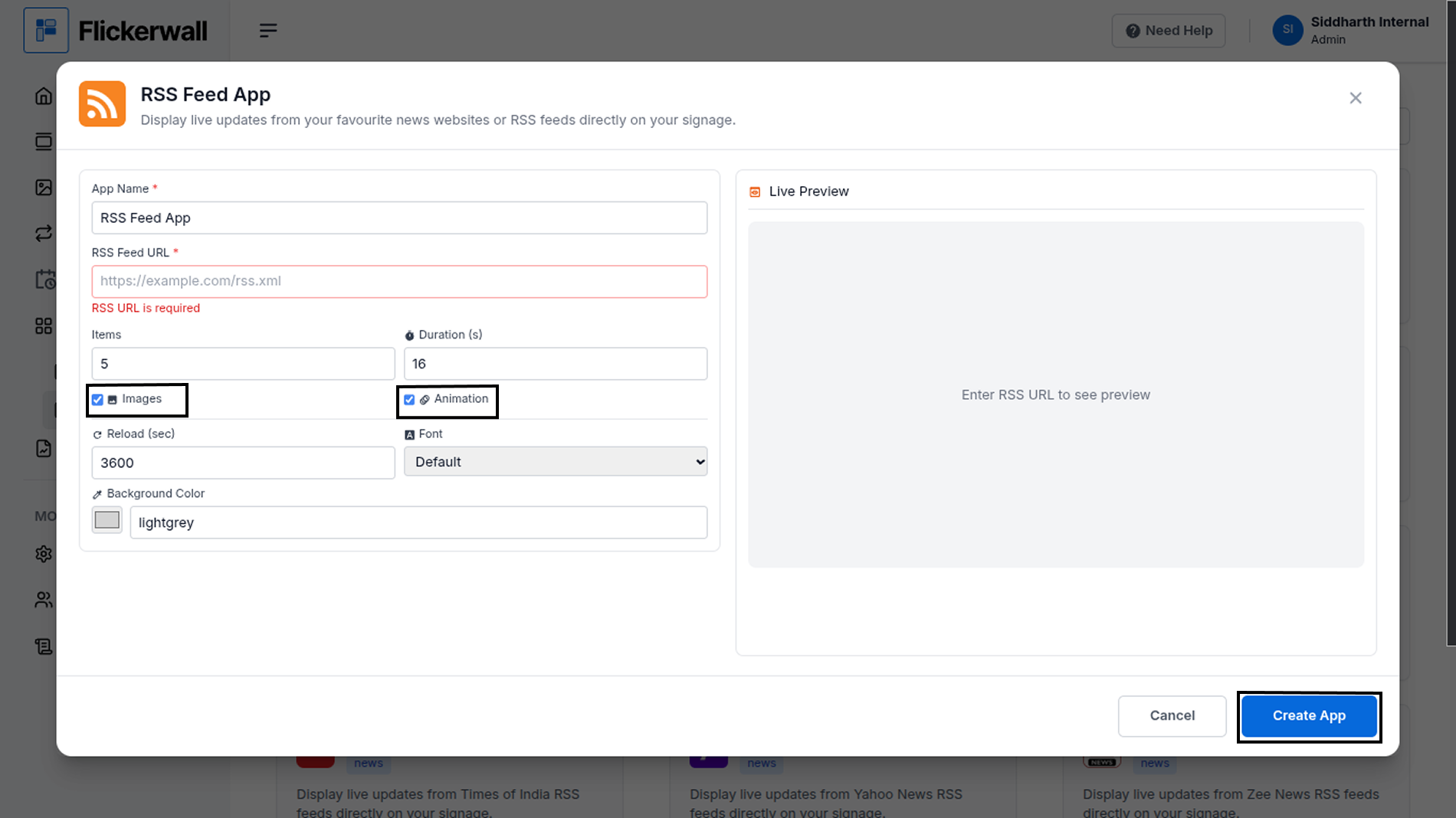
**Click Create App.**

You can also enable or disable Images and Animations

Hit that Creat app button and create the app
<img src="https://mintcdn.com/flickerwall-796545b9/vWvJ3l0LLgrVbFxp/images/apps-how-to-add-the-rss-feed-app-from-the-flickerwall-store-image-6.png?fit=max&auto=format&n=vWvJ3l0LLgrVbFxp&q=85&s=e3230ef93b9a0540acca42a5dbfd36c4" alt="" width="1900" height="1068" data-path="images/apps-how-to-add-the-rss-feed-app-from-the-flickerwall-store-image-6.png" />

Congratulations: You’ve learnt how to create an app for Flickerwall