> ## Documentation Index
> Fetch the complete documentation index at: https://docs.flickerwall.com/llms.txt
> Use this file to discover all available pages before exploring further.

# How to add the QR Code app from the Flickerwall Store?

> Step by step guide to learn how to add the QR Code app from the Flickerwall store

# How to add the QR Code app from the Flickerwall Store?

Step by step guide to learn how to add the QR Code app from the Flickerwall store

***

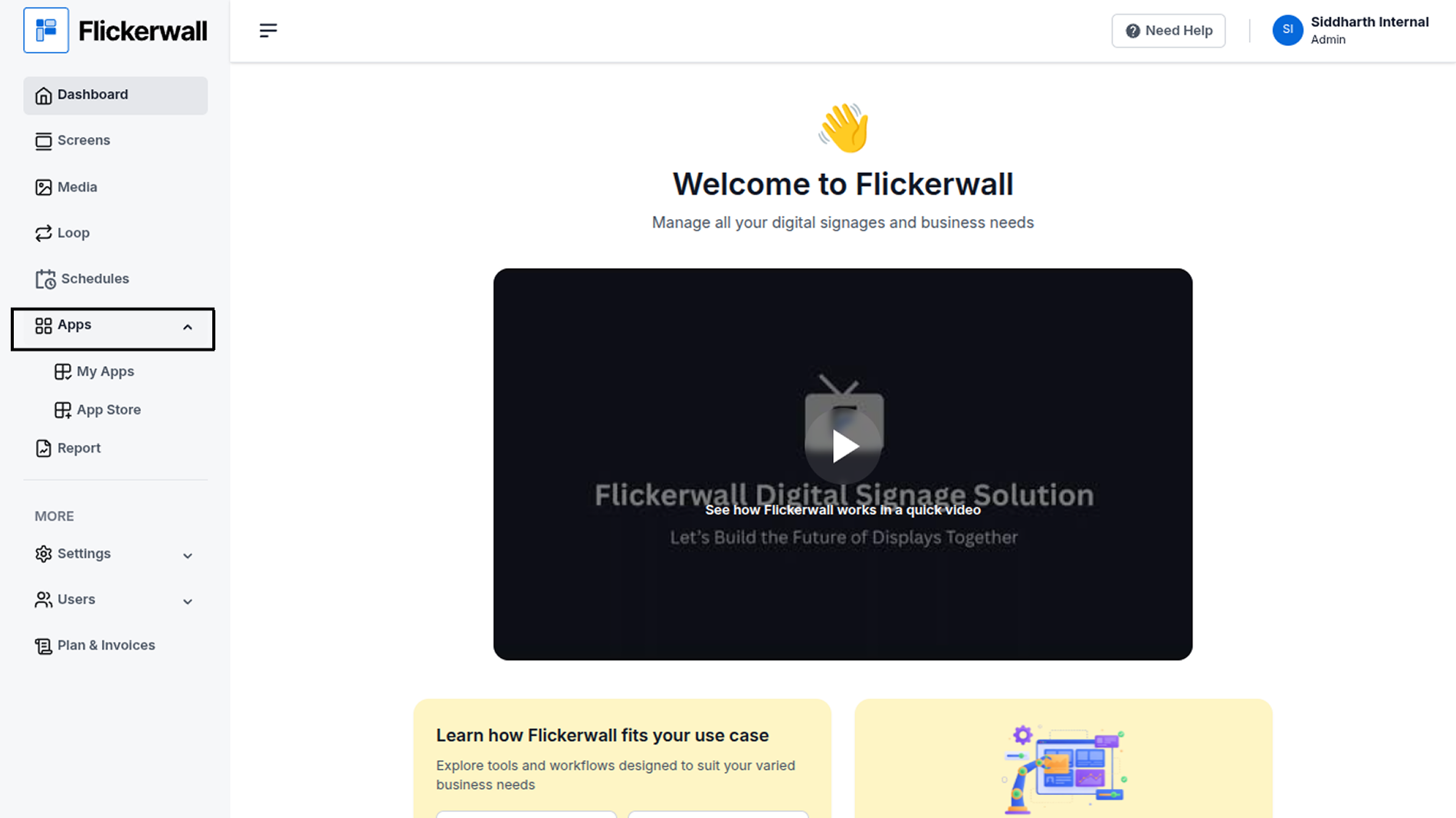
Step 1

Go to Apps and then App store!

click on the apps and then Nevigate to App store in the appeared drawer
<img src="https://mintcdn.com/flickerwall-796545b9/vWvJ3l0LLgrVbFxp/images/apps-how-to-add-the-qr-code-app-from-the-flickerwall-store-image-1.png?fit=max&auto=format&n=vWvJ3l0LLgrVbFxp&q=85&s=9c28af4e270cc30812cdb9b3bfe1333b" alt="" width="1900" height="1068" data-path="images/apps-how-to-add-the-qr-code-app-from-the-flickerwall-store-image-1.png" />

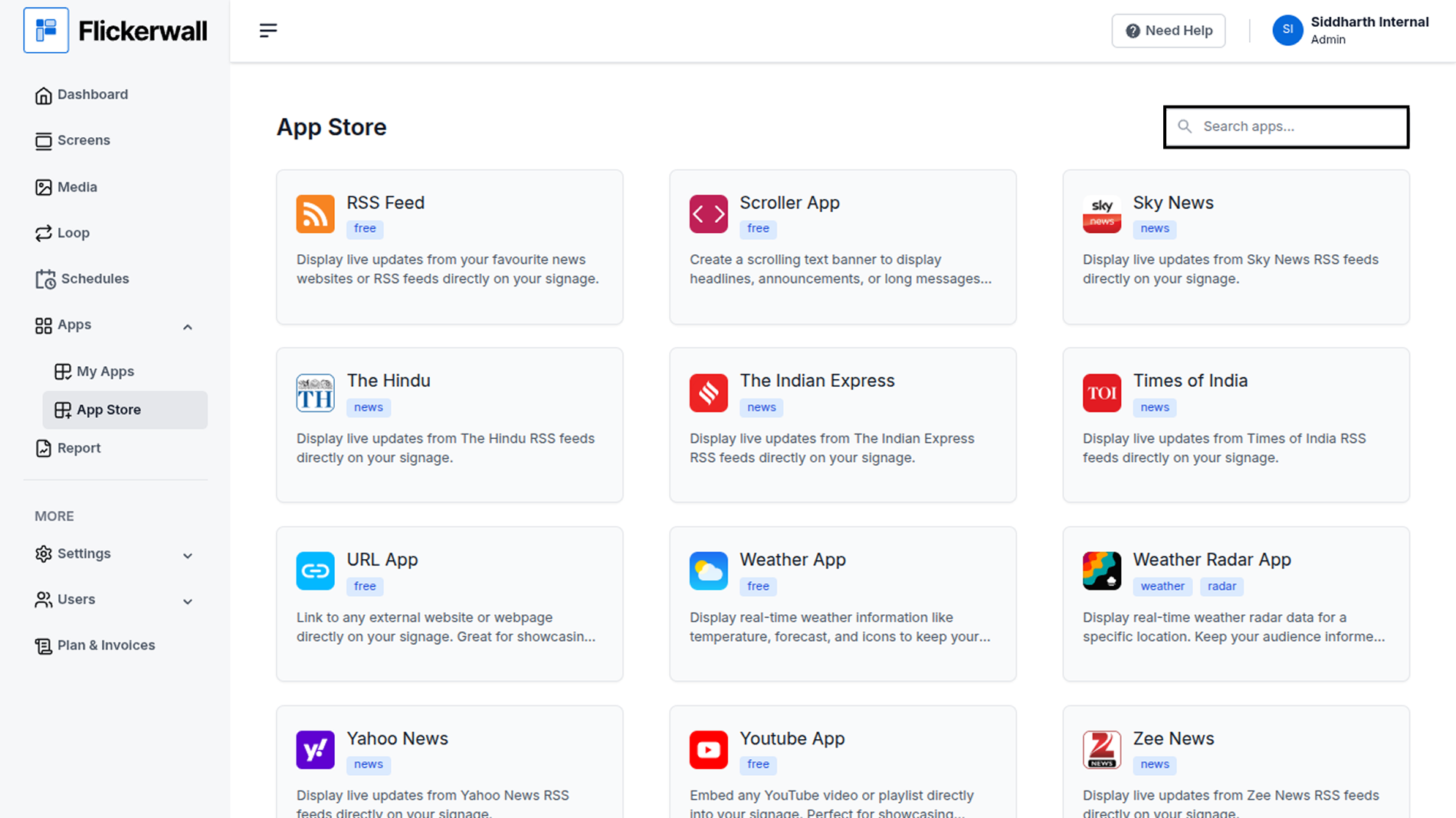
Step 2

Go to Search Bar

you can search the app you want
<img src="https://mintcdn.com/flickerwall-796545b9/vWvJ3l0LLgrVbFxp/images/apps-how-to-add-the-qr-code-app-from-the-flickerwall-store-image-2.png?fit=max&auto=format&n=vWvJ3l0LLgrVbFxp&q=85&s=7330c2e7c3db01c970fb22c9ad36d0b0" alt="" width="1900" height="1068" data-path="images/apps-how-to-add-the-qr-code-app-from-the-flickerwall-store-image-2.png" />

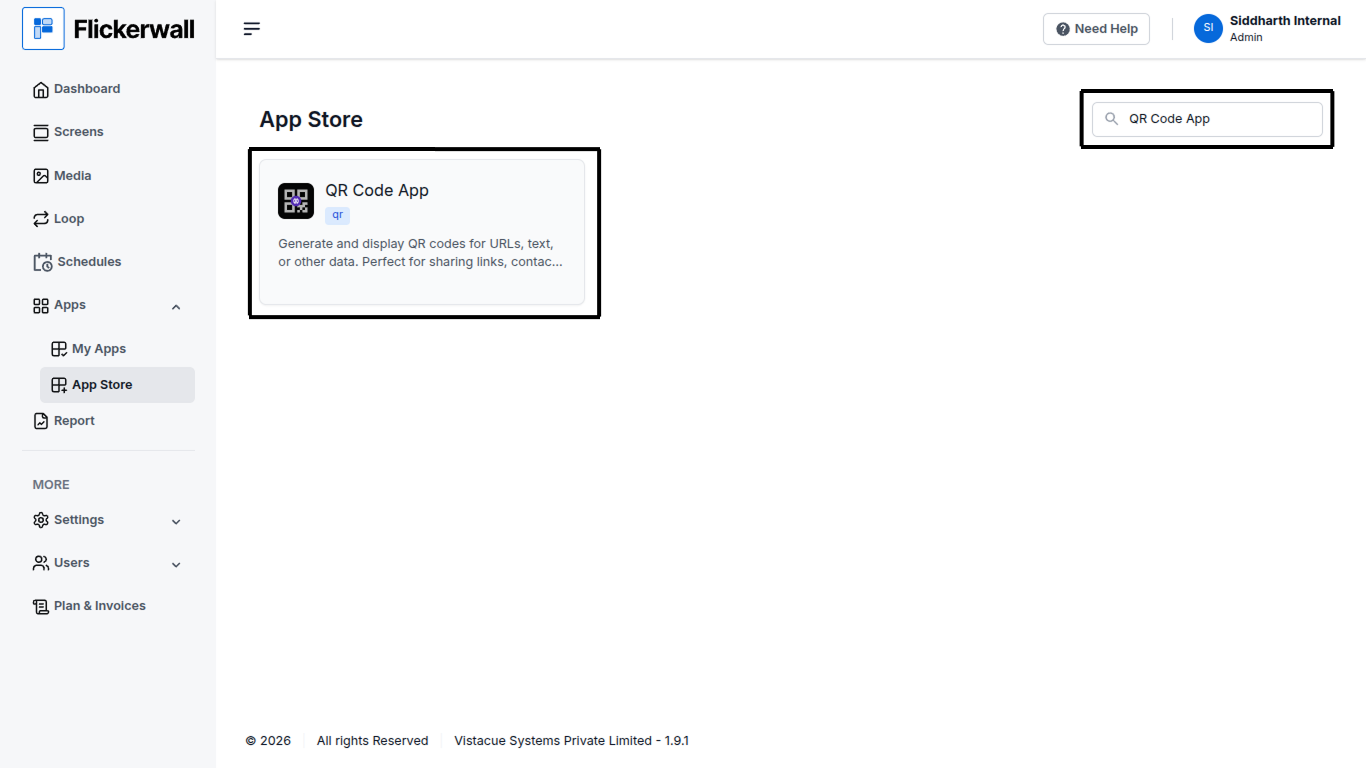
Step 3

Search for QR Code App Select and click on the desired app
<img src="https://mintcdn.com/flickerwall-796545b9/vWvJ3l0LLgrVbFxp/images/apps-how-to-add-the-qr-code-app-from-the-flickerwall-store-image-3.png?fit=max&auto=format&n=vWvJ3l0LLgrVbFxp&q=85&s=8ffd0155f4c8ad3b9ed91928d1337314" alt="" width="1366" height="768" data-path="images/apps-how-to-add-the-qr-code-app-from-the-flickerwall-store-image-3.png" />

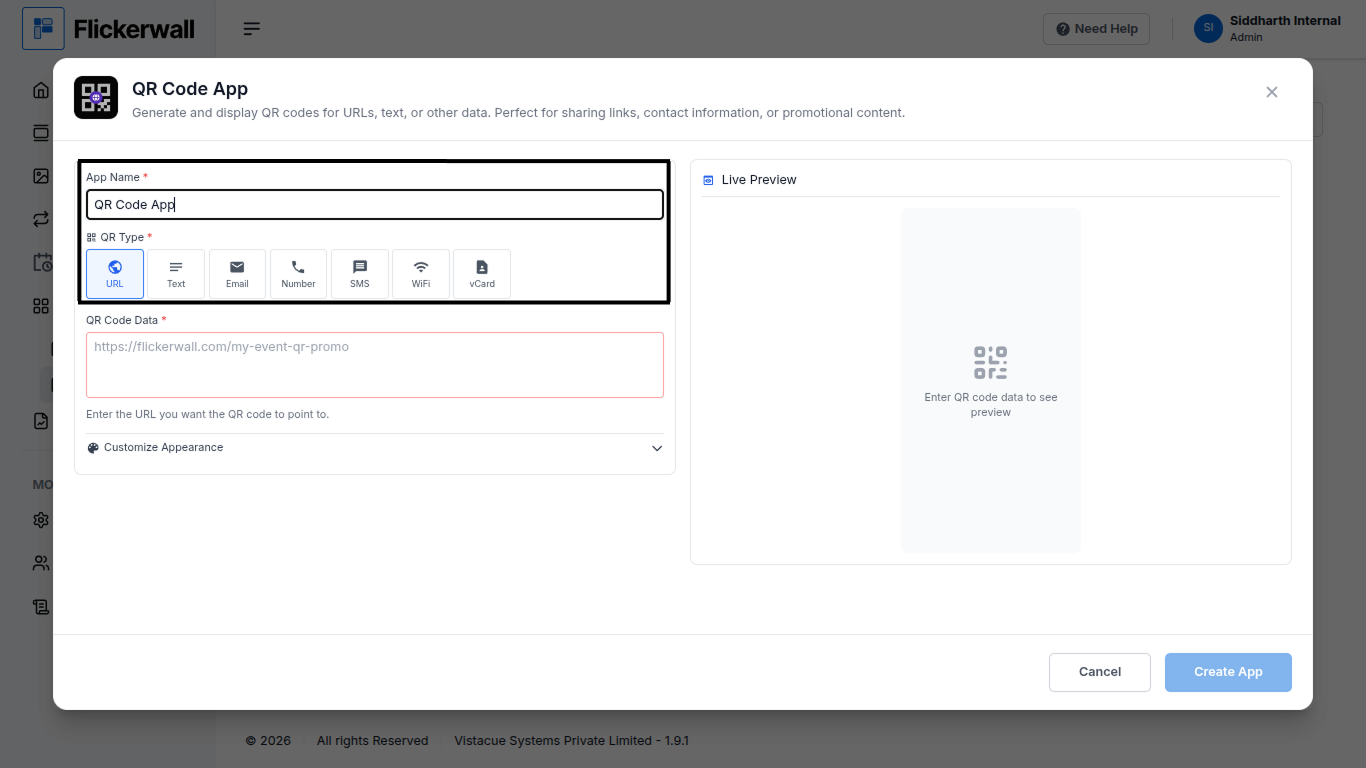
Step 4

Enter a Name for the App

Select the QR type your want to add
<img src="https://mintcdn.com/flickerwall-796545b9/vWvJ3l0LLgrVbFxp/images/apps-how-to-add-the-qr-code-app-from-the-flickerwall-store-image-4.png?fit=max&auto=format&n=vWvJ3l0LLgrVbFxp&q=85&s=2fdc653504ef4ff5ca20c22fa42a0ba4" alt="" width="1366" height="768" data-path="images/apps-how-to-add-the-qr-code-app-from-the-flickerwall-store-image-4.png" />

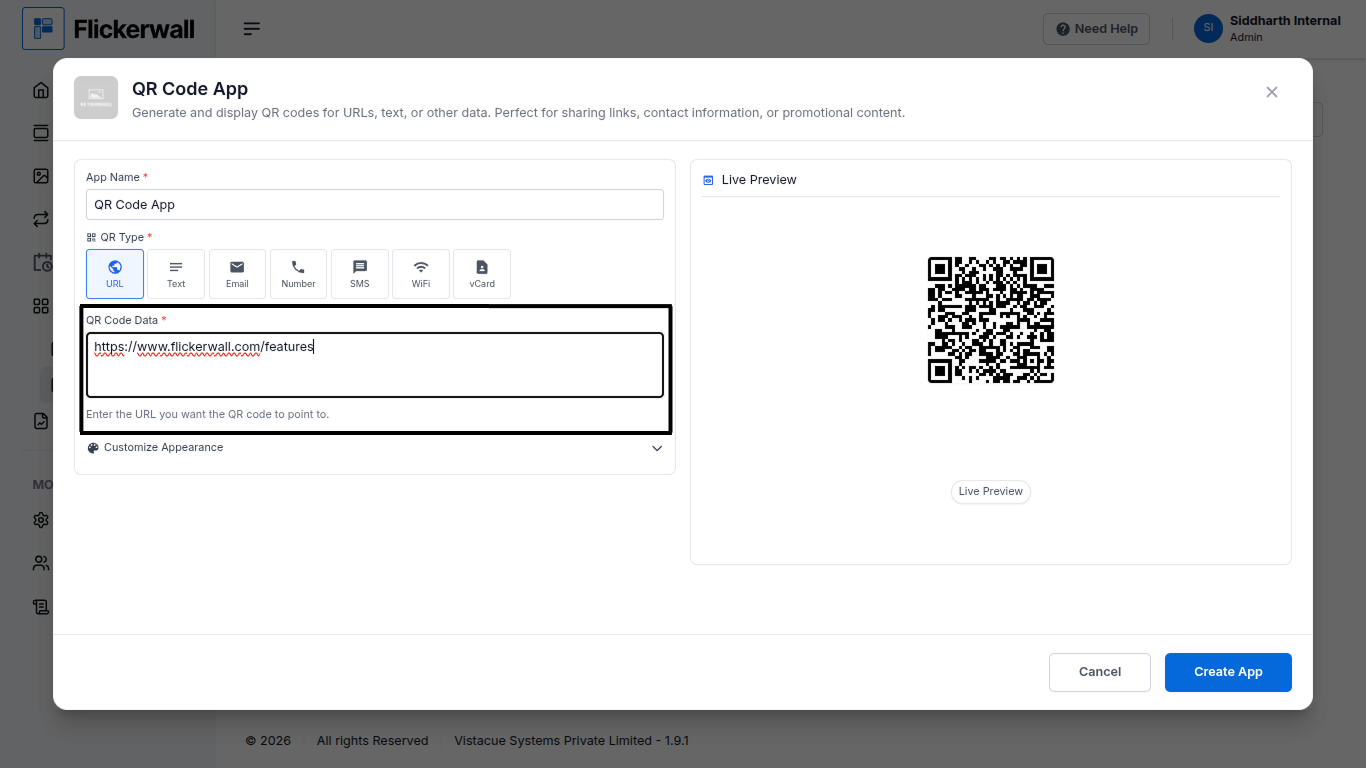
Step 5

Enter your QR Code URL and our system will verify it and show you an Preview
<img src="https://mintcdn.com/flickerwall-796545b9/vWvJ3l0LLgrVbFxp/images/apps-how-to-add-the-qr-code-app-from-the-flickerwall-store-image-5.png?fit=max&auto=format&n=vWvJ3l0LLgrVbFxp&q=85&s=068753c0a60e7d308c8ce34a3fc14fda" alt="" width="1366" height="768" data-path="images/apps-how-to-add-the-qr-code-app-from-the-flickerwall-store-image-5.png" />

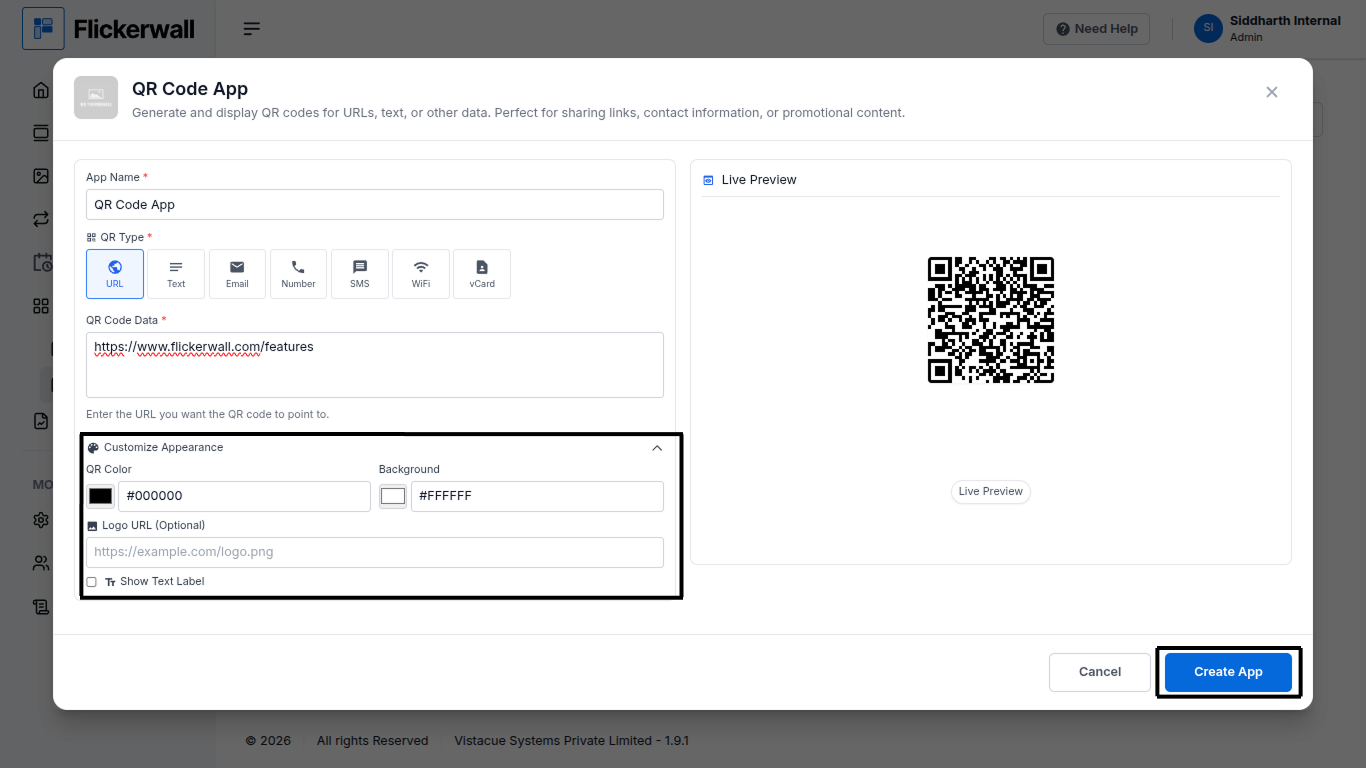
Step 6

Customize the Appearance

QR Code Color or Background Color

you can also add a Logo URL (optional)
<img src="https://mintcdn.com/flickerwall-796545b9/vWvJ3l0LLgrVbFxp/images/apps-how-to-add-the-qr-code-app-from-the-flickerwall-store-image-6.png?fit=max&auto=format&n=vWvJ3l0LLgrVbFxp&q=85&s=853a56a9670252a59f150bccf26f8015" alt="" width="1366" height="768" data-path="images/apps-how-to-add-the-qr-code-app-from-the-flickerwall-store-image-6.png" />

Ones done with app the process Click on Create app to complete the process

Congratulations : your app making process is done
