> ## Documentation Index
> Fetch the complete documentation index at: https://docs.flickerwall.com/llms.txt
> Use this file to discover all available pages before exploring further.

# How to add the Live Streaming app from Flickerwall store?

> step by step guide to learn how to add the Live Streaming app from Flickerwall store?

***

Step 1

Go to Apps and then App store!

click on the apps and then Nevigate to App store in the appeared drawer
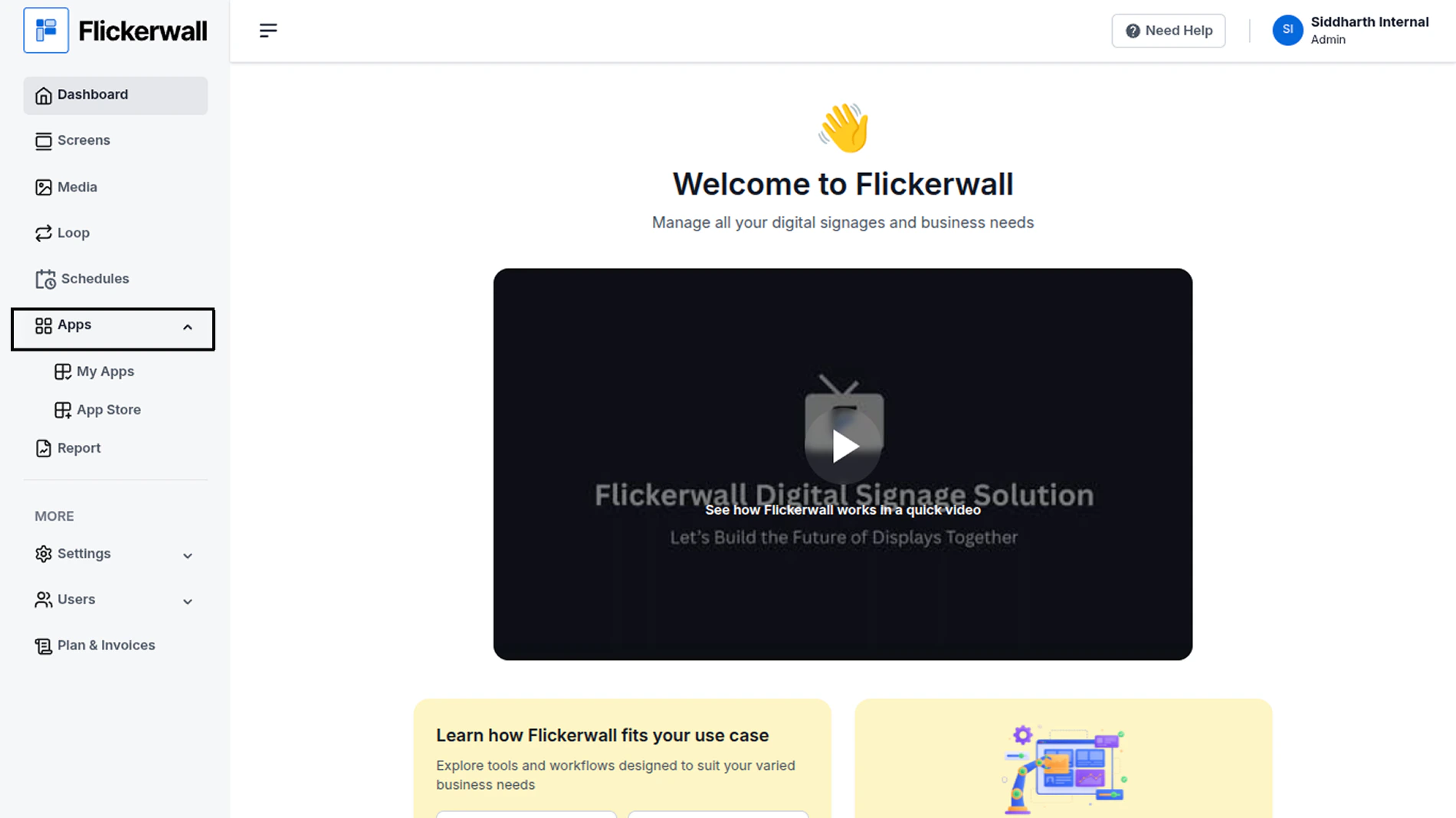
<img src="https://mintcdn.com/flickerwall-796545b9/vWvJ3l0LLgrVbFxp/images/apps-how-to-add-the-live-streaming-app-from-flickerwall-store-image-1.png?fit=max&auto=format&n=vWvJ3l0LLgrVbFxp&q=85&s=829101bb4dc2d1f4c536aa150d4947d4" alt="" width="1900" height="1068" data-path="images/apps-how-to-add-the-live-streaming-app-from-flickerwall-store-image-1.png" />

Step 2

Go to Search Bar

you can search the app you want
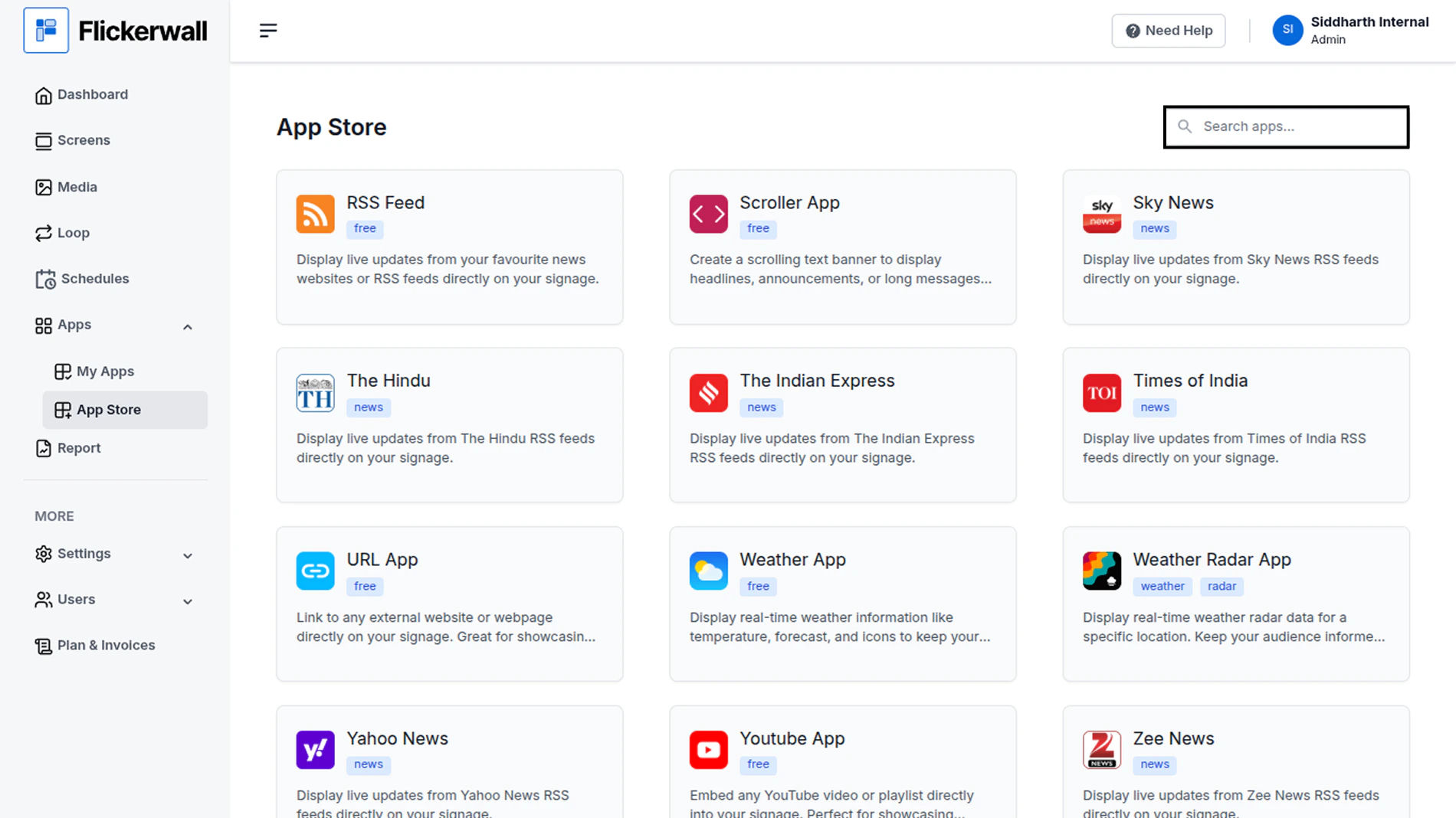
<img src="https://mintcdn.com/flickerwall-796545b9/vWvJ3l0LLgrVbFxp/images/apps-how-to-add-the-live-streaming-app-from-flickerwall-store-image-2.png?fit=max&auto=format&n=vWvJ3l0LLgrVbFxp&q=85&s=fe4112cc7a947e47235b8cbca3094316" alt="" width="1900" height="1068" data-path="images/apps-how-to-add-the-live-streaming-app-from-flickerwall-store-image-2.png" />

Step 3

Search for Live Streaming App Select and click on the desired app
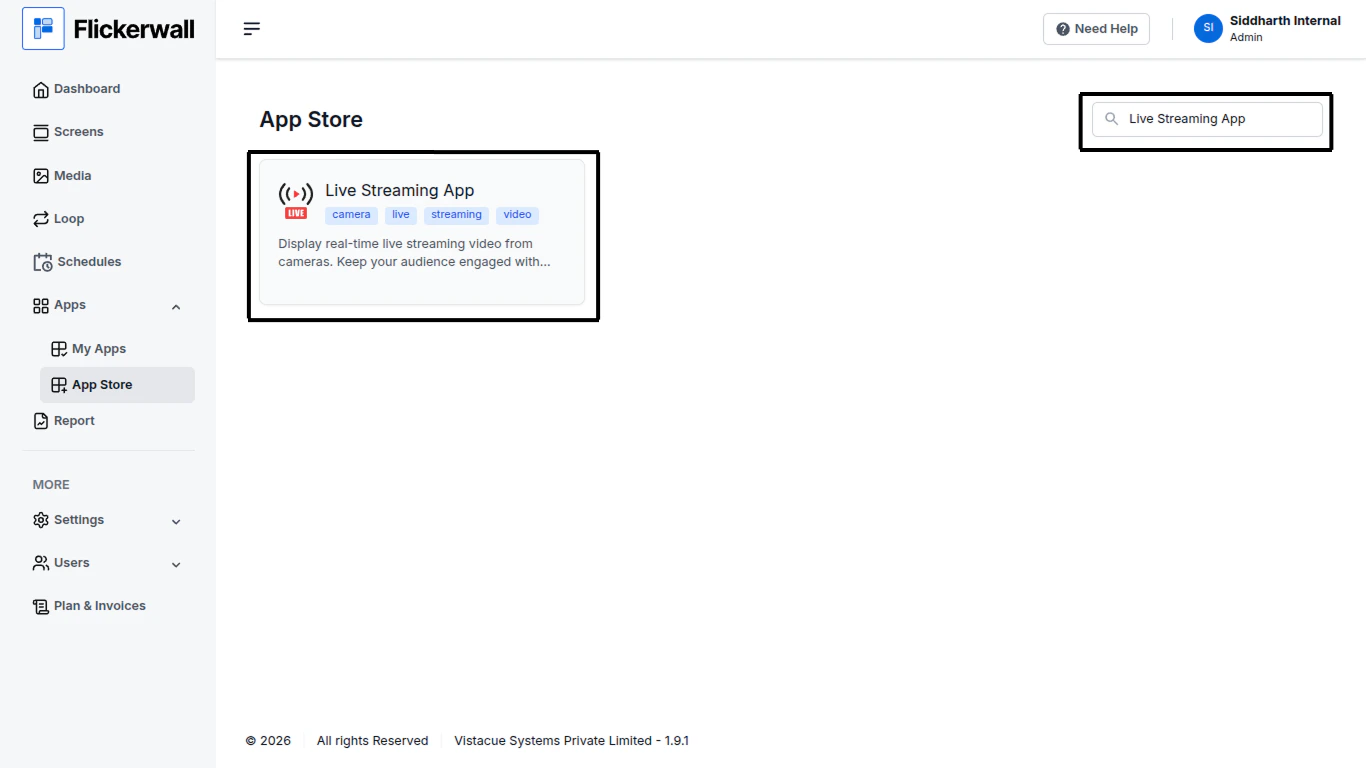
<img src="https://mintcdn.com/flickerwall-796545b9/vWvJ3l0LLgrVbFxp/images/apps-how-to-add-the-live-streaming-app-from-flickerwall-store-image-3.png?fit=max&auto=format&n=vWvJ3l0LLgrVbFxp&q=85&s=f98addc8bf48f25cc0b001f0b057c15e" alt="" width="1366" height="768" data-path="images/apps-how-to-add-the-live-streaming-app-from-flickerwall-store-image-3.png" />

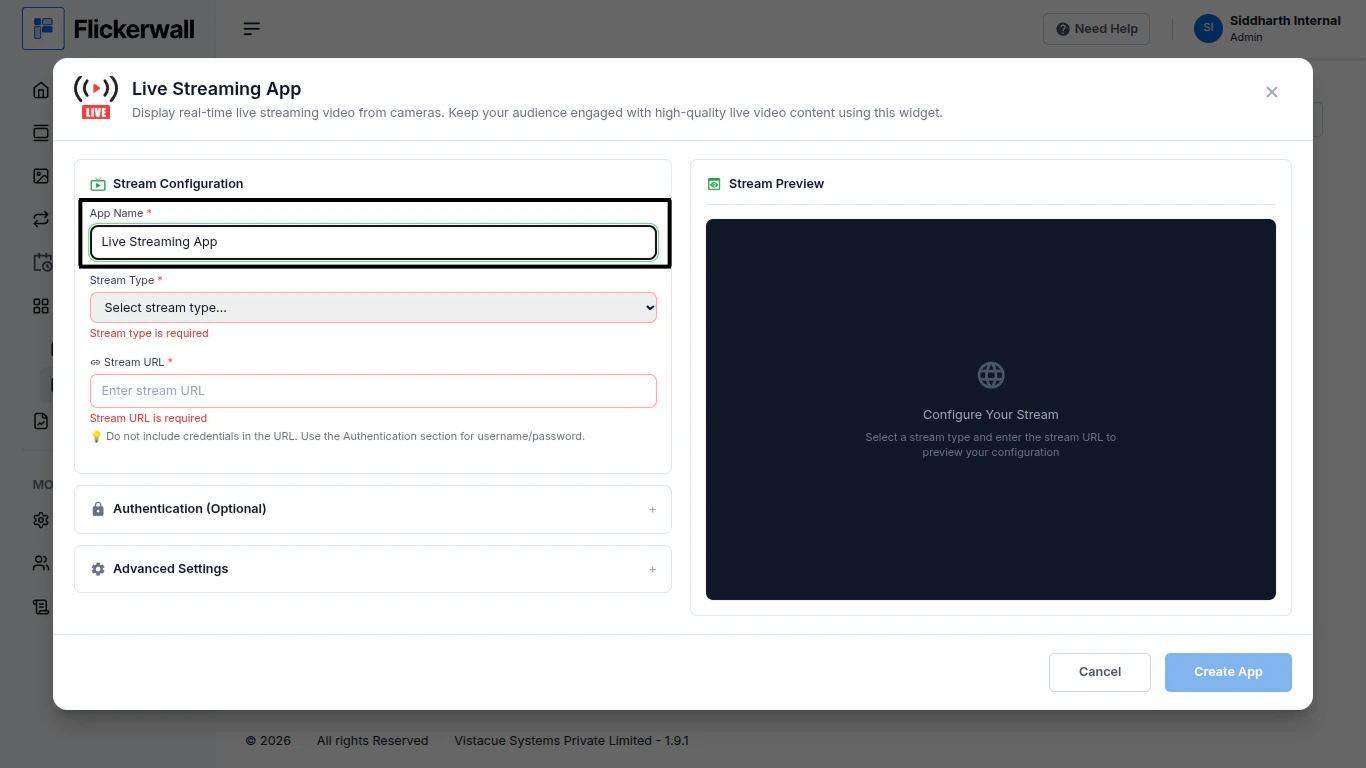
Step 4

Enter a Name for the App

Enter a name for app so you can find it easy later
<img src="https://mintcdn.com/flickerwall-796545b9/vWvJ3l0LLgrVbFxp/images/apps-how-to-add-the-live-streaming-app-from-flickerwall-store-image-4.png?fit=max&auto=format&n=vWvJ3l0LLgrVbFxp&q=85&s=b5511ca9c9fa4e246f6c13483725d258" alt="" width="1366" height="768" data-path="images/apps-how-to-add-the-live-streaming-app-from-flickerwall-store-image-4.png" />

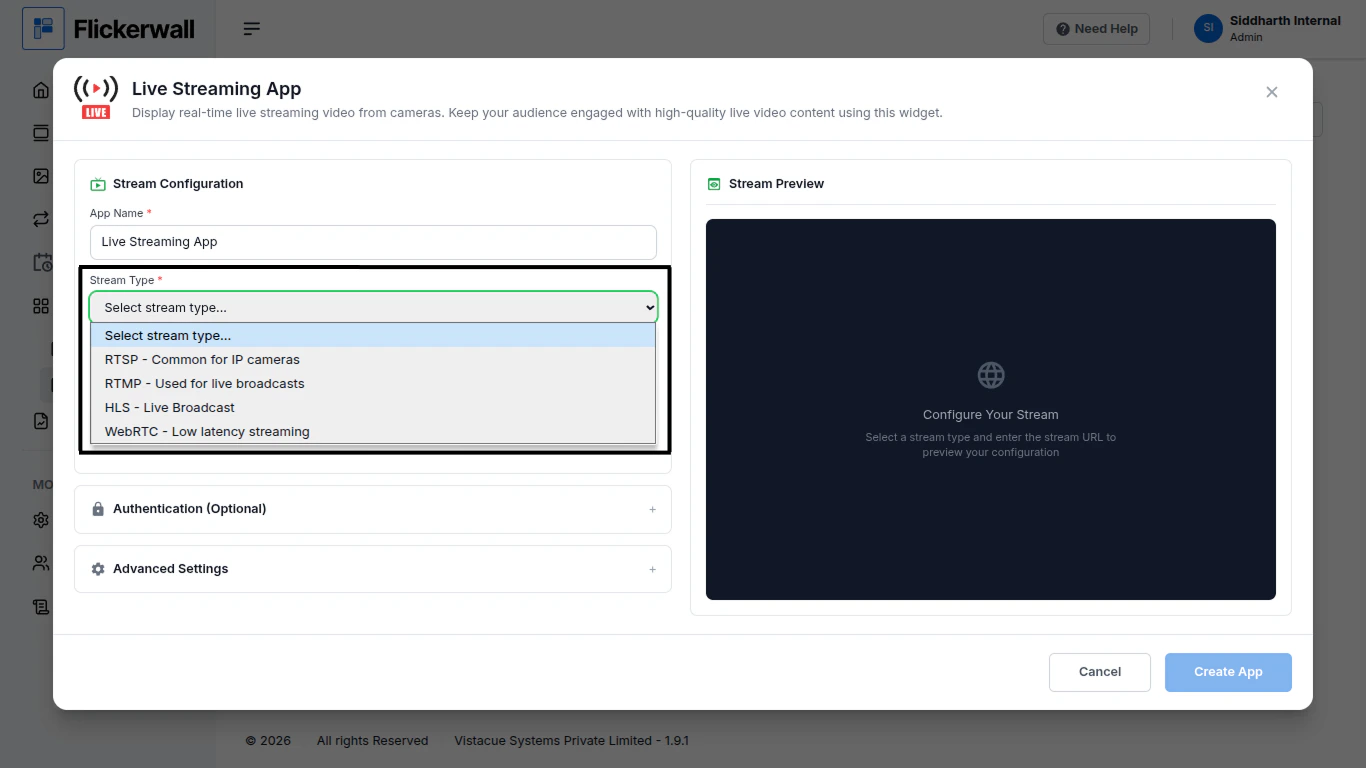
Step 5

Select your Stream Type

<img src="https://mintcdn.com/flickerwall-796545b9/vWvJ3l0LLgrVbFxp/images/apps-how-to-add-the-live-streaming-app-from-flickerwall-store-image-5.png?fit=max&auto=format&n=vWvJ3l0LLgrVbFxp&q=85&s=1711acb0b7d030e06eebd46bed47b0b1" alt="" width="1366" height="768" data-path="images/apps-how-to-add-the-live-streaming-app-from-flickerwall-store-image-5.png" />

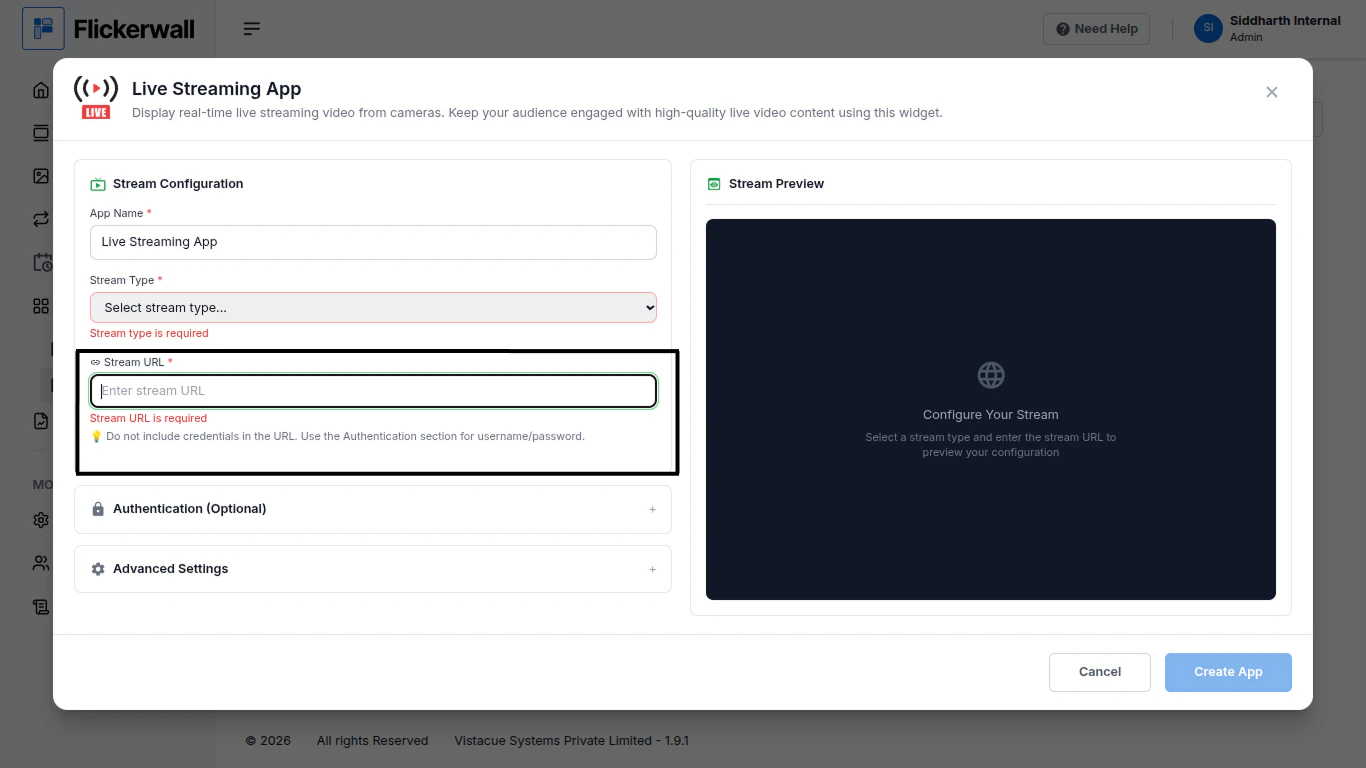
Step 6

Enter your Stream URL and we’ll give you Stream Preview
<img src="https://mintcdn.com/flickerwall-796545b9/vWvJ3l0LLgrVbFxp/images/apps-how-to-add-the-live-streaming-app-from-flickerwall-store-image-6.png?fit=max&auto=format&n=vWvJ3l0LLgrVbFxp&q=85&s=11be69d7041d2b6872d1de406851073f" alt="" width="1366" height="768" data-path="images/apps-how-to-add-the-live-streaming-app-from-flickerwall-store-image-6.png" />

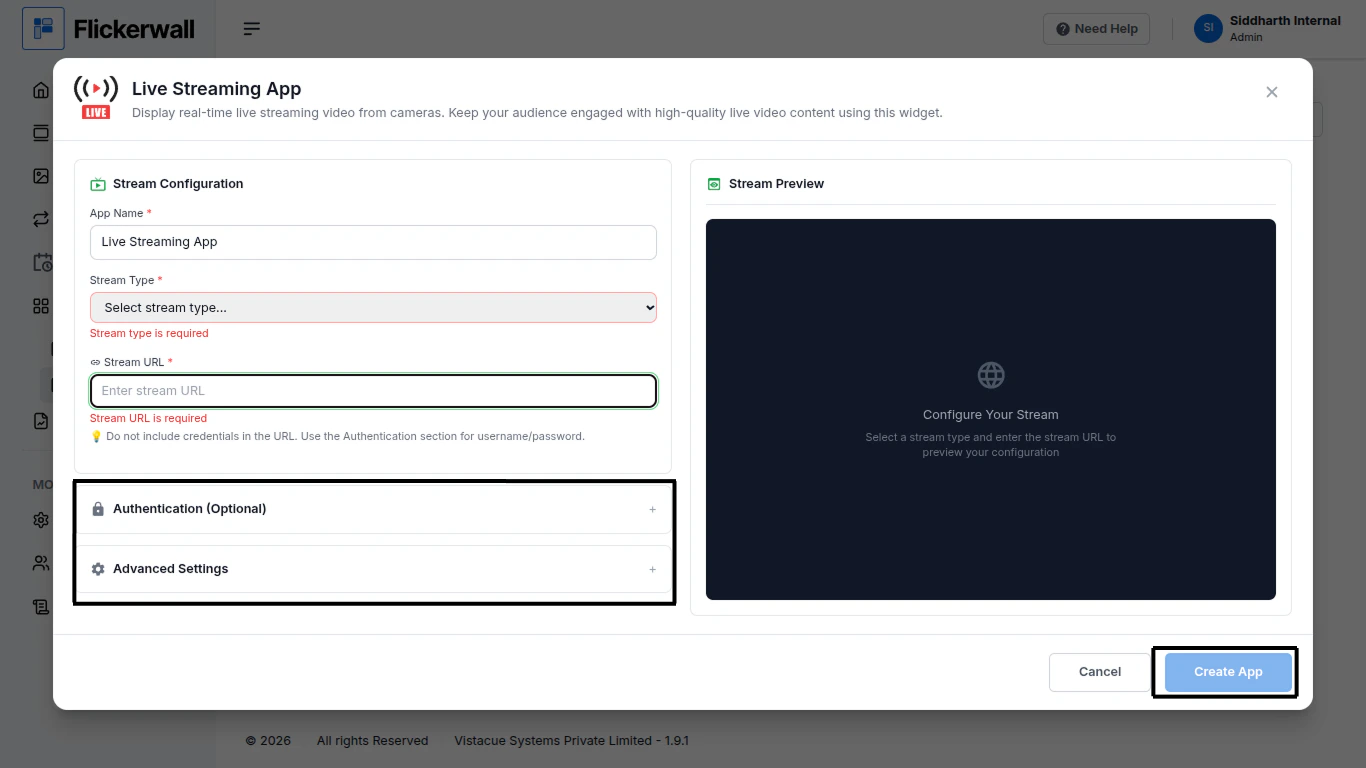
Step 7

Lastly if you want you can toggle the Authentication (optional, Stream works without it as well)

you can also toggle some Advanced Settings if you want provided right below “Authentication”
<img src="https://mintcdn.com/flickerwall-796545b9/vWvJ3l0LLgrVbFxp/images/apps-how-to-add-the-live-streaming-app-from-flickerwall-store-image-7.png?fit=max&auto=format&n=vWvJ3l0LLgrVbFxp&q=85&s=458e1058245a7c357366ef0cfdba7ddd" alt="" width="1366" height="768" data-path="images/apps-how-to-add-the-live-streaming-app-from-flickerwall-store-image-7.png" />

Ones you’re done with the process as you intended please click Create App

Congrataulatins: your app making process is completed check “My Apps” to see the apps you created