> ## Documentation Index
> Fetch the complete documentation index at: https://docs.flickerwall.com/llms.txt
> Use this file to discover all available pages before exploring further.

# How to add the Google Slide app from Flickerwall store?

> step by step guide to learn how to add the Google Slider app from the Flickerwall store

# How to add the Google Slide app from Flickerwall store?

step by step guide to learn how to add the Google Slider app from the Flickerwall store

***

Step 1

Go to Apps and then App store!

click on the apps and then Nevigate to App store in the appeared drawer

<img src="https://mintcdn.com/flickerwall-796545b9/F04PkwLBM7RCLZ-O/images/apps-how-to-add-the-google-slide-app-from-flickerwall-store-image-1.png?fit=max&auto=format&n=F04PkwLBM7RCLZ-O&q=85&s=7aac1b6e44f7b6f3362f9def96fd766c" alt="" width="1900" height="1068" data-path="images/apps-how-to-add-the-google-slide-app-from-flickerwall-store-image-1.png" />

Step 2

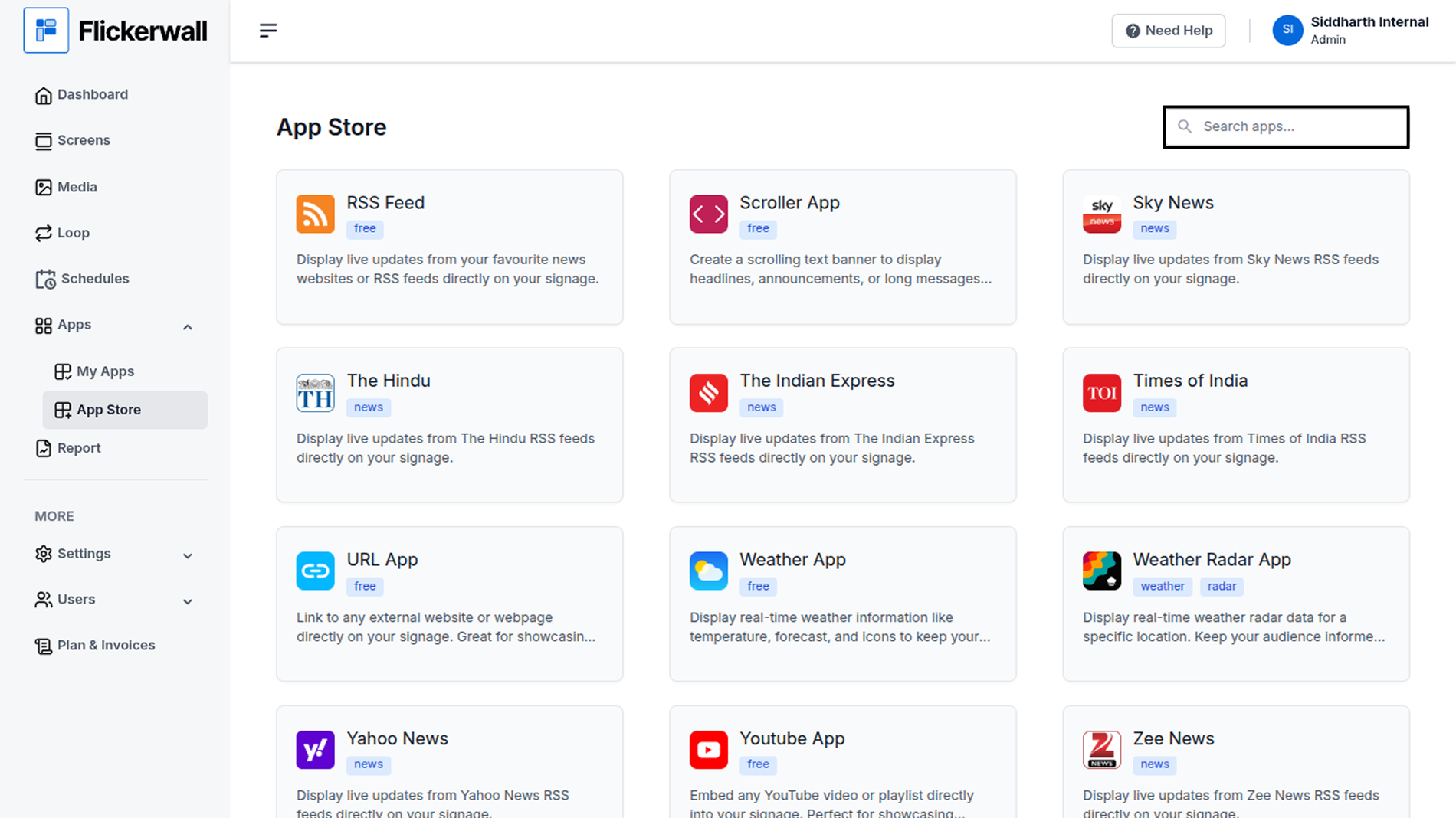
Go to Search Bar

you can search the app you want
<img src="https://mintcdn.com/flickerwall-796545b9/F04PkwLBM7RCLZ-O/images/apps-how-to-add-the-google-slide-app-from-flickerwall-store-image-2.png?fit=max&auto=format&n=F04PkwLBM7RCLZ-O&q=85&s=f549a88576a7150bf5bdcc41736d5033" alt="" width="1900" height="1068" data-path="images/apps-how-to-add-the-google-slide-app-from-flickerwall-store-image-2.png" />

Step 3

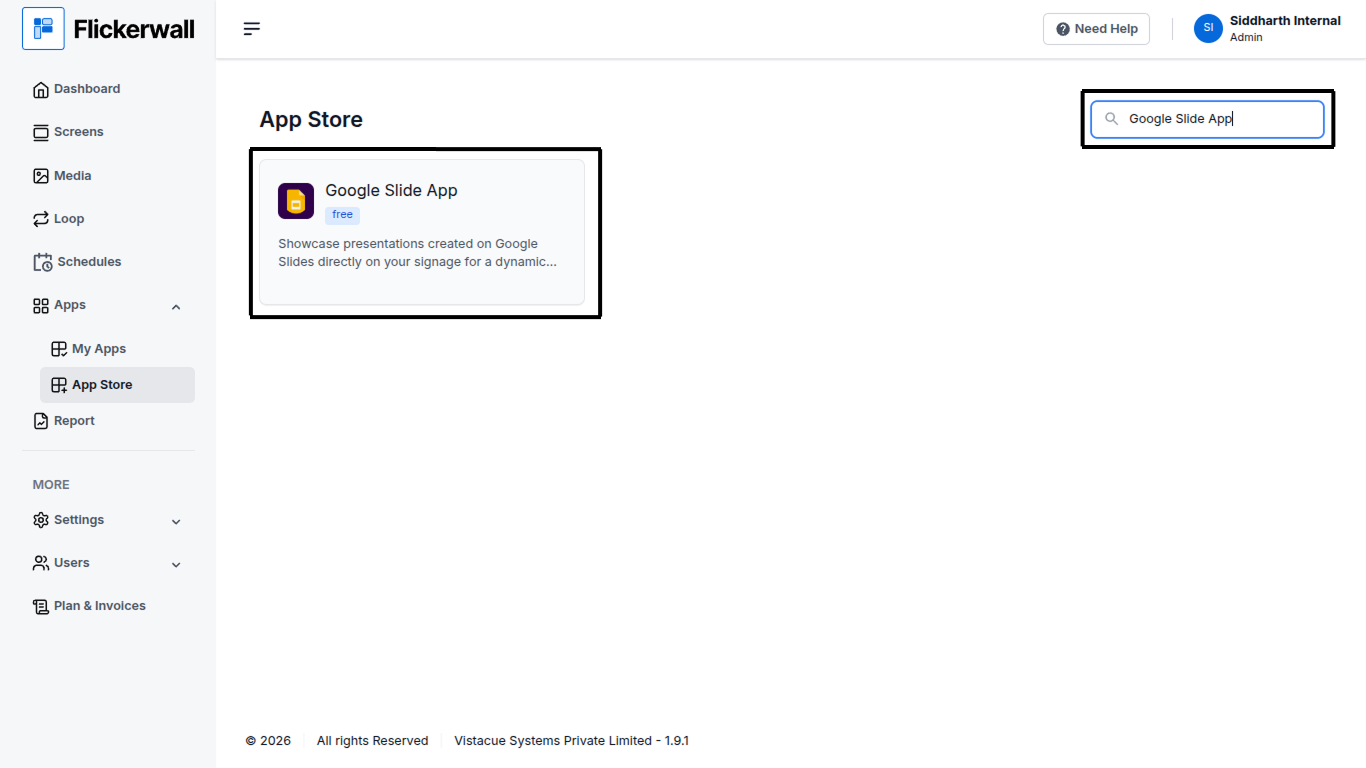
Search for Google Slide App Select and click on the desired app
<img src="https://mintcdn.com/flickerwall-796545b9/F04PkwLBM7RCLZ-O/images/apps-how-to-add-the-google-slide-app-from-flickerwall-store-image-3.png?fit=max&auto=format&n=F04PkwLBM7RCLZ-O&q=85&s=56b934b73045acb004908340200c545b" alt="" width="1366" height="768" data-path="images/apps-how-to-add-the-google-slide-app-from-flickerwall-store-image-3.png" />

Step 4

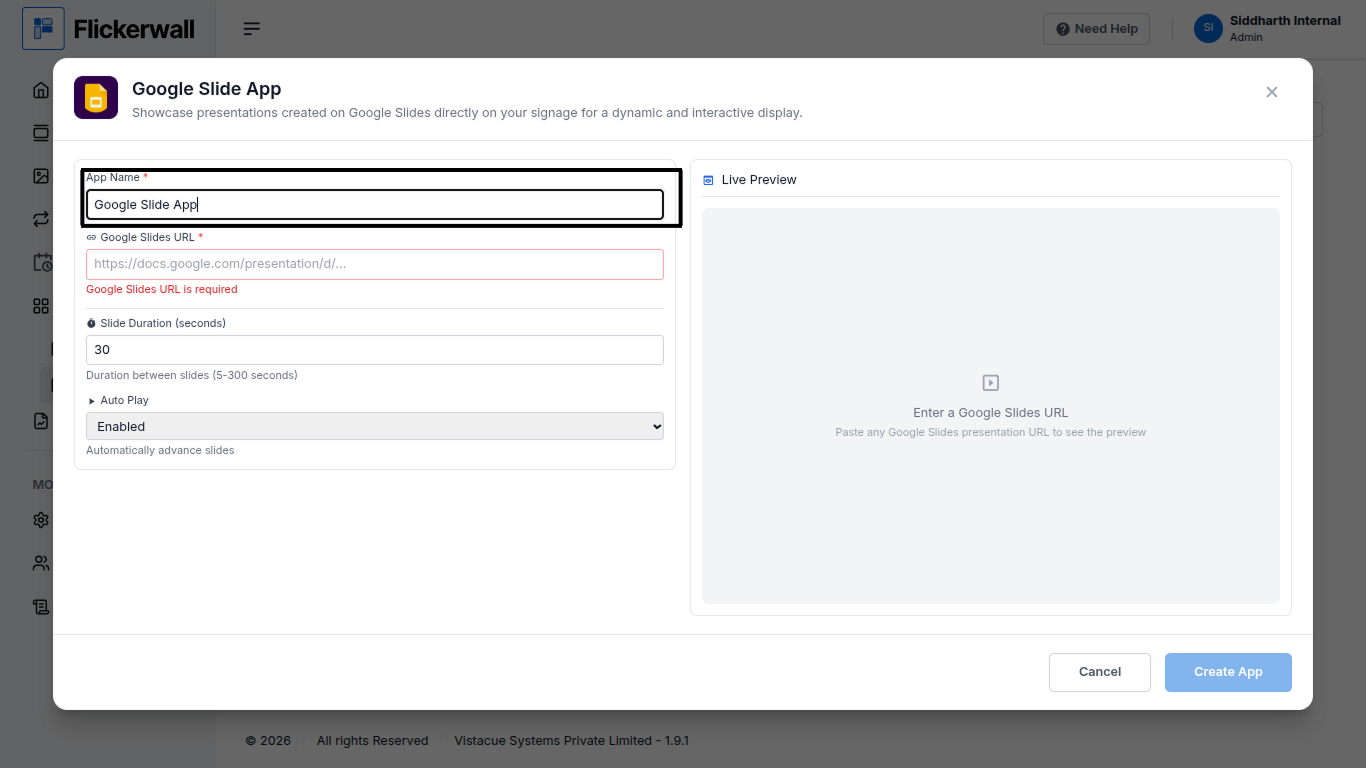
Enter a Name for the App

Enter a name for app so you can find it easy later
<img src="https://mintcdn.com/flickerwall-796545b9/F04PkwLBM7RCLZ-O/images/apps-how-to-add-the-google-slide-app-from-flickerwall-store-image-4.png?fit=max&auto=format&n=F04PkwLBM7RCLZ-O&q=85&s=c8a77ed6cd280b16a2006e313ac23a93" alt="" width="1366" height="768" data-path="images/apps-how-to-add-the-google-slide-app-from-flickerwall-store-image-4.png" />

Step 5

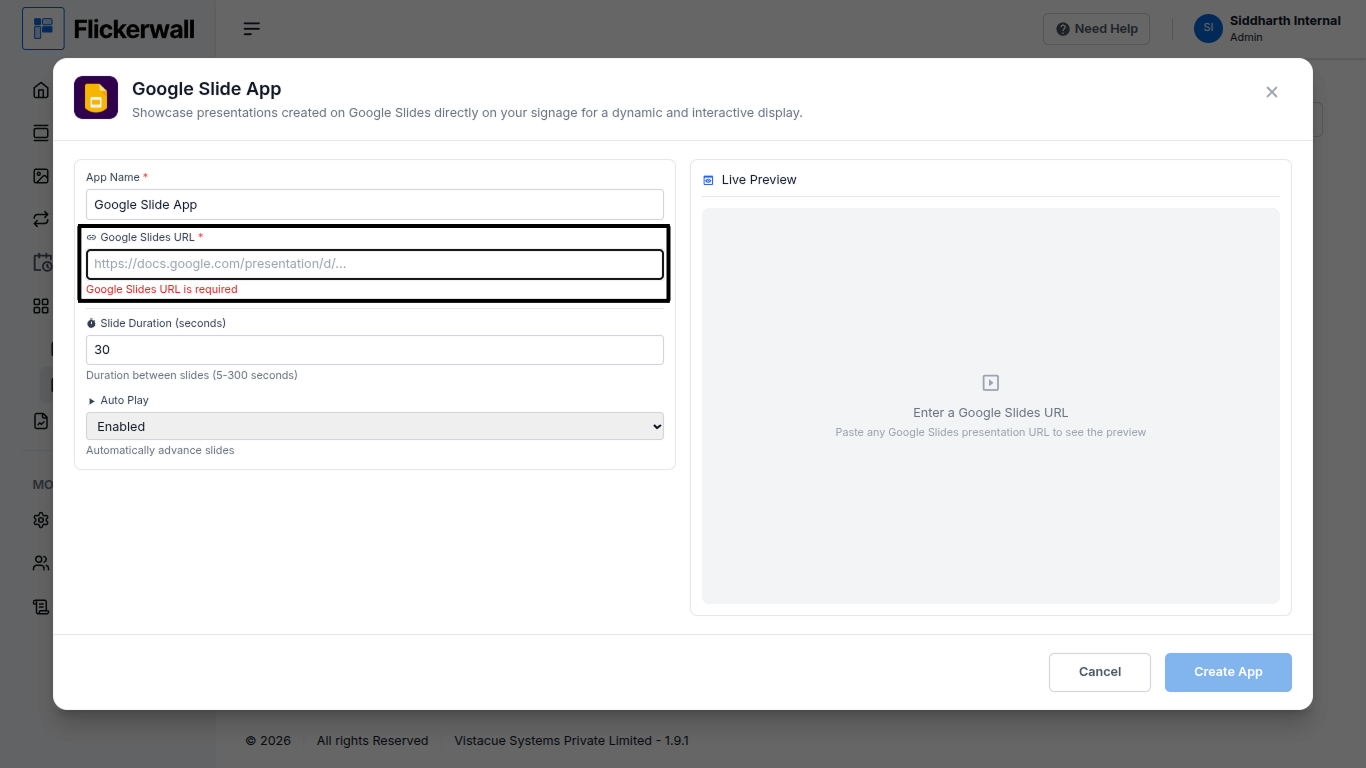
Enter your Google Slide URL in the URL box
<img src="https://mintcdn.com/flickerwall-796545b9/vWvJ3l0LLgrVbFxp/images/apps-how-to-add-the-google-slide-app-from-flickerwall-store-image-5.png?fit=max&auto=format&n=vWvJ3l0LLgrVbFxp&q=85&s=42f588974d6ddbfa85d2b0a8aa3f105d" alt="" width="1366" height="768" data-path="images/apps-how-to-add-the-google-slide-app-from-flickerwall-store-image-5.png" />

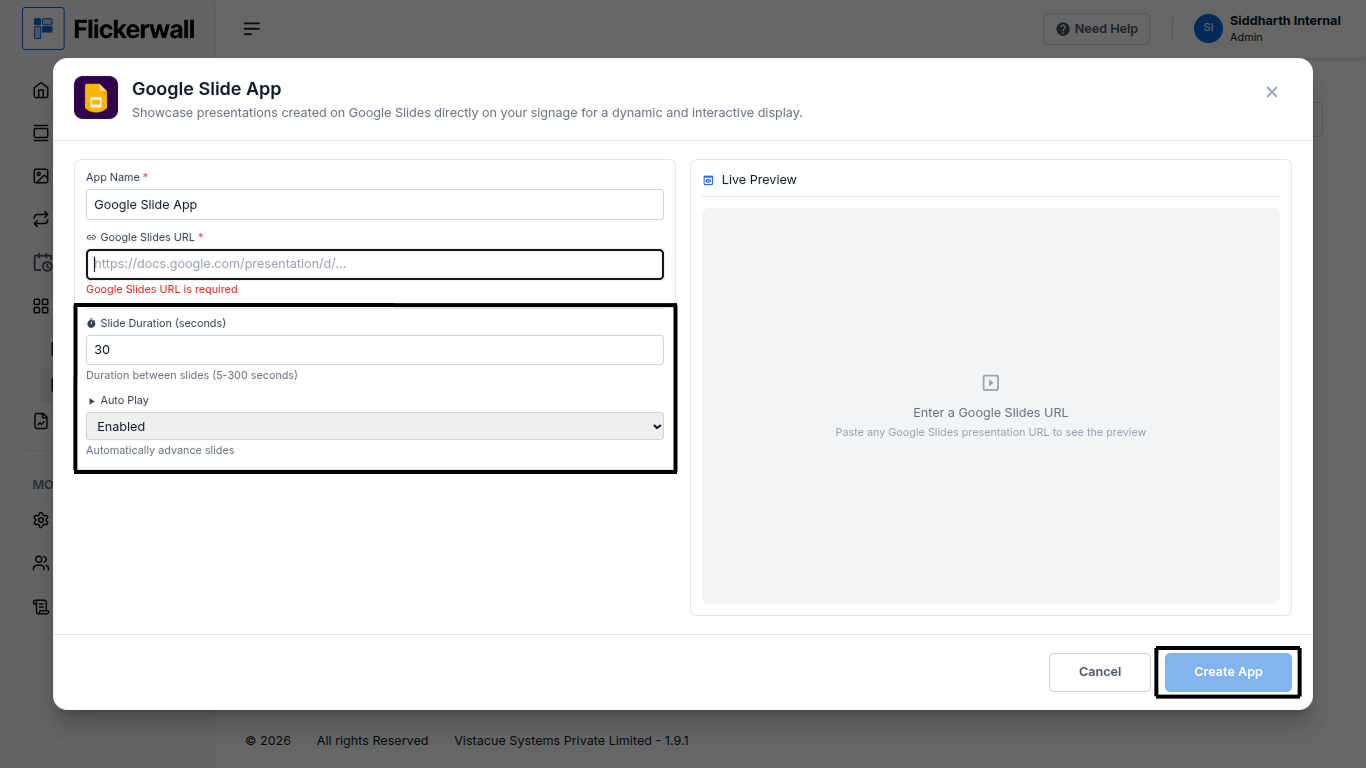
Step 6

Select Slide duration and Enable or Disable the Auto play feature
<img src="https://mintcdn.com/flickerwall-796545b9/vWvJ3l0LLgrVbFxp/images/apps-how-to-add-the-google-slide-app-from-flickerwall-store-image-6.png?fit=max&auto=format&n=vWvJ3l0LLgrVbFxp&q=85&s=f8bf77986a0d5ef8010fd52237af5bcb" alt="" width="1366" height="768" data-path="images/apps-how-to-add-the-google-slide-app-from-flickerwall-store-image-6.png" />

ones you’re done with all the process click on Create App

Congratulations : you have now created the Google Slide app
