> ## Documentation Index
> Fetch the complete documentation index at: https://docs.flickerwall.com/llms.txt
> Use this file to discover all available pages before exploring further.
# How to add the Facebook Post app from Flickerwall store?
> step by step guide to learn how to add the Facebook Post app from the Flickerwall store
***
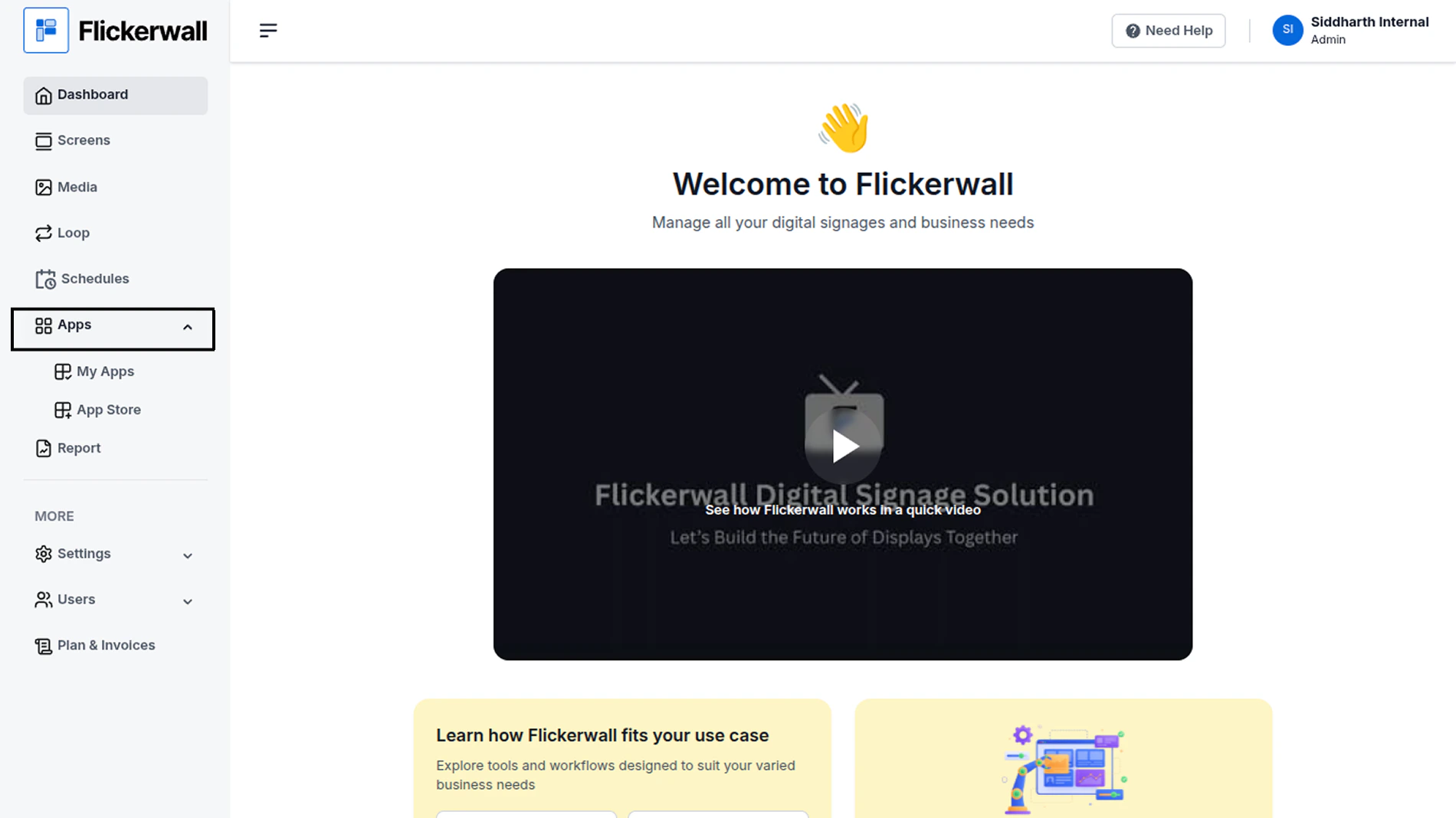
Step 1
Go to Apps and then App store!
click on the apps and then Nevigate to App store in the appeared drawer
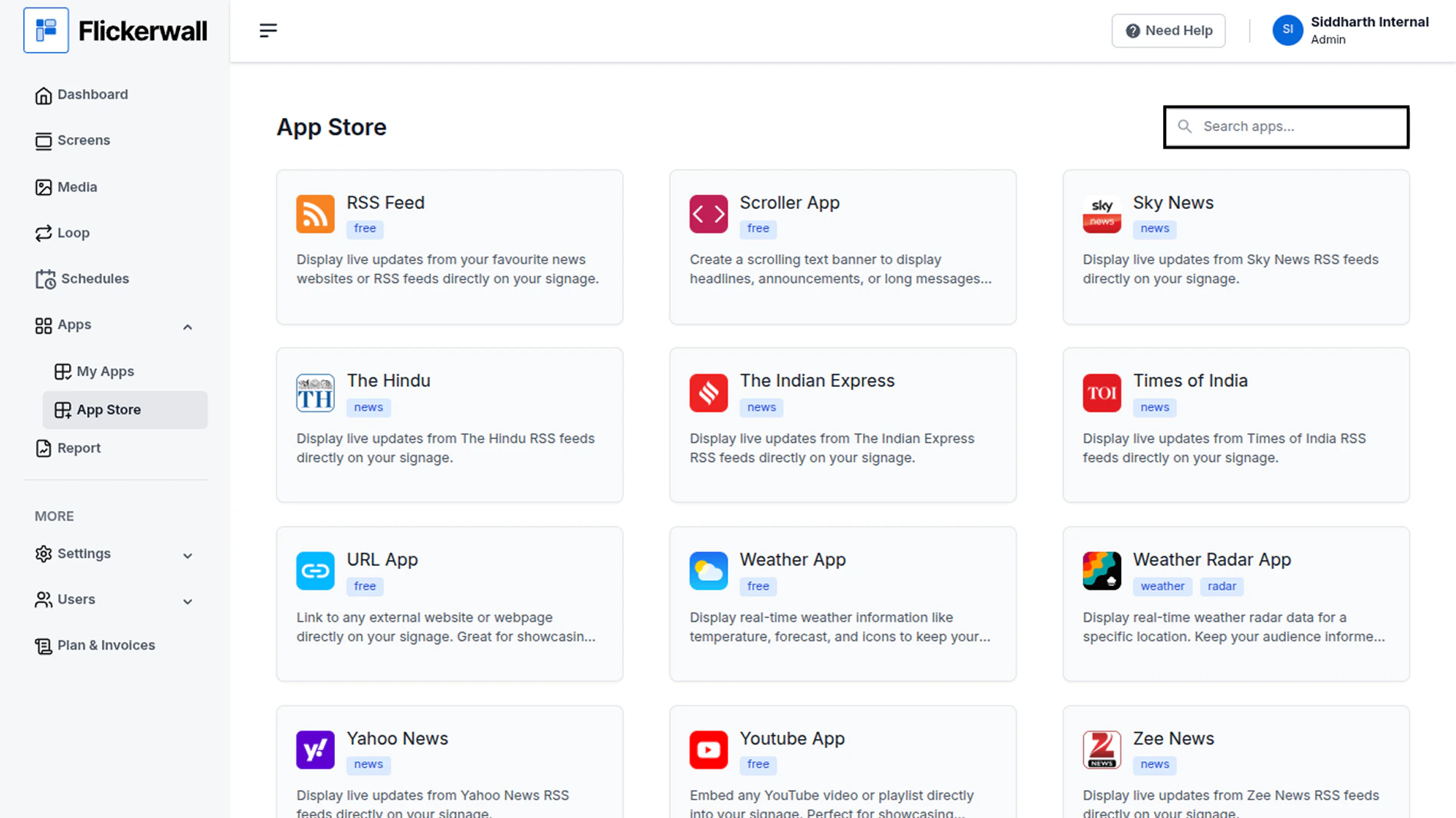
 Step 2
Go to Search Bar
you can search the app you want
Step 2
Go to Search Bar
you can search the app you want
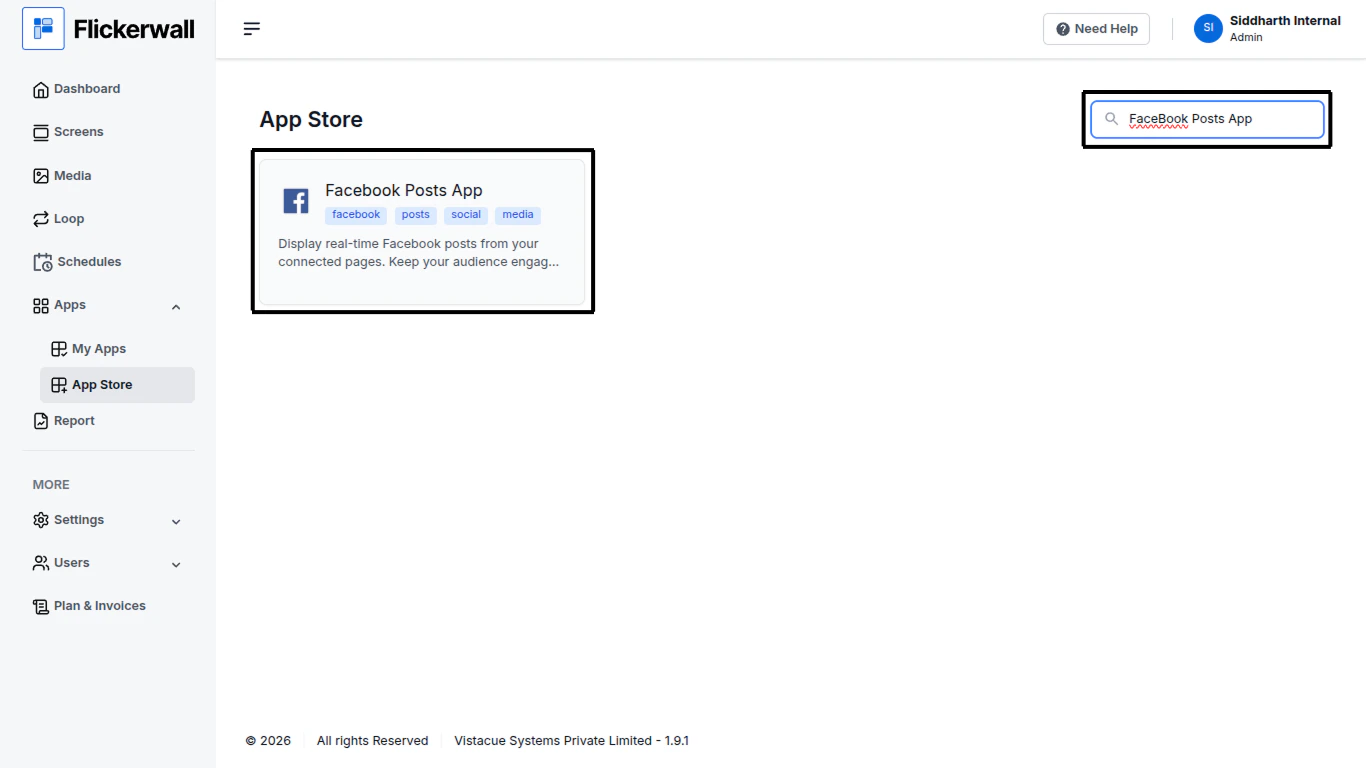
 Step 3
Search for FaceBook Posts App Select and click on the desired app
Step 3
Search for FaceBook Posts App Select and click on the desired app
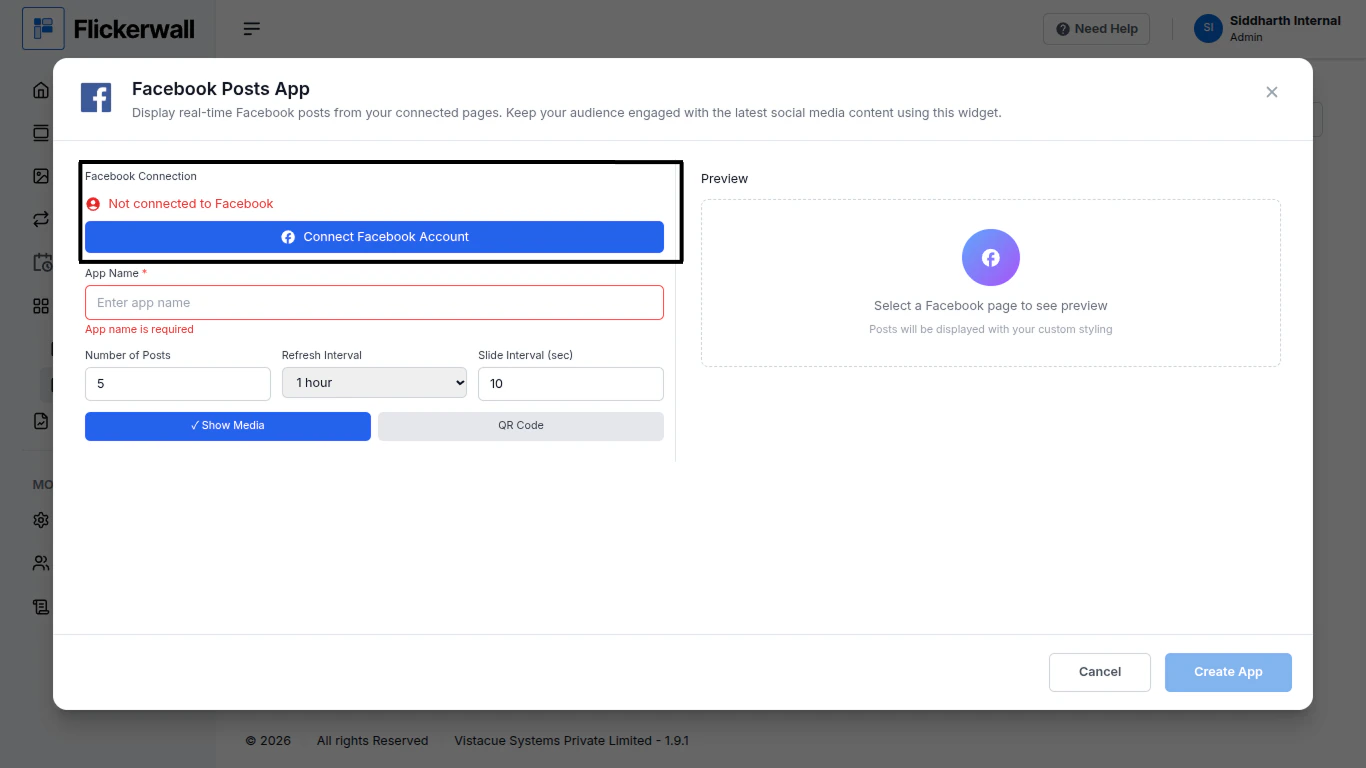
 Step 4
First Connect a FaceBook Account and enter a Name for the App
Enter a name for app so you can find it easy later
Step 4
First Connect a FaceBook Account and enter a Name for the App
Enter a name for app so you can find it easy later
 Step 5
enter how many images you want to show
Enter a Refresh time ( the app will Reloads in the selected duration)
Slide Interval (sec) (each image will change in the desired time)
Step 5
enter how many images you want to show
Enter a Refresh time ( the app will Reloads in the selected duration)
Slide Interval (sec) (each image will change in the desired time)
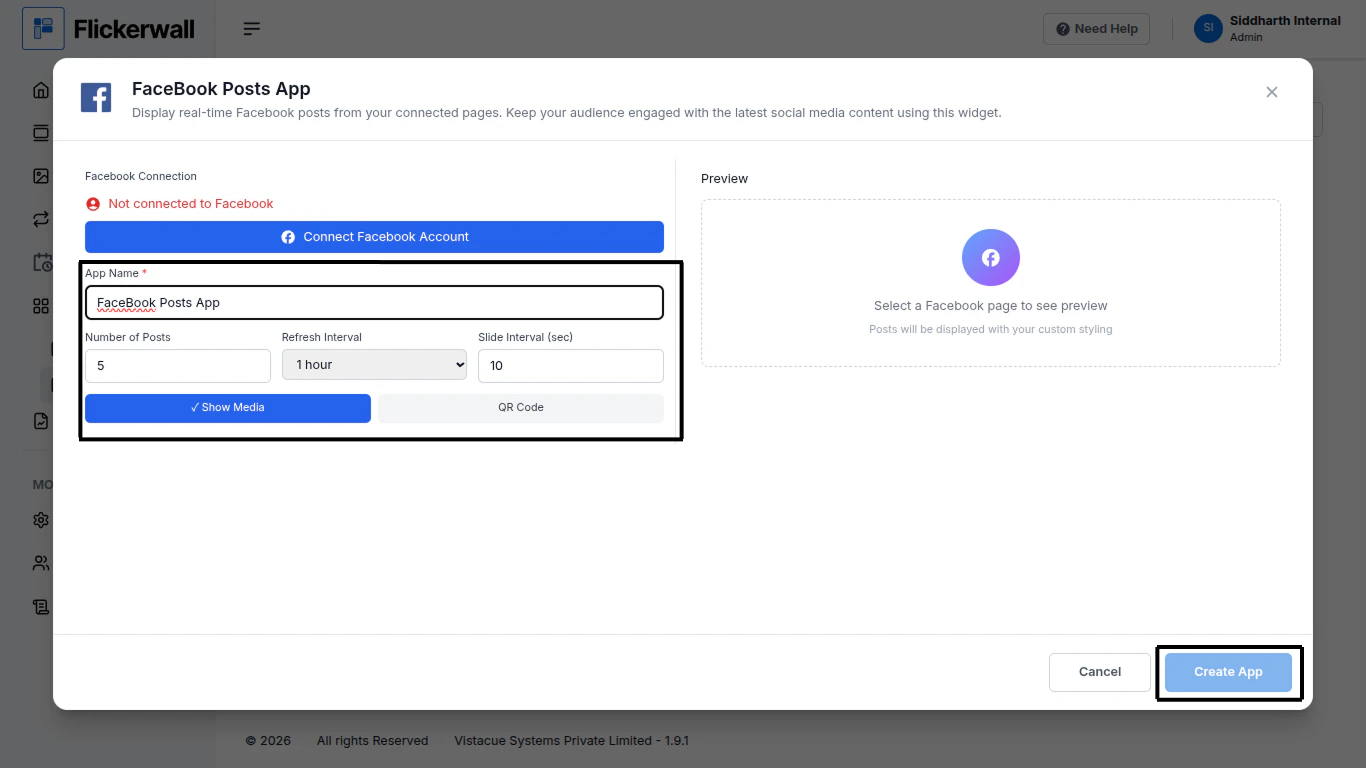 Ones done with the process click on Create App to Complete the process
Congratulations : you have now Created a App for use Through Flickerwall store
Ones done with the process click on Create App to Complete the process
Congratulations : you have now Created a App for use Through Flickerwall store