> ## Documentation Index
> Fetch the complete documentation index at: https://docs.flickerwall.com/llms.txt
> Use this file to discover all available pages before exploring further.

# How to add the Count down App from Flickerwall store?

> Step by step guide to learn how to add the Count down app from the Flickerwall store

***

Step 1

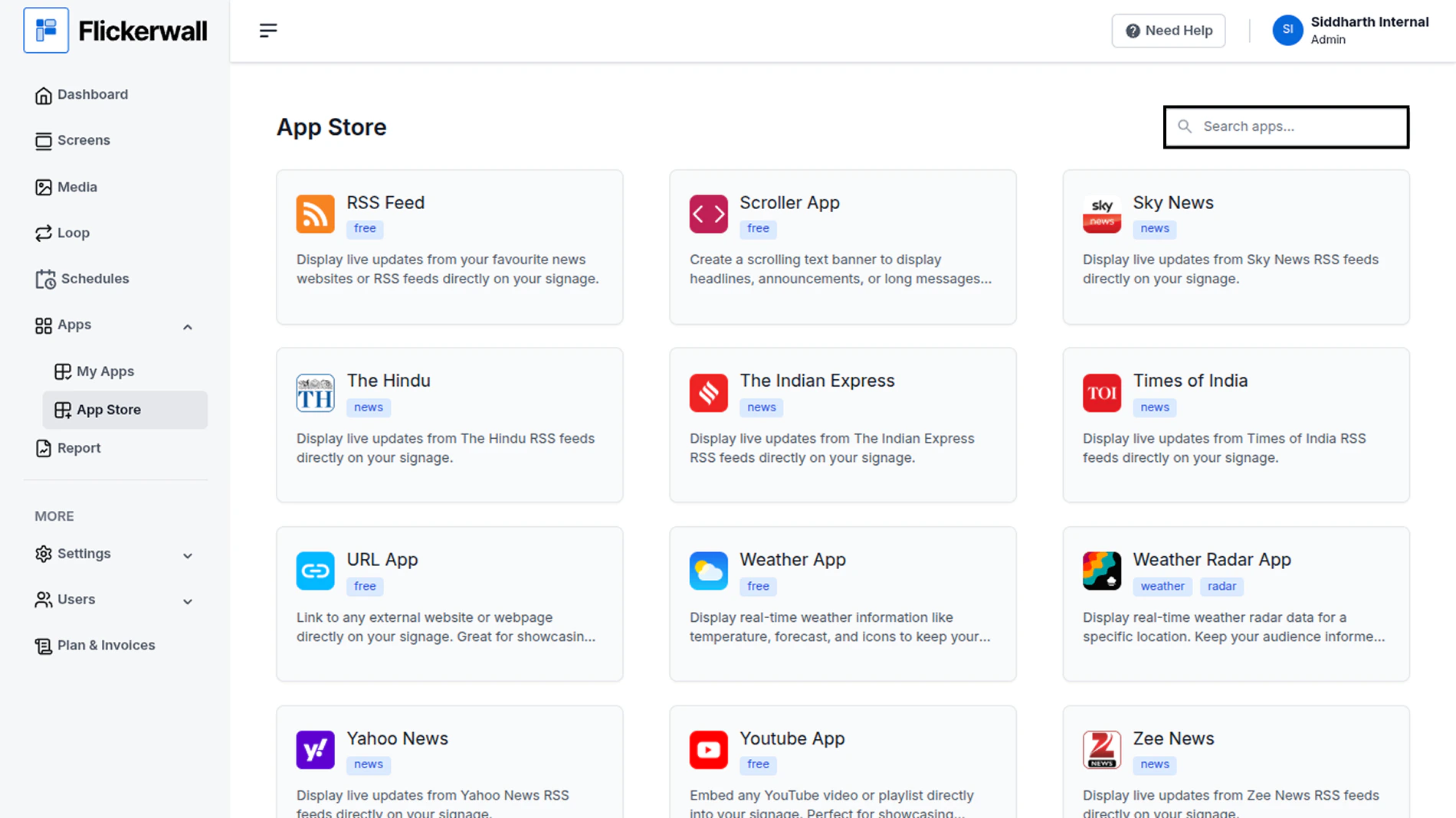
Go to Apps and then App store!

click on the apps and then Nevigate to App store in the appeared drawer

<img src="https://mintcdn.com/flickerwall-796545b9/F04PkwLBM7RCLZ-O/images/apps-how-to-add-the-count-down-app-from-flickerwall-store-image-1.png?fit=max&auto=format&n=F04PkwLBM7RCLZ-O&q=85&s=da1adc64a7b5b0df862bcdae627ea8f6" alt="" width="1900" height="1068" data-path="images/apps-how-to-add-the-count-down-app-from-flickerwall-store-image-1.png" />

Step 2

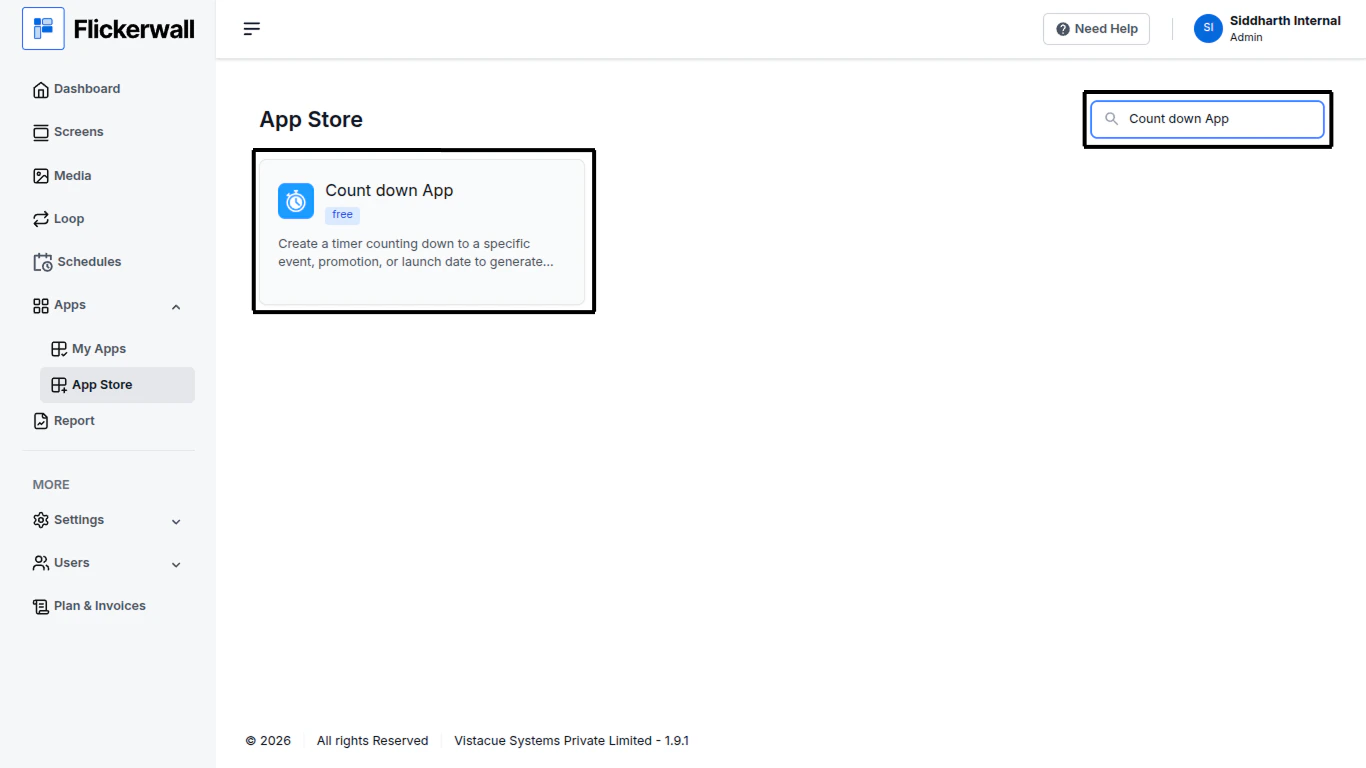
Go to Search Bar

you can search the app you want
<img src="https://mintcdn.com/flickerwall-796545b9/F04PkwLBM7RCLZ-O/images/apps-how-to-add-the-count-down-app-from-flickerwall-store-image-2.png?fit=max&auto=format&n=F04PkwLBM7RCLZ-O&q=85&s=122ae7336f2808d2d527620b62b6029b" alt="" width="1900" height="1068" data-path="images/apps-how-to-add-the-count-down-app-from-flickerwall-store-image-2.png" />

Step 3

Search for Count down App Select and click on the desired app
<img src="https://mintcdn.com/flickerwall-796545b9/F04PkwLBM7RCLZ-O/images/apps-how-to-add-the-count-down-app-from-flickerwall-store-image-3.png?fit=max&auto=format&n=F04PkwLBM7RCLZ-O&q=85&s=d50bd600a437529f9fc7ae3ceb385b5d" alt="" width="1366" height="768" data-path="images/apps-how-to-add-the-count-down-app-from-flickerwall-store-image-3.png" />

Step 4

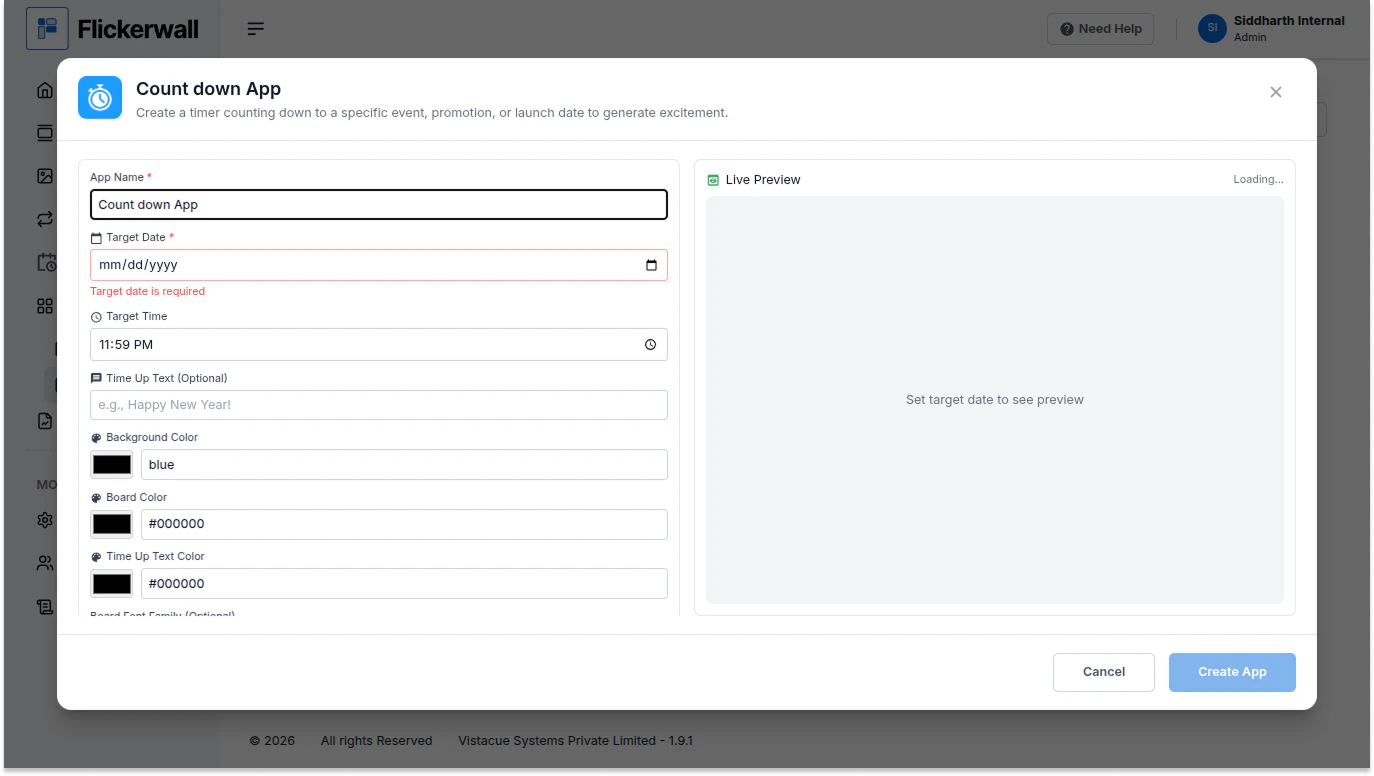
Enter a Name for the App

Enter a name for app so you can find it easy later
<img src="https://mintcdn.com/flickerwall-796545b9/F04PkwLBM7RCLZ-O/images/apps-how-to-add-the-count-down-app-from-flickerwall-store-image-4.png?fit=max&auto=format&n=F04PkwLBM7RCLZ-O&q=85&s=618969eb76b900263397df50fbc8cfec" alt="" width="1374" height="776" data-path="images/apps-how-to-add-the-count-down-app-from-flickerwall-store-image-4.png" />

Step 5

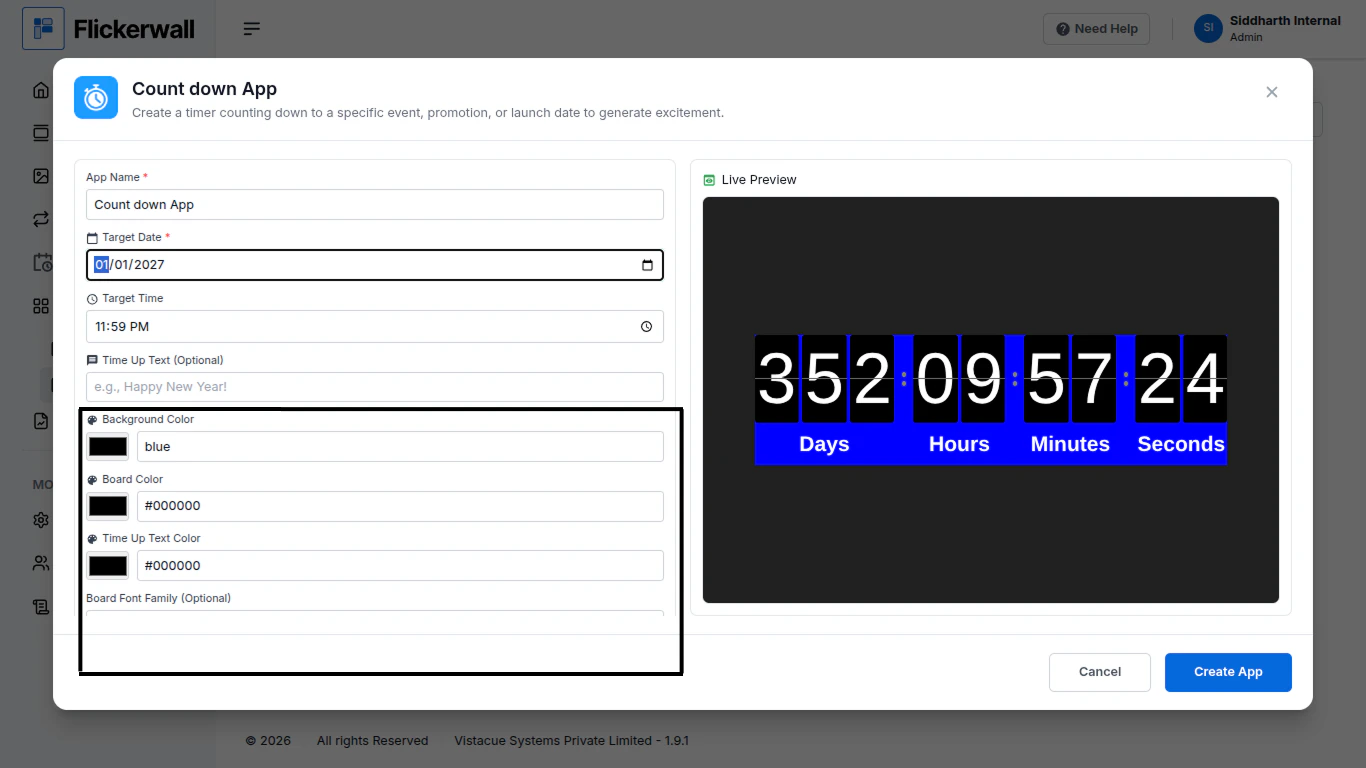
Add the Date and Target Time

You can also use the below listed (optional) preferences
<img src="https://mintcdn.com/flickerwall-796545b9/F04PkwLBM7RCLZ-O/images/apps-how-to-add-the-count-down-app-from-flickerwall-store-image-5.png?fit=max&auto=format&n=F04PkwLBM7RCLZ-O&q=85&s=fe34e305947828f06f7553587328bbd1" alt="" width="1366" height="768" data-path="images/apps-how-to-add-the-count-down-app-from-flickerwall-store-image-5.png" />

Ones done with the process click Create App and Complete the process

Congratulations : you have now created a App from Flickerwall store
