> ## Documentation Index
> Fetch the complete documentation index at: https://docs.flickerwall.com/llms.txt
> Use this file to discover all available pages before exploring further.
# How to add the Content Kiosk App from Flickerwall store?
> Step by step guide to learn how to add the Content Kiosk app from the Flickerwall store
# How to add the Content Kiosk App from Flickerwall store?
Step by step guide to learn how to add the Content Kiosk app from the Flickerwall store
***
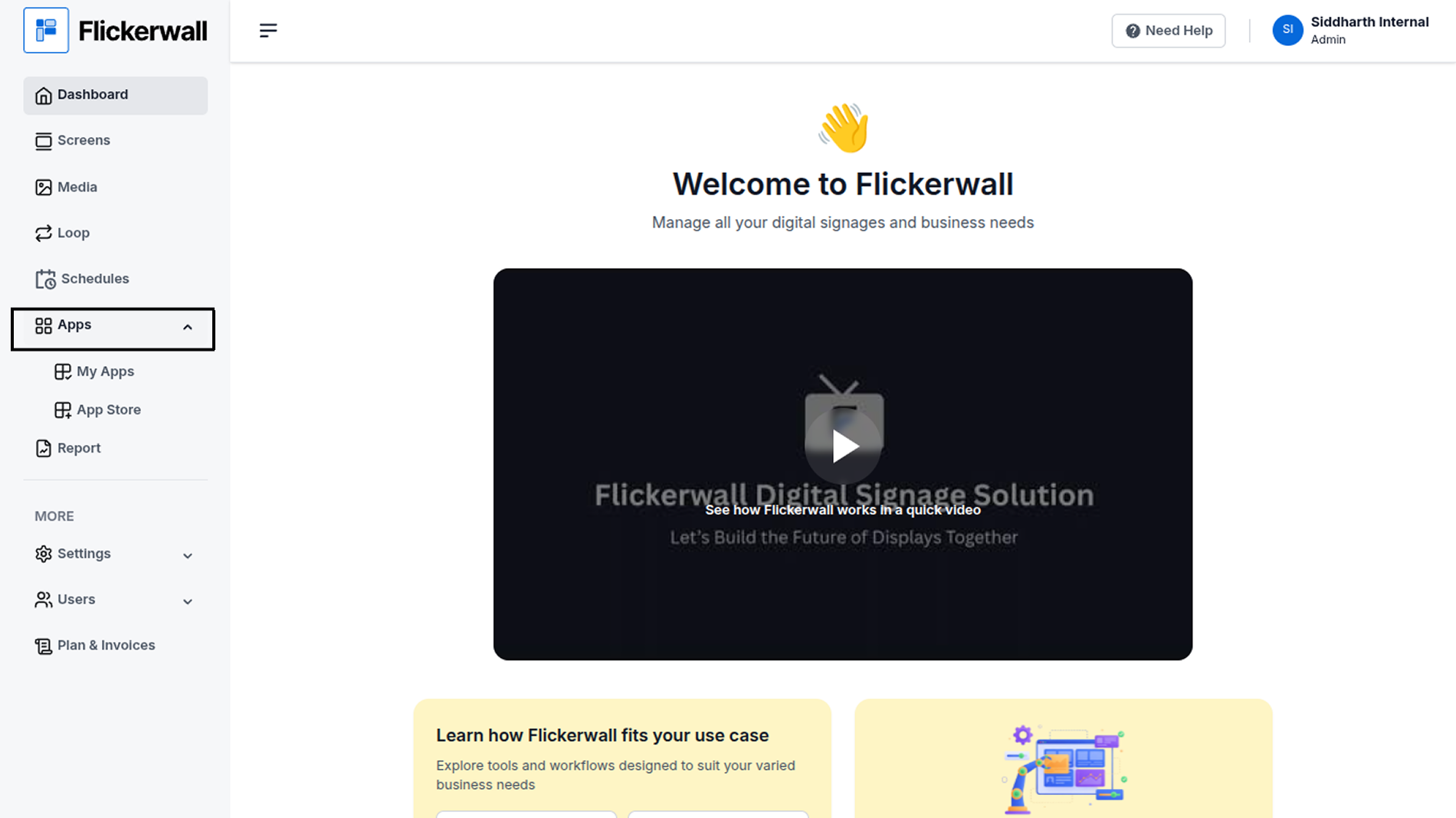
Step 1
Go to Apps and then App store!
click on the apps and then Nevigate to App store in the appeared drawer
 Step 2
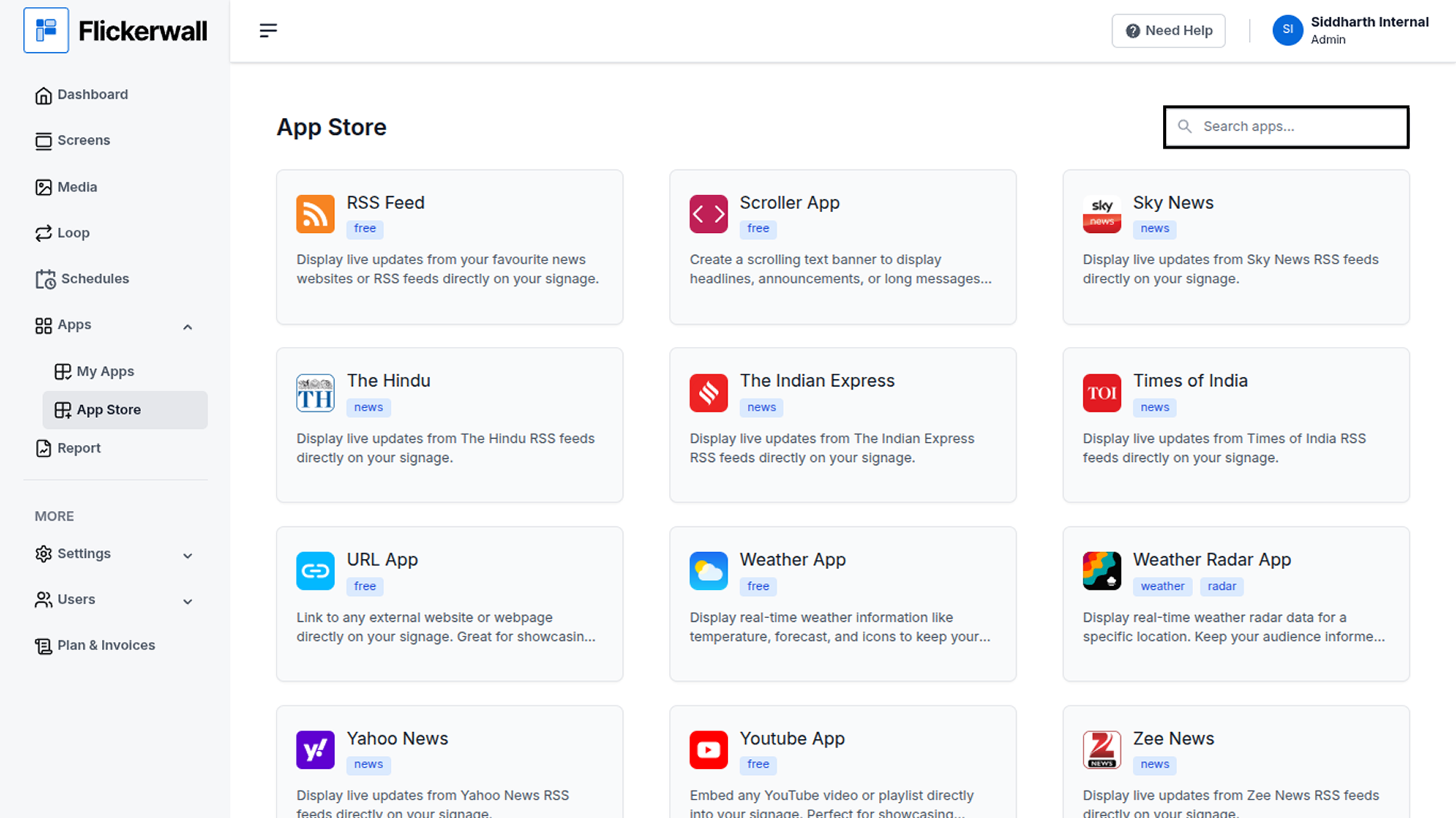
Go to Search Bar
you can search the app you want
Step 2
Go to Search Bar
you can search the app you want
 Step 3
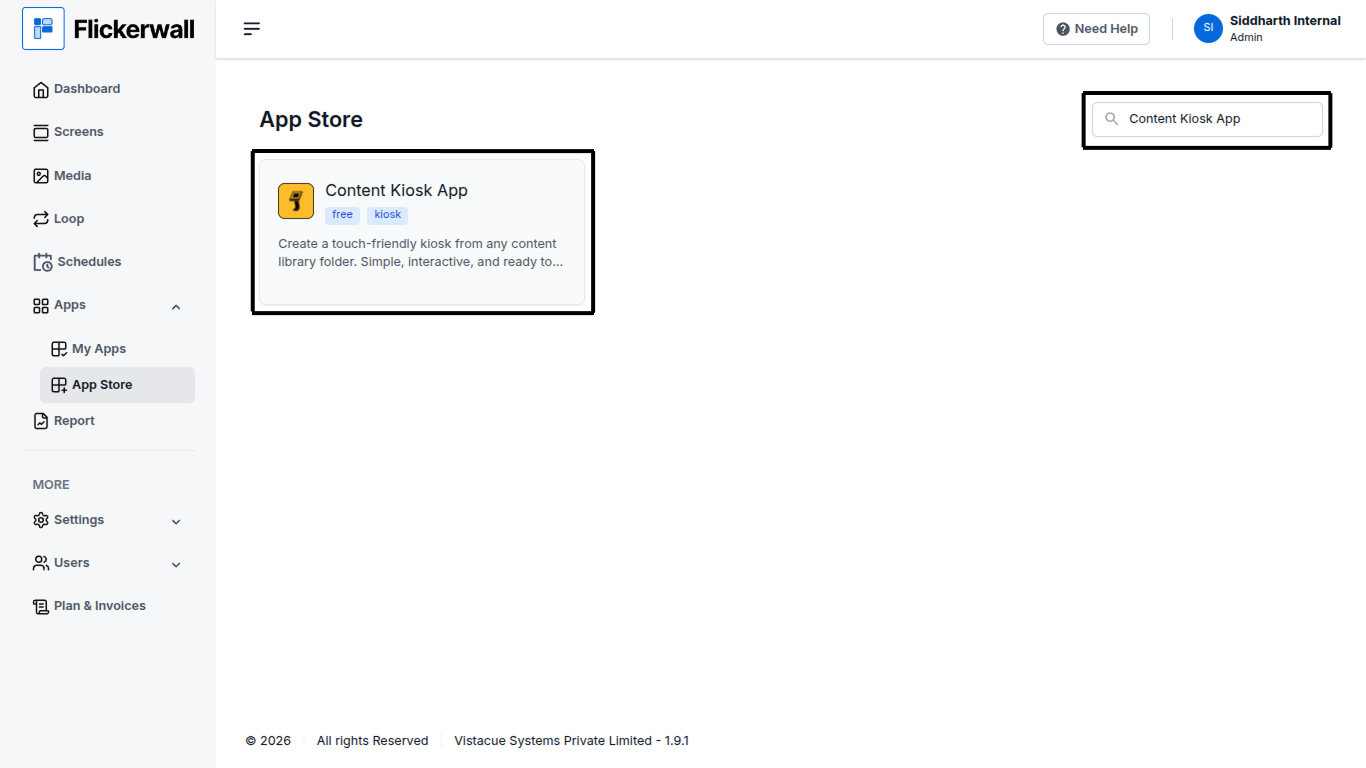
Search for Content Kiosk App Select and click on the desired app
Step 3
Search for Content Kiosk App Select and click on the desired app
 Step 4
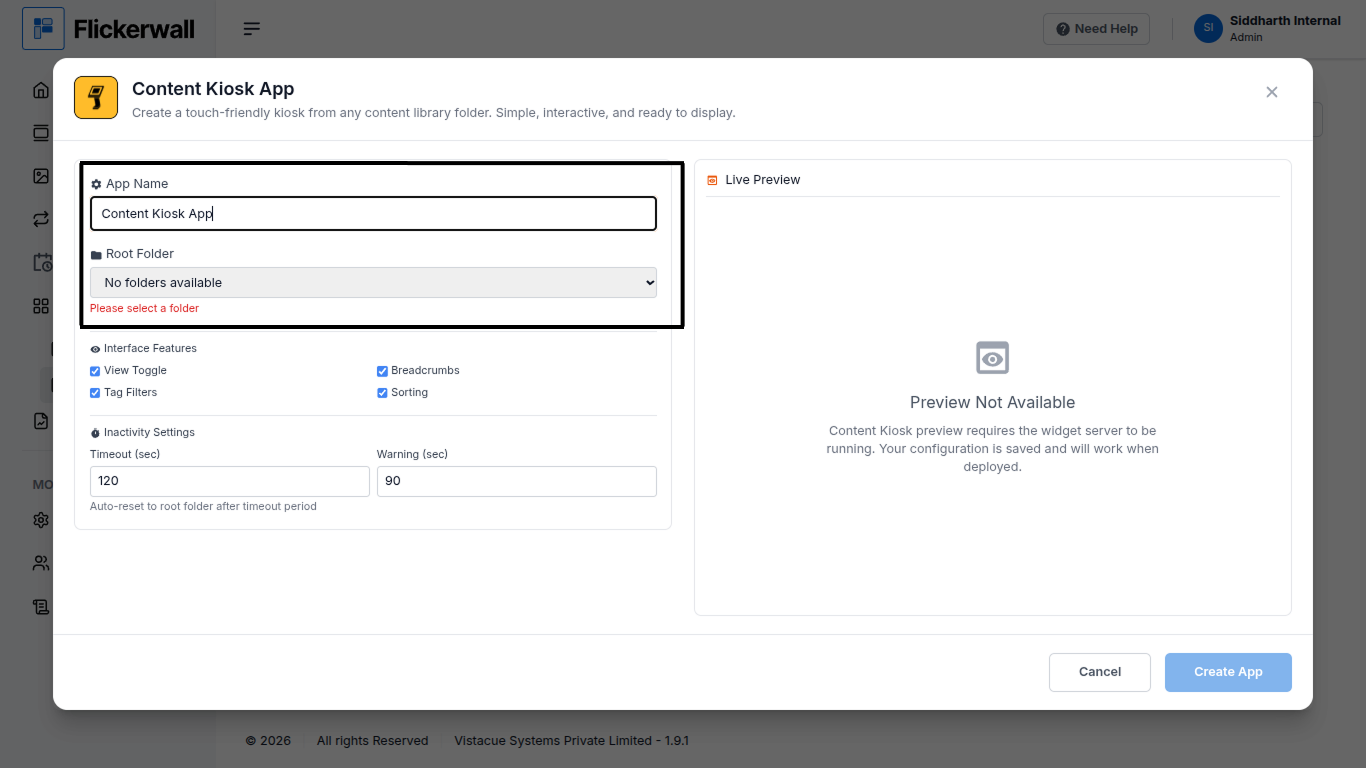
Enter a Name for the App
Enter a name for app so you can find it easy later
Select Your Root Folder which will Apprear in the box
(NOTE - If you can”t see any folder as such you may not have any Root folder)
Step 4
Enter a Name for the App
Enter a name for app so you can find it easy later
Select Your Root Folder which will Apprear in the box
(NOTE - If you can”t see any folder as such you may not have any Root folder)
 Step 5
View and edit the Interface features we provided and can add or remove them
Select a Timeout Time
Step 5
View and edit the Interface features we provided and can add or remove them
Select a Timeout Time
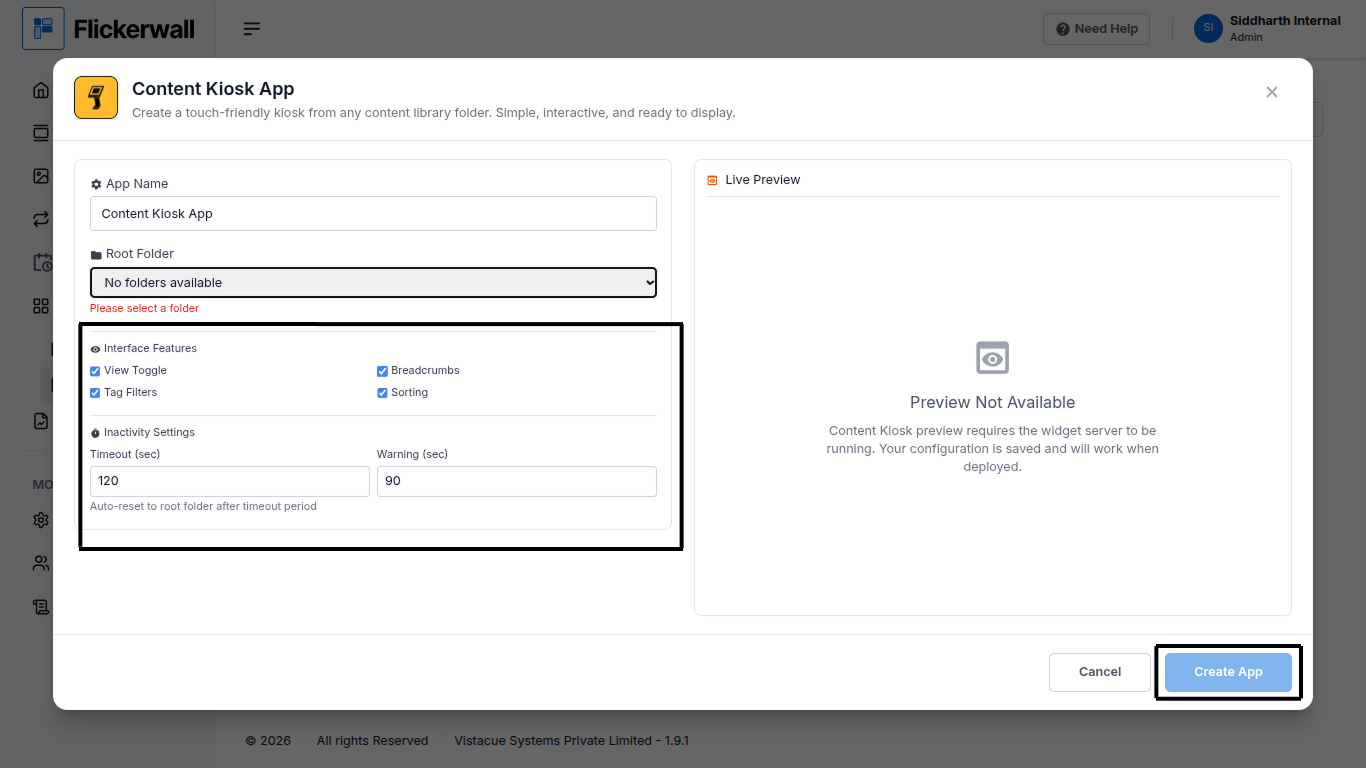 Ones you’re done selecting your preferences click on Create App to complete the process
Congratulations: you’ve now created the app you can use it through “My Apps” Tab
Ones you’re done selecting your preferences click on Create App to complete the process
Congratulations: you’ve now created the app you can use it through “My Apps” Tab