> ## Documentation Index
> Fetch the complete documentation index at: https://docs.flickerwall.com/llms.txt
> Use this file to discover all available pages before exploring further.
# How to add the Clock and Date Widget from Flickerwall store?
> Step by step guide to learn how to add the Clock and Date Widget from the Flickerwall store
***
Step 1
Go to Apps and then App store!
click on the apps and then Nevigate to App store in the appeared drawer
 Step 2
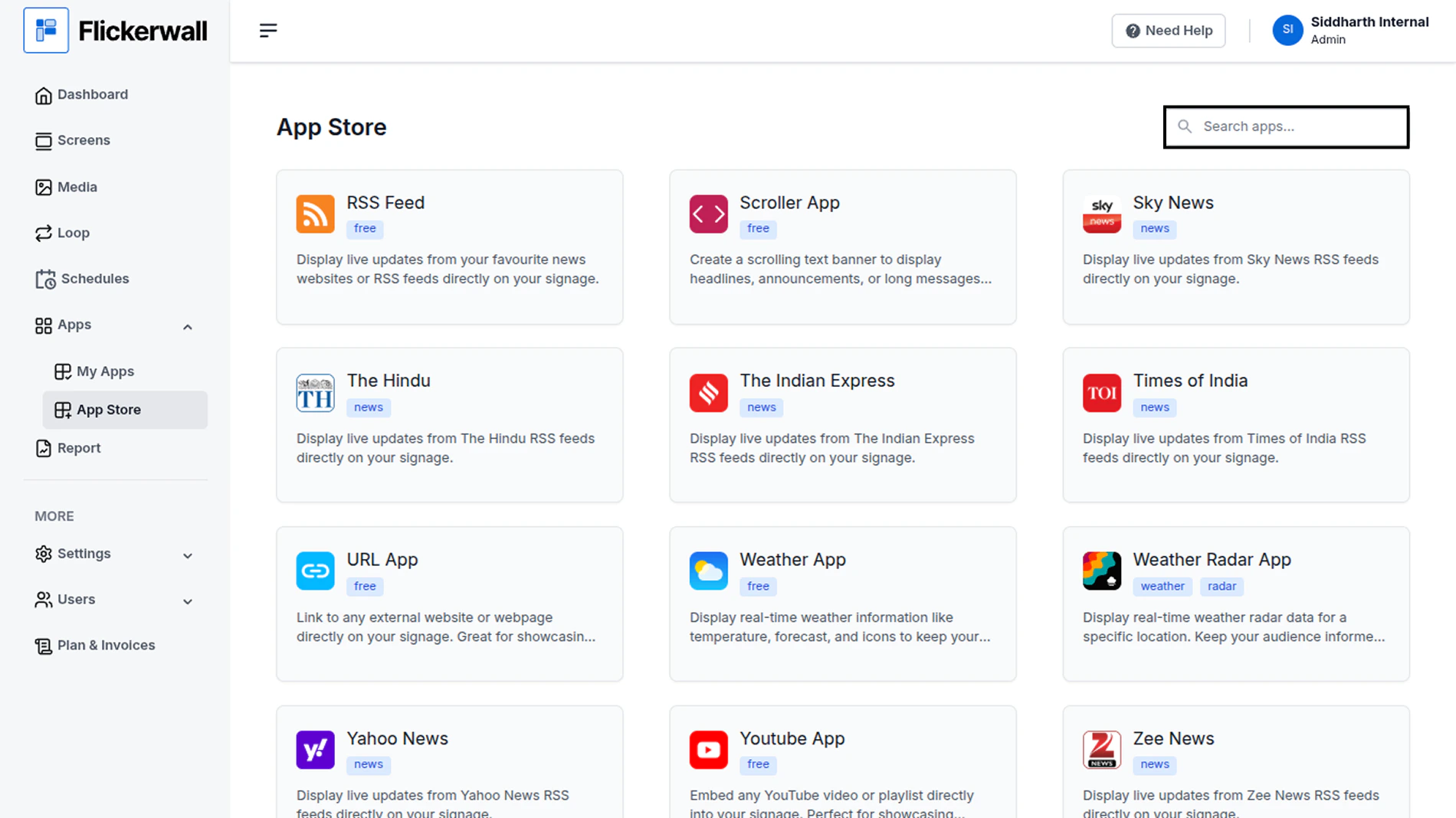
Go to Search Bar
you can search the app you want
Step 2
Go to Search Bar
you can search the app you want
 Step 3
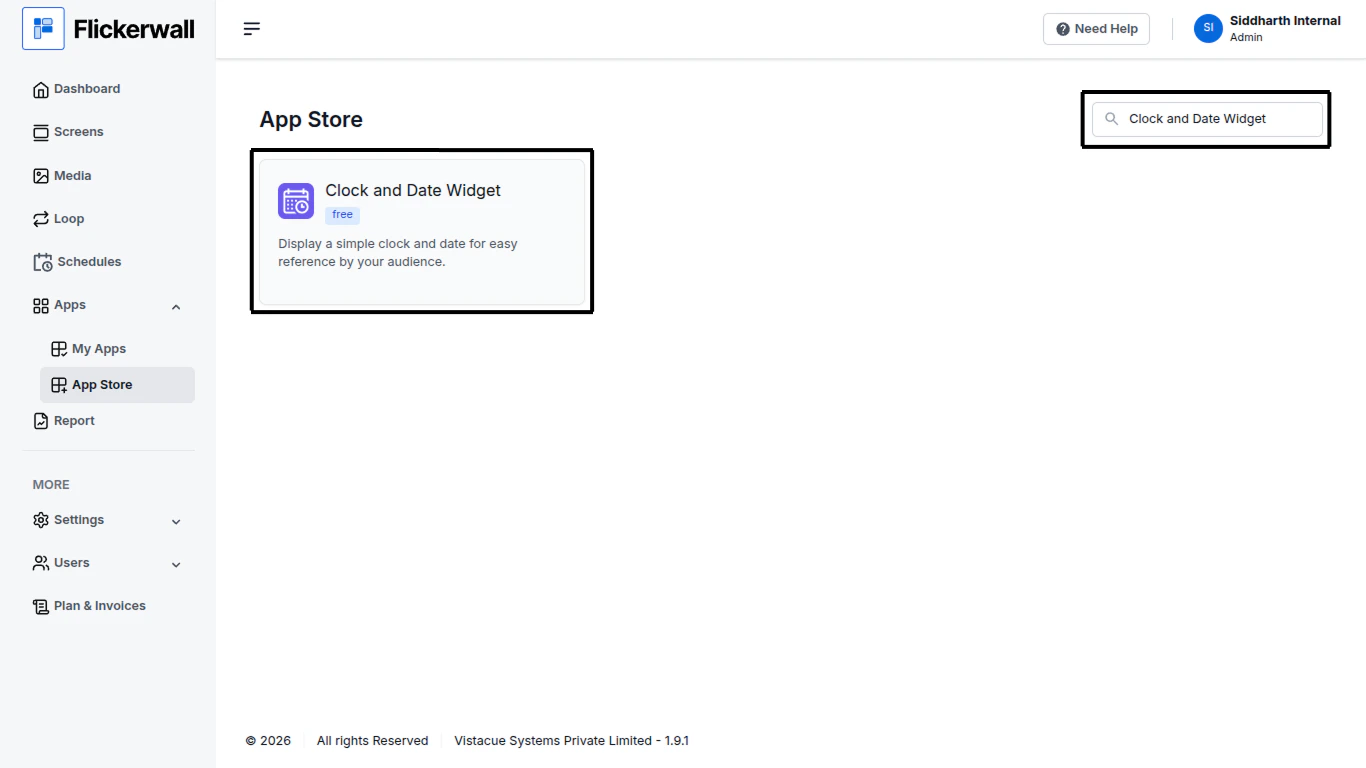
Search for Clock and Date Widget Select and click on the desired app
Step 3
Search for Clock and Date Widget Select and click on the desired app
 Step 4
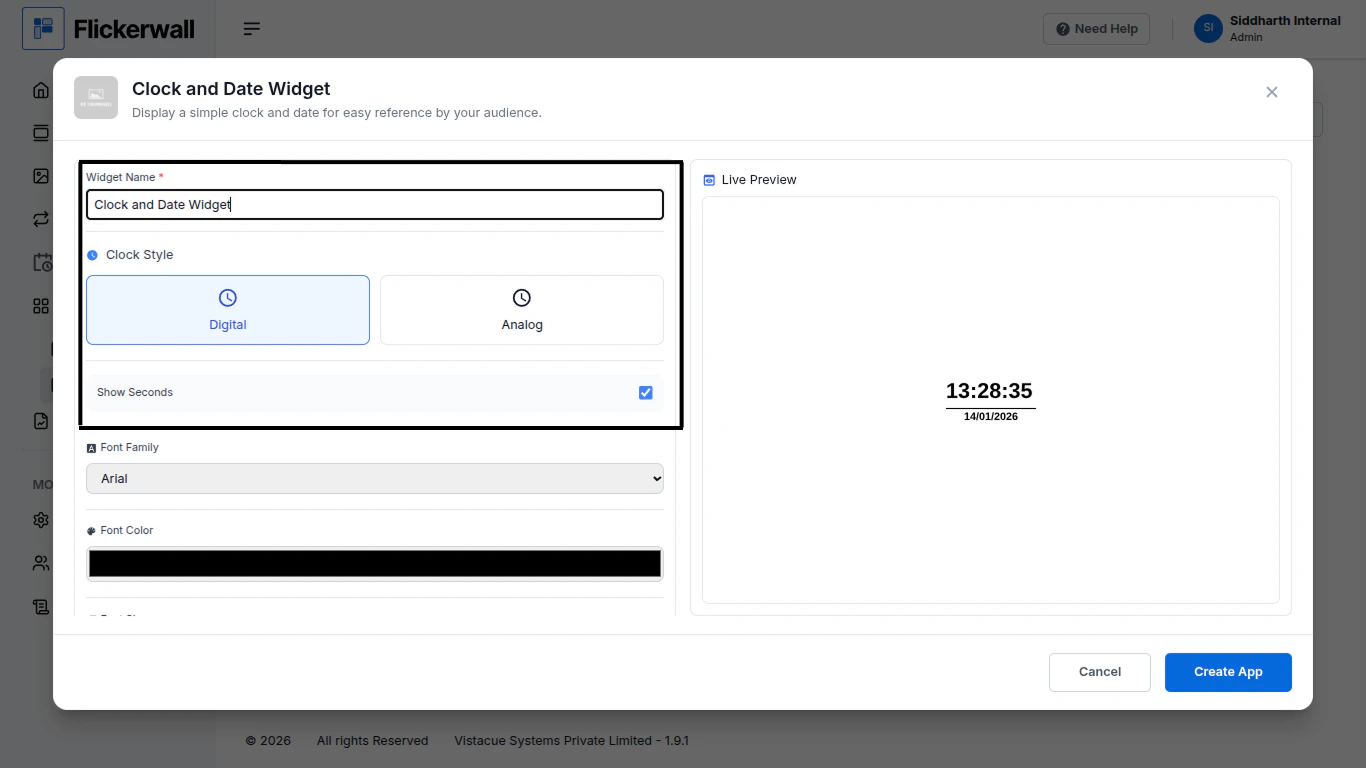
Enter a Name for the App
Enter a name for app so you can find it easy later
Step 4
Enter a Name for the App
Enter a name for app so you can find it easy later
 Step 5
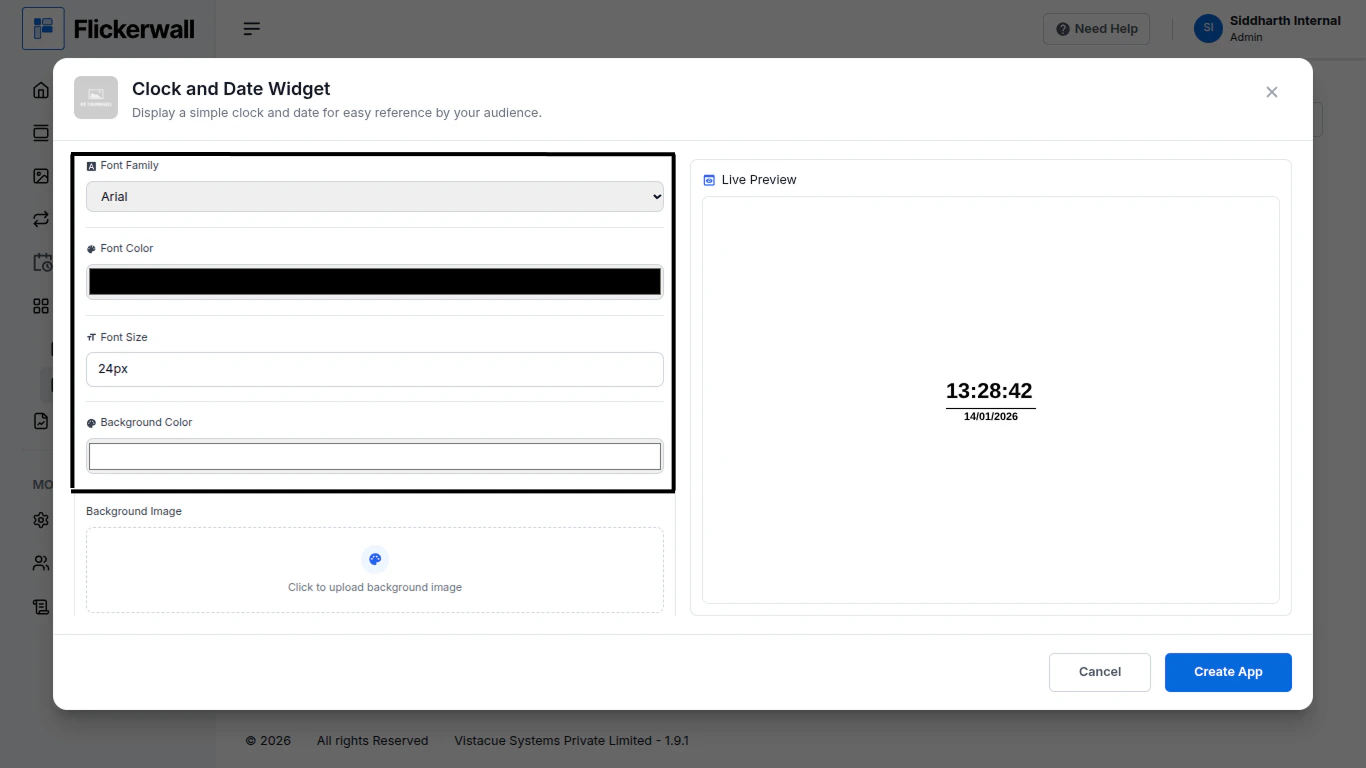
Select the Font Style
Choose your preferred Font Color
Edit your Font size and Background color as per need and design
Step 5
Select the Font Style
Choose your preferred Font Color
Edit your Font size and Background color as per need and design
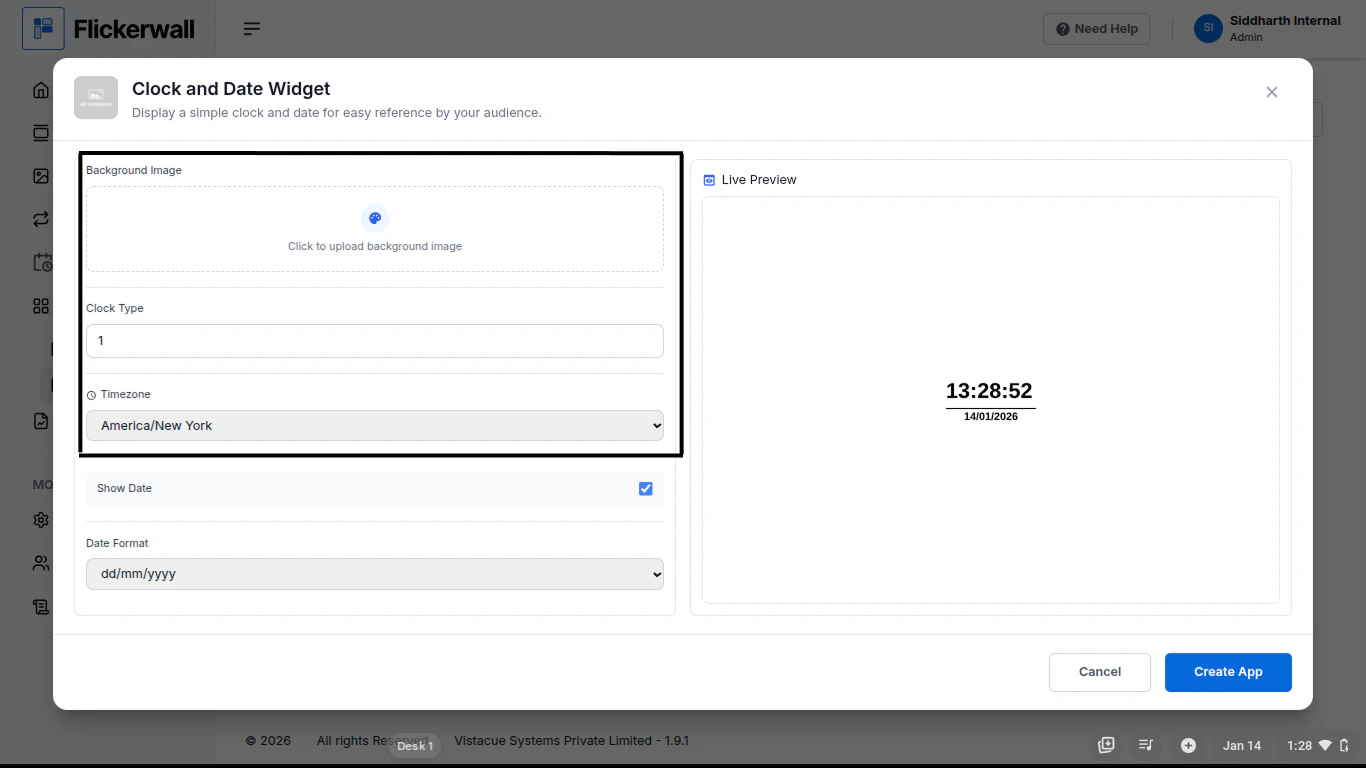
 Step 6
Background Image , Clock Type , Time Zone
If you don’t want a boring background color you can add am image to the background
Select your Clock type and your Time Zone
Step 6
Background Image , Clock Type , Time Zone
If you don’t want a boring background color you can add am image to the background
Select your Clock type and your Time Zone
 Step 7
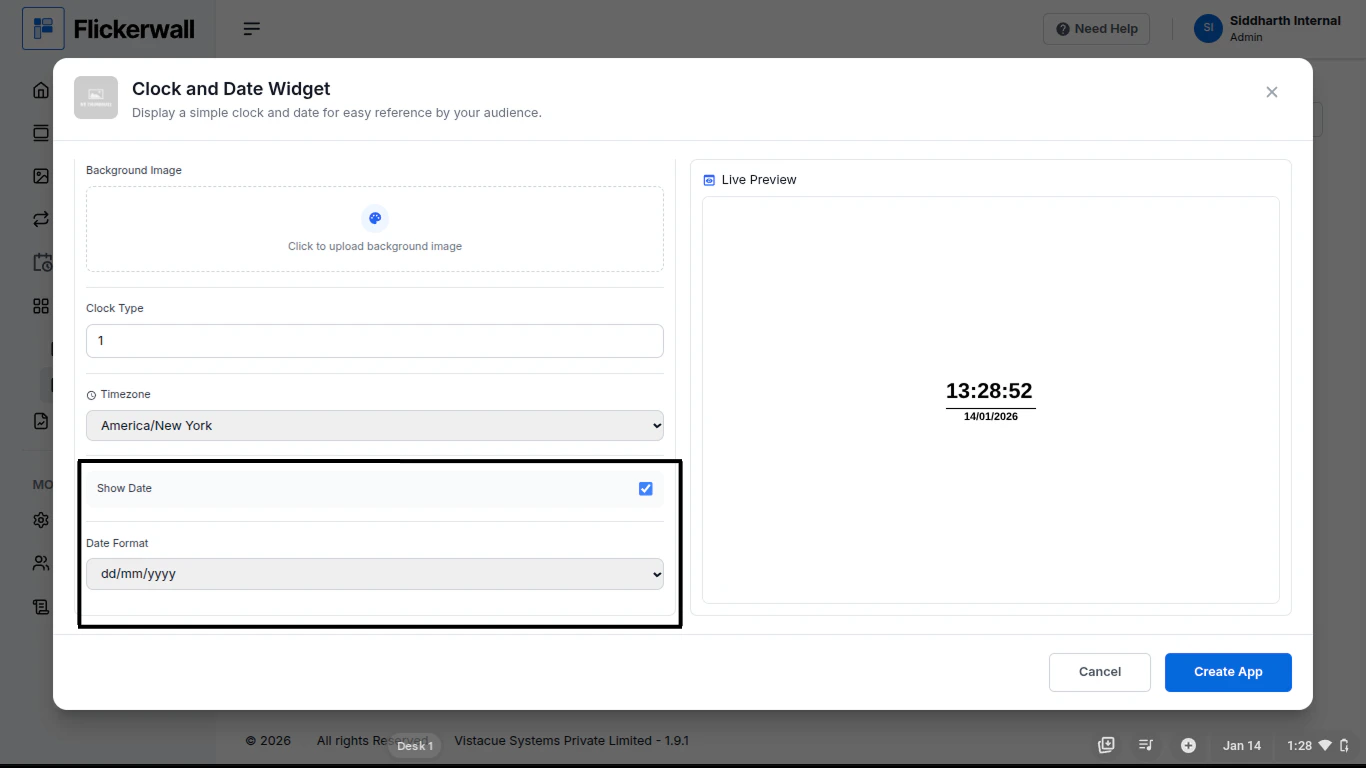
Show Date?
You can choose if you want the Date to show on thescreen if you want or don’t want it simply update it in this section
Step 7
Show Date?
You can choose if you want the Date to show on thescreen if you want or don’t want it simply update it in this section
 ones done with the process complete the process by clicking Create App
Congratulations : you have now created an App from Flickerwall store
ones done with the process complete the process by clicking Create App
Congratulations : you have now created an App from Flickerwall store