> ## Documentation Index
> Fetch the complete documentation index at: https://docs.flickerwall.com/llms.txt
> Use this file to discover all available pages before exploring further.

# How to add and use Hindustan Times app from Flickerwall store?

> Step by step guide to learn how to add the Hindustan Times app from the Flickerwall store

***

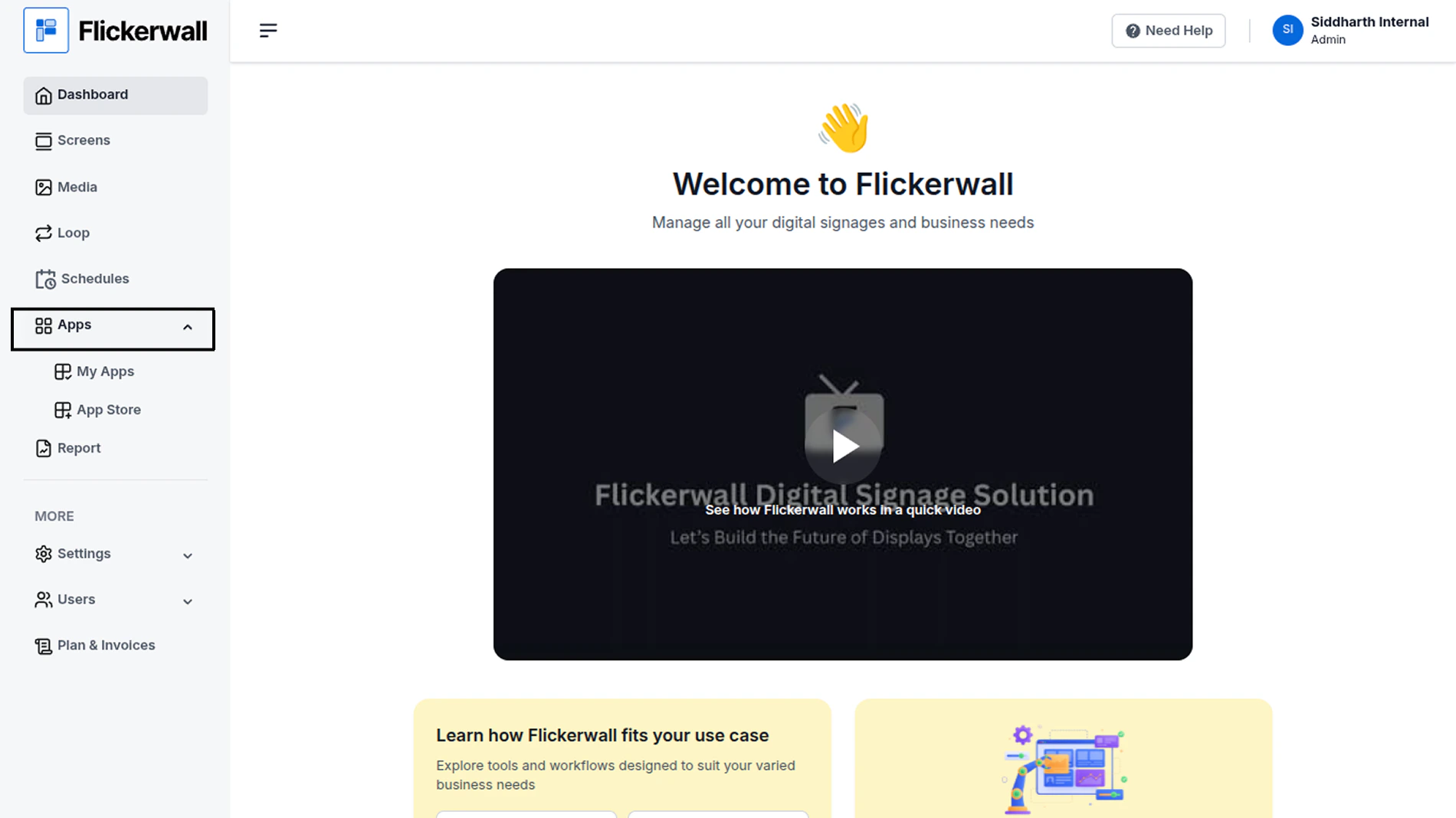
Step 1

Go to Apps and then App store!

click on the apps and then Nevigate to App store in the appeared drawer
<img src="https://mintcdn.com/flickerwall-796545b9/OnEcb51Xm6XuZxse/images/apps-how-to-add-and-use-hindustan-times-app-from-flickerwall-store-image-1.png?fit=max&auto=format&n=OnEcb51Xm6XuZxse&q=85&s=1842e24e0ca5c4db9316c03b3e336019" alt="" width="1900" height="1068" data-path="images/apps-how-to-add-and-use-hindustan-times-app-from-flickerwall-store-image-1.png" />

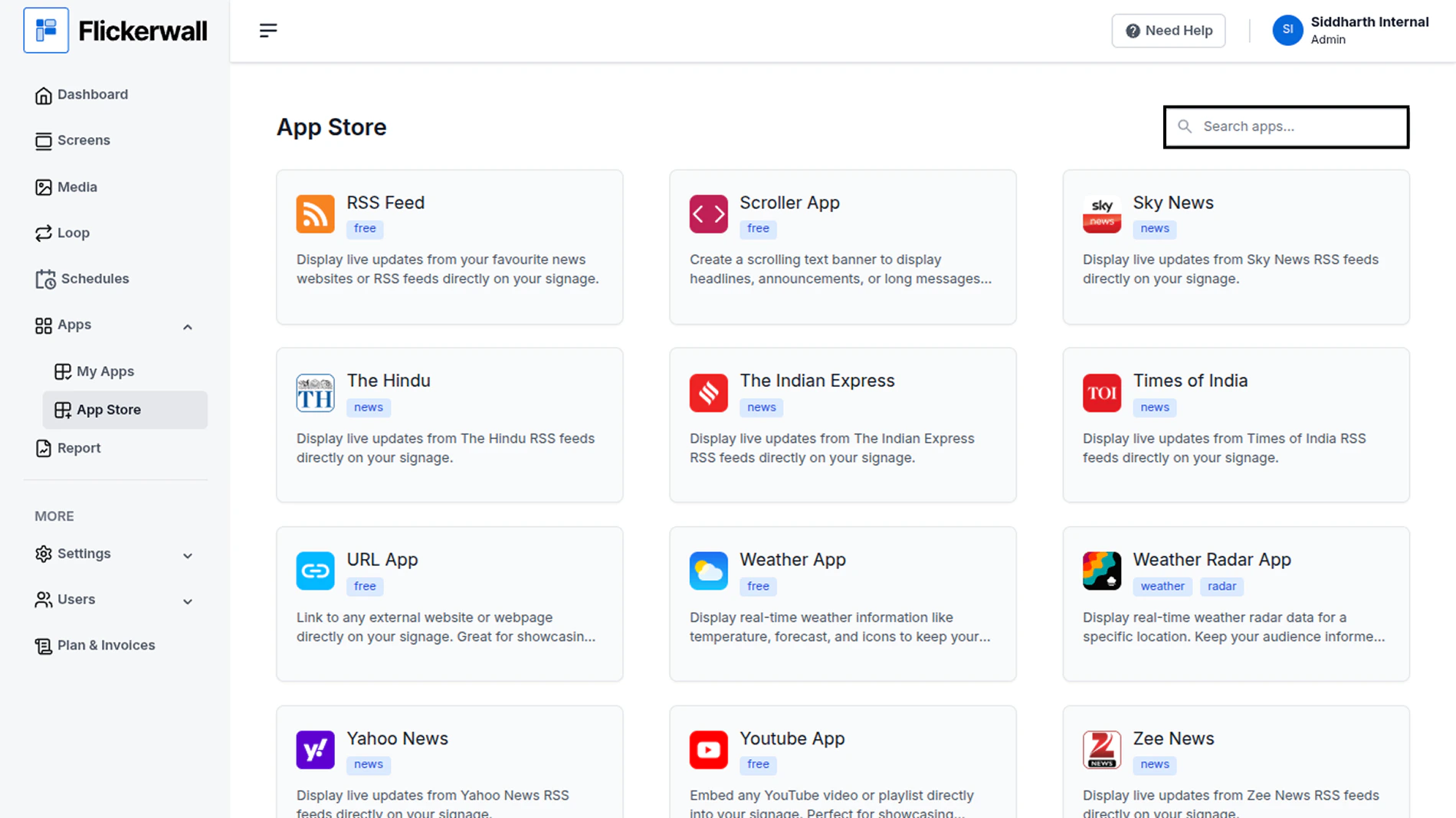
Step 2

Go to Search Bar

you can search the app you want
<img src="https://mintcdn.com/flickerwall-796545b9/OnEcb51Xm6XuZxse/images/apps-how-to-add-and-use-hindustan-times-app-from-flickerwall-store-image-2.png?fit=max&auto=format&n=OnEcb51Xm6XuZxse&q=85&s=e6b8a9381279c39f494d3f4e7ca51879" alt="" width="1900" height="1068" data-path="images/apps-how-to-add-and-use-hindustan-times-app-from-flickerwall-store-image-2.png" />

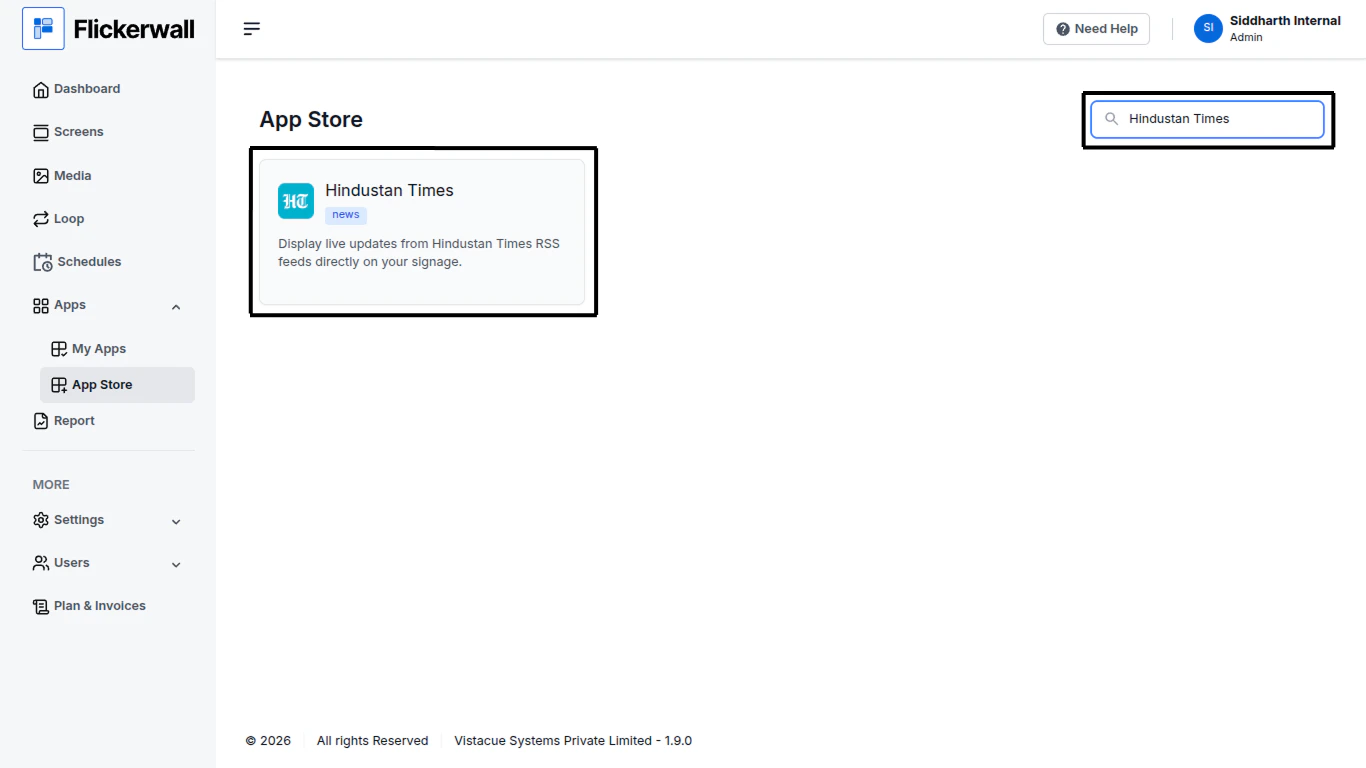
Step 3

Search for Hindustan Times Select and click on the desired app
<img src="https://mintcdn.com/flickerwall-796545b9/OnEcb51Xm6XuZxse/images/apps-how-to-add-and-use-hindustan-times-app-from-flickerwall-store-image-3.png?fit=max&auto=format&n=OnEcb51Xm6XuZxse&q=85&s=1568b2b16c1e042bd20756d0d8544d44" alt="" width="1366" height="768" data-path="images/apps-how-to-add-and-use-hindustan-times-app-from-flickerwall-store-image-3.png" />

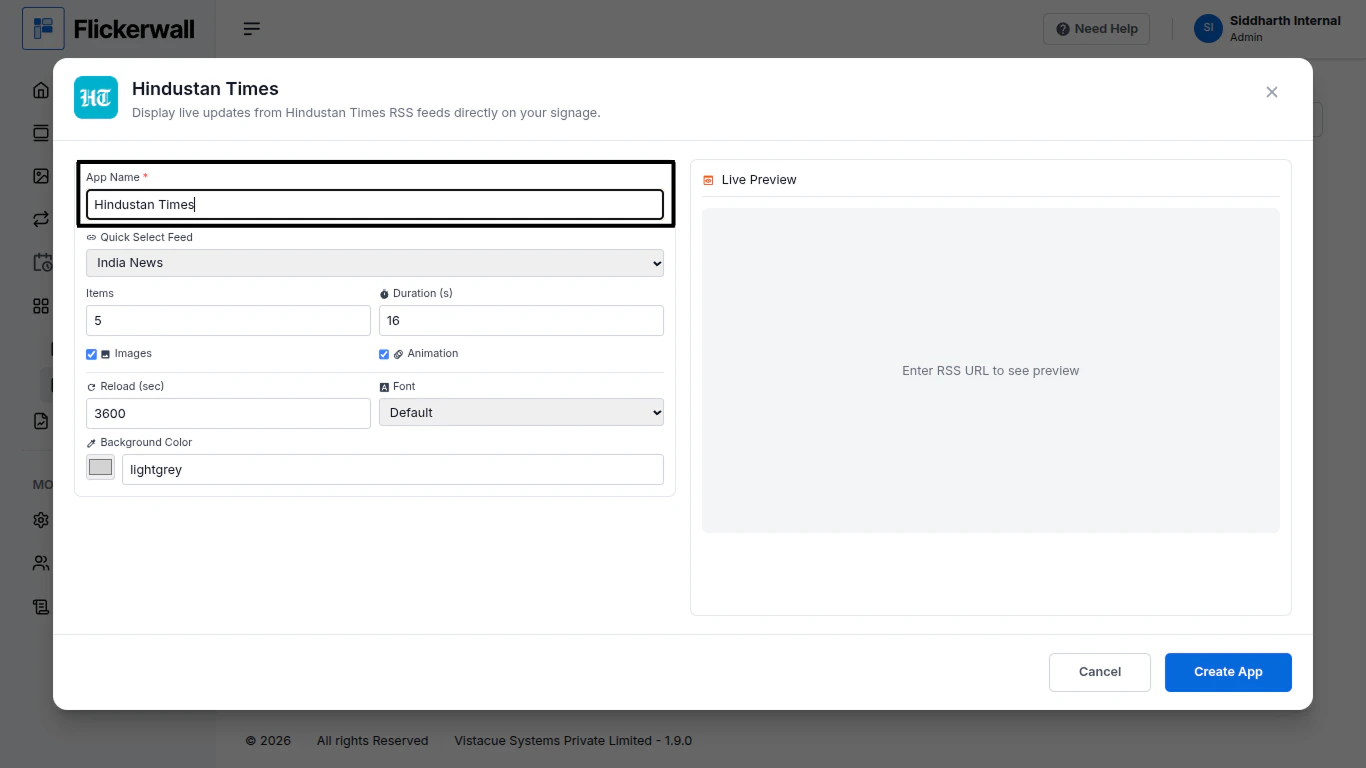
Step 4

Enter a Name for the App

Enter a name for app so you can find it easy later
<img src="https://mintcdn.com/flickerwall-796545b9/OnEcb51Xm6XuZxse/images/apps-how-to-add-and-use-hindustan-times-app-from-flickerwall-store-image-4.png?fit=max&auto=format&n=OnEcb51Xm6XuZxse&q=85&s=9c3e6e14ce9789c8bb09071580dbb0f7" alt="" width="1366" height="768" data-path="images/apps-how-to-add-and-use-hindustan-times-app-from-flickerwall-store-image-4.png" />

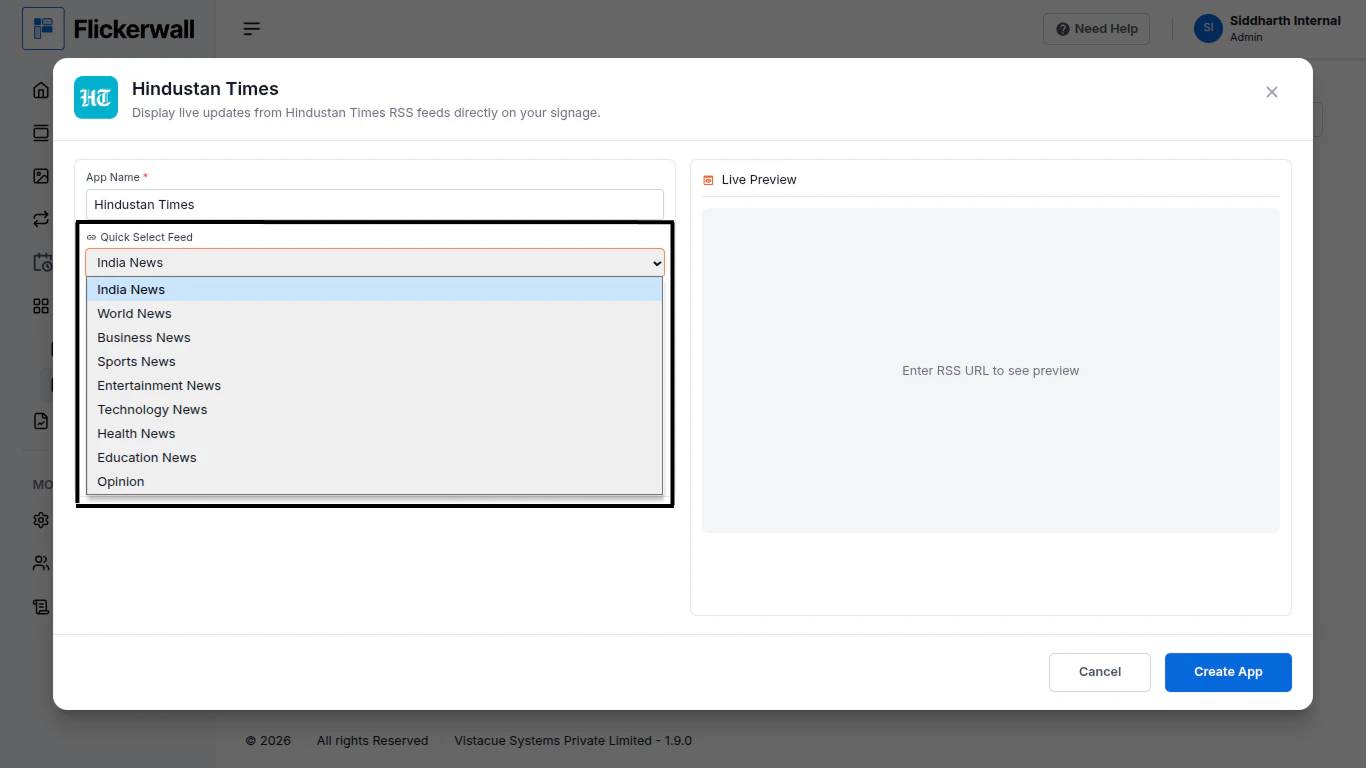
Step 5

Select a desired feed Topic for the App

Select any topic that feels more valuable for you signage
<img src="https://mintcdn.com/flickerwall-796545b9/OnEcb51Xm6XuZxse/images/apps-how-to-add-and-use-hindustan-times-app-from-flickerwall-store-image-5.png?fit=max&auto=format&n=OnEcb51Xm6XuZxse&q=85&s=04c306588b6bde697f2de85daf07e7cb" alt="" width="1366" height="768" data-path="images/apps-how-to-add-and-use-hindustan-times-app-from-flickerwall-store-image-5.png" />

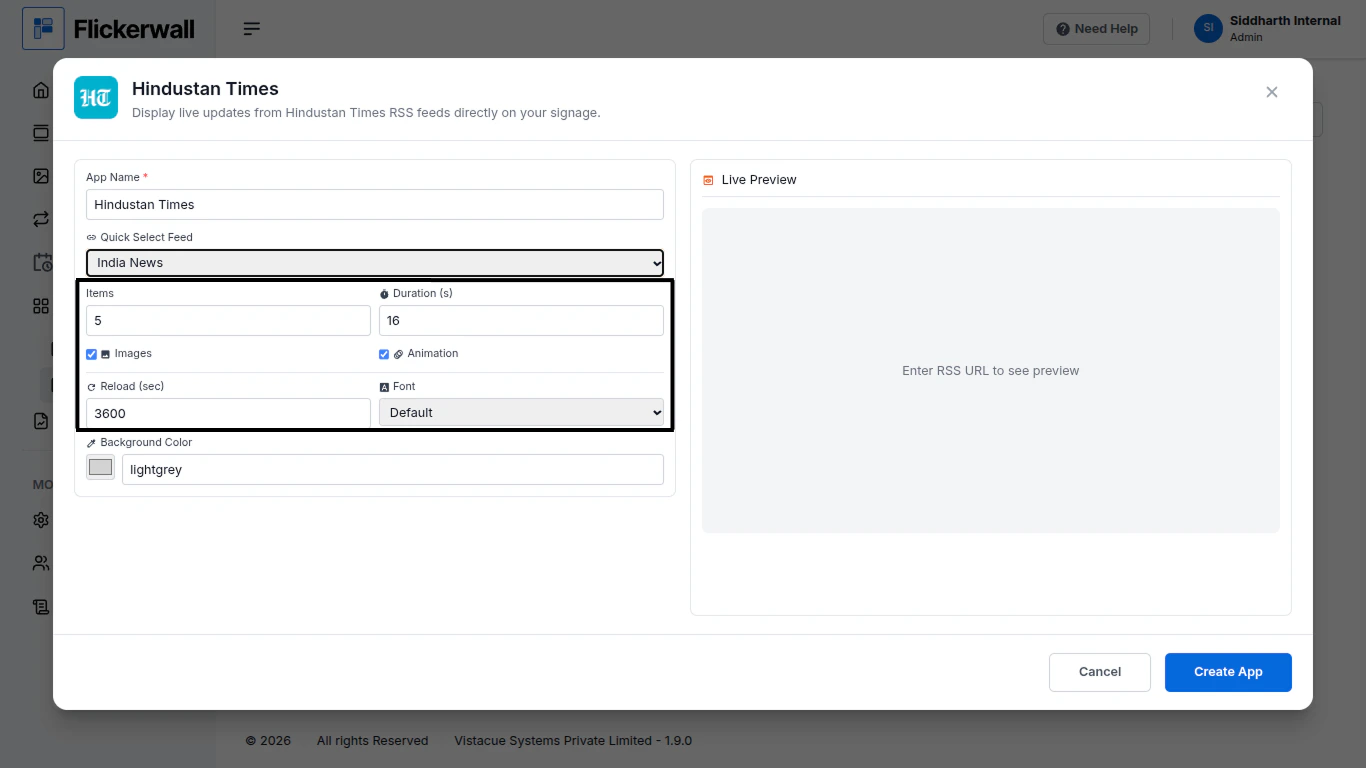
Step 6

Select How many **items** you wanna display and **Duration**

Choose if you want **images** and **Animations**

Lastly select **reload time** and **desired Font**
<img src="https://mintcdn.com/flickerwall-796545b9/OnEcb51Xm6XuZxse/images/apps-how-to-add-and-use-hindustan-times-app-from-flickerwall-store-image-6.png?fit=max&auto=format&n=OnEcb51Xm6XuZxse&q=85&s=ec8fe9d47aa03a00ee715c72e3911635" alt="" width="1366" height="768" data-path="images/apps-how-to-add-and-use-hindustan-times-app-from-flickerwall-store-image-6.png" />

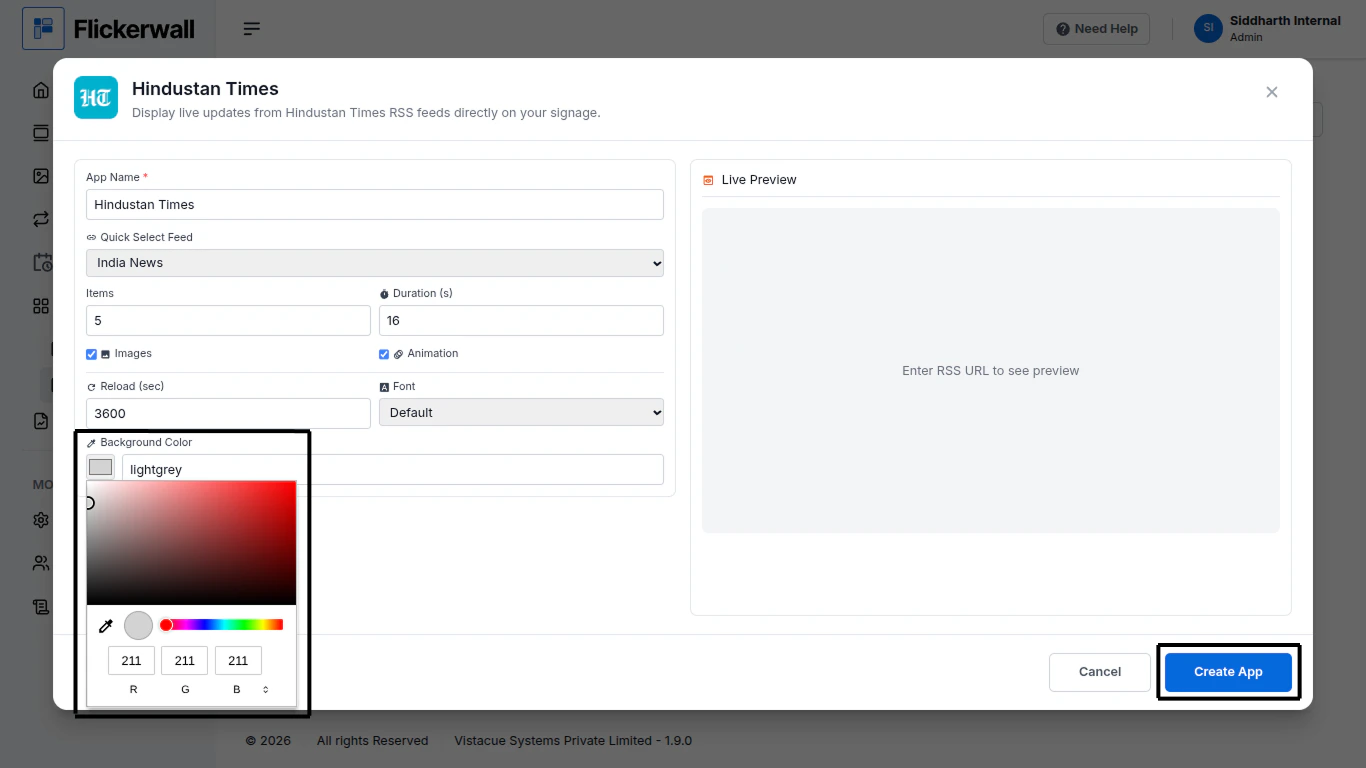
Step 7

Select the desired Background and

Click Create App
<img src="https://mintcdn.com/flickerwall-796545b9/OnEcb51Xm6XuZxse/images/apps-how-to-add-and-use-hindustan-times-app-from-flickerwall-store-image-7.png?fit=max&auto=format&n=OnEcb51Xm6XuZxse&q=85&s=5ac87feed1dffbce380cee3205bd42ab" alt="" width="1366" height="768" data-path="images/apps-how-to-add-and-use-hindustan-times-app-from-flickerwall-store-image-7.png" />

Congratulations: You’ve learnt how to create an app for Flickerwall
